

HP’s 2026 Tech Takes guide argues that most “USB device not recognised” errors on Windows 10 and Windows 11 should be attacked in a simple order: restart with the device unplugged, change ports, test another PC, then move into updates, drivers, power settings, and Fast Startup. That advice sounds almost too plain for a problem that can feel like Windows has lost part of its nervous system. But the deeper truth is that USB failures are rarely one thing; they sit at the intersection of device firmware, Windows driver matching, power policy, cables, hubs, storage state, and the increasingly confusing world of USB-C. The right fix is not the most dramatic one — it is the one that separates a dead device from a tired port, a missing driver from a sleeping hub, and a Windows quirk from a hardware failure.
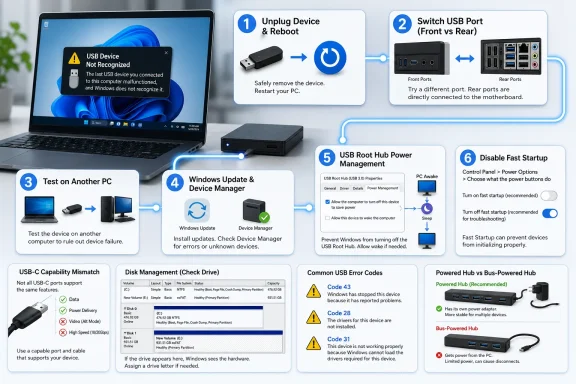
The HP Tech Takes Blog’s practical guidance starts where most good troubleshooting starts: remove variables before changing the system. If the USB device is not recognised, restart the computer with the USB device disconnected, then reconnect it only after Windows has come back cleanly. That matters because a restart gives Windows a fresh chance to enumerate the device rather than trying to recover from a half-failed connection state.
The second step is equally unglamorous: try a different USB port, ideally on the back of a desktop. Front-panel desktop ports depend on internal case wiring and headers, and they take more physical abuse from daily plugging and unplugging. Rear ports are usually mounted directly to the motherboard’s I/O area, which makes them the better first comparison point when you need to know whether Windows is the problem or the port is.
Then comes the test that too many users skip: plug the device into another computer. If a flash drive, phone, printer, dock, or external SSD fails on multiple PCs, Windows on the original machine is no longer the prime suspect. The device may be damaged, the cable may only carry power, or the accessory may need a manufacturer driver that Windows does not already have.
That ordering is the article’s real value. It resists the internet’s tendency to jump immediately into Device Manager surgery, registry panic, or driver-cleaner folklore. A USB recognition error can be a corrupted driver, but it can also be a bad cable, a bus-powered hub gasping for current, or a phone sitting in “Charging only” mode. The cheapest diagnostic move is to avoid assuming that the most complex layer is guilty.
That is why HP’s list of common causes spans both software and hardware. Driver issues include outdated, corrupted, or missing USB drivers. Power management settings can cut power to the USB port. Fast Startup, a Windows 10 and Windows 11 feature, can interfere with USB detection on some systems. A damaged USB port or cable can produce the same visible symptom as a driver problem. The device itself may be damaged or may need its own drivers. And some devices simply draw more power than the port can supply.
Microsoft’s own support guidance on Device Manager backs up the driver side of the story. Microsoft describes Device Manager as the place where a user can update a driver automatically, reinstall a device driver, or, where appropriate, use a driver downloaded from the manufacturer. Microsoft’s driver documentation also makes clear that Windows driver selection is a matching process rather than a magic “get the newest thing” button; Windows tries to choose an appropriate package based on device identity and driver ranking, and Windows Update may be involved in that process.
That distinction matters for IT staff and advanced users because “update the driver” is not a single action. It can mean letting Device Manager search automatically, checking Windows Update, installing a manufacturer package, uninstalling the device so Windows redetects it, or, in more stubborn cases, reinstalling the USB controllers. Each step answers a different question about where the chain is breaking.
That is why the restart should be done with the USB device disconnected. A clean boot without the problematic peripheral removes the failed device state from the first seconds of startup. When the device is reintroduced, Windows has a new enumeration event rather than a stale problem to inherit.
Trying a different port is not merely about convenience. A port can be electrically marginal, physically loose, or starved when a front-panel connector or hub sits between the device and the motherboard. If the device works in one port and not another, the failing port becomes the suspect — not the device, not the entire Windows installation, and not necessarily the driver stack.
Testing on another computer is the dividing line between local repair and replacement thinking. If the device fails everywhere, reinstalling USB controllers on the original PC is unlikely to resurrect it. If it works elsewhere, the original machine’s port, driver, update state, power settings, or Fast Startup behavior becomes the focus.
That sequence is also kinder to data. Users with an external drive full of important files should not begin by repeatedly uninstalling devices, reformatting disks, or forcing advanced repairs. First establish whether the enclosure, cable, port, and another computer can see the drive at all. Only then does it make sense to open Disk Management and look at drive letters or unallocated space.
The logic is straightforward: Windows updates often include driver improvements or compatibility changes, and USB problems can be caused by outdated or corrupted drivers. But this is not a promise that Windows Update will always have the newest or best package for every dock, phone, storage enclosure, or Thunderbolt accessory. Microsoft’s own guidance still points users to manufacturer drivers when Device Manager cannot find what is needed.
Device Manager is where the problem becomes visible. HP tells users to press Windows + X, select Device Manager, expand Universal Serial Bus controllers, and look for a device with a yellow exclamation mark. That mark is not decoration; it is Windows telling you there is a problem associated with that device entry.
The first repair is conservative: right-click the affected device, select Update driver, then choose Search automatically for drivers. If that fails, HP’s next step is to right-click the device, select Uninstall device, and restart the computer so Windows can reinstall the driver automatically on startup. Microsoft’s support page describes the same broad pattern: update automatically where possible, reinstall through Device Manager when needed, and use the manufacturer’s driver source when Windows cannot resolve it.
This is where admins should be wary of overpromising. Device Manager can fix a missing or stale driver. It cannot repair a broken connector, turn a charge-only cable into a data cable, make an underpowered port supply more current, or make a USB-C port support Thunderbolt when the hardware never did.
The path is specific. Open Device Manager, expand Universal Serial Bus controllers, right-click USB Root Hub, select Properties, go to the Power Management tab, and uncheck “Allow the computer to turn off this device to save power.” HP recommends repeating that for every USB Root Hub listed, then restarting and testing the device again.
Microsoft’s USB selective suspend documentation explains the underlying philosophy: Windows can suspend individual USB ports without shutting down the whole hub. That is good power engineering. But for troubleshooting, HP’s advice is pragmatic: if the device keeps disappearing, temporarily remove the power-saving behavior from the suspect hub and see whether stability returns.
This is particularly relevant for external drives, audio interfaces, webcams, USB Ethernet adapters, and bus-powered hubs. These devices are often expected to remain present and ready, not disappear because the laptop decided the port looked idle. The more a workflow depends on a device staying attached across sleep and wake, the more likely power policy belongs in the troubleshooting path.
There is a trade-off. Disabling power saving may increase battery drain on a laptop, and Microsoft generally designs these mechanisms for a reason. But troubleshooting is about isolating causes. If unchecking that box stops a drive or dock from vanishing, the user has learned something concrete about the failure mode.
The fix is again specific. Open the Windows search bar, type Control Panel, open Control Panel, go to Hardware and Sound, click Power Options, select Choose what the power buttons do, click Change settings that are currently unavailable, uncheck “Turn on fast startup,” save changes, restart, and test the device.
The reason this fix earns a place in a 2026 USB guide is that modern PCs blur the old distinction between off, sleep, hibernate, and restart. Microsoft’s startup and shutdown documentation describes the performance goals and hibernation-linked engineering behind faster on/off transitions. For users, the practical implication is simpler: a shutdown may preserve more system state than expected.
That can be a gift when everything is working and an irritant when a USB controller, hub, or device has fallen into a confused state. Disabling Fast Startup is not a universal cure. It is a targeted test for the pattern HP calls out: the USB problem appears after shutdown and restart rather than behaving consistently in every boot condition.
In help-desk terms, this is where the question changes. Instead of asking only “Does the device work?” ask “When does it fail?” If it fails after a normal shutdown but behaves after a cleaner restart or after Fast Startup is disabled, the issue is not just the device. It is the power-state path through which Windows is bringing the machine back.
This is the closest the standard Windows UI gets to telling the USB subsystem to start over. It can help when driver corruption affects more than one device or when the controller entries themselves appear to be in a bad state. It is not the first move because it is broader than most users need.
Microsoft’s Device Manager guidance supports the general reinstall-driver pattern: uninstall the device, restart Windows, and let Windows attempt to reinstall the driver. HP’s version applies that idea across the USB controller list. That can clear stale or corrupted USB entries, but it can also temporarily disconnect devices during the process, which is why it should be done deliberately and with work saved.
For desktop users with a wired USB keyboard and mouse, this step deserves caution. If every input device depends on the USB stack you are uninstalling, the process can become awkward. On a laptop, the built-in keyboard and touchpad may provide a fallback. On a desktop, it is worth having a plan before uninstalling controller entries indiscriminately.
The broader lesson is that “reinstall USB controllers” is not a magic spell for every unknown device. It is a system-level reset for Windows’ side of the USB conversation. If the device still fails after this, after another port, after another cable, and after another computer, hardware failure becomes far more likely.
The first move is to unlock the phone and check for a “USB mode” notification. On many phones, the default mode after connection is charging rather than file transfer. HP recommends switching from “Charging only” to File transfer (MTP) or Photo transfer (PTP), depending on what the user needs.
Cable quality matters here more than users expect. A cable that charges a phone may not carry data. That is not a Windows driver scandal; it is a cable capability problem disguised as a PC problem. If Windows sees nothing useful, testing with a known data-capable cable is often faster than hunting through driver menus.
For Android, HP notes that USB Debugging in Developer Options can be enabled for advanced connections. For iPhone, the user must tap Trust when prompted on the phone. Those prompts are security boundaries, and Windows cannot politely bypass them because the user is impatient.
The practical consequence for support teams is that “phone not recognised” should not immediately be routed as a Windows endpoint issue. Ask whether the phone is unlocked, whether it is in File transfer (MTP) or Photo transfer (PTP), whether the cable supports data, and whether the phone has displayed a Trust or USB mode prompt. Only after that does Device Manager become the interesting part of the story.
That distinction is critical. A missing File Explorer entry does not always mean the USB device was not recognised. It can mean the disk has no assigned letter, has not been partitioned, or is in a state Windows will not mount automatically. Disk Management is where the storage layer tells its side of the story.
If the drive appears without a drive letter, assigning one may resolve the user-visible problem. If it appears as Unallocated, the situation is more serious, especially if the drive previously contained data. Users should avoid formatting or initializing a disk with important files unless they understand the data-loss implications.
Power also returns as a suspect. HP notes that externally powered drives may need their own power adapter connected, and larger drives may not get enough power from a USB-A port. Trying another port or using the included Y-cable can be the difference between a drive that spins up cleanly and one that repeatedly drops during enumeration.
This is where the old “just plug it in” expectation collides with physics. A storage device can draw enough power to light an LED but not enough to operate reliably. Windows may then report the device poorly, intermittently, or not at all. The right question is not only whether the PC can see the drive; it is whether the drive has enough power to behave like a drive.
HP’s USB-C and Thunderbolt section is blunt: not all USB-C ports support video, charging, or Thunderbolt. A standard USB-C cable does not deliver Thunderbolt speeds. Thunderbolt drivers may need to be updated separately if the device manufacturer provides them. For high-power devices, the port must also provide enough wattage.
Microsoft’s USB-C support materials say much the same thing from the platform side. Windows can report problems when a connected USB-C device requires features the cable or port does not support, and Microsoft advises users to make sure a Thunderbolt device is connected to a USB-C port that supports Thunderbolt. Microsoft’s hardware guidance also emphasizes that systems with ports of different USB capabilities should make those differences clear to customers.
The trouble is that real PCs are often less clear than the documentation. Two USB-C ports on the same laptop may not have the same capabilities. One may support display output while another does not. One may support higher-speed data, another may be meant mostly for charging or basic peripherals. The connector shape tells you almost nothing by itself.
That is why HP’s advice to confirm the port supports the device type is not pedantry. A USB-C monitor, Thunderbolt dock, external GPU enclosure, high-speed storage device, or charger may require capabilities that a lookalike cable and port do not provide. If the wrong cable is in the middle, Windows may be accused of failing to recognise a device it was never given a workable path to use.
The support implication is uncomfortable but necessary: “USB-C” is not a complete specification in a ticket. Ask what the device is, what protocol it needs, what cable is being used, and which port on the PC is involved. Otherwise, troubleshooting turns into swapping identical-looking parts and hoping one is secretly better.
A bus-powered hub is limited by what it can draw from the host port and share downstream. Add a storage drive, webcam, audio interface, or phone, and the hub can become a power budget argument with plastic around it. The symptom may still be “device not recognised,” but the cause is not necessarily Windows.
HP’s diagnostic step is to connect the device directly to the computer to confirm whether the hub is the problem. This is the hub equivalent of testing another port. If the device works directly but fails through the hub, the hub, its power source, or its driver support becomes the focus.
Manufacturer drivers matter for some hubs and docks. HP advises updating the hub’s drivers if the manufacturer provides them. That is especially relevant for more complex docking stations, where USB, display, Ethernet, audio, charging, and firmware behavior can all live behind one cable.
For office setups, the lesson is even broader. A docking station that was reliable with one laptop model may not behave identically with another. A hub that is fine for a keyboard and mouse may not be fine for external storage and charging. The connector may fit, but the power and protocol budget still has to add up.
Code 43 indicates that Windows has stopped the device because it reported a problem. HP’s suggested response is to update the driver, reinstall the driver, and test the device on another computer to rule out hardware failure. That sequence is important because Code 43 can sit at the border between device-side failure and Windows-side handling.
Code 28 means the device’s drivers are not installed. That points more directly toward Device Manager updates or a manufacturer driver. If Windows does not know how to speak to the hardware, the device may be physically fine and still unusable.
Code 19 means the registry has a corrupt entry for the device. HP recommends uninstalling and reinstalling the device and running a system file check with
Code 31 means Windows cannot load the driver for the device. HP points users toward reinstalling the driver, running Windows Update, and restoring the system to a previous restore point. That is a more Windows-centric code than a simple bad-port test, but it still does not eliminate hardware until the device is tested elsewhere.
The editorial point is that codes should shape the next move. Code 28 says “driver missing.” Code 43 says “the device reported trouble or Windows stopped it after trouble.” Code 19 says “Windows’ device records may be corrupt.” Code 31 says “the driver cannot be loaded.” Treating all of them as “USB broken” wastes the information Windows is providing.
Use quality cables. Cheap or damaged cables are a frequent source of USB problems, and the modern cable drawer is full of lookalikes with wildly different capabilities. A cable can support charging but not data, data but not high speed, or basic USB-C but not Thunderbolt. The cheapest part of the setup can become the longest troubleshooting session.
Avoid overloading USB hubs. If multiple high-power devices are part of the workflow, use a powered USB hub rather than expecting a small bus-powered hub to feed everything. This is not just about performance. It is about whether devices remain present long enough for Windows to enumerate and use them reliably.
Keep Windows updated. HP’s guide notes that USB driver improvements are included in regular Windows updates, and Microsoft’s own support flow puts update checks squarely in the repair path. Skipping updates can leave a machine with older drivers or missing fixes, even if the immediate symptom looks like a bad accessory.
Finally, learn the difference between USB 2.0 and USB 3.x in practical terms. HP characterizes USB 3.x ports as faster and able to provide more power, usually identified by a blue insert. USB 2.0 ports are slower but compatible with most USB devices. That compatibility does not mean every port is equally suitable for every modern external drive, dock, or high-power device.
The same logic applies to ports. If no device works in one specific port, the port feels loose or wobbly, and other ports work normally, the suspect is physical. A laptop with a damaged USB port may need professional repair, or the practical workaround may be a USB hub connected through a working port.
The tricky cases are intermittent. A cable that works only when bent a certain way, a drive that appears after three tries, a hub that fails only when several devices are attached, or a USB-C dock that behaves differently across ports can all make Windows look inconsistent. But intermittent hardware and marginal power often create intermittent software symptoms.
That is why the method matters more than any single fix. Change one variable at a time: port, cable, device, computer, hub, power adapter, Windows update state, driver state, power setting, Fast Startup. The goal is not to perform every fix; the goal is to find the smallest change that explains the failure.
The HP guide succeeds because it keeps the repair order grounded. It does not pretend that every unknown USB device needs a registry edit. It does not pretend that every external drive needs formatting. It does not pretend that every USB-C cable with the same shape has the same capability. It starts with the obvious because the obvious is often where the fault is.
For Windows users and IT pros, the most concrete lessons are these:
 The Most Boring Fix Is Usually the Correct One
The HP Tech Takes Blog’s practical guidance starts where most good troubleshooting starts: remove variables before changing the system. If the USB device is not recognised, restart the computer with the USB device disconnected, then reconnect it only after Windows has come back cleanly. That matters because a restart gives Windows a fresh chance to enumerate the device rather than trying to recover from a half-failed connection state.The second step is equally unglamorous: try a different USB port, ideally on the back of a desktop. Front-panel desktop ports depend on internal case wiring and headers, and they take more physical abuse from daily plugging and unplugging. Rear ports are usually mounted directly to the motherboard’s I/O area, which makes them the better first comparison point when you need to know whether Windows is the problem or the port is.
Then comes the test that too many users skip: plug the device into another computer. If a flash drive, phone, printer, dock, or external SSD fails on multiple PCs, Windows on the original machine is no longer the prime suspect. The device may be damaged, the cable may only carry power, or the accessory may need a manufacturer driver that Windows does not already have.
That ordering is the article’s real value. It resists the internet’s tendency to jump immediately into Device Manager surgery, registry panic, or driver-cleaner folklore. A USB recognition error can be a corrupted driver, but it can also be a bad cable, a bus-powered hub gasping for current, or a phone sitting in “Charging only” mode. The cheapest diagnostic move is to avoid assuming that the most complex layer is guilty.
Windows Is Not Just “Seeing” USB — It Is Negotiating With It
The phrase “USB Device Not Recognised” makes the failure sound binary, as if the port is either awake or dead. In practice, Windows has usually detected something on the bus but failed to communicate with it properly. The device has to identify itself, the controller has to present it correctly, Windows has to match or load an appropriate driver, and the port has to supply enough power for the device to remain stable.That is why HP’s list of common causes spans both software and hardware. Driver issues include outdated, corrupted, or missing USB drivers. Power management settings can cut power to the USB port. Fast Startup, a Windows 10 and Windows 11 feature, can interfere with USB detection on some systems. A damaged USB port or cable can produce the same visible symptom as a driver problem. The device itself may be damaged or may need its own drivers. And some devices simply draw more power than the port can supply.
Microsoft’s own support guidance on Device Manager backs up the driver side of the story. Microsoft describes Device Manager as the place where a user can update a driver automatically, reinstall a device driver, or, where appropriate, use a driver downloaded from the manufacturer. Microsoft’s driver documentation also makes clear that Windows driver selection is a matching process rather than a magic “get the newest thing” button; Windows tries to choose an appropriate package based on device identity and driver ranking, and Windows Update may be involved in that process.
That distinction matters for IT staff and advanced users because “update the driver” is not a single action. It can mean letting Device Manager search automatically, checking Windows Update, installing a manufacturer package, uninstalling the device so Windows redetects it, or, in more stubborn cases, reinstalling the USB controllers. Each step answers a different question about where the chain is breaking.
The Six-Step Order Is a Triage Model, Not a Ritual
HP’s six recommended fixes are best read as a triage ladder. The first three — restart, change ports, and test another computer — are designed to classify the failure. The last three — update Windows and drivers, change USB Root Hub power settings, and disable Fast Startup — are designed to repair Windows-side conditions once hardware basics have been ruled out.That is why the restart should be done with the USB device disconnected. A clean boot without the problematic peripheral removes the failed device state from the first seconds of startup. When the device is reintroduced, Windows has a new enumeration event rather than a stale problem to inherit.
Trying a different port is not merely about convenience. A port can be electrically marginal, physically loose, or starved when a front-panel connector or hub sits between the device and the motherboard. If the device works in one port and not another, the failing port becomes the suspect — not the device, not the entire Windows installation, and not necessarily the driver stack.
Testing on another computer is the dividing line between local repair and replacement thinking. If the device fails everywhere, reinstalling USB controllers on the original PC is unlikely to resurrect it. If it works elsewhere, the original machine’s port, driver, update state, power settings, or Fast Startup behavior becomes the focus.
That sequence is also kinder to data. Users with an external drive full of important files should not begin by repeatedly uninstalling devices, reformatting disks, or forcing advanced repairs. First establish whether the enclosure, cable, port, and another computer can see the drive at all. Only then does it make sense to open Disk Management and look at drive letters or unallocated space.
Windows Update and Device Manager Are the Sensible Middle Ground
Once the easy tests fail, HP points users toward Windows Update and Device Manager. On Windows 10, the update path is Settings > Update & Security > Windows Update > Check for updates. On Windows 11, it is Settings > Windows Update in the left panel > Check for updates. Microsoft’s support documentation similarly treats Windows Update as the normal place to retry update checks after troubleshooting.The logic is straightforward: Windows updates often include driver improvements or compatibility changes, and USB problems can be caused by outdated or corrupted drivers. But this is not a promise that Windows Update will always have the newest or best package for every dock, phone, storage enclosure, or Thunderbolt accessory. Microsoft’s own guidance still points users to manufacturer drivers when Device Manager cannot find what is needed.
Device Manager is where the problem becomes visible. HP tells users to press Windows + X, select Device Manager, expand Universal Serial Bus controllers, and look for a device with a yellow exclamation mark. That mark is not decoration; it is Windows telling you there is a problem associated with that device entry.
The first repair is conservative: right-click the affected device, select Update driver, then choose Search automatically for drivers. If that fails, HP’s next step is to right-click the device, select Uninstall device, and restart the computer so Windows can reinstall the driver automatically on startup. Microsoft’s support page describes the same broad pattern: update automatically where possible, reinstall through Device Manager when needed, and use the manufacturer’s driver source when Windows cannot resolve it.
| Area | Windows 10 path | Windows 11 path | Shared USB repair step | What it proves |
|---|---|---|---|---|
| Windows Update | Settings > Update & Security > Windows Update > Check for updates | Settings > Windows Update in the left panel > Check for updates | Install pending updates and restart | Whether Windows already has a broader fix available |
| Device Manager | Windows + X > Device Manager | Windows + X > Device Manager | Expand Universal Serial Bus controllers, then update or uninstall the affected device | Whether the fault is tied to a visible USB driver/device entry |
| Fast Startup | Control Panel > Hardware and Sound > Power Options | Control Panel > Hardware and Sound > Power Options | Uncheck Turn on fast startup | Whether a hybrid shutdown state is interfering with detection |
Power Management Is a Feature Until It Looks Like a Failure
HP’s fourth method goes after one of the most plausible Windows-side culprits: USB Root Hub power management. Windows can turn off USB ports to save power, a behavior that is especially relevant on laptops. That policy is useful until it strands a peripheral that does not wake up cleanly or drops off the bus after a sleep, shutdown, or idle period.The path is specific. Open Device Manager, expand Universal Serial Bus controllers, right-click USB Root Hub, select Properties, go to the Power Management tab, and uncheck “Allow the computer to turn off this device to save power.” HP recommends repeating that for every USB Root Hub listed, then restarting and testing the device again.
Microsoft’s USB selective suspend documentation explains the underlying philosophy: Windows can suspend individual USB ports without shutting down the whole hub. That is good power engineering. But for troubleshooting, HP’s advice is pragmatic: if the device keeps disappearing, temporarily remove the power-saving behavior from the suspect hub and see whether stability returns.
This is particularly relevant for external drives, audio interfaces, webcams, USB Ethernet adapters, and bus-powered hubs. These devices are often expected to remain present and ready, not disappear because the laptop decided the port looked idle. The more a workflow depends on a device staying attached across sleep and wake, the more likely power policy belongs in the troubleshooting path.
There is a trade-off. Disabling power saving may increase battery drain on a laptop, and Microsoft generally designs these mechanisms for a reason. But troubleshooting is about isolating causes. If unchecking that box stops a drive or dock from vanishing, the user has learned something concrete about the failure mode.
Fast Startup Is the Tiny Convenience That Can Preserve a Bad State
Fast Startup is a classic Windows compromise: faster boot times by making shutdown behave less like a cold start than many users assume. HP’s guide is careful rather than alarmist. Fast Startup speeds up boot times but can interfere with USB detection on some systems, especially when the device fails after shutdown and restart.The fix is again specific. Open the Windows search bar, type Control Panel, open Control Panel, go to Hardware and Sound, click Power Options, select Choose what the power buttons do, click Change settings that are currently unavailable, uncheck “Turn on fast startup,” save changes, restart, and test the device.
The reason this fix earns a place in a 2026 USB guide is that modern PCs blur the old distinction between off, sleep, hibernate, and restart. Microsoft’s startup and shutdown documentation describes the performance goals and hibernation-linked engineering behind faster on/off transitions. For users, the practical implication is simpler: a shutdown may preserve more system state than expected.
That can be a gift when everything is working and an irritant when a USB controller, hub, or device has fallen into a confused state. Disabling Fast Startup is not a universal cure. It is a targeted test for the pattern HP calls out: the USB problem appears after shutdown and restart rather than behaving consistently in every boot condition.
In help-desk terms, this is where the question changes. Instead of asking only “Does the device work?” ask “When does it fail?” If it fails after a normal shutdown but behaves after a cleaner restart or after Fast Startup is disabled, the issue is not just the device. It is the power-state path through which Windows is bringing the machine back.
Reinstalling USB Controllers Is the Reset Button Windows Still Allows
HP reserves the most sweeping repair for last: reinstall USB controllers. In Device Manager, expand Universal Serial Bus controllers, right-click each entry, select Uninstall device, work from top to bottom, then restart so Windows reinstalls the USB controllers automatically. The guide correctly labels this as more advanced.This is the closest the standard Windows UI gets to telling the USB subsystem to start over. It can help when driver corruption affects more than one device or when the controller entries themselves appear to be in a bad state. It is not the first move because it is broader than most users need.
Microsoft’s Device Manager guidance supports the general reinstall-driver pattern: uninstall the device, restart Windows, and let Windows attempt to reinstall the driver. HP’s version applies that idea across the USB controller list. That can clear stale or corrupted USB entries, but it can also temporarily disconnect devices during the process, which is why it should be done deliberately and with work saved.
For desktop users with a wired USB keyboard and mouse, this step deserves caution. If every input device depends on the USB stack you are uninstalling, the process can become awkward. On a laptop, the built-in keyboard and touchpad may provide a fallback. On a desktop, it is worth having a plan before uninstalling controller entries indiscriminately.
The broader lesson is that “reinstall USB controllers” is not a magic spell for every unknown device. It is a system-level reset for Windows’ side of the USB conversation. If the device still fails after this, after another port, after another cable, and after another computer, hardware failure becomes far more likely.
Phones Fail Differently Because They Are Not Just USB Drives
Phone USB failures are a category of their own. HP calls out the most common mistake: the phone may be locked or set to charge only. A Windows PC can be perfectly healthy and still fail to show useful phone storage if the phone has not authorized data access.The first move is to unlock the phone and check for a “USB mode” notification. On many phones, the default mode after connection is charging rather than file transfer. HP recommends switching from “Charging only” to File transfer (MTP) or Photo transfer (PTP), depending on what the user needs.
Cable quality matters here more than users expect. A cable that charges a phone may not carry data. That is not a Windows driver scandal; it is a cable capability problem disguised as a PC problem. If Windows sees nothing useful, testing with a known data-capable cable is often faster than hunting through driver menus.
For Android, HP notes that USB Debugging in Developer Options can be enabled for advanced connections. For iPhone, the user must tap Trust when prompted on the phone. Those prompts are security boundaries, and Windows cannot politely bypass them because the user is impatient.
The practical consequence for support teams is that “phone not recognised” should not immediately be routed as a Windows endpoint issue. Ask whether the phone is unlocked, whether it is in File transfer (MTP) or Photo transfer (PTP), whether the cable supports data, and whether the phone has displayed a Trust or USB mode prompt. Only after that does Device Manager become the interesting part of the story.
External Drives Add Disk Management to the Investigation
External SSDs and HDDs create a second kind of ambiguity: Windows may detect the hardware but not present a drive letter in File Explorer. HP’s guide tells users to open Disk Management with Windows + X, then Disk Management, and look for the drive in the list. It may appear as Unallocated or without a drive letter.That distinction is critical. A missing File Explorer entry does not always mean the USB device was not recognised. It can mean the disk has no assigned letter, has not been partitioned, or is in a state Windows will not mount automatically. Disk Management is where the storage layer tells its side of the story.
If the drive appears without a drive letter, assigning one may resolve the user-visible problem. If it appears as Unallocated, the situation is more serious, especially if the drive previously contained data. Users should avoid formatting or initializing a disk with important files unless they understand the data-loss implications.
Power also returns as a suspect. HP notes that externally powered drives may need their own power adapter connected, and larger drives may not get enough power from a USB-A port. Trying another port or using the included Y-cable can be the difference between a drive that spins up cleanly and one that repeatedly drops during enumeration.
This is where the old “just plug it in” expectation collides with physics. A storage device can draw enough power to light an LED but not enough to operate reliably. Windows may then report the device poorly, intermittently, or not at all. The right question is not only whether the PC can see the drive; it is whether the drive has enough power to behave like a drive.
USB-C Made the Connector Reversible and the Troubleshooting Worse
USB-C should have simplified the world. One small reversible connector, one cable, one port. Instead, it made capability a hidden variable.HP’s USB-C and Thunderbolt section is blunt: not all USB-C ports support video, charging, or Thunderbolt. A standard USB-C cable does not deliver Thunderbolt speeds. Thunderbolt drivers may need to be updated separately if the device manufacturer provides them. For high-power devices, the port must also provide enough wattage.
Microsoft’s USB-C support materials say much the same thing from the platform side. Windows can report problems when a connected USB-C device requires features the cable or port does not support, and Microsoft advises users to make sure a Thunderbolt device is connected to a USB-C port that supports Thunderbolt. Microsoft’s hardware guidance also emphasizes that systems with ports of different USB capabilities should make those differences clear to customers.
The trouble is that real PCs are often less clear than the documentation. Two USB-C ports on the same laptop may not have the same capabilities. One may support display output while another does not. One may support higher-speed data, another may be meant mostly for charging or basic peripherals. The connector shape tells you almost nothing by itself.
That is why HP’s advice to confirm the port supports the device type is not pedantry. A USB-C monitor, Thunderbolt dock, external GPU enclosure, high-speed storage device, or charger may require capabilities that a lookalike cable and port do not provide. If the wrong cable is in the middle, Windows may be accused of failing to recognise a device it was never given a workable path to use.
The support implication is uncomfortable but necessary: “USB-C” is not a complete specification in a ticket. Ask what the device is, what protocol it needs, what cable is being used, and which port on the PC is involved. Otherwise, troubleshooting turns into swapping identical-looking parts and hoping one is secretly better.
Hubs Are Where Power Problems Pretend to Be Driver Problems
USB hubs deserve suspicion because they multiply both convenience and failure modes. HP’s recommendation is direct: powered USB hubs work better than bus-powered hubs for high-power devices. Some unpowered hubs cannot supply enough power to multiple devices simultaneously.A bus-powered hub is limited by what it can draw from the host port and share downstream. Add a storage drive, webcam, audio interface, or phone, and the hub can become a power budget argument with plastic around it. The symptom may still be “device not recognised,” but the cause is not necessarily Windows.
HP’s diagnostic step is to connect the device directly to the computer to confirm whether the hub is the problem. This is the hub equivalent of testing another port. If the device works directly but fails through the hub, the hub, its power source, or its driver support becomes the focus.
Manufacturer drivers matter for some hubs and docks. HP advises updating the hub’s drivers if the manufacturer provides them. That is especially relevant for more complex docking stations, where USB, display, Ethernet, audio, charging, and firmware behavior can all live behind one cable.
For office setups, the lesson is even broader. A docking station that was reliable with one laptop model may not behave identically with another. A hub that is fine for a keyboard and mouse may not be fine for external storage and charging. The connector may fit, but the power and protocol budget still has to add up.
Error Codes Are Not Gibberish, but They Are Not Diagnoses Either
Device Manager error codes can make a routine USB problem feel like a crash dump. HP’s guide usefully translates the common ones without pretending they solve the case by themselves. The codes are clues, not verdicts.Code 43 indicates that Windows has stopped the device because it reported a problem. HP’s suggested response is to update the driver, reinstall the driver, and test the device on another computer to rule out hardware failure. That sequence is important because Code 43 can sit at the border between device-side failure and Windows-side handling.
Code 28 means the device’s drivers are not installed. That points more directly toward Device Manager updates or a manufacturer driver. If Windows does not know how to speak to the hardware, the device may be physically fine and still unusable.
Code 19 means the registry has a corrupt entry for the device. HP recommends uninstalling and reinstalling the device and running a system file check with
sfc /scannow in Command Prompt. Microsoft’s Windows Update troubleshooting documentation also includes sfc /scannow among advanced command-line repair steps, which is exactly where it belongs: useful, but not the first thing a casual user should run for a loose cable.Code 31 means Windows cannot load the driver for the device. HP points users toward reinstalling the driver, running Windows Update, and restoring the system to a previous restore point. That is a more Windows-centric code than a simple bad-port test, but it still does not eliminate hardware until the device is tested elsewhere.
The editorial point is that codes should shape the next move. Code 28 says “driver missing.” Code 43 says “the device reported trouble or Windows stopped it after trouble.” Code 19 says “Windows’ device records may be corrupt.” Code 31 says “the driver cannot be loaded.” Treating all of them as “USB broken” wastes the information Windows is providing.
Action checklist for admins
- Ask the user whether the device works in another port and on another computer before changing drivers.
- For desktops, test a rear USB port before assuming a Windows fault.
- Check Windows Update using the correct Windows 10 or Windows 11 path, then restart.
- In Device Manager, expand Universal Serial Bus controllers and look for a yellow exclamation mark.
- Update the affected device driver first; uninstall and restart only if the update path fails.
- For recurring laptop issues, review USB Root Hub Power Management and the Fast Startup setting.
- For external drives, check Disk Management before concluding that Windows did not detect the hardware.
- For USB-C and Thunderbolt tickets, record the exact port, cable, device type, and required capability.
Prevention Is Mostly About Not Abusing the Weak Links
HP’s prevention advice is refreshingly mechanical. Always eject USB devices safely. Click the USB icon in the system tray, select Eject next to the device, and wait for the confirmation message before unplugging. This is especially important for storage drives, where removing a device mid-write can corrupt files and create future recognition problems.Use quality cables. Cheap or damaged cables are a frequent source of USB problems, and the modern cable drawer is full of lookalikes with wildly different capabilities. A cable can support charging but not data, data but not high speed, or basic USB-C but not Thunderbolt. The cheapest part of the setup can become the longest troubleshooting session.
Avoid overloading USB hubs. If multiple high-power devices are part of the workflow, use a powered USB hub rather than expecting a small bus-powered hub to feed everything. This is not just about performance. It is about whether devices remain present long enough for Windows to enumerate and use them reliably.
Keep Windows updated. HP’s guide notes that USB driver improvements are included in regular Windows updates, and Microsoft’s own support flow puts update checks squarely in the repair path. Skipping updates can leave a machine with older drivers or missing fixes, even if the immediate symptom looks like a bad accessory.
Finally, learn the difference between USB 2.0 and USB 3.x in practical terms. HP characterizes USB 3.x ports as faster and able to provide more power, usually identified by a blue insert. USB 2.0 ports are slower but compatible with most USB devices. That compatibility does not mean every port is equally suitable for every modern external drive, dock, or high-power device.
When to Stop Troubleshooting and Suspect Damage
There is a point where persistence becomes denial. HP’s guide gives clear hardware warning signs: the device is not recognised on any computer, there is visible damage to the connector or cable, the device feels warm without being plugged into power, or a spinning external drive makes unusual sounds. Those are not driver symptoms to be massaged away indefinitely.The same logic applies to ports. If no device works in one specific port, the port feels loose or wobbly, and other ports work normally, the suspect is physical. A laptop with a damaged USB port may need professional repair, or the practical workaround may be a USB hub connected through a working port.
The tricky cases are intermittent. A cable that works only when bent a certain way, a drive that appears after three tries, a hub that fails only when several devices are attached, or a USB-C dock that behaves differently across ports can all make Windows look inconsistent. But intermittent hardware and marginal power often create intermittent software symptoms.
That is why the method matters more than any single fix. Change one variable at a time: port, cable, device, computer, hub, power adapter, Windows update state, driver state, power setting, Fast Startup. The goal is not to perform every fix; the goal is to find the smallest change that explains the failure.
The Practical Map for 2026 Windows USB Troubleshooting
By 2026, the USB problem has become less about whether Windows supports USB and more about whether the whole chain is honest about what it can do. Windows 10 and Windows 11 can handle ordinary USB devices well, but they are also sitting behind aggressive power management, hybrid startup behavior, automatic driver matching, manufacturer-specific docks, and USB-C ports whose capabilities vary by system.The HP guide succeeds because it keeps the repair order grounded. It does not pretend that every unknown USB device needs a registry edit. It does not pretend that every external drive needs formatting. It does not pretend that every USB-C cable with the same shape has the same capability. It starts with the obvious because the obvious is often where the fault is.
For Windows users and IT pros, the most concrete lessons are these:
- Start with restart, port change, cable change, and another-computer testing before touching advanced settings.
- Use Windows Update and Device Manager as the normal middle of the repair path, not the first or last resort.
- Treat USB Root Hub power management and Fast Startup as serious suspects when failures follow sleep, shutdown, or restart patterns.
- Check Disk Management for external SSDs and HDDs before assuming the drive is invisible to Windows.
- Treat USB-C and Thunderbolt as capability questions, not just connector questions.
- Stop troubleshooting when cross-machine testing and physical symptoms point clearly to damaged hardware.
References
- Primary source: HP
Published: 2026-07-08T23:22:07.885065
Loading…
www.hp.com - Official source: support.microsoft.com
Loading…
support.microsoft.com - Official source: learn.microsoft.com
Loading…
learn.microsoft.com - Related coverage: pcworld.com
Loading…
www.pcworld.com - Official source: answers.microsoft.com
Loading…
answers.microsoft.com - Related coverage: techyorker.com
Loading…
techyorker.com
- Related coverage: support.cleverit.tech
Loading…
support.cleverit.tech - Related coverage: techmart.pk
Loading…
techmart.pk - Related coverage: windowscentral.com
Loading…
www.windowscentral.com - Related coverage: tomshardware.com
Microsoft rushes out emergency Windows 11 patch after botched update breaks Recovery — restores USB keyboard and mouse input inside WinRE for Windows 11 versions 24H2 and 25H2 | Tom's Hardware
KB5070773 fixes a WinRE bug introduced by October’s cumulative update.www.tomshardware.com - Related coverage: itpro.com
Microsoft issues fix for Windows 11 update that bricked mouse and keyboard controls in recovery environment – here's what you need to know | IT Pro
Yet another Windows 11 update has caused chaos for userswww.itpro.com - Related coverage: techradar.com
Loading…
www.techradar.com - Related coverage: usconverters.com
Loading…
www.usconverters.com