

Microsoft’s latest Windows security story is not really about a cheap USB fingerprint reader sold as a Windows 10-and-above plug-and-play accessory; it is about how a small capacitive scanner, advertised with Windows Hello support, 508 DPI capture, and 1:1 or 1:N recognition, exposes the gap between consumer convenience and enterprise-grade authentication. The device pitch is simple: plug it into a PC, enroll a finger, stop typing passwords. The more interesting question is whether that promise still makes sense in 2026, after Windows 10’s mainstream support clock has already run out for most users and Windows 11 has become Microsoft’s default security baseline.
The answer is yes, but with an asterisk big enough for every sysadmin to see. A USB fingerprint reader can make a Windows PC easier and often safer to use, especially when it nudges people away from reused passwords and lazy local-account habits. But it is not a magic security wand, and the cheaper the hardware, the more the buyer has to understand where Windows Hello ends and the vendor’s sensor, driver, firmware, and enrollment model begin.
There is a reason USB fingerprint readers keep resurfacing in the Windows accessory market. A desktop tower under a desk, a repurposed office PC, or an older laptop may be perfectly usable but lack the biometric hardware that newer machines ship with by default. A tiny USB-A dongle promises to close that gap without replacing the machine, reinstalling Windows, or training users on a new authentication scheme.
That is a powerful pitch because the daily friction of security is real. Password managers, MFA prompts, long PINs, BitLocker recovery keys, and conditional access policies all make sense to IT people, but end users experience them as interruptions. A fingerprint reader changes the emotional transaction: security becomes a tap rather than a chore.
The product description leans into exactly that appeal. It says the reader works with Windows 10 and above, supports 32-bit and 64-bit systems, uses capacitive scanning, installs automatically, and can be used for login, file encryption, or apps that support biometrics. The small print is not legalese; it is the real story.
A fingerprint reader is only as useful as the biometric framework it joins. On modern Windows, that usually means Windows Hello, the operating system’s built-in system for signing in with a PIN, face, or fingerprint. The scanner is the input device; Windows Hello is the security architecture around it.
That distinction matters. A password is portable by design: if an attacker learns it, they can try it anywhere the account works. A Windows Hello gesture is supposed to be local: the fingerprint or PIN unlocks access to a key that belongs to the device. The user’s finger does not become the password; it becomes the local proof that the right person is present at the right machine.
For consumers, this mostly translates into faster sign-in and fewer typed secrets. For organizations using Windows Hello for Business, the argument is bigger: reduce dependence on reusable passwords, bind authentication to managed hardware, and let policy decide when biometrics are acceptable. That is why the same $20-to-$60 class of accessory can be either a convenience gadget or a component in a broader identity strategy.
But the consumer marketplace tends to flatten all of that into “password-free.” That phrase is useful marketing and dangerous shorthand. Password-free does not mean risk-free; it means the password has been displaced from the daily login flow, ideally by something harder to phish and harder to replay.
For people enrolled in Microsoft’s Extended Security Updates program, Windows 10 can still receive critical and important security updates for a limited period. For unmanaged machines outside that path, adding a fingerprint reader to an unsupported OS is like putting a better lock on a door with aging hinges. It may improve one part of the security posture, but it does not solve the platform risk underneath.
This is the uncomfortable truth for the long tail of Windows PCs. Plenty of systems that run Windows 10 well do not qualify cleanly for Windows 11, often because of CPU, TPM, Secure Boot, or firmware-era requirements. Those machines are also exactly the kind of hardware that might lack built-in biometric sensors and look like good candidates for a USB fingerprint upgrade.
The right advice is not “don’t buy it.” It is “don’t confuse it with an operating system support plan.” If the PC is staying on Windows 10, the bigger decision is whether it is enrolled in ESU, isolated from sensitive work, or scheduled for replacement. The fingerprint reader can improve sign-in hygiene, but it cannot patch the kernel.
That does not automatically make every capacitive USB dongle enterprise-grade. Sensor quality, firmware handling, anti-spoofing features, template storage, driver provenance, and Windows Biometric Framework compatibility all matter. A 508 DPI figure sounds precise because it is a familiar metric in fingerprint capture, but resolution is only one ingredient in a trustworthy authentication system.
This is where commodity listings become frustrating. They often provide just enough technical language to sound serious, but not enough to prove much. “1:1 recognition” generally means verifying a presented finger against a specific enrolled identity. “1:N recognition” means identifying one finger among multiple enrolled templates. Those modes are common in biometric systems, but Windows Hello sign-in on a personal PC is less about dazzling matching modes than about reliable enrollment, secure local processing, and clean integration with Windows.
For home users, the practical test is straightforward: does Windows recognize it as a biometric device, does enrollment work through Settings, and does it survive reboots, sleep, driver updates, and user switching? For IT departments, that is nowhere near enough. They need vendor documentation, driver signing, lifecycle support, return handling, and a policy answer for what happens when the device disappears from the USB port.
But plug-and-play should not be read as “trust-and-forget.” A biometric device sits close to the authentication boundary. If it needs a driver, that driver becomes part of the security story. If it uses firmware, that firmware becomes part of the security story. If it exposes itself through the Windows Biometric Framework cleanly, that is good; if it depends on obscure vendor utilities, that is a warning sign.
The Windows ecosystem has improved dramatically since the bad old days of random biometric middleware, but the accessory market is still uneven. Some devices are designed specifically for Windows Hello and behave predictably. Others are generic fingerprint scanners repackaged across storefronts with thin documentation and inconsistent model names. The phrase “Windows 10 and above” may be accurate and still fail to answer the questions professionals care about.
A user buying one for a home desktop can afford to experiment. A business buying 500 of them cannot. In managed environments, the procurement question should be whether the reader is certified, supportable, and policy-compatible, not whether the listing contains the right buzzwords.
People reuse them. They write them down. They type them into phishing pages. They share them with family members or colleagues because the alternative feels too cumbersome. They choose weaker passwords when the sign-in burden is high, and then security teams compensate with more prompts, which increases resentment, which creates more workarounds.
Windows Hello changes that rhythm. Once enrolled, the user can sign in with a gesture and still retain a PIN fallback. On a properly configured system, that PIN is not simply a short password floating around the internet; it is bound to the device. That is a huge conceptual improvement over the habit of typing the same account password into every surface that asks for it.
For a single PC, that may sound modest. Across an office, it can reduce help-desk resets and make stronger account controls less painful. Across a family household, it can keep children, guests, or casual users from learning a parent’s password by shoulder surfing. The biggest wins are mundane, and that is usually how security gets adopted.
A good biometric implementation stores a template, not a photograph of your finger, and uses the biometric match as a local unlock gesture rather than as a roaming credential. The danger rises when systems centralize biometric data, expose templates poorly, or treat a fingerprint as a universal password substitute. Windows Hello’s architecture is meant to avoid that trap, but the hardware and driver path still matter.
There is also the question of coercion and context. A fingerprint is easy to use because it is always with you. That also means it may be easier to compel than a memorized secret in some situations. Most home and office users will never face that edge case, but security architecture should not pretend edge cases do not exist.
This is why PIN fallback and account recovery deserve more attention than they get. The user experience is biometric, but the account still needs robust recovery, device encryption, firmware security, and sensible policy. A fingerprint reader is the front door handle, not the whole building.
For most Windows users, the serious encryption story is BitLocker or device encryption, tied to TPM support and recovery keys. Fingerprint sign-in can make access to an already protected Windows session more convenient, but it is not the same thing as encrypting a file. Some applications may use Windows Hello to release secrets, unlock vaults, or approve access, but that depends on the app.
This distinction matters because “biometric encryption” is a phrase that can lull buyers into overestimating what the accessory does. If a file sits unencrypted on disk, adding a fingerprint reader does not retroactively protect it. If the user signs in biometrically but leaves the session unlocked, the reader is irrelevant. If malware runs under the user’s account after sign-in, the fingerprint scanner will not save the day.
The practical version is simpler: use the reader to make strong sign-in easier, use BitLocker or device encryption to protect the disk, use a password manager for web credentials, and keep the operating system supported. Security is layered precisely because no single layer is heroic.
On Windows 10, the calculus is more conflicted. Windows Hello remains useful, and many Windows 10 machines can still benefit from it. But the platform is now on borrowed time unless covered by extended updates or a specific servicing channel. A biometric upgrade can be reasonable for a machine that will be replaced next year, but it should not become an excuse to run an aging endpoint indefinitely.
That is especially true in small businesses, where old PCs often linger because they still boot and the software still works. Those are also the environments most tempted by inexpensive accessories promising a quick security uplift. The risk is not the fingerprint reader itself; the risk is symbolic substitution, where a visible gadget stands in for the harder work of lifecycle planning.
If you are buying for Windows 11, the question is whether the device is reliable and Hello-compatible. If you are buying for Windows 10 in 2026, the first question is whether the PC should still be in production at all.
The product page’s claims are a starting point, not a verdict. Compact design, 508 DPI capture, 1:1 and 1:N recognition, and automatic installation are all useful signals. But they do not answer whether the device has signed drivers, whether the manufacturer maintains support downloads, whether firmware can be updated, or whether the hardware has been validated across Windows 10 and Windows 11 builds.
For enthusiasts, the safest approach is to treat the first unit as a test device. Plug it in, enroll through Windows Hello, test wake from sleep, test multiple users, test a PIN fallback, and test what happens if the reader is removed. The goal is not merely to see whether it works once; it is to see whether it fails safely.
For administrators, the bar should be higher. A biometric reader deployed across a fleet becomes part of endpoint identity. That means asset tracking, user support, lost-device procedures, group policy or MDM settings, and documentation. It also means deciding whether biometrics are allowed for all users, only some users, or not at all in higher-risk roles.
That market is real. Many desktops remain powerful enough for office work, school, media production, and light development, yet their cases were designed in an era when biometric sign-in was exotic. A compact USB reader can extend the usability of that hardware without forcing a premature replacement, especially where Windows 11 support is already present.
The danger comes from overclaiming. “Password-free” should mean reducing routine password entry, not abolishing account security. “File encryption” should mean integration with software that actually encrypts data, not a talismanic glow around the word biometric. “Plug and play” should mean easy installation, not the end of due diligence.
In that sense, this little scanner is a miniature version of the Windows security market itself. The consumer wants convenience. Microsoft wants stronger identity. IT wants manageability. The accessory vendor wants a short product page that sounds reassuring. Those goals overlap, but they are not identical.
The answer is yes, but with an asterisk big enough for every sysadmin to see. A USB fingerprint reader can make a Windows PC easier and often safer to use, especially when it nudges people away from reused passwords and lazy local-account habits. But it is not a magic security wand, and the cheaper the hardware, the more the buyer has to understand where Windows Hello ends and the vendor’s sensor, driver, firmware, and enrollment model begin.
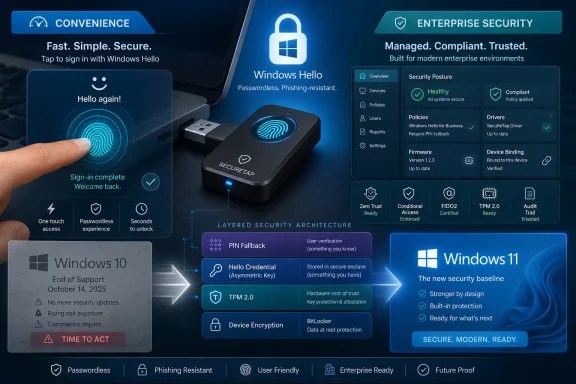 The Cheapest Security Upgrade Is Also the Easiest to Misunderstand
There is a reason USB fingerprint readers keep resurfacing in the Windows accessory market. A desktop tower under a desk, a repurposed office PC, or an older laptop may be perfectly usable but lack the biometric hardware that newer machines ship with by default. A tiny USB-A dongle promises to close that gap without replacing the machine, reinstalling Windows, or training users on a new authentication scheme.That is a powerful pitch because the daily friction of security is real. Password managers, MFA prompts, long PINs, BitLocker recovery keys, and conditional access policies all make sense to IT people, but end users experience them as interruptions. A fingerprint reader changes the emotional transaction: security becomes a tap rather than a chore.
The product description leans into exactly that appeal. It says the reader works with Windows 10 and above, supports 32-bit and 64-bit systems, uses capacitive scanning, installs automatically, and can be used for login, file encryption, or apps that support biometrics. The small print is not legalese; it is the real story.
A fingerprint reader is only as useful as the biometric framework it joins. On modern Windows, that usually means Windows Hello, the operating system’s built-in system for signing in with a PIN, face, or fingerprint. The scanner is the input device; Windows Hello is the security architecture around it.
Windows Hello Is Not Just a Fingerprint Doorbell
The common mistake is to think Windows Hello means “Windows stores my fingerprint and compares it when I log in.” That mental model undersells what Microsoft has spent years trying to build. In its stronger form, Hello is designed around device-bound credentials, where a user gesture unlocks cryptographic material tied to that specific PC.That distinction matters. A password is portable by design: if an attacker learns it, they can try it anywhere the account works. A Windows Hello gesture is supposed to be local: the fingerprint or PIN unlocks access to a key that belongs to the device. The user’s finger does not become the password; it becomes the local proof that the right person is present at the right machine.
For consumers, this mostly translates into faster sign-in and fewer typed secrets. For organizations using Windows Hello for Business, the argument is bigger: reduce dependence on reusable passwords, bind authentication to managed hardware, and let policy decide when biometrics are acceptable. That is why the same $20-to-$60 class of accessory can be either a convenience gadget or a component in a broader identity strategy.
But the consumer marketplace tends to flatten all of that into “password-free.” That phrase is useful marketing and dangerous shorthand. Password-free does not mean risk-free; it means the password has been displaced from the daily login flow, ideally by something harder to phish and harder to replay.
The Windows 10 Label Now Carries Baggage
The product is advertised for Windows 10 and above, which is still a useful compatibility claim but no longer a neutral one. Windows 10 reached end of support for most users on October 14, 2025. By May 2026, that makes any “Windows 10 compatible” security accessory part of a transition conversation, not just a peripheral purchase.For people enrolled in Microsoft’s Extended Security Updates program, Windows 10 can still receive critical and important security updates for a limited period. For unmanaged machines outside that path, adding a fingerprint reader to an unsupported OS is like putting a better lock on a door with aging hinges. It may improve one part of the security posture, but it does not solve the platform risk underneath.
This is the uncomfortable truth for the long tail of Windows PCs. Plenty of systems that run Windows 10 well do not qualify cleanly for Windows 11, often because of CPU, TPM, Secure Boot, or firmware-era requirements. Those machines are also exactly the kind of hardware that might lack built-in biometric sensors and look like good candidates for a USB fingerprint upgrade.
The right advice is not “don’t buy it.” It is “don’t confuse it with an operating system support plan.” If the PC is staying on Windows 10, the bigger decision is whether it is enrolled in ESU, isolated from sensitive work, or scheduled for replacement. The fingerprint reader can improve sign-in hygiene, but it cannot patch the kernel.
Capacitive Sensors Are Better Than Their Reputation, But Not Equal
The listing calls out capacitive scanning, and that is a meaningful detail. Capacitive fingerprint readers use electrical differences across the ridges and valleys of a finger rather than taking a simple optical image. In consumer terms, they are usually compact, quick, and less dependent on lighting than optical readers.That does not automatically make every capacitive USB dongle enterprise-grade. Sensor quality, firmware handling, anti-spoofing features, template storage, driver provenance, and Windows Biometric Framework compatibility all matter. A 508 DPI figure sounds precise because it is a familiar metric in fingerprint capture, but resolution is only one ingredient in a trustworthy authentication system.
This is where commodity listings become frustrating. They often provide just enough technical language to sound serious, but not enough to prove much. “1:1 recognition” generally means verifying a presented finger against a specific enrolled identity. “1:N recognition” means identifying one finger among multiple enrolled templates. Those modes are common in biometric systems, but Windows Hello sign-in on a personal PC is less about dazzling matching modes than about reliable enrollment, secure local processing, and clean integration with Windows.
For home users, the practical test is straightforward: does Windows recognize it as a biometric device, does enrollment work through Settings, and does it survive reboots, sleep, driver updates, and user switching? For IT departments, that is nowhere near enough. They need vendor documentation, driver signing, lifecycle support, return handling, and a policy answer for what happens when the device disappears from the USB port.
Plug-and-Play Is a Promise About Installation, Not Trust
“Plug and play” remains one of the most seductive phrases in PC hardware. It suggests that Windows will fetch what it needs, enumerate the device, and make the accessory useful without the user spelunking through driver packages. For a fingerprint reader, that experience can be the difference between adoption and a drawer full of abandoned dongles.But plug-and-play should not be read as “trust-and-forget.” A biometric device sits close to the authentication boundary. If it needs a driver, that driver becomes part of the security story. If it uses firmware, that firmware becomes part of the security story. If it exposes itself through the Windows Biometric Framework cleanly, that is good; if it depends on obscure vendor utilities, that is a warning sign.
The Windows ecosystem has improved dramatically since the bad old days of random biometric middleware, but the accessory market is still uneven. Some devices are designed specifically for Windows Hello and behave predictably. Others are generic fingerprint scanners repackaged across storefronts with thin documentation and inconsistent model names. The phrase “Windows 10 and above” may be accurate and still fail to answer the questions professionals care about.
A user buying one for a home desktop can afford to experiment. A business buying 500 of them cannot. In managed environments, the procurement question should be whether the reader is certified, supportable, and policy-compatible, not whether the listing contains the right buzzwords.
The Security Gain Comes From Killing Bad Password Habits
The best case for a USB fingerprint reader is not that fingerprints are perfect. They are not. The best case is that passwords in the real world are often worse.People reuse them. They write them down. They type them into phishing pages. They share them with family members or colleagues because the alternative feels too cumbersome. They choose weaker passwords when the sign-in burden is high, and then security teams compensate with more prompts, which increases resentment, which creates more workarounds.
Windows Hello changes that rhythm. Once enrolled, the user can sign in with a gesture and still retain a PIN fallback. On a properly configured system, that PIN is not simply a short password floating around the internet; it is bound to the device. That is a huge conceptual improvement over the habit of typing the same account password into every surface that asks for it.
For a single PC, that may sound modest. Across an office, it can reduce help-desk resets and make stronger account controls less painful. Across a family household, it can keep children, guests, or casual users from learning a parent’s password by shoulder surfing. The biggest wins are mundane, and that is usually how security gets adopted.
Biometrics Are Convenient Because They Are Permanent, and Risky for the Same Reason
The counterargument is familiar but still important: you can change a password, but you cannot change your finger. That line is sometimes used too bluntly, as if it invalidates biometrics altogether. It does not. It does, however, explain why biometric systems must be designed so that the fingerprint is not the secret being protected.A good biometric implementation stores a template, not a photograph of your finger, and uses the biometric match as a local unlock gesture rather than as a roaming credential. The danger rises when systems centralize biometric data, expose templates poorly, or treat a fingerprint as a universal password substitute. Windows Hello’s architecture is meant to avoid that trap, but the hardware and driver path still matter.
There is also the question of coercion and context. A fingerprint is easy to use because it is always with you. That also means it may be easier to compel than a memorized secret in some situations. Most home and office users will never face that edge case, but security architecture should not pretend edge cases do not exist.
This is why PIN fallback and account recovery deserve more attention than they get. The user experience is biometric, but the account still needs robust recovery, device encryption, firmware security, and sensible policy. A fingerprint reader is the front door handle, not the whole building.
File Encryption Support Is Where Marketing Gets Slippery
The listing says the device can be used for login, file encryption, or any app that supports biometrics. That is plausible in the broad sense, but it deserves parsing. Windows itself supports several security mechanisms, and third-party apps can integrate biometric prompts, but a fingerprint reader does not automatically encrypt files by existing.For most Windows users, the serious encryption story is BitLocker or device encryption, tied to TPM support and recovery keys. Fingerprint sign-in can make access to an already protected Windows session more convenient, but it is not the same thing as encrypting a file. Some applications may use Windows Hello to release secrets, unlock vaults, or approve access, but that depends on the app.
This distinction matters because “biometric encryption” is a phrase that can lull buyers into overestimating what the accessory does. If a file sits unencrypted on disk, adding a fingerprint reader does not retroactively protect it. If the user signs in biometrically but leaves the session unlocked, the reader is irrelevant. If malware runs under the user’s account after sign-in, the fingerprint scanner will not save the day.
The practical version is simpler: use the reader to make strong sign-in easier, use BitLocker or device encryption to protect the disk, use a password manager for web credentials, and keep the operating system supported. Security is layered precisely because no single layer is heroic.
For Windows 11, This Is a Natural Fit; for Windows 10, It Is a Stopgap
On Windows 11, an external fingerprint reader fits Microsoft’s current direction. The OS assumes a world of TPM-backed credentials, Secure Boot, virtualization-based protections, and identity flows that try to move users away from old password habits. A desktop that lacks a built-in biometric sensor is not philosophically behind; it is just missing an input device.On Windows 10, the calculus is more conflicted. Windows Hello remains useful, and many Windows 10 machines can still benefit from it. But the platform is now on borrowed time unless covered by extended updates or a specific servicing channel. A biometric upgrade can be reasonable for a machine that will be replaced next year, but it should not become an excuse to run an aging endpoint indefinitely.
That is especially true in small businesses, where old PCs often linger because they still boot and the software still works. Those are also the environments most tempted by inexpensive accessories promising a quick security uplift. The risk is not the fingerprint reader itself; the risk is symbolic substitution, where a visible gadget stands in for the harder work of lifecycle planning.
If you are buying for Windows 11, the question is whether the device is reliable and Hello-compatible. If you are buying for Windows 10 in 2026, the first question is whether the PC should still be in production at all.
The Real Buyer’s Checklist Is Not on the Product Page
A good Windows Hello fingerprint reader should disappear into the workflow. It should enumerate cleanly, enroll through Windows Settings, authenticate quickly, and not require a mysterious tray app. It should keep working after cumulative updates and feature updates. It should be removable without breaking the user’s ability to sign in by PIN.The product page’s claims are a starting point, not a verdict. Compact design, 508 DPI capture, 1:1 and 1:N recognition, and automatic installation are all useful signals. But they do not answer whether the device has signed drivers, whether the manufacturer maintains support downloads, whether firmware can be updated, or whether the hardware has been validated across Windows 10 and Windows 11 builds.
For enthusiasts, the safest approach is to treat the first unit as a test device. Plug it in, enroll through Windows Hello, test wake from sleep, test multiple users, test a PIN fallback, and test what happens if the reader is removed. The goal is not merely to see whether it works once; it is to see whether it fails safely.
For administrators, the bar should be higher. A biometric reader deployed across a fleet becomes part of endpoint identity. That means asset tracking, user support, lost-device procedures, group policy or MDM settings, and documentation. It also means deciding whether biometrics are allowed for all users, only some users, or not at all in higher-risk roles.
Cheap Hardware Wins When the Security Model Is Already Sound
The fairest reading of this USB reader is that it can be a useful accessory in the right environment. It is not trying to be a YubiKey, a smart card, or a full privileged-access workstation control. It is trying to bring a built-in-laptop convenience to machines that do not have it.That market is real. Many desktops remain powerful enough for office work, school, media production, and light development, yet their cases were designed in an era when biometric sign-in was exotic. A compact USB reader can extend the usability of that hardware without forcing a premature replacement, especially where Windows 11 support is already present.
The danger comes from overclaiming. “Password-free” should mean reducing routine password entry, not abolishing account security. “File encryption” should mean integration with software that actually encrypts data, not a talismanic glow around the word biometric. “Plug and play” should mean easy installation, not the end of due diligence.
In that sense, this little scanner is a miniature version of the Windows security market itself. The consumer wants convenience. Microsoft wants stronger identity. IT wants manageability. The accessory vendor wants a short product page that sounds reassuring. Those goals overlap, but they are not identical.
The Small Scanner’s Big Lessons for Windows Users
The sensible verdict is neither hype nor dismissal. A compact USB fingerprint reader can be one of the cheapest ways to make Windows Hello practical on older or desktop-class hardware, but it pays off only when buyers understand what problem it actually solves.- A fingerprint reader improves the sign-in experience, but it does not replace the need for a supported and patched operating system.
- Windows 10 compatibility is less reassuring in 2026 unless the machine is covered by Extended Security Updates or a clear migration plan.
- Windows Hello is strongest when it uses biometrics as a local unlock gesture for device-bound credentials, not as a roaming password substitute.
- Claims about file encryption depend on Windows settings or third-party applications that actually implement encryption.
- Businesses should validate drivers, support, policy behavior, and failure modes before standardizing on any low-cost biometric accessory.
- Home users should keep a PIN fallback, enable device encryption where available, and test the reader after sleep, reboot, and Windows updates.
References
- Primary source: kliksolonews.com
Published: Mon, 18 May 2026 18:05:52 GMT
- Official source: learn.microsoft.com
Windows Hello for Business overview | Microsoft Learn
Learn how Windows Hello for Business replaces passwords with strong two-factor authentication on Windows devices.learn.microsoft.com - Related coverage: nodactechnology.com
- Related coverage: alsat.com.tm
HIKVISION DS-K1F820-F | Optical Fingerprint Reader USB 508 dpi — busi…
HIKVISION DS-K1F820-F | Optical Fingerprint Reader USB 508 dpi for business in Turkmenistan. Optom sowda on ALSAT.com.tm.www.alsat.com.tm - Related coverage: tecnosite-it.com
TE-FPA-CA1 Match-On-Chip USB Fingerprint Reader - SecureTouch WireKey Biometric Authentication Device | TEC | 株式会社テック
TE-FPA-CA1 SecureTouch WireKey USB fingerprint reader with Match-On-Chip (MoC) technology. Advanced biometric security for Windows Hello authentication.www.tecnosite-it.com
- Related coverage: fecpos.com
Fingerprint Reader
Founded in 1995, FEC specializes in the design and manufacturing of POS hardware, providing innovative and efficient solutions for the retail, hospitality, and service industries.www.fecpos.com
- Related coverage: bio-key.com
BIO-Key | Biometric Authentication & Identity Access Management
Biometric authentication and IAM solutions for enterprise security. Fingerprint recognition, SSO, MFA and passwordless access from BIO-Key.www.bio-key.com
- Related coverage: windowscentral.com
Cheaply bring Windows Hello to any PC with Mouse's new camera and fingerprint reader | Windows Central
If you have an older PC or laptop that lacks Windows Hello - Microsoft's super cool way to log into Windows 10 - you now have new and cheap options! Here is my review of Mouse's ...www.windowscentral.com - Related coverage: visiotechsecurity.com
USB-FP-HELLO
USB-FP-HELLO USB camera Mini fingerprint readerWindows HelloUSB communicationWindows 10 Plug & Play360° SensorMetallic finishwww.visiotechsecurity.com - Related coverage: howtogeek.com
What Is Windows Hello on Windows 10 and Windows 11?
Does your PC support Windows Hello? www.howtogeek.com
- Related coverage: isagecomm.com
HID EikonTouch 510 Fingerprint Reader - Isage Communications Pte Ltd - Singapore
The EikonTouch 510 USB capacitive fingerprint reader provides quick and reliable biometric authentication. Our patented technology reaches up into the ridges and valleys of the fingerprint to capture fine print details. The result is the ability to capture a wide range of fingerprints. Our... isagecomm.com
- Related coverage: br-cws-downloads.de-fra-1.linodeobjects.com
- Related coverage: kensington.com
- Related coverage: itpro.com
Windows 10 end of life has passed – here's your business guide to Windows 11 | IT Pro
As Windows 10's mainstream support ends, it's time for businesses who have yet to upgrade to take a second look at Windows 11www.itpro.com - Official source: support.microsoft.com
Windows 10 support has ended on October 14, 2025 | Microsoft Support
Windows 10 support ends on October 14, 2025. Upgrade to Windows 11 now to ensure continued security and feature updates. Learn more about the transition.support.microsoft.com - Official source: microsoft.com
End of support for Windows 10, Windows 8.1, and Windows 7 | Microsoft Windows
Make a smooth transition to Windows 11 from your unsupported operating system with help from Microsoft. Enjoy the benefits of upgrading to a Windows 11 PC.www.microsoft.com - Official source: techcommunity.microsoft.com
End of Windows 10 Support: What Defender Customers Need to Know | Microsoft Community Hub
As of today, October 14, 2025, Microsoft is officially ending support for Windows 10. This means that Windows 10 devices will no longer receive security or... techcommunity.microsoft.com
- Related coverage: tomsguide.com
Windows 10 End of Life: Microsoft releases final update — everything you need to know | Tom's Guide
So long, Windows 10www.tomsguide.com - Related coverage: tomshardware.com
Windows 10 support ends today — here's who's affected and what you need to do | Tom's Hardware
Update if you can, upgrade if you can't, or at least get the extended support license.www.tomshardware.com - Related coverage: techradar.com
Microsoft in 2025: year in review | TechRadar
Microsoft pushed AI even harder this year – and Windows 11 users rebelledwww.techradar.com - Related coverage: transparity.com
