

USB Wi‑Fi 6E adapters promise an easy, low‑cost path to the new 6 GHz band and dramatically higher wireless performance — but the reality is a mix of meaningful gains, important caveats, and a surprising amount of driver and OS complexity that every Windows user should understand before buying.
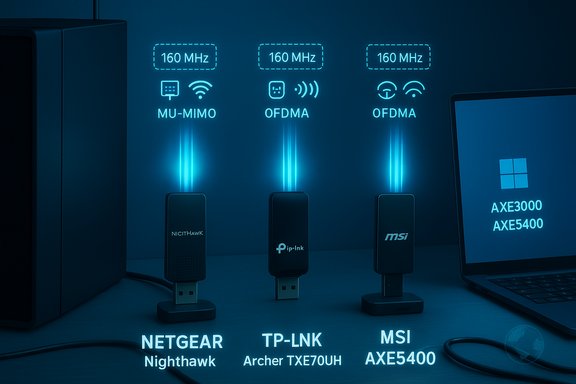
The last two years have produced a wave of USB Wi‑Fi 6E adapters aimed at desktop PCs and laptops without modern M.2 wireless modules. Vendors advertise tri‑band support (2.4 / 5 / 6 GHz), headline aggregate speeds such as AXE3000 or AXE5400, and features like MU‑MIMO, OFDMA, WPA3 and USB 3.x connectivity. Major examples include NETGEAR’s Nighthawk A8000 (AXE3000), TP‑Link’s Archer TXE70UH (AXE5400), and MSI’s GUAXE54 (AXE5400). These products make the same promise: plug into a USB 3.x port, install the driver, and get access to the cleaner 6 GHz band for lower latency and higher capacity. Those promises are broadly accurate on paper, but the practical experience depends on three interlocking factors: hardware capability, driver and OS support (especially Windows 11 vs Windows 10), and regulatory / environmental limits on the 6 GHz band. Community reports and vendor pages together show clear benefits when the stack aligns — and frequent headaches when it does not.
Source: theglobalfilipinomagazine.com https://theglobalfilipinomagazine.c...-AX3000M-USB-3-0-WiFi-Adapter-For-Desktop-PC/
 Background / Overview
The last two years have produced a wave of USB Wi‑Fi 6E adapters aimed at desktop PCs and laptops without modern M.2 wireless modules. Vendors advertise tri‑band support (2.4 / 5 / 6 GHz), headline aggregate speeds such as AXE3000 or AXE5400, and features like MU‑MIMO, OFDMA, WPA3 and USB 3.x connectivity. Major examples include NETGEAR’s Nighthawk A8000 (AXE3000), TP‑Link’s Archer TXE70UH (AXE5400), and MSI’s GUAXE54 (AXE5400). These products make the same promise: plug into a USB 3.x port, install the driver, and get access to the cleaner 6 GHz band for lower latency and higher capacity. Those promises are broadly accurate on paper, but the practical experience depends on three interlocking factors: hardware capability, driver and OS support (especially Windows 11 vs Windows 10), and regulatory / environmental limits on the 6 GHz band. Community reports and vendor pages together show clear benefits when the stack aligns — and frequent headaches when it does not. What “AXE3000” and “AXE5400” actually mean
Marketing shorthand vs technical breakdown
Vendors use shorthand numbers (AXE3000, AXE5400, AXE5400/AXE3000) to state an aggregate theoretical PHY rate — the sum of the maximum link rates across all bands. That number is a convenient marketing headline, but it’s rarely a realistic expectation for a single client device or a single flow. Real throughput is lower due to protocol overhead, channel width, environment, and USB interface constraints.- AXE3000 typically breaks down as something like 600 Mbps (2.4 GHz) + 1200 Mbps (5 GHz) + 1200 Mbps (6 GHz) = 3000 Mbps aggregate in vendor specs. NETGEAR documents this configuration for the A8000.
- AXE5400 class adapters (TP‑Link Archer TXE70UH, MSI GUAXE54) list higher per‑band maxima — for example, 2402 Mbps on 5 GHz and 2402 Mbps on 6 GHz plus ~574 Mbps on 2.4 GHz in vendor/reseller specs — producing the AXE5400 aggregate headline.
Why you should treat the headline numbers cautiously
- Aggregate = sum of separate radios. A single TCP transfer will only use one band at a time (unless MLO/Multi‑Link is actively supported and working), so you don’t get the summed headline as a single‑flow speed.
- Channel width matters: 160 MHz channels (or wider) are required to hit the top 2402 Mbps figures in practice. Some USB adapters limit 6 GHz to 80 MHz for thermal, antenna, or chipset reasons. That restriction makes the 6 GHz speed similar to high‑end 5 GHz rather than dramatically bigger.
- USB interface is a bottleneck when the adapter or the host port is not actually USB 3.x Gen‑1/Gen‑2 capable or is behind a hub. Use a direct motherboard rear I/O USB 3.x port for best results.
OS and driver realities: Windows 11 matters
6 GHz requires Windows 11 on many consumer adapters
Multiple vendors spell out the same limitation: Windows 11 is required for the adapter to access the 6 GHz band; Windows 10 will typically only support 2.4 GHz and 5 GHz. This is not a small footnote — Microsoft’s platform Wi‑Fi stack behavior and vendor drivers are the gating factor for 6 GHz access on many USB clients. NETGEAR and TP‑Link explicitly note this in their product pages and requirements.Driver maturity and community reports
Real‑world user threads and independent reviews show that driver maturity is the single biggest practical risk with these adapters. Reports include:- Intermittent disconnects and instability after sleep/hibernation.
- Hotspot/AP or Hosted Network features failing to work reliably on Windows.
- Devices sometimes detected incorrectly in Device Manager or requiring vendor driver reinstallation to recover.
- Linux users sometimes needing kernel patches or very recent kernel versions to get stable support for the specific USB vendor/device IDs used by retail adapters.
Comparing the big players (A8000, Archer TXE70UH, GUAXE54)
NETGEAR Nighthawk A8000 (AXE3000)
- Positioning: compact USB 3.0 A8000 with a flip antenna and cradle, targeting easy upgrades to Wi‑Fi 6E.
- Headline: AXE3000 with 2x2 on each band (600 / 1200 / 1200 Mbps split).
- Notable vendor detail: explicit Windows 11 requirement for 6 GHz and USB 3.0 for best performance. NETGEAR also warns that bands are not concurrent but selected automatically to use the fastest band available.
- Community notes: multiple reports of driver instability and limitations on channel width; realistic throughput is lower than the aggregate headline and driver maturity matters.
TP‑Link Archer TXE70UH (AXE5400)
- Positioning: higher‑end AXE5400 USB adapter with two high‑gain tri‑band antennas and a longer USB cradle cable intended to give better placement options.
- Headline: up to 2402 Mbps on 6 GHz and 5 GHz per vendor specs (which implies 2x2 with 160 MHz capability when conditions permit). TP‑Link’s regional pages and large resellers list the AXE5400 totals, and they explicitly state 6 GHz is available only when the OS and regional regulations permit it.
- Practical note: A 2402 Mbps claim requires 160 MHz channel width and a router that supports matching 160 MHz on the 6 GHz band; otherwise you’ll see lower real speeds.
MSI GUAXE54 (AXE5400)
- Positioning: MSI’s take on an AXE5400 USB adapter, typically sold with a cradle and marketed to gamers and power‑users.
- Specs from resellers indicate support for 160 MHz channels on both 5 GHz and 6 GHz (2402 Mbps on each band in ideal conditions), plus modern security and OFDMA/MU‑MIMO features.
- Caveat: As with other vendors, drivers and whether the adapter is allowed to use full 160 MHz channel widths on 6 GHz depend on the router, OS, and regional regulatory environment.
Practical performance expectations
Real‑world throughput vs theoretical PHY rates
Expect sustained application throughput to be a fraction of the theoretical PHY numbers. Practical tests across multiple modern AXE adapters show real single‑flow file transfers and streaming rates that are significantly below the marketing aggregate. Typical single‑flow performance will often be in the hundreds of megabits to low gigabits range depending on:- Router capabilities and channel width (80 vs 160 MHz).
- Whether the router’s backhaul or upstream is a bottleneck.
- Environmental RF interference and number of competing networks.
- USB port quality and whether the adapter shares power/data lanes with other devices.
Where you’ll see the biggest gains
- Lower latency and less congestion in crowded environments when a 6 GHz network is available — if the adapter, router, and operating system fully support the 6 GHz band.
- Faster local transfers when both client and AP support wide channels (160 MHz) and when the router has a strong wired uplink.
- Better performance for multiple simultaneous devices due to OFDMA and MU‑MIMO improvements versus older Wi‑Fi standards.
Security: WPA3 and best practices
Most modern Wi‑Fi 6E adapters support WPA3, and vendors recommend enabling WPA3 or WPA3‑transition modes on home routers for better protection against offline password cracking and management frame attacks. In mixed environments with older devices, use transition modes or separate SSIDs to keep legacy clients working while giving WPA3 to supported devices. This is a router/network configuration decision rather than an adapter limitation, but the adapter must also support WPA3 to participate in such setups.Installation and troubleshooting: a practical checklist for Windows users
- Use a rear motherboard USB 3.x port — front ports and hubs can be underpowered or share bandwidth. Many problems trace back to using a non‑native port.
- Install the vendor driver from the vendor support page, not just the installer on the included thumb drive; vendors frequently publish driver updates. If you still have problems, remove the device, uninstall the driver package, reboot, then reinstall the vendor driver.
- For 6 GHz access: confirm you are on Windows 11 (and that the vendor page explicitly says the adapter supports 6 GHz only on Windows 11). Windows 10 often lacks platform support for client access to 6 GHz on many USB adapters.
- If you see disconnects after sleep/hibernation: disable USB selective suspend in power options and check Device Manager > USB Root Hubs power settings to prevent Windows from turning the hub off. This is a common workaround.
- If Windows reports odd device names or unknown devices, run a clean driver uninstall and use the vendor’s latest package. Community threads frequently show that the official support downloads fix recognition issues.
- If you need hotspot/AP (mobile hotspot) capability, verify the vendor driver supports Hosted Network or Windows Hosted Network APIs — many adapters cannot act as reliable APs under Windows without explicit vendor support. Community posts show hotspot functionality is one of the common failure points.
Regulatory and regional notes
The 6 GHz band is not uniformly available worldwide. Vendors explicitly call out that 6 GHz operation is subject to local regulatory approval; the adapter’s 6 GHz operation will be disabled or limited where governments have not authorized unlicensed 6 GHz use. Always confirm whether 6 GHz is allowed in your country and whether your router is configured correctly. Vendors put this as an explicit footnote because it’s both a legal and practical limiter of 6E value.Risks, pitfalls, and when not to buy
- If you require plug‑and‑play, zero‑maintenance connectivity for critical production systems (live streaming, eSports, low‑latency trading), these USB adapters are not a drop‑in replacement for a wired Gigabit or 2.5GbE connection or a thoroughly tested internal PCIe/M.2 client. Community reports show enough variability that wired or higher‑tier internal clients remain the safer choice for mission‑critical work.
- If you run Windows 10 and expect to use the 6 GHz band, you should pause: many adapters block 6 GHz on Windows 10 and specifically require Windows 11 to enable that band.
- Beware of models that advertise large aggregate figures but use limited channel widths in actual 6 GHz operation — check the detailed per‑band specification and whether 160 MHz is supported for 6 GHz on the specific retail SKU.
Buying checklist — get the right adapter for your needs
- Confirm your OS: if 6 GHz matters to you, use Windows 11 and verify the vendor explicitly states 6 GHz support for the adapter on Windows 11.
- Confirm the router: you need a Wi‑Fi 6E router with matching channel width and configuration (and legal 6 GHz availability in your country).
- Verify USB port: plan to use a USB 3.x Gen‑1 or Gen‑2 port directly on the motherboard rear I/O.
- Check driver support: look for recent driver updates on the vendor support site and read community threads for the exact SKU to spot recurring issues.
- Return policy & warranty: because of driver variability, buy from a retailer with a forgiving return policy or keep the box until you’ve tested the adapter for a week on your system.
Final verdict — who should buy and who should wait
- Buy if:
- You want a low‑cost upgrade to access a 6 GHz network on a desktop or travel laptop without an M.2 slot.
- You are comfortable applying driver updates and doing light troubleshooting.
- Your home router is Wi‑Fi 6E capable, you’re running Windows 11, and you value lower congestion and lower latency for gaming or streaming.
- Wait or choose an alternative if:
- You need absolute, maintenance‑free reliability (choose wired Ethernet or a validated internal PCIe/M.2 client).
- You’re on Windows 10 and expect 6 GHz functionality immediately.
- You want guaranteed 160 MHz/320 MHz channel widths from a USB dongle without checking the vendor’s spec sheet or community reports.
Conclusion
USB Wi‑Fi 6E adapters are an attractive, practical way to bring modern Wi‑Fi features to legacy desktops and laptops. Vendor specifications (AXE3000 vs AXE5400), modern security (WPA3), and USB 3.x connectivity make for a compelling upgrade path — but the experience depends heavily on driver maturity, Windows 11 platform support for 6 GHz, USB port selection, and regional 6 GHz regulations. Read the per‑band technical specs, confirm 6 GHz support for your OS, keep drivers up to date, and be prepared to troubleshoot or return the device if your particular PC environment exposes compatibility problems. For many users, these adapters will deliver worthwhile improvements; for mission‑critical setups, wired or proven internal solutions remain the safer choice.Source: theglobalfilipinomagazine.com https://theglobalfilipinomagazine.c...-AX3000M-USB-3-0-WiFi-Adapter-For-Desktop-PC/
