

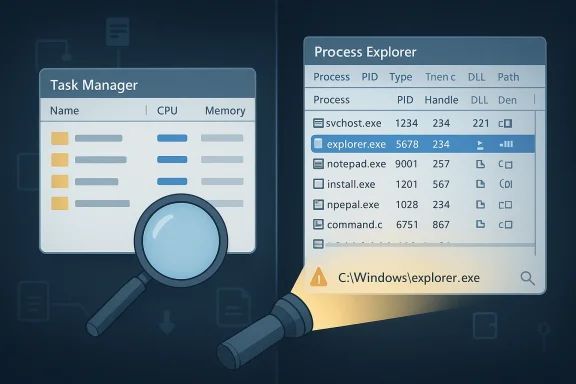
No Windows experience is complete without eventually opening Task Manager, but the familiar utility is not always the smartest place to start when something goes wrong. A 25-year-old Sysinternals classic, Process Explorer, remains a more revealing troubleshooting tool because it shows far more about what a process is doing, which files and DLLs it has opened, and why a suspicious app may be worth investigating. Microsoft’s current documentation still positions Process Explorer as a detailed process and handle viewer for Windows 11 and later, and the tool’s own value has only grown as modern Windows has become more layered and opaque. (learn.microsoft.com)
Task Manager earned its reputation for good reason. It is built into Windows, easy to reach, and good enough for everyday jobs like closing a frozen app, checking whether a machine is under heavy load, or toggling startup items. Microsoft’s own support guidance says Task Manager and Settings both expose startup applications, and Task Manager adds a useful impact rating for troubleshooting slow boots. (support.microsoft.com)
But “good enough” is not the same as “best.” Windows has evolved into a sprawling platform where ordinary processes can hide a surprisingly large amount of complexity. A single line such as svchost.exe can represent many services, many permissions, and many possible points of failure, which is exactly why a simple list of running apps can feel like a blunt instrument when the real problem is deeper. That gap is where Process Explorer continues to matter. (learn.microsoft.com)
Microsoft’s Sysinternals lineage is important here because it explains why Process Explorer feels so different from Task Manager. The utility was created for the kind of diagnostic work that support engineers, administrators, and power users actually do when a system is misbehaving. The official Process Explorer page describes it as a tool for finding which program has a file or directory open, and for tracking handles, DLLs, search targets, and troubleshooting clues that are simply not visible in a standard process list. (learn.microsoft.com)
That extra visibility matters in 2026 because Windows problems are often composite problems. A machine can feel slow because of startup clutter, a stale service, a driver interaction, a broken shell extension, or a security product having a bad day. Task Manager can tell you that something is heavy; Process Explorer is more likely to help you identify what is heavy, how it is launched, and what else it is touching along the way. (learn.microsoft.com)
The practical difference is easy to see with common Windows internals. A crowded list of Service Host entries in Task Manager may be technically accurate yet still useless to a person trying to isolate the culprit. Process Explorer, by contrast, can reveal the executable, the command line, and related properties that help the user connect a generic name to a real action. That is not just more detail; it is actionable detail. (learn.microsoft.com)
For enthusiasts, this is where Process Explorer starts to feel less like a replacement and more like a microscope. The interface is still approachable, but it exposes data that aligns more closely with how Windows actually works underneath the surface. That makes it especially useful for users who have moved past “what is using my CPU?” and into “what is this process really doing?” That is a different class of question. (learn.microsoft.com)
That is a key distinction for enterprise environments too. In business deployments, user frustration is often just the visible symptom of a larger systems problem, and support teams need evidence rather than intuition. Process Explorer offers more of the sort of evidence that can be handed to a second-line engineer or used to compare healthy and unhealthy endpoints. That matters more than a flashy interface. (learn.microsoft.com)
The utility also helps when you need to decide whether a process should be terminated or restarted. Task Manager can end a task, but Process Explorer gives you the background you need to choose more carefully. That might mean restarting a bad service, checking command-line parameters first, or collecting a dump file before the process is killed and the evidence disappears. (learn.microsoft.com)
That said, this feature should be used intelligently. A VirusTotal hit count is a clue, not a verdict, because false positives and generic detections happen. If you see a detection on a well-known Microsoft component or a legitimate third-party app, you still need to interpret the result in context rather than panic at the first red flag. The point is to narrow uncertainty, not replace judgment.
The privacy concern is worth mentioning as well. Microsoft Q&A guidance suggests that Process Explorer’s VirusTotal workflow is generally based on file hashes, with a separate option for submitting unknown executables. That distinction matters because hashing a file is very different from blindly exposing live memory contents, and users who work around sensitive data should still understand the feature they are enabling.
If the question is “why did this service keep crashing after an update?” the answer is different. Task Manager can identify symptoms, but Process Explorer is better suited to investigating relationships, launch details, and process behavior. The difference is not that one is good and the other is bad; it is that they serve different levels of the troubleshooting stack. (learn.microsoft.com)
This is also why the right workflow is often sequential. Start with Task Manager for a quick triage, then move to Process Explorer if the issue is unclear, recurring, or security-related. That sequence preserves simplicity for casual users while giving power users a path to much deeper analysis. That is a healthy division of labor.
This is especially helpful when Windows behavior feels non-intuitive. A process may not consume much CPU yet still block a file, hold a handle, or keep a service from updating. A standard monitor might only show that nothing obvious is happening, while Process Explorer can reveal the quiet dependency that is actually causing the bottleneck. Quiet failures are the hardest to diagnose.
The utility also has historical continuity on its side. Sysinternals tools have endured for decades because they solve the kind of problems that keep recurring in slightly new forms. A 25-year-old tool can still feel modern when the operating system keeps generating the same classes of problems in new packaging.
What may change is how people discover it. Task Manager is already the first instinct for many users, but Process Explorer could become more widely adopted if Microsoft keeps surfacing Sysinternals in support guidance, admin training, and security workflows. The more that Windows support conversations move from symptoms to evidence, the more valuable this utility becomes.
Source: How-To Geek This 25-year-old Windows tool is better than Task Manager
 Background
Task Manager earned its reputation for good reason. It is built into Windows, easy to reach, and good enough for everyday jobs like closing a frozen app, checking whether a machine is under heavy load, or toggling startup items. Microsoft’s own support guidance says Task Manager and Settings both expose startup applications, and Task Manager adds a useful impact rating for troubleshooting slow boots. (support.microsoft.com)But “good enough” is not the same as “best.” Windows has evolved into a sprawling platform where ordinary processes can hide a surprisingly large amount of complexity. A single line such as svchost.exe can represent many services, many permissions, and many possible points of failure, which is exactly why a simple list of running apps can feel like a blunt instrument when the real problem is deeper. That gap is where Process Explorer continues to matter. (learn.microsoft.com)
Microsoft’s Sysinternals lineage is important here because it explains why Process Explorer feels so different from Task Manager. The utility was created for the kind of diagnostic work that support engineers, administrators, and power users actually do when a system is misbehaving. The official Process Explorer page describes it as a tool for finding which program has a file or directory open, and for tracking handles, DLLs, search targets, and troubleshooting clues that are simply not visible in a standard process list. (learn.microsoft.com)
That extra visibility matters in 2026 because Windows problems are often composite problems. A machine can feel slow because of startup clutter, a stale service, a driver interaction, a broken shell extension, or a security product having a bad day. Task Manager can tell you that something is heavy; Process Explorer is more likely to help you identify what is heavy, how it is launched, and what else it is touching along the way. (learn.microsoft.com)
Overview
At its core, the case for Process Explorer is that it surfaces context instead of just symptoms. Microsoft says the top pane lists active processes and their owning accounts, while the lower pane changes based on whether you are looking at handles or DLLs. That simple design choice makes it much easier to diagnose file locks, missing dependencies, and suspicious relationships between components. (learn.microsoft.com)Why context beats a simple process list
Task Manager is excellent for a quick answer, but weak for an investigation. If you only need to stop an app, that may be enough; if you need to understand a recurring crash, a service hang, or a malware suspicion, the standard view quickly runs out of room. Process Explorer’s handle and DLL views are built precisely for those deeper cases, which is why it has endured for so long. (learn.microsoft.com)The practical difference is easy to see with common Windows internals. A crowded list of Service Host entries in Task Manager may be technically accurate yet still useless to a person trying to isolate the culprit. Process Explorer, by contrast, can reveal the executable, the command line, and related properties that help the user connect a generic name to a real action. That is not just more detail; it is actionable detail. (learn.microsoft.com)
For enthusiasts, this is where Process Explorer starts to feel less like a replacement and more like a microscope. The interface is still approachable, but it exposes data that aligns more closely with how Windows actually works underneath the surface. That makes it especially useful for users who have moved past “what is using my CPU?” and into “what is this process really doing?” That is a different class of question. (learn.microsoft.com)
- Task Manager is best for fast, everyday checks.
- Process Explorer is better for diagnosis and forensics.
- Handles, DLLs, and command lines provide the missing context.
- Owning account data helps separate user activity from system activity.
- Suspicious process names become easier to validate or dismiss.
The Diagnostic Advantage
The strongest argument for Process Explorer is that it answers the follow-up questions that Task Manager cannot. Microsoft’s documentation emphasizes that the utility shows handles and DLLs, performs search across open handles and loaded modules, and is useful for tracking DLL-version problems and handle leaks. That is the sort of intelligence you need when an app is frozen but the root cause sits somewhere else. (learn.microsoft.com)When an app hangs, the real problem may be elsewhere
A frozen app is often just the visible part of a deeper issue. It might be blocked on a locked file, waiting on a library, or interacting badly with another component that has already gone sideways. Process Explorer’s view of the lower pane and its search features make those relationships much easier to trace, which can save a great deal of blind guessing. (learn.microsoft.com)That is a key distinction for enterprise environments too. In business deployments, user frustration is often just the visible symptom of a larger systems problem, and support teams need evidence rather than intuition. Process Explorer offers more of the sort of evidence that can be handed to a second-line engineer or used to compare healthy and unhealthy endpoints. That matters more than a flashy interface. (learn.microsoft.com)
The utility also helps when you need to decide whether a process should be terminated or restarted. Task Manager can end a task, but Process Explorer gives you the background you need to choose more carefully. That might mean restarting a bad service, checking command-line parameters first, or collecting a dump file before the process is killed and the evidence disappears. (learn.microsoft.com)
Why dump files matter
Dump files are not beginner-friendly, but they are valuable when you need a postmortem. Microsoft notes that Process Explorer can produce a DMP file from a process, which can later help engineers understand what went wrong. In other words, Process Explorer is not only about stopping the fire; it is also about preserving enough clues to understand the fire’s origin. (learn.microsoft.com)- Handle and DLL visibility helps explain waits and conflicts.
- Search tools help find which process owns a file or module.
- Properties dialogs expose more of the launch and security context.
- Dump collection preserves evidence for later analysis.
- Historical insight is especially useful in recurring failures.
Malware Hunting and Verification
Process Explorer’s antivirus workflow is one of the most underrated reasons to use it. The tool can integrate with VirusTotal so you can check a suspicious executable directly from the process list, rather than manually hunting for a file, uploading it, and then juggling browser tabs. That speed is useful, but the real benefit is that it lowers the friction between suspicion and verification.VirusTotal integration changes the workflow
For everyday users, the scary moment is not always a crash; sometimes it is a process name that simply does not look right. Process Explorer makes it possible to right-click an unfamiliar process and compare it against VirusTotal, which surfaces a community of antivirus detections instead of asking you to trust your instincts alone. Microsoft Q&A discussions about the feature also reinforce that the tool is commonly used this way in the real world.That said, this feature should be used intelligently. A VirusTotal hit count is a clue, not a verdict, because false positives and generic detections happen. If you see a detection on a well-known Microsoft component or a legitimate third-party app, you still need to interpret the result in context rather than panic at the first red flag. The point is to narrow uncertainty, not replace judgment.
The privacy concern is worth mentioning as well. Microsoft Q&A guidance suggests that Process Explorer’s VirusTotal workflow is generally based on file hashes, with a separate option for submitting unknown executables. That distinction matters because hashing a file is very different from blindly exposing live memory contents, and users who work around sensitive data should still understand the feature they are enabling.
Why this is better than a manual search
A manual search for a suspicious executable tends to be messy. You may not know where it lives, whether the filename is legitimate, or whether the copy on disk is the same binary that launched the process. Process Explorer reduces those unknowns by putting the process, its path, and the VirusTotal result in the same investigative flow. (learn.microsoft.com)- Unknown processes can be checked faster.
- Hash-based comparisons reduce manual work.
- Command-line data helps distinguish legitimate tools from abuse.
- Signature and path details add confidence.
- False positives still require human interpretation.
Task Manager Still Has Its Place
It would be a mistake to portray Task Manager as obsolete. Microsoft continues to position it as a practical control surface for startup apps, and the tool’s modern views are useful for quick diagnosis, especially when a user only needs a fast answer. For consumers, that convenience is often more important than deep technical detail. (support.microsoft.com)The best tool depends on the question
If the question is “why is my laptop slow at boot?” Task Manager is still a reasonable first stop. Microsoft explicitly notes that the Startup apps tab shows the impact of each app on the startup experience, with categories like Low, Medium, and High. That is a good shorthand for users who want to make simple choices without digging through internals. (support.microsoft.com)If the question is “why did this service keep crashing after an update?” the answer is different. Task Manager can identify symptoms, but Process Explorer is better suited to investigating relationships, launch details, and process behavior. The difference is not that one is good and the other is bad; it is that they serve different levels of the troubleshooting stack. (learn.microsoft.com)
This is also why the right workflow is often sequential. Start with Task Manager for a quick triage, then move to Process Explorer if the issue is unclear, recurring, or security-related. That sequence preserves simplicity for casual users while giving power users a path to much deeper analysis. That is a healthy division of labor.
Consumer versus enterprise usage
For consumers, the biggest benefit is better self-help. Many problems that would otherwise result in a restart, a reinstall, or a support call can be narrowed down by a more informative process viewer. For enterprises, the payoff is broader: better incident triage, more accurate escalation, and cleaner evidence for root-cause analysis.- Consumers get a more helpful view of odd processes.
- IT teams get richer data for diagnosis.
- Task Manager remains ideal for quick actions.
- Process Explorer is better for evidence and context.
- Both tools can coexist without competing.
Why It Still Matters in 2026
One reason Process Explorer remains relevant is that Windows itself has not simplified enough to make deep process analysis unnecessary. Microsoft’s own support material still distinguishes startup controls in Settings and Task Manager, while Sysinternals continues to document tools that help users inspect handles, DLLs, and historical behavior. That tells you the underlying complexity has not gone away; it has just moved around. (support.microsoft.com)The modern Windows stack is still messy
Modern Windows runs cloud-connected apps, background services, vendor utilities, system brokers, security layers, and compatibility shims all at once. The result is a machine that can be incredibly capable yet surprisingly difficult to reason about from a simple task list. Process Explorer helps restore some of the visibility that ordinary users lost as the platform became more abstracted. (learn.microsoft.com)This is especially helpful when Windows behavior feels non-intuitive. A process may not consume much CPU yet still block a file, hold a handle, or keep a service from updating. A standard monitor might only show that nothing obvious is happening, while Process Explorer can reveal the quiet dependency that is actually causing the bottleneck. Quiet failures are the hardest to diagnose.
The utility also has historical continuity on its side. Sysinternals tools have endured for decades because they solve the kind of problems that keep recurring in slightly new forms. A 25-year-old tool can still feel modern when the operating system keeps generating the same classes of problems in new packaging.
What the longevity says about Windows support
The staying power of Process Explorer says less about nostalgia and more about necessity. Microsoft continues to publish and update the tool, with the current documentation listing version 17.11 and publishing it on April 9, 2026. That kind of maintenance suggests the utility is still an active part of the Windows diagnostic ecosystem, not a museum piece. (learn.microsoft.com)- Windows complexity keeps the need for advanced tools alive.
- Process visibility remains incomplete in the default UI.
- Historical usefulness is part of the tool’s value.
- Ongoing Microsoft updates confirm it is still relevant.
- Supportability improves when users can gather better evidence.
Strengths and Opportunities
Process Explorer’s appeal is not just that it is more detailed than Task Manager; it is that the extra detail is directly useful. It bridges the gap between casual inspection and serious troubleshooting, and that makes it valuable for a wide audience ranging from home users to desktop administrators.- Better process context through handles, DLLs, and command lines.
- Stronger malware triage with VirusTotal integration.
- Useful historical clues for recurring crashes and freezes.
- Actionable properties dialogs for security and launch details.
- Support-friendly evidence such as dumps and owning account data.
- Lightweight mental overhead compared with more complex forensic suites.
- Free Microsoft backing that improves trust and discoverability.
Risks and Concerns
The biggest risk is not that Process Explorer is bad, but that it is more powerful than some users realize. A powerful diagnostic tool can encourage overconfidence, and a confidence mismatch can lead to incorrect conclusions, unnecessary terminations, or anxiety over harmless processes.- False positives from antivirus or VirusTotal results.
- Privacy misunderstandings about what is being checked or uploaded.
- User error when ending the wrong process.
- Information overload for newcomers who only want a quick fix.
- Limited usefulness if users do not know how to interpret handles or DLLs.
- Potential confusion between a process problem and a broader system issue.
- Overreliance on one tool instead of layered troubleshooting.
Looking Ahead
The most likely future for Process Explorer is not radical reinvention but continued refinement. Windows users still need a bridge between a basic process list and full-blown debugging, and Sysinternals continues to occupy that middle ground with remarkable consistency. As long as Windows remains a complex platform with services, background tasks, and hard-to-explain failures, there will be a need for tools that can show more than the obvious.What may change is how people discover it. Task Manager is already the first instinct for many users, but Process Explorer could become more widely adopted if Microsoft keeps surfacing Sysinternals in support guidance, admin training, and security workflows. The more that Windows support conversations move from symptoms to evidence, the more valuable this utility becomes.
- More administrators may standardize on Process Explorer for triage.
- VirusTotal integration will likely remain a key differentiator.
- Microsoft documentation may keep legitimizing Sysinternals for mainstream users.
- Windows 11 troubleshooting could drive more interest in handle and DLL inspection.
- Security workflows may increasingly blend process intelligence with reputation data.
Source: How-To Geek This 25-year-old Windows tool is better than Task Manager
