

There’s a good chance your Windows laptop already has a built-in way to put its screen on your TV without buying a streaming stick, running an HDMI cable across the room, or installing yet another app. It’s called Miracast, and in Windows it appears as the wireless display or Cast feature.
If you’ve ever used screen mirroring from a phone, the idea is similar: your PC sends what’s on its display to a nearby compatible screen. The difference is that Windows has supported this kind of wireless projection for years, and many smart TVs, projectors, wireless display adapters, and some conference-room displays can receive it directly. When it works well, it feels like having an invisible HDMI cable between your laptop and the TV.
The best part is that setup is usually simple. You need a Windows PC that supports Miracast, a TV or display that can receive Miracast, and Wi-Fi turned on. You do not necessarily need your PC and TV to be connected to the same home Wi-Fi network, because standard Miracast uses Wi-Fi Direct to create a device-to-device connection. However, Wi-Fi still needs to be enabled on the PC, and the TV needs to have its wireless display or screen mirroring mode available.
Miracast is a wireless display standard. Instead of sending only a specific video from one app, it can send your whole Windows display to another screen. That means it can show your desktop, browser, photos, presentation slides, video player, or anything else you can see on your PC.
A useful way to think of it is “wireless HDMI,” but with a few caveats. HDMI is a physical cable that directly carries video and audio. Miracast is wireless, so performance depends on the wireless hardware, driver quality, distance, interference, and the receiving device. For a slideshow, a web page, a photo gallery, or a casual video, it can be extremely convenient. For latency-sensitive gaming, color-critical work, or the highest-quality movie playback, a cable may still be better.
Miracast is also different from Chromecast and AirPlay. Chromecast often works by telling a streaming device to fetch content from the internet, while your phone or PC acts more like a remote. AirPlay is Apple’s ecosystem-friendly way to send or mirror content between Apple devices and supported receivers. Miracast is more Windows-friendly and works at the display level, which is why it can mirror almost anything on your screen.
That flexibility is the main appeal. You don’t have to wonder whether a specific website or video app has a cast button. If your PC can show it, Miracast can usually project it.
On the TV side, naming can be confusing. TV manufacturers often avoid the word “Miracast” in their menus. Instead, look for terms such as:
For a more technical check, you can use the DirectX Diagnostic Tool:
On many TVs, you can leave the TV on the home screen and Windows will still find it. On others, you must first open the mirroring app or enable wireless display mode. If your TV doesn’t appear in Windows, this is the first thing to check.
Try these general steps:
If you’re using a wireless display adapter instead of built-in TV support, plug the adapter into the TV’s HDMI port and connect its USB power cable. Then switch the TV to that HDMI input. The adapter should show its own ready screen.
If the connection fails the first time, don’t assume the feature is broken. Wireless display connections can be a little temperamental. Try again, move the laptop closer to the TV, make sure the TV is in mirroring mode, and check that Wi-Fi is enabled on the PC.
You’ll usually see four options:
Use Duplicate when you want to:
Still, Duplicate is usually the easiest mode for quick sharing.
This is useful when you want to:
Extend is one of Miracast’s underrated strengths. Many people only think of screen mirroring, but turning a TV into a second monitor can be far more useful.
Use this mode when:
If the edges of the Windows desktop are cut off, your TV may be applying overscan. Look in the TV’s picture settings for options such as:
For common tasks, it can work very well:
The distance between devices also matters. Keep the PC reasonably close to the TV. Walls, appliances, neighboring Wi-Fi networks, Bluetooth congestion, and older wireless adapters can all affect reliability.
Your laptop and TV do not necessarily need to be on the same Wi-Fi network for standard Miracast. In some cases, they don’t need to be connected to any router at all. But the PC’s Wi-Fi adapter still needs to be enabled, because Miracast uses Wi-Fi Direct or related wireless projection methods to create the connection.
So if you normally keep Wi-Fi disabled because your laptop is connected through Ethernet, turn Wi-Fi back on before using Cast. You can usually leave Ethernet connected for internet access while using Wi-Fi for wireless display, though behavior can vary depending on hardware and network configuration.
You can:
Try this:
If the TV appears as a display but not as an audio output, disconnect and reconnect. Also check whether the TV volume is muted or whether the TV is using a soundbar or receiver on another input.
The simplest is HDMI. It is reliable, has low latency, carries audio and video, and usually provides the best quality. The downside is the cable.
You can also use a Miracast-compatible wireless display adapter. These plug into the TV’s HDMI port and act as the receiver. This is still extra hardware, but it can be useful for older TVs, projectors, or monitors.
Another option is a streaming device, but be careful: not every streaming device supports Windows screen mirroring through Miracast. Chromecast-style casting is not the same thing as Miracast. It can be great for supported apps and browser tabs, but it may not behave like a full Windows wireless monitor.
If your main goal is playing media files from a PC to a TV, you can also use a media server app or network sharing, but that’s a different setup from mirroring your whole screen.
If your TV asks whether to allow a connection, don’t approve devices you don’t recognize. In shared spaces, use PIN prompts if available. Offices and classrooms should be especially careful, because wireless displays can invite accidental or unwanted connections.
On the Windows side, disconnect when you’re finished. Don’t leave your laptop connected to a conference room screen after a meeting.
It’s especially useful for:
You can also rename your TV in its settings to make it easier to identify. This is especially useful if your home has several TVs or if you’re in an office with multiple conference-room displays.
For example, if you’re planning a trip with family, cast your browser to the TV so everyone can look at flights, hotels, maps, and photos together. If you’re sorting through vacation pictures, the TV makes it much easier for everyone in the room to see. If you’re cooking and want a big recipe screen, Extend mode lets you keep notes or timers on the laptop while the recipe stays visible on the TV.
For work, Miracast can be handy for quick huddles. You can show a spreadsheet, prototype, dashboard, or slide deck without finding the right adapter. In a classroom, it can let a teacher move around with a laptop while keeping material on the main screen.
At home, it can also turn a TV into a temporary second monitor. It won’t replace a proper desk monitor for daily work, but it’s useful when you need more space for a short session.
But once you know the shortcuts, it’s simple:
Source: MakeUseOf Your Windows PC can already stream to your TV without any extra hardware — here’s how to set it up
If you’ve ever used screen mirroring from a phone, the idea is similar: your PC sends what’s on its display to a nearby compatible screen. The difference is that Windows has supported this kind of wireless projection for years, and many smart TVs, projectors, wireless display adapters, and some conference-room displays can receive it directly. When it works well, it feels like having an invisible HDMI cable between your laptop and the TV.
The best part is that setup is usually simple. You need a Windows PC that supports Miracast, a TV or display that can receive Miracast, and Wi-Fi turned on. You do not necessarily need your PC and TV to be connected to the same home Wi-Fi network, because standard Miracast uses Wi-Fi Direct to create a device-to-device connection. However, Wi-Fi still needs to be enabled on the PC, and the TV needs to have its wireless display or screen mirroring mode available.
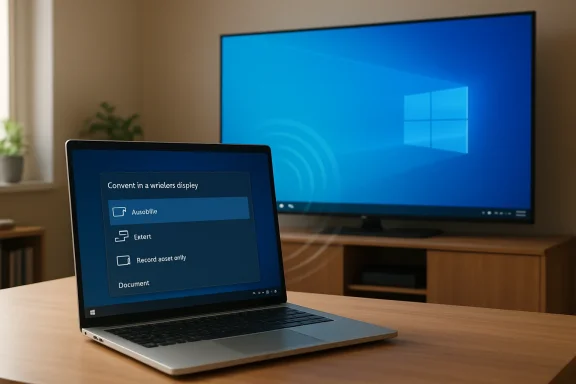 What Miracast actually does
Miracast is a wireless display standard. Instead of sending only a specific video from one app, it can send your whole Windows display to another screen. That means it can show your desktop, browser, photos, presentation slides, video player, or anything else you can see on your PC.A useful way to think of it is “wireless HDMI,” but with a few caveats. HDMI is a physical cable that directly carries video and audio. Miracast is wireless, so performance depends on the wireless hardware, driver quality, distance, interference, and the receiving device. For a slideshow, a web page, a photo gallery, or a casual video, it can be extremely convenient. For latency-sensitive gaming, color-critical work, or the highest-quality movie playback, a cable may still be better.
Miracast is also different from Chromecast and AirPlay. Chromecast often works by telling a streaming device to fetch content from the internet, while your phone or PC acts more like a remote. AirPlay is Apple’s ecosystem-friendly way to send or mirror content between Apple devices and supported receivers. Miracast is more Windows-friendly and works at the display level, which is why it can mirror almost anything on your screen.
That flexibility is the main appeal. You don’t have to wonder whether a specific website or video app has a cast button. If your PC can show it, Miracast can usually project it.
What you need before you start
The checklist is short, but each item matters:- A Windows 10 or Windows 11 PC with Miracast support
- A TV, monitor, projector, or adapter that supports Miracast or wireless display receiving
- Wi-Fi enabled on your PC
- Bluetooth is not required for Miracast itself, though some devices may use Bluetooth for discovery or remote features
- Updated graphics and Wi-Fi drivers, especially if your PC is older or has had connection problems before
On the TV side, naming can be confusing. TV manufacturers often avoid the word “Miracast” in their menus. Instead, look for terms such as:
- Screen Mirroring
- Wireless Display
- Mirroring
- Cast Screen
- Smart View
- Anyview Cast
- Screen Share
- Miracast
- Wi-Fi Display
Check whether your Windows PC supports Miracast
The fastest check is to use the keyboard shortcut built into Windows:- Press Windows + K.
- Look at the Cast panel that opens.
- If Windows starts searching for wireless displays, your PC likely supports wireless projection.
- If Windows says your device does not support Miracast or wireless display, you may need a wired connection or different hardware.
- Press Windows + I to open Settings.
- Go to System.
- Select Display.
- Expand Multiple displays.
- Look for Connect to a wireless display.
For a more technical check, you can use the DirectX Diagnostic Tool:
- Press Windows + R.
- Type dxdiag and press Enter.
- Choose Save All Information.
- Open the saved text file.
- Search for Miracast.
Prepare your TV or display
Before you press Cast on the PC, make sure the TV is ready to receive a connection.On many TVs, you can leave the TV on the home screen and Windows will still find it. On others, you must first open the mirroring app or enable wireless display mode. If your TV doesn’t appear in Windows, this is the first thing to check.
Try these general steps:
- Turn on your TV.
- Open the input, source, apps, or settings menu.
- Look for a screen mirroring, wireless display, or cast option.
- Enable it or open that app.
- Keep the TV on that screen while you connect from Windows.
If you’re using a wireless display adapter instead of built-in TV support, plug the adapter into the TV’s HDMI port and connect its USB power cable. Then switch the TV to that HDMI input. The adapter should show its own ready screen.
Connect your Windows PC to the TV
Once both devices are ready, the actual connection is quick:- On your Windows PC, press Windows + K.
- Wait for the Cast panel to scan for nearby displays.
- Select your TV or wireless display from the list.
- If your TV asks for approval, choose Accept, Allow, or Yes with the TV remote.
- If Windows asks for a PIN, enter the PIN shown on the TV.
- Wait a few seconds for the connection to complete.
If the connection fails the first time, don’t assume the feature is broken. Wireless display connections can be a little temperamental. Try again, move the laptop closer to the TV, make sure the TV is in mirroring mode, and check that Wi-Fi is enabled on the PC.
Choose how the TV behaves: Duplicate, Extend, or Second screen only
After connecting, press Windows + P to open the Project menu. This menu controls how Windows uses the TV.You’ll usually see four options:
- PC screen only
- Duplicate
- Extend
- Second screen only
Duplicate: best for sharing what you’re doing
Duplicate shows the same thing on your laptop and the TV. This is the simplest mode and the one most people expect when they hear “screen mirroring.”Use Duplicate when you want to:
- Show vacation photos
- Share a web page
- Present slides
- Watch a short video with other people
- Demonstrate something on your PC
- Help someone follow along while you change settings
Still, Duplicate is usually the easiest mode for quick sharing.
Extend: best for using the TV as a second monitor
Extend treats the TV as another monitor. Your laptop keeps its own desktop, and the TV becomes extra workspace. You can drag windows from your laptop screen to the TV.This is useful when you want to:
- Put a video on the TV while keeping notes on your laptop
- Show a presentation on the TV while using presenter view
- Use the TV as a large reference screen
- Keep a chat, email, or browser window separate
- Work from the couch with a bigger display
Extend is one of Miracast’s underrated strengths. Many people only think of screen mirroring, but turning a TV into a second monitor can be far more useful.
Second screen only: best when you want the TV to take over
Second screen only turns off the laptop’s built-in display and uses the TV as the main screen. This can be helpful if you’re watching a movie, using a wireless keyboard and mouse, or giving a presentation where you don’t need the laptop screen active.Use this mode when:
- You want fewer distractions
- You want the TV to be the only visible screen
- You’re using the laptop like a small media PC
- You want to save a little laptop display power
Adjust resolution, scaling, and display layout
If the image looks too large, too small, blurry, or cut off, open Windows display settings.- Press Windows + I.
- Go to System > Display.
- Select the TV display if you’re using Extend or Second screen only.
- Adjust Scale and Display resolution.
If the edges of the Windows desktop are cut off, your TV may be applying overscan. Look in the TV’s picture settings for options such as:
- Just Scan
- Screen Fit
- Fit to Screen
- 1:1
- Original
- PC mode
- Full Pixel
What to expect from performance
Miracast is convenient, but it is not magic. Because it’s wireless, there can be lag, compression, stuttering, or dropped connections, especially in crowded wireless environments.For common tasks, it can work very well:
- Photo slideshows
- Web browsing
- Presentations
- Documents
- Casual video streaming
- Showing family videos
- Demonstrating software
- Classroom or meeting-room sharing
- Competitive gaming
- Fast mouse-and-keyboard work
- High-bitrate 4K movie playback
- Color-sensitive editing
- Audio production
- Anything where latency is distracting
The distance between devices also matters. Keep the PC reasonably close to the TV. Walls, appliances, neighboring Wi-Fi networks, Bluetooth congestion, and older wireless adapters can all affect reliability.
You still need Wi-Fi turned on
One point causes a lot of confusion: Miracast does not require an internet connection, but it does require Wi-Fi hardware.Your laptop and TV do not necessarily need to be on the same Wi-Fi network for standard Miracast. In some cases, they don’t need to be connected to any router at all. But the PC’s Wi-Fi adapter still needs to be enabled, because Miracast uses Wi-Fi Direct or related wireless projection methods to create the connection.
So if you normally keep Wi-Fi disabled because your laptop is connected through Ethernet, turn Wi-Fi back on before using Cast. You can usually leave Ethernet connected for internet access while using Wi-Fi for wireless display, though behavior can vary depending on hardware and network configuration.
How to disconnect
When you’re done, disconnecting is easy.You can:
- Press Windows + K.
- Select the connected display.
- Choose Disconnect.
- Press Windows + P.
- Choose PC screen only.
Troubleshooting: TV doesn’t appear in the Cast list
If your TV doesn’t show up when you press Windows + K, try these fixes:- Make sure the TV’s screen mirroring or wireless display mode is open.
- Move the laptop closer to the TV.
- Turn Wi-Fi off and back on in Windows.
- Restart the TV.
- Restart the PC.
- Update the PC’s Wi-Fi and graphics drivers.
- Make sure VPN software or strict firewall tools are not blocking wireless display traffic.
- Check whether your TV supports Miracast specifically, not just Chromecast or AirPlay.
- Try removing old wireless display entries from Windows and reconnecting.
- Open Settings.
- Go to Bluetooth & devices.
- Select Devices.
- Look under wireless displays or docks.
- Remove the TV or adapter.
- Try connecting again with Windows + K.
Troubleshooting: connection starts but fails
If Windows sees the TV but can’t connect, the problem is often on the receiver side.Try this:
- Accept the prompt on the TV quickly before it times out.
- Restart both devices.
- Make sure no other device is already connected to the TV’s screen mirroring feature.
- Disable and re-enable the TV’s wireless display mode.
- Forget the TV in Windows and pair again.
- Check for firmware updates on the TV or wireless display adapter.
- Turn off nearby wireless display sessions from other laptops or phones.
Troubleshooting: lag, stutter, or poor quality
If the connection works but looks choppy, try improving the wireless environment:- Move the laptop closer to the TV.
- Reduce obstructions between the laptop and TV.
- Disconnect from crowded public Wi-Fi if possible.
- Avoid using the microwave or other interference-heavy devices nearby.
- Update Wi-Fi and graphics drivers.
- Restart the router if the devices are using wireless projection over an existing network.
- Close bandwidth-heavy apps on the laptop.
- Lower the projected display resolution.
- Try Duplicate instead of Extend, or Extend instead of Duplicate, to see which performs better.
- If your TV has a dedicated screen mirroring app, use that instead of the generic home screen.
Troubleshooting: audio plays from the laptop instead of the TV
If video appears on the TV but sound still comes from the laptop:- Click the speaker icon in the Windows taskbar.
- Open the output device selector.
- Choose the TV, wireless display, or digital audio device.
- Restart the app playing audio if needed.
If the TV appears as a display but not as an audio output, disconnect and reconnect. Also check whether the TV volume is muted or whether the TV is using a soundbar or receiver on another input.
Troubleshooting: the picture is rotated, cropped, or scaled badly
If the TV image is awkwardly sized:- Open Settings > System > Display.
- Select the TV.
- Try a recommended resolution.
- Adjust scaling to 100%, 125%, or 150%.
- Check the TV’s aspect ratio settings.
- Enable PC mode or Game mode on the TV if available.
- Disable overscan on the TV.
What if your TV doesn’t support Miracast?
If your TV doesn’t have Miracast or wireless display support, you have several options.The simplest is HDMI. It is reliable, has low latency, carries audio and video, and usually provides the best quality. The downside is the cable.
You can also use a Miracast-compatible wireless display adapter. These plug into the TV’s HDMI port and act as the receiver. This is still extra hardware, but it can be useful for older TVs, projectors, or monitors.
Another option is a streaming device, but be careful: not every streaming device supports Windows screen mirroring through Miracast. Chromecast-style casting is not the same thing as Miracast. It can be great for supported apps and browser tabs, but it may not behave like a full Windows wireless monitor.
If your main goal is playing media files from a PC to a TV, you can also use a media server app or network sharing, but that’s a different setup from mirroring your whole screen.
Security and privacy tips
Wireless display is convenient, but remember that you are showing your screen to a large display. Before connecting, close anything private:- Email inboxes
- Password managers
- Private chats
- Banking pages
- Work documents
- Notifications with sensitive information
If your TV asks whether to allow a connection, don’t approve devices you don’t recognize. In shared spaces, use PIN prompts if available. Offices and classrooms should be especially careful, because wireless displays can invite accidental or unwanted connections.
On the Windows side, disconnect when you’re finished. Don’t leave your laptop connected to a conference room screen after a meeting.
When Miracast is better than HDMI
Miracast is ideal when convenience matters more than perfect performance.It’s especially useful for:
- Quick meetings
- Showing a few photos
- Sharing a browser page
- Watching a casual video
- Putting a recipe, map, or document on a larger display
- Temporary second-screen use
- Situations where the HDMI cable is missing, too short, or across the room
When HDMI is still the better choice
HDMI remains better for:- Gaming
- Long movies where stability matters
- 4K HDR playback
- High refresh rates
- Lowest latency
- Professional presentations where failure is not acceptable
- Rooms with heavy wireless interference
- Older devices with unreliable Miracast support
Make it easier next time
Once you’ve connected successfully, Windows may remember the TV or adapter. The next time, the process should be faster:- Turn on the TV.
- Open the TV’s wireless display mode if needed.
- Press Windows + K.
- Select the TV.
You can also rename your TV in its settings to make it easier to identify. This is especially useful if your home has several TVs or if you’re in an office with multiple conference-room displays.
A few practical use cases worth trying
One of the best ways to appreciate wireless display is to stop thinking of it only as “movie casting.” It can solve small everyday problems.For example, if you’re planning a trip with family, cast your browser to the TV so everyone can look at flights, hotels, maps, and photos together. If you’re sorting through vacation pictures, the TV makes it much easier for everyone in the room to see. If you’re cooking and want a big recipe screen, Extend mode lets you keep notes or timers on the laptop while the recipe stays visible on the TV.
For work, Miracast can be handy for quick huddles. You can show a spreadsheet, prototype, dashboard, or slide deck without finding the right adapter. In a classroom, it can let a teacher move around with a laptop while keeping material on the main screen.
At home, it can also turn a TV into a temporary second monitor. It won’t replace a proper desk monitor for daily work, but it’s useful when you need more space for a short session.
The feature is easy to miss
The funny thing about Miracast on Windows is that many people already have it and never use it. It’s hidden behind keyboard shortcuts and “wireless display” wording, so it doesn’t feel as obvious as plugging in HDMI or tapping a cast icon in a video app.But once you know the shortcuts, it’s simple:
- Windows + K opens the Cast panel.
- Windows + P changes projection mode.
- Settings > System > Display gives you more control.
Source: MakeUseOf Your Windows PC can already stream to your TV without any extra hardware — here’s how to set it up
