

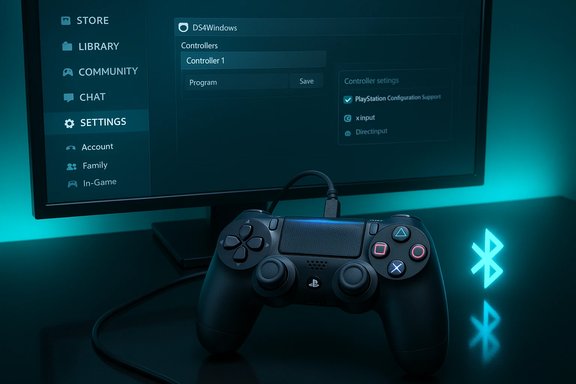
Using a PlayStation 4 DualShock controller on a Windows 10 PC is simpler than many users expect: you can connect it wirelessly over Bluetooth, plug it in with USB for plug‑and‑play reliability, use Steam’s Input layer for game mapping, or run a small wrapper like DS4Windows to expose the DualShock as an XInput device for legacy games — each method has clear trade‑offs in latency, feature support, and compatibility.
The DualShock 4 (PS4 controller) uses Sony’s proprietary input features but communicates over standard Bluetooth and USB HID profiles. Windows 10 recognizes generic controllers at a low level, but many PC games expect the Microsoft XInput API used by Xbox controllers. That mismatch is why third‑party helpers like DS4Windows or Steam Input are common: they map DualShock inputs into XInput so games see a familiar Xbox controller.
Sony’s official PlayStation Remote Play app provides another route: stream your PS4/PS5 to a Windows PC and use the DualShock locally (USB or Bluetooth) while the game runs on the console. Remote Play is an official solution but depends on a robust network and a console. The app lists Windows 10 (64‑bit) as supported and recommends a stable connection — plan for 15 Mbps or higher for comfortable 1080p streaming.
Understanding these core realities — input APIs (XInput vs DirectInput), connection layers (USB vs Bluetooth), and service options (local vs streamed play) — helps choose the right method for your needs.
Source: Born2Invest https://born2invest.com/?b=style-336098612/
 Background / Overview
The DualShock 4 (PS4 controller) uses Sony’s proprietary input features but communicates over standard Bluetooth and USB HID profiles. Windows 10 recognizes generic controllers at a low level, but many PC games expect the Microsoft XInput API used by Xbox controllers. That mismatch is why third‑party helpers like DS4Windows or Steam Input are common: they map DualShock inputs into XInput so games see a familiar Xbox controller.Sony’s official PlayStation Remote Play app provides another route: stream your PS4/PS5 to a Windows PC and use the DualShock locally (USB or Bluetooth) while the game runs on the console. Remote Play is an official solution but depends on a robust network and a console. The app lists Windows 10 (64‑bit) as supported and recommends a stable connection — plan for 15 Mbps or higher for comfortable 1080p streaming.
Understanding these core realities — input APIs (XInput vs DirectInput), connection layers (USB vs Bluetooth), and service options (local vs streamed play) — helps choose the right method for your needs.
Which connection method is right for you?
- If you want the fastest, most reliable input with the fewest surprises: Wired USB.
- If you value wireless convenience and don’t need ultra‑low latency: Bluetooth pairing.
- If you need maximum compatibility with older PC games: use DS4Windows or Steam Input to map DualShock to XInput.
- If you want to play a PS‑exclusive title on your PC without a native port: use PlayStation Remote Play and stream the game from your console.
How to connect a DualShock 4 to Windows 10 (step‑by‑step)
1) Wired USB — plug, wait, play (recommended for low latency)
Wired USB is the most straightforward and reliable approach. Use a data‑capable cable (not charge‑only).- Use a USB‑A to Micro‑USB cable (the one that shipped with most DualShock 4 controllers).
- Connect the controller to a free USB port on the PC.
- Wait for Windows to identify and install drivers. You should see a “Device ready” notification.
- Press the PlayStation button and test in a game or Steam Big Picture.
2) Native Bluetooth pairing — wireless convenience
Windows 10 supports Bluetooth pairing of gamepads. This is handy for laptops and casual gaming.- Put the DualShock 4 into pairing mode: hold the Share button and the PlayStation button simultaneously until the light bar flashes.
- On Windows: Settings → Devices → Bluetooth & other devices → Add Bluetooth or other device → Bluetooth. Select “Wireless Controller” from the list.
- Complete pairing. The controller will appear under Bluetooth devices.
- Bluetooth adds more latency than USB. For fast twitch shooters, wired still beats Bluetooth.
- If pairing stalls, update the PC’s Bluetooth drivers, disable interfering 2.4 GHz devices, or try a different dongle. The Windows Bluetooth troubleshooter and Device Manager often resolve common stack issues.
- Some features (like the DualShock light bar or advanced rumble/touchpad behavior) may not be fully functional or consistently mapped in native PC games; wrappers or Steam Input improve compatibility.
3) DS4Windows / wrappers — make DualShock look like an Xbox controller
DS4Windows and similar wrappers let a DualShock 4 appear to Windows games as an XInput device. This is the single most popular compatibility fix for older titles that only recognize Xbox controllers.- Download DS4Windows from the project page (use the official release). Install the ViGEm or virtual driver if prompted.
- Run DS4Windows and configure mappings, light bar, and profiles. You can toggle between native DirectInput and XInput emulation.
- Pair the controller via USB or Bluetooth and then let DS4Windows present it as an XInput controller to games.
- Virtual driver tools are powerful and widely used, but they install kernel‑level components. Only download from trusted project pages and keep backups or a restore point before major changes. Anti‑cheat systems can react to virtual drivers in some multiplayer titles; check the game’s anti‑cheat policy if you plan to play online.
4) Steam Input — easiest for Steam libraries
Steam has built‑in DualShock 4 support and can present your controller as an XInput device to games launched through Steam.- Add non‑Steam games to your library if needed (Games → Add a Non‑Steam Game).
- Open Big Picture Mode or the controller settings in Steam.
- Configure your controller under Settings → Controller → General Controller Settings and enable “PlayStation Configuration Support”.
- Launch your game through Steam to get consistent input mapping and profile overlays.
5) PlayStation Remote Play — stream PS4 to PC and keep DualShock features
If a game is PlayStation‑exclusive, Remote Play streams audio and video from your PS4/PS5 to the Windows client. The game still runs on the console; the PC is only a display and input bridge.- Install PS Remote Play on Windows 10 (64‑bit).
- On the console, enable Remote Play in Settings (PS4: Settings → Remote Play Connection Settings).
- On Windows, sign into the same PSN account and connect. For best results use wired Ethernet or strong 5 GHz Wi‑Fi and aim for at least 15 Mbps.
- Remote Play is official and preserves console features, but it depends on network quality. Expect compression artifacts and higher input latency than local play. Use wired connections when possible.
Troubleshooting: common problems and fixes
Pairing stalls or the controller won’t appear
- Update Bluetooth drivers using OEM or chipset vendor packages rather than generic updaters.
- Remove stale/ghost devices in Device Manager (View → Show hidden devices) and uninstall greyed‑out entries. Reboot and re‑pair.
- Try a different USB port or a short, data‑capable cable if using wired mode. Front panel headers and hubs can cause issues.
Lag, disconnects, or dropouts
- Bluetooth tends to be more prone to dropouts; switch to wired or use a high‑quality Bluetooth dongle if problems persist. Disable USB selective suspend and check power‑management settings for the adapter.
- Close background downloads and streaming apps. Network congestion or CPU spikes can increase Remote Play or wrapper latency.
Game doesn’t see the controller
- Use Steam Input or DS4Windows to present an XInput device to legacy games. Adding non‑Steam titles to Steam and launching from there is a quick workaround.
- If GameInput or Microsoft redistributables are required by a particular title and the wrapper conflicts, reinstall the Microsoft GameInput package and update drivers; create a restore point before large changes.
Headset audio is unreliable through the controller
- Controller audio passthrough can be flaky depending on Bluetooth stack and device. Xbox Wireless often has more reliable passthrough than generic Bluetooth solutions, but that is an Xbox‑centric option and not applicable to DualShock controllers. Check Windows sound settings and disable “Allow applications to take exclusive control” if audio cuts out.
Performance, latency, and real‑world trade‑offs
- Wired USB: lowest latency, best for competitive play and firmware updates. Use for fast twitch games.
- Bluetooth: best for convenience on laptops and casual play; expect more latency and potential dropouts. Update drivers and minimize 2.4 GHz interference.
- DS4Windows / Virtual Drivers: improves game compatibility by translating inputs, but adds a layer that may cause anti‑cheat concerns in some multiplayer titles. Keep these tools updated and check official guidance for each game.
- Remote Play: good for playing PS‑only titles on a PC screen with a DualShock; subject to network latency and compression. For best results use wired connections at both ends.
Safety, privacy, and anti‑cheat considerations
- Only download DS4Windows, ViGEm, and similar tools from their official project pages. Kernel‑level virtual drivers are powerful and can create system instability if tampered with.
- Some competitive titles and anti‑cheat solutions have strict rules about virtual devices. If you play online multiplayer, consult the game’s anti‑cheat policy before using wrappers. Where possible, prefer Steam Input over third‑party virtual drivers for Steam releases.
- On managed corporate machines, changing drivers or disabling services may violate IT policy. Document any changes and consult IT before proceeding.
Buying advice: controllers, dongles, and the “Free Shipping” angle
If you need new hardware — a replacement DualShock 4, a USB Bluetooth dongle, or a short high‑quality Micro‑USB cable — consider these practical points:- Prioritize genuine or well‑reviewed controllers; third‑party pads vary widely in build quality and driver support.
- For Bluetooth dongles, choose reputable chipset vendors (Intel/Qualcomm/Realtek) or well‑known Bluetooth adapter models. Cheap clones can cause pairing and latency problems.
- Short, high‑quality data cables are preferable to long, thin charge cables. If you want a reliable wired connection with mobility, look for shielded USB cables rated for data.
Quick reference — connect in under 90 seconds
- Wired (best for reliability)
- Plug DualShock into PC with data cable.
- Wait for Windows to install drivers.
- Press the PS button and test.
- Bluetooth (convenient)
- Hold Share + PS until light flashes.
- Windows: Settings → Bluetooth & devices → Add device.
- Select Wireless Controller and pair.
- Steam Input (Steam games)
- Enable PlayStation Configuration Support in Steam Input settings.
- Launch game through Steam.
- DS4Windows (legacy games)
- Install DS4Windows and required virtual drivers.
- Pair or plug in the controller and enable XInput emulation.
- Remote Play (stream from PS4)
- Install PS Remote Play, enable Remote Play on console.
- Sign in and connect; prefer wired networks.
What works best, in one sentence
For most Windows 10 users who want minimal fuss and the best responsiveness: plug the DualShock 4 in with a quality USB cable. For wireless convenience and broad compatibility with Steam titles, pair via Bluetooth and use Steam Input; if a non‑Steam game refuses to recognize the controller, DS4Windows is a robust fallback — but treat virtual drivers with caution for multiplayer anti‑cheat compatibility.Final analysis: strengths, limitations and practical advice
Strengths- Multiple viable connectivity paths exist: USB, Bluetooth, Steam Input, DS4Windows, and Remote Play, giving users flexibility to match reliability, latency, and convenience needs.
- Steam and wrapper solutions solve the XInput compatibility gap for most PC games without hardware changes.
- Remote Play is a practical, official route for playing PlayStation‑exclusive titles on a PC screen when local ports aren’t available.
- Bluetooth can introduce latency and dropouts; it’s not ideal for competitive gaming. Keep drivers updated and consider a high‑quality dongle if the internal adapter is inconsistent.
- Virtual drivers (DS4Windows/ViGEm) are powerful but pose anti‑cheat and stability risks; use official sources and check game policies, especially for online multiplayer.
- Remote Play depends on network quality and console availability — it’s streaming, not native execution. Expect differences in latency and fidelity compared with local play.
- Any specific retailer claim like “Free Shipping” or “fastest shipping” is buyer‑and‑time dependent and cannot be verified here; check the seller at purchase. Firmware behavior and advanced Bluetooth features (such as LE Audio) are evolving and can depend on a combination of Windows updates, chipset firmware, and vendor drivers; treat such feature claims as conditional until your hardware and OS explicitly expose them.
- Start simple: try wired first; if you need wireless, pair via Bluetooth and test responsiveness. If a game doesn’t detect the DualShock, enable Steam Input or use DS4Windows as a fallback — but keep backups and check anti‑cheat rules for multiplayer titles. For PS‑exclusive games, Remote Play is a reliable official option when network conditions permit.
Source: Born2Invest https://born2invest.com/?b=style-336098612/
