

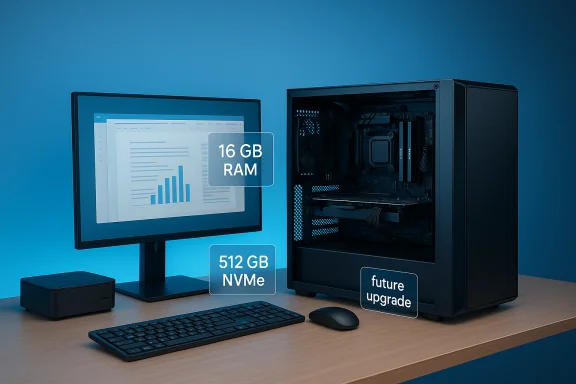
A well‑chosen desktop still delivers the most consistent, upgradeable, and cost‑effective foundation for a fast, seamless multitasking experience—whether you’re a student joining back‑to‑back video lectures, a creative juggling editing timelines, or an office worker running dozens of browser tabs and productivity apps.
Background / Overview
Desktops remain the pragmatic choice for buyers who prioritize raw responsiveness, long service life, and the ability to upgrade individual components over time. Recent buyer guides show the same pattern: pick a modern processor, insist on an SSD for the OS, aim for 16 GB of RAM as a practical baseline, and verify expandability (M.2 slots, DIMM slots, and PSU headroom) before purchasing. These are not aspirational tips but practical rules that materially change day‑to‑day smoothness and longevity.All‑in‑one systems and mini‑PCs have blurred the lines, offering compact footprints with surprisingly capable silicon. But for users who want performance per dollar and the ability to incrementally upgrade as needs evolve, traditional towers and easily serviceable assembled desktops still win hands down. The value argument is especially strong when NVMe SSDs and midrange CPUs are widely available in inexpensive prebuilt SKUs.
What the Hindustan Times roundup presented (and how to read it)
The Hindustan Times top‑10 desktop roundup (the list the community has been discussing) focuses on assembled and prebuilt desktops aimed at everyday productivity and light multimedia tasks. Common themes across the picks:- Predominantly Intel Core i3 / i5 / i7 configurations.
- Memory ranging from 8 GB to 16 GB (the i5 builds commonly offer 16 GB).
- Storage choices that mix SSDs for the operating system with HDDs for bulk files, or single larger SSDs (128–512 GB SSDs and 500 GB HDDs are typical in the listed SKUs).
- Bundled 19–22 inch monitors in many packages and trial Windows installations or preinstalled Windows 11/10 with Office trials.
Quick recap: the top desktop types covered and why they matter
The roundup includes several practical categories that map to common user needs:- Everyday value towers (Core i3/i5 with SSD + HDD hybrids) — balance of speed and storage for general office work and study.
- Assembled i5/i7 systems — stronger CPUs for heavier multitasking, but often lacking discrete GPUs if the target is productivity rather than gaming.
- Compact and mini desktops — small footprint with laptop-class silicon, great for constrained desks and multi‑monitor setups.
- All‑in‑one bundles with monitor included — good for plug‑and‑play buyers who want a tidy setup without separate component sourcing.
Strengths of the roundup—and why these builds genuinely deliver smooth workflows
- Focus on SSD responsiveness. Every desktop that feels "fast" boots and wakes quickly because the OS and frequently used apps live on an SSD. The picks emphasize SSDs (often 128–512 GB) and hybrid setups where a smaller SSD handles the OS and a larger HDD stores media. This combination offers immediate responsiveness without forcing buyers into expensive large SSDs.
- Practical memory levels. Several i5 models in the list ship with 16 GB RAM, which aligns with the increasing consensus that 16 GB is the practical baseline for multitasking-heavy days (video calls, dozens of browser tabs, and background sync services). Guides and reviews repeatedly recommend this as the minimum for smooth long‑term experience.
- Ready‑to‑use bundles. For buyers who want a monitor and peripherals with the least friction, the included 19–22 inch displays and preinstalled Windows packages simplify setup. This plug‑and‑play convenience can save time and reduce compatibility headaches for first‑time desktop buyers.
- Value orientation. The roundup’s emphasis is on balanced, practical builds rather than high‑end gaming rigs. For users who value everyday speed—office productivity, remote learning, email, and light creative tasks—this is the right tradeoff between price and capability.
Key risks and blind spots buyers should watch
- SKU fragmentation: model names often hide radically different configurations. The same "model" can ship with different CPUs, memory, or storage sizes depending on retailer and region. Always verify the exact SKU string, not just the product name.
- Proprietary PSUs and nonstandard chassis in budget prebuilt towers: some low‑cost suppliers use smaller or proprietary power supplies that limit future GPU upgrades or complicate repairs. If expandability matters, confirm PSU wattage and standard connectors.
- Software warranty and trial software: many assembled systems come with trial copies of Windows and Office or lack clear software warranty terms. That can be inconvenient if activation or driver issues arise—budget for a licensed OS or verify vendor support before purchase.
- No dedicated GPU in productivity‑targeted builds: integrated graphics are fine for streaming, video calls, and basic photo editing, but they will bottleneck games and GPU‑accelerated creative workloads. If planning to do heavier design, rendering, or gaming, prioritize a system with a discrete GPU or ensure a clear upgrade path.
- Mixed storage tradeoffs: a 128 GB SSD boot drive provides speed but can fill up fast. Confirm whether the build offers spare drive bays or extra M.2 slots before committing.
Verified technical guide: what to prioritise and why (cross‑checked advice)
Below are the most important components and the practical targets to aim for, verified against independent buyer guides and recent product testing.1. Processor (CPU)
- Target: Intel Core i5 / i7 (12th gen or newer) or AMD Ryzen 5 / 7 (5000 series or newer) for consistent multitasking headroom.
- Why: These CPUs provide a good balance between single‑core responsiveness (important for UI snappiness) and multi‑core throughput (helpful in parallel tasks and background services). For everyday multitasking, Core i5 or Ryzen 5 is the sweet spot.
2. Memory (RAM)
- Target: 16 GB DDR4/DDR5 as the baseline for a smooth multitasking workflow; 32 GB for heavier content creation or large VM workloads.
- Why: Modern browsers, collaboration tools (Teams/Zoom), background sync, and code editors consume RAM aggressively—16 GB reduces paging and keeps the system responsive.
3. Storage
- Target: NVMe SSD (at least 512 GB) for the OS and applications; optional HDD (1 TB+) or secondary SATA drive for bulk files.
- Why: NVMe SSDs dramatically reduce boot and app load times. If you need large storage for media, pair a fast SSD for day‑to‑day work with an HDD for archive data. Hybrid setups were recommended in the roundup for value and responsiveness.
4. Graphics
- Target: Integrated graphics are fine for office productivity and streaming. Discrete GPU (Nvidia/AMD) required for gaming, 3D modeling, and GPU‑accelerated video work.
- Why: Integrated GPUs reduce cost and power consumption, but discrete GPUs are the primary driver of high‑fps gaming and fast GPU‑accelerated rendering. Confirm physical space and PSU headroom if future GPU upgrades are anticipated.
5. Connectivity and Ports
- Target: At least one USB‑C (with DisplayPort or Power Delivery if possible), HDMI, multiple USB‑A ports, and Ethernet. Wi‑Fi 6E or Wi‑Fi 7 is a bonus for modern networks.
- Why: Ports matter for monitors, audio interfaces, external drives, and dongles—good port selection saves on adapters and improves desk ergonomics.
6. Expandability & Cooling
- Target: Free M.2 slots, two DIMM slots (or more), and a standard ATX PSU where possible. Adequate airflow and a factual specification for case cooling are important.
- Why: Expandability future‑proofs the machine; better airflow preserves component life and sustained performance. Budget prebuilt systems often skimp on PSU and internal layout—verify before buy.
Best‑practice buying checklist (step‑by‑step)
- Identify your primary workload (office, study, streaming, light editing, gaming).
- Confirm the exact SKU string and component distribution (e.g., 128 GB SSD + 500 GB HDD vs 512 GB NVMe).
- Verify RAM configuration (single stick vs dual channel) and whether RAM is upgradable.
- Check for at least one NVMe M.2 slot open or confirm SSD type and interface.
- Confirm PSU wattage and connector type if you plan to add a discrete GPU later.
- Validate warranty terms (hardware AND software activation support) and return policy.
- Compare prices across retailers but prioritize verified SKU specs over model names.
- Plan a minimal upgrade budget at purchase: an extra stick of RAM or larger SSD often yields better long‑term value than chasing a slightly better CPU.
Short technical notes on common buyer questions
- CPU speed: 3–4 GHz real‑world clocks are commonly cited as ideal for responsive multitasking, but modern multi‑core microarchitectures and turbo behaviour matter more than a single nominal clock number.
- SSD vs HDD: SSDs deliver perceptible speed improvements for boot and app loads. An NVMe drive for the OS plus an HDD for bulk storage is the pragmatic hybrid many value buyers prefer.
- Do you need a GPU for office desktops? No, not usually. Integrated graphics handle documents, streaming, and standard productivity apps. A discrete GPU becomes necessary for gaming or GPU‑accelerated editing.
How the roundup’s specific picks stack up (practical takeaways)
The Hindustan Times list includes several assembled brands and prebuilt SKUs that emphasize value. Here are distilled takeaways by representative model type:- DZAB i5 (16 GB / 512 GB SSD) — why buy: snappy everyday performance and ample memory for multitasking; watch for: assembled builds may have variable component brands and limited software warranty.
- LG assembled i3 (8 GB / 500 GB SSD) — why buy: steady basic productivity with bundled monitor; watch for: entry‑level CPU means limit for heavy multitasking or content creation.
- ZEBRONICS i5 (16 GB / 500 GB SSD) — why buy: strong multitasking performance at a value price; watch for: no dedicated GPU if you plan gaming.
- FusionIT i7 (8 GB / 500 GB HDD) — why buy: high single‑thread CPU performance for heavier apps; watch for: HDD limits system snappiness—an SSD upgrade is highly recommended.
Actionable upgrade plan for buyers of value desktops
If you buy a budget or assembled desktop today and want it to remain useful for 3–5 years, follow this upgrade ladder:- Immediately install a 256–512 GB NVMe SSD for the OS if the system ships with an HDD. (This yields the largest UX leap.
- Add a second 8–16 GB RAM stick to reach 16 GB total if the system ships with 8 GB (dual‑channel is important).
- Check PSU and case space if you plan a discrete GPU; upgrade PSU before buying a midrange GPU if wattage or connectors are inadequate.
- Replace the HDD with a larger HDD or archive to external storage once the SSD is dedicated to the OS and apps.
Final verdict: who should buy these desktops and who should look elsewhere
Buy these desktops if you need:- A practical, low‑risk workstation for office productivity, remote learning, and light creative tasks.
- A budget that prioritizes immediate responsiveness (SSD) and RAM over high‑end graphics.
- A plug‑and‑play bundle with a monitor and basic peripherals included.
- You are a gamer targeting 1440p/4K frame rates or a creative professional doing heavy GPU‑accelerated renders—those use cases demand discrete GPUs and higher‑end cooling solutions.
- You want guaranteed, long onsite service or brand‑backed warranties that cover software activation and driver support—boutique assembled sellers may not match OEM policies.
Conclusion
Desktop computing still offers the clearest path to a fast, seamless multitasking experience for most users. The Hindustan Times top‑10 selections highlight practical, value‑oriented systems that prioritize SSD speed, sensible memory, and ready‑to‑use bundles—exactly the combination that reduces interruptions and keeps workflows flowing. However, SKU verification, a small post‑purchase SSD/RAM upgrade plan, and attention to PSU/expandability are essential to ensure those daily gains last for years. When you pair a modern midrange CPU with an NVMe SSD and 16 GB of RAM, you get the single most reliable recipe for a desktop that simply gets out of the way and lets you work.Source: Hindustan Times Best computer desktop offering speed and seamless performance: Top 10 picks for multitasking and smooth workflow
