

If Alexa won't install on your Windows 10 PC, you're not alone — recent platform changes, regional Store restrictions, and legacy installation paths have created a confusing landscape for users trying to run the Amazon Alexa app on a desktop. The simple "open Microsoft Store → search Alexa → click Install" workflow that many how‑tos still show can fail for a handful of concrete reasons: the Alexa listing may be hidden or restricted in your region, the Microsoft Store cache can be corrupted, or previously available Android‑on‑Windows workarounds were removed when Microsoft deprecated the Windows Subsystem for Android. This article explains exactly why installations break, verifies the key technical facts, walks through safe troubleshooting you can do on a Windows 10 PC, and lays out practical alternatives and security cautions so you can make an informed choice.
Amazon long offered a native Alexa app for Windows and promoted "Alexa Built‑in" PCs with preloaded or easily downloadable clients. The app provided voice access to Alexa features — smart‑home control, lists, timers, media playback, and basic PC controls — and OEMs sometimes shipped Alexa as an out‑of‑box feature on specific laptops. That tidy picture began to fragment as platform decisions and distribution changes ry of the Store install path and removed the Android fallback many users relied on. Two authoritative technical facts underpin the current state:
These steps start with low‑risk fixes and progress to more involved workarounds. Follow them in order.
Key actionable recommendation:
Source: Born2Invest https://born2invest.com/?b=style-253199012/
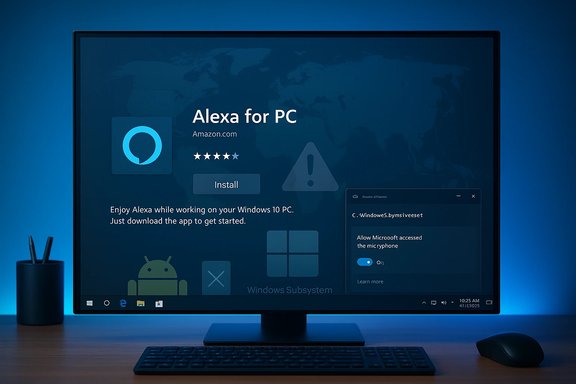 Background / Overview
Amazon long offered a native Alexa app for Windows and promoted "Alexa Built‑in" PCs with preloaded or easily downloadable clients. The app provided voice access to Alexa features — smart‑home control, lists, timers, media playback, and basic PC controls — and OEMs sometimes shipped Alexa as an out‑of‑box feature on specific laptops. That tidy picture began to fragment as platform decisions and distribution changes ry of the Store install path and removed the Android fallback many users relied on. Two authoritative technical facts underpin the current state:- Microsoft announced the deprecation of the Windows Subsystem for Android (WSA), and as a result the Amazon Appstore (a conduit for Android apps on Windows) was scheduled to stop being supported on March 5, 2025. That action removed a prominent secondary route people used to run Android Alexa builds on Windows 11. ([thurrott.com](Microsoft is Killing the Windows Subsystem for Android and Amazon Appstore on Windows 11 Store listing for Alexa has been inconsistent: in some markets the listing is still visible, in others the Get/Install buttons are removed or the listing is hidden entirely. Community reports and vendor documentation note regional availability and OEM preloads as the principal drivers of whether the app appears.
Why Alexa may not install on your PC (technical causes)
1) Regional listing and availability
Amazon and OEMs limit Alexa for PC launches by country and language. If your Windows region or Microsoft account region doesn't match a supported market, the Store may not show the Alexa listing or the Install button. OEMs sometimes preinstall a certified “Alexa Built‑in” client only on specific SKUs; that is separate from a general Store listing.2) Microsoft Store caching, account or Store corruption
A corrupted Store cache, mismatched account, or a Store app glitch can hide listings or make the Get/Install button appear disabled. Clearing the Store cache with the built‑in WSReset tool or resetting the Store app often resolves transient Store problems. Microsoft documents wsreset.exe as the supported way to clear and reset the Store cache.3) OS or platform end‑of‑support issues
Some older Windows 10 builds or machines missing critical updates may be blocked from installing newer Store packages. Conversely, the Windows Subsystem for Android path used by some to run Android apps on Windows 11 is deprecated; apps dependent on WSA cannot be added after Microsoft’s announced cutoff. That removes a common installation workaround.4) Permissions and min when the app installs, Alexa needs microphone and privacy permissions in Windows to function. If the microphone is disabled or the app lacks permission, Alexa cannot hear the wake word or respond. Microsoft’s privacy settings show the exact path to manage microphone access in Windows 10.
5) Unofficial installers or archived packages (danger)
Archived APKs, third‑party installers, or cracked packages circulating online may appear to solve installation problems, but they introduce security risks (unsigned binaries, malware, or missing updates). Community reports repeatedly advise avoiding these sources and preferring Store installs or official OEM pre‑by‑step: Safe troubleshooting to try right now on Windows 10These steps start with low‑risk fixes and progress to more involved workarounds. Follow them in order.
- Confirm your Windows version and apply updates
- Open Settings → Update & Security → Windows Update and install pending updates. Many Store apps require a reasonably recent Windows 10 build to appear.
- Check the Microsoft Store account and region
- Open Microsoft Store and confirm you're signed in with the Microsoft account that maps to your region. Some apps are gated by Store region.
- Verify Windows region: Settings → Time & Language → Region and set it temporarily to a supported country (United States or United Kingdom are commonly reported to show Alexa). If you change the region, restart and check the Store again.
- Reset the Microsoft Store cache (wsreset)
- Press Windows+R, type wsreset.exe, and press Enter. Wait for the Store to relaunch, then sa again. Microsoft documents this as the supported first‑line fix for Store glitches.
- Repair or reset Microsoft Store app
- Settings → Apps → Microsoft Store → Advanced options → Repair. If that doesn't work, use Reset (this preserves your Store purchases but clears local cache). If Store still misbehaves, re‑register via PowerShell with the Get‑AppXPackage command sequence described in Microsoft troubleshooting docs.
- Confirm Alexa app availability and try the Microsoft Apps web portal
- If the app is missing in Store search, try opening the Alexa for PC page through Microsoft’s web Store (sometimes cached links allow an Instop Store). Some users successfully installed that way when direct search failed.
- Microphone permissions and hands‑free settings
- Settings → Privacy → Microphone: ensure “Microphone access for this device” and “Allow apps to access your microphone” are set ON. In Windows 10 the Alexa Store app will appear under the app list; make sure it’s allowed. Microsoft documents these paths and the behavior of microph Windows 10 and 11.
- If you see the app but it won’t open
- Sign out and back in inside the Alexa app, reboot the PC, and confirm network connectivity. If the app shows “No Internet Connection” despite working network elsewhere, firewall rules or Proxy settings may be blocking Alexa’s cloud services — check firewall and enterprise policies. Community reports show that simple sign out → sign in often fixes token problems.
- If none of the above works: safe alternatives
- Use the Alexa mobile app on your smartphone for full functionality and pair with Echo hardware for hands‑free desk use.
- Buy an Echo Dot or Echo Show to get the full, actively supported Alexa experience on the desk. This is the most reliable route for most users.
- Use Alexa’s web management interface for device configuration and some account tasks.
Verified technical checks (what we validated and where)
- Windows Subsystem for Android (WSA) deprecation: Microsoft’s deprecation notice and coverage by independent outlets confirm that WSA and the Amazon Appstore on Windows were scheduled to stop being supported on March 5, 2025, removing Android‑app paths on Windows 11. This is a platform‑level change that affects one common Alexa installation workaround.
- Microsoft Store cache reset and repair: Microsoft’s own support documentation recommends wsreset.exe to clear the Store cache and offers a GUI reset/repair flow for the Store app; these are standard, supported troubleshooting steps.
- Microphone permission path: Microsoft’s privacy documentation shows Windows 10 Settings → Privacy → Microphone as the c microphone access for Store apps and desktop apps when appropriate. Granting the Alexa app microphone access is required for voice input.
- Regional availabilityzon’s Alexa "Built‑in PC" documentation (developer guidance) explicitly states Alexa availability is limited by region/language and how OEMs deploy the app; OEM preloads differ from Store availability. That explains why some laptops come with Alexa out of the box while other machines don’t see the app in the Store.
Practical alternatives and advanced nd benefits
- Buy or use Echo hardware for desktop Alexa:
- Pros: Fully supported, receives feature and security updates, best audio and far‑field performance.
- Cons: Extra hardware cost; Alexa interactions are not native to the Windows UI (though you can use companion features).
- Recommendation: Best for reliability and long‑term stability.
- Use the Alexa mobile app (phon cross‑device sync:
- Pros: Full app functionality (routines, skills), actively maintained.
- Cons: Not native to desktop; you still need an Echo for hands‑free desk voice activation.
- Recommendation: Practical if you already have an Echo or phone-based workflows.
- Andrved installers (emulators like BlueStacks)
- Pros: Potentially runs the mobile Alexa APK on a PC.
- Cons: Emulators consume resources, introduce attack surfaces, and may not replicate all features reliably. Downloading APKs from third‑party mirrors is a security risk.
- Recommendation: Only for advanced users who understand tial channels when possible.
- Use local smart‑home hubs (Home Assistant, Homebridge)
- Pros: Keeps automation inside your network and reduces cloud dependence; browser UI works well on PC.
- Cons: Requires technical setup and may not replicate all Alexa skills.
- Recommendation: Strong option fors who need stable, local automations.
Security and privacy considerations — what to watch for
- Deprecated clients stop receiving security updates
- If you have a legacy Alexa app on Windows, it may not receive patches. Treat deprecated clients the way you treat any unsupported software: limit privileges, disable ad consider replacing them with supported hardware or web/mobile clients.
- Voice data leaves the device
- Alexa’s core processing is cloud‑based; voice interactions and skill events are routed to Amazon services. For sensitive workflows or corporate machines, avoid hands‑free wake‑word mode and review voice history settings in your Amazon account.
- Third‑party installers and APK mirrors are risky
- If the Store path fails, installing from an unknown archive exposes you to unsigned binaries and malware. Verify publisher signatures and scan downloads with reputable antivirus tools if you ever go down this path. Community guidance strongly discourages unsigned installers.
- Network and firewall blocking
- Alexa requires outbound access to Amazon endpoints. Strictes may produce “No Internet Connection” messages in the app even when your browser works. Check corporate policies or local firewall rules if the app installs but cannot reach the cloud.
Strategic implications: what this means for Microsoft, Amazon, OEMs, and users
- For Amazon: Desktop Alexa expanded ecosystem reach, but maintaining parity across OS surfaces is expEcho hardware and mobile clients makes sense commercially, but it leaves desktop users with a fragile Microsoft: WSA deprecation signals a strategic shift away from building Android compatibility into Winasis on native voice features (like Copilot Voice on Windows 11) closes the integration window for third‑party assistants running as first‑class native apps.
- For OEMs: Preloading Alexa on a subset of laptops remains a differentiator, but it ties support and updates to OEM/partner agreements rather than a single, universal Store model. That can cause fragmentation for end users.
- For users: If Alexa is critical to your home automation or workflow, anchor your automations to supported hardware or cloud routines and avoid depending on an optional PC client that can disappear or degrade.
Checklist: Quick actions if you can’t install Alexa on Windows 10
- Run Windows Update and fully patch Windows.
- Run wsreset.exe to clear the Microsoft Store cache.
- Confirm microphone permissions: Settings → Privacy → Microphone.
- Try switching Windows region to a supported country and restart the Store.
- Use the Microsoft Apps (web) portal / cached Store link to open the app page if search fails.
- If you must, fall back to the Alexa mobile app or an Echo device for guaranteed functionality.
Final assessment: strengths, limitations, and recommended path
Alexa on Windows offers real convenience — quick smart‑home control, lists, reminders, and familiar voice interactions — but its availability and future on Windows are uncertain. The removal of Android app support on Windows 11 and inconsistent Store listings make the PC client a supplemental convenience rather than a platform‑level solution. For most users seeking dependable, long‑term Alexa access at their desk, buying an Echo device or relying on the mobile app is the safer route. If you insist on a Windows client, first confirm the Store listing in your market, run the Store cache and permission checks above, and avoid third‑party installers.Key actionable recommendation:
- Treat the Windows Alexa app as convenient but non‑essential. Anchor mission‑critical automations to supported Echo hardware or to local/cloud services that will continue to operate regardless of the PC client’s lifecycle.
Source: Born2Invest https://born2invest.com/?b=style-253199012/
