

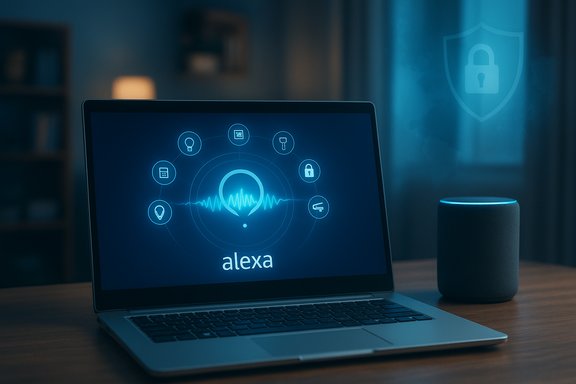
The Amazon Alexa app for PC promised a convenient way to bring the full Alexa experience to your desktop: voice control, smart‑home management, lists and reminders, and Echo device sync — all without pulling out your phone. In practice, installing and using Alexa on Windows has become a mixed experience. The app can still be installed on some systems via the Microsoft Store or through the Microsoft Apps portal, and it supports core Alexa features on Windows 10 and Windows 11 when present; however, availability is fragmented by region and Microsoft/Amazon product changes, and recent platform decisions have introduced real limitations and privacy trade‑offs that every Windows user should understand before relying on Alexa on the desktop.
Background / Overview
Amazon introduced a Windows desktop app to extend Alexa’s voice and smart‑home features to PCs. Traditionally, the app was distributed through the Microsoft Store and leveraged Windows microphone and audio APIs so you could speak to Alexa from a laptop or desktop. Installing from the Store offered the simplest, most reliable experience — automatic updates, compatibility checks and tighter integration with Windows security models.That tidy picture changed for two reasons. First, the Microsoft‑side decision to alter support for Android app integration on Windows (the Windows Subsystem for Android and the Amazon Appstore) removed one path for bringing mobile Alexa functionality to Windows and reduced parity between mobile and desktop Alexa experiences. Second, Amazon and Microsoft have modified how the Alexa app is distributed and supported; in some regions the Store listing is hidden or the install button has been removed, forcing users to use cached Microsoft App links or alternative installation routes. These distribution changes have left many users confused about whether Alexa is “officially supported” on Windows today. At the same time, Amazon’s evolving privacy model for Alexa — including recent changes to local processing and recording retention — has tightened the security calculus for anyone sending voice to cloud services from a PC. Those changes are independent of the PC app’s distribution, but they materially affect what data Alexa for PC sends, stores, and how it may be used.
What the Alexa PC app does — a capability checklist
When it’s installed and functioning, the Alexa app on Windows provides a practical subset of the Alexa ecosystem:- Voice input and responses through your PC’s microphone and speakers; hands‑free interaction when enabled.
- Smart home control for “Works with Alexa” devices (lights, thermostats, locks, cameras) directly from the PC.
- Lists, reminders, timers and shopping lists that sync with your Amazon account and other Alexa devices.
- Skills and routines management, although some complex routine functionality has been reported as limited or inaccessible in certain app builds.
- Intercom and Drop In features for Echo devices may work when configured, enabling desktop intercom announcements to Echo hardware.
How to install the Amazon Alexa app for PC (recommended path)
The recommended method remains installing the official app via the Microsoft Store because that preserves automatic updates and a validated publisher signature when the app is available to you. If you can see and download the app from your local Microsoft Store, follow these steps:- Press Windows + S and search for Microsoft Store.
- Open Microsoft Store and use the search box to find “Amazon Alexa.”
- Select the official Amazon Alexa listing and click Get (or Install).
- Wait for installation to complete; then open Alexa from Start and follow the on‑screen setup.
- Sign in with your Amazon account, grant microphone permission when prompted, choose whether to enable hands‑free mode, and follow steps to sync Echo devices.
When the Microsoft Store won’t show Alexa: practical workarounds and verified steps
If Alexa does not appear in your Microsoft Store search results, or the Get/Install button is missing, the reasons are usually one of the following: regional restrictions, Store caching problems, or the app no longer being listed in your market. Verified troubleshooting and alternate install options include:- Change your Windows region to a country where the app is reported available (United States or United Kingdom are commonly recommended) and then check the Store again. This has helped users make the app visible in the Store UI.
- Use the Microsoft Apps (web) portal / cached Store link to open the app page in the desktop Store; some users have installed Alexa this way when the Store search did not list it. This is a documented workaround for situations where the app listing has been removed from search but still exists in the Store catalog.
- If the Store is misbehaving, run wsreset.exe or sign out and back in to the Microsoft Store to clear cached data. Resetting the Store app often restores missing install buttons for listings that are actually available to your account.
Step‑by‑step setup once Alexa is installed
After installation, complete these steps to get Alexa working properly on Windows:- Launch the Amazon Alexa app from the Start menu.
- Select Get Started and sign in using your Amazon account credentials.
- When prompted, grant the app microphone permission in Windows (Settings → Privacy → Microphone) so Alexa can hear your voice.
- Choose whether to enable Hands‑free mode (continuous listening). If you enable this, expect a persistent microphone‑listening indicator in Windows.
- Follow on‑screen prompts to add and sync any Echo devices on your account; grant any additional permissions (e.g., location) required for smart home or device discovery.
- Test basic commands: “Alexa, what’s the weather?” or “Alexa, turn off living room lights,” to validate basic integration.
- If Alexa reports no microphone, verify Windows sound settings and confirm the selected input device is working and not muted. Run Windows’ built‑in microphone troubleshooter if necessary.
- If Echo devices don’t appear during sync, confirm they are online, connected to the same Amazon account, and that Alexa mobile or web accounts show the same device list. Restart your Echo device and the PC if needed.
Alternatives when the native app isn’t available
If the Microsoft Store route fails or the app is no longer maintained in your region, consider these alternatives:- Use the Alexa mobile app on your smartphone and leverage cross‑device sync; many Alexa features (lists, routines) exist in the mobile app and may be sufficient.
- Use Phone Link or an Android mirroring solution to run the Android Alexa app on your PC, though this requires an Android phone and may be less seamless. Phone Link can mirror Android applications to Windows in certain configurations.
- For power users, run Alexa skills from the cloud using web‑based integrations or third‑party smart‑home hubs (Home Assistant, etc. that expose a web UI on PC. This requires technical setup but yields greater control and local automation.
Security and privacy: what Windows users must know
Using Alexa on a Windows PC is fundamentally the same, security‑wise, as using Alexa on an Echo device: voice data is processed by Amazon’s services and stored according to your Alexa privacy settings. Recent changes from Amazon mean that local, on‑device processing options that kept audio off the cloud are being removed or limited in many cases, and default behaviors around recording retention have shifted. This affects all Alexa clients, including the PC app. Key points:- Alexa voice inputs are generally transmitted to Amazon’s cloud for processing, unless a rare local‑processing option is specifically supported and enabled on a device. Recent policy changes have removed or limited that local processing option for certain Echo devices and broadened cloud processing requirements for new features.
- Amazon provides privacy controls in the Alexa app and online to view and delete recordings, and to choose how long recordings are stored — but some advanced features (like Voice ID personalization) require recordings to be kept. If you disable recording retention, you may lose some personalized capabilities.
- Hands‑free mode on PC keeps the microphone active in the background; Windows will surface a microphone‑in‑use indicator and the app will require explicit microphone permission. If you enable always‑listening on a shared or corporate machine, expect privacy and compliance implications.
- Treat the Alexa PC app like any always‑listening service: place it only on trusted, personal machines and be deliberate about where and when you enable hands‑free mode.
- Review and adjust Alexa privacy settings immediately after setup (Manage Voice Recordings, Auto‑Delete settings, Voice ID and human review options).
- For enterprise or shared devices, avoid hands‑free or persistent microphone access; use typed interfaces or disable the app to reduce data leakage risk.
Reliability & lifecycle risks: what the community is seeing
Multiple community and support threads show that Alexa’s presence on Windows has been inconsistent. Users have reported:- The app sometimes disappearing from Microsoft Store search results or being removed from certain markets.
- Deprecation of associated platform features (Amazon Appstore on Windows, WSA) which removes a previously common path to Android Alexa functionality.
- Functional regressions (missing routines, intermittent smart‑home control) in some app builds or after platform changes.
Expert recommendations — pragmatic choices for Windows users
- If you need Alexa on a PC for daily workflows, install the app from the Microsoft Store if available, enable microphone permission, and configure privacy settings immediately. Test core smart‑home controls and Echo sync before relying on it for critical automation.
- If the Store path fails, use the Microsoft Apps web portal or official cached Store links as a safer alternative to third‑party installers; avoid unsigned binaries from unknown mirrors.
- For privacy‑sensitive users or corporate environments, avoid hands‑free mode and treat Alexa as a user‑initiated service; disable or uninstall it on shared or managed machines.
- Consider local, self‑hosted smart home hubs (Home Assistant, HomeBridge) if you require long‑term, reliable, and privacy‑first PC control over IoT devices — these solutions can expose web dashboards you run in the browser without sending voice data to external clouds.
Final assessment: strengths, risks, and the outlook for Alexa on Windows
Strengths- Convenience: Alexa can bring voice control and smart‑home management to the desktop, lowering friction for quick commands and hands‑free tasks.
- Ecosystem reach: Alexa integrates with a broad device ecosystem and many third‑party skills, so desktop access is a useful extension of that network.
- Availability and lifecycle uncertainty: Distribution changes in the Microsoft Store and the Amazon/Microsoft product shifts (including Appstore/WSA changes) make the app’s future and cross‑platform parity uncertain. Users should plan for partial or eventual loss of support in some regions.
- Privacy trade‑offs: Recent shifts toward cloud‑only processing and recording retention changes make voice interactions more likely to be routed to Amazon servers; that affects users who favored local processing for privacy reasons.
- Feature inconsistency: Some routine and skill functionality can be limited on the PC app compared with mobile clients; the desktop app is best for basic voice, lists, and smart‑home commands rather than advanced Alexa flows.
- For most individual users, Alexa for PC remains a useful convenience when it can be installed, but it is no longer a platform Microsoft and Amazon treat as universally stable across all markets. If Alexa on Windows is critical to your workflow or business, keep an eye on Store availability, prepare alternatives (mobile app, local hubs), and treat the PC app as a complementary — not foundational — control surface.
Installing and using Alexa on Windows today is straightforward when the app is available — but the wider ecosystem around distribution, platform support, and data handling has become complex. Follow the verified installation steps above, validate availability for your region, and weigh the privacy trade‑offs before enabling always‑listening features on any shared or corporate machine. The convenience of a voice assistant on the desktop is real, but so are the managerial choices it introduces.
Source: Windows Report Amazon Alexa App for PC: Download and Setup Steps
