

If you followed a short “Quick Steps to Install and Use Alexa on Windows” guide in 2022 or 2023, you may find the instructions still readable — but the reality of using Alexa on a modern Windows PC has changed. The basic workflow (get the Microsoft Store app, sign in with your Amazon account, enable the wake word and microphone, then speak “Alexa” to control music, reminders, and smart devices) remains conceptually correct — but availability, reliability, and support for the official Alexa app on Windows have become inconsistent or gone away entirely for many users. This article explains what changed, verifies current installation paths, compares practical alternatives, and gives clear, step‑by‑step advice for getting voice control on a Windows PC today — plus the risks and troubleshooting tips every Windows user should know.
The Amazon Alexa experience has long been available on phones, Echo devices, and through a Windows desktop app that attempted to bring voice control to the PC. For a time, the Microsoft Store offered an official “Alexa” app that allowed Windows users to speak to Amazon’s voice assistant from a laptop or desktop, control smart home devices, create reminders, play music, and even run some PC controls. That convenience made headlines and how‑tos across Windows blogs and forums.
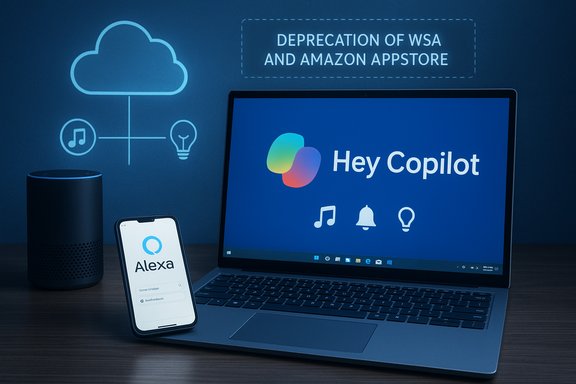
But starting in 2023–2024 the distribution and support picture shifted. Amazon’s Windows client became intermittently available and, in many regions, removed from the Microsoft Store. At the same time Microsoft announced that the Windows Subsystem for Android (WSA) — the platform that allowed Android apps (including the Android Alexa app) to run on Windows 11 — would be deprecated and that the Amazon Appstore for Windows would be phased out. Those two changes combined to break the straightforward “install Alexa from the Store” path for many Windows users and forced a raft of workarounds that are fragile or require extra software.
Microsoft Community threads and community reports show the app was removed or became hidden around mid‑2023 — Amazon and Microsoft did not maintain a single, consistent public message about availability, and many users discovered the app either disappeared or stopped installing for new PCs. Some OEMs continued to ship Alexa preinstalled on a subset of laptops — but that is an OEM distribution decision, not the same as a store install.
Choose Alexa on Windows (when available) if:
Alexa on Windows remains a useful concept, but the practical path to a working desktop client has narrowed. This guide gives the realistic options and safety checks you need to decide whether to pursue the desktop Alexa route or to adopt alternative, better‑supported solutions for voice control on Windows.
Source: Windows Report Quick Steps to Install and Use Alexa on Windows
 Background / Overview
The Amazon Alexa experience has long been available on phones, Echo devices, and through a Windows desktop app that attempted to bring voice control to the PC. For a time, the Microsoft Store offered an official “Alexa” app that allowed Windows users to speak to Amazon’s voice assistant from a laptop or desktop, control smart home devices, create reminders, play music, and even run some PC controls. That convenience made headlines and how‑tos across Windows blogs and forums.But starting in 2023–2024 the distribution and support picture shifted. Amazon’s Windows client became intermittently available and, in many regions, removed from the Microsoft Store. At the same time Microsoft announced that the Windows Subsystem for Android (WSA) — the platform that allowed Android apps (including the Android Alexa app) to run on Windows 11 — would be deprecated and that the Amazon Appstore for Windows would be phased out. Those two changes combined to break the straightforward “install Alexa from the Store” path for many Windows users and forced a raft of workarounds that are fragile or require extra software.
What actually changed: the short facts
- The official Alexa app that was once discoverable in the Microsoft Store is no longer reliably available for fresh installs in many regions. Some users who had previously installed the app continued to see functionality, but new installs were often blocked or removed.
- The Windows Subsystem for Android (WSA) and the Amazon Appstore for Windows were announced for deprecation; Microsoft and Amazon set end‑of‑support dates and restricted new submissions and downloads related to that platform. That removed another workaround: installing the Android Alexa app through WSA on Windows 11.
- Alexa’s core features — natural language processing, skills, smart home control, music streaming — remain cloud‑based and require an internet connection for real functionality. Local voice or offline behavior is extremely limited and typically applies only to local voice control configurations for Echo devices, not for a fully offline PC experience.
- Microsoft’s growing focus on on‑device voice for Windows (Copilot Voice / “Hey, Copilot!”) provides a native, private alternative for voice activation on Windows itself — but it is a different product, with different integrations and privacy model than Alexa. Copilot’s wake‑word/voice activation is increasingly baked into Windows 11, reducing the need for a third‑party assistant for some users.
Why the Microsoft Store instructions you saw are misleading now
The official app’s disappearance and fragmented support
Many “how to” posts were accurate when written: search Microsoft Store, click Get, sign in with Amazon, enable wake word and hands‑free, and you’re done. Those steps hinge on the app being present in the Store and supported for fresh installs. That condition is no longer reliable.Microsoft Community threads and community reports show the app was removed or became hidden around mid‑2023 — Amazon and Microsoft did not maintain a single, consistent public message about availability, and many users discovered the app either disappeared or stopped installing for new PCs. Some OEMs continued to ship Alexa preinstalled on a subset of laptops — but that is an OEM distribution decision, not the same as a store install.
Android app → Windows path is gone (or temporary)
A common workaround after the Store removal was to run the Android version of Alexa on Windows 11 via the Windows Subsystem for Android (WSA) and the Amazon Appstore. Microsoft’s decision to deprecate WSA (with a formal timeline for end‑of‑support) removed that route for many users. Amazon and Microsoft announced that Amazon Appstore support on Windows would wind down, preventing new users from discovering and installing Android‑based Alexa through the official channel. If you relied on the WSA path, plan on losing support after the published deprecation window.Current options to run Alexa on a Windows PC (ranked, with pros/cons)
- Use an Echo or Echo Show as your primary Alexa device (recommended)
- Pros: Always up to date, full Alexa features, local voice controls for linked smart home devices, better reliability, Amazon updates.
- Cons: Extra hardware cost; interactions aren’t native to the PC screen unless you use companion features like calling from the Alexa app.
- Notes: For reliable Alexa use at home, an Echo speaker or Echo Show remains the simplest and most supported option.
- If you already have the Alexa app installed on Windows (legacy installs)
- Pros: If the app is already installed and working on your PC, you can continue using it until server‑side changes break functionality.
- Cons: No guarantees — the app may stop receiving updates and could stop functioning at any time; security patches are unlikely.
- Action: Keep your copy updated if updates remain available through the Store library, and maintain good endpoint security.
- Browser/web interface to manage Alexa / set up an Echo
- Pros: You can manage devices and do basic configuration tasks through a browser (alexa.amazon.com or related management pages). Useful for initial Echo setup and device management without the mobile app.
- Cons: The web interface has never fully replaced the app — advanced features, routine creation, and some device controls are better in the mobile app; the web UI can be limited and intermittently supported.
- Use case: Good for device management tasks or when you can’t install an app locally.
- Install the Alexa mobile app inside an Android emulator (eg. BlueStacks, Nox)
- Pros: Provides a way to run the mobile Alexa app on a Windows PC if you can’t use the native app.
- Cons: Emulators introduce security, privacy, and performance considerations; compatibility with smart home features or calling may be unpredictable; this is a workaround, not an official solution.
- Third‑party tools and integrations (Home Assistant, IFTTT, proprietary PC integrations)
- Pros: If your goal is smart‑home control, you may achieve this without Alexa by using integrations or local automation hubs.
- Cons: Requires technical setup and may not replicate Alexa’s skill ecosystem or voice‑enabled convenience.
- Native Windows voice features (Copilot Voice / “Hey, Copilot!”)
- Pros: Native to Windows 11, on‑device wake word options, designed with Microsoft’s privacy and feature set in mind.
- Cons: Different ecosystem and abilities; not a drop‑in replacement for Alexa smart home skills or Amazon content integration.
Step‑by‑step: If you see the Alexa app in your Microsoft Store today
These steps work if the app is present and the Store allows download. Always check availability first — many readers will find the app missing.- Open Microsoft Store and search for “Alexa.”
- If the Alexa listing shows an Install or Get button, click it to download the app.
- After install, launch the Alexa app from Start.
- Sign in with your Amazon account when prompted; Alexa uses your Amazon identity for skills, lists, and smart home devices.
- Open Settings in the Alexa app and:
- Enable Microphone access for the app in Windows privacy settings.
- Turn on the Wake Word and Hands‑Free mode if you want voice activation without pressing a button.
- Use the Devices tab to add smart devices (Add Device → choose type → follow on‑screen steps).
- Speak “Alexa” and try commands like “Alexa, play [music service]” or “Alexa, turn on living room light.”
- If the Store page has no Get button or the Install buttons are greyed out, the app has likely been removed for new installs in your region. In that case, follow the alternative options below rather than trying to force an installer from unknown archives.
If you cannot install the Alexa app: practical alternatives and safe workarounds
- Use the Alexa mobile app on an iPhone or Android phone for full functionality, and pair or manage your Echo from there.
- Use an Echo device (Echo Dot, Echo Show) at your desk for hands‑free Alexa that doesn’t rely on your PC app.
- Manage devices via the Alexa web interface in a browser for some device and account tasks (setup, simple configuration). This works well for initial Echo setup and basic device management, but not as a full PC app replacement.
- If you absolutely need the Alexa mobile experience on Windows, an Android emulator will let you install the mobile Alexa APK. Only use reputable emulators, and understand the security and resource overhead of this approach. Do not download APKs from untrusted archives — they can contain malware.
- Consider alternative voice assistants or Windows native voice features for local tasks (for example, Copilot Voice) if your needs are PC‑centric and don’t require Alexa ecosystem integrations.
Troubleshooting checklist (updated)
If you currently have Alexa installed and it’s misbehaving, try these steps:- Check microphone permissions: Windows 10/11 privacy settings must allow the Alexa app to use the microphone.
- Restart the Alexa app and sign out/sign in again to refresh tokens.
- Reboot your PC (simple but often effective).
- Verify network connectivity — Alexa is cloud‑based; an internet outage stops most features.
- If smart devices fail to respond, reboot the devices and re‑link them in the Alexa app.
- If the app will not open and you can’t reinstall from the Store, avoid installing third‑party archived installers from untrusted sites; use an Echo or the mobile app instead.
Security, privacy, and support considerations
- Unsupported or deprecated apps stop receiving security updates. If your Alexa app is a legacy install on Windows, it’s not receiving feature or security updates the way Amazon’s supported platforms are. That increases risk, particularly if your PC is exposed to the internet and used for sensitive tasks. Treat an unsupported Alexa client the same way you treat any other deprecated software: minimize its privileges and consider using supported hardware (Echo) instead.
- Alexa sends voice audio and queries to Amazon’s cloud for processing. Many Alexa features depend on the cloud and Amazon accounts; that means recordings and skill interactions are part of Amazon’s data processing model. For users with strict privacy needs, consider native on‑device voice options that limit cloud transmission or use local automation hubs that keep control inside your network.
- Workarounds like Android emulators and archived Store packages create additional attack surfaces. Only install software from trusted sources and understand the permissions you grant.
Why Alexa still matters on Windows, and when to choose something else
Alexa’s strength is the ecosystem: tens of thousands of skills, tight integrations with smart‑home vendors, shopping and media services, and a voice model many people already know. If your smart home is Alexa‑centric and you already use Echo devices, Alexa’s presence on a PC is a convenience, not a necessity.Choose Alexa on Windows (when available) if:
- You need Alexa’s ecosystem (skills, Alexa‑specific routines, Amazon services) tied to your account.
- You prefer Alexa voice control at your desk and are willing to run the supported client (or use an Echo for the most reliable experience).
- You need a fully supported, secure PC‑native voice assistant — Microsoft’s Copilot Voice and other OS‑integrated tools are better for local tasks.
- You require long‑term support and security updates for an assistant running on the same machine performing critical tasks.
Practical checklist: how to get Alexa‑style voice control on Windows today
- Inventory: Do you already have Alexa installed on this PC or an Echo device in the room?
- If yes (and the app works), keep it updated and use it until support changes break functionality. Back up any critical automations to a separate hub if possible.
- If no: choose one of these:
- Buy an Echo device and use it for Alexa tasks on the PC desk.
- Use the Alexa mobile app on your phone and rely on Echo devices for hands‑free control.
- Use the Alexa web portal for device setup and basic management.
- Use an Android emulator with caution if you must run the mobile Alexa app on Windows.
- Configure privacy: limit microphone access and review Alexa privacy settings in the Amazon account (voice history, smart home permissions).
- If your goal is PC automation (open apps, change system volume, start programs): assess whether Copilot Voice or native automation (Power Automate, AutoHotkey) is a better fit — both are more tightly integrated with Windows and receive active support.
Final verdict and recommended reading plan
The simple “install Alexa from Microsoft Store, sign in, and say ‘Alexa’” instructions used to be accurate, but as of the most recent platform changes those steps are no longer universally reliable. The official Alexa app’s availability for new Windows installs is patchy, and Microsoft’s deprecation of the Windows Subsystem for Android removes a secondary installation route. For most Windows users who want dependable voice control, the recommended approach is:- Use an Echo device for Alexa features, or
- Use a mobile app (phone/tablet) for full Alexa control, and
- Consider Windows native voice (Copilot Voice) and Windows automation tools for strictly PC‑focused tasks.
Appendix: Quick reference — what to say to Alexa (if you have it working)
- “Alexa, play [artist/playlist] on Spotify” — music control (requires linked music service).
- “Alexa, set a reminder for [time]” — reminders and timers.
- “Alexa, show me the front door camera” — show camera feeds (on Echo Show or where show mode is supported).
- “Alexa, turn on/off [device name]” — smart home control for paired devices.
- “Alexa, open Calculator” — on PCs where the app supports opening local apps; functionality varies by client and version. (If this works for you, verify the app version and permissions; it’s not universally available.
Alexa on Windows remains a useful concept, but the practical path to a working desktop client has narrowed. This guide gives the realistic options and safety checks you need to decide whether to pursue the desktop Alexa route or to adopt alternative, better‑supported solutions for voice control on Windows.
Source: Windows Report Quick Steps to Install and Use Alexa on Windows
