

Windows Fast Startup, enabled by default on many Windows 10 and Windows 11 PCs, can make a shutdown behave more like a partial hibernation, and a recent MakeUseOf account says disabling it fixed Linux mounting trouble, USB dock dropouts, and a stuck update loop. The surprise is not that Fast Startup can cause trouble; Microsoft’s own documentation has long described the feature as preserving the kernel session and drivers instead of closing them. The surprise is that, on modern SSD-equipped machines, the performance benefit may be so small that users are accepting real instability in exchange for a boot-time gain they can barely perceive. Fast Startup has become one of those Windows defaults that made sense for one hardware era and now deserves a colder, more skeptical look.
Fast Startup is not a scam, and it is not a bug disguised as a feature. It is an engineering compromise that made excellent sense when Windows PCs routinely booted from slow mechanical hard drives, when shaving seconds off startup could make the difference between a machine that felt modern and one that felt sluggish.
The mechanism is straightforward in concept but easy to misunderstand in daily use. When Windows performs a normal shutdown with Fast Startup enabled, it logs off the user session, then saves the kernel session and loaded drivers into the hibernation file. On the next power-on, Windows reloads that preserved system state rather than initializing everything from scratch.
That is why Microsoft’s own documentation distinguishes Fast Startup from a full cold boot. A restart still performs a full restart path, but a shutdown may not. To ordinary users, that distinction is almost perverse: the action called “Restart” is often cleaner than the action called “Shut down.”
The MakeUseOf piece, written by Tashreef Shareef, lands because it describes a pattern many Windows power users have seen without naming it. A dock fails until it is unplugged. A Linux partition complains that Windows did not close it cleanly. An update keeps retrying. Each symptom appears to belong to a different subsystem, but each can plausibly trace back to Windows preserving state that the user thought had been discarded.
Fast Startup’s value proposition has also changed under its feet. On a system with a mechanical disk, saving and restoring the kernel state may still provide a meaningful improvement. On a contemporary laptop or desktop with an NVMe SSD, the same trick can feel like a rounding error.
That mismatch creates a troubleshooting trap. A user shuts down at night, powers on the next morning, and assumes the machine has started fresh. In reality, the system may have restored a kernel and driver state carried forward from the previous session.
This matters because Windows has trained users and administrators for decades to treat rebooting as the first serious troubleshooting step. “Have you tried turning it off and on again?” became a cliché because it worked. Fast Startup quietly changes what “off and on again” means.
Microsoft’s documentation is explicit that Fast Startup logs off user sessions but preserves the system session. The distinction is technically clear, but it is not behaviorally clear. To the person pressing the power button, Windows appears to have shut down. To the operating system, parts of Windows are waiting in suspended animation.
That is why restart remains so important. Restart does not use the same hybrid shutdown path. If a problem vanishes after Restart but survives repeated shutdowns and power-ons, Fast Startup should move much higher on the suspect list.
The MakeUseOf account describes exactly that scenario: a Linux partition reporting that it was “not cleanly unmounted.” In a dual-boot setup, this is one of the clearest signs that Windows did not leave the disk in the state the user expected.
Fast Startup makes this failure mode more likely because Windows can leave behind metadata indicating that the filesystem is still tied to a saved Windows state. If another operating system writes to that volume while Windows expects to resume from its earlier assumptions, the result can be ugly. The cautious thing for Linux to do is deny write access or mount read-only.
This is where Fast Startup crosses from convenience feature into interoperability hazard. Windows is no longer the only thing touching the disk. A dual-boot machine is a shared environment, and a Windows optimization that assumes Windows owns the next boot is a poor fit for that arrangement.
For WindowsForum readers who keep a Linux partition for development, recovery, privacy work, or plain curiosity, the advice is simple: Fast Startup is usually not worth the ambiguity. The two-second boot improvement Shareef observed will not compensate for a filesystem you cannot mount when you need it.
Fast Startup’s entire premise is that Windows can preserve useful system state and restore it later. But driver state is not always cleanly reusable. Some devices expect a full reinitialization. Some firmware behaves differently depending on whether it saw a complete power transition. Some docks simply need to be rediscovered from zero.
When a dock’s external display or storage device fails to appear until the user unplugs and reconnects it, the natural suspects are the dock, cable, port, or driver. Those may still be the culprits. But Fast Startup deserves a place in that chain of suspicion because it changes whether drivers are freshly loaded or restored from a previous system session.
This is especially relevant in the USB-C era, where one cable may carry display output, storage, networking, charging, and peripheral traffic. A partial initialization problem can look like five different bugs. It can also disappear instantly when the device is physically replugged, which obscures the Windows startup behavior that helped create the condition.
The bad news for users is that these failures often feel random. The good news is that disabling Fast Startup is a low-risk diagnostic move. If the dock behaves reliably afterward, the saved seconds were never the important part of the boot process.
Shareef’s third example, a stuck update loop that cleared after disabling Fast Startup, should not be overgeneralized. Fast Startup is not the universal explanation for every failed cumulative update, driver package, or feature enablement. Windows Update has plenty of ways to fail without help.
Still, the connection is plausible. If a system needs to replace components that are tied to the running kernel or loaded drivers, then the difference between a full restart and a hybrid shutdown can matter. Microsoft itself has documented that Fast Startup preserves the kernel session and device drivers, which is precisely the kind of state an update may need to refresh.
This is one reason experienced Windows troubleshooters often recommend Restart rather than Shut down when updates misbehave. It is not superstition. It is an attempt to force Windows down the path that actually tears down and rebuilds the system session.
The same logic applies to driver updates and firmware-adjacent problems. If Windows keeps restoring a stale or confused state, the user can spend hours reinstalling drivers while never forcing the machine to perform the clean initialization the repair actually needs.
In 2026, the equation is murkier. SSDs are no longer exotic. Many Windows 11 systems ship with fast storage, aggressive firmware initialization, and standby modes that already blur the line between sleep and shutdown. The incremental benefit of Fast Startup may be far smaller than it once was.
At the same time, the average Windows setup has become more complex. External docks are common. Dual-boot machines are less mainstream but still important among developers and enthusiasts. BitLocker, virtualization, WSL, Hyper-V, kernel-mode anti-cheat systems, endpoint security tools, and vendor driver stacks all increase the value of clean state transitions.
That does not mean Microsoft should simply rip Fast Startup out of Windows. There are still machines where it helps. Older PCs with mechanical drives can benefit, and many users will never encounter the problems described in the MakeUseOf piece.
But a default that helps invisibly and fails mysteriously is a bad default for troubleshooting. Windows should be more transparent about what the shutdown button is doing. At minimum, the operating system should make the distinction between hybrid shutdown and full shutdown clearer in power settings, update flows, and diagnostic guidance.
For home users, this changes the troubleshooting script. If a device is missing, an update is stuck, or a driver behaves strangely after powering on, do not merely shut down and turn the PC back on. Choose Restart. If Restart fixes what shutdown does not, Fast Startup has just implicated itself.
For administrators, the distinction matters at fleet scale. Help desk scripts that tell users to shut down at night may not produce the clean system state the support team assumes. Patch compliance, driver rollouts, and hardware troubleshooting can all be complicated by machines that appear to have been power-cycled but have not performed a full kernel restart.
This is particularly relevant in hybrid work environments, where laptops spend their lives moving between docks, Wi-Fi networks, VPN clients, monitors, and sleep states. The machine that never quite gets a clean start is the machine that accumulates weirdness. Fast Startup is not always the cause, but it is one of the easiest variables to remove.
The point is not that every Windows problem should be blamed on a checkbox buried in Control Panel. The point is that Fast Startup changes the meaning of one of the oldest assumptions in computer support. When “turn it off and on again” no longer guarantees a full reset, support culture has to adapt.
There is no need to turn this into a purity test. A single-boot Windows laptop that never leaves its desk, never touches Linux, and never misbehaves with peripherals may be perfectly fine with Fast Startup enabled. Users with older hard-drive systems may prefer the faster boot.
But enthusiasts and IT pros should treat the setting as conditional rather than sacred. The fact that it is marked as recommended does not mean it is recommended for every workload. It means Microsoft thinks the broad consumer experience benefits from it.
The MakeUseOf report is useful precisely because it reframes the choice. Shareef expected a noticeable slowdown and instead saw a roughly two-second difference. That is not a universal benchmark, but it is a reminder to test rather than assume.
If disabling Fast Startup does not help, it is easy to re-enable. If it does help, the fix can look almost embarrassingly simple. Three unrelated bugs may not be unrelated at all; they may be three expressions of a machine that never started as cleanly as the user thought.
The practical lesson is not to disable every Windows feature that touches hibernation or power management. It is to understand when Windows is optimizing for speed and when you are optimizing for reliability. Those goals often overlap, but Fast Startup is one of the places where they can diverge.
For WindowsForum readers, the useful conclusions are concrete:
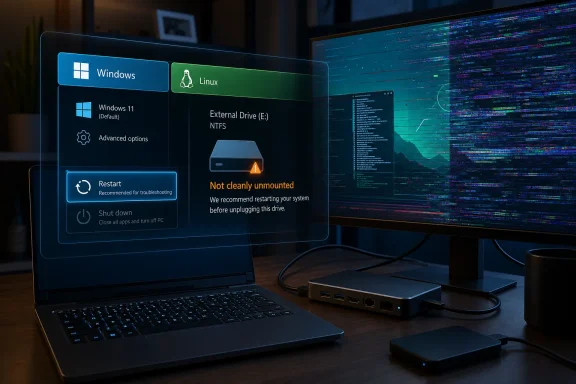 Fast Startup Was Built for the Hard Drive Era, Not the NVMe Present
Fast Startup is not a scam, and it is not a bug disguised as a feature. It is an engineering compromise that made excellent sense when Windows PCs routinely booted from slow mechanical hard drives, when shaving seconds off startup could make the difference between a machine that felt modern and one that felt sluggish.The mechanism is straightforward in concept but easy to misunderstand in daily use. When Windows performs a normal shutdown with Fast Startup enabled, it logs off the user session, then saves the kernel session and loaded drivers into the hibernation file. On the next power-on, Windows reloads that preserved system state rather than initializing everything from scratch.
That is why Microsoft’s own documentation distinguishes Fast Startup from a full cold boot. A restart still performs a full restart path, but a shutdown may not. To ordinary users, that distinction is almost perverse: the action called “Restart” is often cleaner than the action called “Shut down.”
The MakeUseOf piece, written by Tashreef Shareef, lands because it describes a pattern many Windows power users have seen without naming it. A dock fails until it is unplugged. A Linux partition complains that Windows did not close it cleanly. An update keeps retrying. Each symptom appears to belong to a different subsystem, but each can plausibly trace back to Windows preserving state that the user thought had been discarded.
Fast Startup’s value proposition has also changed under its feet. On a system with a mechanical disk, saving and restoring the kernel state may still provide a meaningful improvement. On a contemporary laptop or desktop with an NVMe SSD, the same trick can feel like a rounding error.
The Shutdown Button Has Been Lying by Omission
The central problem with Fast Startup is not that Windows uses hibernation technology. Hibernation is a legitimate power feature, and in the right context it is still useful. The problem is that Windows applies a hibernation-like shortcut to an action users reasonably interpret as a full power-off.That mismatch creates a troubleshooting trap. A user shuts down at night, powers on the next morning, and assumes the machine has started fresh. In reality, the system may have restored a kernel and driver state carried forward from the previous session.
This matters because Windows has trained users and administrators for decades to treat rebooting as the first serious troubleshooting step. “Have you tried turning it off and on again?” became a cliché because it worked. Fast Startup quietly changes what “off and on again” means.
Microsoft’s documentation is explicit that Fast Startup logs off user sessions but preserves the system session. The distinction is technically clear, but it is not behaviorally clear. To the person pressing the power button, Windows appears to have shut down. To the operating system, parts of Windows are waiting in suspended animation.
That is why restart remains so important. Restart does not use the same hybrid shutdown path. If a problem vanishes after Restart but survives repeated shutdowns and power-ons, Fast Startup should move much higher on the suspect list.
The Linux Partition Was the Canary in the Coal Mine
Dual-boot users have been warning about this for years because they encounter the consequences in a blunt, hard-to-ignore way. Linux may refuse to mount a Windows NTFS volume for writing if it detects that Windows left the volume in a hibernated or unsafe state. That refusal is not Linux being fussy; it is Linux trying not to corrupt data.The MakeUseOf account describes exactly that scenario: a Linux partition reporting that it was “not cleanly unmounted.” In a dual-boot setup, this is one of the clearest signs that Windows did not leave the disk in the state the user expected.
Fast Startup makes this failure mode more likely because Windows can leave behind metadata indicating that the filesystem is still tied to a saved Windows state. If another operating system writes to that volume while Windows expects to resume from its earlier assumptions, the result can be ugly. The cautious thing for Linux to do is deny write access or mount read-only.
This is where Fast Startup crosses from convenience feature into interoperability hazard. Windows is no longer the only thing touching the disk. A dual-boot machine is a shared environment, and a Windows optimization that assumes Windows owns the next boot is a poor fit for that arrangement.
For WindowsForum readers who keep a Linux partition for development, recovery, privacy work, or plain curiosity, the advice is simple: Fast Startup is usually not worth the ambiguity. The two-second boot improvement Shareef observed will not compensate for a filesystem you cannot mount when you need it.
Driver State Is Where the Ghosts Live
The USB dock example is less dramatic than a locked NTFS partition, but it may be more familiar. Modern Windows systems lean heavily on docks, hubs, monitors, external drives, Thunderbolt controllers, USB-C power delivery, and firmware that does not always behave perfectly after a sleep, resume, or hybrid boot cycle.Fast Startup’s entire premise is that Windows can preserve useful system state and restore it later. But driver state is not always cleanly reusable. Some devices expect a full reinitialization. Some firmware behaves differently depending on whether it saw a complete power transition. Some docks simply need to be rediscovered from zero.
When a dock’s external display or storage device fails to appear until the user unplugs and reconnects it, the natural suspects are the dock, cable, port, or driver. Those may still be the culprits. But Fast Startup deserves a place in that chain of suspicion because it changes whether drivers are freshly loaded or restored from a previous system session.
This is especially relevant in the USB-C era, where one cable may carry display output, storage, networking, charging, and peripheral traffic. A partial initialization problem can look like five different bugs. It can also disappear instantly when the device is physically replugged, which obscures the Windows startup behavior that helped create the condition.
The bad news for users is that these failures often feel random. The good news is that disabling Fast Startup is a low-risk diagnostic move. If the dock behaves reliably afterward, the saved seconds were never the important part of the boot process.
Updates Do Not Always Appreciate Being Half-Restarted
Windows Update is supposed to be resilient, but anyone who has administered Windows machines knows that update installation is still a choreography of file replacement, service shutdowns, driver changes, pending operations, and carefully timed reboots. The choreography works best when Windows gets the clean restart it expects.Shareef’s third example, a stuck update loop that cleared after disabling Fast Startup, should not be overgeneralized. Fast Startup is not the universal explanation for every failed cumulative update, driver package, or feature enablement. Windows Update has plenty of ways to fail without help.
Still, the connection is plausible. If a system needs to replace components that are tied to the running kernel or loaded drivers, then the difference between a full restart and a hybrid shutdown can matter. Microsoft itself has documented that Fast Startup preserves the kernel session and device drivers, which is precisely the kind of state an update may need to refresh.
This is one reason experienced Windows troubleshooters often recommend Restart rather than Shut down when updates misbehave. It is not superstition. It is an attempt to force Windows down the path that actually tears down and rebuilds the system session.
The same logic applies to driver updates and firmware-adjacent problems. If Windows keeps restoring a stale or confused state, the user can spend hours reinstalling drivers while never forcing the machine to perform the clean initialization the repair actually needs.
Microsoft’s Default Has Outlived Its Simplicity
Defaults are product arguments. When Microsoft enables Fast Startup by default, it is saying that a faster perceived boot is more valuable for the typical user than the edge cases created by hybrid shutdown. That was a defensible argument when Windows 8-era PCs were trying to feel tablet-fast while still dragging hard-drive-era baggage.In 2026, the equation is murkier. SSDs are no longer exotic. Many Windows 11 systems ship with fast storage, aggressive firmware initialization, and standby modes that already blur the line between sleep and shutdown. The incremental benefit of Fast Startup may be far smaller than it once was.
At the same time, the average Windows setup has become more complex. External docks are common. Dual-boot machines are less mainstream but still important among developers and enthusiasts. BitLocker, virtualization, WSL, Hyper-V, kernel-mode anti-cheat systems, endpoint security tools, and vendor driver stacks all increase the value of clean state transitions.
That does not mean Microsoft should simply rip Fast Startup out of Windows. There are still machines where it helps. Older PCs with mechanical drives can benefit, and many users will never encounter the problems described in the MakeUseOf piece.
But a default that helps invisibly and fails mysteriously is a bad default for troubleshooting. Windows should be more transparent about what the shutdown button is doing. At minimum, the operating system should make the distinction between hybrid shutdown and full shutdown clearer in power settings, update flows, and diagnostic guidance.
The Restart Button Became the Sysadmin’s Truth Serum
One of the most useful lessons here is also the simplest: Restart is more trustworthy than Shut down when diagnosing Windows problems. That sounds absurd until you remember what Fast Startup does. A restart is the path that gives Windows less room to preserve yesterday’s confusion.For home users, this changes the troubleshooting script. If a device is missing, an update is stuck, or a driver behaves strangely after powering on, do not merely shut down and turn the PC back on. Choose Restart. If Restart fixes what shutdown does not, Fast Startup has just implicated itself.
For administrators, the distinction matters at fleet scale. Help desk scripts that tell users to shut down at night may not produce the clean system state the support team assumes. Patch compliance, driver rollouts, and hardware troubleshooting can all be complicated by machines that appear to have been power-cycled but have not performed a full kernel restart.
This is particularly relevant in hybrid work environments, where laptops spend their lives moving between docks, Wi-Fi networks, VPN clients, monitors, and sleep states. The machine that never quite gets a clean start is the machine that accumulates weirdness. Fast Startup is not always the cause, but it is one of the easiest variables to remove.
The point is not that every Windows problem should be blamed on a checkbox buried in Control Panel. The point is that Fast Startup changes the meaning of one of the oldest assumptions in computer support. When “turn it off and on again” no longer guarantees a full reset, support culture has to adapt.
Disabling Fast Startup Is a Small Bet With a Clear Audience
The strongest argument for disabling Fast Startup is not ideological. It is practical. If you have a modern SSD and your measured boot penalty is only a few seconds, the feature’s upside is modest. If you dual-boot, rely on docks, use external drives heavily, or troubleshoot update and driver issues often, the downside can be very real.There is no need to turn this into a purity test. A single-boot Windows laptop that never leaves its desk, never touches Linux, and never misbehaves with peripherals may be perfectly fine with Fast Startup enabled. Users with older hard-drive systems may prefer the faster boot.
But enthusiasts and IT pros should treat the setting as conditional rather than sacred. The fact that it is marked as recommended does not mean it is recommended for every workload. It means Microsoft thinks the broad consumer experience benefits from it.
The MakeUseOf report is useful precisely because it reframes the choice. Shareef expected a noticeable slowdown and instead saw a roughly two-second difference. That is not a universal benchmark, but it is a reminder to test rather than assume.
If disabling Fast Startup does not help, it is easy to re-enable. If it does help, the fix can look almost embarrassingly simple. Three unrelated bugs may not be unrelated at all; they may be three expressions of a machine that never started as cleanly as the user thought.
The Checkbox That Deserves a Place in Every Windows Troubleshooting Playbook
Fast Startup should not be treated as forbidden technology. It should be treated as a context-sensitive optimization, and context is exactly what Windows power users have in abundance. The more complicated the machine, the more valuable a real shutdown becomes.The practical lesson is not to disable every Windows feature that touches hibernation or power management. It is to understand when Windows is optimizing for speed and when you are optimizing for reliability. Those goals often overlap, but Fast Startup is one of the places where they can diverge.
For WindowsForum readers, the useful conclusions are concrete:
- A Windows shutdown with Fast Startup enabled is not the same thing as a full cold boot.
- A restart remains the cleaner troubleshooting action because it does not use the same hybrid shutdown shortcut.
- Dual-boot systems that share or access NTFS volumes are strong candidates for disabling Fast Startup.
- USB docks, external drives, display adapters, and other peripherals can expose stale driver-state problems that a full startup may avoid.
- On modern SSD and NVMe systems, the boot-time penalty from disabling Fast Startup may be small enough that reliability is the better trade.
- On older PCs with mechanical hard drives, Fast Startup may still be worth keeping if it causes no observable problems.
References
- Primary source: MakeUseOf
Published: Tue, 07 Jul 2026 22:00:19 GMT
Loading…
www.makeuseof.com - Official source: learn.microsoft.com
Distinguishing Fast Startup from Wake-from-Hibernation - Windows drivers | Microsoft Learn
Starting with Windows 8, a fast startup mode is available to start a computer in less time than is typically required for a traditional, cold startup.learn.microsoft.com - Official source: support.microsoft.com
Loading…
support.microsoft.com - Related coverage: dsaviour.com
How Fast Startup and Incomplete Shutdowns Cause Data Corruption
Fast Startup in Windows can cause hidden file system issues. Learn how hybrid shutdown works, why corruption happens, and when to disable it safely.www.dsaviour.com - Related coverage: tech.yahoo.com
Loading…
tech.yahoo.com - Related coverage: linuxuprising.com
Loading…
www.linuxuprising.com
- Related coverage: wiki.fogproject.org
Loading…
wiki.fogproject.org - Related coverage: windowscentral.com
How to disable or enable fast startup on Windows 10 | Windows Central
If Windows 10 fast startup is not something you want to be enabled, you can disable it with relative ease.www.windowscentral.com - Related coverage: unix.stackexchange.com
Loading…
unix.stackexchange.com - Related coverage: guidingtech.com
Loading…
www.guidingtech.com - Official source: techcommunity.microsoft.com
Loading…
techcommunity.microsoft.com