
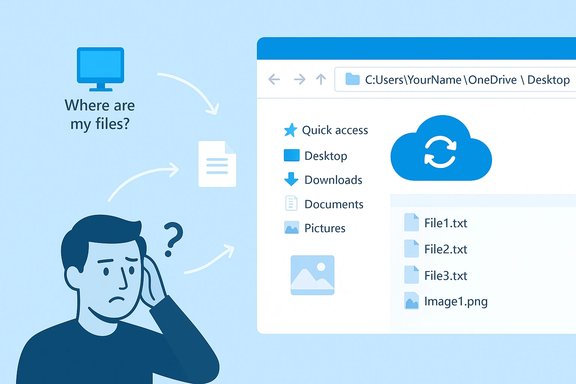
When Windows users boot their PCs and find their Desktop, Documents or Pictures folders suddenly empty and replaced by a small shortcut reading “Where are my files?”, the culprit is increasingly familiar: OneDrive’s folder backup and sync features have quietly moved those files into the cloud. What looks like data loss is usually an interaction between Known Folder Move (KFM), Files On‑Demand, and OneDrive’s backup controls — a combination that can be confusing, aggressive, and, in some edge cases, destructive unless handled correctly. Recent coverage and dozens of user support threads show this is not a rare annoyance but a recurring usability problem that leaves everyday users blaming their OS for “deleting” files.
Microsoft’s OneDrive is more than a storage service: in modern Windows editions it is tightly integrated with the operating system and promoted during setup as the default place to protect your important folders. Two features are central to the reports of vanished files:
For now, the safest path for anyone who wants full control over their files is to:
Source: TechSpot Windows users keep losing files to OneDrive, and many don't know why
 Background / Overview
Microsoft’s OneDrive is more than a storage service: in modern Windows editions it is tightly integrated with the operating system and promoted during setup as the default place to protect your important folders. Two features are central to the reports of vanished files:- Folder backup (Known Folder Move / “Protect your important folders”) — this option redirects Desktop, Documents and Pictures into your OneDrive folder so they sync to the cloud and “roam” between devices. Once enabled, the operating system shows a shortcut in the original folder location that links to the OneDrive copy.
- Files On‑Demand — this is OneDrive’s placeholder model: files can appear in File Explorer while the actual content lives in the cloud until you open or mark them “Always keep on this device.” This saves local disk space but changes expectations about where a file actually lives.
How OneDrive’s folder backup can make files “disappear”
What the user sees
Most users report the same visual pattern: an apparently empty Desktop (or Documents/Pictures), plus a single icon or link that says “Where are my files?” Clicking that link takes you to the files inside the OneDrive folder instead of the traditional local folder. That abrupt change — files “gone” from their expected location — is what drives the panic.What actually happened (step by step)
- OneDrive’s Manage backup or a Windows setup prompt enables Desktop/Documents/Pictures backup (KFM), and OneDrive moves or maps those folders into the OneDrive sync location. The files are now stored in OneDrive and synchronized with the cloud.
- File Explorer continues to show the original folder paths, but their contents are now links or empty placeholders pointing to OneDrive; OneDrive creates a “Where are my files?” helper link in each original location.
- If a user disables backup or unlinks OneDrive without first moving files back to the device, the desktop/folder will no longer show those files locally — because OneDrive’s copy is still the canonical one. Microsoft’s documentation explicitly warns that stopping backup leaves the backed‑up files in OneDrive and removes them from the device folder view. Recovering them requires manual movement or restoring from the OneDrive folder.
Why many users describe this as “deleted by Microsoft”
The behavior is sometimes read as deletion because the file icons disappear, and casual users expect an automatic local restore when they turn off cloud backup. In reality, files usually exist in OneDrive (online) and may have a synced local copy in the OneDrive folder (C:\Users\<user>\OneDrive…); but because the OS stopped presenting the original location as the primary copy, inexperienced users conclude the files were removed or erased. Community threads show users repeatedly finding their files inside the OneDrive folder or on OneDrive.com after a panic.Evidence from Microsoft and the wild
- Microsoft’s support documentation explains the exact mechanics: When you stop backing up a folder, the files already backed up stay in the OneDrive folder and will no longer appear in your device folder. The docs also describe the “Where are my files?” shortcut and the manual work required to move files back to the local folder if you stop backup. That guidance is plain but easily missed by users who never read it or who hit the prompts during Windows setup.
- Tech press coverage and widespread social posts show the pattern repeating: users are surprised by automatic backup prompts, bandwidth or storage usage, and the invisible migration of files during updates or fresh installs. The resulting frustration has been characterized by some commentators as a dark design pattern that nudges users to accept cloud backup by default.
- Support forums and community threads contain dozens of anecdotes where uninstalling OneDrive, quitting sync, or stopping backup appears to “remove” files — but in most of those cases the files remain in OneDrive or in a hidden OneDrive container on disk. That variance is why the experience is inconsistent and sometimes feels like a disappearing act.
Why this is happening: design, defaults, and account policies
Aggressive defaults and discoverability
Microsoft positions OneDrive as the default protection for “important folders” in Windows’ onboarding and update flows. When users accept or accidentally enable the backup prompt, the KFM operation runs and the file locations change. The UX for reversing the change — restoring local copies or preventing local removal — is not always front and center, which creates the perception of a hidden or one‑way migration.Interaction with Files On‑Demand and storage limits
Files On‑Demand means that a file can appear in Explorer while its bytes are stored online. If a user has limited local storage or relies on Files On‑Demand, files will not be downloaded until needed. If the user then stops backup or unlinks the account without forcing local copies, it can leave the device without the local bytes — even though the cloud copy remains intact. That gap between expectation and reality is the root cause of many “lost file” reports.Account friction: Microsoft account at setup
Windows editions have become more oriented toward cloud accounts. Newer Windows setup flows push a Microsoft Account sign‑in, which increases the chance a user will link their device to OneDrive during the initial configuration. The combination of an account requirement and opt‑out prompts during setup increases the likelihood that KFM will be enabled early and without the user fully understanding consequences.The real risks — and how bad it can get
Data-not-available vs. data-lost
There is an important technical distinction: in most reported cases, files are not permanently deleted; they are simply relocated into OneDrive and presented differently. Microsoft’s procedures and the OneDrive web interface usually let users recover files. However, multiple risky actions can convert a cosmetic relocation into real data loss:- Deleting files from OneDrive after they were moved there (for example, to free cloud storage) will delete them from all endpoints synced to that OneDrive account, including local devices that have a sync relationship.
- Unintended use of “Free up space” or incorrectly manipulating Files On‑Demand can remove local copies if there is no offline backup. Users who assume a visible filename equals a local file may be surprised to find an “online‑only” placeholder.
- Unlinking or uninstalling OneDrive without first moving files back can leave casual users without immediate access to files on their device (though the cloud copy often persists). In some reported edge cases, users found files in hidden OneDrive containers or had to recover from the OneDrive recycle bin or restore points.
Design and policy risk
Experts who track dark patterns argue that burying controls and nudging users into cloud backup reduces user agency and increases dependency on vendor services. When the default is cloud-first and the opt-out is obscure, privacy‑conscious users and organizations face both control and compliance issues. The long‑term risk is an erosion of trust if users repeatedly encounter unexpected behavior in their file system.Concrete, step-by-step recovery and prevention (safe, practical guidance)
The following actions summarize the safest ways to recover files and prevent future surprises. These steps assume you still have access to your Windows account and can sign into OneDrive.Immediate recovery checklist (if files “vanished”)
- Open the OneDrive icon in the taskbar and sign in to the account you suspect holds the files.
- Check OneDrive.com (the web interface) for Desktop, Documents, or Pictures folders. If the files are there, they were moved by the backup feature — you can download or copy them back.
- In File Explorer, navigate to C:\Users\<yourname>\OneDrive\ and look for Desktop/Documents/Pictures subfolders. If present, copy files from those OneDrive folders back to the original local path.
- If you stopped backup or unlinked the PC and see a “Where are my files?” link, click it to open the OneDrive folder and then manually move selected files back to the local folder. Microsoft’s docs recommend moving files manually to restore them to device folders.
- If you accidentally deleted files from OneDrive, check the OneDrive Recycle Bin on the web — items there can be restored within the retention period.
How to stop OneDrive backup without losing local access
- Pause OneDrive sync first (right‑click the OneDrive system tray icon → Pause syncing). This prevents immediate cloud operations.
- Open OneDrive Settings → Backup → Manage backup. For any folder you want to keep local-only, choose Stop backup and then move the files from the OneDrive folder back to the device folder before unlinking or quitting OneDrive. Microsoft explicitly warns that stopping backup leaves the files in OneDrive and they will no longer appear in the device folder unless you move them back.
- If you plan to unlink the PC, confirm the local copies are where you expect before unlinking (File Explorer → OneDrive folder → copy files to C:\Users\<you>\Desktop or other local path). After copying, you may safely choose Unlink this PC from OneDrive Settings → Account.
Policy and admin options (for power users and organizations)
- Use Group Policy Editor (Windows Pro/Edu/Enterprise) to disable OneDrive or prevent known folder redirection across devices. This stops Windows from re‑mapping Desktop/Documents to OneDrive by policy.
- For managed devices, admins can block KFM with Intune or other MDM tools and configure OneDrive behavior centrally.
Best practices: restore control and limit surprises
- Always keep an independent backup: a local external drive or a second cloud provider protects you from accidental deletions or sync misconfigurations. Relying solely on the synced OneDrive copy creates a single‑point dependency.
- If you prefer local files, opt out of KFM during setup — or use Group Policy or a clean image without OneDrive enabled. When in doubt, pause sync and check the OneDrive folder manually before removing links.
- Educate family members or nontechnical users: the concept of online‑only placeholders is foreign to many. Teach the difference between “online only” and “available offline/always keep on this device.”
- When Windows suggests a Microsoft account during OOBE, consider whether you want the system tied to cloud services. Creating a local account during setup is increasingly difficult on the latest Windows editions; check your options before proceeding.
Critical analysis: strengths, trade‑offs, and where Microsoft should improve
Strengths of the OneDrive design
- Convenience and continuity: For users who work across multiple Windows devices, KFM and Files On‑Demand provide transparent roaming and immediate access to documents without complex manual sync operations. This can be a huge productivity win.
- Disk usage optimization: Files On‑Demand notably helps devices with limited SSD storage by keeping seldom‑used files online and only downloading them when needed.
Usability and trust problems
- Discoverability of critical actions: The control paths to stop backup and restore local files are documented but not discoverable for most users, and the consequences of stopping backup are counterintuitive: files don’t automatically return to the device. That mismatch between expectation and reality is the main driver of the “files vanished” panic.
- Default nudges and opt‑in bias: Pushing cloud backup as the default during setup — combined with a stronger move toward Microsoft account requirements — implicitly nudges users into a cloud‑first model. That’s an acceptable design choice for some, but when the opt‑out is confusing, the result is frustration and loss of trust.
Edge cases and real risks
- The biggest real risk is an uninformed user deleting cloud copies to save space after a KFM migration. That action will remove the canonical copy and can cause synchronized deletions across devices. Similarly, poor handling of Files On‑Demand can leave crucial files inaccessible when offline. These are real data‑availability and data‑loss scenarios that deserve stronger guardrails in the product UX.
The broader context: automation, AI and product decisions
Microsoft and other large tech firms have publicly discussed increasing reliance on automation and generative AI in development workflows; executives at the industry’s biggest companies have described nontrivial percentages of code now being produced or assisted by AI tools. That trend may produce higher development velocity but also introduces questions about testing, edge‑case behavior, and the human review needed to catch confusing UX flows. The public remarks from leadership emphasize speed and productivity gains, but the OneDrive experience highlights the user interfaces and defaults that follow product velocity — and how they affect trust. Where AI or automation accelerates feature deployment, the quality of onboarding and reverse paths for users becomes even more critical. This intersection of automation-driven development and product defaults is worth scrutiny. (Important caution: the connection between Microsoft’s internal use of AI to write code and OneDrive’s UX decisions is an inference based on company‑level trends and observed product behavior. That inference should be treated as informed analysis rather than a proven causal chain.Practical guidance for different user profiles
For everyday users worried about lost files
- Check OneDrive.com and C:\Users\<you>\OneDrive for your files first. If they’re there, copy them manually back to the local folder and then disable backup.
For power users and technicians helping others
- Teach clients to pause OneDrive before making changes, always copy files out of OneDrive before unlinking, and verify local copies before deleting cloud data. Document the sequence in plain language so a nontechnical user can follow it later.
For IT admins and enterprise teams
- Use Group Policy or Intune to manage folder redirection and OneDrive settings centrally. Lock down the behavior for endpoints where cloud backup is undesirable, and create clear user education and backup policies.
Conclusion
OneDrive’s folder backup and Files On‑Demand offer real value, but their defaults and interactions with Windows have created recurring usability failures: files that appear to “disappear,” confusing recovery steps, and a user experience that rewards cloud‑first behavior without making the trade‑offs clear. The technical reality is usually that files were relocated to OneDrive rather than deleted, and Microsoft’s own documentation explains how to recover and restore local copies — yet the number of panicked support threads and press stories shows the documentation and UI guidance are not reaching enough users.For now, the safest path for anyone who wants full control over their files is to:
- keep independent local backups,
- pause or avoid system‑level folder backup until you understand the consequences,
- and, where possible, configure policies to prevent KFM from activating unexpectedly.
Source: TechSpot Windows users keep losing files to OneDrive, and many don't know why
