• Thread Author
I installed Windows 11 on a 10‑year‑old PC using Rufus’ built‑in bypass options — and it worked, but not magically: Rufus modifies the Windows 11 installer so the setup program skips Microsoft’s hardware gates, while the installed OS remains an unmodified Windows 11 image. This approach gives you a practical path to bring legacy machines forward, but it also carries real tradeoffs — from possible update restrictions and driver incompatibilities to the risk of data loss if you don’t prepare carefully. rosoft tightened Windows 11 compatibility rules at launch and continued to enforce them in later releases. The headline requirements that block many older PCs are TPM 2.0, UEFI Secure Boot, and a restricted list of supported CPUs; minimum RAM and storage thresholds also apply. Microsoft’s enforcement can occur at two points: the booted installer flow and the in‑place upgrade flow (running Setup.exe from a working Windows 10). Installing on unsupported hardware is possible, but Microsoft treats such installs as unsupported — which means potential update gating and no guarantee of stability.
Windows 10 also has an end‑of‑support here: after that date many users will want to move to Windows 11 for continued security updates. That deadline is one of the reasons this bypass method circulates widely — it’s a stopgap to keep older hardware receiving current OS software for longer.
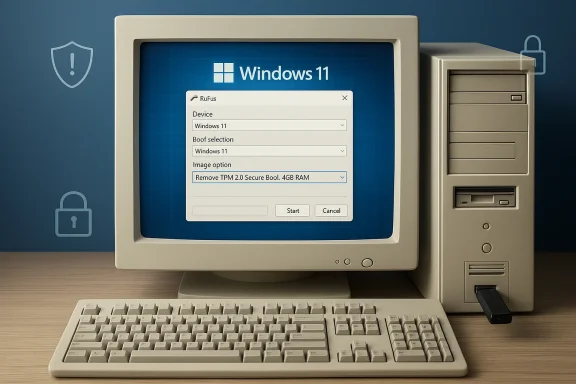
Retro beige desktop running Windows 11 shows a Rufus-style tool to remove TPM 2.0 Secure Boot.How Rufus’ bypass actually works — installer modification, not an OS crack​

It’s important to be precise: Rufus does not patch the Windows kernel, add hidden drivers, or produce a cracked OS image. Instead, indows 11 installation media** so Setup’s compatibility checks are not run or are neutralized. That means the installer is the thing being tricked; once Windows 11 is installed, it runs as a standard, unmodified copy of Windows 11.
Key technical mechanisms that have been observed and documented in community reporting include:
  • Replacing or neutralizing the installer’s ct (commonly referred to as the appraiser/appraiserres DLL) so the checks aren’t executed during setup. This is the gatekeeper that normally causes the “This PC can’t run Windows 11” message.
  • Injecting registry toggles into the installer environment — most often under HKEY_LOCAL_MACHINE\SYSTEM\Setup\LabConfig and sometimes HKEY_LOCAL_MACHINE\SYSTEM\Setup\MoSetup — that tell Setup to bypass TPM, Secure Boot, RAM and CPU checks. Thesual registry bypasses circulated in forums.
  • Wrapping the official Setup.exe in a small “installer wrapper” so the modified behavior runs smoothly during an in‑place upgrade scenario; some Rufus builds bundle these changes automatically when you select the option in the Rufus UI.
Put simply: Rufus produces a modified installer that omits or ignores checks; it does not change the Windows 11 binaries that run after installation.

What you can and cannot expect if you use this method​

What it will do for you​

  • Let you perform an in‑place upgrade from Windows 10 to Windows 11 on many machines that would otherwise be blocked.
  • Allow a clean install of Windows 11 from USB on machines missing TPM 2.0 or Secure Boot, or with older CPUs that would normally be rejected by the standard installer.
  • Keep your installed OS as a genuine, unaltered Windows 11 build — licensing and activation remain the standard process.

What it will not do​

  • It will not add or emulate TPM or CPU features that the hardware lacks. If a CPU lacks necessary instruction sets enforced by a particular Windows 11 build (for example SSE4.2 enforcement in some updates), the installation may fail or the OS may be unstable. Rufus can only bypass Setup’s checks, not add hardware-level features.
  • It will not guarantee future feature updates. Microsoft can and has altered installer logic and update distribution to block unsupported machines from receiving some updates, so an install that works today might be limited later.

Step‑by‑step: How people typically use Rufus to install Windows 11 on an older PC​

Below is a condensed but practical flow that reflects how Rufus’ bypass option is commonly used. Use this as a blueprint — not a guaranteed script — and read the on‑screen prompts Rufus presents.
  • Back everything up (see the dedicated section below).
  • Download the officialMicrosoft and save it locally.
  • Download and run the latest Rufus executable (portable). Insert an empty USB drive (8–16GB or larger).
  • In Rufus:
  • Select your USB device and the Windows 11 ISO.
  • Let Rufus auto‑populate Partition scheme and Target system (typically GPStart. When Rufus presents the Windows User Experience dialog, check the box that reads like “Remove requirement for TPM 2.0, Secure Boot, 4GB RAM” and any other bypass toggles you want (e.g., local account bypass). Confirm and allow Rufus to write the media.
    s, you have two choices:
  • Run Setup.exe from the USB while in Windows 10 to perform an in‑place upgrade (keeps apps/settings, and gives a 10‑day rollback window).
  • Boot from the USB for a clean install (recommended for stability but no rollback).
Numbered caution: always let Rufus finish its process and read the warnings. The bypass options typically appear when you press Start in Rufus — thnged across versions, so don’t assume every build exposes the same dialog in the same place.

Back up first — and how to do it properly​

This is the non‑negotiable step. If something goes wrong you need a reliable restore point.
  • Create a full system image backup (not just file copies). Use Windows’ built‑in “Backup and Restore (Windows 7)” system image tool or a tl to capture the entire system drive. Store the image on an external drive (never the same internal disk).
  • Export and save your product keys, two‑factor tokens, and any bespoke configuration files.
  • Confirm you can boot from recovery media before you begin.
Rufus and installer modifications can produce a non‑booting system in rare cases. Community reports and testing show that having a disk image to restore from is the simplest and fastest recovery path if the upgrade fails.

The exact registry toggles and why they matter​

Two registry locations are commonly associated with bypass tactics:
  • HKEY_LOCAL_MACHINE\SYSTEM\Setup\MoSetup
  • Create DWORD AllowUpgradesWithUnsupportedTPMOrCPU = 1
  • Historically used to allow upgrades when the installer reports unsupported CPU/TPM in the in‑place flow. It was once documented by Microsoft and later became an “undocumented” community workaround.
  • HKEY_LOCAL_MACHINE\SYSTEM\Setup\LabConfig
  • DWORDs like BypassTPMCheck, BypassSecureBootCheck, BypassRAMCheck, BypassCPUCheck = 1
  • These keys are used to tell the booted installer to skip specific hardware checks and are typically what Rufus injects into the installer image.
If you prefer the manual route, these keys can be created during Setup by pressing Shift+F10 → regedit, but Rufus automates this so you don’t need to interrupt the installer manually. Note: registry edits are powerful and can brick an install if mistyped; automation reduces human error but is still an unsupported modification of the installer environment.

Risks, real‑world pitfalls, and mitigations​

1) Future updates may be withheld or blocked​

Microsoft has signaled — and in some cases implemented — stricter enforcement in later Windows 11 builds and feature updates. That means a machine that boots Windows 11 today may be excluded from future major updates or put onto a different update channel. Plan for this: if long‑term update fidelity is essential, consider replacing or upgrading hardware instead.

2) Driver and stability issues​

Older hardware vendors may not provide drivers validated for modern Windows 11 builds. Expect to spend time updating chipset, storage, Wi‑Fi, and GPU drivers after an upgrade. Test hardware functionality (audio, netwer management) thoroughly. Keep driver installers handy.

3) Security tradeoffs​

By bypassing TPM and Secure Boot checks you may be installing Windows in an environment with reduced hardware‑rooted protections — this is especially relevant for features that rely on TPM, like BitLocker key protection and Windows Hello security. If you must run on such hardware, compensate with other security controls (full disk encryption using software that doesn’t require TPM, stricter account controls, network segmentation).

4) Activation and licensing​

Using Rufus and a modified installer does not automatically void licensing — Windows activation is handled the same way after install. But if you move a license tied to specific hardware, activation issues can arise; be prepared to re‑activate or contact Microsoft support if needed. This is not a recommendation to use non‑genuine keys — always use legitimate licenses.

5) Manufacturer and OEM support​

Valve your driver and firmware support expectations: OEMs rarely support Windows on hardware beyond the lifecycle they publish. If your PC is critical for work, weigh the cost of unplanned downtime and driver hunts against the price of a modest hardware upgrade.
Mitigations, in short:
  • Full system image backup
  • Driver packages downloaded pre‑upgrade
  • Create recovery USB/media and test it
  • Post‑install snapshot or image once the system is stable

What the community and independent reporting say​

Major independent outlets and active community threads have documented both the mechanism and the outcomes:
  • Ars Technica walked through the registry and Rufus paths and confirmed that MoSetup and LabConfig toggles are central to the manual and automated bypasses. The piece also notes that the MoSetup key sometimes only appears after an initial failed install, and that you can create it yourself.
  • GHacks and numerous Windows community posts explain the ongoing cat‑and‑mouse dynamic: Microsoft may close some bypass routes in future builds while other methods persist, and enforcement tightened in certain releases (notably around the 24H2 timeframe). That means the bypass’s longevity is not guaranteed.
  • Community archives and forum threads documenting Rufus’ installer wrapper and the 0‑byte appraiser replacement show how the tool automates what used to be a manual ISO hack, and users report widespread success on many olderts about specific legacy CPUs and instruction set enforcement.
Across these sources, the consensus is consistent: the method works today for many hardware profiles, but it’s an installer s long‑term uncertainty.

A realistic decision framework: when to use the Ro upgrade hardware​

Ask yourself the following questions before you proceed:
  • Is this machine essential for daily work or business continuity?
  • If yes, prefer hardwarertified replacement; unsupported installs add risk.
  • Do you need long‑term Windows Update and feature fidelity?
  • If yes, unsupported installs are not ideal — you may be excluded from future updates.
  • Ie healthy (fast storage, upgradable RAM, compatible drivers available)?
  • If yes and you need temporary life extension for the hardware, the Rufus route can be economical.
  • Have you created a tested recovery image and verified backups?
  • If no, stop — backup before you proceed.
If you decide to proceed, prefer the clean install path for the most stable outcome, then restore your data and reinstall apps as needed. In many community reports a clean install produced fewer post‑upgrade driver and performance anomalies than an in‑place upgrade onto unsupported hardware.

Practical example: what I did (concise, reproducible)​

  • Prepared a full image backup of the drive to an external disk. Confirmed recovery media could boot and restore the image.
  • Downloaded the official Windows 11 ISO from Microsoft to a fast local folder.
  • Launched Rufus (latest portable), selected the ISO, clicked Start, and checked Remove TPM / Secure Boot / 4GB RAM when prompted. Let Rufus finish writing the USB.
  • Booted from the USB and chose Clean Install. After a couple of reboots and driver installs (chipset and storage drivers), the system came up stable. I then took a fresh image of the resulting install.
This is one data point among many; community reports vary by chipset, motherboard age and CPU model. Your mileage will depend on specific hardware quirks.

Final verdict — who should consider it​

The Rufus installer bypass is a powerful, practical tool for enthusiasts, labs, hobbyists and small‑scale deployments that need to extend the serviceable life of older PCs. It is not a universal solution and shouldn’t be the first choice for mission‑critical machines, enterprise fleets, or users who require uninterrupted, fully supported Windows update channels.
If you value cost‑effectiveness and are confident with backups, driver troubleshooting and occasional manual maintenance, Rufus gives a clean, automated route to Windows 11 on many legacy systems. If you need guaranteed support, future feature parity, and the lowest‑risk environment — invest in supported hardware instead.

Windows evolves, and vendor policy changes can alter what’s possible overnight. The installer bypass technique is effective and well‑documented today, but treat it as a pragmatic extension of usable hardware life — not a permanent substitute for supported upgrades. Plan, backup, test, and proceed deliberately.

Source: MakeUseOf I just installed Windows 11 on a 10-year old PC — this method still works
 

Microsoft has made it plain: if you’re still running Windows 10, the clock is ticking — Microsoft 365 apps will stop receiving updates on Windows 10 after October 14, 2025, aligning with Windows 10’s end of support, and the company is pressing users to move to Windows 11 or take temporary, paid measures to stay protected.

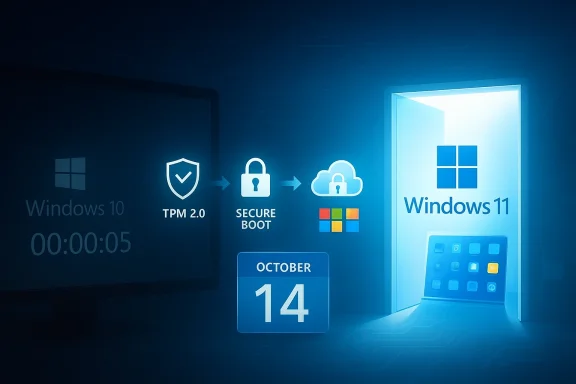
Windows 10 to Windows 11 upgrade path shown via TPM 2.0 and Secure Boot, Oct 14.Background​

Windows 10 launched in 2015 and has been the workhorse OS for millions of consumers and businesses. Over time Microsoft has shifted development and security investment toward Windows 11, released in 2021, and now it is consolidating that transition by ending mainstream updates and Microsoft 365 support for Windows 10 on the same October 14, 2025 date.
The picture today is mixed: while Windows 11 brings modern security and features, a significant portion of the market remains on Windows 10 — industry analytics cited in reporting show roughly two-thirds of Windows installs still on Windows 10 as of early 2025, leaving millions of PCs affected by Microsoft’s migration plan.

What Microsoft announced and why it matters​

Microsoft’s public messaging is straightforward: after October 14, 2025, Windows 10 will no longer receive security, reliability, or feature updates, and core productivity apps in the Microsoft 365 suite will cease to be updated on Windows 10. That doesn’t mean apps will instantly stop working, but it does mean no future security fixes, no compatibility updates, and no new features for Microsoft 365 on that platform.
Why does this matter? Because operating systems without regular security patches become increasingly attractive targets for attackers. Unpatched vulnerabilities accumulate; software that integrates deeply with OS services (like Outlook, Teams, OneDrive and Office apps) will suffer compatibility and reliability issues as the rest of the ecosystem advances. Microsoft frames this as both a security imperative and a push to bring users onto a single, modern platform — Windows 11 — where new security paradigms and cloud-centric features are designed to work best.

What "end of support" actually means​

  • No security updates: Newly discovered vulnerabilities affecting Windows 10 or Microsoft 365 apps on Windows 10 will not be fixed by Microsoft after the cut-off date. That increases risk for data theft, ransomware, and other malware.
  • No bug fixes or reliability patches: If an application behaves poorly on Windows 10 after the deadline, Microsoft will not supply fixes to address those issues.
  • Reduced compatibility: Future features, cloud integrations, and peripheral drivers may be optimized only for supported versions of Windows, potentially leaving Windows 10 users with degraded or broken workflows.
Think of "end of support" as the moment your OS stops receiving routine maintenance. Your computer will still operate, but its protective and functional layers will gradually thin out until the platform becomes brittle and risky.

The immediate security risk: what could go wrong​

History shows what happens when widely used software stops getting patches: attackers reverse-engineer older code, weaponize unpatched flaws, and mount large-scale campaigns. Reports and expert commentary included in reporting point to the WannaCry era as a cautionary example — unsupported systems become ripe targets for rapid exploitation. For individuals and organizations, the consequences include data loss, identity theft, operational downtime, and potentially high remediation costs.
For users of Microsoft 365, the risk is compounded: Outlook, Teams, and Office files often contain sensitive personal or corporate data. When those clients stop receiving security and compatibility updates on Windows 10, the attack surface grows in ways that are hard to mitigate with only third-party antivirus or firewalls. Microsoft’s argument is that continued protection requires moving to a supported Windows platform.

Your options: upgrade, pay for ESU, or harden and delay​

If you’re on Windows 10, you essentially have three pragmatic paths forward:
  • Upgrade to Windows 11 (recommended for most users who have compatible hardware). Windows 11 brings modern security features like virtualization-based security, hypervisor-protected code integrity, and stronger hardware roots of trust. Microsoft is strongly encouraging migration with free upgrade channels for eligible devices.
  • Enroll in Extended Security Updates (ESU) or equivalent paid support (mainly for enterprise/customer scenarios) to receive limited security patches after the EOL date. Reports describe ESU as a stopgap for organizations that cannot immediately migrate; it is time-limited and not a substitute for long-term upgrades.
  • Continue using Windows 10 while bolstering defenses and avoiding risky behavior — an option that carries increasing risk over time and is not recommended for users with sensitive data or critical workloads. Implementing stricter network segmentation, third-party security tools, and cautious browsing can reduce exposure but cannot replace system-level security fixes.

Upgrading to Windows 11: the reality and the hurdles​

Upgrading is not purely a software download for everyone. Windows 11 enforces stricter hardware requirements than Windows 10, and a common checklist of the main requirements includes:
  • TPM 2.0 (Trusted Platform Module) enabled — a hardware root of trust Microsoft considers essential for modern security.
  • UEFI firmware with Secure Boot enabled — legacy BIOS/MBR setups are unsupported without conversion.
  • Supported CPU families and generations — Microsoft has restricted the official CPU list to relatively recent chips.
  • Minimum RAM and storage — Microsoft lists baseline requirements (commonly 4 GB RAM and 64 GB storage as minimums), although real-world performance typically requires more.
To assess readiness, Microsoft’s own compatibility checker and PC Health Check utility have been the standard tools to confirm whether an individual machine qualifies for the upgrade. Many users who fail the check will face a choice: upgrade hardware, buy a new PC, or pursue alternative paths.

Costs to consider​

  • Hardware upgrades: Adding TPM modules, replacing a motherboard, or swapping to a newer CPU can be costly and in some systems impractical.
  • New device purchases: For older machines, replacement is often the cleanest path. This carries an upfront cost but also resets support and typically improves performance, battery life and security.
  • Labor and downtime: For enterprise fleets, migration involves testing, driver validation, application compatibility checks, and staged rollouts. Microsoft and third-party migration services can reduce friction but add cost.

For enterprise IT: planning and risk mitigation​

Organizations still running fleets of Windows 10 devices should move from uncertainty to a project plan immediately. Practical steps recommended by IT commentators include:
  • Inventory and hardware audits to identify devices that meet Windows 11 requirements and those that do not.
  • Application compatibility testing to ensure line-of-business and legacy apps run reliably on Windows 11.
  • Phased migration pilots using Microsoft deployment tools such as Windows Autopilot and FastTrack, which Microsoft has historically promoted for large migrations.
  • Budgeting for replacements or ESU where immediate upgrades are not possible, while planning for eventual migration.
Enterprises that delay will not only face security exposure but also mounting operational debt: the longer a fleet runs unsupported, the more expensive and complex remediation becomes if a breach occurs.

Workarounds and alternatives — and why many are risky​

Some users have pursued unofficial workarounds to install Windows 11 on unsupported hardware, and there are community guides that show how to bypass hardware checks. Reports note this is possible but caution that bypassing requirements is a risky path: those machines may have unsupported configurations and will not be eligible for Microsoft’s standard fixes, which may complicate future updates and supportability. Proceeding with such hacks can void warranties and leave you on your own for security fixes.
Alternatives to upgrading include moving productivity workloads off the desktop to cloud-based or cross-platform solutions (for example: using browser-based Microsoft 365 apps, Google Docs, or LibreOffice for local editing). These can mitigate certain compatibility concerns but do not address the broader operating-system security posture if the underlying Windows 10 host remains unsupported.

Practical, step-by-step preparation (for individuals and small businesses)​

If you decide to upgrade — or need to prepare for other paths — follow these concrete steps to reduce risk and smooth the transition:
  • Audit your PC now. Run the PC Health Check or equivalent compatibility tool to see if your hardware meets Windows 11 requirements. If the tool reports incompatibility, capture the exact reasons (TPM missing, CPU unsupported, Secure Boot disabled) to plan next steps.
  • Back up everything. Full disk images, cloud backups, and export of critical data and licenses will save you if an upgrade or clean install goes sideways. Use multiple backup methods for redundancy.
  • Test your critical applications. Confirm that essential software (accounting packages, business-specific tools, drivers for peripherals) runs on Windows 11 in a test environment or on a secondary machine.
  • Update firmware and drivers. If your PC is borderline compatible, a firmware update (UEFI/BIOS) or driver update from the OEM may enable Windows 11 compatibility — but confirm with the vendor first.
  • Plan for a staged rollout. For small businesses, upgrade one machine as a pilot, validate workflows, then schedule the remaining upgrades to minimize disruption.
  • If stuck on Windows 10, harden the device. Use reputable endpoint protection, enable network-level safeguards, restrict admin privileges, and apply best practices for email and browsing hygiene. These steps reduce risk but do not replace OS-level patches.

Costs vs. benefits: the hidden ROI of upgrading​

It’s easy to view an upgrade as pure cost, but there are tangible benefits that often tip the scales:
  • Reduced security exposure: Hardware-backed protections in Windows 11 can materially reduce the probability and impact of certain classes of attacks.
  • Longer support window: New devices and Windows 11 installations return you to a supported lifecycle, avoiding future emergency migrations.
  • Performance and productivity features: Modern I/O, DirectStorage for gaming, improved scheduler behavior, and UI enhancements can improve daily experience — especially on newer hardware.
For enterprises, the ROI calculation should include avoided breach costs, lower incident response overhead, and the value of standardizing the fleet on a single, supported platform.

Questions you may have — answered briefly​

  • Will Office apps stop working immediately on October 15, 2025? No — they will not necessarily stop running, but updates (including security fixes and new features) will stop being issued for Microsoft 365 apps on Windows 10, which elevates risk over time.
  • Can I pay to keep getting patches? For certain customers and scenarios, Microsoft has historically offered Extended Security Updates (ESU) as a paid, time-limited option but it is not a permanent solution.
  • Is there a hard deadline to upgrade? The operational deadline for support and updates is October 14, 2025. After that date, running Windows 10 without ESU means no more fixes from Microsoft.

A sensible checklist: what to do in the next 90 days​

  • Run a compatibility check and inventory your hardware.
  • Back up all critical files and create a recovery plan.
  • Confirm application compatibility for your top-used programs.
  • If eligible, schedule the upgrade during a quiet period; if not eligible, evaluate hardware replacement or ESU options.
  • For enterprises, initiate procurement and pilot programs now — don’t wait for the last quarter of 2025 when vendors and services will be overwhelmed.

Risks and caveats — and how to avoid them​

  • Rushing without backups: Upgrades are usually smooth, but failures happen. Always have a verified backup before making system-level changes.
  • Relying solely on third-party antivirus: Endpoint protection helps, but it’s not a replacement for OS security updates. Unsupported OSes remain exposed.
  • Using unsupported hacks to run Windows 11: Bypassing requirements may work short-term but is unsupported and may block you from receiving future updates — a risky trade.
  • Under-budgeting migrations: Especially for organizations, migration costs include hardware, software testing, licensing, and staff time; factor these in early.

Final analysis: why Microsoft’s push is credible — and why you should take it seriously​

Microsoft’s move to end Microsoft 365 updates on Windows 10 and to retire Windows 10 support on October 14, 2025, is consistent with long-standing product lifecycle practices. It reflects both technical reality — modern security architecture and cloud integration work best on current platforms — and business priorities, namely consolidating engineering resources on a single, modern OS. The result is a credible, narrowly framed deadline that forces a decision for users and IT managers alike.
From a risk perspective, staying on Windows 10 past the end-of-support date without a clear compensating control is a deteriorating security posture. For most users and organizations, the prudent course is to plan and execute migration to Windows 11 where feasible, or enroll in supported, temporary measures while building a migration timeline.

Conclusion​

The message from Microsoft is unambiguous: Windows 10’s supported lifespan ends on October 14, 2025 and Microsoft 365 will stop receiving updates on that platform — a change that affects security, compatibility and productivity. Whether you upgrade immediately, buy new hardware, or purchase temporary protections, the time to plan is now. Inventory your devices, back up your data, test critical applications, and choose the migration path that balances cost, risk, and operational needs. The deadline is fixed; the cost of inaction may be far higher than the cost of a well-planned transition.

Source: mibolsillo.co https://www.mibolsillo.co/still-on-...t-says-its-time-to-upgrade-t202602120002.html
 

Linux adoption has moved out of the hobbyist corner and into practical reality for many users pushed by the end of Windows 10 support and by growing dissatisfaction with Windows 11’s hardware gates and telemetry model. practical trigger for this wave of interest was Microsoft’s formal end‑of‑support milestone for Windows 10 on October 14, 2025. Microsoft’s lifecycle guidance makes clear that after that date Windows 10 stopped receiving regular security updates and mainstream technical assistance, and the company urged users to upgrade to Windows 11 or enroll in a limited Extended Security Updates (ESU) program.
That deadline forced a decision for large numbers of consumers, schools and small businesses: pay for ESU, buy new hardware that meets Windows 11’s authenticated hardware baseline, or evaluate alternatives. Windows 11’s minimum platform rules — notably TPM 2.0, UEFI Secure Boot and a Microsoft‑published list of supported CPU families — effectively excluded many otherwise functional PCs from a vendor‑supported upgrade, increasing interest in lightweight or privacy‑friendly replacements.
At the same time, the desktop Linux ecosystem matured in ways that matter to mainstream users: easier installs, Flatpak/Flathub app distribution and a compatibility story for games and productivity apps that previously would have barred the platform from serious consideration.

Dual-monitor setup with Windows on the left, Linux (Tux) on the right, and a large circular logo centered between.Why users are switching: motives that actually matter​

1) Lifecycle pressure and hardware economics​

For anyone managing dozens or hundreds of PCs, the math was simple: replacing a fleet to satisfy a vendor‑enforced hardware checklist is expensive. Many organizations looked at Linux as a way to extend the life of perfectly functional hardware, reduce capital outlay and cut electronic waste. That calculus became urgent when Microsoft published the October 14, 2025 end‑of‑support date and the ESU window.

2) Privacy, telemetry and control​

Windows 11’s deeper integration of cloud services and on‑device AI features has left privacy‑minded users eager for environments with more observable behavior and fewer opaque telemetry pipelines. Open‑source operating systems allow users and administrators to audit code, control which services run, and limit vendor tethering — important attributes for journalists, researchers, schools and privacy‑conscious households.

3) Performance on older hardware and boot simplicity​

Many users report that a lean Linux desktop or a tuned distribution boots faster, uses less idle RAM, and avoids background services that spike I/O or CPU. In specific workloads — compilation, batch tasks and some creative applications — Linux can deliver measurable gains because the OS image is lighter and services are chosen, not preinstalled by OEMs. These are workload‑dependent advantages but they are real for many practical scenarios.

The distributions fronting the migration: what they actually offer​

Pop!_OS — the gamer and creator migration path​

  • Key strengths: automated tiling (COSMIC auto‑tiling), out‑of‑the‑box NVIDIA support on a dedicated ISO, integrated power and GPU tools tailored to System76 hardware. System76’s Pop!_OS exposes Auto Tiling and window stacking as core productivity features and ships conveniences aimed at creators and gamers.
  • Gaming angle: Pop!_OS is frequently singled out in hands‑on testing as gaming‑friendly because of prebuilt NVIDIA driver support, bundled tools, and optimizations for gaming laptops. Independent benchmarks and desktop reviews (including Phoronix coverage of Pop!_OS releases) show Pop!_OS performing well in real workloads, though “leading the pack” depends on hardware and kernel/driver combinations. In short: Pop!_OS is a strong, pragmatic choice for players who want minimal driver fiddling and a polished desktop.
Caveat: claims that any single distro “leads” in gaming must be contextualized by hardware and which titles are tested. Driver maturity (NVIDIA vs AMD), Proton improvements and kernel changes all shift the leaderboard over time.

Ubuntu — the approachable generalist​

  • Key strengths: wide hardware and peripheral compatibility, LTS stability (recommended for newcomers), massive community and vendor support, and predictable update cadence. Ubuntu’s ubiquity makes it an obvious first destination for Windows users who want minimal friction. Many migration guides and first‑hand reports show Windows 10 users moving to Ubuntu with few compatibility issues for general productivity tasks.
  • Practical benefit: Canonical’s ecosystem also means better-tested driver stacks for a lot of consumer hardware, which reduces the “does my printer/scanner work?” anxiety that often blocks migrations.

Fedora — near‑bleeding edge for desktop enthusiasts​

  • Key strengths: more recent packages, developer tooling and fast adoption of modern technologies while retaining a disciplined QA stance. Fedora is attractive for users who want fresh software without excessive instability, and Red Hat’s stewardship gives it enterprise credibility.
  • Note on Azure Linux and Fedora: Microsoft explicitly stated that its Azure Linux (formerly CBL‑Mariner) was not a fork of Fedora; Azure Linux is an RPM‑based distribution built with specific Azure needs in mind rather than a straightforward Fedora derivative. The project is open on GitHub as CBL‑Mariner/Azure Linux and draws from many upstream projects while remaining purpose‑built for Microsoft’s cloud.

Arch Linux — the “learn by doing” option​

  • Key strengths: maximum customization and access to the latest packages via rolling releases. Arch attracts users who want to build their environment from the ground up and who are willing to trade convenience for control. The Arch community and documentation (the Arch Wiki) soften the learning curve, but Arch remains a better fit for technically confident users.

Gaming on Linux: compatibility, cloud options and the Proton effect​

Linux gaming is no longer a hobbyist caveat — it is a usable platform for many mainstream players, and the reasons are technical and service‑based.

Valve’s Proton: closing the compatibility gap​

Valve’s Proton (a packaging of WINE with additional translation layers like DXVK and VKD3D‑Proton) has been the central force making Windows games runnable on Linux. Community tracking (ProtonDB) has grown into a practical compatibility index that shows a large and rising fraction of Windows titles now launch and play under Linux with acceptable settings. Recent community summaries and independent reporting put the playable share of Windows games on Linux at a strikingly high level.
Valve’s continuous improvements — including updates to VKD3D‑Proton, support for AMD FSR and anti‑lag features — have expanded compatibility for DX12 titles, further reducing the friction for gamers migrating platforms. Still, some titles remain blocked by kernel‑level anti‑cheat systems or publisher policies.

Cloud gaming as an escape hatch: GeForce NOW on Linux​

  • What changed: Nvidia released a native beta of the GeForce NOW client for Linux (initially targeting Ubuntu 24.04+), bringing cloud‑rendered RTX experiences to Linux desktops and enabling high‑end play without a local RTX‑class GPU. That beta supports high resolutions and framerates and bridges many compatibility gaps because the title runs on NVIDIA’s cloud servers. This reduces dependency on local graphics stacks and anti‑cheat compatibility in many cases.
  • Practical implication: Players on older PCs or on distributions with incomplete driver stacks can stream modern titles and still enjoy RTX features via cloud tiers — a major relief for users who do not want to buy new hardware or tinker with drivers.

The reality check​

  • Where Linux works well: many indie and triple‑A games already work with Proton, and cloud streaming fills in many remaining gaps. ProtonDB and Deck Verified evidence make the case that a majority of popular titles are playable with reasonable effort.
  • Where Windows still matters: online games that rely on kernel anti‑cheat or proprietary DRM often remain Windows‑exclusive or unstable under Proton. Competitive players or those tied to specific anti‑cheat ecosystems will likely remain on Windows.

Enterprise and cloud: Microsoft’s own Linux, containers and operational pragmatism​

Microsoft’s internal Linux effort (CBL‑Mariner, rebranded as Azure Linux in parts of its public messaging) is an important reminder that Linux is central to cloud operations — including Microsoft’s own Azure infrastructure. CBL‑Mariner debuted in 2020 as an open‑source project and is intended as a minimal, secure host OS for containers and first‑party cloud services. Microsoft has published Mariner artifacts and CVE information and has been explicit about its design choices: Azure Linux/CBL‑Mariner is opinionated and focused on Azure workloads rather than being a general‑purpose desktop distro.
For administrators considering a migration for fleets, this matters: Microsoft itself runs Linux at scale and contributes to the ecosystem, but its cloud‑centric Linux does not mean Microsoft is abandoning Windows; it means the company operates a heterogenous stack where Linux is an integral component.

Everyday productivity: apps, synchronization and the modern Linux app ecosystem​

The old “no native productivity apps” argument is weaker now: office suites, browsers, IDEs and note apps exist in mature forms across Linux distributions. Packaging systems like Flatpak, Snap and AppImage make distribution‑agnostic installation easier, while Flathub has become a central catalog for desktop apps.
  • Example: Iotas, a lightweight note‑taking app with optional Nextcloud Notes synchronization, is available as a Flatpak on Flathub and demonstrates the modern pattern: a small, convergent app with cloud sync integration that maps to familiar Windows workflows (Notepad/Notes) while adding cross‑device sync. That availability lowers the friction for users who rely on simple note apps and worry about data continuity post‑migration.
  • The bigger picture: for most users, the mainstream productivity stack (LibreOffice, web-based Office/Google Docs, cross‑platform apps and email clients) covers core needs. For niche or rare Windows‑only apps, compatibility layers like Wine/Bottles or virtualization remain options.

Migration mechanics: practical steps and common pitfalls​

A simple migration roadmap (high‑level)​

  • Inventory your hardware and apps: identify must‑have applications and peripherals, and check ProtonDB or vendor support for compatibility.
  • Create backups: image your Windows drive and archive personal files.
  • Try before you commit: run a live USB session of your target distro (Ubuntu, Pop!_OS, Zorin, Mint) to validate hardware support without installing.
  • Install and snapshot: choose an LTS release (e.g., Ubuntu 24.04‑based images) for stability; enable system snapshots with Timeshift for rollback safety.
  • Transfer workflows: install Flatpaks/Snaps or set up Wine/Bottles for Windows apps; configure Nextcloud, cloud storage or local sync for continuity.
  • Test peripherals and gaming titles: ensure your controllers, printers and specialty hardware are recognized and functional.

Common pitfalls and how to avoid them​

  • Anti‑cheat and competitive gaming: verify whether a title requires kernel‑level anti‑cheat before committing to Linux. If so, plan a dual‑boot or maintain a Windows machine for those games.
  • Printers/scanners and exotic peripherals: test drivers in a live session; vendor support varies.
  • Driver hiccups on very new hardware: bleeding‑edge kernels or vendor drivers may be required; consider distributions with faster kernel adoption or those shipping vendor packages.
  • Management overhead for organizations: desktop Linux requires a shift in tooling and patching practices; organizations must plan update automation and support workflows rather than assuming “it just works.”

Strengths, risks and what to expect next​

Strengths​

  • Cost and lifecycle control: Linux can extend the life of hardware and avoid forced upgrades.
  • Privacy and transparency: open code and fewer opaque telemetry channels.
  • Gaming momentum: Proton + cloud streaming dramatically reduces the friction for most gamers.
  • Distro variety: options exist for every user profile — beginner‑friendly (Ubuntu, Mint, Zorin), gamer‑focused (Pop!_OS), cutting edge (Fedora, Arch).

Risks and caveats​

  • Anti‑cheat and niche commercial software: some professional or competitive use cases will still require Windows.
  • Support model: consumer Linux does not come with the single‑vendor support model Windows offers; organizations must either build internal competence or contract third‑party support.
  • Peripherals and exotic hardware: edge cases still exist where drivers are incomplete or absent.
  • Human factors: user training, habit, and the occasional app oddity create real friction. Migration planning needs to cover the human side, not just technology.

What the numbers and community telemetry say​

Community tracking and independent reporting show clear signals: ProtonDB milestones, distro download surges for migration targets, and traffic spikes around the Windows 10 EOL date all paint a consistent picture that Linux moves from curiosity to pragmatic alternative for many users. At the same time, download spikes are not the same as installed active users; caution is warranted when interpreting raw counts. Still, the timing and scale of interest are unmistakable.

Conclusion: a practical migration, not a manifesto​

The post‑Windows‑10 moment is not a prophecy that everyone will abandon Windows; instead, it is a practical re‑ranking of tradeoffs for many users. For people and organizations who value control, privacy, cost‑efficiency, or hardware longevity, Linux now offers a realistic, lower‑friction path than it did a decade ago. For gamers, Proton plus cloud options and a native GeForce NOW client for Linux lower the barrier markedly. For enterprises and cloud operators, Microsoft’s continued investment in Linux (CBL‑Mariner/Azure Linux) reinforces the platform’s legitimacy.
If you are considering the move, treat it as an operational project: inventory, test, back up and migrate in stages. The ecosystem is ready in ways that matter — but the migration still benefits from planning, realistic acceptance of edge cases, and an awareness that some workflows will need adaptation rather than lift‑and‑shift replication.
(For further reading and to verify specific technical claims cited here, consult the Microsoft lifecycle and Windows 11 requirement documents, System76 and Pop!_OS documentation on auto‑tiling and productivity features, Valve/Proton community reports, NVIDIA’s GeForce NOW Linux announcements, and Flathub app pages for desktop applications like Iotas.)

Source: Technobezz Linux adoption accelerates as users seek alternatives to Windows 11
 

Back
Top