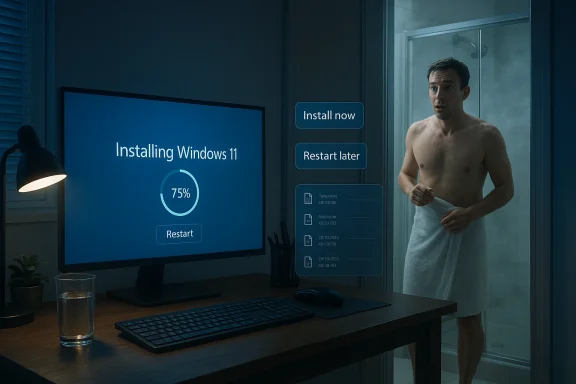
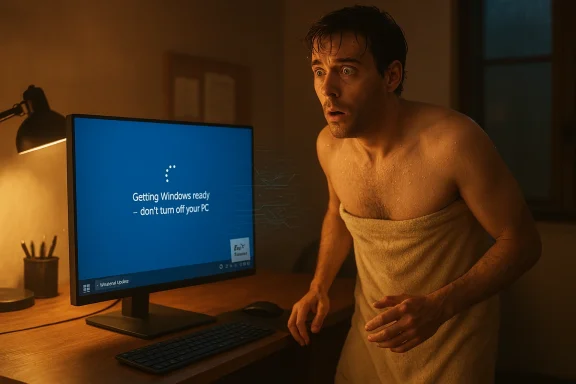
A Windows 10 user says they left their PC for a shower and returned to find Windows 11 installed — and the short answer is: yes, under very specific conditions Windows can upgrade itself without an explicit “OK, install now” click from the user, but the truth behind these incidents is a mix of automated policy, update tooling, and edge‑case failures. The situation reported by Windows Central — and the Reddit thread it quotes — is believable, not because Microsoft is secretly “pressing a button” on strangers’ PCs, but because Microsoft’s update systems contain legitimate automatic pathways that can complete major feature installs when a device falls into certain categories (end‑of‑servicing, unmanaged consumer device, or targeted rollouts), and because a handful of tooling and telemetry errors have also produced unwanted upgrade offers. com]
Microsoft’s update model evolved significantly after Windows 10’s launch. Two things matter for this story: the policy around feature updates (major OS releases like Windows 10 22H2 or Windows 11), and the operational tooling (Windows Update, Windows Update Assistant, Update Orchestrator, and enterprise management layers such as Intune).
Why Microsoft does this: the company treats being on an unsupported release as a security risk. For consumer devices (Home and Pro), Microsoft’s choice is to preserve access to monthly security updates — and in many cases that requires an automated nudge, or even an automated upgrade, to a supported release.
For most consumer users the fix is prevention and preparedness: keep backups, understand your Windows Update settings, uninstall or disable unwanted upgrade assistants, and if you must delay, enroll in an ESU or plan a controlled upgrade path. For the vendor and the broader ecosystem, the episode is a reminder that the technical correctness of an action (preserving security by upgrading) doesn’t remove the need for exceptional clarity, durable consent, and ironclad policy adherence — because nothing makes users angrier than an unexpected UI and a surprised Start menu.
If you or someone in the community wants to dig into a particular upgrade incident, the best next step is to collect the update history and setup logs and post them (with timestamps) so experienced volunteers can trace the exact upgrade trigger and recommend the safest recovery or rollback path.
Source: Windows Central Did Windows really update itself on this user's PC while they were showing?
 Background / Overview
Microsoft’s update model evolved significantly after Windows 10’s launch. Two things matter for this story: the policy around feature updates (major OS releases like Windows 10 22H2 or Windows 11), and the operational tooling (Windows Update, Windows Update Assistant, Update Orchestrator, and enterprise management layers such as Intune).- Microsoft treats quality updates (monthly security patches) and feature updates (version jumps) differently. For feature updates, Microsoft generally prefers users to choose when to install, but it built an exception: when a specific version of Windows reaches end of servicing, Windows Update may automatically initiate a feature update to move consumer or non‑managed devices to a supported release so they continue receiving security updates. This behavior is documented by Microsoft and has been used repeatedly over the last few years.
- The company also offers tools that will upgrade a PC automatically if invoked: the Windows Update Assistant and the Media Creation Tool let users update manually, but remnants of similar tooling (and optional “assist” components) have in the past registered themselves to auto‑run and start downloads, especially on machines configured with fully automatic updates. Microsoft’s support pages explain the Update Assistant’s role and how it’s supposed to be used.
- Finally, after Windows 10 entered its end‑of‑support lifecycle (Microsoft ended mainstream servicing on October 14, 2025), Microsoft added additional mechanisms and even paid consumer ESU options to keep older machines secure — and those lifecycle deadlines change the balance of what Microsoft considers an “acceptable” automated intervention to preserve security for consumer devices.
How an “unexpected” upgrade can actually happen
There are several technical routes that can produce the outcome the Reddit user described. Below I break down the most plausible scenarios and the signals you should look for when investigating.1) End‑of‑servicing auto‑initiation (the policy path)
Microsoft explicitly states that “Windows Update will automatically initiate a feature update for consumer devices and non‑managed business devices that are at, or within several months of reaching end of servicing” — in practice, this means that when your installed version is slated to stop receiving monthly security updates, Windows Update may start the feature update process to move the device to a supported version. That process can download in the background and then begin the upgrade once it gets to the appropriate phase, showing the familiar “Getting Windows ready — don’t turn off your PC” messages.Why Microsoft does this: the company treats being on an unsupported release as a security risk. For consumer devices (Home and Pro), Microsoft’s choice is to preserve access to monthly security updates — and in many cases that requires an automated nudge, or even an automated upgrade, to a supported release.
2) Windows Update Assistant or similar tool auto‑started
If the Windows Update Assistant (or leftover components installed by KBs such as the remediation packages used in past rollouts) is present, it can download and begin installing feature updates. The Assistant is designed to be an explicit manual tool, but the presence of scheduled tasks, the Update Orchestrator, or residual Update Assistant files has in past cases allowed the tool to start without an obvious “I clicked OK” moment. Microsoft’s own support article describes what the Windows Update Assistant does and why users sometimes find it running.3) Aggressive “recommended” or “optional” updates + automatic restart settings
Windows Update separates download, install, and restart in different ways. If someone has allowed automatic downloads and automatic installs, the system can download the large feature package and then apply it during an idle window; if a restart is required and automatic restart deadlines hit, the machine will reboot to finish the job. Users may think “I declined” when they dismissed a prompt earlier, but other behind‑the‑scenes settings — especially on Home editions — can make those dismissals temporary or merely postpone a deadline. Microsoft’s FAQ explains that active hours and restart options are available, but they do not fully prevent the end‑of‑servicing pathway from proceeding.4) Management‑policy or telemetry bugs (edge cases)
There have been documented incidents where admin controls (Intune) or policy configurations didn’t block upgrade offers correctly, and Microsoft acknowledged and fixed those problems. That means a device administratively blocked from upgrading could nonetheless receive an upgrade offer because of a telemetry or policy bug — an explanation that fits some of the unexplained “it upgraded itself” reports from users and admins. Reputable coverage of one such example surfaced in contemporaneous reporting.5) Misclick or mistaken consent
It’s worth being honest: sometimes users see a multi‑page, full‑screen prompt and, in a rush, click an option that appears to dismiss further prompts but in fact allowed the download. Microsoft experimented for a long time with more assertive prompts (“Get Windows 10”, full‑screen upgrade prompts), and many users remember accidentally consenting. In the specific Reddit complaint, the user insisted they declined previous requests — but humans miss things; so do systems. That said, the policy and tooling avenues above make non‑human automatic upgrades plausible even when a user believes they never consented.Investigating an unexpected upgrade — practical forensic steps
If this happens to you (or a forum member walks in from a shower and finds Windows 11 installing), follow these steps. Each step helps answer a different question: what happened, who triggered it, and how to recover.- Check the Windows version and build immediately (winver). That establishes what you actually have now and may tell you whether a true major upgrade completed or whether you’re on a newer Windows 10 build.
- Open Settings > Windows Update > Update history. Look for “feature update to Windows 11” or similar entries and timestamps. This will often show the KB or the feature update package name and when the download/install started.
- Check C:\Windows\Panther and C:\$WINDOWS.~BT\Sources\Panther for setup logs (setupact.log and setuperr.log). Those logs record the phases of a setup/upgrade and provide the exact error or status lines including timestamps.
- If the install finished recently, the “Go back” option under Settings > System > Recovery may be available (Windows allows rolling back major upgrades for a limited time — typically 10 days unless you removed the Windows.old folder). Use it immediately if you want to revert. If “Go back” is missing, rollbacks become far more invasive (image restore, reinstall).
- If you want to preserve evidence or build a case: export WindowsUpdate logs via Get-WindowsUpdateLog (PowerShell), and gather Event Viewer entries under Microsoft > Windows > WindowsUpdateClient and Setup.
- If you’re an admin and the device is supposed to be managed: check Intune or your update policies and the Microsoft 365 admin center for any active advisories or known issues that might explain a misapplied upgrade. Microsoft has acknowledged and patched issues where Intune policies were bypassed.
How to roll this back (options, tradeoffs, and limits)
- Short window rollback: if “Go back” is available, use it immediately — that’s the safest consumer path. It restores your prior installation and settings in most cases.
- Reinstall from image: if rollback isn’t available, use a clean ISO install of your preferred version and restore files from backup. This is more work and requires a clean backup of your data and licenses.
- Recover apps and settings: some apps may need to be reinstalled or reactivated. Back up per‑user data first.
How to prevent an unexpected upgrade in the future (consumer and pro advice)
Below are practical controls you can apply, ordered from least intrusive to most.- Use active hours and restart settings. These don’t stop downloads, but they reduce the chance a restart will complete the upgrade while you’re away. Open Settings > Windows Update > Advanced options to set restart behavior.
- Pause updates temporarily. Settings > Windows Update > Pause updates can block downloads for a short period (useful during known busy periods).
- Remove or disable Windows Update Assistant and remnant tools. If you find C:\Windows10Upgrade or C:\Windows\UpdateAssistant on a device, uninstall the assistant and remove scheduled tasks it registered. Microsoft documents the assistant’s role and how it’s intended to be used.
- Use Group Policy (Pro/Enterprise) or registry changes to control the delivery of feature updates:
- Configure “Select when Feature Updates are received” to defer feature updates for a set number of days.
- For Windows Update for Business, use the policy to defer or pause feature updates and control deployment rings.
- For lab or advanced users, use metered connections to prevent large downloads unless you explicitly allow them.
- Consider enrolling in the ESU (consumer or enterprise) if you cannot move devices to a supported OS immediately; Microsoft documented consumer ESU options after Windows 10 reached end of support. Enrollment requirements (Microsoft account linkage for consumer ESU) and costs apply.
- Disable TPM (not recommended) or use unsupported configuration workarounds if your goal is to prevent Windows 11 installation at all costs — but beware: disabling TPM will reduce platform security and can break other features (BitLocker, Windows Hello). Microsoft explicitly lists TPM 2.0 as a Windows 11 requirement and that requirement is enforced at install time; deliberately altering hardware security to block upgrades is a blunt tool with real security implications.
What the Windows Central / Reddit case likely was — credible explanations
The Windows Central story that started the thread described a user (djseifer on Reddit) who said they repeatedly declined upgrade prompts but came back after a shower to find Windows 11 installed and the centered taskbar staring them in the face. There are three plausible, non‑mutually exclusive explanations:- Microsoft’s end‑of‑servicing logic or a feature update push was active for that device and the update pipeline downloaded and installed Windows 11 automatically because the installed Windows 10 version was at or near end of service for that build. Microsoft’s policy allows automatic initiation in exactly that circumstance.
- The user may have had an Update Assistant or remediation package installed (sometimes installed by previous KBs) that initiated the install. That can happen quietly if the system is set to download and install feature updates, or if a scheduled task kicked off while the user thought dismissals were permanent.
- The incident might implicate a policy/telemetry bug or a misapplied admin setting that failed to respect the user’s declinations. Microsoft has publicly acknowledged that in some cases update offers were sent to devices despite policies meant to block them — such bugs are rare but not unheard of.
Strengths and risks: a measured critique of Microsoft’s approach
Strengths
- Security-first rationale: Automatically initiating feature updates for devices that would otherwise be unsupported is defensible from a security perspective. Microsoft’s engineers are prioritizing monthly patch coverage and reducing the attack surface for consumer PCs that aren’t managed by IT.
- Clear tooling for manual upgrades: The Windows Update Assistant and explicit UI paths make a manual upgrade straightforward for users who want control. Microsoft documents those tools and their intended uses.
Risks and shortcomings
- User experience friction: The “surprise” upgrade experience is exactly what fuels distrust: major UI changes (Start menu, taskbar centering) and behavior shifts are jarring when they happen without a clear, persistent, and transparent consent trail. Repeated, persistent prompts that are easy to misinterpret still exist in the wild.
- Edge‑case enforcement failures: When policy or telemetry bugs bypass admin blocks or offer upgrades to ineligible devices, it undermines trust for IT pros and power users. Microsoft has acknowledged and patched specific issues, but the incidents leave a reputational scar.
- Security tradeoffs for avoidance: Many users resist upgrades for legitimate reasons — driver compatibility, software dependencies, or hardware limitations. Pushing them toward decisions that require disabling security updates or using Ean imperfect model that can create new headaches.
- Lack of perfect opt‑out UX: Even when Microsoft intends to offer choice, the reality of systems, scheduled tasks, and remediation packages means it’s sometimes hard for a typical user to truly opt out without advanced steps (registry edits, removing scheduled tasks, or blocking KBs).
Practical guidance for community members
- If you find Windows upgraded without your clear consent: document (screenshots, timestamps), check update logs, attempt “Go back” immediately, and share forensic artifacts (setup logs, update history) if you want help from forums or IT pros.
- If you want to avoid future surprises but not at the expense of safety: use the Windows Pause feature, a metered connection, and set active hours. If you run Pro, use Group Policy to manage feature update deferral windows and disable the automatic upgrade pathways you don’t want.
- If you must remain on Windows 10 beyond Microsoft’s support deadlines for compatibility reasons, enroll in consumer ESU or plan for a managed upgrade path that includes testing, driver vetting, and backups. ESU options and account linkage requirements are documented by Microsoft.
Conclusion
The Reddit‑reported “shower upgrade” is not magic or conspiracy — it is a consequence of a complex, evolving update ecosystem that balances user control against platform security. Microsoft’s official policy allows automatic initiation of feature updates for consumer devices that would otherwise be left unsupported, and that policy, combined with the many supporting tools and occasional policy/telemetry errors, makes surprise upgrades possible.For most consumer users the fix is prevention and preparedness: keep backups, understand your Windows Update settings, uninstall or disable unwanted upgrade assistants, and if you must delay, enroll in an ESU or plan a controlled upgrade path. For the vendor and the broader ecosystem, the episode is a reminder that the technical correctness of an action (preserving security by upgrading) doesn’t remove the need for exceptional clarity, durable consent, and ironclad policy adherence — because nothing makes users angrier than an unexpected UI and a surprised Start menu.
If you or someone in the community wants to dig into a particular upgrade incident, the best next step is to collect the update history and setup logs and post them (with timestamps) so experienced volunteers can trace the exact upgrade trigger and recommend the safest recovery or rollback path.
Source: Windows Central Did Windows really update itself on this user's PC while they were showing?