

Windows 11 can feel slower than Windows 10 in very specific, repeatable ways — and the reason isn’t nostalgia or faulty hardware. It’s the result of deliberate architectural choices: a shift toward XAML/WinUI-based rendering, deeper use of GPU-accelerated composition, and a thicker application/service baseline on common UI paths. These decisions improve visual consistency and long‑term maintainability, but they also introduce small, measurable latencies that accumulate into a noticeably less “snappy” experience for many users. ows has always balanced two competing goals: raw speed for core interactions, and a modern, maintainable UI framework that enables new visual features. Windows 10 favored lean Win32 paths for many routine elements; Windows 11 has pushed more surfaces toward XAML and the Windows App SDK (WinUI), using the Windows composition stack and GPU acceleration more aggressively to deliver rounded corners, mica, translucency and animation. That makes many elements look better — but it also changes the code path they travel when rendering, and that change is central to the perceived slowdown.
To be clear: Window a throughput sense on modern hardware. Benchmarks that measure raw I/O, CPU throughput, or multicore scaling generally show parity or improvements. The problem is latency — the milliseconds between user action and the visible result — and human perception is extremely sensitive to tiny delays on frequent UI events such as right‑clicking, opening context menus, or invoking simple modal dialogs. Multiple independent analyses and community reports converge on the same diagnosis: small, repeated micro‑delays on UI hot paths.
Why that matters: XAML/WinUI render flows typically involve creating composition visuals, sometimes allocating or binding GPU-backed swap chains, and committing composition transactions that the Desktop Window Manager (DWM) composes into the final desktop image. Those extra stages add overhead compared with directly painting simple menus with the CPU. The Windows composition architecture — DirectComposition integrated with DWM — is designed to favor hardware compositing, which can be more efficient for complex scenes but has a non‑zero setup cost when invoked for very short, frequent operations.
For users and IT professionals the practical takeaway is twofold: first, many useful mitigations exist today (animation toggles, classic menu, trimming shell extensions). Second, the real fix lies in platform design choices: Microsoft can and likely will target optimizations (selective CPU fallbacks, preloading, or animation fixes), but those are strategic and take time to design, validate and roll out at scale. In the meantime, pragmatic user adjustments usually restore much of the perceived snappiness without sacrificing the security and visual improvements Windows 11 brings.
The debate over Windows 11’s feel underscores a perennial truth: software design isn’t only about what’s visible on the screen, but about the invisible costs of the plumbing beneath it. Small implementation choices—GPU vs CPU, extra layering, animation timing—can have outsized impact when multiplied by every right‑click and dialog box you open. Understanding that trade‑off helps users make informed choices today, and gives Microsoft a clear roadmap for where developer and platform engineering effort will have the most perceptual payoff.
Source: igor´sLAB Why Windows 11 feels slower than Windows 10—and why it’s not just in your head | igor´sLAB
To be clear: Window a throughput sense on modern hardware. Benchmarks that measure raw I/O, CPU throughput, or multicore scaling generally show parity or improvements. The problem is latency — the milliseconds between user action and the visible result — and human perception is extremely sensitive to tiny delays on frequent UI events such as right‑clicking, opening context menus, or invoking simple modal dialogs. Multiple independent analyses and community reports converge on the same diagnosis: small, repeated micro‑delays on UI hot paths.
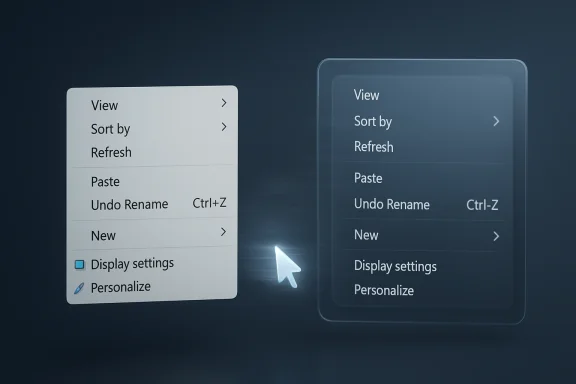 What changed technically: XAML, tion stack
XAML and WinUI are now in more places
XAML (the Extensible Application Markup Language) and WinUI (the modern UI library in the Windows App SDK) were introduced to bring richer declarative UI to modern apps. Microsoft now uses these technologies to modernize parts of the shell and to give legacy components a consistent look and feel. The result is that many UI surfaces that used to be drawn with simple GDI or basic Win32 paths are now built on top of the Visual/Composition layer. Microsoft’s guidance explicitly encourages the use of the Visual layer and composition APIs for smooth, high‑framerate animations and effects.Why that matters: XAML/WinUI render flows typically involve creating composition visuals, sometimes allocating or binding GPU-backed swap chains, and committing composition transactions that the Desktop Window Manager (DWM) composes into the final desktop image. Those extra stages add overhead compared with directly painting simple menus with the CPU. The Windows composition architecture — DirectComposition integrated with DWM — is designed to favor hardware compositing, which can be more efficient for complex scenes but has a non‑zero setup cost when invoked for very short, frequent operations.
GPU acceleration by default for modern UI paths
DirectComposition and the WinUI visual layer leverage GPU acceleration to achieve high frame rates and smooth animations. That’s a design advantage in many places, but there’s a trade‑off: initializing the GPU pipeline and scheduling GPU work can introduce latency that exceeds the cost of doing the same small rendering operation on the CPU. For micro‑interactions — a context menu, a simple flyout, a small dialog — the GPU’s “startup time” plus any intermediary composition steps can dominate the total time to first frame. Microsoft docs on DirectComposition and the Visual layer make clear that composition is hardware‑accelerated and separates composition work from the UI thread, which is excellent for sustained animation but not always optimal for tiny one‑off UI bits.More processes, more isolation — and more handoffs
Windows 11 splits certain shell responsibilities into separate helper processes for security and reliability (for example, StartMenuExperienceHost, ShellExperienceHost). Process isolation reduces risk — a crash in the Start menu is less likely to take the whole shell down — but it adds cross‑process communication and compositing steps that can increase the time it takes en, especially for first‑time activation of a UI surface after boot or after long idle. That behavior shows up in reports of the first right‑click after a fresh boot being noticeably slower.The micro‑delay anatomy: GPU init, invisible frames and extra animation work
A close look at the stack explains why the new UI “feels” slower even when raw performance is fine.- GPU initialization overhead: If a UI path uses a composition swap chain or otherwise relies on GPU acceleration, the system may need to initialize GPU objects (swap chains, command queues, compositors) and warm driver state. This can take tens to low hundreds of milliseconds on some hardware or driver stacks, especially integrated GPUs on low‑power CPUs. Microsoft’s composition APIs and DXGI swap chain mechanisms document these interactions.
- Extra XAML/WinUI passes: XAML-based UI often creates a visual tree, evaluates layout and then submits composition transactions; compared with older immediate-mode painting, that’s more work for short‑lived UI. The Visual layer is powerful for complex scenes, but its baseline cost per element is higher.
- “Invisible frames” and redundant animation work: Several independent investigations (community posts and reported reverse‑engineering by third‑party developers) found that Windows 11’s new context menu sequence calculates animation frames that contribute to delay but produce no additional visible benefit — effectively wasted cycles. Those invisible frames can be caused by overly conservative animation timing, redundant composition transactions, or bugs in the animation implementation. The practical effect is a perceptible pause between click and visible menu.
Evidence from the field: what users and testers observe
Multiple independent sources corroborate the same pattern:- Community and long‑form testing consistently point to longer visible latency on hot UI paths in Windows 11 compared with Windows 10 — especially File Explorer cold starts, right‑click context menus and certain flyouts. Reviewers who test identically configured machines often reproduce these micro‑latencies.
- Developer and StackOverflow threads document that WinUI apps can show slow ContextFlyout rendering or delayed ContentDialog opening on some systems, further evidence that WinUI/XAML paths can introduce perceptible latency under certain conditions. That matches the same architectural pathway Windows 11 increasingly uses for shell surfaces.
- Longstanding forum threads and Reddit posts going back to Windows 11’s early builds describe CPU spikes in Explorer when showing the new immersive context menu; power users demonstrated the classic menu is instant by reverting to the legacy option, which confirms an implementation difference in the rendering pipeline.
- Microsoft itself has iterated on context menu behavior and looked at ways to streamline menus (for example, exposing a “Show more options” path for third‑party items and exploring split context menu concepts), indicating the company recognizes usability and perf trade‑offs exist and that it’s experimenting with mitigations.
Why fast hardware doesn’t fully hide the issue
It’s tempting to assume a faster CPU, NVMe SSD and discrete GPU would render the problem moot. In practice, however, the delays are often tied to architectural overhead and driver/initialization behavior rather than raw throughput.- Millisecond‑scale latencies aren’t always improved by bulk horsepower. If creating GPU objects or committing a composition transaction has a fixed cost, faster cores and faster storage help less than you might expect on a per‑event basis.
- Driver interactions matter. Integrated GPUs and older driver stier initialization penalties or scheduling jitter that amplify the scene; but even on high‑end hardware, redundant frames or inefficient animation sequences still add delay.
- The OS baseline also matters. Windows 11 enables more services, telemetry and cloud hooks by default (OneDrive, Widgets, Copilot integrations, background indexing). Thoe system’s active baseline and can occasionally contend with UI work or force scheduling behavior that hurts latency. On constrained systems the effect is large hit appears across tiers because the delays are about timing and sequencing rather than raw capacity.
Practical steps for users: what helps today
If the snappiness hit bothers you, there are pragmatic, low‑risk ways to reduce the felt latency. These are well‑known community and reviewer recommendations that trade off some visual polish or convenience for immediacy.- Disable or reduce animation effects: Settings → Accessibility → Visual effects → turn off Animation effects. This can eliminate some of the invisible‑frame overhead and reduce visual latency.
- Turn off transparency effects: Settings → Personalization → y effects* → Off. This reduces some composition work and increases contrast.
- Revert to the classic context menu (if desired): There’s a registry/workaround that restores the older menu behavior or you can use Shift+F10 to open the classic menu. This immediately eliminates the r context menus and restores the older, lower‑latency UI. Use caution and backup the registry before editing. Community posts provide the registry tweak and cautionary notes.
- Reduce MenuShowDelayak (MenuShowDelay) reduces the built‑in menu pause. This can make menus feel snappier. As always, back up the registry and create a restore point before editing.
- Inspect and disable slow shell extensions: Use Autoruns (Sysinternals) to find third‑party context‑menu handlers that delay menu construction. Disable untrusted or rarely used extensions. This remains one of the most effective real‑world fixes for slow Explorer context menus.
- Trim startup items and pause OneDrive sync: Fewer background processes reduce baseline contention, which can reduce UI latency on constrained devices. Microsoft’s own support guidance suggests pausing OneDrive sync during troubleshooting when it’s suspected of causing slowdowns.
- Create a restore point.
- Turn off Animation effects and Transparency effects.
- Reduce MenuShowDelay to ~50 ms.
- Inspect Autoruns and disable unnecessary shell extensions.
- Reboot and test context menus and File Explorer response.
- If still unsatisfied, enable classic context menu via the known registry tweak or Shift+F10.
Microsoft’s design choice: why it happened and what it buys them
Microsoft’s push toward XAML/WinUI and deeper composition is a strategic decision, not an accident.- Consistency and maintainability: Using a shared UI tech enables consistent behavior across native apps and system surfaces, fewer duplicated implementation patterns, and easier long‑term evolution of visual language and accessibility.
- New capabilities: GPU‑an unlocks effects like mica, acrylic, smoother animations, and richer transitions that are central to the Windows 11 aesthetic and to future features such as on‑device AI UI flows assisted by richer presenters.
- Security and isolation: Splitting responsibilities across procession techniques can improve sandboxing and reduce blast radius for crashes or malformed third‑party code.
Risks, caveats and what to watch for
- Accessibility and behavioral changes: Turning off animations or using classic menus can affect users who rely on transitions for orientation. Any tweak should be weighed againsand enterprise policy constraints.
- Enterprise impact: IT administrators should be aware that registry workarounds or third‑party fixes may conflict with management policies; always validate changes in a test group before broad deployment.
- Driver and OEM dependencies: Because composition is dependent on GPU drivers and DWM behavior, some fixes will be vendor‑specific. In past incidents Microsoft and GPU vendors coordinated hotfix drivers to remedy regressions triggered by cumulative updates; the interplay between OS updates and GPU drivers can produce transient performance regressions that require vendor hotfixes.
- Measurement challenges: “Feels slower” is a subjective metric. If you want to evaluate objectively, measure cold and warm File Explorer startup times, right‑click to visible menu latency (stopwatch on slow‑motion captures or frame‑timing tools), and sample multiple hardware configurations. Community reverse‑engineering results are invaluable, but exact millisecond counts vary by platform and OS build.
How Microsoft could (and is beginning to) respond
There are several practical levers Microsoft can use to reduce perceived latency while keeping the modern UI approach:- Selective fallback to CPU paths for extremely short Uy fast interactions, a CPU–paint path avoids GPU startup costs and can be faster in practice. The architecture supports multiple composition strategies; the choice is implementation detail and policy.
- Lazy or warm initialization: Preloading or warming WinUI composition components at a low‑cost moment (for example, on user idle during session start) would reduce the “first right‑click” penalty without changing the visible UI. Microsoft has used preload and warm‑start techniques for othd extend them to composition elements.
- Simplifying context menu visuals and splitting primary/secondary items to reduce on‑demand queries. Microsoft has shown community ideas like a split context menu for WinUI apps, a change that could reduce clutter and on‑demand computation for common actions.
- Telemetry and SLOs for responsiveness: Establishing measurable service‑level objectives for UI responsiveness and shipping more granular telemetry can help target meaningful improvements without regressing security or design goals. Community reporting suggests users care far more about perceptual snappiness than raw benchmark scores.
Final assessment: small details, large UX impact
The feeling that “Windows 11 is slower” is not merely nostalgia or placebo. It is a real, reproducible phenomenon rooted in how modern UI elements are implemented and composited. The move toward XAML/WinUI and GPU‑first composition gives Windows 11 powerful visual tools and a cleaner codebase for future features, but it also introduces micro‑latencies on hot UI paths where the old Win32/CPU approach was more immediately responsive. Those milliseconds matter — they’re the difference between a UI that feels instantaneous and one that feels sluggish.For users and IT professionals the practical takeaway is twofold: first, many useful mitigations exist today (animation toggles, classic menu, trimming shell extensions). Second, the real fix lies in platform design choices: Microsoft can and likely will target optimizations (selective CPU fallbacks, preloading, or animation fixes), but those are strategic and take time to design, validate and roll out at scale. In the meantime, pragmatic user adjustments usually restore much of the perceived snappiness without sacrificing the security and visual improvements Windows 11 brings.
The debate over Windows 11’s feel underscores a perennial truth: software design isn’t only about what’s visible on the screen, but about the invisible costs of the plumbing beneath it. Small implementation choices—GPU vs CPU, extra layering, animation timing—can have outsized impact when multiplied by every right‑click and dialog box you open. Understanding that trade‑off helps users make informed choices today, and gives Microsoft a clear roadmap for where developer and platform engineering effort will have the most perceptual payoff.
Source: igor´sLAB Why Windows 11 feels slower than Windows 10—and why it’s not just in your head | igor´sLAB
