

Microsoft Word remains the default document editor across much of business and education in 2026, but users have good reasons to stop relying on it when free rivals, layout friction, fragile templates, table headaches, and expired Office 2016/2019 support make the old default less compelling. The case against Word is not that it is weak. It is that Word is often too much machine for the wrong job, and too old a machine in the places where people most stubbornly keep it installed. The modern document problem is no longer “Can this program format a memo?” It is “Can this program stay out of the way while people work?”
That distinction matters because Word’s greatest strength has always been inertia. It is the format everyone knows, the icon everyone recognizes, and the program that quietly defines what “a document” is supposed to look like in offices, schools, courts, consultancies, and public agencies. But defaults age. In 2026, the strongest argument for Word is often not that it is the best tool for a given task, but that the rest of the workflow has been built around tolerating it.
Microsoft Word became dominant in a world where documents were primarily files, not shared workspaces. A file lived on a desktop, traveled by email, returned with tracked changes, and eventually became a PDF or a printed packet. In that environment, Word’s dense feature set made sense: footnotes, mail merge, custom styles, macros, complex tables, section breaks, forms, templates, review tools, and a nearly endless menu of layout knobs.
The problem is that many people now use a word processor for a much smaller set of jobs. They draft short internal notes, collaborate in real time, write meeting summaries, prepare lightweight reports, or share material that will ultimately become a webpage, a ticket, a Notion page, a Google Doc, a PDF, or a chat attachment. The “document” has become less sacred and more disposable.
That shift weakens Word’s old bargain. If you need the full apparatus of professional document production, Word still earns its place. If you need a clean place to write, comment, collaborate, and export, it can feel like a legacy cockpit bolted onto a modern commute.
Microsoft has not ignored this. Word for the web, OneDrive integration, Microsoft 365 collaboration, Copilot features, and cloud autosave all exist because Microsoft understands that local-file-era Office could not simply sit still. But adding cloud behavior to Word does not erase decades of assumptions embedded in the application. Word still thinks in pages, paragraphs, anchors, styles, sections, tables, and layout rules that many users encounter only when something breaks.
For casual users, the gap between Word and its alternatives has narrowed in practical terms even when it remains wide on paper. Google Docs lacks some of Word’s deeper automation and formatting power. LibreOffice Writer can feel less polished in places. OnlyOffice and other suites have their own compatibility tradeoffs. But for a student essay, a meeting agenda, a household letter, a basic proposal, or a collaborative draft, the question is not whether an alternative matches every Word feature. The question is whether the missing features matter.
Often, they do not. That is the danger of good enough software. It does not need to beat the incumbent feature by feature. It only needs to make the incumbent’s cost, complexity, and lock-in feel unnecessary.
The economics reinforce the point. Microsoft 365 subscriptions make sense for households and businesses that use the broader suite: Outlook, Excel, PowerPoint, OneDrive storage, Teams, Defender benefits, and administrative controls. But if the only daily need is writing and light editing, paying for Word can look increasingly like paying rent on a room you rarely enter.
There is also a philosophical difference. Google Docs assumes the document is already online. Obsidian assumes the document may be part of a larger personal knowledge base. LibreOffice assumes local ownership and open formats matter. Word assumes continuity with a vast Office universe. That universe is still powerful, but it is no longer the only place serious work happens.
That behavior is logical if you understand Word’s structure. It is maddening if you do not. A user drags a picture a few pixels and suddenly text reflows, gaps appear, captions drift, or a carefully arranged page turns into a crime scene. Word is doing what it was designed to do: preserving relationships between content, paragraphs, and layout. The user, meanwhile, believes the program is gaslighting them.
Text wrapping options can fix much of this. So can anchoring, locking positions, using proper styles, inserting captions correctly, and understanding how objects relate to paragraphs. But that is the point. The fix requires the user to learn Word’s internal logic before the document stops misbehaving.
For professional document workers, that logic is valuable. In a long report, you may want an image tied to a specific paragraph so it travels with the surrounding discussion. In a legal or technical document, predictable anchoring matters more than casual drag-and-drop freedom. But for someone making a flyer, a résumé, a one-page handout, or a visually rich school assignment, Word often feels like the wrong abstraction.
This is where tools such as Canva, PowerPoint, Google Slides, Publisher-style apps, or browser-based design tools can be better fits. They treat the page as a canvas. Word treats the page as a result produced by flowing text through rules. The difference sounds academic until a logo refuses to stay put five minutes before a deadline.
The reason is simple. Many templates are not magic; they are arrangements of tables, text boxes, tab stops, section breaks, styles, hidden spacing, and carefully balanced assumptions about how much text will appear where. Replace “Marketing Manager” with “Senior Cross-Functional Operations and Strategy Program Lead” and the whole design may begin to buckle.
This is not unique to Word, but Word makes the failure especially visible because it mixes writing, formatting, and layout in one environment. A template may look like a design surface, but the machinery underneath is still document flow. When the content exceeds the designer’s imagined bounds, Word has to choose between preserving the structure and accommodating the text. The result is often neither elegant nor obvious.
The common advice is to use styles properly, reveal formatting marks, avoid manual spacing, and resist fighting the template. That advice is correct. It is also a confession that Word templates require discipline from users who often chose a template specifically because they did not want to think about structure.
A better tool depends on the job. For a résumé, a purpose-built résumé builder or a plain, conservative document may be safer than an ornate Word template. For a newsletter, a design tool may be more predictable. For internal business documents, a simpler shared template in Google Docs or a locked-down corporate template in Word may work better than a decorative file downloaded from the web.
The trouble begins with expectations imported from Excel and the web. Users see rows and columns and assume all tables are morally equivalent. They are not. A table copied from Excel carries one set of assumptions. A table copied from a webpage may be a real HTML table, or it may merely be styled text that looks tabular. A table built inside Word has its own rules for paragraph formatting, cell margins, row heights, column widths, page breaks, borders, and wrapping.
Once those assumptions collide, the symptoms look arbitrary. Columns overflow beyond the page. Row heights refuse to shrink. Text wraps badly. Borders disappear. A pasted table brings alien fonts and spacing with it. A table that looked fine in the browser becomes a stack of misaligned fragments in Word.
Again, Word usually provides controls to address the mess. Paste options, autofit settings, table properties, fixed column widths, text direction, paragraph spacing, and style cleanup can rescue many documents. But the rescue mission requires knowledge the user may not have and time the user did not budget.
The deeper problem is that Word tables are often asked to do jobs that belong elsewhere. If the table is data, Excel or a spreadsheet is usually the source of truth. If the table is layout, a design tool may be cleaner. If the table is for the web, a content management system or markdown workflow may be more appropriate. Word sits awkwardly in the middle: capable enough to invite the work, fussy enough to punish improvisation.
This matters because many of the people most frustrated by modern Word are also the people most likely to cling to older perpetual-license Office installs. They bought Office once, they know where everything is, and they do not want Microsoft 365 nudging them toward subscriptions, cloud storage, account sign-ins, and interface changes. That preference is understandable. It is also increasingly risky.
Unsupported Office is not guaranteed to explode on October 15, 2025. Word 2016 or Word 2019 may still launch, open files, and print letters. The danger is quieter: newly discovered vulnerabilities do not get fixed, compatibility problems accumulate, and organizations lose a defensible security posture. In a world where malicious documents remain a familiar attack path, an unsupported document editor is not just an old tool. It is a liability.
The timing made the pain sharper because Windows 10 also reached its end-of-support milestone on October 14, 2025. For homes, small businesses, schools, and local organizations that had standardized on aging PCs and older Office licenses, the date forced a broader reckoning. The familiar Microsoft stack did not merely become old. It crossed into a phase where continued use demanded conscious risk acceptance.
Microsoft would prefer that users move to Microsoft 365 or newer perpetual Office releases. That is a reasonable answer for many organizations, especially those already dependent on Exchange, SharePoint, OneDrive, Teams, and Microsoft identity management. But it is not the only answer. For users whose Word needs are modest, the end of support can be the moment to ask whether upgrading Word is necessary at all.
Microsoft 365 is not merely a way to rent Word. It is a platform strategy. It ties productivity software to storage, identity, collaboration, security, compliance, device management, and now AI assistance. For enterprises, that integration can be a feature. For individuals and small teams, it can feel like a growing institutional apparatus attached to the humble act of writing a document.
This is why open-source and simpler alternatives retain emotional power even when they are less polished. LibreOffice offers a local-first model. Markdown editors offer portability and plain-text durability. Google Docs offers effortless collaboration without the traditional Office desktop footprint. None is a perfect replacement for every Word user, but each answers a different discomfort with Microsoft’s direction.
Word is also increasingly judged against tools that are not traditional word processors. Technical teams may prefer markdown in Git. Researchers may use LaTeX, Zotero-linked workflows, or structured note systems. Product teams may write in Notion, Confluence, Loop, or project-management platforms. Designers may go straight to Figma or Canva. The document editor is no longer the universal starting point.
That fragmentation makes Word less inevitable. It remains enormously important, especially wherever .docx compatibility, legal review, regulated templates, and enterprise Office deployments dominate. But inevitability is not the same thing as excellence. Once users discover that their work does not actually require Word, the old default begins to look optional.
Track Changes is still a lingua franca in many professional environments. The .docx format remains a practical necessity for exchanging editable documents with clients, agencies, schools, and vendors. Word’s style system, when used properly, supports serious document architecture. Its integration with Excel, PowerPoint, Outlook, SharePoint, OneDrive, and enterprise management tools gives it advantages that smaller rivals cannot simply clone.
There is also a large base of expert users who can make Word sing. They understand section breaks, fields, styles, captions, cross-references, templates, macros, and content controls. For them, Word is not a clumsy relic. It is a professional instrument.
The mistake is treating that expert workflow as the default experience for everyone else. Most users do not need a professional instrument every time they write. They need a reliable surface that matches the scale of the task. Word’s problem is that it is often installed where a lighter tool would be calmer, cheaper, and less failure-prone.
This is especially true in small organizations. A nonprofit that needs collaborative meeting notes may be better served by Google Docs. A shop that needs flyers may be better served by Canva. A developer team writing internal docs may be better served by markdown and version control. A family writing letters may be better served by LibreOffice or the free web version of a productivity suite.
This is why the “just use LibreOffice” argument, while tempting, can be too glib. In a workplace where clients expect Word documents with tracked changes preserved exactly, abandoning Word may create more friction than it removes. In schools where teachers annotate Word submissions, compatibility matters. In legal and government settings, formatting errors are not cosmetic; they can be procedural problems.
But compatibility cuts both ways. It is a reason to keep access to Word, not always a reason to live in Word. Many users can draft elsewhere and use Word only at the edges: final formatting, compatibility checks, client exchange, or archival conversion. That hybrid approach may be more realistic than a dramatic purge.
The better question is not “Should everyone stop using Word?” It is “Should Word still be the first tool opened for every writing task?” Increasingly, the answer is no.
For enterprise IT, Copilot may strengthen the case for staying inside Microsoft’s environment. If documents, email, meetings, and files already live in Microsoft 365, AI features layered across that estate can be attractive. The more Microsoft turns Office into an intelligent front end for organizational knowledge, the less Word looks like a standalone word processor.
For individual users, however, the calculus is murkier. If all someone wants is a place to write, AI may not justify the weight of the platform. Plenty of writing tools now offer AI assistance. Browser-based editors, note apps, and specialist writing environments are moving quickly. Word’s advantage is integration, not simplicity.
There is a risk that Microsoft solves yesterday’s Word frustrations by adding tomorrow’s complexity. A user who cannot make an image stay in place may not be comforted by an AI sidebar. A user who resents subscriptions may not be persuaded by another premium feature tier. A user worried about unsupported Office may see modernization as necessary, but not necessarily as a reason to remain inside Word.
The AI future therefore amplifies the central issue. Word is becoming more capable, but capability is not the same as fit. The right tool is the one that matches the work, the risk, and the user’s tolerance for complexity.
If a document requires exact .docx compatibility, tracked changes with external partners, complex formatting, or an enterprise template, use Word. If the job is collaborative drafting, quick notes, simple reports, design-heavy pages, or structured knowledge work, consider starting elsewhere. The goal is not ideological purity. It is workflow sanity.
That approach also helps organizations avoid false choices. IT departments do not need to rip Word out of every machine to reduce dependence on it. They can define which document classes require Word, which can move to browser-native collaboration, and which should be handled by purpose-built tools. Procurement can then match licenses to actual need rather than historical habit.
For home users, the same principle applies. Keep Word if you already have it through Microsoft 365 and use the broader suite. Replace it if you are paying mainly out of habit. Retire unsupported Office 2016 and 2019 installations unless you have a carefully isolated reason to keep them. The nostalgic comfort of old software is not worth pretending security support is optional.
Word will remain embedded in professional life for years because document ecosystems change slowly, and because Microsoft still understands enterprise productivity better than almost anyone. But the smarter future is not one where everyone abandons Word, nor one where everyone renews the habit without thinking. It is one where Word is used deliberately: trusted for the formal, complex, and compatibility-bound work it still handles well, and bypassed when a lighter, freer, less fussy tool will let the writing happen without turning the document itself into the project.
That distinction matters because Word’s greatest strength has always been inertia. It is the format everyone knows, the icon everyone recognizes, and the program that quietly defines what “a document” is supposed to look like in offices, schools, courts, consultancies, and public agencies. But defaults age. In 2026, the strongest argument for Word is often not that it is the best tool for a given task, but that the rest of the workflow has been built around tolerating it.
 Word Won the Office, Then the Office Changed Around It
Microsoft Word became dominant in a world where documents were primarily files, not shared workspaces. A file lived on a desktop, traveled by email, returned with tracked changes, and eventually became a PDF or a printed packet. In that environment, Word’s dense feature set made sense: footnotes, mail merge, custom styles, macros, complex tables, section breaks, forms, templates, review tools, and a nearly endless menu of layout knobs.The problem is that many people now use a word processor for a much smaller set of jobs. They draft short internal notes, collaborate in real time, write meeting summaries, prepare lightweight reports, or share material that will ultimately become a webpage, a ticket, a Notion page, a Google Doc, a PDF, or a chat attachment. The “document” has become less sacred and more disposable.
That shift weakens Word’s old bargain. If you need the full apparatus of professional document production, Word still earns its place. If you need a clean place to write, comment, collaborate, and export, it can feel like a legacy cockpit bolted onto a modern commute.
Microsoft has not ignored this. Word for the web, OneDrive integration, Microsoft 365 collaboration, Copilot features, and cloud autosave all exist because Microsoft understands that local-file-era Office could not simply sit still. But adding cloud behavior to Word does not erase decades of assumptions embedded in the application. Word still thinks in pages, paragraphs, anchors, styles, sections, tables, and layout rules that many users encounter only when something breaks.
Free Rivals Have Made “Good Enough” More Dangerous Than Ever
The most obvious reason to quit Word is also the most commercially uncomfortable one for Microsoft: many people no longer need to pay for it. Google Docs is not Word, and that is precisely the point. It is simpler, browser-native, collaborative by default, and more than adequate for a huge percentage of everyday writing.For casual users, the gap between Word and its alternatives has narrowed in practical terms even when it remains wide on paper. Google Docs lacks some of Word’s deeper automation and formatting power. LibreOffice Writer can feel less polished in places. OnlyOffice and other suites have their own compatibility tradeoffs. But for a student essay, a meeting agenda, a household letter, a basic proposal, or a collaborative draft, the question is not whether an alternative matches every Word feature. The question is whether the missing features matter.
Often, they do not. That is the danger of good enough software. It does not need to beat the incumbent feature by feature. It only needs to make the incumbent’s cost, complexity, and lock-in feel unnecessary.
The economics reinforce the point. Microsoft 365 subscriptions make sense for households and businesses that use the broader suite: Outlook, Excel, PowerPoint, OneDrive storage, Teams, Defender benefits, and administrative controls. But if the only daily need is writing and light editing, paying for Word can look increasingly like paying rent on a room you rarely enter.
There is also a philosophical difference. Google Docs assumes the document is already online. Obsidian assumes the document may be part of a larger personal knowledge base. LibreOffice assumes local ownership and open formats matter. Word assumes continuity with a vast Office universe. That universe is still powerful, but it is no longer the only place serious work happens.
The Image Problem Is Really a Mental Model Problem
Word’s reputation for making images behave badly is not just user error. It is the collision between two mental models: users think they are placing an object on a page, while Word often treats that object as part of a flowing text system. By default, inserted pictures are commonly handled “in line with text,” meaning the image behaves more like a giant character than a freely positioned design element.That behavior is logical if you understand Word’s structure. It is maddening if you do not. A user drags a picture a few pixels and suddenly text reflows, gaps appear, captions drift, or a carefully arranged page turns into a crime scene. Word is doing what it was designed to do: preserving relationships between content, paragraphs, and layout. The user, meanwhile, believes the program is gaslighting them.
Text wrapping options can fix much of this. So can anchoring, locking positions, using proper styles, inserting captions correctly, and understanding how objects relate to paragraphs. But that is the point. The fix requires the user to learn Word’s internal logic before the document stops misbehaving.
For professional document workers, that logic is valuable. In a long report, you may want an image tied to a specific paragraph so it travels with the surrounding discussion. In a legal or technical document, predictable anchoring matters more than casual drag-and-drop freedom. But for someone making a flyer, a résumé, a one-page handout, or a visually rich school assignment, Word often feels like the wrong abstraction.
This is where tools such as Canva, PowerPoint, Google Slides, Publisher-style apps, or browser-based design tools can be better fits. They treat the page as a canvas. Word treats the page as a result produced by flowing text through rules. The difference sounds academic until a logo refuses to stay put five minutes before a deadline.
Templates Promise Speed and Often Deliver Fragility
Templates are supposed to save users from the terror of the blank page. In Word, they often introduce a different terror: the page that looks finished until you touch it. Résumés, newsletters, letterheads, brochures, forms, and business reports can be beautiful in preview and brittle in use.The reason is simple. Many templates are not magic; they are arrangements of tables, text boxes, tab stops, section breaks, styles, hidden spacing, and carefully balanced assumptions about how much text will appear where. Replace “Marketing Manager” with “Senior Cross-Functional Operations and Strategy Program Lead” and the whole design may begin to buckle.
This is not unique to Word, but Word makes the failure especially visible because it mixes writing, formatting, and layout in one environment. A template may look like a design surface, but the machinery underneath is still document flow. When the content exceeds the designer’s imagined bounds, Word has to choose between preserving the structure and accommodating the text. The result is often neither elegant nor obvious.
The common advice is to use styles properly, reveal formatting marks, avoid manual spacing, and resist fighting the template. That advice is correct. It is also a confession that Word templates require discipline from users who often chose a template specifically because they did not want to think about structure.
A better tool depends on the job. For a résumé, a purpose-built résumé builder or a plain, conservative document may be safer than an ornate Word template. For a newsletter, a design tool may be more predictable. For internal business documents, a simpler shared template in Google Docs or a locked-down corporate template in Word may work better than a decorative file downloaded from the web.
Tables Remain Word’s Most Underestimated Trap
Tables are where Word’s split personality becomes most obvious. Word can create sophisticated tables, and experienced users can make them behave. But tables are also one of the fastest ways for ordinary users to lose an afternoon.The trouble begins with expectations imported from Excel and the web. Users see rows and columns and assume all tables are morally equivalent. They are not. A table copied from Excel carries one set of assumptions. A table copied from a webpage may be a real HTML table, or it may merely be styled text that looks tabular. A table built inside Word has its own rules for paragraph formatting, cell margins, row heights, column widths, page breaks, borders, and wrapping.
Once those assumptions collide, the symptoms look arbitrary. Columns overflow beyond the page. Row heights refuse to shrink. Text wraps badly. Borders disappear. A pasted table brings alien fonts and spacing with it. A table that looked fine in the browser becomes a stack of misaligned fragments in Word.
Again, Word usually provides controls to address the mess. Paste options, autofit settings, table properties, fixed column widths, text direction, paragraph spacing, and style cleanup can rescue many documents. But the rescue mission requires knowledge the user may not have and time the user did not budget.
The deeper problem is that Word tables are often asked to do jobs that belong elsewhere. If the table is data, Excel or a spreadsheet is usually the source of truth. If the table is layout, a design tool may be cleaner. If the table is for the web, a content management system or markdown workflow may be more appropriate. Word sits awkwardly in the middle: capable enough to invite the work, fussy enough to punish improvisation.
End of Support Turns Nostalgia Into Risk
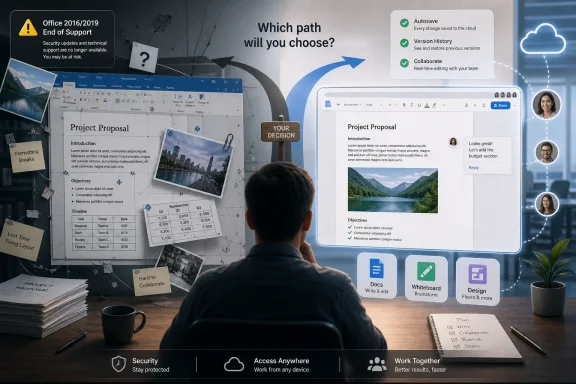
The most concrete reason to stop using Word is not aesthetic at all. Microsoft ended support for Office 2016 and Office 2019 on October 14, 2025. That means no more security updates, bug fixes, or technical support for those versions.This matters because many of the people most frustrated by modern Word are also the people most likely to cling to older perpetual-license Office installs. They bought Office once, they know where everything is, and they do not want Microsoft 365 nudging them toward subscriptions, cloud storage, account sign-ins, and interface changes. That preference is understandable. It is also increasingly risky.
Unsupported Office is not guaranteed to explode on October 15, 2025. Word 2016 or Word 2019 may still launch, open files, and print letters. The danger is quieter: newly discovered vulnerabilities do not get fixed, compatibility problems accumulate, and organizations lose a defensible security posture. In a world where malicious documents remain a familiar attack path, an unsupported document editor is not just an old tool. It is a liability.
The timing made the pain sharper because Windows 10 also reached its end-of-support milestone on October 14, 2025. For homes, small businesses, schools, and local organizations that had standardized on aging PCs and older Office licenses, the date forced a broader reckoning. The familiar Microsoft stack did not merely become old. It crossed into a phase where continued use demanded conscious risk acceptance.
Microsoft would prefer that users move to Microsoft 365 or newer perpetual Office releases. That is a reasonable answer for many organizations, especially those already dependent on Exchange, SharePoint, OneDrive, Teams, and Microsoft identity management. But it is not the only answer. For users whose Word needs are modest, the end of support can be the moment to ask whether upgrading Word is necessary at all.
The Subscription Question Is Really a Control Question
Complaints about Word often get framed as complaints about money. That is only partly true. The deeper issue is control: who owns the workflow, where the files live, how often the interface changes, and how much of the product is shaped by Microsoft’s broader cloud strategy.Microsoft 365 is not merely a way to rent Word. It is a platform strategy. It ties productivity software to storage, identity, collaboration, security, compliance, device management, and now AI assistance. For enterprises, that integration can be a feature. For individuals and small teams, it can feel like a growing institutional apparatus attached to the humble act of writing a document.
This is why open-source and simpler alternatives retain emotional power even when they are less polished. LibreOffice offers a local-first model. Markdown editors offer portability and plain-text durability. Google Docs offers effortless collaboration without the traditional Office desktop footprint. None is a perfect replacement for every Word user, but each answers a different discomfort with Microsoft’s direction.
Word is also increasingly judged against tools that are not traditional word processors. Technical teams may prefer markdown in Git. Researchers may use LaTeX, Zotero-linked workflows, or structured note systems. Product teams may write in Notion, Confluence, Loop, or project-management platforms. Designers may go straight to Figma or Canva. The document editor is no longer the universal starting point.
That fragmentation makes Word less inevitable. It remains enormously important, especially wherever .docx compatibility, legal review, regulated templates, and enterprise Office deployments dominate. But inevitability is not the same thing as excellence. Once users discover that their work does not actually require Word, the old default begins to look optional.
Where Word Still Deserves Its Seat
A fair case against Word has to admit where Word is still hard to replace. Long, formal, heavily formatted documents remain its home turf. Legal filings, policy manuals, academic manuscripts, government forms, corporate reports, technical documentation, and documents requiring precise review workflows often benefit from Word’s maturity.Track Changes is still a lingua franca in many professional environments. The .docx format remains a practical necessity for exchanging editable documents with clients, agencies, schools, and vendors. Word’s style system, when used properly, supports serious document architecture. Its integration with Excel, PowerPoint, Outlook, SharePoint, OneDrive, and enterprise management tools gives it advantages that smaller rivals cannot simply clone.
There is also a large base of expert users who can make Word sing. They understand section breaks, fields, styles, captions, cross-references, templates, macros, and content controls. For them, Word is not a clumsy relic. It is a professional instrument.
The mistake is treating that expert workflow as the default experience for everyone else. Most users do not need a professional instrument every time they write. They need a reliable surface that matches the scale of the task. Word’s problem is that it is often installed where a lighter tool would be calmer, cheaper, and less failure-prone.
This is especially true in small organizations. A nonprofit that needs collaborative meeting notes may be better served by Google Docs. A shop that needs flyers may be better served by Canva. A developer team writing internal docs may be better served by markdown and version control. A family writing letters may be better served by LibreOffice or the free web version of a productivity suite.
Compatibility Is the Chain That Keeps Pulling Users Back
The strongest practical argument for keeping Word is compatibility. Even if an alternative can open and save .docx files, perfect round-tripping is not guaranteed. Complex formatting, comments, tracked changes, embedded objects, macros, form fields, SmartArt, and unusual templates can degrade when moved between suites.This is why the “just use LibreOffice” argument, while tempting, can be too glib. In a workplace where clients expect Word documents with tracked changes preserved exactly, abandoning Word may create more friction than it removes. In schools where teachers annotate Word submissions, compatibility matters. In legal and government settings, formatting errors are not cosmetic; they can be procedural problems.
But compatibility cuts both ways. It is a reason to keep access to Word, not always a reason to live in Word. Many users can draft elsewhere and use Word only at the edges: final formatting, compatibility checks, client exchange, or archival conversion. That hybrid approach may be more realistic than a dramatic purge.
The better question is not “Should everyone stop using Word?” It is “Should Word still be the first tool opened for every writing task?” Increasingly, the answer is no.
The AI Era Makes the Old Word Debate Stranger
Microsoft’s push to add Copilot across Microsoft 365 changes the conversation without settling it. On one hand, AI assistance makes Word more powerful for drafting, summarizing, rewriting, and working with existing organizational content. On the other hand, it further ties Word to the Microsoft cloud ecosystem and raises the stakes around licensing, data governance, and trust.For enterprise IT, Copilot may strengthen the case for staying inside Microsoft’s environment. If documents, email, meetings, and files already live in Microsoft 365, AI features layered across that estate can be attractive. The more Microsoft turns Office into an intelligent front end for organizational knowledge, the less Word looks like a standalone word processor.
For individual users, however, the calculus is murkier. If all someone wants is a place to write, AI may not justify the weight of the platform. Plenty of writing tools now offer AI assistance. Browser-based editors, note apps, and specialist writing environments are moving quickly. Word’s advantage is integration, not simplicity.
There is a risk that Microsoft solves yesterday’s Word frustrations by adding tomorrow’s complexity. A user who cannot make an image stay in place may not be comforted by an AI sidebar. A user who resents subscriptions may not be persuaded by another premium feature tier. A user worried about unsupported Office may see modernization as necessary, but not necessarily as a reason to remain inside Word.
The AI future therefore amplifies the central issue. Word is becoming more capable, but capability is not the same as fit. The right tool is the one that matches the work, the risk, and the user’s tolerance for complexity.
The Real Exit Strategy Is Selective, Not Theatrical
The most sensible way to stop using Word is not to declare war on it. It is to demote it. Treat Word as a specialized tool rather than the universal default, and many of the frustrations become easier to manage.If a document requires exact .docx compatibility, tracked changes with external partners, complex formatting, or an enterprise template, use Word. If the job is collaborative drafting, quick notes, simple reports, design-heavy pages, or structured knowledge work, consider starting elsewhere. The goal is not ideological purity. It is workflow sanity.
That approach also helps organizations avoid false choices. IT departments do not need to rip Word out of every machine to reduce dependence on it. They can define which document classes require Word, which can move to browser-native collaboration, and which should be handled by purpose-built tools. Procurement can then match licenses to actual need rather than historical habit.
For home users, the same principle applies. Keep Word if you already have it through Microsoft 365 and use the broader suite. Replace it if you are paying mainly out of habit. Retire unsupported Office 2016 and 2019 installations unless you have a carefully isolated reason to keep them. The nostalgic comfort of old software is not worth pretending security support is optional.
Five Reasons Become One Bigger Argument
The usual complaints about Word can sound petty in isolation: images jump, tables break, templates misbehave, subscriptions annoy, alternatives are free. Put together, they describe a mature product whose default status is no longer self-justifying. Word is still powerful, but power is not the same as suitability.- Free alternatives now cover the everyday writing and collaboration needs that once made Word feel mandatory.
- Word’s image handling frustrates users because it treats visual objects as part of a text-flow system, not as freeform design elements.
- Templates often fail because their polished surfaces depend on hidden structure that ordinary edits can easily disturb.
- Tables become painful when data, layout, web formatting, and Word’s own paragraph rules collide in the same grid.
- Office 2016 and Office 2019 reached end of support on October 14, 2025, turning continued use of those versions into a security and maintenance decision rather than a harmless preference.
Word will remain embedded in professional life for years because document ecosystems change slowly, and because Microsoft still understands enterprise productivity better than almost anyone. But the smarter future is not one where everyone abandons Word, nor one where everyone renews the habit without thinking. It is one where Word is used deliberately: trusted for the formal, complex, and compatibility-bound work it still handles well, and bypassed when a lighter, freer, less fussy tool will let the writing happen without turning the document itself into the project.
References
- Primary source: aol.com
Published: 2026-06-02T05:50:13.666124
5 Reasons You Should Stop Using Microsoft Word - AOL
Microsoft Word is still the most ubiquitous office productivity program out there, but it's time to stop bothering with it, for multiple reasons.www.aol.com - Official source: support.microsoft.com
End of support for Office 2016 and Office 2019 | Microsoft Support
Support for Office 2016 and Office 2019 ended on October 14, 2025. All of your Office 2016 and Office 2019 apps will continue to function, but you could be exposed to security risks. Upgrade to Microsoft 365.support.microsoft.com - Official source: microsoft.com
Your request has been blocked. This could be due to several reasons.
www.microsoft.com
- Related coverage: help.blacknight.com
Microsoft Office 2016 & 2019 - Support Ended 14th October 2025 – Blacknight - Customer Service / Technical Support Centre
This applies to both Windows & macOS users of Microsoft Office 2016 & Microsoft Office 2019.As of Tuesday 14th October 2025,...help.blacknight.com - Related coverage: howtogeek.com
How to Position Images and Other Objects in Microsoft Word
Adding an image or other illustration objects to a Word document is simple, but positioning those objects and getting them to stay where you want them can be frustrating. www.howtogeek.com
- Related coverage: tweakers.net
Microsoft waarschuwt dat ondersteuning Office 2016 en 2019 in oktober 2025 stopt
Microsoft waarschuwt dat het op 14 oktober 2025 stopt met de ondersteuning van alle apps die via de Office 2016- en 2019-pakketten werden uitgebracht, waaronder Excel, Word en PowerPoint uit de betreffende jaren. Op dezelfde datum stopt de ondersteuning voor Windows 10.tweakers.net
- Related coverage: windowscentral.com
14 things you must know about Windows 10 End of Life | Windows Central
Windows 10 reaches end of life on October 14, 2025. Here are 14 essential facts about what happens next, including security, apps, and upgrade options.www.windowscentral.com - Related coverage: techradar.com
Best Microsoft Office alternative of 2026 | TechRadar
Get better features from your office softwarewww.techradar.com - Related coverage: itpro.com
Microsoft Office 2016 and 2019 are heading for the scrapheap next month – but there could be a lifeline for those unable to upgrade | IT Pro
With the end of support deadline for Microsoft Office 2016 and 2019 approaching, the tech giant has urged users to upgrade – but there could be a lifeline.www.itpro.com - Official source: marketingassets.microsoft.com
Farewell Microsoft Office 2016 and 2019— It’s Time to Upgrade to What’s Next
PDF documentmarketingassets.microsoft.com
- Official source: techcommunity.microsoft.com
Preparing for key End of Support milestones coming in 2025
Microsoft Buildtechcommunity.microsoft.com
- Official source: learn.microsoft.com
