

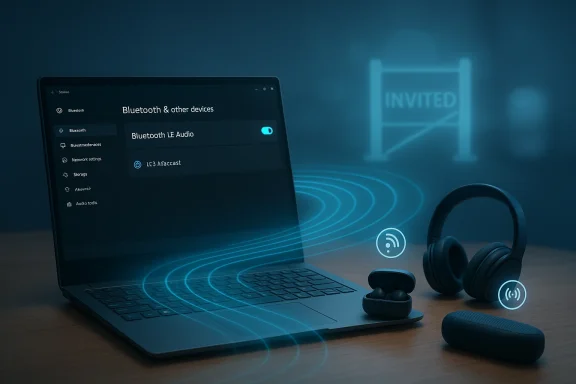
You’re not being “invited” because Microsoft’s new Bluetooth features—LE Audio, Auracast-style broadcast and the Shared Audio preview—are not a simple OS toggle you get just by installing Windows 11; they’re a coordinated hardware, firmware, driver and OEM rollout that’s intentionally gated to a small set of preview devices. Put plainly: the feature depends on capabilities your PC, its Bluetooth controller, or your vendor drivers (and even your headphones) may not yet advertise or support.
Microsoft’s recent Windows 11 updates add modern Bluetooth Low Energy (LE) Audio plumbing and a “Shared audio” experience that can stream audio to multiple LE Audio receivers simultaneously. The change promises better battery life, higher-quality voice during calls (super‑wideband stereo while the mic is active), and broadcast-style scenarios where many listeners can tune into one transmitter. But this is not a single‑patch feature flip; it’s a standards transition that requires every link in the chain to support the new profile: Windows 11 (specific builds), a Bluetooth controller that implements LE isochronous channels, vendor drivers that expose the codec and transport to Windows, and LE Audio‑capable accessories.
That complexity explains why many users who “updated for the benefits” still find their PCs excluded, shown as not “invited,” or missing the Quick Settings Shared audio tile. Microsoft has deliberately previewed the capability on selected Copilot+ and Insider machines while OEMs and accessory makers finish driver and firmware work.
How to check: Open Settings > Bluetooth & devices > Devices and look for the “Use LE Audio when available” option in Device settings. If the toggle is absent, your PC doesn’t currently support LE Audio. This is the single clearest, Microsoft‑documented indicator.
How to check: In Device Manager, expand Bluetooth and note the controller vendor and model; then check the PC maker’s support site for explicit LE Audio driver/firmware updates. If only Microsoft’s generic Bluetooth driver is present, that may not be sufficient.
How to check: Consult your OEM update notes and Microsoft’s Insider announcements (or your Insider channel build/version) to see if your model is included in the tested list. The Quick Settings tile won’t appear until your machine is on that list.
How to check: Review the accessory’s specs or vendor documentation for explicit LE Audio support, Auracast, TMAP, or the LC3 codec. Vendor apps sometimes show firmware updates enabling LE Audio—use them.
How to check: Check vendor release notes and the Windows device settings for LE Audio toggles; do not rely on the Bluetooth version printed on packaging.
Source: mibolsillo.co https://www.mibolsillo.co/i-updated...-pc-isnt-invited-heres-why-t202602130009.html
 Background / Overview
Microsoft’s recent Windows 11 updates add modern Bluetooth Low Energy (LE) Audio plumbing and a “Shared audio” experience that can stream audio to multiple LE Audio receivers simultaneously. The change promises better battery life, higher-quality voice during calls (super‑wideband stereo while the mic is active), and broadcast-style scenarios where many listeners can tune into one transmitter. But this is not a single‑patch feature flip; it’s a standards transition that requires every link in the chain to support the new profile: Windows 11 (specific builds), a Bluetooth controller that implements LE isochronous channels, vendor drivers that expose the codec and transport to Windows, and LE Audio‑capable accessories.That complexity explains why many users who “updated for the benefits” still find their PCs excluded, shown as not “invited,” or missing the Quick Settings Shared audio tile. Microsoft has deliberately previewed the capability on selected Copilot+ and Insider machines while OEMs and accessory makers finish driver and firmware work.
Why “invited” matters: Microsoft’s cautious rollout
What Microsoft gated and why
Rather than flip a system-wide switch, Microsoft is rolling LE Audio and Shared Audio progressively. Early access is limited to specific Insider builds and a handful of Copilot+ reference devices where Microsoft and OEMs have validated the full stack. That gating reduces the risk of a fractured user experience—stuttering audio, broken calls, or invisible devices—while hardware vendors ship controller firmware and drivers that implement LE Isochronous Channels and the Windows vendor-specific interfaces.The user-facing symptom: “My PC isn’t invited”
When people say their PC isn’t “invited,” they usually mean one of two things:- The Quick Settings tile (Shared audio / preview) isn’t present even after updating; or
- Windows shows the device as not supporting LE Audio / no “Use LE Audio when available” setting.
The technical checklist: what must be true before your PC will be “invited”
To actually get the new Bluetooth benefits you need the following, together:- Windows version: Windows 11, with the appropriate preview or public feature update (LE Audio support first arrived in 22H2 and additional stereo-while-mic improvements require later updates such as 24H2 or Insider builds). If you’re on Windows 10 or an older Windows 11 build, the feature won’t be available.
- Bluetooth controller capability: a radio that implements Bluetooth Low Energy Audio, including support for isochronous channels required by LE Audio and Auracast. A generic “Bluetooth 5.x” label is necessary but not sufficient—many 5.x controllers lack the specific LE Audio implementation.
- Vendor drivers and firmware: device manufacturers must ship Windows drivers and Bluetooth controller firmware exposing LE Audio and the vendor-specific audio path (VSAP) or equivalent interfaces Windows expects. Without those drivers, Windows won’t show the “Use LE Audio when available” option.
- Accessory support: your headphones, earbuds, speaker or hearing aid must explicitly support LE Audio (TMAP/LC3 codec or Auracast broadcast). If your accessory is classic‑Bluetooth only (A2DP, HFP), you won’t get the LE Audio experience even if your PC is ready.
- Preview gating (Insider / Copilot+ lists): early shared-audio functionality is being rolled out to Insiders and specific Copilot+ PC models first. If your PC isn’t on the supported list, the Quick Settings UI won’t surface the feature even if some other requirements are met.
Common reasons your PC is not “invited” (and how to check)
1) Your PC lacks LE Audio-capable Bluetooth hardware
How it fails: Many OEMs ship Bluetooth radios that support BLE for peripherals (mice, keyboards) but not the LE Audio transport primitives (isochronous channels). Result: Windows can’t enable LE Audio even with a system update.How to check: Open Settings > Bluetooth & devices > Devices and look for the “Use LE Audio when available” option in Device settings. If the toggle is absent, your PC doesn’t currently support LE Audio. This is the single clearest, Microsoft‑documented indicator.
2) You have the right radio but missing vendor drivers or firmware
How it fails: A capable chip still needs vendor firmware and a driver that exposes LE Audio. Many manufacturers are still updating stacks.How to check: In Device Manager, expand Bluetooth and note the controller vendor and model; then check the PC maker’s support site for explicit LE Audio driver/firmware updates. If only Microsoft’s generic Bluetooth driver is present, that may not be sufficient.
3) Your PC is not part of the preview gate (Copilot+/Insider selection)
How it fails: Microsoft has limited the initial Shared Audio/preview to specific Copilot+ devices and Insider builds to reduce fragmentation and to coordinate with OEMs. If your model isn’t listed, the UI won’t appear.How to check: Consult your OEM update notes and Microsoft’s Insider announcements (or your Insider channel build/version) to see if your model is included in the tested list. The Quick Settings tile won’t appear until your machine is on that list.
4) Your headphones or speakers don’t support LE Audio
How it fails: Even if Windows and your PC are ready, legacy accessories won’t participate. Old Bluetooth devices will either connect using classic A2DP (with its limitations) or behave unpredictably with multi‑sink scenarios.How to check: Review the accessory’s specs or vendor documentation for explicit LE Audio support, Auracast, TMAP, or the LC3 codec. Vendor apps sometimes show firmware updates enabling LE Audio—use them.
5) You have a combination of borderline hardware (Bluetooth 5.x but no Isochronous Channels)
How it fails: Vendors may call a chip “Bluetooth 5.2” in marketing while the firmware or driver doesn’t implement the LE Audio features. This ambiguity means a simple Bluetooth version number is not reliable.How to check: Check vendor release notes and the Windows device settings for LE Audio toggles; do not rely on the Bluetooth version printed on packaging.
What to do now: a prioritized, safe troubleshooting path
Follow these steps in order and test after each one—stop once the feature appears or the issue is resolved.- Confirm Windows build and channel
- Ensure you’re on Windows 11 and have installed all feature updates; for Shared Audio preview you may need an Insider build or a minimum public update level. Check Settings > System > About and Windows Update. If you’re not in the Insider program and the rollout is limited, be patient—Microsoft will expand support.
- Look for the “Use LE Audio when available” option
- Settings > Bluetooth & devices > Devices. If that option is absent, stop: the PC isn’t yet advertising LE Audio. The remedy is supplier-side (driver/firmware) updates.
- Update vendor drivers and firmware (PC and accessory)
- Use the OEM support site to install the latest Bluetooth controller and audio drivers. Also open your headphone vendor app to check and apply firmware updates. Prefer OEM packages over third‑party driver downloads. Create a System Restore point before making driver-level changes.
- Re-pair accessories after updates
- Remove the paired device from Windows, reboot, and pair again. Firmware and driver updates often require a fresh handshake for capabilities to be negotiated correctly.
- Verify the Quick Settings UX (Shared audio)
- If all pieces are aligned and your machine is in the preview cohort, the Quick Settings panel will show a “Shared audio (preview)” tile. Pair the LE Audio accessory and open Quick Settings to test the feature. If the tile is absent, you’re likely outside the supported Copilot+ list or Insider build.
- If you’re on an enterprise-managed PC, coordinate with IT
- Don’t modify drivers or firmware without IT approval; enterprise policies may block driver updates or Insider participation. In managed environments, ask IT to verify OEM driver roadmap and deployment timing.
Vendor responsibilities and the industry choreography
This is not just a Microsoft feature—LE Audio’s success depends on synchronized action across the ecosystem:- OEMs (PC makers) must ship Bluetooth controller firmware and Windows drivers that enable LE Isochronous Channels and implement the vendor-specific audio paths Microsoft documents.
- Chipset vendors must provide reference firmware and clear guidance so OEMs can implement LE Audio properly.
- Accessory makers must ship compatible firmware for earbuds/headphones and document the supported profiles (LE Audio, TMAP, LC3, Auracast).
- App developers and content creators should plan for multi-sink topologies and handle per‑device audio controls gracefully.
Benefits when it finally works (why patience matters)
When the stack is fully implemented, users gain real, tangible improvements:- Superior microphone+stereo experience: Windows can stream stereo audio while the mic is active (super‑wideband stereo), avoiding the classic A2DP → HFP downgrade during calls. This greatly improves music and voice quality simultaneously.
- Lower power consumption: LE Audio and the LC3 codec are more power-efficient, extending accessory battery life.
- Broadcast and shared scenarios: Auracast-style broadcasting enables one source to stream to many listeners without pairing each device separately—useful for travel, assistive listening in venues, and social/shared media.
- Accessibility: LE Audio’s architecture supports modern hearing-aid workflows and assistive devices in a standards-based way.
Risks and practical cautions
- Driver and firmware changes carry risk. Always create a System Restore point before applying low-level drivers. On managed workstations, coordinate with IT. Untrusted driver sources increase the risk of instability or malware.
- Early adoption may expose interoperability quirks. The initial Shared Audio experience will be uneven as vendors iterate; expect edge cases where some headphones or specific app combinations misbehave. That’s why Microsoft is limiting the preview.
- Privacy and venue management concerns for broadcast audio: Auracast-style broadcasting in public spaces introduces policy and management questions—who controls the transmitter, how do you moderate content, and what protections exist for accessibility and security? Venue operators need guidance and policies before widespread deployment.
Buying advice: what to look for today
If you’re planning to buy new gear or a laptop with future-proofing in mind:- Look for explicit LE Audio / Auracast support in the accessory or PC spec sheets—don’t rely solely on “Bluetooth 5.2” or “Bluetooth 5.x” badges. Vendors should explicitly list LE Audio, LC3 codec, or Auracast.
- Favor devices on Microsoft’s or OEM’s “supported” lists for early copilot/Copilot+ rollouts if you want the preview immediately. Early Surface and partner models were included in initial previews.
- Check accessory vendor support and firmware update paths. Brands that provide robust firmware update tooling and clear LE Audio documentation will get you to working sooner.
The long view: how this rollout will likely unfold
Expect a multi‑stage progression:- Microsoft and OEMs validate on a small set of Copilot+ and reference devices (current state). This reduces the number of failure modes during initial public trials.
- OEMs release drivers and firmware to expand compatibility across more laptop and desktop SKUs. This will be the critical scaling phase where the ‘not invited’ list shrinks.
- Accessory vendors finish firmware updates for popular headsets and earbuds; public documentation increases and mainstream marketing explicitly lists LE Audio features. At that point, the Windows Quick Settings Shared audio tile moves from preview to broadly available.
- Public and commercial deployments (venues, assistive listening) start adopting broadcast/Auracast transmitters with operational best practices. This will raise policy and management discussions for venues and device ecosystems.
Quick checklist to stop chasing ghosts (final action items)
- Confirm Windows 11 build and Insider status if you’re expecting preview features.
- Look for “Use LE Audio when available” in Settings > Bluetooth & devices > Devices. If it’s missing, you need vendor support.
- Update PC vendor Bluetooth and audio drivers; update headphone firmware via vendor apps. Prefer OEM packages and create a restore point.
- Re-pair accessories after updates.
- If on a managed machine, work with IT—don’t force driver installs.
Conclusion
If your PC still isn’t “invited” after updating, it’s almost certainly not a bug you can fix with a single settings toggle: the LE Audio / Shared Audio feature is a coordinated ecosystem upgrade that requires compatible hardware, vendor firmware and drivers, and phased OS rollouts. Microsoft’s staged preview — intentionally limited to Copilot+/Insider devices — reduces chaos while vendors complete their work. Your best immediate options are to verify the “Use LE Audio when available” setting, update drivers and accessory firmware, and watch for OEM update notices and wider Microsoft rollouts. When the pieces line up, the payoff—better audio quality, lower power usage, and new broadcast/shared scenarios—will be worth the wait.Source: mibolsillo.co https://www.mibolsillo.co/i-updated...-pc-isnt-invited-heres-why-t202602130009.html
