

Microsoft’s return to desktop widgets in Windows 11 solved part of a long‑running frustration for power users, but the built‑in widgets board remains a closed, overlay‑style experience. If you want discrete, pin‑able widgets that live on the desktop itself — Notes, clocks, RSS feeds, quick calculators and system meters — the free app Widget Launcher delivers that functionality with a straightforward, low‑friction approach that many users prefer. This feature examines what Widget Launcher does, verifies the core technical claims, weighs strengths and tradeoffs, and shows how to use it safely on modern Windows PCs.
Windows 7’s desktop gadgets were beloved for their immediacy and flexibility; Microsoft removed that ecosystem and replaced it with the widgets board in Windows 11 — a focused, feed-driven overlay rather than desktop‑pinned elements. Third‑party developers have filled the gap with tools that restore per‑widget placement and customization. Widget Launcher (also listed as the modern successor to “Widgets HD”) is one such option: a Microsoft Store UWP app from Chan Software Solutions that places individual widgets directly onto the desktop, supports skins and extensions, and targets users who want glanceable, persistent desktop tools.
Source: XDA This free program is all I need to make my Windows desktop perfect
 Background / Overview
Windows 7’s desktop gadgets were beloved for their immediacy and flexibility; Microsoft removed that ecosystem and replaced it with the widgets board in Windows 11 — a focused, feed-driven overlay rather than desktop‑pinned elements. Third‑party developers have filled the gap with tools that restore per‑widget placement and customization. Widget Launcher (also listed as the modern successor to “Widgets HD”) is one such option: a Microsoft Store UWP app from Chan Software Solutions that places individual widgets directly onto the desktop, supports skins and extensions, and targets users who want glanceable, persistent desktop tools. What Widget Launcher is and how it works
Core concept
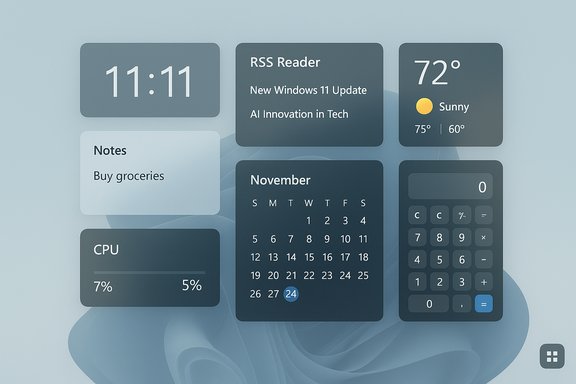
Widget Launcher is a desktop widget host: it installs from the Microsoft Store, presents a catalog of ready‑made widgets, and lets users place, theme, and lock them to positions on the desktop. Unlike Windows 11’s board, each widget is an independent object you can pin, move, and style. The app ships with a default collection — clocks (analog and digital), calendar, weather, CPU/RAM meter, notes, RSS reader, unit/currency converters, calculator and a slideshow viewer — and supports extensions for extra skins and widget packs.Packaging and runtime requirements
The UWP/msix package listed by third‑party app catalogs and store proxies shows recent updates in 2024–2025 and a download/package size in the double‑megabyte-to‑hundreds‑of‑megabytes range (store variants differ by locale and bundled runtime). Some packaging sites indicate the app requires the .NET Desktop Runtime to function properly — a common dependency for UWP apps that use managed code. The package has been updated multiple times in 2025, indicating active maintenance.Installation & first impressions
- Install from the Microsoft Store for the cleanest experience; offline msix bundles circulate on secondary sites if you need an offline installer, but the Store is the recommended source for updates and publisher verification.
- On first launch the app shows a “Home” or default collection where you can preview widget styles. Double‑click to edit a widget theme (light/dark skins, color accents, transparency) and then place it on the desktop. The workflow avoids the scripting and configuration overhead of deep customizers like Rainmeter.
Simplicity vs. power
Widget Launcher’s value proposition is low setup cost. If you’ve used Rainmeter you’ll appreciate how little time it takes to place and personalize widgets here: no theme hunting, no skin file tweaking, and no scripts to debug. That ease‑of‑use is deliberate and is why many users adopt it as their daily driver.Features and the default widget set
Notable included widgets
- Notes — simple, on‑desktop text boxes for quick capture.
- RSS feed reader — display recent posts from any feed; multiple instances allowed.
- World clock — multiple clocks for different time zones.
- CPU/RAM meter — glanceable system health gauge.
- Weather, Calculator, Unit/Currency Converter, Calendar, Slideshow — utility widgets for common tasks.
Customization options
- Theme (light/dark), color accents, font styling, background transparency and locking position.
- Some widgets expose per‑widget settings (e.g., RSS feed URL, clock region).
- Extension support lets third‑party authors add skins and widgets via the Store’s extension model.
Limitations in the UI
- Most widgets are not arbitrarily resizable — they provide fixed or snapping layouts that can scale when snapped to screen regions. This is a usability tradeoff in favor of consistent design.
Performance: memory, CPU and stability
Two independent hands‑on reviews report the same broad picture: Widget Launcher is lightweight and stable for typical desktop use. One reviewer measured roughly 100 MB of RAM for multiple widgets and observed only minimal CPU usage, even with several RSS feeds and meter widgets active. Another recent review echoed that the app doesn’t cause Explorer instability and behaves well at boot. Those measurements align with community test reports that running several widgets yields a small memory footprint and negligible impact on responsiveness for most modern PCs. However, community support threads show real‑world variability: some users report widgets vanishing when certain windows redraw or when using the taskbar’s “Show Desktop” action, and a small number of users have experienced launch issues tied to missing runtimes (the app may prompt for .NET components). Those are not universal problems, but they are practical caveats to keep in mind.Pricing, ads and pro extensions
- The base app is free and ad‑supported; reviewers report short, unobtrusive ads when launching widgets (roughly ~10 seconds). The free tier provides a functional default widget pack.
- Paid options typically include an ad‑free subscription or a one‑time lifetime unlock. Pricing references vary by listing and region: some sources list a $0.99 monthly unlock or a $24.99 lifetime purchase, while the app’s in‑store add‑ons and extension packs range from a few dollars for specific widget packs up to small one‑time fees — the marketplace listing is the authoritative place to confirm current prices in your region. Price and purchase options have been noted differently by various catalogs, so check the Microsoft Store entry for the exact current in‑app purchase choices.
Safety, data persistence and privacy
Notes persistence: a mixed picture
The promotional and review material suggests the Notes widget retains typed content across restarts for at least some users, which is a significant convenience that reduces the need for Sticky Notes. However, community problem threads and support Q&As reveal cases where the Notes widget’s content was lost after closing a widget instance or after an app reinstall, and some users say the notes are not stored in a recoverable file. That contradiction means the Notes widget behavior may vary by version, installation method, or individual system configuration. Treat any in‑widget notes as potentially ephemeral unless you confirm persistence on your machine. Back up important text elsewhere.Extensions and security
Because Widget Launcher supports extensions, there’s an attack surface if you install third‑party skins or widgets from untrusted sources. The Store is the safest distribution channel; avoid installing extensions from unknown repositories. As with any app that can run code or render web feeds, exercise the same caution you would with browser extensions or utilities that accept third‑party content.Privacy and ads
The free experience is ad‑supported. Ad providers and telemetry used by the app are not always fully documented in third‑party listings, so review the Store listing’s privacy details before accepting the free tier. If privacy or in‑app tracking is a concern, evaluate the cost of the ad‑free upgrade or choose a fully offline alternative.Real‑world problems reported by the community
- Some users report widgets disappearing after switching windows or using the “Show Desktop” function; others describe problems after Windows updates where the app required additional runtimes or stopped starting. These incidents appear sporadic rather than systemic, but they illustrate why you should test the app in your environment before relying on it for mission‑critical data display.
- Recoverability of Notes is inconsistent in community reports: some users say notes persist, others say they were irretrievably lost. Always keep important notes synced to a dedicated service (OneNote, Google Keep, Sticky Notes with cloud sync) rather than relying solely on a third‑party desktop widget.
Alternatives and where Widget Launcher fits
Widget Launcher sits between two well‑known customization camps:- Minimal, store‑friendly widget hosts (like Widget Launcher and BeWidgets) — easy to install, UI‑driven, low configuration. Good for users who want instant value without scripting.
- Powerhouse customizers (Rainmeter) — extremely flexible and scriptable, but with a learning curve and more setup time; best for users who want bespoke dashboards and real data integrations. Rainmeter remains the go‑to for advanced users and offers a large community skin ecosystem.
How to evaluate and install Widget Launcher safely (practical steps)
- Verify the publisher on the Microsoft Store listing — confirm the publisher name (Chan Software Solutions) and the Store ID before installing.
- Read the in‑store privacy and purchase details to understand telemetry and ad behavior.
- Install only from the Microsoft Store if possible to ensure automatic updates and signature verification. If you use an offline msix bundle, validate its origin.
- After install, test a small set of non‑critical widgets and reboot to confirm that positions, notes and widget settings persist on your hardware configuration.
- If you plan to type important notes, verify that the Notes widget saves content across restarts on your machine; if in doubt, use a cloud‑synced notes app for crucial text.
- Monitor resource usage in Task Manager the first day you use the app; a light footprint is typical, but every system differs.
- If you install extensions, prefer ones distributed through the Store. Avoid third‑party plugin sites that don’t provide a clear publisher identity.
Critical analysis: strengths and notable risks
Strengths
- Simplicity and speed of setup. Widget Launcher minimizes the friction of getting glanceable tools on your desktop, which makes it accessible to mainstream users and power users who don't want to maintain complex skins.
- Pragmatic widget selection. The default pack covers most everyday needs — notes, RSS, clocks, weather, quick calculators — reducing the need to chase third‑party skins.
- Light resource footprint. Multiple independent tests show modest memory usage (roughly ~100 MB with a half dozen widgets) and low CPU impact compared with alternative workflows (browsers, heavy monitoring tools).
- Ongoing maintenance. Frequent updates in 2025 and store packaging activity suggest active development and bug fixes, improving long‑term viability.
Risks and caveats
- Data persistence inconsistency. Community reports conflict on whether the Notes widget reliably preserves content across all versions and scenarios; treat it as non‑authoritative storage for important notes unless you’ve verified persistence yourself.
- Compatibility and Windows updates. Third‑party UI tools can be sensitive to Windows servicing updates. Some users have needed to install supplemental runtimes (.NET) or troubleshoot the Store cache if updates fail. That makes Widget Launcher more appropriate for personal machines than locked corporate endpoints without a verified update path.
- Extension security exposure. Extension systems widen the attack surface. Only install extensions from verified publishers in the Store.
- Regional pricing & in‑app purchase variability. Pricing and pack availability vary by region and by the app’s in‑store configuration; always confirm prices on the Store at install time.
Verdict and recommendations
Widget Launcher is an excellent, practical solution if you want the return of per‑widget desktop elements without Rainmeter’s learning curve. It’s particularly well suited for users who want:- Quick captures and glanceable information (notes, clocks, RSS).
- A minimal performance impact and simple, shop‑style UI.
- A store‑delivered, regularly updated app with optional ad removal.
Final thoughts
Desktop widgets are back in a pragmatic and user‑friendly form. Widget Launcher restores the granular, pin‑able desktop experience many users missed since Windows 7 while keeping resource use low and setup friction minimal. The tradeoffs are predictable: simpler widgets and fixed sizing instead of unlimited customization, plus ad support in the free tier and some community‑reported edge cases (notes persistence and rare redraw issues). For the majority of everyday users who value convenience and glanceability, Widget Launcher is a worthy try — with the usual caveat to test the Notes behavior and extensions on your own system before making it a single point of truth. Conclusion: Widget Launcher brings back the missing desktop widget element with a focused, low‑cost package that’s easy to adopt — but don’t treat any single desktop widget as the authoritative place for irreplaceable data without verifying persistence and backup strategies.Source: XDA This free program is all I need to make my Windows desktop perfect
