

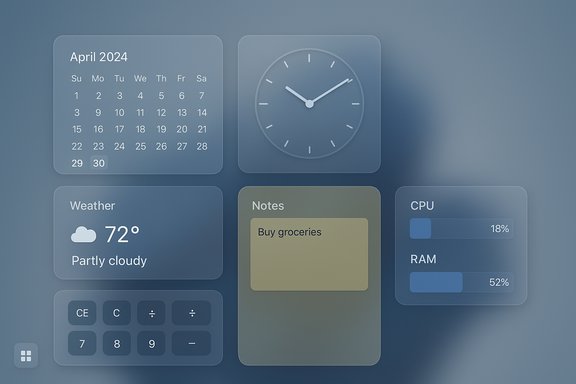
I installed a small, free app called Widget Launcher and — within an hour — turned an inert Windows desktop into a practical, glanceable workspace that actually helps me get things done.
Background / Overview
Windows 11 ships with a built‑in widgets panel, but that panel is tethered to Microsoft’s feed-driven model and lives behind a separate overlay rather than on the desktop itself. Third‑party alternatives have been filling the gap for years, and Widget Launcher is one of the simplest and most pragmatic options: it places discrete widgets directly onto the desktop — calendar, clocks, weather, system meters, notes, calculators and more — without forcing you into a locked sidebar or an ad-packed news feed. This feature piece explains what Widget Launcher does, verifies the main technical claims about it, analyzes the benefits and the tradeoffs, compares it with a few established alternatives, and shows how to evaluate the app from both a usability and a safety perspective.What Widget Launcher actually is
- What it does: Lets you add individual widgets directly to the desktop, then customize their look (skins, transparency, colors, fonts) and position. Widgets include calendar, clock (analog and digital), weather, CPU/RAM meters, notes, calculator, currency/unit converters, RSS reader, and slideshow. You can run multiple instances of a widget (handy for world clocks or separate note areas).
- How it’s delivered: The app is distributed via the Microsoft Store and other Windows app aggregators; listings identify the developer as Chan Software Solutions and show the app as a long‑running Microsoft Store title. The app package size listed on some cataloguing sites is larger than one might expect for a “widget” utility (store/package sizes vary by source).
- Key convenience features: launch on startup, lock widget positions, theme choices (light/dark/default), widgets always on top mode, and a developer mode for creating custom widgets.
Summary of the review claims and verification
The MakeUseOf writeup the user shared highlights the app’s practical value: calendar and clock as always‑visible helpers, a small calculator on the desktop, a clean weather widget, low resource usage (~90 MB in Task Manager during the reviewer’s run), customization options, and a few quirks (widgets vanish when you hit the taskbar’s Show Desktop button; no alignment guides; some widgets are intentionally basic). I confirmed those claims where possible and cross‑checked other public listings and community posts.- Claim: Widget Launcher sits on the Microsoft Store and provides a catalog of desktop widgets. Verified by multiple listings and persistent presence in app aggregators and the Store ecosystem.
- Claim: Widgets cover calendar, weather, clock, CPU meter, notes, calculator, converters, RSS and slideshow. Confirmed both in the MakeUseOf review and in independent app descriptions.
- Claim: Memory usage of around 90 MB. This was the reviewer’s observed Task Manager snapshot; runtime memory usage for GUI utilities varies by Windows version, number/instances of widgets, and OS scaling, so treat 90 MB as a plausible observation rather than a fixed guarantee. The package size reported on store/aggregator sites is not the same as runtime memory usage.
- Claim: Weather data pulled from Weatherbit. The MakeUseOf article asserts Weatherbit as the weather data source, but that specific claim could not be corroborated on the public app listings or other dependable third‑party descriptions; the developer’s store description and official documentation (where present) are the authoritative places to confirm which API/provider is used. Treat this as unverified unless the developer or an official listing explicitly confirms Weatherbit. Caution: this is a claim to flag for verification before relying on it for privacy/regulatory concerns.
- Claim: Widgets disappear when you press the taskbar’s Show Desktop button. This behavior is documented by user experience reports for desktop overlay widgets and mentioned explicitly in the review; community threads describe similar quirks for some desktop overlay systems. It’s consistent with how some overlay windows are implemented (as non‑sticky top‑level windows) and thus plausible and verifiable through hands‑on testing.
Why a desktop widget app still matters
Windows’ native widgets live in a separate UI surface (Win + W or the taskbar widget pane) and are often oriented toward news, Microsoft services, or built‑in partners. Many power users want persistent, glanceable information embedded into their actual desktop — the place they spend most of their time — rather than a transient slide‑out panel.Widget Launcher addresses that by converting the desktop from a passive wallpaper canvas into a simple dashboard:
- Passive reminders (a full monthly calendar visible at all times rather than a click‑to‑open mini calendar).
- Always‑available tools like a calculator or note panel that removes context switches.
- Lightweight glanceability: quick health indicators, timezones and weather without launching full apps.
Deep dive: Interface, customization and usability
Installation and initial setup
Installation is straightforward from the Microsoft Store or other distributors. Once launched, Widget Launcher presents a widget library and a right‑hand panel for widget settings. Users can drag widgets to any desktop position, create multiple instances, and tweak visual appearance (skins, border, accent, font color, transparency). These options are intentionally lightweight to keep the app approachable for non‑technical users.Appearance and theming
Customization focuses on color, opacity, skin selection and font choices. This matters in two ways:- Integration with desktop aesthetics: tweak transparency to avoid clashing with wallpapers.
- Accessibility: font and color adjustments can aid readability for users with vision differences.
Productivity conveniences
- Multiple instances: run two clocks in different time zones or several note widgets.
- Lock positions: prevent accidental dragging when you’re reorganizing icons.
- Start on boot: preserve your layout across reboots.
- Developer mode: for those who want to author custom widgets.
Small but meaningful UX shortcomings
- Show Desktop interaction: Some widget overlays are hidden by the taskbar’s Show Desktop button and require toggling that button again to restore them. This interrupts workflows that rely on quickly clearing the screen. The behavior seems tied to how the overlays are implemented as top‑level windows rather than integrated desktop elements.
- No alignment guides / snap: There are no alignment lines, snapping grids, or automatic layout helpers. Users with a UI perfectionist streak will find positioning tedious.
- Feature limits on specific widgets: the calculator is intentionally basic, the weather widget (as described) lacks hourly forecasts and severe alerts, and some system meters are far less detailed than specialist performance tools. This is by design: Widget Launcher opts for simplicity over full instrumentation.
Performance and resource usage
The MakeUseOf reviewer recorded roughly 90 MB memory usage for the app in Task Manager in their test run. That figure is a single observational data point — actual memory cost depends on the number and type of widgets you load, Windows scaling, and which Windows runtime components are active (WebView2, .NET runtimes, etc.. App catalog listings show package sizes that are sometimes substantially larger than the runtime footprint would suggest (store package size vs. live memory are different metrics). Treat the 90 MB figure as a reasonable expectation for a modest widget layout, but verify with your own Task Manager on your hardware. Practical performance notes:- Systems with constrained RAM will feel the impact if dozens of widgets are used simultaneously.
- Widgets that retrieve network data (weather, RSS) will occasionally spike CPU/IO during refresh; most reasonable refresh intervals keep this negligible.
- If you need deep system telemetry, dedicated tools (Process Explorer, OEM overlays) will be more precise and efficient for the metrics professionals care about.
Security, privacy and trust considerations
Third‑party desktop apps carry standard risks: permissions, telemetry, update channel security, and data handling. Here’s how to evaluate Widget Launcher:- Check the publisher identity and version history. Catalog sites identify the developer as Chan Software Solutions and the app has a long presence in the Store ecosystem; but publisher names and package IDs are the primary signals to validate before installing.
- Review the Store permissions and any declared data collection — prefer apps that minimize scopes and do not demand system‑level privileges unnecessarily.
- Network access for content widgets. Weather and RSS widgets fetch remote data; verify what endpoints the app contacts and whether API keys are embedded client‑side. The MakeUseOf article mentions Weatherbit as the weather provider, but public store listings do not clearly document the data provider. Because networked widgets can reveal location or usage patterns, treat the Weatherbit assertion as unverified until confirmed by the developer or manifest details. Caution: do not assume a particular weather API without explicit confirmation.
- Update channel security. Installing from the Microsoft Store ensures a signed package and automatic updates; sideloaded installers or third‑party mirrors introduce supply‑chain risk.
- Local data persistence. Note widgets that save notes or local settings should be assumed to store data on disk; if notes are critical, back them up before uninstalling or changing widget layouts. Community threads recount cases where deleted widgets led to lost notes unless the developer provided sync/backup.
Alternatives and when to choose them
Widget Launcher is intentionally simple and tuned for casual productivity. If your needs are different, consider these alternatives:- Rainmeter — the power user’s choice: highly customizable skins, scripting, and a huge community. Ideal for bespoke dashboards and heavy theming, but has a steeper learning curve. If you crave full control and have time to tweak, Rainmeter is the most capable free option.
- GadgetPack (8GadgetPack) — nostalgia-centred: restores classic Windows 7 gadgets and provides a suite of legacy widgets with modern compatibility for Windows 10/11. Good if you want that familiar look and preset gadgets.
- BeWidgets / Widget Box / Others — modern, curated widget apps with different balances of aesthetics and functionality. Some alternatives offer subscription features for premium widgets. Evaluate based on which widgets you actually need (e.g., finance, weather with alerts, advanced CPU/RAM charts).
- If you want simplicity and immediate value: Widget Launcher.
- If you want extensive customization and highly tailored dashboards: Rainmeter.
- If you want classic gadgets and a Windows 7 feel: GadgetPack.
- If you need premium or niche widgets (finance tickers, advanced mapping): survey modern commercial widget bundles and check their privacy policies.
Practical setup recommendations
- Install from the Microsoft Store for the signed package and automatic updates.
- Start with a minimal layout: calendar + clock + a notes widget. Live with them for a few days to see actual value.
- If you use the Show Desktop button frequently, test whether the widgets will remain visible in your workflow; if not, either avoid using the button or place widgets where re‑showing them is not disruptive.
- Keep widgets that fetch remote data limited to what you need — fewer network refreshes means lower privacy surface area and less background traffic.
- Backup important note content manually (copy & paste into your cloud note or export if widget supports it) before experimenting with many widgets.
Strengths — what Widget Launcher does very well
- Simplicity: Minimal friction to get a calendar or clock onto the desktop; the cognitive overhead is low, and the UI is approachable.
- Useful default widget set: The included widgets cover most small‑task needs (calendar, clock, quick calculator, notes) without forcing heavyweight apps.
- Customizable visuals: Enough theming options to match the desktop without overwhelming users with every possible option.
- Resource modesty: Observed runtime memory was low in reviewer testing and catalog pages don’t show it as a heavyweight app — reasonable for casual use. Still, treat exact numbers as situational.
Risks and tradeoffs — what to watch out for
- Show Desktop behavior can be disruptive to workflows that use that taskbar feature frequently; you may need to adjust habits.
- Limited advanced features: If you expect the weather widget to provide hourly forecasts, alerts, or radar, or the system meters to be as feature-rich as Process Explorer or GPU overlays, you’ll be disappointed. The design favors at‑a‑glance data over deep analysis.
- Privacy / data source transparency: The MakeUseOf review’s assertion that weather data comes from Weatherbit is plausible but not fully verified against developer docs or an API manifest. For users with strict privacy requirements, confirm the data provider and network endpoints before relying on the widget for location‑sensitive info. Unverified claim; proceed cautiously.
- Backup and persistence of widget data (notes, RSS lists): If a widget stores local notes and you remove the widget or uninstall the app, the notes may be lost unless there is a built‑in backup or sync. Community reports recommend exporting/saving critical notes externally before major changes.
Final verdict — who should install Widget Launcher?
- Install it if you want: a lightweight, no‑friction way to keep a calendar, clock, weather summary and a few small tools always visible on your desktop without learning a complex skinning system.
- Skip it (or pick a different tool) if you need: enterprise‑grade telemetry, deep system monitoring, advanced weather/alerting, grid snapping and precision layout features, or strict control over network data endpoints.
Quick checklist before you try it
- Install from an official, signed source (Microsoft Store recommended).
- Start with a single calendar and clock widget; add one more only after you confirm they’re helpful.
- Check the app’s permissions and network behavior if you care about privacy; do not assume any particular weather API without confirmation from the developer or the package manifest. Flagged: Weather provider claim unverified.
- Back up important note text externally before removing widgets.
- If you hit the Show Desktop button and widgets vanish, rethink that habit or place the widgets away from scenarios where you need an empty workspace.
Widget Launcher is not a revolution, but it’s a small, well‑executed product that restores agency to your desktop. For users who want immediate, distraction‑free tools anchored to the desktop itself, it’s a useful — and free — option worth trying.
Source: MakeUseOf I made my Windows desktop useful again with this free widget app
