

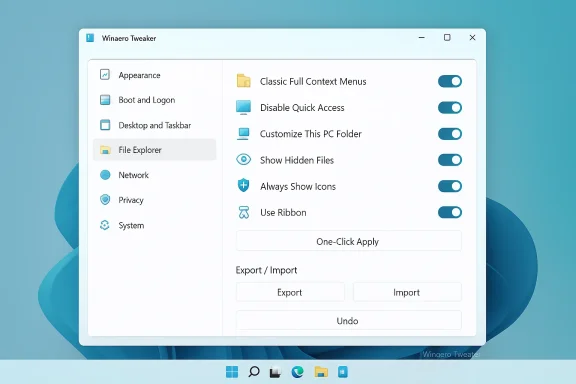
Winaero Tweaker arrives as a practical answer to a familiar problem: Windows 11 works fine for most people, but power users — and anyone who dislikes built-in ads, hidden telemetry, and limited UI choices — have long had to wrestle with the Registry to get the OS to behave. Winaero Tweaker packages hundreds of those registry edits, policy toggles, and UI rollbacks into a single, free, searchable GUI that makes many common Windows 11 tweaks one-click operations, with built-in undo, export/import profiles, and a global reset when needed.
Windows 11’s minimalist interface and integrated services removed or obscured a number of long-standing customization options, and Microsoft’s increasing use of in-OS recommendations, suggestions, and telemetry has pushed enthusiasts toward community tools that restore control. Winaero Tweaker, maintained by Sergey Tkachenko under the Winaero umbrella, is positioned as a centralized toolkit that automates registry and policy edits so users don’t have to dig through scattered tutorials or risk mis-typed keys. The tool is widely distributed via the project site and community package repositories, which is consistent with its reputation among Windows enthusiasts.
Winaero’s scope is broad: from cosmetic rollbacks (classic context menu, Explorer ribbon, classic apps) to behavior and privacy controls (disable web search in Start, disable telemetry, block background activity), to system-level toggles (stop automatic driver installs, remove preinstalled Microsoft apps). That breadth is its key advantage — and its principal responsibility: changes are powerful and therefore require care.
Key categories of functionality include:
However, the stakes are real. Disabling updates, drivers, or Defender is sometimes appropriate, but it increases exposure on connected machines. The prudent approach is to use Winaero as a tool for control, not a permission to remove fundamental protections. For anyone considering it, follow the workflow above: backup, apply a single change, validate, and keep a changelog.
Winaero Tweaker is a pragmatic, well-documented set of shortcuts to the Windows Registry — it’s the tidy control panel power users have wanted for years. Use it to restore the functionality and quiet the noise Windows 11 layered onto the desktop, but treat each toggle as an administrative action: deliberate, reversible, and documented. When used with appropriate safeguards, Winaero accelerates customization without requiring you to memorize registry paths; when misused, it can create the very headaches it seeks to remove. The tool’s design encourages good practice — but the responsibility remains with the user.
Source: XDA This free tool lets you make all the Windows registry changes you've been avoiding
 Background / Overview
Windows 11’s minimalist interface and integrated services removed or obscured a number of long-standing customization options, and Microsoft’s increasing use of in-OS recommendations, suggestions, and telemetry has pushed enthusiasts toward community tools that restore control. Winaero Tweaker, maintained by Sergey Tkachenko under the Winaero umbrella, is positioned as a centralized toolkit that automates registry and policy edits so users don’t have to dig through scattered tutorials or risk mis-typed keys. The tool is widely distributed via the project site and community package repositories, which is consistent with its reputation among Windows enthusiasts.Winaero’s scope is broad: from cosmetic rollbacks (classic context menu, Explorer ribbon, classic apps) to behavior and privacy controls (disable web search in Start, disable telemetry, block background activity), to system-level toggles (stop automatic driver installs, remove preinstalled Microsoft apps). That breadth is its key advantage — and its principal responsibility: changes are powerful and therefore require care.
What Winaero Tweaker actually does
A toolbox, not a magic bullet
Winaero is best understood as a GUI wrapper and automation layer. It applies changes by writing or removing registry keys, setting Group Policy–style values in the registry, restoring COM fallbacks, and occasionally placing tiny helper files or file associations to re-enable legacy apps. It does not install kernel drivers or otherwise subvert Windows security models; most operations are user-space or admin-level configuration edits. This means changes are generally reversible, and the app exposes explicit undo/reset functions.Key categories of functionality include:
- UI rollbacks and cosmetic restorations:
- Restore the classic (full) context menu in File Explorer and on the desktop.
- Re-enable the classic File Explorer ribbon and legacy app associations (Windows Photo Viewer, classic Notepad, Calculator, Windows 7 games).
- Behavior and privacy controls:
- Disable web search from Start, prevent Edge/Bing hijacking, and remove online suggestions.
- Disable assorted ads and Start/settings recommendations.
- Toggle telemetry/diagnostic data collection options.
- System-level controls:
- Prevent automatic driver updates via Windows Update.
- Block background activity for Microsoft Store/UWP apps systemwide.
- Bulk removal or disabling of bundled apps (Copilot, Xbox components, Clipchamp, etc.) when appropriate.
- Convenience features:
- Searchable UI, favorites/bookmarks, export/import of settings, and one-click global reset.
How some popular toggles work under the hood
- Restore classic context menu: implemented by applying the registry “fallback” that forces Explorer to use a legacy COM object (masking the compact menu COM object via a GUID/CLSID key). The same mechanism can be reproduced manually via Regedit for advanced users.
- Disable ads in Windows: Winaero groups multiple registry and binary-value changes (for example, edits to SubscribedContent keys and other settings) into a single toggle that removes Start/Explorer/Settings recommendations and tips. A restart is usually required for the changes to become visible.
- Turn off driver updates: Winaero sets the same policy keys or DWORD values you’d normally create under Microsoft’s policy registry locations to instruct Windows Update not to push drivers automatically. This stops Windows from silently reinstalling drivers you’ve removed — but you must then manually manage driver updates for security and compatibility.
Strengths — why many users like Winaero Tweaker
- Centralized control: Instead of hunting through dozens of scattered registry tutorials or multiple tools, you get a single searchable interface. That alone saves time for anyone setting up multiple machines or rebuilding a PC.
- Reversibility: Built-in undo, per-page resets, and a global reset reduce the anxiety of trying tweaks. The tool encourages a cautious workflow: change one setting, test, and revert if necessary.
- Transparency and documentation: Most toggles map to well-documented registry keys or policy values; Winaero often describes the underlying change so users understand what’s being modified. This makes it easier to audit and to reapply changes manually if desired.
- Convenience features for power users: Export/import of tweak sets and a portable mode make Winaero useful for technicians, system builders, and enthusiasts who need repeatable setups.
Risks, caveats, and what to watch for
Winaero’s power is also its danger if misused. The community and technical write-ups consistently warn about three core areas of risk:- Security trade-offs: Some toggles reduce built-in protections — disabling Windows Update, driver installs, Defender notifications, or UAC elevation behavior undermines default defenses. These options are legitimately useful in isolated test rigs, offline lab machines, or when troubleshooting, but they are risky on a daily-driver machine that connects to the internet. Use caution and avoid permanently disabling core protections on production systems.
- Enterprise conflicts: Machines managed by MDM, Group Policy, or Active Directory may have policies that conflict with or override changes. Local policy edits may be rolled back or create policy drift that complicates IT support. If your device is domain-joined or corporate-managed, check with IT before applying system-wide registry edits.
- Fragility across Windows updates: Microsoft occasionally changes implementation details of UI features or registry fallbacks. A tweak that works on one Windows 11 build might be reverted by a feature update or require reapplying afterward. Users should treat many tweaks as community-supported rather than Microsoft-sanctioned and be prepared to re-test after major OS updates.
- False positives and supply-chain hygiene: Installing from third‑party packaging (Chocolatey, MajorGeeks, etc.) can occasionally trigger checksum or packaging issues. A few community reports note antivirus/VT detections tied to packaging; the safest path is to validate installers (checksums, digital signatures) and scan before execution.
- Potential for misconfiguration: The ability to flip many aggressive options at once makes it easy for less experienced users to create hard-to-diagnose side effects. The exporter/backup features mitigate this, but the recommended approach is conservative: one change at a time and a System Restore point before you begin.
Best practices — a safe, repeatable workflow
Adopt a disciplined, low-risk approach that balances convenience with safety:- Create a System Restore point and back up any important data before applying systemwide or security-related changes. This is non-negotiable for production machines.
- Export the registry keys you plan to alter (Regedit → select key → File → Export) so you have a manual undo entry if needed.
- Change one setting at a time and test for 24–48 hours to observe consequences. Avoid applying large batches of aggressive toggles in a single session.
- Use per-user (HKCU) changes where possible first; reserve system-wide (HKLM) edits for when you’ve validated behaviour.
- Keep installation sources official: validate checksums and prefer signed installers; scan downloads with your AV engine. If you use package managers, watch for packaging warnings.
- Maintain a changelog of tweaks you apply, including original values, date applied, and observed effects — invaluable after a major Windows feature update.
Practical tweaks — what users will notice first
Restore the classic File Explorer context menu and ribbon
- Immediate benefit: full context options appear on right-click without the extra “Show more options” step; the ribbon brings back keyboard-driven actions like Alt+V+HH for hidden items and Alt+V+L for layout changes. Winaero accomplishes this with a single toggle that automates the registry fallback and restarts Explorer if required. Power users value the regained keystroke efficiency.
Remove in-OS ads and recommendations
- Immediate benefit: fewer Start menu suggestions, fewer tips in Settings, and reduced promoted app prompts. Winaero’s “Disable ads in Windows” groups the relevant registry edits (including SubscribedContent and related flags) into a single action. A reboot is recommended after toggling these options to ensure all UI surfaces update. Note: Microsoft’s behavior can change across builds, so some promotions may return after feature updates.
Disable automatic driver updates
- Immediate benefit: prevents Windows Update from automatically installing drivers that may be suboptimal for your hardware — useful for test benches or when a vendor driver is required. This should be used only if you can commit to manual driver maintenance; otherwise you risk missing critical driver fixes. Winaero sets the same policy keys an experienced user would create manually.
Bulk control of telemetry, background apps, and Copilot/Edge services
- Immediate benefit: reduces background CPU/network activity and limits telemetry surfaces. Winaero’s toggles often cover multiple registry and AppPrivacy keys that would otherwise be scattered across the system. Keep in mind that these changes may affect integrated features; if you rely on cloud-assisted experiences, re-enable as required.
Alternatives and complementary tools
Winaero is not the only utility in the tweaking ecosystem. Depending on your goals, combine or substitute these:- Windhawk: modular, for fine-grained, per-component UI mods and taskbar tweaks. Use Windhawk for specialized UI mods and Winaero for system/policy edits.
- ExplorerPatcher: deep shell hooks for taskbar behavior and extensive Explorer-level changes, especially if you want a near-complete Windows 10-like shell. Winaero complements it by handling registry and policy toggles outside the shell.
- O&O ShutUp10++ or W10Privacy: focused privacy tools for telemetry and data-collection toggles; useful if privacy is your primary objective.
- Manual Regedit and Group Policy: for enterprise or audited environments, manual edits or GP preferences are preferable because they can be tracked and controlled centrally. Use Winaero for convenience on personal machines, but prefer managed approaches for fleets.
When to use Winaero — and when to hold back
Winaero is ideal for:- Enthusiasts and power users who want a consistent, repeatable configuration across multiple devices.
- Technicians and lab managers who maintain test rigs and need fast reconfiguration.
- Users who want to restore classic UI affordances lost in Windows 11.
- Store sensitive data.
- Are always connected to the internet without compensating protections.
- Are managed by an IT department (domain-joined or MDM-managed).
Final assessment — value vs. risk
Winaero Tweaker solves the friction of repetitive registry editing: it explains changes, automates them, and packages undo paths so users can experiment with less fear. That combination makes it extremely useful for enthusiasts who want to tailor Windows 11 to their preferences. Multiple independent distribution channels, package listings, and community write-ups corroborate the tool’s scope and ongoing maintenance, reinforcing that it’s not snake oil but a curated convenience layer over well-documented Windows configuration changes.However, the stakes are real. Disabling updates, drivers, or Defender is sometimes appropriate, but it increases exposure on connected machines. The prudent approach is to use Winaero as a tool for control, not a permission to remove fundamental protections. For anyone considering it, follow the workflow above: backup, apply a single change, validate, and keep a changelog.
Practical checklist before you click “Apply”
- Create a System Restore point.
- Export relevant registry keys.
- Scan the installer and validate checksums/signature.
- Change one toggle at a time and observe effects for 24–48 hours.
- Keep an undo/reg export ready for immediate rollback.
Winaero Tweaker is a pragmatic, well-documented set of shortcuts to the Windows Registry — it’s the tidy control panel power users have wanted for years. Use it to restore the functionality and quiet the noise Windows 11 layered onto the desktop, but treat each toggle as an administrative action: deliberate, reversible, and documented. When used with appropriate safeguards, Winaero accelerates customization without requiring you to memorize registry paths; when misused, it can create the very headaches it seeks to remove. The tool’s design encourages good practice — but the responsibility remains with the user.
Source: XDA This free tool lets you make all the Windows registry changes you've been avoiding
