

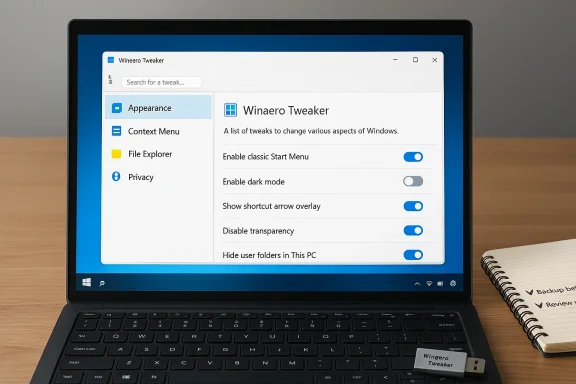
A fresh Windows installation feels like a clean slate — until you start using it and realize Microsoft’s default choices don’t match how you work; for many enthusiasts and technicians the moment it truly feels like “your” PC comes after a 10–15 minute pass with Winaero Tweaker, the lightweight, portable utility that exposes hundreds of hidden Windows options and makes common tweaks trivial.
Winaero Tweaker has been quietly maturing for more than a decade under the stewardship of Sergey Tkachenko and his Winaero project. What began as a set of small, focused utilities evolved into a single, searchable application that consolidates tweaks spanning Appearance, Behavior, Desktop & Taskbar, Context Menu, File Explorer, Privacy, and “Get Classic Apps” — the latter of which resurrects legacy Microsoft components tucked away in modern Windows builds. The tool is distributed as freeware and is offered in both portable and installable forms, and its author’s long history of small utilities and changelogs make the project easy to track across updates.
Two consistent truths explain Winaero’s staying power: first, Windows hides or removes many UI and behavior settings that power users rely on; second, many of those settings can be changed safely by toggling registry keys, group policies, or built-in components that Microsoft left in the system but no longer exposes in Settings. Winaero Tweaker centralizes those edits into a readable, reversible UI, and that convenience is what turns it into a routine “first app” after a clean install.
At the same time, the tool’s power is not neutral. Registry edits, policy writes, and the ability to alter security-related settings demand conservative workflows: backups, incremental changes, and awareness that some toggles may persist beyond the application’s lifetime. For technicians and experienced users, the convenience outweighs the risk; for casual users, a healthy degree of caution is warranted.
For power users, system builders, and anyone who values a predictable desktop experience, Winaero Tweaker is frequently the first app installed after a clean Windows image. Used responsibly, it’s a fast route back to an environment that feels like your own.
Source: MakeUseOf A new Windows PC doesn't feel like home until I install this app
 Background
Winaero Tweaker has been quietly maturing for more than a decade under the stewardship of Sergey Tkachenko and his Winaero project. What began as a set of small, focused utilities evolved into a single, searchable application that consolidates tweaks spanning Appearance, Behavior, Desktop & Taskbar, Context Menu, File Explorer, Privacy, and “Get Classic Apps” — the latter of which resurrects legacy Microsoft components tucked away in modern Windows builds. The tool is distributed as freeware and is offered in both portable and installable forms, and its author’s long history of small utilities and changelogs make the project easy to track across updates.Two consistent truths explain Winaero’s staying power: first, Windows hides or removes many UI and behavior settings that power users rely on; second, many of those settings can be changed safely by toggling registry keys, group policies, or built-in components that Microsoft left in the system but no longer exposes in Settings. Winaero Tweaker centralizes those edits into a readable, reversible UI, and that convenience is what turns it into a routine “first app” after a clean install.
Overview: what Winaero Tweaker actually does
At its core Winaero Tweaker is a front-end for proven Windows configuration changes. It does three things well:- Organizes dozens to hundreds of tweaks into logical categories so you don’t need to memorize registry paths or hunt forums.
- Performs atomic changes (registry keys, policy values, component activation) with explanations so users understand what is being modified.
- Offers recovery paths — per-page resets and a global “reset all tweaks” option — so users can undo work when needed.
Notable built-in categories and features
- Windows 11 / System: classic context menu restoration, classic taskbar options, Copilot removal toggles, start menu “Recommended” hiding.
- Appearance: enable Aero Lite, restore classic startup sound, advanced font and window-border adjustments, system-wide accent tweaks.
- Context Menu: add shortcuts like Create System Restore Point, Environment Variables, Task Manager, Windows Terminal, Administrative PowerShell, and other workflow boosts directly to right-click menus.
- File Explorer: restore old ribbon, change starting folder, toggle “do this for all” behavior, and other usability fixes.
- Privacy & Behavior: disable telemetry, suggested apps, SmartScreen nudges, and other promotional elements that Microsoft surfaces in modern builds.
- Get Classic Apps: re-enable Windows Photo Viewer, Classic Calculator, classic Task Manager bits, and other legacy components that remain present in the OS but hidden from normal access.
Why enthusiasts reach for it first: convenience and speed
A fresh install often reveals small friction points: an incomplete context menu, a taskbar that refuses to center icons how you like, or the modern Photos app’s slow startup when you just want to skim screenshots. Winaero Tweaker reduces that friction quickly.- Restoring the classic right-click (context) menu in Windows 11 is a single toggle instead of several registry edits. That alone saves time and restores familiar workflows.
- Re-activating Windows Photo Viewer or the classic Calculator bypasses heavier modern apps and can restore snappier open times for quick reference tasks.
- Adding administrative tools to the desktop or right-click streamlines repeated actions: creating restore points, checking PATH entries, launching admin terminals — tiny time-savers that compound over months of use.
The technical mechanics (what Winaero changes and how)
Winaero Tweaker performs most of its work by writing registry keys, toggling local group policy equivalents, and enabling or disabling features that remain present in Windows binaries. A few patterns are worth understanding so you can evaluate risk and reversibility:- Registry-based toggles: Many UI changes map directly to documented or well-tracked registry keys. The app typically writes a value, refreshes Explorer or the relevant service, and the setting takes effect. These changes are generally reversible by deleting or resetting the key.
- Policy enforcement: For settings like disabling Windows Update or hiding interface elements, the tool sometimes leverages policy keys that are normally used by enterprise administrators. Those are powerful and persistent; if you later remove Winaero or manually reverse the change without clearing policies, Windows may continue to respect the policy state.
- Re-enabling legacy components: Classic apps such as Windows Photo Viewer are often still present in modern Windows builds but no longer associated with common file types. Winaero’s “Get Classic Apps” functions either restore file associations or extract/install the classic binaries from system resources where appropriate.
- No resident background services: Winaero is designed to be lightweight and portable. When used in portable mode, it runs on demand and does not install persistent background processes. The changes themselves are system-level and therefore persist after the application exits.
Strengths: why it works — and why it’s beloved
- Centralization: Instead of relying on a dozen separate registry snippets or dozens of forum threads, you get a single predictable interface that maps to many common tweaks.
- Speed: Small changes that used to take minutes of manual registry editing become single clicks. This is especially useful for technicians, system builders, and power users who set up many machines.
- Granularity: From accent color control to scrollbar and font tweaks formerly available only in Windows 7, Winaero offers a degree of UI control that modern Windows removed from user-facing settings.
- Reversibility: The app’s per-page reset and global reset reduce the fear factor. You can test a setting, observe its effect, and revert easily if something looks off.
- Portability and low footprint: The portable ZIP option, lack of background services, and small executable size make it ideal for technicians who carry a toolkit on USB or drive images.
Real-world examples: tweaks that save time
- Restore full context menu: avoids the “Show more options” step in Windows 11 and restores the familiar right-click entry points.
- Add “Create System Restore Point” to desktop right-click menu: gives instant rollback capability before risky changes.
- Activate Windows Photo Viewer: eliminates the Photos app’s load overhead when previewing images.
- Hide start menu recommendations and suggested apps: removes persistent promotional items that get in the way of a focused start menu.
- Enable Aero Lite / tweak title-bar colors: restores visual clarity and contrast that some users prefer for multi-monitor or high-density displays.
Risks and caveats — the parts enthusiasts must respect
With great control comes real risk. Winaero Tweaker exposes powerful configuration options and some of them can materially change how Windows operates — sometimes in ways that are hard to discover at a glance.- Security reductions: Some toggles can disable UAC prompts, turn off Windows Defender, or weaken other built-in protections. Those are explicitly available and should only be used by people who understand the implications and have compensating protections (e.g., third-party AV, network isolation).
- Windows Update and service policy traps: Disabling updates via policy keys has caused users to later find they cannot re-enable updates easily. Since policies can persist beyond the app’s presence, re-enabling can require manual policy cleanup or repairs.
- Compatibility after major updates: Tweaks that rely on specific registry keys or components may break after major Windows feature updates. Users sometimes report odd UI behavior until they reset tweaks or update the tool.
- Potential for user error: Powerful options exist that, if applied without thought, can make systems harder to manage. For example, enabling the built-in Administrator account or permanently removing system services can complicate recovery.
- Edge-case bugs: While the app’s author and community actively maintain the tool, there are reports of occasional bugs (visual glitches, odd behavior with font scaling, or rare system instability) after particular combinations of tweaks. A cautious, incremental approach minimizes fallout.
Best practices: a safe, repeatable workflow
If you plan to use Winaero Tweaker as a standard step in a build or refresh process, adopt a disciplined workflow:- Create a full system image or at minimum a System Restore point before the first tweak.
- Work incrementally: apply a single tweak, then use the machine for a short period to confirm behavior.
- Use the built-in resets when something goes wrong; if reset fails, roll back to your system image.
- Avoid security-weakening toggles unless you have a clear, temporary need and a documented mitigation plan.
- Keep Winaero Tweaker updated and review changelogs after major Windows releases; the developer often adjusts implementation to match Windows changes.
- Export or document your tweak set: maintain a checklist of the toggles you enable so you can reapply them on another machine reliably.
Deployment and automation: for admins and power users
Winaero Tweaker includes features that simplify multi-machine deployment:- Portable mode: carry the ZIP and run it from external media; the tweaks themselves are still applied to the host system.
- Export/import of tweak sets: documented tweaks can be reproduced on a fleet of machines, saving time for system builders and technicians.
- Scriptability via underlying registry keys and policies: if you prefer enterprise-grade automation, you can translate Winaero’s common changes into Group Policy templates, PowerShell scripts, or MDT/Imaging steps for unattended deployments.
Community, maintenance, and support realities
Winaero’s developer has provided updates for years, and the tool’s changelog shows active maintenance to keep tweaks compatible with new Windows builds. The project sits at the intersection of hobbyist development and community-driven testing, so users should expect the following:- Community troubleshooting: most problem-resolution content lives on forums, subreddits, and software download sites. If a tweak misbehaves, you’ll often find someone who tried the same combination.
- Unofficial distribution risks: always use the official distribution channel to minimize the risk of tampered installers. Many third-party sites offer the executable, but the safest path is the publisher’s primary download.
- Transparency: the app generally tells you what it changes; when it doesn’t, the community and changelogs fill in the gaps. If a change feels opaque, treat it with skepticism.
- User reports: occasional reports exist of edge-case issues — visual glitches, policy persistence after uninstall, or rare incompatibilities. These are reminders that powerful system-level tools must be used with respect.
When to avoid Winaero Tweaker
There are scenarios where Winaero Tweaker is not the right tool:- On a production server or critical workstation where uptime and predictable vendor support are required. Registry and policy nudges can complicate vendor troubleshooting.
- If you lack backups: if you don’t have a tested image or restore plan, the risk of an accidental misconfiguration is higher than the benefit.
- In managed enterprise environments where IT policies may conflict with the app’s changes. Using the tool in such environments can create drift and complicate compliance.
A balanced verdict: power with responsibility
Winaero Tweaker answers an honest need: Microsoft’s modern Windows has become opinionated, and many legacy, productivity, and accessibility options have been hidden or removed from the standard Settings UI. Winaero takes those buried knobs and puts them into a usable, searchable interface. That’s a powerful convenience for users who want their PC to behave in a predictable, personalized way.At the same time, the tool’s power is not neutral. Registry edits, policy writes, and the ability to alter security-related settings demand conservative workflows: backups, incremental changes, and awareness that some toggles may persist beyond the application’s lifetime. For technicians and experienced users, the convenience outweighs the risk; for casual users, a healthy degree of caution is warranted.
Quick-start checklist: making a fresh Windows build feel like yours
- Backup: create a full system image or at least a System Restore point.
- Download: grab the portable ZIP and run it as an administrator.
- Restore context menu: toggle the classic right-click menu to avoid extra clicks.
- Add context shortcuts: enable Create System Restore Point, Task Manager, and Windows Terminal in your right-click menu.
- Re-enable classic apps selectively: restore Windows Photo Viewer or Classic Calculator where speed matters.
- Privacy sweep: disable telemetry, suggested apps, and lock screen promotions as desired.
- Appearance: enable Aero Lite or adjust inactive title bar color for visual comfort.
- Test: reboot and run typical workflows for a few hours to catch anomalies.
- Document: export your enabled tweaks or keep a short checklist for future builds.
Conclusion
Winaero Tweaker is the kind of utility that transforms a sterile, factory-default Windows install into a personalized tool tuned for speed, familiarity, and productivity. It centralizes hundreds of historically fractured tweaks into a clean UI, expedites repetitive setup tasks, and restores legacy behaviors that many users still prefer. But it also hands you the keys to powerful, system-level settings — which means the utility must be treated with respect: back up first, change incrementally, and avoid security-weakening options unless you understand and accept the consequences.For power users, system builders, and anyone who values a predictable desktop experience, Winaero Tweaker is frequently the first app installed after a clean Windows image. Used responsibly, it’s a fast route back to an environment that feels like your own.
Source: MakeUseOf A new Windows PC doesn't feel like home until I install this app
