

The Sony WH-1000XM3 can be an outstanding Bluetooth headset for Windows 10 users, but getting crystal‑clear audio and reliable microphone support often requires more than “pair and play.” This guide explains how Windows handles Bluetooth audio, how to pair and control the WH‑1000XM3 on a Windows 10 PC, and step‑by‑step troubleshooting for the most common problems (connected-but-no-sound, stereo collapse when the mic is used, dropouts, and driver/firmware gaps). Practical workarounds, power‑management checks, and risk notes for managed/enterprise machines are included so you can fix issues quickly and avoid common pitfalls.
Bluetooth audio on Windows is governed by a mix of profiles, codec negotiation, drivers, and power policies. Two legacy profiles dominate the experience:
If persistent problems remain after following this guide, compile the steps you tried, capture Event Viewer timestamps around failures, record driver versions (Device Manager → Properties → Driver), and either contact Sony support for headset firmware guidance or your PC vendor for Bluetooth driver/firmware assistance. Those artifacts make escalation faster and more likely to succeed.
Source: Born2Invest https://born2invest.com/?b=style-306915712/
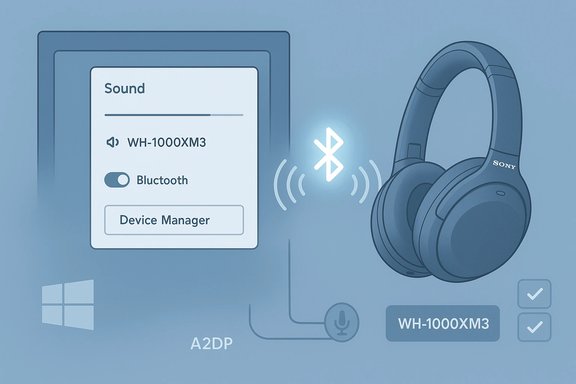 Background / Overview
Bluetooth audio on Windows is governed by a mix of profiles, codec negotiation, drivers, and power policies. Two legacy profiles dominate the experience:- A2DP (Advanced Audio Distribution Profile) — used for high‑fidelity stereo media (music, video).
- HFP/HSP (Hands‑Free / Headset Profile) — used for telephone/voice and microphone audio; historically offers lower sample rates and mono audio.
Quick first checks (5–10 minutes)
Start with the least invasive steps. These resolve the majority of Bluetooth audio problems:- Ensure the WH‑1000XM3 is powered, charged, and not connected to another device that’s active (phones often auto‑reconnect). Move it close to the PC.
- Toggle Bluetooth temporarily: Windows Settings → Bluetooth & devices → toggle Bluetooth Off → On (or use Quick Settings). This clears transient stack state.
- Play a known good audio file and explicitly select the WH‑1000XM3 as the output: Right‑click sound icon → Sound settings → Output → choose your headset. Windows sometimes doesn’t switch the default automatically.
- Run built‑in troubleshooters: Settings → System → Troubleshoot → Other troubleshooters → run both Bluetooth and Playing Audio troubleshooters. Let Windows apply suggested fixes.
Pairing Sony WH‑1000XM3 with Windows 10 — clean flow
Follow this reliable sequence to pair your WH‑1000XM3 cleanly and minimize profile confusion:- Put the WH‑1000XM3 into pairing mode: power on and hold the power button until voice guidance and the LED indicate pairing mode (refer to the Sony quick guide if unsure).
- On Windows 10: Start → Settings → Devices → Bluetooth & other devices → Add Bluetooth or other device → Bluetooth → select the WH‑1000XM3 when it appears.
- After pairing, open Sound settings and explicitly set the WH‑1000XM3 as the default Output (and Input if you intend to use the headset mic). Test playback and the mic in a simple app (e.g., Windows Sound Recorder or Voice Recorder).
Why “Connected” can still mean “No Sound” (technical root causes)
Understanding the root causes helps select the right fix fast:- Profile negotiation: If Windows or the headset selects HFP for microphone use, media playback may fall back to a low‑quality path or not route at all. This is a legacy constraint in Bluetooth Classic stacks.
- Default device routing: Windows may not automatically switch the default output even when the headset connects; per‑app routing can send audio elsewhere. Always verify Output and App volume/device preferences.
- Driver or firmware mismatches: The Bluetooth radio (Intel/Broadcom/Qualcomm), chipset driver, or headset firmware must support the codecs/profiles in use. OEM drivers often expose features that generic Microsoft drivers do not.
- Power management: Windows may suspend the Bluetooth radio to save battery, causing disconnects or incomplete audio routing. Uncheck “Allow the computer to turn off this device to save power” in Device Manager for Bluetooth and related HID entries.
Step‑by‑step troubleshooting (safe escalation)
Follow this ordered flow — test after each step and stop when the headset behaves correctly.1) Reboot and quick toggles (5–10 minutes)
- Reboot both PC and headset. Many transient states are cleared by a power cycle.
- Toggle Bluetooth Off → On on the PC. Re‑pair if necessary.
2) Verify Windows audio settings (5 minutes)
- Open Settings → System → Sound. Under Output, select WH‑1000XM3. Use App volume and device preferences to confirm no app is routing audio elsewhere.
3) Power management & services (5–15 minutes)
- Device Manager → Bluetooth → adapter → Properties → Power Management → uncheck “Allow the computer to turn off this device to save power.” Repeat for any Bluetooth HID/headset entries.
- services.msc → restart Bluetooth Support Service (bthserv), Windows Audio, and Windows Audio Endpoint Builder if they’re stopped or unstable.
4) Drivers: update, rollback, reinstall (10–30 minutes)
- Update the Bluetooth adapter driver and Sound drivers. Prefer OEM/chipset vendor packages (Intel Driver & Support Assistant, vendor download pages) over generic updaters.
- If the issue started after a driver update, use Device Manager → Driver tab → Roll Back Driver, or uninstall the adapter (optionally check “Delete the driver software”), then reboot so Windows reinstalls. Keep a copy of known‑good drivers offline.
5) Audio endpoint adjustments for the mic / calls (10 minutes)
If the mic activates and music collapses to mono or becomes unusable:- Use Devices and Printers → right‑click the headset → Properties → Services and uncheck Hands‑Free Telephony to force A2DP stereo for media. This disables the headset mic but restores music fidelity. Use a separate mic for calls until a better fix is found.
- In Playback device properties → Advanced tab, set a stable default format (e.g., 2 channels, 16 bit, 48000 Hz) and disable Exclusive Mode. Disable audio enhancements if present. These reduce format negotiation conflicts.
6) Test with another host and a USB dongle (10–30 minutes)
- Pair the WH‑1000XM3 to a smartphone. If it works normally there, the issue is the PC (drivers, power management, or hardware).
- If your PC’s internal adapter is old or flaky, try a quality USB Bluetooth dongle (preferably one specifying aptX/LE Audio support). Disable the internal adapter and re‑pair to the dongle to isolate the internal radio. Many users find this resolves codec or range issues.
7) System repair & advanced diagnostics (30–90 minutes)
- Run DISM /Online /Cleanup-Image /RestoreHealth and sfc /scannow from an elevated Command Prompt to repair corrupted system components. Reboot after completion.
- Use Event Viewer to capture Bluetooth-related errors around disconnect timestamps and generate powercfg /energy reports if you suspect power policy issues. These artifacts are helpful if escalating to OEM support.
Sony WH‑1000XM3 specific notes and firmware
The WH‑1000XM3 receives firmware updates delivered through Sony’s mobile apps (Headphones Connect) rather than PC utilities. While mobile firmware updates won’t change PC-side Bluetooth driver exposures, they do fix headset behavior, pairing reliability, and internal codec/bandwidth handling. If you see repeated oddities (one ear silent, intermittent reconnects on multiple hosts), check Sony’s support and the Headphones Connect app for firmware updates, then re‑pair your headset on the PC after firmware is applied. If the WH‑1000XM3 shows unusual behavior across multiple devices after a firmware update, perform Sony’s factory reset on the headset and re‑pair. These vendor-side steps are widely recommended in community troubleshooting. If you need model‑specific reset steps or firmware version notes, confirm on Sony’s support pages or the Headphones Connect app — vendor instructions can change and are tied to firmware releases.LE Audio, Windows 10, and what to expect
LE Audio and the LC3 codec eliminate the old A2DP/HFP compromise by allowing stereo media and a high‑quality mic concurrently — but the feature requires coordination across the OS, Bluetooth radio/firmware, and the headset.- Windows 10: LE Audio support is not widely available; most LE Audio features and UI toggles are implemented in Windows 11. Expect limited or no LE Audio behavior on Windows 10 machines until vendor drivers or upgrades explicitly add support.
- Windows 11: newer builds expose a “Use LE Audio when available” toggle when the stack and hardware support it. On compatible hardware and drivers, LE Audio can prevent stereo collapse during calls.
Practical workarounds and small wins
- Temporarily disable Hands‑Free Telephony in Devices and Printers when you need high‑quality music and don’t need the headset mic. It’s a pragmatic tradeoff.
- Use a wired connection (3.5 mm cable) for mission‑critical meetings or when the headset’s microphone behavior on Windows is unreliable. The WH‑1000XM3 supports wired audio and avoids Bluetooth profile issues.
- Keep a small, known‑good USB microphone (or the laptop’s internal mic) as a fallback for conferencing if HFP functionality on the headset is unstable.
- Avoid third‑party driver updaters. They commonly install incorrect stacks that create new issues. Use OEM/chipset vendor downloads instead.
Enterprise and managed device considerations (what to avoid)
If the PC is managed by IT (MDM, Group Policy), many of the fixes above require coordination:- Don’t uninstall or roll back drivers on corporate machines without IT consent; this can break compliance and inventory reporting. Document any changes.
- Group policies or security agents may suppress Quick Settings or block driver installations. Escalate standard troubleshooting results to IT rather than applying ad hoc fixes.
- If a collective regression follows a Windows quality update, use System Restore or uninstall the problematic update only after consulting IT; rolling back updates can reintroduce other security fixes.
Security and privacy notes
- Keep Bluetooth discoverable only while pairing. Remove stale pairings from the system once you no longer use them to reduce exposure.
- Pausing Windows Update until a vendor‑approved fix is available can be a valid short‑term mitigation if a recent update broke Bluetooth functionality, but do so with awareness of overall security tradeoffs.
Quick, copyable troubleshooting checklist
- Toggle Bluetooth Off → On. Reboot headset and PC.
- Settings → System → Sound → choose WH‑1000XM3 as Output; confirm Input if using mic.
- Device Manager → Bluetooth adapter → Power Management → uncheck “Allow the computer to turn off this device to save power.”
- Devices and Printers → headset → Properties → Services → uncheck Hands‑Free Telephony (workaround for stereo).
- Update Bluetooth and audio drivers from the PC OEM or chipset vendor; roll back if problems began after an update.
- Test headset on a phone. Try a USB Bluetooth dongle if the internal adapter is unreliable.
When to escalate to Sony or PC vendor support
Escalate when:- The WH‑1000XM3 behaves the same across multiple hosts (phone and PC) after a reset and re‑pair — suspect headset hardware or firmware.
- The PC’s internal Bluetooth adapter disappears or shows driver errors after driver/firmware updates — collect Event Viewer logs and contact the PC vendor or chipset vendor for a driver/firmware hotfix.
- You need LE Audio features (simultaneous high‑quality mic + stereo) and your PC’s vendor indicates a pending driver/firmware update — coordinate with vendor support and wait for validated driver packages rather than forcing incompatible stacks.
Conclusion — practical expectations
For most Windows 10 users, the WH‑1000XM3 will deliver excellent wireless audio for media when connected as an A2DP device. The more complicated cases arise when microphone use or calls are required — the legacy A2DP/HFP tradeoff on Bluetooth Classic can force Windows to choose the lower‑quality voice path. The reliable remedies are systematic: verify Windows audio output, disable power management for the Bluetooth adapter, update or roll back drivers via OEM packages, and use the Devices and Printers service toggle to force A2DP when acceptable. Where available, LE Audio promises to eliminate these tradeoffs — but on Windows 10 that capability is mostly unavailable and must be treated as conditional until both the PC vendor and Sony supply compatible driver/firmware updates.If persistent problems remain after following this guide, compile the steps you tried, capture Event Viewer timestamps around failures, record driver versions (Device Manager → Properties → Driver), and either contact Sony support for headset firmware guidance or your PC vendor for Bluetooth driver/firmware assistance. Those artifacts make escalation faster and more likely to succeed.
Source: Born2Invest https://born2invest.com/?b=style-306915712/
