

Microsoft’s latest Dev Channel flight, Windows 10 Insider Preview Build 21359, is a maintenance- and polish-focused release that delivers a handful of small UI tweaks, accessibility and font updates, and an extensive set of fixes — while also quietly deprecating one of Timeline’s cross-device syncing capabilities. The build doesn’t add headline features, but it’s important for Insiders and IT pros because it both mitigates several stability and graphics issues (notably around HDR/Auto HDR and camera settings) and exposes a few regressions and known problems that teams should evaluate before broad deployment.
Windows Insider Preview Build 21359 was released to the Dev Channel as part of Microsoft’s continuous flighting model for Windows 10 preview builds. The Dev Channel is where Microsoft tests early platform work-in-progress items that may not ship in the next feature update; builds here emphasize experimentation, telemetry-based rollouts, and rapid iteration. As such, 21359 reads like a stabilization pass: modest UX refinements, localization and font updates, plus a long list of bug fixes and a set of known issues Microsoft is actively tracking. The release is notable not because of big new functionality, but for what it signals: Microsoft is continuing to shape Windows 10’s servicing cadence while also beginning to triage features that either didn’t meet expectations or created interoperability concerns — Timeline cloud sync being the most prominent example in this flight. Independent coverage and the official changelog align on the scope and tone of the release.
Microsoft’s official changelog and independent reporting align on the scope and specifics of the update, and the conversation in community channels confirms both the fixes and remaining pain points. The removal of MSA-based Timeline cloud uploads is the most consequential change from a day-to-day productivity perspective; the graphics and virtualization issues are the most consequential for specialized workflows. Together, they make Build 21359 an instructive snapshot of Microsoft’s development priorities: polish, localization, and targeted fixes — balanced against the trade-offs of an aggressive Dev Channel cadence.
Source: BetaNews Microsoft releases Windows 10 Build 21359 with changes, improvements and fixes
 Background / Overview
Windows Insider Preview Build 21359 was released to the Dev Channel as part of Microsoft’s continuous flighting model for Windows 10 preview builds. The Dev Channel is where Microsoft tests early platform work-in-progress items that may not ship in the next feature update; builds here emphasize experimentation, telemetry-based rollouts, and rapid iteration. As such, 21359 reads like a stabilization pass: modest UX refinements, localization and font updates, plus a long list of bug fixes and a set of known issues Microsoft is actively tracking. The release is notable not because of big new functionality, but for what it signals: Microsoft is continuing to shape Windows 10’s servicing cadence while also beginning to triage features that either didn’t meet expectations or created interoperability concerns — Timeline cloud sync being the most prominent example in this flight. Independent coverage and the official changelog align on the scope and tone of the release. What’s new (at a glance)
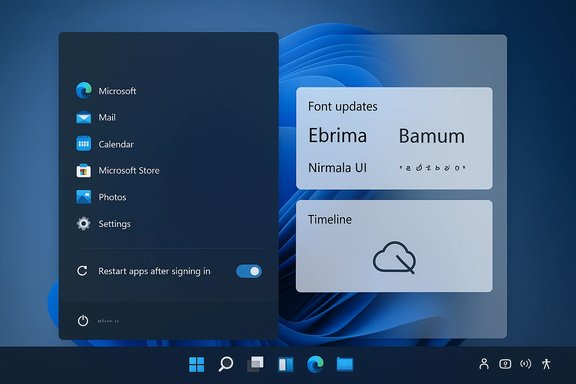
- New Start power menu option — “Restart apps after signing in.” This adds a visible toggle in the Power menu on Start that controls whether apps reopen after a reboot; it mirrors the existing option under Settings > Accounts > Sign-in options > Restart apps. This is a small but useful convenience for users who want one-click control over app restart behavior.
- Timeline cloud upload removed for MSA-synced activity. If you used Microsoft Account (MSA) cloud sync to upload activity for Timeline across devices, this option has been removed in 21359; Timeline’s local activity history remains available, and Azure AD (AAD)-connected accounts are unaffected. Microsoft points users to Edge and OneDrive/Office to view cross-device web activity and recent files. This change effectively deprecates cloud-backed Timeline sync for consumer MSA accounts.
- Settings renaming: “Ease of Access” → “Accessibility.” The Settings category has been renamed to match modern naming conventions and improve discoverability for accessibility features.
- Font updates (Ebrima and Nirmala UI). Ebrima now includes support for Bamum characters (Unicode block U+A6A0–U+A6FF). Nirmala UI received improvements targeted at combined Chakma character rendering, based on user feedback. These are localization and typography refinements that matter to users in the affected language regions.
- Korean IME rollback. Following Insider feedback, Microsoft reverted to the previously shipped Korean IME rather than the new version that caused issues for some users.
Deep dive: Timeline cloud sync removal — what changed and why it matters
Timeline was introduced as a cross-device activity history, letting users hop between PCs and pick up tasks. Build 21359 removes the cloud upload option for activity history tied to Microsoft Accounts (MSA). Local Timeline remains intact on the device, and enterprises using Azure AD (AAD) remain unaffected.- Immediate effect: Users who relied on cloud-synced Timeline for cross-device continuity will lose the ability to upload ongoing activity to the cloud for synchronization between devices using MSA. Microsoft redirects users to browser history (Edge and other supported browsers) for web activity and OneDrive/Office for recent files.
- Practical impact: For many Insiders, Timeline’s cloud sync was one of its most valuable features. Removing the upload option reduces Timeline’s cross-device utility and pushes a workflow change — users will now depend more on cloud-backed file history (OneDrive/Office) and browser histories for activity continuity.
- Possible rationale: While Microsoft hasn’t published a detailed postmortem in this build’s notes, such changes typically stem from privacy, telemetry accuracy, usage telemetry, or engineering cost/maintenance trade-offs. The change could also be part of broader roadmap adjustments as focus shifts toward other cross-device solutions. Because this is a Dev Channel flight, Microsoft may revisit the decision based on feedback, but for now the behavior is explicit in the release notes.
Restart apps option: small UI, meaningful control
The addition of the Restart apps after signing in option in the Start power menu is a minor but user-centric refinement. Previously controlled from Settings > Accounts > Sign-in options, this toggle’s presence in the Start power menu reduces friction: one place to decide whether the OS should automatically reopen apps after sign-in.- How it works: Checking the Power-menu toggle flips the corresponding Sign-in options setting. For power users and testers this is a convenient quick control during heavy update, testing, or debugging sessions.
- Why it matters: Consistency of restart behavior matters for both productivity and troubleshooting. Users wanting a clean post-boot environment can disable restarts quickly; others who prefer to resume where they left off can enable it without diving into Settings.
Graphics and gaming: HDR, Auto HDR, and related fixes
Graphics and gaming fixes are among the most consequential items in 21359, particularly for users with HDR-capable displays and gamers testing Auto HDR.- HDR/SDR preservation on lock/resume: Microsoft fixed a bug where SDR content was altered when the system was locked or resumed with HDR enabled. This type of bug causes inconsistent visual output and can be especially jarring for creators and media consumers.
- Auto HDR enablement: The build addresses cases where Auto HDR would not properly enable for all eligible titles. Microsoft points Insiders to the Feedback Hub and DirectX channels for follow-up if problems persist. Because Auto HDR touches both Windows-level display pipelines and GPU drivers, the fix reduces a class of compatibility issues that produced game crashes or wrong rendering.
- Game frame rate regressions and crashes: Several fixes target frame rate drops and game crashes related to recent builds’ graphics regressions, including some titles that crashed when Auto HDR was active. Users still experiencing issues are asked to log detailed feedback.
Fixes that matter for everyday reliability
Build 21359 packs numerous fixes across subsystems. Key stabilizations include:- Camera and Camera Settings fixes (including ARM device crashes and adjustment locking when camera is in use by another app).
- Windows Update UI and WSUS-related fixes (resolving mislabeling that suggested “managed by your organization” and re-enabling the “Check online for updates from Microsoft Update” option for WSUS users). These are significant for IT departments.
- wuauclt.exe crash reductions and fixes for repeated Windows Update client crashes.
- Remote Desktop connectivity fixes (addressed a case where RDP wouldn’t connect after upgrading until a reboot).
- Miracast and virtual desktop gesture UI hangs were fixed, improving multi-display and touchpad workflows.
- Fixes for odd UI behavior — ms-resource:AppListName entries and Action Center toast layering issues — that degrade day-to-day polish.
Known issues — the risk matrix for Insiders and admins
Every Insider build includes known issues; 21359 is no exception. Microsoft lists a number of items Insiders should be aware of:- Long hangs during the update process when installing new builds — reported by Insiders and under investigation. This affects installation reliability and means Insiders should plan for extra time or test on non-critical devices.
- News and interests flyout bugs — ESC key dismiss behavior and pen-dismissal issues remain in this flight. Because Microsoft rolled News and interests to the Dev Channel widely, these UI bugs impact many testers.
- ARM64 Surface Pro X driver brightness regression (preview Adreno driver) — Microsoft provided a driver update to address reduced brightness and pointed ARM64 Surface Pro X users to a driver preview link for remediation. Insiders on ARM64 devices should be cautious with preview GPU drivers.
- Search UI rendering issues in dark theme — elements of Search and File Explorer search box may not render correctly in dark mode.
- vGPU access broken for Windows and Linux guests — adding a vGPU to a VM has no effect in this flight (software rendering continues). This is a significant limitation for virtualization and test labs relying on GPU offload.
- Split-screen mode for Auto HDR is non-functional in this build; Microsoft plans a fix in a future flight.
- Printer and WSL regressions carried from earlier builds (Build 21354+) are still being addressed. If your workflows depend on USB printers or WSL file-launch speed, validate before upgrading.
Practical guidance for Insiders, power users, and IT admins
- Pick the right device for Dev Channel flights. Use a non-critical machine or VM for Dev Channel testing. The Dev Channel can introduce instabilities and known regressions; keep production machines on Release Preview or mainstream channels.
- Back up before upgrading. Create a system image or at least a full backup of user data. Several of the fixed issues relate to upgrade interruptions and profile migration problems that can lead to data access problems if upgrades are disrupted.
- Update GPU drivers when troubleshooting graphics issues. Many HDR/Auto HDR problems require both OS and driver fixes. Keep GPU drivers current and try Microsoft-recommended preview drivers only on test systems.
- If you encounter problems, collect logs and file Feedback Hub reports. The Feedback Hub is the primary channel for Microsoft to triage Insider issues. Include repro steps, logs, and dxdiag output for graphics issues or event logs for update/WSUS problems.
- For enterprise environments, validate WSUS and update orchestration. If your update pipeline uses WSUS or managed update controls, test in a contained lab first: this build addresses several WSUS-related bugs but also includes known issues that could impact existing update flows.
Critical analysis — strengths, shortcomings, and what to watch
Strengths- Responsive triage and fixes. Build 21359 addresses a wide range of real-world bugs — from DWM/visual issues to WSUS and camera crashes. That breadth shows Microsoft prioritizing reliability and cross-component stability for Insiders.
- Localization and accessibility focus. The Ebrima and Nirmala font updates and the Settings rename to Accessibility reflect attention to global language support and discoverability for assistive features. These are small changes, but meaningful to affected users.
- Practical UX polish. Moving app-restart control to the Start power menu is a usability win and exemplifies incremental UX improvements that matter to daily workflows.
- Timeline cloud sync removal hurts continuity. For users who relied on MSA-based Timeline syncing, deprecating cloud uploads removes a cross-device convenience that had real usage value. Unless Microsoft signals a replacement or clarifies the decision, the change may confuse users who expect Timeline to behave as before.
- Residual and new regressions remain serious for certain scenarios. The vGPU breakage, WSL file-explorer regressions, and updater hangs present real risks for developers, IT labs, and enterprise teams relying on virtualization and fast WSL workflows. Those issues are non-trivial and will require targeted fixes.
- Dev Channel distribution increases fallout surface. With Microsoft rolling News and interests more broadly in Dev Channel this flight, UI regressions (ESC/pen dismissal issues) hit more devices and may erode early impressions; a wider rollout amplifies the cost of bugs.
- Whether Microsoft will fully remove Timeline cloud sync from future public releases or reintroduce it after engineering changes. The long-term direction will influence cross-device productivity expectations.
- Driver-level fixes and GPU vendor updates addressing HDR/Auto HDR behavior across titles. Some fixes require coordination between OS and GPU vendors.
- Resolution timelines for virtualization (vGPU) and WSL regressions — these areas affect developers and labs and are high impact if left unresolved.
Conclusion
Windows 10 Build 21359 is not a feature-packed headline release; it’s a stabilization and refinement flight with a mix of usability improvements, important fixes, and a few notable regressions. For Insiders: this build is worth testing on spare hardware — especially if you use HDR, rely on WSUS, or depend on camera functionality — but plan for the known issues list and keep backups. For IT professionals: validate WSUS and RDP behaviors in a lab before considering any broader deployment, and treat Dev Channel builds as test-only.Microsoft’s official changelog and independent reporting align on the scope and specifics of the update, and the conversation in community channels confirms both the fixes and remaining pain points. The removal of MSA-based Timeline cloud uploads is the most consequential change from a day-to-day productivity perspective; the graphics and virtualization issues are the most consequential for specialized workflows. Together, they make Build 21359 an instructive snapshot of Microsoft’s development priorities: polish, localization, and targeted fixes — balanced against the trade-offs of an aggressive Dev Channel cadence.
Source: BetaNews Microsoft releases Windows 10 Build 21359 with changes, improvements and fixes
