Windows 10 End of Life 2025: Free Windows 11 Upgrade or ESU Bridge Explained

  • Thread Author
Microsoft’s push to close the Windows 10 chapter this month is real, immediate and actionable: eligible Windows 10 PCs can still upgrade to Windows 11 at no extra license cost, and Windows 10 devices that cannot upgrade have a one‑year safety net of Extended Security Updates (ESU) — but that bridge is time‑boxed and comes with conditions that every user and IT team must understand now.

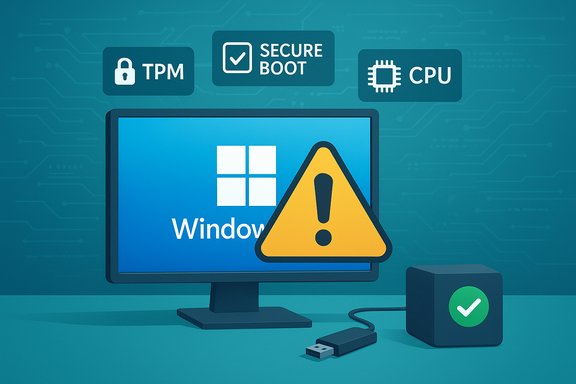
Illustration of a computer display showing Windows 11 upgrade with TPM 2.0, a warning badge, and eligibility note.Background / Overview​

Microsoft set a firm lifecycle deadline for Windows 10: October 14, 2025 is the last day Microsoft will provide routine security updates, cumulative quality fixes and standard technical support for consumer Windows 10 editions. After that date, Windows 10 will continue to run on PCs, but vendor patches and feature updates stop unless a device is enrolled in a supported post‑EOL program. To prevent a security vacuum, Microsoft published two practical consumer choices:
  • A free, supported in‑place upgrade to Windows 11 for devices that meet Microsoft’s compatibility baseline (run Windows 10, version 22H2 and satisfy hardware checks such as TPM 2.0, UEFI Secure Boot and a supported CPU).
  • A Windows 10 Consumer Extended Security Updates (ESU) program that supplies security‑only patches through October 13, 2026 for enrolled devices, with a variety of enrollment options.
These are the facts Microsoft is now repeating in OS prompts and support pages, and the industry coverage has echoed the same calendar and enrollment mechanics.

Why this matters now​

The end of vendor updates is not an instant “your PC will stop working” event — it’s a structural change to the threat model. Without OS‑level security patches, new vulnerabilities discovered after October 14, 2025 will not be closed on unenrolled Windows 10 machines. That makes unsupported PCs progressively easier targets for malware, ransomware and exploitation campaigns. Microsoft itself warns that unenrolled systems are “more vulnerable and susceptible to viruses” and strongly recommends upgrading where possible. Industry reporting and community analysis concur: the safest long‑term posture is to move to a supported OS (Windows 11 or another maintained platform). ESU is explicitly a one‑year bridge intended to buy time to migrate; it’s not a long‑term substitute for staying current.

What Microsoft’s consumer ESU actually is — and how it works​

Microsoft’s consumer ESU program is narrowly scoped: it provides Critical and Important security updates as defined by the Microsoft Security Response Center (MSRC) for devices running Windows 10, version 22H2. ESU does not include feature updates, driver/firmware patches, or general technical support. Enrollment is device‑bound and must be completed before the ESU program expires on October 13, 2026. Enrollment options for consumers (as published by Microsoft) include:
  • Enroll at no additional charge if you sign into the eligible PC with a Microsoft account and enable Windows Backup / settings sync (OneDrive).
  • Redeem 1,000 Microsoft Rewards points to enroll one device.
  • A one‑time paid purchase of $30 USD (or local currency equivalent, plus tax) which can cover up to 10 devices under the same Microsoft account.
There is an important account‑tie caveat: Microsoft requires a Microsoft account to enroll devices in ESU (even when paying the $30 option). Leave a device as a local account user without signing in and the free sync route will not work; the paid option still requires some account interaction at purchase time. That change drew immediate coverage and concern among privacy‑conscious users.

Who can get Windows 11 for free — and what blocks an upgrade​

Microsoft offers a supported, free upgrade path to Windows 11 for eligible Windows 10 devices. Eligibility is enforced by hardware and firmware checks; the most common blockers are:
  • Missing or disabled TPM 2.0 (Trusted Platform Module) or Secure Boot not enabled in UEFI.
  • Unsupported CPU generation (Microsoft maintains a supported CPU list).
  • Minimum memory (4 GB), minimum storage (64 GB), and other baseline requirements tied to 64‑bit operation and DirectX 12 / WDDM 2.x compatibility.
Run Microsoft’s PC Health Check and then Settings → Windows Update → Check for updates to discover if your device is currently offered the Windows 11 upgrade. If the upgrade is available via Windows Update or the official Installation Assistant, the in‑place path preserves apps, settings and files in most cases. Be careful with “workarounds” that bypass hardware checks: while tools such as creating modified install media can sometimes let Windows 11 run on unsupported hardware, those configurations are unsupported by Microsoft and may lead to missed updates, driver instability and an unclear support posture. They are not a substitute for a supported migration path in environments where security and compliance matter.

The practical steps every consumer should take today​

  • Back up everything. Create a full disk image and copy critical files to external storage and a cloud service. Test restore if possible.
  • Check eligibility. Run PC Health Check and then Settings → Windows Update to see whether Windows 11 is offered.
  • If eligible, plan the upgrade. Use Windows Update or the official Installation Assistant; do the upgrade on one machine first as a test. Ensure drivers and essential apps are compatible.
  • If not eligible, enroll in ESU if you need time — do this before exposing critical workloads to the internet without vendor patches. Choose the free sync route, Rewards redemption, or the $30 one‑time purchase depending on privacy and account preferences.
  • For any machine you will keep on Windows 10 beyond the EOL date without ESU, isolate and harden it: remove admin accounts, restrict network exposure, use strong endpoint protection, enable MFA for services, and move sensitive tasks to a patched device.
These steps are not hypothetical. Industry guidance is unanimous that the immediate priorities are inventory, backups, eligibility checks, and deliberate migration planning — ESU is a runway, not a destination.

Enterprise and power‑user considerations​

Large fleets will face mixed eligibility and complexity. Microsoft offers commercial ESU options for enterprises (with different pricing and multi‑year windows), but consumer ESU is not a substitute for enterprise lifecycle planning. For organizations, the recommended sequence is:
  • Inventory endpoints and prioritize remediation based on risk and compliance needs.
  • Test Windows 11 compatibility for mission‑critical applications and drivers in a lab environment.
  • Use ESU selectively for legacy systems that cannot be migrated quickly, and plan virtualization or application modernization for long‑term continuity.
Operational complexity is real: mixed environments, special purpose hardware, and legacy device fleets make migration expensive and time‑intensive. The best mitigation is an early, staged migration program that uses ESU only as a tactical bridge.

Security trade‑offs: why Microsoft tightened Windows 11 requirements​

Windows 11 enforces a higher baseline of hardware‑assisted protections — most notably TPM 2.0 and Secure Boot — to enable features like virtualization‑based security (VBS), memory integrity and other platform isolation techniques that materially raise the bar for many classes of exploits. This makes Windows 11 measurably harder to compromise than out‑of‑the‑box Windows 10 on the same hardware, assuming the device meets the requirements. Microsoft’s engineering rationale is to consolidate security investments on a modern platform rather than spreading resources across multiple legacy codebases.
That said, the policy creates equity and e‑waste concerns: perfectly serviceable devices are blocked from the secure baseline unless users replace hardware or undertake sometimes‑technical firmware changes. Governments, consumer advocates and press outlets have highlighted this tension and called for measured options for lower‑income and public sector users.

Cost and privacy implications of ESU and the free paths​

The consumer ESU program includes a genuinely free route (enable settings sync with a Microsoft account and OneDrive backup) but that free path requires an account tie‑in and cloud sync behavior that some users do not want. Microsoft’s paid option ($30 USD one‑time purchase) can cover up to 10 devices under a single Microsoft account, which, for multi‑PC households, is an economical bridge — but it still requires account use at time of purchase and record‑keeping. Privacy‑minded users should weigh the trade‑off: the free ESU route depends on OneDrive/Windows Backup sync and continued sign‑ins; opting out of cloud sync pushes users toward the paid option. This design decision has generated coverage and debate in technical communities.

Myths, numbers and what’s unverifiable​

You will see big device counts in headlines — figures like “400 million” or “tens of millions” are frequently quoted to illustrate scale — but they are telemetry estimates and not audited device inventories. Treat such numbers as directional indicators of impact rather than precise counts. Microsoft’s lifecycle pages and vendor guidance are the authoritative sources for support deadlines and enrollment mechanics.
Similarly, community workarounds and installer hacks will circulate; those can be useful for hobbyists but are unsupported by Microsoft and may introduce update and security complications. Flag those methods as risky for mission‑critical environments.

A step‑by‑step upgrade checklist (concise)​

  • Verify Windows 10 version is 22H2 and fully patched.
  • Run PC Health Check — confirm Windows 11 readiness.
  • Backup: image the disk, copy files to external media and cloud.
  • If eligible, upgrade via Windows Update or Installation Assistant; confirm drivers and major apps work.
  • If not eligible, enroll in ESU now if you need time; choose the free sync path, Rewards points, or the $30 option.
  • After upgrade or ESU enrollment, verify Windows Update still offers cumulative quality/security updates and set a rollback plan.

Strengths of Microsoft’s approach — candid assessment​

  • Clear lifecycle calendar. Microsoft published firm dates and a defined ESU window, which enables planning rather than surprise.
  • Multiple migration paths. Free upgrade for eligible PCs, a consumer ESU bridge, and enterprise commercial ESU options offer pragmatic choices for varied audiences.
  • Security improvements in Windows 11. Hardware‑backed protections give Windows 11 a higher baseline that reduces class‑level exploit surfaces.

Risks and drawbacks — what to watch for​

  • Short ESU window. One year is a tight migration horizon for large fleets or budget‑constrained households. ESU is a runway, not a permanent solution.
  • Account and privacy friction. The free ESU path requires a Microsoft account and OneDrive sync; that’s a real blocker for users who deliberately remain on local accounts.
  • Compatibility and e‑waste. Strict hardware checks will force device replacements in many cases, raising cost and environmental concerns.
  • Unsupported workarounds. Hacks to bypass checks may run but can break update entitlement and produce unstable systems. Avoid for important systems.

Final recommendations — practical, prioritized and decisive​

  • If your PC meets Windows 11 requirements: back up and upgrade now. The in‑place upgrade is free and yields the best ongoing security posture.
  • If your PC can’t upgrade: enroll in ESU immediately to close the exposure gap while you plan replacement or migration. Use ESU as a time‑boxed bridge only.
  • For organizations: inventory, prioritize sensitive endpoints, test Windows 11 compatibility in controlled labs and use ESU sparingly for short‑term continuity.
  • For privacy‑conscious users: weigh the $30 paid ESU option against the free sync route and consider migration to a supported non‑Windows OS (modern Linux distributions or ChromeOS Flex) for older hardware that cannot upgrade safely.

Conclusion​

October 14, 2025 marks a clear lifecycle inflection: Microsoft will stop routine Windows 10 servicing, but the company has provided two pragmatic consumer options — a supported free upgrade to Windows 11 for eligible PCs and a one‑year ESU bridge for others. These options are real and actionable, but the choices are time‑sensitive, nuanced and carry trade‑offs in privacy, cost and future compatibility. Acting deliberately — inventorying devices, backing up data, checking eligibility, and enrolling in ESU or upgrading where appropriate — will determine whether your devices remain defended or become a growing liability in the months ahead.
Source: Forbes It’s Not Too Late—Grab Microsoft’s Free Windows Upgrade Today
 

A simple, five‑minute media tweak — using Microsoft’s official ISO and a trusted USB tool — can allow many “ineligible” Windows 10 PCs to run Windows 11, but the shortcut comes with measurable security and support trade‑offs that every user must understand before attempting the upgrade. The walkthrough that circulated from findarticles.com describes a quick Rufus‑assisted in‑place upgrade that preserved apps and data and restored a working Windows 11 desktop in short order; the core technique is straightforward, repeatable, and widely discussed in enthusiast communities.

Windows desktop with a warning symbol amid TPM, Secure Boot, and CPU icons.Background / Overview​

Microsoft’s Windows 11 introduced stricter hardware gates than prior Windows releases: a formally listed set of supported processors, UEFI with Secure Boot, and TPM 2.0 are primary requirements. Those checks were introduced to raise the baseline for platform security and to enable features dependent on hardware‑backed protections. The result is a large installed base of otherwise capable Windows 10 PCs that are flagged “incompatible” by Microsoft’s automated checks despite being perfectly serviceable for everyday use. The findarticles piece — and multiple community reports that followed it — describe an approach that combines the official Windows 11 ISO from Microsoft with Rufus, a widely used USB‑creation tool, to produce an installer that bypasses the installer’s hardware checks so an upgrade can proceed. The method can be executed quickly for media preparation; the full upgrade requires additional reboot and install time but can preserve apps and files when performed as an in‑place upgrade. This article verifies the technical claims, explains exactly what’s happening under the hood, maps the important limitations and long‑term risks, and gives a practical, safety‑first checklist for anyone considering this path.

What the “five‑minute” trick actually does​

The components​

  • The official Windows 11 ISO from Microsoft (unchanged Windows binaries).
  • Rufus, the USB authoring tool that can apply installer configuration options when it writes the media.
  • Optionally, the registry bypass that Microsoft documented for limited upgrade scenarios (AllowUpgradesWithUnsupportedTPMOrCPU).

How Rufus’s “Extended”/customized media works​

Rufus does not alter Microsoft’s signed installation binaries in a way that breaks signatures. Instead, it leverages installer options and documented bypass mechanisms that are available during Windows setup and exposes them in a simple UI when it writes a USB stick. When you select the options to “remove requirements” (TPM 2.0, Secure Boot, 4 GB RAM, and in some versions the Microsoft account requirement), the resulting USB contains a boot flow that instructs Windows Setup to skip those checks for the boot‑time installer path. Rufus’ own FAQ explains that the bypasses apply to the checks performed when booting from the USB, not to every installation path, and that some CPU‑level checks introduced in later Windows 11 builds cannot be bypassed. Importantly, Rufus is using installer hooks and configuration options that Microsoft has exposed or can be achieved without modifying core Windows signed files. That means the tool is a facilitator, not a patcher of Windows internals, and the tool’s behavior can change if Microsoft changes the installer.

Why “five minutes” is a realistic but partial metric​

The “five minutes” claim in many reports refers to the time required to download or point Rufus at an already‑downloaded Windows 11 ISO and create the customized USB installer. The actual in‑place upgrade — copying files, driver installation and multiple reboots — typically takes significantly longer (often 20–60 minutes on a modern SSD, longer on spinning disks). The short time window is only the media preparation portion. Backups, driver troubleshooting, and the install session itself will add to total wall time.

Step‑by‑step summary of the tested flow (conservative, repeatable)​

  • Back up everything: create a full disk image and copy critical personal files to external media or cloud storage. Suspend BitLocker and note recovery keys. A verified image lets you recover quickly if anything goes wrong.
  • Download the official Windows 11 ISO from Microsoft and the latest Rufus executable. Verify ISO hashes if desired.
  • Insert a blank USB drive (8 GB+). Run Rufus as administrator and select the Windows 11 ISO. When Rufus prompts, choose the customization options to remove the TPM/Secure Boot/RAM checks (wording varies by Rufus version). Optionally choose to disable forced Microsoft account sign‑in on Home edition.
  • Wait for Rufus to create the installer (usually a few minutes). Do not assume the device is safe to upgrade yet — confirm backups.
  • On the target machine, either boot from the USB for a clean install or, if you want to keep apps and files, open the USB in File Explorer and run Setup.exe to initiate an in‑place upgrade. When warned about compatibility, acknowledge the notice and continue if you accept the risks.
  • Complete the installer prompts and let the system finish. After first reboot and desktop restore, verify drivers, check Device Manager for unknown hardware, and re‑enable BitLocker only after confirming the system is stable and you have recovery keys.

What’s verified — the factual checks​

  • Windows 10 end of support: Microsoft’s official lifecycle pages confirm Windows 10 reached its planned end of support on October 14, 2025. That makes upgrading or enrolling in Extended Security Updates (ESU) a time‑sensitive decision for many users.
  • Microsoft’s hardware baseline: Microsoft’s published Windows 11 requirements (TPM 2.0, Secure Boot, supported CPU list, minimum RAM/storage) remain the documented baseline for supported installs. Devices lacking these elements are considered unsupported and not guaranteed updates.
  • Rufus behavior and limits: Rufus’ documentation and developer notes explain how the tool exposes installer bypass options and that the bypasses are applied to the booted installer flow. The Rufus FAQ also explicitly notes that some later Windows 11 builds (for example, 24H2 and successors) include CPU instruction requirements (SSE4.2 and POPCNT) that cannot be bypassed by Rufus; systems without those CPU features cannot run those specific builds.
  • Update eligibility uncertainty: Microsoft explicitly warns that installing Windows 11 on unsupported hardware may result in the device being “no longer guaranteed to receive updates,” and coverage in reputable outlets confirms Microsoft’s language is intentionally non‑specific; unsupported devices may receive updates for a time or may be blocked from receiving certain updates. That uncertainty is real and operationally material.

Benefits and why this appeals to users​

  • Cost avoidance: The approach lets many users delay buying a new PC while keeping a modern Windows UI and feature set. For systems only a few years old — especially mid‑range desktops and laptops built 2016–2020 — this can be a pragmatic extension of service life.
  • Preservation of apps and workflow: In‑place upgrades can preserve installed applications, custom configurations, and user data, reducing the downtime and effort of a full reinstall or migration.
  • Familiarity and performance parity: Reports from multiple community tests indicate that Windows 11 often performs similarly to Windows 10 on capable hardware, and users get UI improvements such as Snap Layouts and other desktop refinements without obvious slowdowns.

The trade‑offs and risks — what you give up​

Update entitlement and security​

Microsoft’s position is clear in its support documents: devices that do not meet the minimum system requirements may not receive Windows Update servicing, including security patches. In practice some unsupported devices have continued to receive cumulative updates, but this is not guaranteed and can change without notice. For sensitive or critical workloads, that uncertainty is a serious liability.

Hardware‑level protections​

By bypassing TPM and Secure Boot checks you forfeit the installer’s guarantee that the target platform will employ certain hardware‑rooted protections. TPM provides secure storage for keys (used by BitLocker) and attestation that helps secure credentials and virtualization‑based security features. Running without those hardware protections reduces your platform’s resilience to firmware or boot‑chain attacks.

Future compatibility and feature limits​

Microsoft has added CPU instruction checks (SSE4.2, POPCNT) in recent Windows 11 updates that cannot be bypassed. If your CPU lacks those instructions, you may be unable to install later builds or may have an unstable experience. Rufus and registry hacks cannot change those hardware limitations.

Driver and peripheral risk​

Older hardware vendors may not provide Windows 11–specific drivers for legacy devices (Wi‑Fi, audio, fingerprint readers). After an unsupported upgrade, you may need to find compatible drivers manually or risk losing functionality.

Warranty and official support​

Installing an unsupported OS configuration can affect OEM warranty considerations and certainly removes Microsoft’s official entitlement to provide support or guarantee updates. If the device is part of a managed, corporate, or regulated environment, unsupported installs are typically unacceptable.

Practical guidance and a conservative checklist​

Before you attempt an unsupported upgrade, follow this minimum checklist to reduce risk:
  • Back up your entire system with a full image plus an independent file‑level copy of essential documents. Verify the image by mounting or testing a restore.
  • Record BitLocker recovery keys and suspend encryption prior to upgrade. A failed upgrade while BitLocker is active risks data inaccessibility.
  • Run Microsoft’s PC Health Check to document exactly which requirement fails (TPM, Secure Boot, CPU, RAM, storage). If the blocker is a firmware setting (fTPM/PTT or Secure Boot disabled), enable it in firmware instead of bypassing. This often resolves the issue and preserves update entitlement.
  • Use the official Windows 11 ISO from Microsoft and the latest Rufus version. Verify checksums if you prefer.
  • Prefer a clean install on machines that lack UEFI or are BIOS/MBR legacy systems. If you must do an in‑place upgrade, accept that you may have to resolve driver issues and repair routines afterward.
  • Treat unsupported installs as a stopgap for non‑critical devices. If the machine hosts sensitive data, financial apps, or is used for regulated work, plan to migrate to supported hardware.

When you should skip the hack and replace hardware instead​

  • You handle regulated or high‑risk data (healthcare, legal, finance): vendor and compliance rules usually require supported configurations.
  • The machine is your primary work computer and downtime or instability is unacceptable.
  • Your CPU lacks modern instruction support (SSE4.2, POPCNT) — later Windows 11 builds will likely fail or be blocked entirely.
  • You rely on vendor‑supplied drivers or OEM features (specialized audio, fingerprint, vendor BIOS tools) that have no Windows 11 equivalent.
  • You require guaranteed, continued security updates from Microsoft for the long term; an unsupported install is an unstable update path.

How long will this workaround remain viable?​

No one can promise how long Microsoft will allow unsupported systems to receive updates or whether future installer changes will close the bypasses Rufus leverages. Rufus’ developer explicitly notes that the tool depends on bypass capabilities implemented or exposed by Microsoft and that these can be removed at any time. Community reports show that Microsoft has tightened checks over time (for example, 24H2’s CPU instruction checks), and future feature updates could further reduce the usefulness of these workarounds. Treat the approach as a temporary, tactical measure, not a long‑term strategy.

Bottom line​

The findarticles account accurately reflects a widely used and practical path: using an official Windows 11 ISO and Rufus to create a USB installer that removes the setup checks can allow many “ineligible” PCs to upgrade to Windows 11 quickly and with apps and files preserved. The media creation step itself can indeed be completed within minutes; the full in‑place upgrade inevitably takes longer and requires careful preflight checks.
However, the tradeoffs are real: you are deliberately moving the PC outside Microsoft’s supported entitlement, relinquishing certain hardware‑backed security guarantees, and accepting future uncertainty about updates. Microsoft’s official guidance warns unsupported systems may not be guaranteed updates, and independent reporting confirms that while updates have sometimes been delivered to unsupported machines, that behavior is not guaranteed and may change. If you decide to proceed, treat the approach as a carefully controlled, short‑term measure for non‑critical hardware — back up comprehensively, verify recovery options, and plan a migration to supported hardware when practical.

Final recommendation (practical decision tree)​

  • If your PC only fails because firmware settings are disabled (fTPM/PTT or Secure Boot): enable them in UEFI first and then use Windows Update or Microsoft’s official Installation Assistant. That keeps you supported.
  • If you need time before replacing hardware and the device is not critical: use the Rufus + official ISO route after verifying backups, and accept the risks described above.
  • If the CPU lacks required instructions for modern Windows 11 builds or you must guarantee updates and vendor support: replace the device or enroll in ESU while you plan replacement.
The shortcut can extend the useful life of many PCs — and for hobbyists, students, and small‑scale home users that tradeoff may be acceptable. For environments where reliability, compliance, or guaranteed security updates matter, the conservative path remains to use supported configurations or replace hardware.

Source: findarticles.com PC too old for Windows 11? It’ll work after a 5-minute upgrade
 

Back
Top