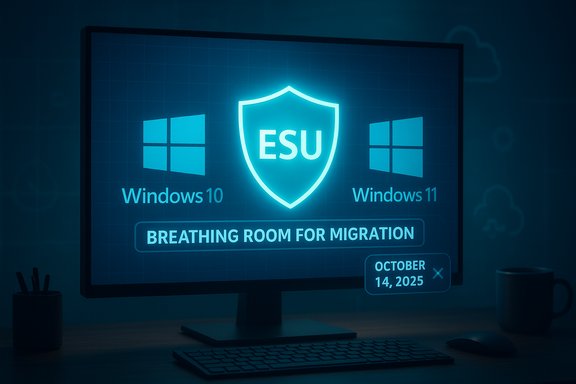
Microsoft’s blunt message to anyone still running Windows 10 is simple and urgent: your PC will keep working, but staying on an unsupported operating system is increasingly risky — and the clock to act is already ticking. Microsoft ended mainstream, free support for Windows 10 on October 14, 2025, and has a short, tightly scoped bridge in place for consumers (the Extended Security Updates or ESU) while continuing to push the official path forward: upgrade eligible machines to Windows 11 or replace unsupported hardware. This feature unpacks what that means for home users and small organizations, verifies the technical details behind the warnings, highlights practical upgrade paths and traps, and explains realistic alternatives for users who can’t — or won’t — move to Windows 11 right now.
Microsoft’s support lifecycle for Windows 10 concluded on October 14, 2025. From that date forward, Windows 10 consumer editions no longer receive routine monthly quality or feature updates unless they are enrolled in the one-year consumer ESU. The ESU provides security-only fixes for a limited time — effectively a bridge to help users migrate — but it explicitly excludes feature updates, non-security bug fixes, and full technical support.
The company is simultaneously continuing to offer a free, supported upgrade path to Windows 11 for eligible Windows 10 devices. That offer remains available only for devices that meet Microsoft’s published Windows 11 minimum hardware requirements and are running the qualifying build of Windows 10 (version 22H2 with the latest cumulative updates). Microsoft also continues to warn that running an unsupported OS leaves endpoints exposed to new vulnerabilities and more likely to be targeted in modern ransomware and intrusion campaigns.
For most home users, the decision will come down to a simple risk calculation: if the PC is online and holds sensitive data, plan to move to a supported OS or enroll in ESU and migrate within the year. If the PC is offline and used for local media or games only, short-term continuation on Windows 10 might be low risk — but that’s a diminishing safe harbor.
The technical facts are clear: Windows 10 consumer support ended on October 14, 2025, ESU covers security updates through October 13, 2026, and Microsoft’s Windows 11 minimum system requirements — TPM 2.0, Secure Boot, supported 64-bit CPU, and minimum RAM/storage — remain the gate that determines whether a device can take the free upgrade. For readers, the best course is straightforward: check your device now, back up your data, and choose the path that balances security, cost, and practicality for your household or small business.
Source: Daily Express Microsoft is still warning Windows 10 users to upgrade to Windows 11
 Background: what actually changed on October 14, 2025
Microsoft’s support lifecycle for Windows 10 concluded on October 14, 2025. From that date forward, Windows 10 consumer editions no longer receive routine monthly quality or feature updates unless they are enrolled in the one-year consumer ESU. The ESU provides security-only fixes for a limited time — effectively a bridge to help users migrate — but it explicitly excludes feature updates, non-security bug fixes, and full technical support.The company is simultaneously continuing to offer a free, supported upgrade path to Windows 11 for eligible Windows 10 devices. That offer remains available only for devices that meet Microsoft’s published Windows 11 minimum hardware requirements and are running the qualifying build of Windows 10 (version 22H2 with the latest cumulative updates). Microsoft also continues to warn that running an unsupported OS leaves endpoints exposed to new vulnerabilities and more likely to be targeted in modern ransomware and intrusion campaigns.
Overview: the consumer ESU, the free Windows 11 upgrade, and the hardware reality
What the consumer ESU does — and doesn’t
- The ESU extends security-only updates for consumer Windows 10 devices through October 13, 2026.
- It does not provide new features, general product support, or broad reliability fixes. Its scope is limited to Critical and Important security updates.
- Enrollment is surfaced in Settings → Windows Update for eligible devices and is tied to a Microsoft account.
- Microsoft provided three consumer enrollment paths: a no-cost option (with account/backup conditions), redeeming Microsoft Rewards points, or a one-time paid purchase (a modest consumer fee in many markets). Regional rules and requirements vary — the EEA has relaxed certain conditions compared with other regions.
The free upgrade to Windows 11 — still the supported path
- Microsoft continues to offer a free upgrade from Windows 10 to Windows 11 for eligible devices. The upgrade is available through Windows Update (Settings → Windows Update) when Microsoft’s staged rollout marks a machine as eligible.
- Eligibility is determined by Microsoft’s hardware checks — notably TPM 2.0, Secure Boot, a 64-bit CPU on the supported list, a minimum of 4 GB RAM, and at least 64 GB of storage, among other requirements.
- If a PC does not meet these requirements, Microsoft’s official guidance is that the PC remains on Windows 10 (or should be replaced). Unsupported workarounds exist but are discouraged and can jeopardize future updates and support.
Why Microsoft is warning Windows 10 users — threat reality and the numbers
Microsoft’s public messaging is rooted in real telemetry and industry trends. Modern ransomware groups and targeted attackers increasingly exploit weak links in networks: unmanaged or unsupported endpoints, legacy infrastructure, and unpatched vulnerabilities. Across multiple public reports and Microsoft’s own Digital Defense reporting, a recurring pattern is clear: a large proportion of successful intrusions involve devices lacking proper security controls or falling outside regular patching cycles.- Modern enterprise and consumer attacks often start with low-skill probes that exploit outdated systems or misconfigurations rather than one-off, high-skill zero-days.
- Microsoft’s telemetry (and corroborating cybersecurity reports) indicate that most ransomware intrusions exploit unmanaged or unsupported devices — a fact used repeatedly to justify the decision to end Windows 10 servicing.
- These trends mean a consumer running Windows 10 online without ESU or robust compensating controls faces higher risk than a comparable device kept current on Windows 11.
Verifying the technical specifications and claims
Several technical claims have been central to the discourse around Windows 10 end of life. These should be checked directly before acting.End-of-support date and ESU coverage
- End of mainstream support for consumer Windows 10: October 14, 2025.
- Consumer ESU coverage extends security-only updates to October 13, 2026, for devices that meet the eligibility criteria and enroll correctly.
- ESU enrollment is contingent on running Windows 10 version 22H2 and having required servicing stack updates installed.
ESU enrollment mechanics and caveats
- Microsoft tied consumer ESU enrollment to a Microsoft account and provided three paths: free (with backup/sync or regional exceptions), rewards-points redemption, or a one-time paid purchase. The free route typically requires enabling settings backup / sync to OneDrive or other account-linked conditions, with regional exceptions in the EEA.
- Consumer ESU licenses are associated with a Microsoft account and may have device reuse rules (for example, an entitlement usable across up to a set number of devices tied to the same account). These administrative controls exist to prevent circumvention.
Windows 11 hardware and upgrade rules
- Minimum hardware pillars for Windows 11 remain consistent: TPM 2.0, Secure Boot, supported 64-bit CPU family, 4 GB RAM, 64 GB storage, UEFI firmware, and specific feature prerequisites for particular capabilities.
- Microsoft’s Windows Update will only offer the upgrade to devices it has validated as compatible. Official alternative install methods exist (installation assistant, ISO) but installing on unsupported hardware carries risks and may block future updates.
Practical guidance: steps to check eligibility, enroll in ESU, or upgrade
1. Confirm your Windows 10 build and update state
- Open Settings → System → About (or Run → winver).
- Confirm you are on Windows 10, version 22H2 and that you have installed the latest cumulative updates.
- If you are not on 22H2, install available updates before attempting ESU enrollment or a Windows 11 upgrade.
2. Check Windows 11 compatibility
- Open Settings → Windows Update → Check for updates. If Microsoft has staged an upgrade for your device, an “Upgrade to Windows 11” option will appear.
- Run the PC Health Check tool to see precise blockers (TPM, Secure Boot, CPU compatibility, driver incompatibilities).
- If a firmware setting is blocking an upgrade (often TPM or Secure Boot is disabled by default on older machines), consult your OEM manual or UEFI settings to enable those features — but proceed with caution and back up before changing firmware settings.
3. Enroll in the consumer ESU (if you plan to stay on Windows 10 temporarily)
- Ensure your device is running Windows 10 version 22H2 with the required servicing stack updates.
- Sign into the machine with your Microsoft account.
- Follow Settings → Windows Update; if eligible, you should see an “Enroll in ESU” prompt or instructions. Choose the enrollment path that applies (free with backup/sync, Microsoft Rewards, or one-time paid purchase).
- Keep the device connected and periodically sign in with the linked Microsoft account as required by the program’s validation checks.
4. Upgrading to Windows 11
- Back up your user data and ensure you have full disk image backups or file-level sync to a cloud service or external drive.
- Use Windows Update if the “Upgrade to Windows 11” option appears. This route preserves apps and settings in most scenarios.
- If installing manually, use the Windows 11 Installation Assistant or a clean ISO only if your device meets Microsoft’s minimum requirements.
- After the upgrade, verify device drivers and reinstall or update any vendor-specific utilities.
Strengths of Microsoft’s approach and the consumer ESU
- The ESU provides a practical, time-limited safety net for consumers who need more time to migrate without exposing themselves to newly discovered critical vulnerabilities.
- Tying enrollment to a Microsoft account and backup/sync is operationally straightforward for many households and simplifies license management across multiple devices tied to one account.
- The free Windows 11 upgrade for eligible devices preserves applications and settings for most users and is the fastest route to remain on a supported, actively patched platform.
- Microsoft’s clear cut-off date and time-boxed ESU help organizations and home users plan procurement, migrations, and hardware refresh cycles with predictable timelines.
Risks, limitations, and things Microsoft’s warning doesn’t fully solve
- The one-year ESU window is short by design; it’s a stopgap rather than a solution. Consumers who enroll should treat ESU as a temporary measure and maintain a migration plan.
- The requirement to use a Microsoft account or to enable cloud backup for the no-cost ESU path raises privacy and control concerns for users who intentionally employed local accounts or kept data off the cloud.
- Hardware eligibility remains the most significant blocker for many older PCs. The cost and environmental implications of replacing multiple aging devices can be non-trivial for households and small businesses.
- Unsupported upgrades — intentionally circumventing hardware checks to install Windows 11 — can lead to blocked updates or instability, and such machines may be excluded from future security releases.
- There is potential for user confusion and rollout friction: staged updates, regional enrollment differences, and the need to install prerequisite cumulative updates mean not every eligible device will see immediately actionable upgrade or ESU options.
- ESU’s narrow scope means that functional bugs, driver incompatibilities, or feature regressions remain the user’s responsibility; some devices may become unusable due to third-party software or driver breakage over time even if security updates are delivered.
Alternatives to upgrading to Windows 11 or paying for ESU
If Windows 11 is not an option — due to hardware, budget, or preference — there are practical alternatives that preserve security and usability:- Migrate to a supported Linux distribution (Ubuntu, Fedora, Mint, etc.. Linux has broad hardware support in its mainstream flavors and is an excellent alternative for web, productivity, and media tasks. Expect a learning curve for some Windows users.
- Use ChromeOS Flex on compatible hardware, particularly on older laptops. It’s lightweight, cloud-centric, and receives regular updates.
- Purchase a new or refurbished Windows 11 PC; many retailers and OEMs now offer trade-in discounts or financing options aimed at easing the transition.
- Harden the existing Windows 10 device if you must continue using it offline: disable network interfaces when not needed, use up-to-date endpoint protection, and segment the device from sensitive networks. Note: these are mitigations — not full substitutes for security updates.
Business and enterprise angles (briefly)
While this feature is focused on consumers, it’s worth noting enterprises historically have different paths: volume-licensed customers and education organizations generally had access to paid ESU options with extended renewal windows. Enterprises also have migration planning tools, management solutions (Windows Update for Business, Endpoint Manager), and device fleets that can be upgraded at scale. For small organizations without those resources, the consumer ESU and device replacement remain the practical options.Final, practical checklist for readers
- Verify your PC’s Windows 10 build: open Settings → System → About, or run winver. Confirm you’re on 22H2 before enrolling or attempting an upgrade.
- Run the PC Health Check or check Settings → Windows Update to see if Microsoft lists an “Upgrade to Windows 11” option.
- Back up everything before changing OS or firmware settings. Use cloud sync or full-image backup tools.
- If staying on Windows 10 for a short time, enroll in ESU as needed, but treat that as a one-year extension, not a permanent solution.
- If Windows 11 is unavailable on your hardware, explore Linux distributions or ChromeOS Flex as supported, secure alternatives.
- Avoid unsupported hacks or registry bypasses to install Windows 11 on incompatible hardware; those paths are unsupported and may be riskier than replacing hardware.
Conclusion
Microsoft’s repeated warnings to Windows 10 users are not mere marketing nudges — they reflect a change in the security model that comes when a major consumer OS reaches the end of its supported lifecycle. The company has provided a clear, limited fallback (the consumer ESU) and a supported forward path (the free Windows 11 upgrade for eligible devices), but both have meaningful constraints: ESU is time-limited and narrowly scoped, while Windows 11 requires hardware that many older PCs simply do not have.For most home users, the decision will come down to a simple risk calculation: if the PC is online and holds sensitive data, plan to move to a supported OS or enroll in ESU and migrate within the year. If the PC is offline and used for local media or games only, short-term continuation on Windows 10 might be low risk — but that’s a diminishing safe harbor.
The technical facts are clear: Windows 10 consumer support ended on October 14, 2025, ESU covers security updates through October 13, 2026, and Microsoft’s Windows 11 minimum system requirements — TPM 2.0, Secure Boot, supported 64-bit CPU, and minimum RAM/storage — remain the gate that determines whether a device can take the free upgrade. For readers, the best course is straightforward: check your device now, back up your data, and choose the path that balances security, cost, and practicality for your household or small business.
Source: Daily Express Microsoft is still warning Windows 10 users to upgrade to Windows 11