

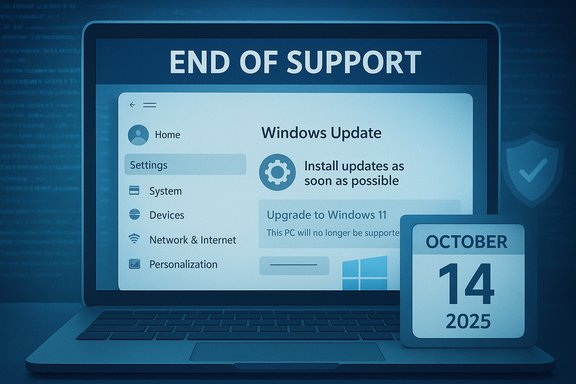
Microsoft's post‑Windows 10 playbook is becoming more visible — and for some users that visibility looks like control slipping away. Recent hands‑on reports and forum sightings show the familiar Settings switch labeled Pause updates for 7 days appearing greyed out on some Windows 10 PCs that are not enrolled in Microsoft’s Extended Security Updates (ESU) programme, while an updated Windows Update client (previously distributed as KB5001716) has been linked to new upgrade prompts and lifecycle notifications that can nudge or even begin a Windows 11 installation. This combination — end‑of‑support policies, a refreshed Windows Update UI, and device‑state checks tied to ESU enrollment — has left many Windows 10 users wondering whether staying on the old OS is now a technical choice, a policy nudge, or both.
Background / Overview
Windows 10 reached its official end of support on October 14, 2025. After that date Microsoft stopped providing routine, free monthly security and quality updates for unmanaged Windows 10 installations and opened a time‑limited Extended Security Updates (ESU) pathway to cover critical and important fixes through October 13, 2026 for enrolled devices. Microsoft’s lifecycle pages and the ESU consumer guidance explain the program mechanics, enrollment prerequisites and the limited duration of the bridge Microsoft is offering to hold Windows 10 afloat for reluctant upgraders. At the same time Microsoft shipped an update to the Windows Update client — carried under KB5001716 in earlier releases — that refreshed the Windows Update UI and added lifecycle‑awareness behaviors: lifecycle banners, end‑of‑support notifications and logic to prompt feature updates when a device is approaching or has reached the end of support for its installed version. Those edits were widely observed on both Windows 10 and Windows 11 clients and have been discussed in the press and community threads since late 2024 and into 2025. Microsoft later revised the KB5001716 release notes to soften language about automatic feature updates, but the UI changes and notifications remain in the wild. The hands‑on claim that has generated the most heat is this: if your Windows 10 PC is not enrolled in ESU, the Settings control used to pause updates — Pause updates for 7 days — may be disabled, replaced by an Install updates as soon as possible or Expedite this session path that begins updating right away and can even present a Download and install option for Windows 11 that, once started, is difficult to cancel from Settings. That specific sequence was described in a Windows Latest hands‑on article and has been replicated or discussed on multiple forums and independent sites; however it remains a reported behaviour rather than a formally documented Microsoft policy change.What the evidence shows (verified facts)
Windows 10 end‑of‑support and ESU: dates and rules
- Windows 10 mainstream support ended on October 14, 2025. Microsoft’s official lifecycle documentation states that after this date Microsoft no longer provides technical support, feature updates or routine security fixes for Windows 10 unless a device is enrolled in ESU.
- The consumer Extended Security Updates (ESU) programme is real, time‑limited and documented on Microsoft’s pages. ESU enrollment is available through Settings → Update & Security → Windows Update for eligible devices running Windows 10 version 22H2, and enrollment typically requires devices to meet patch and version prerequisites. ESU does not deliver new features or technical support — it supplies only critical and important security fixes for the enrollment window.
- Microsoft’s documentation and multiple news reports indicate that ESU enrollment pathways were crafted to encourage certain account behaviours: the consumer ESU has free enrollment options tied to linked Microsoft accounts or reward‑point redemptions in some cases, and paid licences (commonly reported as ~$30) for those who prefer different enrollment choices; several outlets noted Microsoft’s account linkage requirement for consumer ESU access as a significant change for users who prefer local accounts.
KB5001716 and the Windows Update UI changes
- KB5001716 (the “Update for Windows Update Service components” package) has been distributed intermittently since 2024 and updated release notes describe new user interface functionality for Windows Update that makes devices lifecycle‑aware, displays end‑of‑support warnings and — in earlier release notes — stated that Windows “may attempt to download and install feature updates” on devices near end‑of‑support. Microsoft subsequently edited the release notes to remove explicit wording about automatic feature updates but the UI/notification behavior remains in observed installations.
- Independent reports and community tests show that KB5001716 can surface lifecycle banners and more aggressive upgrade prompts; these reports do not universally prove forced upgrades across all devices, but they do demonstrate a measurable change in Windows Update’s UX and logic on many machines.
The unconfirmed or single‑source claims (treat with caution)
- The specific mechanism that disables the Pause updates for 7 days control on non‑ESU Windows 10 devices, and the claim that Microsoft is intentionally preventing pause controls on unenrolled machines to force upgrades, originates in single‑site, hands‑on reporting and forum anecdotes. While multiple independent forum threads and outlets have discussed or replicated similar behaviour, there has been no formal Microsoft communication that the pause control should be disabled as a policy enforcement mechanism for non‑ESU devices. That makes the claim plausible but not definitively established at scale. Treat the “disabled pause” report as a verified observation in limited tests and a plausible side effect — not as Microsoft’s published policy or universal behaviour.
- Forum threads and user videos show examples where a forced upgrade flow begins and can only be stopped via a power‑off or network disconnect; those cases are credible and concerning for affected users, but they may reflect edge cases (corrupted Windows Update databases, VM test environments, or specific device states) rather than a universal, deliberate throttling of pause options. Until Microsoft confirms or issues a patch, assume a mix: some users will see the behaviour, others won’t.
Why this matters: security, control and the upgrade economy
Microsoft’s posture is understandable from a lifecycle and security perspective: unsupported OS versions are a public‑safety problem at scale. A stalled Windows 10 fleet would leave countless endpoints exposed to emergent vulnerabilities, increasing the risk to consumers and to Microsoft’s wider ecosystem. Making Windows Update lifecycle‑aware and nudging devices toward supported releases reduces population risk and simplifies support. The KB5001716 UI refresh and the ESU pathway are logical tools in that toolbox. At the same time, the value exchange implied by ESU (a limited, paid or account‑linked bridge to retain critical security updates) changes the user relationship with the platform. For many users the choice to remain on Windows 10 was driven by habit, compatibility, or hardware limits; adding friction, account requirements, or the potential removal of pause controls creates a perception that Microsoft is coercing upgrades rather than simply encouraging them.Commercially, Microsoft benefits when users migrate to Windows 11 and to new hardware (Copilot+ PCs and machines optimized for Windows Intelligence features). For organizations and retail ecosystems, a coordinated upgrade path also helps Microsoft consolidate development resources onto a single modern platform. But for individual users the tradeoffs are concrete: privacy and account linkage, device replacement costs, and the short‑term risk of an ill‑timed upgrade breaking legacy software or peripherals.
Practical implications and risks for users
- Security risk vs. upgrade risk: Remaining on an unsupported OS without ESU increases exposure to new vulnerabilities. Conversely, auto or rushed upgrades to Windows 11 can break drivers, legacy applications, or user workflows. Each path carries a measurable risk vector and cost.
- Loss of a simple pause control reduces user agency. When pause is unavailable, the usual day‑to‑day safety valve against accidental upgrades and big background downloads disappears. That makes misclicks or unattended restarts more likely to cause data loss or interrupted work sessions. Community reports show forced‑upgrade flows sometimes allow only a short restart warning, leaving little time to cancel.
- Account and privacy tradeoffs: the consumer ESU options that require Microsoft account linkage (or a $30 paid alternative) push some users to choose between tying their device to an online identity or paying for a temporary extension. For privacy‑focused users who prefer local accounts, that is a meaningful policy change and one that has prompted critical coverage.
- False positives and bugs: Some of the observed disablement of pause features may be caused by bugs in the Windows Update client or by device state mismatches. That means even users who have valid reasons to pause updates could lose the control because of technical errors — an operational headache for home users and small organizations.
How to verify whether your machine is affected
- Open Settings → Update & Security → Windows Update and look for:
- The Pause updates for 7 days control (is it active or greyed out?
- Any lifecycle banner that mentions end of support or ESU enrollment
- A button labeled Install updates as soon as possible, Expedite this session or direct Download and install prompts for Windows 11
- Confirm your Windows 10 build and channel:
- Settings → System → About → OS Build and Version (Windows 10 version 22H2 is the ESU baseline)
- Check ESU enrollment status:
- Settings → Update & Security → Windows Update should show an ESU enrollment link when prerequisites are met; Microsoft’s ESU pages describe the exact enrollment flow and requirements.
- If the pause control is greyed out but you have not initiated an upgrade, treat the situation as a potential bug or device‑state issue and proceed conservatively. Capture screenshots or video of the UI and relevant dialogs — they are useful for support requests or community diagnostics.
What you can do today — safe, pragmatic options
Below are immediate, practical steps to regain control or reduce the risk of an unwanted upgrade or restart. Choose the ones that fit your skill level and risk tolerance.- Short‑term, low‑skill mitigations:
- Set your network connection to metered. Windows Update downloads are generally reduced on metered connections. (This is not foolproof for feature updates but helps block background transfers.
- Use the Settings → Windows Update → Advanced options to defer upgrades where available.
- Carefully monitor Update prompts and do not click confirm if you see Download and install for Windows 11 unless you are ready.
- Administrative and more robust options:
- Enroll in ESU (if you need to stay on Windows 10 and meet prerequisites). ESU enrollment restores access to security fixes and can change the update logic for your device; Microsoft documents enrollment steps in Settings and on the ESU page.
- If you use Windows 10 Pro, use Group Policy Editor to control feature updates and automatic behavior (Configure Automatic Updates, Select when Feature Updates are received). Note: some Group Policy settings can be bypassed by lifecycle enforcement — test after changes.
- For short windows, disabling the Windows Update service (wuauserv) temporarily prevents downloads; do so only if you understand the consequences and plan to re‑enable and update later.
- Technical stopgaps for advanced users:
- Stop the Windows Update service: net stop wuauserv (admin prompt)
- Rename the SoftwareDistribution folder to force a fresh WU database (advanced users only)
- Use Windows Update for Business policies or Windows Update Medic Service controls for enterprise setups
- If an unwanted upgrade has started:
- Immediately disconnect the network and consider halting the PC (graceful shutdown if possible).
- If the install has progressed too far and rollback is needed, use Settings → System → Recovery → Go back (available for a limited time post‑upgrade). These options are not guaranteed; having backups is critical.
Migration: the long‑term decision points
- Upgrade to Windows 11 when your hardware supports it. For compatible devices, upgrades are generally free and will restore steady security coverage. Windows 11 includes new security and AI features that Microsoft is prioritizing, and ongoing feature development will focus primarily on this platform.
- Enroll in ESU for a limited safety net if you need more time — ESU is explicitly time‑limited and intended as a migration bridge, not a permanent solution. Expect to plan for migration well before October 13, 2026 if you opt for ESU.
- Replace the device or move to an alternative OS. For some older hardware that cannot meet Windows 11’s system requirements, replacing the device or moving to a supported alternative (including Linux distributions positioned for switchers) is a legitimate path many are already taking. Recent downloads of alternative Linux distributions surged around Windows 10’s end‑of‑support date, reflecting this choice for some users.
Critical analysis: strengths, tradeoffs and risks in Microsoft’s approach
Strengths
- Centralizing update logic and lifecycle awareness reduces the population of unpatched machines over time, a net positive for global cybersecurity hygiene.
- Providing a documented ESU pathway helps households and small businesses avoid immediate disruptions when hardware or software compatibility prevents a safe upgrade.
- Refreshing the Windows Update UI to make support status explicit increases clarity for many users who otherwise might not realize their device’s lifecycle state.
Tradeoffs and user harms
- When pause controls are disabled or update flows become difficult to interrupt, user agency and the ability to defer disruptive updates are reduced. This can lead to real productivity losses, broken workflows, and angry users — all of which harm customer trust.
- Requiring Microsoft account linkage for the consumer ESU free route or pushing a small payment option changes the economic and privacy model for users who preferred local accounts; that’s a policy decision with measurable opt‑out costs.
Risks and unknowns
- If the greyed pause behaviour is a bug or an unintended side‑effect of update logic, Microsoft will need to patch it quickly; otherwise the perception of an intentional coercion will grow and could trigger backlash or regulatory scrutiny.
- In heterogeneous environments (home fleets, legacy peripherals, niche professional software), an ill‑timed push to Windows 11 risks breaking essential workflows without adequate mitigation pathways or vendor driver support.
- The user experience tradeoffs are not purely technical; they intersect with privacy, cost and accessibility considerations — especially for users on tight budgets or with local‑account preferences.
How Microsoft should address the problem (reasonable measures)
- Publish a clear advisory: confirm whether pause controls being disabled on non‑ESU devices is intentional, and if so, explain the thresholds and provide an official remediation plan for users who need to defer updates. Transparency is essential to restore trust.
- Offer a predictable rollback / cancellation mechanism for started feature updates so users can safely stop an unwanted upgrade without resorting to hard power‑offs.
- Revisit account/ESU enrollment choices: provide privacy‑preserving ESU enrollment options for users who prefer to avoid an always‑connected Microsoft account while still allowing a safe migration path.
- Improve telemetry‑based rollout to reduce false positives: ensure that device state checks do not misclassify healthy, up‑to‑date devices and disable pause controls erroneously.
Takeaway for Windows 10 users
The immediate headline is simple: Windows 10 is past mainstream support and Microsoft is actively changing Windows Update’s signalling and behavior to shepherd devices toward supported states. Some users are now seeing the pause control greyed out and more aggressive upgrade prompts; in several reported cases those flows start downloads that are hard to cancel. That behaviour has been observed, documented and discussed by hands‑on reporters and community members, but it is not yet a formally announced, universal Microsoft policy — and may be the result of device‑state logic or bugs. Act now to check your device state, back up your data, and choose a migration or ESU enrollment path that matches your needs. If you need to stay on Windows 10, enroll in ESU if eligible or plan a measured migration to a supported OS before the ESU window closes.Quick checklist (two‑minute action plan)
- Open Settings → Update & Security → Windows Update — check whether Pause updates for 7 days is enabled or greyed out.
- Confirm your Windows 10 version (22H2 recommended for ESU eligibility).
- Back up critical data to an external disk or cloud storage immediately.
- If you must remain on Windows 10, enroll in ESU via Settings or follow Microsoft’s ESU guidance.
- If you prefer to move to Windows 11, verify hardware compatibility and driver availability before initiating the upgrade.
The story here sits at the intersection of technical rollout, lifecycle policy and user expectation. Microsoft’s push toward Windows 11 and its lifecycle enforcement tools are defensible from a security‑management standpoint; the concerning parts are the opacity and the real user impact when pause controls or cancellation paths vanish. Until Microsoft clarifies the intended behaviour or issues a corrective update, the safest posture for concerned users is to back up, check ESU eligibility, and apply deliberate migration planning rather than react to surprise prompts or forced installs.
Source: Daily Express https://www.express.co.uk/life-styl...king-it-harder-for-you-to-stay-on-windows-10/
