

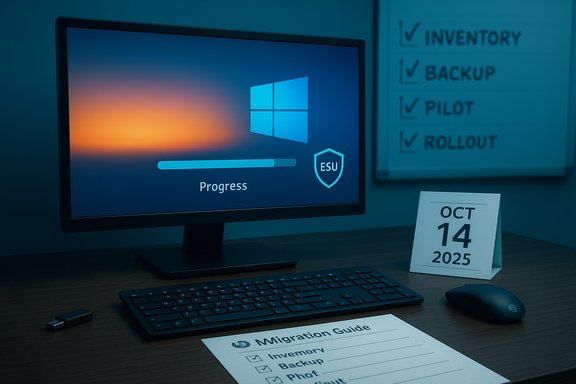
Microsoft’s support clock for Windows 10 has officially run out, and HP’s step‑by‑step upgrade briefing is the practical playbook many users and IT teams will follow as they move to Windows 11 or adopt a short‑term Extended Security Updates (ESU) bridge. The core facts are simple and consequential: Windows 10 ceased mainstream support on October 14, 2025, meaning routine security and feature updates stopped for most editions; Microsoft and OEM guidance now directs compatible machines to upgrade to Windows 11, and offers a time‑boxed ESU option for devices that need a temporary safety net. This feature synthesizes HP’s migration checklist and procedures, verifies the technical minimums and timelines against Microsoft’s published documentation, and lays out a practical, low‑risk migration plan for home users and organizations alike.
Windows 10’s lifecycle reached its planned endpoint on October 14, 2025. After that date Microsoft stopped delivering routine cumulative security updates, feature servicing, and standard technical assistance for most Windows 10 editions (Home, Pro, Enterprise, Education and many IoT/LTSC variants). That does not mean your PC suddenly stops working; it means vendor‑supplied OS‑level patches for newly discovered vulnerabilities no longer arrive unless you have an active ESU enrollment. Microsoft’s lifecycle and support pages make this explicit and recommend moving eligible devices to Windows 11 or enrolling in the consumer ESU program as a limited bridge. HP’s customer guide echoes those priorities: inventory devices, update Windows 10 before attempting an in‑place upgrade, create robust off‑device backups, confirm drivers and firmware, and pick the right upgrade path—Windows Update, the Media Creation Tool/Installation Assistant, or a clean install—based on scale and risk tolerance. HP also emphasizes practical enterprise controls such as staged rollouts and centralized management for multi‑device environments.
Why this matters now: running an unsupported OS on internet‑connected or production networks materially increases exposure to ransomware, credential theft and supply‑chain exploits. For businesses, unsupported endpoints can create audit, regulatory or insurance exposure; for home users, the immediate risk is lower but real—especially for machines used for banking, storing sensitive data, or as administration endpoints on home networks.
Testing guidance:
Source: HP Windows 10 Support Ending: Complete Windows 11 Upgrade Guide
 Background / Overview
Windows 10’s lifecycle reached its planned endpoint on October 14, 2025. After that date Microsoft stopped delivering routine cumulative security updates, feature servicing, and standard technical assistance for most Windows 10 editions (Home, Pro, Enterprise, Education and many IoT/LTSC variants). That does not mean your PC suddenly stops working; it means vendor‑supplied OS‑level patches for newly discovered vulnerabilities no longer arrive unless you have an active ESU enrollment. Microsoft’s lifecycle and support pages make this explicit and recommend moving eligible devices to Windows 11 or enrolling in the consumer ESU program as a limited bridge. HP’s customer guide echoes those priorities: inventory devices, update Windows 10 before attempting an in‑place upgrade, create robust off‑device backups, confirm drivers and firmware, and pick the right upgrade path—Windows Update, the Media Creation Tool/Installation Assistant, or a clean install—based on scale and risk tolerance. HP also emphasizes practical enterprise controls such as staged rollouts and centralized management for multi‑device environments.Why this matters now: running an unsupported OS on internet‑connected or production networks materially increases exposure to ransomware, credential theft and supply‑chain exploits. For businesses, unsupported endpoints can create audit, regulatory or insurance exposure; for home users, the immediate risk is lower but real—especially for machines used for banking, storing sensitive data, or as administration endpoints on home networks.
Windows 11: Minimum requirements and compatibility checkpoints
The hard minimums (verified)
Before you plan any migration, confirm whether each PC meets Microsoft’s published Windows 11 minimum system requirements. The central checkpoints are:- Processor: 1 GHz or faster, 2+ cores, 64‑bit on Microsoft’s approved CPU list.
- RAM: 4 GB minimum (practical recommendation: 8 GB+).
- Storage: 64 GB minimum (but plan for significantly more free space during upgrade and future updates).
- System firmware: UEFI with Secure Boot capable.
- TPM: Trusted Platform Module version 2.0 (discrete TPM or firmware fTPM / Intel PTT).
- Graphics: DirectX 12 compatible GPU with WDDM 2.x driver.
- Display: 9” diagonal, 720p or higher.
What will never be fixed by hacks
Some CPU and instruction‑set checks (for example, families explicitly omitted from Microsoft’s approved list or builds that require particular instruction support) are hard technical limits. No registry hack will emulate missing CPU instructions; attempting to run Windows 11 on hardware that truly lacks the required silicon features risks instability and will usually disqualify the PC from receiving future updates. Microsoft’s official guidance is clear: installing Windows 11 on unsupported hardware is not recommended and such devices “won’t be entitled to receive updates.”Preparation checklist — the practical pre‑flight
HP’s guide sets out a concise, realistic checklist that maps to Microsoft’s requirements and reduces upgrade risk. The essentials:- Update Windows 10 fully before upgrading. Install the latest cumulative and servicing‑stack updates to prepare the system and reduce migration errors.
- Run compatibility checks: PC Health Check and vendor‑specific tools to identify TPM/Secure Boot/CPU issues.
- Create dependable backups: adopt a 3‑2‑1 approach (three copies, two formats, one off‑site) — at least one cloud backup plus one offline image or external drive. HP recommends multiple copies and verifying restores before proceeding.
- Document software licences and activation keys for applications that might require reactivation after a clean install.
- Prepare a USB flash drive (minimum 8 GB) if you plan to use the Media Creation Tool or create bootable media. The drive will be formatted—don’t use one with important data.
- Update firmware and drivers from your OEM (HP Support Assistant or the vendor website). Firmware updates can expose TPM or add Secure Boot support on otherwise eligible systems.
Three supported upgrade methods (what to use, when)
HP organizes the official options into three clear routes; each is valid and supported by Microsoft. Pick the one that matches your scale, risk tolerance and need for control.Method 1 — Windows Update (recommended for most users)
- Settings → Update & Security → Windows Update → Check for updates.
- If Microsoft has validated your PC in the staged rollout you’ll see an “Upgrade to Windows 11 — Download and install” offer.
- This is the safest, lowest‑risk path: it preserves apps, user profiles and activation entitlement, and Windows Update continues to manage driver and firmware updates. HP notes the process usually takes 20–40 minutes on modern hardware (your mileage varies by CPU, storage and connection speed).
Method 2 — Media Creation Tool (flexible, multi‑PC)
- Go to Microsoft’s Download Windows 11 page and select Create Windows 11 Installation Media → Download now to get MediaCreationTool.exe.
- Run the tool, select “Create installation media,” insert your blank USB 8 GB or larger, and let the tool build the bootable media.
Method 3 — Clean installation (Custom / advanced)
- Boot from the prepared USB (you may need to change UEFI/BIOS boot order), choose Custom: Install Windows only (advanced), and let the installer wipe and provision a fresh OS.
- Clean installs remove bloat, lingering driver conflicts and accumulated configuration cruft—useful when persistent issues degrade performance or you need a pristine baseline. But it deletes all apps, settings and files: restore only from verified backups.
Extended Security Updates (ESU) — what it provides, how long, and caveats
Microsoft and OEMs provided a narrowly scoped consumer ESU as a migration bridge after the October 14, 2025 cutoff. Consumer ESU delivers security‑only updates (Critical and Important fixes) for a limited period and has enrollment prerequisites (Windows 10 version 22H2 fully patched and an enrollment path that typically requires a Microsoft account). The consumer ESU window runs through October 13, 2026, offering roughly one year of breathing room for eligible machines. Practical points and caveats:- ESU is explicitly a temporary bridge, not a substitute for migration. It does not include feature updates, most quality fixes, or full technical support.
- Enrollment routes varied by region and included a free, cloud‑backed route (link a Microsoft account and sync Windows Backup), a Microsoft Rewards redemption option, or a paid one‑time purchase in many markets. Requirements and availability differ—verify eligibility in your locale.
- Microsoft requires an up‑to‑date base build (22H2) and specific servicing‑stack updates before consumer ESU can be applied; unprepared devices may be ineligible.
Rollback, timelines and recovery
If you upgrade and problems appear, Windows preserves the previous installation in a folder called Windows.old and provides a built‑in Go back option in Settings > System > Recovery for a limited timeframe—generally 10 days. Within that window you can return to Windows 10 while preserving many of your files and settings; after the window expires, Windows deletes the old files to reclaim space and reverting requires a clean install from backup. Microsoft’s recovery documentation and OEM support articles reiterate the 10‑day default and explain the conditions under which rollback may be unavailable (disk cleanup, user deletion of the Windows.old folder, or changes made after upgrade). Actionable recovery rules:- Keep Windows.old intact until you’re sure the upgrade is stable (don’t run Disk Cleanup or manually delete upgrade folders).
- If you need longer rollback windows for pilots or lab scenarios, adjust the retention period before the default 10‑day expiry.
- Always create full disk‑image backups before upgrading fleet machines; images remain the most reliable way to restore older states after the rollback window closes.
Drivers, peripherals and application compatibility — the hidden work
Most Windows 10 desktop apps will run on Windows 11, but TPM, Secure Boot and virtualization‑based protections can affect software that tightly integrates with hardware or drivers—especially legacy peripherals, scanner/printer drivers, dongle‑protected licenses and some virtual machine or security agent implementations. HP’s guide and Microsoft both recommend contacting software vendors for Windows 11 compatibility statements and pre‑release updates for specialised or custom applications. Vet drivers from vendor support pages (HP’s drivers and download portal, in particular) rather than relying solely on Windows Update for critical peripherals.Testing guidance:
- Pilot the upgrade for business‑critical applications on representative hardware.
- Maintain a compatibility matrix that records driver versions, firmware and the outcome of smoke tests.
- If a legacy device blocks productivity, consider temporary workarounds (segmentation, dedicated legacy hosts, virtualization or short ESU enrollment) while you plan replacement.
Enterprise planning and scale considerations
Large estates benefit from a staged, policy‑driven approach:- Inventory and classification first: use automated tools to capture CPU, TPM, UEFI and driver inventories.
- Prioritise high‑risk and high‑value endpoints (domain controllers, admin workstations, finance systems) for early migration and additional testing.
- Use enterprise tooling (Microsoft Endpoint Manager, Windows Update for Business, or third‑party endpoint management) to control rollout rings, feature deferrals and compliance policies. HP suggests staged rollouts and centralized monitoring to reduce rollback friction and to manage drivers and firmware centrally.
- Where devices are incompatible, budget for phased hardware replacement—choose Windows 11‑shipped SKUs where possible to eliminate firmware and feature surprises.
- ESU (enterprise) can be purchased as a stop‑gap for specific timelines, but cost projections and end‑state roadmaps should be aligned to avoid perpetual extension spending.
Practical timeline and estimated durations
HP’s guidance recommends starting the migration well before any enforced deadlines and specifically not waiting until October 14, 2025. For individual machines, a standard in‑place upgrade via Windows Update commonly completes in 20–40 minutes on modern systems; slow HDDs or poor internet connections can extend this to an hour or more. Creating USB installation media (download + media creation) depends on connection speed; a multi‑device deployment using media will be bounded more by local imaging and re‑provisioning times per device than Microsoft’s installer time itself. Treat all time estimates as directional—validate with pilot runs on representative hardware.Common pitfalls and risks — and how to avoid them
- Attempting unsupported registry hacks or third‑party bypasses that disable checks may let Windows 11 install, but such devices typically are excluded from updates and are a long‑term security liability. Use unsupported methods only in isolated lab contexts and document the risk.
- Underestimating driver or peripheral compatibility overhead — schedule time for vendor engagement and driver testing.
- Neglecting backups: the rollback window is short—image first, upgrade second.
- Overlooking Microsoft account requirements for some ESU enrollment paths—in some regions the consumer ESU enrolment requires a Microsoft account even for paid paths. Verify account and enrollment prerequisites early.
Quick, practical step‑by‑step (consumer / small business)
- Inventory: run PC Health Check and note devices that fail TPM/Secure Boot/CPU checks.
- Backup: create a full disk image and a cloud file backup; verify restores.
- Update: fully patch Windows 10 (22H2 and latest cumulative updates).
- Pilot: upgrade a non‑critical machine using Windows Update or Media Creation Tool. Validate apps and peripherals.
- Staggered rollout: use group policies or Endpoint Manager to expand rings, track issues, and remediate.
- Finalize: retire incompatible devices, or enroll eligible short‑term devices in ESU while replacement plans execute.
Conclusion — an operational call to action
The end of Windows 10 support is now a concrete operational milestone with practical consequences for security, compliance and usability. HP’s upgrade guide is a clear, pragmatic roadmap—inventory, back up, test, and then upgrade using the supported Microsoft routes. For most users with compatible hardware the safest path is the supported Windows Update in‑place upgrade or the officially recommended Media Creation Tool/Installation Assistant where more control is needed. For devices that cannot meet Windows 11’s minimums, ESU provides a time‑boxed, security‑only bridge; it is not a replacement for migration or hardware refresh. Begin planning now: run pilots, document outcomes, and use staged rollouts so the migration becomes a modernization project rather than a crisis. Caveat: adoption statistics and region‑specific enrollment rules vary by source and are subject to change—treat figures like installed base counts as directional and verify enrollment/pricing details in your country before budgeting. For technical references and the official Microsoft lifecycle and requirements pages cited throughout, consult Microsoft’s support and lifecycle documentation referenced above for the definitive, up‑to‑date statements.Source: HP Windows 10 Support Ending: Complete Windows 11 Upgrade Guide
