

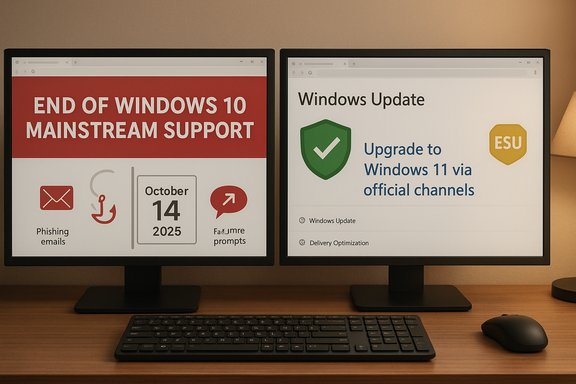
Microsoft’s decision to stop routine security updates for Windows 10 has immediately become a lucrative hook for scammers, and consumers need clear, practical defences now — not tomorrow — to avoid losing data, money, or access to their machines. The headline fact is simple: Windows 10 reached end of mainstream support on October 14, 2025, and while Microsoft offered a time‑boxed Extended Security Updates (ESU) path to buy a year of security‑only patches, that transition window has already triggered a surge in opportunistic phishing, fake “free upgrade” offers, malicious downloads and tech‑support cold calls that explicitly exploit fear and urgency.
Short, verifiable facts you must base decisions on
Source: which.co.uk Watch out for Windows 10 scams - Which?
 Background / Overview
Short, verifiable facts you must base decisions on- Microsoft’s official lifecycle notice confirms Windows 10 mainstream support ended on October 14, 2025; after that date routine technical assistance, feature updates and security fixes are no longer provided for unenrolled consumer systems.
- Microsoft published a consumer Extended Security Updates (ESU) option that provides security‑only updates for eligible devices through October 13, 2026. There are multiple enrollment routes — one of them is free in specific scenarios (for example, by syncing Settings to a Microsoft account in certain markets), or via redeeming Microsoft Rewards points, or by a paid one‑time purchase — but ESU is explicitly a short‑term bridge, not a long‑term solution.
- The hardware gating for Windows 11 — notably the requirement for TPM 2.0, Secure Boot and supported CPU families — is deliberate and non‑negotiable in Microsoft’s public posture; that means many older PCs simply cannot upgrade in place without firmware changes or hardware replacement. If your PC doesn’t meet Windows 11 requirements, official in‑place upgrade routes may be blocked.
Why scammers are using Windows 10’s end of support
- Deadline pressure works: telling users “your PC will be unsafe after X date” creates panic and makes people less cautious. Scammers weaponize that panic.
- Migration complexity is high: TPM toggles, firmware updates, compatibility checks and the possibility of buying a new PC give fraudsters many believable hooks for “helpful” offers that are actually traps.
- Technical details sound authoritative: dropping correct‑sounding requirements (like TPM 2.0) or Microsoft‑style wording makes malicious emails and ads look authentic to non‑technical users. That gives attackers the cover they need to get clicks, phone calls, remote sessions or downloads.
The five most common Windows 10 scams to watch for (and how to spot them)
Below are the scams Which and other security observers warned about, reworked into practical detection cues and countermeasures.1. Phishing messages that pose as upgrade or ESU alerts
What it looks like- Emails, SMS or social posts that claim your PC must “upgrade now” and include a link or attachment.
- Messages often use urgent language (“final chance”, “security breach”) and may spoof Microsoft, your OEM, or major retailers.
- Links lead to malicious sites that either install malware or collect login/financial data.
- Attachments may be ransomware or backdoors that persist on the machine.
- Only upgrade via Windows Update or official Microsoft tools (Settings → Update & Security → Windows Update, PC Health Check, Installation Assistant). Never click links in unsolicited messages.
2. Fake pop‑ups demanding you call “Microsoft support” now
What it looks like- Full‑screen browser pop‑ups or alerts claiming “Your PC is compromised — call XXX‑XXX‑XXXX now.”
- The pop‑up includes a phone number or link to install a remote‑access tool.
- Calling the number connects you to a scammer who asks for remote access, installs malware, charges bogus fees, or steals credentials.
- Real Windows or Microsoft alerts never include a phone number to call for support. Close the browser tab, clear the browser cache, and scan offline with a known‑good security tool. If you need help, initiate contact through Microsoft’s official support channels.
3. “Free” Windows 11 upgrades or dodgy installer hacks
What it looks like- Ads, emails or posts promising a guaranteed Windows 11 upgrade even if your PC fails the compatibility check.
- “Cracked” ISOs or third‑party installers that promise to bypass TPM or CPU checks.
- Many PCs fail Windows 11’s TPM 2.0, Secure Boot, or CPU compatibility checks for good reasons. The “free hack” installers often install malware or leave you on an unsupported, unstable system that Microsoft may not patch reliably.
- Run Microsoft’s PC Health Check to see if your PC is eligible.
- If incompatible, do not download third‑party “bypass” tools. Consider ESU, buy a supported PC, or evaluate supported alternative OS options (ChromeOS Flex, mainstream Linux distros) if your workload permits.
4. Malware disguised as upgrade files or ESU installers
What it looks like- ZIP or EXE files uploaded to file‑sharing services or hosted on look‑alike pages advertised as “ESU installer” or “Windows 11 express upgrade”.
- These files can include ransomware, credential stealers or persistent backdoors that survive reboots and harvest data. Ransomware families have historically exploited upgrade momentum to distribute payloads disguised as installers.
- Only run installers from Microsoft.com or from your OEM. Keep offline backups and a tested recovery plan. If you suspect infection, disconnect from networks, notify your bank if financial data might be exposed, and consult a trusted security professional.
5. Tech‑support cold calls and remote‑access scams
What it looks like- An unsolicited call claiming to be Microsoft, your ISP, or your bank’s tech team, often referencing the Windows 10 deadline and asking to “fix” your machine or enroll you in a protection plan.
- Caller instructs you to install remote‑access software (AnyDesk, TeamViewer, Quick Assist) and grant control.
- Once a scammer has remote control, they can copy documents, install malware, or coerce payments and transfers. Cold‑call fraud tied to tech support is one of the highest‑loss categories for older adults.
- Microsoft and legitimate vendors do not call unsolicited customers offering support. Hang up. If you have already allowed remote access, disconnect immediately, change passwords, and contact your bank if money was requested or paid. Report the call to authorities (see the Reporting section below).
Technical checks you can run now (quick, authoritative steps)
- Check end‑of‑support and ESU eligibility: Settings → Update & Security → Windows Update; Microsoft’s lifecycle and ESU pages list the official timelines and enrollment options.
- Verify Windows 11 eligibility: Run the PC Health Check tool provided by Microsoft and read the compatibility notes (TPM 2.0, Secure Boot, supported CPU series). If TPM appears missing but your board supports it, look for an fTPM option or firmware update in your motherboard’s UEFI/BIOS.
- Do not install third‑party “bypass” tools: Microsoft and security researchers warn these workarounds may prevent you from receiving updates and expose the system to risk. Consider ESU or replacement hardware instead.
What ESU actually buys you — and what it doesn’t
- ESU provides security‑only patches for eligible Windows 10 machines through October 13, 2026 (consumer ESU). It does not include feature updates or general technical support. ESU is a bridge to migration — not a permanent fix.
- Enrollment mechanics vary: in some markets you can enroll at no extra cost if you meet specific sync or account conditions; in other regions a small fee, Rewards‑points redemption or linking to a Microsoft account is required. Regional concessions (for example EEA‑specific arrangements reported by consumer groups) can change the practical enrollment flow; verify the flow shown in your Windows Update settings.
Why “having antivirus” is not a substitute for OS patches
- Antivirus and endpoint protection help detect and block known malware and suspicious behaviours, but they cannot change or patch the underlying operating system kernel, drivers or protocol stacks when new vulnerabilities are discovered. Attackers exploit those underlying flaws (privilege escalation, memory corruption, driver flaws) — and only vendor patches can fix them. Relying purely on signature updates or Defender definitions is a higher‑risk strategy as time passes.
How to report scams and what to do if you’ve been targeted
High‑value reporting steps — UK and U.S. guidance you can act on immediately- UK reporting:
- Forward suspicious emails to [email protected] so the NCSC can investigate and take down phishing infrastructure.
- Forward spam and scam texts to 7726 (SPAM) — this short code is free and supported by carriers; it helps providers block malicious senders.
- If you lose money, contact Action Fraud (or local police in Scotland) and your bank immediately.
- U.S. reporting:
- Forward scam text messages to 7726 — this is supported by major U.S. carriers (AT&T, Verizon, T‑Mobile, Google Fi, etc. and helps carriers shut down bulk senders. Follow the carrier reply prompts.
- Report fraud to the Federal Trade Commission at ReportFraud.ftc.gov and file an Internet Crime Complaint with the FBI’s IC3 at ic3.gov for significant losses or organized campaigns. If funds were transferred, contact your bank immediately.
- For scam ads on social platforms use the platform’s “report ad” or three‑dot menu option to flag fraudulent ads.
- For scam calls, keep the caller number and time and forward it to your carrier (7726) or file a complaint with the FCC if it’s robocall abuse.
A practical checklist — immediate actions to reduce risk
- Back up everything now: create a full image backup and separate file backups to external media and a cloud service; test a restore.
- Run PC Health Check and check Settings → Update & Security → Windows Update for any official enrollment options or upgrade offers.
- If eligible, upgrade via Windows Update or Microsoft’s Installation Assistant — don’t use third‑party installers.
- If not eligible and you cannot replace hardware immediately, enrol eligible devices in ESU and harden the machine: non‑admin user for daily tasks, disable SMBv1, enable Secure Boot if available, and keep applications updated.
- Educate household members: never call numbers shown in pop‑ups or unsolicited emails; don’t allow remote access to unknown callers; verify any service provider contact via official web channels.
Critical analysis — strengths, trade‑offs and the wider risk picture
What’s working- Microsoft’s approach concentrates engineering effort on a modern platform with stronger hardware‑rooted protections (TPM 2.0, virtualization‑based security). This raises the long‑term security baseline for new devices. The ESU program and OEM trade‑in/recycle offers provide a transitional path.
- The transition is uneven: hardware gating (TPM 2.0, CPU lists) means some perfectly usable PCs are excluded from upgrade without new hardware. That creates equity and environmental questions: forced replacements can increase e‑waste and financial strain on low‑income households. Several observers and consumer advocates flagged regional inconsistencies and administrative friction in ESU enrollment.
- Scams are a foreseeable and immediate risk vector. The combination of a time‑bound deadline and complex technical steps is a perfect social‑engineering playground for fraudsters.
- Market estimates of exactly how many devices will remain on Windows 10 vary by methodology; treat published user counts as indicative. Always verify your device’s status in Settings rather than relying on headlines.
- Regulators and consumer advocates urged broader relief options (longer free ESU windows or targeted assistance for vulnerable consumers) in some regions; Microsoft offered concessions in specific jurisdictions but the outcome is patchy. This remains an ongoing policy debate with real consumer impact.
Final assessment and recommended path
- Immediate priority: backup + verify. Do that before you do anything else. A tested backup removes most of the urgency that scammers exploit.
- If your PC is Windows 11‑eligible: follow Microsoft’s official upgrade flow after you’ve backed up — Windows Update or the official Installation Assistant is the safe route.
- If ineligible: enrol only eligible critical machines in ESU as a controlled, time‑boxed stopgap and plan a migration or replacement strategy. ESU is not a permanent shelter.
- Never trust unsolicited calls, pop‑ups, or attachments promising immediate upgrades or masks for ESU. Treat such contact as a scam and report it.
Source: which.co.uk Watch out for Windows 10 scams - Which?
