

Microsoft’s October 14, 2025 end of free Windows 10 support has turned millions of still-working PCs into a planning problem, pushing users toward Windows 11 upgrades, paid security extensions, alternative operating systems, or modest hardware refreshes. The practical question is no longer whether an old PC can boot. It is whether it can still be trusted, maintained, and made pleasant enough to use without pretending the Windows 10 era is continuing unchanged.
That is why TechRepublic’s short list of post-Windows 10 survival tools lands at the right moment. ChromeOS Flex, Linux Mint, RAM upgrades, and SSDs are not glamorous answers to Microsoft’s lifecycle cliff, but they are the kind of answers that matter in real homes, schools, nonprofits, repair shops, and small businesses. The end of Windows 10 support is not just an operating-system story; it is a hardware triage story.
The most important thing to say about Windows 10’s end of support is also the easiest thing to miss: October 14, 2025 did not flip a kill switch. PCs running Windows 10 still power on, launch applications, connect to Wi-Fi, and open browsers. For many people, that creates a dangerous sense of continuity, because the machine looks the same on October 15 as it did the day before.
The risk is not immediate mechanical failure. The risk is that Windows 10 has moved out of the normal patch stream for most users, meaning newly discovered vulnerabilities no longer receive the same free monthly treatment that defined the supported life of the operating system. That matters most for the activities people actually do on old computers: web browsing, email, banking, messaging, school portals, remote work, and document handling.
Microsoft’s Extended Security Updates program gives some users more time, and businesses with managed fleets have more formal options than a household with a seven-year-old laptop. But extra time is not the same as a future. ESU is a bridge, not a renovation, and bridges are useful only if you know where they are supposed to lead.
That is where the TechRepublic list becomes interesting. It does not treat Windows 10’s retirement as a single decision with one correct answer. Instead, it sketches a small decision tree: change the operating system, improve the hardware, or do both.
From Microsoft’s point of view, the logic is defensible. Modern Windows security leans heavily on hardware-backed protections, virtualization-based security, firmware integrity, and a more controlled platform baseline. A supported Windows ecosystem made up of fewer, newer, better-secured configurations is easier to defend than an endless sprawl of aging consumer laptops and office desktops.
From the user’s point of view, the experience is less elegant. A computer that still handles documents, YouTube, email, and spreadsheets can be declared unsuitable not because it is slow, broken, or incapable, but because it fails a platform eligibility check. That distinction is where frustration turns into e-waste.
The old Windows bargain was simple: if the PC still worked, Windows would probably keep working on it. Windows 11 changed that bargain. The result is a new category of hardware that is not obsolete in any ordinary sense, but is outside Microsoft’s preferred future.
That gap is exactly where ChromeOS Flex and Linux Mint see opportunity. They are not trying to preserve Windows. They are trying to rescue the PC underneath it.
Google’s partnership with Back Market around a low-cost ChromeOS Flex USB kit is clever because it attacks the least glamorous part of an operating-system switch: installation friction. Technically inclined users have long been able to create bootable USB installers. The problem is that many normal users do not want to download an image, find the right utility, select a USB device, change boot order, and hope they do not erase the wrong disk.
A prebuilt USB kit with setup guidance reframes the process. It says: this is not a hobbyist project; this is a recovery path. That positioning matters because the audience is not only Linux tinkerers and Chromebook fans. It is anyone with a Windows 10 laptop that cannot move to Windows 11 and no desire to buy a new machine just to browse the web.
ChromeOS Flex’s biggest strength is also its biggest limitation. It is good when the browser is the computer. It is less compelling when users depend on traditional Windows desktop applications, local peripherals with finicky drivers, offline workflows, specialized accounting software, old games, or niche hardware utilities.
There is also a difference between ChromeOS Flex and the ChromeOS experience on a certified Chromebook. Flex can be excellent on compatible hardware, but users should not assume every aging laptop will behave like a purpose-built Chromebook. Wi-Fi, Bluetooth, sleep behavior, webcams, touchpads, and firmware quirks can still separate a delightful rescue from an afternoon of troubleshooting.
Even with those caveats, ChromeOS Flex has a compelling role in the post-Windows 10 landscape. It does not ask the old PC to impersonate a modern Windows 11 machine. It asks a more practical question: can this hardware become a secure, low-maintenance web terminal?
For many households, that answer will be yes.
That familiarity matters more than Linux advocates sometimes admit. Switching operating systems is not only a technical migration; it is a muscle-memory migration. People know where to click, how to manage files, how to open a settings panel, and how a desktop is supposed to behave. Mint’s value is that it offers a new underlying platform without making the user feel like they have been dropped into a software anthropology exhibit.
For older PCs, the Xfce edition is especially relevant. It trades some visual polish and modern desktop effects for lower resource use, which can make a machine with modest RAM or older integrated graphics feel less burdened. On hardware that wheezed under late-stage Windows 10, that can be the difference between “technically usable” and “actually tolerable.”
Linux Mint also has a stronger local-computing story than ChromeOS Flex. Firefox, LibreOffice, media players, file tools, Steam in some cases, and a broad package ecosystem make it viable for users who still want a general-purpose desktop. It is not Windows, but it is not merely a browser shell either.
The tradeoff is compatibility. Some Windows applications have Linux equivalents. Some can be replaced by web apps. Some may run through compatibility layers. Others will not be worth the trouble. Before installing Mint on a primary machine, users should make a brutally honest inventory of the applications and devices they depend on.
That includes printers, scanners, VPN clients, accounting tools, accessibility software, password managers, conferencing platforms, and any work-mandated security agents. Linux can handle a great deal in 2026, but “Linux can do this” and “this user can switch this week without consequences” are not the same claim.
Mint is the strongest choice for the user who wants to keep the PC as a PC. It preserves the idea of local ownership better than most mainstream alternatives. In a computing market increasingly shaped by subscriptions, cloud accounts, and hardware eligibility gates, that makes Mint feel less like a fallback and more like a quiet argument.
A laptop still using a mechanical hard drive is often not old in the way users think it is old. It may not be CPU-bound during normal tasks. It may be storage-bound: waiting to boot, waiting to launch apps, waiting to index files, waiting for updates, waiting for swap, and waiting for the disk to stop grinding through background activity.
That is why a portable SSD such as Samsung’s T7 appears in TechRepublic’s list. Its advertised read and write speeds are far beyond what a spinning laptop hard drive can deliver under ordinary conditions. Even when real-world performance falls short of peak marketing numbers, the jump from a hard drive to solid-state storage can make an aging computer feel like it has escaped molasses.
There is a distinction, however, between using an external portable SSD and replacing an internal drive. An external SSD is excellent for fast file storage, backups, media libraries, project folders, and portability between devices. It can also be useful for certain boot scenarios, depending on hardware and operating-system support.
But the classic old-PC speed revival usually comes from replacing the internal boot drive with a SATA or NVMe SSD, where the operating system, applications, paging file, and user profile all benefit. A portable SSD can be part of the rescue kit, but it is not always the same as a full internal storage transplant.
Still, TechRepublic’s instinct is right: storage is where many “slow computer” complaints begin. Users often blame the whole PC when the bottleneck is a cheap hard drive that should have been retired years ago. If the machine has a replaceable drive bay, the economics can be excellent.
The post-Windows 10 context changes the calculation. If a PC cannot safely remain on Windows 10 indefinitely and cannot officially run Windows 11, an SSD upgrade should be paired with a plan. Installing Linux Mint on a new internal SSD, for example, can turn a sluggish Windows 10 laptop into a responsive general-purpose machine. ChromeOS Flex on solid-state storage can likewise feel cleaner than the same machine did under its old configuration.
Hardware upgrades are most powerful when they are not used to deny software reality. An SSD can make an old PC faster. It cannot make unsupported Windows 10 a wise long-term security posture.
A Crucial DDR4 laptop memory upgrade is not glamorous. It does not change the computer’s identity. It does not give the user a new desktop environment or a new security model. What it does is reduce the constant pressure that forces the system to juggle memory, compress pages, and lean harder on storage.
The impact is most obvious in multitasking. A machine with too little RAM can feel fine with one browser tab and miserable with twelve. Add a video call, a spreadsheet, a PDF, and a chat client, and the whole experience becomes a lesson in patience. More memory gives the system room to breathe.
There are limits. Some laptops have soldered RAM. Some have one slot. Some support only certain capacities or speeds. Some old machines are simply not worth upgrading because the CPU, battery, display, keyboard, hinges, or firmware are already near the end of useful life.
The practical advice is to check before buying. Users should identify the exact model, confirm whether memory is upgradeable, verify the maximum supported capacity, and decide whether the cost makes sense compared with a refurbished replacement. A $30 or $50 upgrade can be a bargain. A more expensive upgrade for a physically worn-out machine may be nostalgia wearing a spreadsheet costume.
RAM also interacts with the operating-system choice. Linux Mint Xfce can be more forgiving than Windows 10 on modest hardware. ChromeOS Flex can feel efficient when the workload stays web-centric. But the modern web is not light, and even a lean operating system cannot make unlimited browser tabs free.
The broader lesson is that old PCs are often not uniformly obsolete. They are unevenly constrained. Storage, memory, battery, and software support age at different rates, and the right fix depends on which one is actually failing the user.
Modern security is layered. Browsers matter. Application updates matter. DNS filtering, password managers, multifactor authentication, and endpoint protection matter. But the operating system remains the foundation that mediates drivers, memory, credentials, local privilege boundaries, kernel behavior, networking, file access, and hardware integration.
Once that foundation stops receiving normal security fixes, every other layer has to work harder. A fully patched browser on an unsupported OS is better than an unpatched browser on an unsupported OS, but it does not restore the old risk profile. The missing patches accumulate as the unsupported period lengthens.
This is where alternative operating systems have an advantage that is easy to understate. ChromeOS Flex and Linux Mint do not merely make old hardware faster or cheaper to keep. They move the machine back onto a maintained platform, assuming the hardware is compatible and the user keeps the new OS updated.
For an offline machine used to control a hobby device, open old documents, or run a legacy application disconnected from the internet, the calculus may be different. But most home and small-business PCs are not offline appliances. They are internet endpoints, and internet endpoints need supported software.
The security argument should not be exaggerated into panic. A Windows 10 PC did not become radioactive on October 15, 2025. But it did become a declining asset from a patch-management perspective. The longer it remains in daily online use without extended security coverage, the more the user is betting against time.
ChromeOS Flex is especially explicit about this pitch. Google’s message is not only that old PCs can become useful again, but that extending device life reduces e-waste. Back Market’s involvement reinforces the refurbished-hardware framing: the cheapest and greenest computer is often the one already manufactured.
That argument should not be used to shame people into keeping bad hardware forever. A laptop with a failing battery, dim display, broken hinge, unsupported Wi-Fi, and poor performance may be ready for responsible recycling. Energy efficiency also matters; a newer machine can use less power and deliver better security.
But the binary between “upgrade to Windows 11” and “throw it away” is false. Many Windows 10-era PCs are perfectly good candidates for lighter operating systems, storage upgrades, memory upgrades, or secondary roles. They can become kitchen computers, student writing machines, guest laptops, media stations, workshop terminals, travel machines, or dedicated devices for a narrow workload.
This is the overlooked virtue of the TechRepublic list. It does not pretend every old PC deserves heroic intervention. It argues that some do, and that users should make the call based on workload rather than Microsoft’s upgrade screen alone.
A functioning computer should not be landfill by default. It should be evaluated, repurposed, secured, and only then retired if the numbers and the use case no longer make sense.
ChromeOS Flex can be attractive for organizations that already live in Google Workspace or need low-cost managed browser endpoints. But hardware compatibility, enrollment, policy management, user training, and support expectations still matter. A random assortment of retired Windows laptops does not automatically become a coherent managed fleet.
Linux Mint is even trickier in business environments. It can be excellent for technically confident users or specific roles, but many organizations depend on Windows-only management tools, identity integrations, compliance agents, VPNs, device encryption policies, and line-of-business software. The issue is not whether Linux is capable. The issue is whether the organization is prepared to support it.
Hardware upgrades across a fleet raise similar questions. Replacing SSDs and RAM in ten machines is a repair bench project. Doing it for hundreds of endpoints requires inventory, labor, warranty analysis, imaging, asset tracking, and a support model. Sometimes buying new hardware is not wasteful; it is operationally rational.
Still, the enterprise lesson is not “ignore these options.” It is “segment the fleet.” Some machines should move to Windows 11. Some should receive ESU while a migration project finishes. Some should be replaced. Some may be repurposed into thin-client-style endpoints. Some can be wiped and donated with a supported alternative OS.
The worst response is drift: letting unsupported Windows 10 machines remain in service because no one made a decision. Unsupported endpoints have a way of becoming invisible until they become incidents.
For small businesses, churches, schools, clinics, and nonprofits, the TechRepublic list may be more actionable than a formal Microsoft migration guide. It gives names to the practical paths: browser appliance, Linux desktop, faster storage, more memory. The missing ingredient is governance.
Someone still has to decide which path fits which machine.
That is why users should begin with workload, not product selection. If the machine is mostly for web apps, ChromeOS Flex deserves a look. If the user wants a familiar desktop with local applications and is willing to learn a little, Linux Mint is a strong candidate. If the machine is painfully slow but otherwise compatible and physically sound, an SSD or RAM upgrade may be the first move.
There is also a sequencing strategy. Before wiping Windows 10, users should back up files, export browser data if necessary, document software license keys, check whether critical apps have web or Linux alternatives, and test the new operating system from USB where possible. A rescue plan that begins with erasing the only copy of the family tax folder is not a rescue plan.
The user should also decide whether the PC needs to remain secure for sensitive tasks. A repurposed device for recipes, streaming, or offline writing has a different risk profile from a machine used for banking, client records, or administrator access to business systems. The more sensitive the work, the less tolerance there should be for unsupported operating systems and improvised maintenance.
None of this requires panic buying. It requires classification. The post-Windows 10 household may end up with one new Windows 11 laptop, one old machine converted to Linux Mint, one ChromeOS Flex web terminal, and one PC responsibly recycled. That is a better outcome than replacing everything blindly or trusting everything indefinitely.
The old PC question is not “can it still run?” It is “what job can it safely do now?”
Microsoft’s support calendar has forced a reckoning that the PC market postponed for years: operating-system support, hardware capability, security expectations, and environmental cost are now the same conversation. ChromeOS Flex, Linux Mint, SSDs, and RAM upgrades will not save every Windows 10 machine, and they should not be sold as magic. But they give users something better than resignation: a way to sort the machines worth saving from the ones whose next responsible upgrade is retirement.
Source: TechRepublic 4 Products That Could Keep Old PCs Useful After Windows 10
That is why TechRepublic’s short list of post-Windows 10 survival tools lands at the right moment. ChromeOS Flex, Linux Mint, RAM upgrades, and SSDs are not glamorous answers to Microsoft’s lifecycle cliff, but they are the kind of answers that matter in real homes, schools, nonprofits, repair shops, and small businesses. The end of Windows 10 support is not just an operating-system story; it is a hardware triage story.
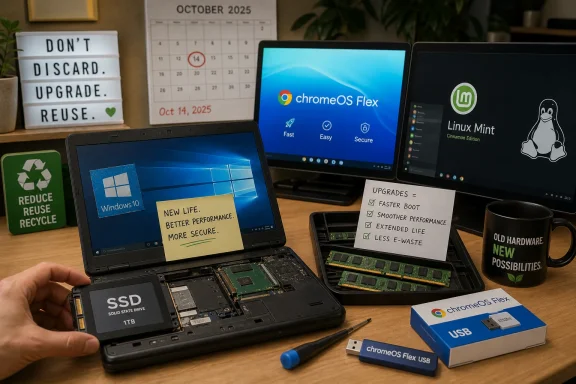 Microsoft Ended Support, but the Hardware Did Not Suddenly Fail
The most important thing to say about Windows 10’s end of support is also the easiest thing to miss: October 14, 2025 did not flip a kill switch. PCs running Windows 10 still power on, launch applications, connect to Wi-Fi, and open browsers. For many people, that creates a dangerous sense of continuity, because the machine looks the same on October 15 as it did the day before.The risk is not immediate mechanical failure. The risk is that Windows 10 has moved out of the normal patch stream for most users, meaning newly discovered vulnerabilities no longer receive the same free monthly treatment that defined the supported life of the operating system. That matters most for the activities people actually do on old computers: web browsing, email, banking, messaging, school portals, remote work, and document handling.
Microsoft’s Extended Security Updates program gives some users more time, and businesses with managed fleets have more formal options than a household with a seven-year-old laptop. But extra time is not the same as a future. ESU is a bridge, not a renovation, and bridges are useful only if you know where they are supposed to lead.
That is where the TechRepublic list becomes interesting. It does not treat Windows 10’s retirement as a single decision with one correct answer. Instead, it sketches a small decision tree: change the operating system, improve the hardware, or do both.
The Windows 11 Requirement Became a Recycling Filter
Microsoft’s Windows 11 hardware requirements were always more than a spec sheet. TPM 2.0, newer CPU generations, Secure Boot expectations, and a broader security baseline turned the Windows 11 upgrade into a sorting mechanism. Some PCs that ran Windows 10 comfortably for years found themselves outside the official migration path.From Microsoft’s point of view, the logic is defensible. Modern Windows security leans heavily on hardware-backed protections, virtualization-based security, firmware integrity, and a more controlled platform baseline. A supported Windows ecosystem made up of fewer, newer, better-secured configurations is easier to defend than an endless sprawl of aging consumer laptops and office desktops.
From the user’s point of view, the experience is less elegant. A computer that still handles documents, YouTube, email, and spreadsheets can be declared unsuitable not because it is slow, broken, or incapable, but because it fails a platform eligibility check. That distinction is where frustration turns into e-waste.
The old Windows bargain was simple: if the PC still worked, Windows would probably keep working on it. Windows 11 changed that bargain. The result is a new category of hardware that is not obsolete in any ordinary sense, but is outside Microsoft’s preferred future.
That gap is exactly where ChromeOS Flex and Linux Mint see opportunity. They are not trying to preserve Windows. They are trying to rescue the PC underneath it.
ChromeOS Flex Is the Browser-First Escape Hatch
ChromeOS Flex is the cleanest answer for the user whose old Windows 10 laptop was already functioning mostly as a browser appliance. If the daily routine is Gmail, Outlook on the web, Google Docs, Microsoft 365 in a tab, streaming video, school portals, social media, and cloud storage, then the local operating system matters less than it used to. ChromeOS Flex leans into that reality.Google’s partnership with Back Market around a low-cost ChromeOS Flex USB kit is clever because it attacks the least glamorous part of an operating-system switch: installation friction. Technically inclined users have long been able to create bootable USB installers. The problem is that many normal users do not want to download an image, find the right utility, select a USB device, change boot order, and hope they do not erase the wrong disk.
A prebuilt USB kit with setup guidance reframes the process. It says: this is not a hobbyist project; this is a recovery path. That positioning matters because the audience is not only Linux tinkerers and Chromebook fans. It is anyone with a Windows 10 laptop that cannot move to Windows 11 and no desire to buy a new machine just to browse the web.
ChromeOS Flex’s biggest strength is also its biggest limitation. It is good when the browser is the computer. It is less compelling when users depend on traditional Windows desktop applications, local peripherals with finicky drivers, offline workflows, specialized accounting software, old games, or niche hardware utilities.
There is also a difference between ChromeOS Flex and the ChromeOS experience on a certified Chromebook. Flex can be excellent on compatible hardware, but users should not assume every aging laptop will behave like a purpose-built Chromebook. Wi-Fi, Bluetooth, sleep behavior, webcams, touchpads, and firmware quirks can still separate a delightful rescue from an afternoon of troubleshooting.
Even with those caveats, ChromeOS Flex has a compelling role in the post-Windows 10 landscape. It does not ask the old PC to impersonate a modern Windows 11 machine. It asks a more practical question: can this hardware become a secure, low-maintenance web terminal?
For many households, that answer will be yes.
Linux Mint Carries the Desktop Torch Windows 10 Dropped
If ChromeOS Flex is the browser-first option, Linux Mint is the traditional desktop option for users willing to leave Windows but not the desktop metaphor. Mint has long benefited from a familiar layout: panel, menu, system tray, windows, file manager, settings, and local applications. It does not require users to reinterpret the entire idea of a personal computer.That familiarity matters more than Linux advocates sometimes admit. Switching operating systems is not only a technical migration; it is a muscle-memory migration. People know where to click, how to manage files, how to open a settings panel, and how a desktop is supposed to behave. Mint’s value is that it offers a new underlying platform without making the user feel like they have been dropped into a software anthropology exhibit.
For older PCs, the Xfce edition is especially relevant. It trades some visual polish and modern desktop effects for lower resource use, which can make a machine with modest RAM or older integrated graphics feel less burdened. On hardware that wheezed under late-stage Windows 10, that can be the difference between “technically usable” and “actually tolerable.”
Linux Mint also has a stronger local-computing story than ChromeOS Flex. Firefox, LibreOffice, media players, file tools, Steam in some cases, and a broad package ecosystem make it viable for users who still want a general-purpose desktop. It is not Windows, but it is not merely a browser shell either.
The tradeoff is compatibility. Some Windows applications have Linux equivalents. Some can be replaced by web apps. Some may run through compatibility layers. Others will not be worth the trouble. Before installing Mint on a primary machine, users should make a brutally honest inventory of the applications and devices they depend on.
That includes printers, scanners, VPN clients, accounting tools, accessibility software, password managers, conferencing platforms, and any work-mandated security agents. Linux can handle a great deal in 2026, but “Linux can do this” and “this user can switch this week without consequences” are not the same claim.
Mint is the strongest choice for the user who wants to keep the PC as a PC. It preserves the idea of local ownership better than most mainstream alternatives. In a computing market increasingly shaped by subscriptions, cloud accounts, and hardware eligibility gates, that makes Mint feel less like a fallback and more like a quiet argument.
The SSD Upgrade Is the Least Ideological Fix
Operating-system changes attract attention because they feel dramatic. But for many old Windows 10 machines, the single most transformative upgrade is not ideological at all. It is replacing slow storage with an SSD.A laptop still using a mechanical hard drive is often not old in the way users think it is old. It may not be CPU-bound during normal tasks. It may be storage-bound: waiting to boot, waiting to launch apps, waiting to index files, waiting for updates, waiting for swap, and waiting for the disk to stop grinding through background activity.
That is why a portable SSD such as Samsung’s T7 appears in TechRepublic’s list. Its advertised read and write speeds are far beyond what a spinning laptop hard drive can deliver under ordinary conditions. Even when real-world performance falls short of peak marketing numbers, the jump from a hard drive to solid-state storage can make an aging computer feel like it has escaped molasses.
There is a distinction, however, between using an external portable SSD and replacing an internal drive. An external SSD is excellent for fast file storage, backups, media libraries, project folders, and portability between devices. It can also be useful for certain boot scenarios, depending on hardware and operating-system support.
But the classic old-PC speed revival usually comes from replacing the internal boot drive with a SATA or NVMe SSD, where the operating system, applications, paging file, and user profile all benefit. A portable SSD can be part of the rescue kit, but it is not always the same as a full internal storage transplant.
Still, TechRepublic’s instinct is right: storage is where many “slow computer” complaints begin. Users often blame the whole PC when the bottleneck is a cheap hard drive that should have been retired years ago. If the machine has a replaceable drive bay, the economics can be excellent.
The post-Windows 10 context changes the calculation. If a PC cannot safely remain on Windows 10 indefinitely and cannot officially run Windows 11, an SSD upgrade should be paired with a plan. Installing Linux Mint on a new internal SSD, for example, can turn a sluggish Windows 10 laptop into a responsive general-purpose machine. ChromeOS Flex on solid-state storage can likewise feel cleaner than the same machine did under its old configuration.
Hardware upgrades are most powerful when they are not used to deny software reality. An SSD can make an old PC faster. It cannot make unsupported Windows 10 a wise long-term security posture.
RAM Is the Upgrade That Buys Breathing Room
If the hard drive is the first suspect in an old PC’s sluggishness, RAM is usually the second. Windows 10 machines that shipped with 4GB of memory were barely comfortable by the later years of the OS, especially once modern browsers became the primary application platform. Even 8GB can feel tight when the workload includes dozens of tabs, video meetings, cloud sync tools, antivirus, office apps, and background update services.A Crucial DDR4 laptop memory upgrade is not glamorous. It does not change the computer’s identity. It does not give the user a new desktop environment or a new security model. What it does is reduce the constant pressure that forces the system to juggle memory, compress pages, and lean harder on storage.
The impact is most obvious in multitasking. A machine with too little RAM can feel fine with one browser tab and miserable with twelve. Add a video call, a spreadsheet, a PDF, and a chat client, and the whole experience becomes a lesson in patience. More memory gives the system room to breathe.
There are limits. Some laptops have soldered RAM. Some have one slot. Some support only certain capacities or speeds. Some old machines are simply not worth upgrading because the CPU, battery, display, keyboard, hinges, or firmware are already near the end of useful life.
The practical advice is to check before buying. Users should identify the exact model, confirm whether memory is upgradeable, verify the maximum supported capacity, and decide whether the cost makes sense compared with a refurbished replacement. A $30 or $50 upgrade can be a bargain. A more expensive upgrade for a physically worn-out machine may be nostalgia wearing a spreadsheet costume.
RAM also interacts with the operating-system choice. Linux Mint Xfce can be more forgiving than Windows 10 on modest hardware. ChromeOS Flex can feel efficient when the workload stays web-centric. But the modern web is not light, and even a lean operating system cannot make unlimited browser tabs free.
The broader lesson is that old PCs are often not uniformly obsolete. They are unevenly constrained. Storage, memory, battery, and software support age at different rates, and the right fix depends on which one is actually failing the user.
The Security Story Is Bigger Than Antivirus
Many users will be tempted to keep Windows 10 online and compensate with caution. They will install a reputable browser, keep antivirus enabled, avoid suspicious downloads, and tell themselves they are not doing anything risky. That is better than recklessness, but it is not a substitute for operating-system support.Modern security is layered. Browsers matter. Application updates matter. DNS filtering, password managers, multifactor authentication, and endpoint protection matter. But the operating system remains the foundation that mediates drivers, memory, credentials, local privilege boundaries, kernel behavior, networking, file access, and hardware integration.
Once that foundation stops receiving normal security fixes, every other layer has to work harder. A fully patched browser on an unsupported OS is better than an unpatched browser on an unsupported OS, but it does not restore the old risk profile. The missing patches accumulate as the unsupported period lengthens.
This is where alternative operating systems have an advantage that is easy to understate. ChromeOS Flex and Linux Mint do not merely make old hardware faster or cheaper to keep. They move the machine back onto a maintained platform, assuming the hardware is compatible and the user keeps the new OS updated.
For an offline machine used to control a hobby device, open old documents, or run a legacy application disconnected from the internet, the calculus may be different. But most home and small-business PCs are not offline appliances. They are internet endpoints, and internet endpoints need supported software.
The security argument should not be exaggerated into panic. A Windows 10 PC did not become radioactive on October 15, 2025. But it did become a declining asset from a patch-management perspective. The longer it remains in daily online use without extended security coverage, the more the user is betting against time.
The Greenest PC Is the One That Gets a Second Job
The sustainability angle around old Windows 10 hardware can sound like marketing until you look at the scale. The number of PCs affected by Windows 10’s end of support is enormous, and even a small percentage being prematurely discarded represents a meaningful waste of materials, manufacturing energy, transportation, and money.ChromeOS Flex is especially explicit about this pitch. Google’s message is not only that old PCs can become useful again, but that extending device life reduces e-waste. Back Market’s involvement reinforces the refurbished-hardware framing: the cheapest and greenest computer is often the one already manufactured.
That argument should not be used to shame people into keeping bad hardware forever. A laptop with a failing battery, dim display, broken hinge, unsupported Wi-Fi, and poor performance may be ready for responsible recycling. Energy efficiency also matters; a newer machine can use less power and deliver better security.
But the binary between “upgrade to Windows 11” and “throw it away” is false. Many Windows 10-era PCs are perfectly good candidates for lighter operating systems, storage upgrades, memory upgrades, or secondary roles. They can become kitchen computers, student writing machines, guest laptops, media stations, workshop terminals, travel machines, or dedicated devices for a narrow workload.
This is the overlooked virtue of the TechRepublic list. It does not pretend every old PC deserves heroic intervention. It argues that some do, and that users should make the call based on workload rather than Microsoft’s upgrade screen alone.
A functioning computer should not be landfill by default. It should be evaluated, repurposed, secured, and only then retired if the numbers and the use case no longer make sense.
Consumer Advice Gets Messy When It Meets Real IT
For individual users, the decision may be simple: install ChromeOS Flex, try Mint, upgrade storage, or buy a new laptop. For IT departments, the same options become more complicated. Fleet management is not a weekend project.ChromeOS Flex can be attractive for organizations that already live in Google Workspace or need low-cost managed browser endpoints. But hardware compatibility, enrollment, policy management, user training, and support expectations still matter. A random assortment of retired Windows laptops does not automatically become a coherent managed fleet.
Linux Mint is even trickier in business environments. It can be excellent for technically confident users or specific roles, but many organizations depend on Windows-only management tools, identity integrations, compliance agents, VPNs, device encryption policies, and line-of-business software. The issue is not whether Linux is capable. The issue is whether the organization is prepared to support it.
Hardware upgrades across a fleet raise similar questions. Replacing SSDs and RAM in ten machines is a repair bench project. Doing it for hundreds of endpoints requires inventory, labor, warranty analysis, imaging, asset tracking, and a support model. Sometimes buying new hardware is not wasteful; it is operationally rational.
Still, the enterprise lesson is not “ignore these options.” It is “segment the fleet.” Some machines should move to Windows 11. Some should receive ESU while a migration project finishes. Some should be replaced. Some may be repurposed into thin-client-style endpoints. Some can be wiped and donated with a supported alternative OS.
The worst response is drift: letting unsupported Windows 10 machines remain in service because no one made a decision. Unsupported endpoints have a way of becoming invisible until they become incidents.
For small businesses, churches, schools, clinics, and nonprofits, the TechRepublic list may be more actionable than a formal Microsoft migration guide. It gives names to the practical paths: browser appliance, Linux desktop, faster storage, more memory. The missing ingredient is governance.
Someone still has to decide which path fits which machine.
The Best Upgrade May Be Honesty About the Workload
The useful life of an old PC depends less on its age than on what the owner expects from it. A 2017 laptop might be hopeless for modern gaming, heavy video editing, or Windows 11 compliance, yet perfectly adequate for browser-based schoolwork after a clean OS install. Another machine from the same year might be a poor candidate because of a cracked chassis, weak battery, or unsupported wireless hardware.That is why users should begin with workload, not product selection. If the machine is mostly for web apps, ChromeOS Flex deserves a look. If the user wants a familiar desktop with local applications and is willing to learn a little, Linux Mint is a strong candidate. If the machine is painfully slow but otherwise compatible and physically sound, an SSD or RAM upgrade may be the first move.
There is also a sequencing strategy. Before wiping Windows 10, users should back up files, export browser data if necessary, document software license keys, check whether critical apps have web or Linux alternatives, and test the new operating system from USB where possible. A rescue plan that begins with erasing the only copy of the family tax folder is not a rescue plan.
The user should also decide whether the PC needs to remain secure for sensitive tasks. A repurposed device for recipes, streaming, or offline writing has a different risk profile from a machine used for banking, client records, or administrator access to business systems. The more sensitive the work, the less tolerance there should be for unsupported operating systems and improvised maintenance.
None of this requires panic buying. It requires classification. The post-Windows 10 household may end up with one new Windows 11 laptop, one old machine converted to Linux Mint, one ChromeOS Flex web terminal, and one PC responsibly recycled. That is a better outcome than replacing everything blindly or trusting everything indefinitely.
The old PC question is not “can it still run?” It is “what job can it safely do now?”
Four Lifelines, One Reality Check
The useful way to read TechRepublic’s product list is not as a shopping guide but as a map of the choices Microsoft’s deadline has exposed. Each option solves a different problem, and none solves all of them.- ChromeOS Flex is strongest when the old PC’s real job is web browsing, cloud apps, streaming, email, and low-maintenance family computing.
- Linux Mint is the better escape route for users who still want a conventional desktop, local applications, and more control over the machine.
- An SSD upgrade can dramatically improve responsiveness on systems still using mechanical hard drives, especially when paired with a fresh supported operating system.
- A RAM upgrade can extend the life of laptops that struggle with browser tabs, video calls, office apps, and ordinary multitasking.
- Windows 10 Extended Security Updates can buy time, but they should be treated as a migration bridge rather than a long-term plan.
- The right answer depends on hardware condition, software needs, security risk, and the user’s willingness to leave the Windows ecosystem.
Microsoft’s support calendar has forced a reckoning that the PC market postponed for years: operating-system support, hardware capability, security expectations, and environmental cost are now the same conversation. ChromeOS Flex, Linux Mint, SSDs, and RAM upgrades will not save every Windows 10 machine, and they should not be sold as magic. But they give users something better than resignation: a way to sort the machines worth saving from the ones whose next responsible upgrade is retirement.
Source: TechRepublic 4 Products That Could Keep Old PCs Useful After Windows 10
