

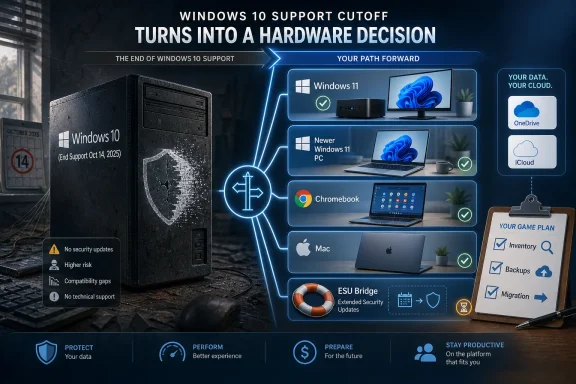
Microsoft’s Windows 10 support cutoff on October 14, 2025, has pushed millions of owners of older desktop PCs into a practical choice in 2026: upgrade eligible hardware to Windows 11, pay or enroll for temporary security updates, replace the machine, or leave Windows entirely. That is the plain mechanics of the moment. The deeper story is that a software deadline has become a hardware-buying event. For Windows users, the old desktop is no longer just a box under the desk; it is now a security, compatibility, and ecosystem decision.
For years, the family desktop survived because it did not need to be exciting. It paid bills, stored photos, printed forms, ran Office, launched a browser, and sat quietly until someone needed it. The machine could be slow, dusty, and forgettable, but as long as Windows Update kept arriving, it remained socially acceptable technology.
Windows 10’s end of support changed that arrangement. Microsoft did not flip a switch that made old PCs stop booting, and that distinction matters. But the company did end the ordinary stream of free security fixes, feature maintenance, and consumer reassurance that made “it still works” feel like a good enough answer.
That is why a local consumer-tech segment about replacing a desktop PC lands harder than the usual buying advice. The question is not whether a new computer is faster than a ten-year-old tower. Of course it is. The question is whether the user’s actual needs still justify owning a traditional Windows desktop at all.
Microsoft’s message has been consistent: move to Windows 11 if your PC qualifies, buy newer hardware if it does not, or use Extended Security Updates as a bridge. That sounds orderly from Redmond. From the kitchen table, it feels more like a forced inventory of every habit the old PC used to support.
Banking lives in the phone. Photos live in iCloud, Google Photos, OneDrive, or an external drive nobody has checked in two years. Streaming moved to smart TVs and tablets. Email became a web page. Even documents, once the desktop’s last reliable fortress, increasingly live in browser tabs and cloud editors.
That does not make the desktop obsolete. It makes it specialized again. A Windows PC is still the best answer for many jobs: serious gaming, local media libraries, CAD work, accounting packages, multi-monitor productivity, lab gear, legacy peripherals, repair utilities, and the endless small-business software that never quite became a modern web app.
But for the household whose desktop is mostly a portal to Chrome, Gmail, Facebook, online banking, YouTube, TurboTax, and a printer, the old question “Which PC should I buy?” has become too narrow. The real question is: what job is this machine still doing that a phone, tablet, Chromebook, mini PC, or laptop cannot do better, cheaper, or with less maintenance?
They also strand a class of machines that remain perfectly usable by older standards. A desktop with an SSD, 16GB of RAM, and a still-capable CPU may feel fast enough for everyday use but fail the official Windows 11 test because of processor generation or security-platform requirements. That is an awkward place for consumers and an even more awkward one for small offices.
The usual enthusiast answer is that Windows 11 can be installed on unsupported hardware through workarounds. That is technically true in many cases, but it is not a satisfying recommendation for the audience now being pushed into this decision. A community member with imaging tools, spare drives, and a tolerance for future update weirdness can experiment. A retiree, a school office, or a one-person business should not be told that unsupported installs are the new normal.
That is the fracture line Microsoft created. The company is not merely asking users to move from one version of Windows to another. It is asking them to accept that the official Windows future starts at a hardware boundary many consumers never knew existed.
That is useful, especially for households and small businesses that need time. It is also easy to misunderstand. ESU is not a feature-update program, not a performance tune-up, not a promise that every third-party app and driver will remain happy, and not a long-term plan for a machine that touches sensitive accounts.
The best way to think about ESU is as a fire escape, not an apartment. It gives users time to back up files, identify software dependencies, test replacements, and avoid panic buying. It does not restore the old assumption that Windows 10 is a supported mainstream platform.
This distinction matters because security risk is cumulative. A Windows 10 machine enrolled in ESU is in a better position than one abandoned entirely. But the PC ecosystem around it keeps moving: browsers revise support policies, hardware vendors stop caring about drivers, security tools optimize for newer builds, and software developers eventually test against what most customers run.
A user who only needs web access, email, streaming, light documents, and bill paying may not need a premium desktop or even a Windows PC. A Chromebook can be sufficient if the user is comfortable living in the browser and does not rely on Windows-only software. A tablet with a keyboard can work for people whose typing needs are light and whose printing needs are minimal. A refurbished business mini PC can offer a familiar Windows experience for far less than a new tower.
The hidden cost is not only the device. It is migration. Files must be copied, accounts recovered, passwords found, printers reconnected, scanners tested, tax files located, and two-factor authentication moved cleanly. The machine may be cheap; the transition can be expensive in time.
That is where many buyers make the wrong trade. They overbuy hardware to avoid thinking through workflow, then discover that the new PC still does not know where the old Quicken file is. Or they underbuy because the web seemed good enough, then discover that a legacy label printer or a Windows-only bookkeeping package was the one thing keeping the desktop relevant.
This is the most conservative replacement path for many WindowsForum readers helping relatives or clients. Keep the monitor, keyboard, mouse, speakers, and desk setup. Replace only the aging Windows 10 box with a Windows 11-capable mini desktop. The user gets the continuity of a desktop without paying for expansion slots and drive bays they will never use.
The trade-off is repairability and expansion. A traditional tower remains easier to service, easier to upgrade, and better suited for discrete graphics, multiple internal drives, capture cards, and other add-ins. But many household desktops have not had a PCIe card installed since the Obama administration. For them, the expandability argument is mostly nostalgia.
Mini PCs also fit the energy and clutter reality of 2026. A machine that uses less power, produces less heat, and avoids the whine of an old power supply is not just a nicer PC. It is a better household appliance.
Docking has also changed the calculation. A modern laptop connected to a monitor, keyboard, mouse, and USB-C hub can behave like a desktop most of the time, then leave the desk when needed. For students, hybrid workers, caregivers, and anyone who sometimes needs the same computer in another room, that flexibility is real.
The downside is longevity. Laptops are more physically vulnerable, more thermally constrained, harder to repair, and more expensive to upgrade. Batteries age. Hinges fail. Screens crack. A laptop used as a desktop replacement can last years, but it is still a compromise dressed as convenience.
For users who never move the machine, a mini desktop may be the better value. For users who might move it even occasionally, the laptop’s all-in-one nature can justify the premium. The decision should be based on behavior, not the sales-floor assumption that portability is automatically progress.
For many people, that is enough. Webmail, Google Docs, Microsoft 365 in the browser, streaming, basic photo access, and online banking all work comfortably. The administrative burden is lower, which matters for families where one tech-savvy person unofficially supports everyone else.
But Chromebooks fail in the same place every non-Windows option fails: the one stubborn dependency. A specific Windows tax program, a scanner utility, an old genealogy database, a label maker, a proprietary VPN client, a niche accessibility tool, or a local accounting package can turn a cheap Chromebook into an expensive mistake.
This is why the desktop replacement conversation should begin with software, not hardware. Before buying anything, list the programs that must run locally. If that list is empty, Windows is optional. If the list contains even one irreplaceable Windows application, the replacement path narrows quickly.
But switching to macOS is not the same as buying a nicer PC. Keyboard shortcuts change. Window management changes. File-system habits change. Peripheral support is usually good but not universal. Windows-only software may require a web alternative, a subscription replacement, remote access to an old PC, or virtualization that adds cost and complexity.
The Mac mini is particularly relevant in this moment because it competes with the idea of a compact desktop rather than the tradition of the tower. For users whose local computing needs are modern and whose budget allows it, it can be a polished replacement. For users with legacy Windows software, it can be a beautiful dead end.
The Windows 10 cutoff may push some households to Apple, but it will not do so because macOS is a direct substitute. It will do so because the user’s real computing life has already migrated to cross-platform services, and the old Windows-only ties have finally snapped.
The phrase “for the right user” does a lot of work. Linux is excellent when someone understands the trade-offs, has compatible hardware, and does not depend on Windows-only applications. It is less excellent when installed as a surprise on a family member’s PC because the hardware failed the Windows 11 checker.
The support model changes. Instead of asking why Windows Update did something strange, the user may be asking why a printer driver, fingerprint reader, game anti-cheat system, or proprietary app does not behave as expected. Those problems may be solvable. They may also be exactly the kind of thing the average consumer wanted to avoid by buying a computer in the first place.
For WindowsForum’s enthusiast audience, Linux is a legitimate preservation strategy. For the broader public, it is best framed as an option for people willing to learn a different computing culture, not as a universal rescue disk for Windows 10 refugees.
Unsupported PCs do not become instantly compromised. That is part of the problem. They continue to work just well enough that users normalize the risk. A browser still opens, passwords still autofill, bank sites still load, and the printer still spits out forms. The absence of immediate failure becomes evidence, wrongly, that nothing important has changed.
Security professionals know better. The end of support changes the economics for attackers and defenders. Newly discovered vulnerabilities no longer receive the same mainstream patch response for that operating system. Over time, the unsupported base becomes more attractive precisely because it contains users who have already shown they are slow to migrate.
The answer is not panic. It is classification. A Windows 10 machine kept offline for retro games, old media software, or a workshop controller is a different risk from one used for banking and email. The closer the machine is to identity, money, and cloud accounts, the less defensible unsupported operation becomes.
Replacing that PC is not a trip to a big-box store. It may involve vendor support, license transfers, database backups, compliance obligations, and downtime. The machine might be old because replacing it was never trivial, not because the owner failed to notice new computers exist.
This is where Microsoft’s hardware line in the sand becomes operationally expensive. A business may be willing to buy new hardware but still need to validate every attached device and application. Even when Windows 11 is technically compatible, the migration can expose abandoned software, missing installers, unknown passwords, and vendor contracts nobody remembers signing.
For small organizations, ESU buys time to do this properly. But the clock should be used for inventory, testing, and staged replacement, not wishful waiting. The worst migration is the one triggered by a failed hard drive on a Friday afternoon after the support deadline has already passed.
But security and energy use complicate the equation. An old desktop may draw significantly more power than a modern mini PC or laptop while doing the same work. It may also require workarounds, unsupported software, and eventual emergency replacement. Keeping hardware alive is virtuous only if the use case remains safe and efficient.
The better environmental answer is not “never replace.” It is “replace deliberately.” Reuse monitors and peripherals where practical. Repurpose older machines offline or with Linux when appropriate. Recycle responsibly when they are done. Buy hardware sized to the task rather than treating every replacement as an opportunity to overspec.
The Windows 10 cutoff will generate e-waste, and Microsoft cannot fully wash its hands of that. But users still have agency in how much waste they create. A careful mini PC purchase, a refurbished business desktop, or a properly repurposed Linux box is a different environmental story from a panic-bought tower that spends the next five years idling under a desk.
This inventory often reveals that the old PC is either more replaceable or more critical than assumed. Some users discover that everything important is already in the cloud and a lightweight device will do. Others discover that one old application is the entire reason the machine still matters.
Backups come next. Not vibes, not “I think OneDrive has it,” not “the photos are probably on the phone.” A real backup means files have been copied to another location and restored or at least visibly checked. The moment before replacing a PC is when users discover how much of their digital life was stored in Downloads, Desktop, AppData, or an application-specific folder with a name only the software vendor understands.
Only after that should anyone shop. The right hardware answer is downstream of the workflow. Microsoft’s deadline may have started the conversation, but the user’s actual computing life should finish it.
The business user should be more conservative. If revenue depends on the machine, choose compatibility and support over novelty. Buy from a vendor with predictable driver support, keep recovery media and license details, and test peripherals before retiring the old box.
The enthusiast can be more adventurous. Unsupported Windows 11 installs, Linux conversions, home-lab repurposing, NAS duty, retro gaming, and offline workstation roles are all reasonable fates for old hardware in skilled hands. The key is not confusing an enthusiast workaround with consumer advice.
That distinction is the heart of the post-Windows 10 moment. A community like WindowsForum can explore every edge case. The average user needs the answer that will still make sense when nobody technical is in the room.
 Microsoft Turned an Operating-System Deadline Into a Hardware Audit
For years, the family desktop survived because it did not need to be exciting. It paid bills, stored photos, printed forms, ran Office, launched a browser, and sat quietly until someone needed it. The machine could be slow, dusty, and forgettable, but as long as Windows Update kept arriving, it remained socially acceptable technology.Windows 10’s end of support changed that arrangement. Microsoft did not flip a switch that made old PCs stop booting, and that distinction matters. But the company did end the ordinary stream of free security fixes, feature maintenance, and consumer reassurance that made “it still works” feel like a good enough answer.
That is why a local consumer-tech segment about replacing a desktop PC lands harder than the usual buying advice. The question is not whether a new computer is faster than a ten-year-old tower. Of course it is. The question is whether the user’s actual needs still justify owning a traditional Windows desktop at all.
Microsoft’s message has been consistent: move to Windows 11 if your PC qualifies, buy newer hardware if it does not, or use Extended Security Updates as a bridge. That sounds orderly from Redmond. From the kitchen table, it feels more like a forced inventory of every habit the old PC used to support.
The Desktop PC Lost Its Monopoly Before Users Noticed
The most important thing about replacing an old desktop in 2026 is that the replacement may not be a desktop. That would have sounded radical in the Windows XP era, when the PC was the household’s digital center of gravity. Today, many users have already moved most of their computing life elsewhere without formally admitting it.Banking lives in the phone. Photos live in iCloud, Google Photos, OneDrive, or an external drive nobody has checked in two years. Streaming moved to smart TVs and tablets. Email became a web page. Even documents, once the desktop’s last reliable fortress, increasingly live in browser tabs and cloud editors.
That does not make the desktop obsolete. It makes it specialized again. A Windows PC is still the best answer for many jobs: serious gaming, local media libraries, CAD work, accounting packages, multi-monitor productivity, lab gear, legacy peripherals, repair utilities, and the endless small-business software that never quite became a modern web app.
But for the household whose desktop is mostly a portal to Chrome, Gmail, Facebook, online banking, YouTube, TurboTax, and a printer, the old question “Which PC should I buy?” has become too narrow. The real question is: what job is this machine still doing that a phone, tablet, Chromebook, mini PC, or laptop cannot do better, cheaper, or with less maintenance?
Windows 11 Compatibility Is the Wall Many Old Towers Hit
Windows 11’s hardware requirements are the reason so many replacement conversations start with irritation. The operating system requires, among other things, a supported 64-bit processor, Secure Boot capability, and TPM 2.0. Those requirements make sense in Microsoft’s security narrative, where modern hardware roots of trust and firmware protections are foundational rather than optional.They also strand a class of machines that remain perfectly usable by older standards. A desktop with an SSD, 16GB of RAM, and a still-capable CPU may feel fast enough for everyday use but fail the official Windows 11 test because of processor generation or security-platform requirements. That is an awkward place for consumers and an even more awkward one for small offices.
The usual enthusiast answer is that Windows 11 can be installed on unsupported hardware through workarounds. That is technically true in many cases, but it is not a satisfying recommendation for the audience now being pushed into this decision. A community member with imaging tools, spare drives, and a tolerance for future update weirdness can experiment. A retiree, a school office, or a one-person business should not be told that unsupported installs are the new normal.
That is the fracture line Microsoft created. The company is not merely asking users to move from one version of Windows to another. It is asking them to accept that the official Windows future starts at a hardware boundary many consumers never knew existed.
Extended Security Updates Are a Bridge, Not a Home
Microsoft’s consumer Extended Security Updates program softens the deadline, but it does not erase it. For Windows 10 version 22H2 systems, ESU offers a way to keep receiving security updates for a limited period after the October 2025 cutoff. Depending on region and enrollment path, consumers have seen options involving payment, Microsoft account sign-in, rewards points, or backup and sync requirements.That is useful, especially for households and small businesses that need time. It is also easy to misunderstand. ESU is not a feature-update program, not a performance tune-up, not a promise that every third-party app and driver will remain happy, and not a long-term plan for a machine that touches sensitive accounts.
The best way to think about ESU is as a fire escape, not an apartment. It gives users time to back up files, identify software dependencies, test replacements, and avoid panic buying. It does not restore the old assumption that Windows 10 is a supported mainstream platform.
This distinction matters because security risk is cumulative. A Windows 10 machine enrolled in ESU is in a better position than one abandoned entirely. But the PC ecosystem around it keeps moving: browsers revise support policies, hardware vendors stop caring about drivers, security tools optimize for newer builds, and software developers eventually test against what most customers run.
The Thousand-Dollar PC Is Often the Wrong Benchmark
Consumer advice often begins with the fear of spending a thousand dollars. That number still has psychological force because a full-size desktop and monitor once represented a major household purchase. But the modern replacement market is more varied than that sticker shock suggests.A user who only needs web access, email, streaming, light documents, and bill paying may not need a premium desktop or even a Windows PC. A Chromebook can be sufficient if the user is comfortable living in the browser and does not rely on Windows-only software. A tablet with a keyboard can work for people whose typing needs are light and whose printing needs are minimal. A refurbished business mini PC can offer a familiar Windows experience for far less than a new tower.
The hidden cost is not only the device. It is migration. Files must be copied, accounts recovered, passwords found, printers reconnected, scanners tested, tax files located, and two-factor authentication moved cleanly. The machine may be cheap; the transition can be expensive in time.
That is where many buyers make the wrong trade. They overbuy hardware to avoid thinking through workflow, then discover that the new PC still does not know where the old Quicken file is. Or they underbuy because the web seemed good enough, then discover that a legacy label printer or a Windows-only bookkeeping package was the one thing keeping the desktop relevant.
Mini PCs Are the Quiet Winner of the Windows 10 Deadline
If the goal is to keep a Windows desktop experience without buying another bulky tower, the modern mini PC deserves more attention than it gets. Intel NUC-style designs, AMD-powered small-form-factor boxes, and refurbished corporate micro desktops now cover a wide range of needs. For ordinary office and home tasks, they are often fast, quiet, power-efficient, and easy to tuck behind a monitor.This is the most conservative replacement path for many WindowsForum readers helping relatives or clients. Keep the monitor, keyboard, mouse, speakers, and desk setup. Replace only the aging Windows 10 box with a Windows 11-capable mini desktop. The user gets the continuity of a desktop without paying for expansion slots and drive bays they will never use.
The trade-off is repairability and expansion. A traditional tower remains easier to service, easier to upgrade, and better suited for discrete graphics, multiple internal drives, capture cards, and other add-ins. But many household desktops have not had a PCIe card installed since the Obama administration. For them, the expandability argument is mostly nostalgia.
Mini PCs also fit the energy and clutter reality of 2026. A machine that uses less power, produces less heat, and avoids the whine of an old power supply is not just a nicer PC. It is a better household appliance.
Laptops Became the Default Desktop Replacement by Accident
The laptop is the most obvious replacement for an old desktop, and not always because people need mobility. A laptop is a self-contained computer with a battery, screen, webcam, microphone, keyboard, trackpad, and Wi-Fi. For a household that wants fewer cables and fewer support calls, that package is hard to beat.Docking has also changed the calculation. A modern laptop connected to a monitor, keyboard, mouse, and USB-C hub can behave like a desktop most of the time, then leave the desk when needed. For students, hybrid workers, caregivers, and anyone who sometimes needs the same computer in another room, that flexibility is real.
The downside is longevity. Laptops are more physically vulnerable, more thermally constrained, harder to repair, and more expensive to upgrade. Batteries age. Hinges fail. Screens crack. A laptop used as a desktop replacement can last years, but it is still a compromise dressed as convenience.
For users who never move the machine, a mini desktop may be the better value. For users who might move it even occasionally, the laptop’s all-in-one nature can justify the premium. The decision should be based on behavior, not the sales-floor assumption that portability is automatically progress.
Chromebooks Are Good Until the One Windows Thing Appears
The Chromebook is the temptation Microsoft created for itself. If a Windows 10 desktop has become mostly a browser appliance, then Google’s browser-first computer starts to look like the honest version of what the user is already doing. It updates quietly, resists much of the traditional Windows malware ecosystem, and tends to cost less.For many people, that is enough. Webmail, Google Docs, Microsoft 365 in the browser, streaming, basic photo access, and online banking all work comfortably. The administrative burden is lower, which matters for families where one tech-savvy person unofficially supports everyone else.
But Chromebooks fail in the same place every non-Windows option fails: the one stubborn dependency. A specific Windows tax program, a scanner utility, an old genealogy database, a label maker, a proprietary VPN client, a niche accessibility tool, or a local accounting package can turn a cheap Chromebook into an expensive mistake.
This is why the desktop replacement conversation should begin with software, not hardware. Before buying anything, list the programs that must run locally. If that list is empty, Windows is optional. If the list contains even one irreplaceable Windows application, the replacement path narrows quickly.
Apple Is an Escape Route With Its Own Tollbooth
For some users, the Windows 10 deadline is an excuse to buy a Mac. Apple’s desktops and laptops have strong performance, long battery life in the laptop line, high-quality displays, and a reputation for lower day-to-day maintenance. For users already carrying iPhones and using iCloud, the ecosystem pull is obvious.But switching to macOS is not the same as buying a nicer PC. Keyboard shortcuts change. Window management changes. File-system habits change. Peripheral support is usually good but not universal. Windows-only software may require a web alternative, a subscription replacement, remote access to an old PC, or virtualization that adds cost and complexity.
The Mac mini is particularly relevant in this moment because it competes with the idea of a compact desktop rather than the tradition of the tower. For users whose local computing needs are modern and whose budget allows it, it can be a polished replacement. For users with legacy Windows software, it can be a beautiful dead end.
The Windows 10 cutoff may push some households to Apple, but it will not do so because macOS is a direct substitute. It will do so because the user’s real computing life has already migrated to cross-platform services, and the old Windows-only ties have finally snapped.
Linux Is the Enthusiast’s Rescue Plan, Not the Mass-Market Answer
Linux deserves its place in this debate because it can keep capable hardware useful long after Windows support ends. A well-chosen distribution can make an older desktop feel lively again, especially if the machine has an SSD and enough memory. For browsing, documents, media playback, development, and tinkering, Linux is not a fringe curiosity; it is a mature desktop for the right user.The phrase “for the right user” does a lot of work. Linux is excellent when someone understands the trade-offs, has compatible hardware, and does not depend on Windows-only applications. It is less excellent when installed as a surprise on a family member’s PC because the hardware failed the Windows 11 checker.
The support model changes. Instead of asking why Windows Update did something strange, the user may be asking why a printer driver, fingerprint reader, game anti-cheat system, or proprietary app does not behave as expected. Those problems may be solvable. They may also be exactly the kind of thing the average consumer wanted to avoid by buying a computer in the first place.
For WindowsForum’s enthusiast audience, Linux is a legitimate preservation strategy. For the broader public, it is best framed as an option for people willing to learn a different computing culture, not as a universal rescue disk for Windows 10 refugees.
The Real Security Risk Is the PC Nobody Admits Is Still in Use
The most dangerous post-Windows 10 machine is not the hobbyist box in a lab. It is the forgotten desktop that still signs into email, stores tax documents, and runs a browser under an unsupported operating system because nobody wanted to deal with it. It may sit in a spare room, a church office, a garage business, or the back desk of a small shop.Unsupported PCs do not become instantly compromised. That is part of the problem. They continue to work just well enough that users normalize the risk. A browser still opens, passwords still autofill, bank sites still load, and the printer still spits out forms. The absence of immediate failure becomes evidence, wrongly, that nothing important has changed.
Security professionals know better. The end of support changes the economics for attackers and defenders. Newly discovered vulnerabilities no longer receive the same mainstream patch response for that operating system. Over time, the unsupported base becomes more attractive precisely because it contains users who have already shown they are slow to migrate.
The answer is not panic. It is classification. A Windows 10 machine kept offline for retro games, old media software, or a workshop controller is a different risk from one used for banking and email. The closer the machine is to identity, money, and cloud accounts, the less defensible unsupported operation becomes.
The Small-Business Problem Is Nastier Than the Home Problem
Home users mostly face inconvenience and cost. Small businesses face workflow risk. A shop, clinic, nonprofit, repair desk, or local office may have one or two Windows 10 desktops tied to a receipt printer, scheduling system, medical peripheral, accounting package, domain login, VPN, or line-of-business app that nobody has audited in years.Replacing that PC is not a trip to a big-box store. It may involve vendor support, license transfers, database backups, compliance obligations, and downtime. The machine might be old because replacing it was never trivial, not because the owner failed to notice new computers exist.
This is where Microsoft’s hardware line in the sand becomes operationally expensive. A business may be willing to buy new hardware but still need to validate every attached device and application. Even when Windows 11 is technically compatible, the migration can expose abandoned software, missing installers, unknown passwords, and vendor contracts nobody remembers signing.
For small organizations, ESU buys time to do this properly. But the clock should be used for inventory, testing, and staged replacement, not wishful waiting. The worst migration is the one triggered by a failed hard drive on a Friday afternoon after the support deadline has already passed.
The Greenest PC Is Not Always the One You Keep Using
There is an environmental argument against replacing functional hardware, and it deserves more than a dismissive paragraph. Manufacturing new devices consumes materials and energy. A tower that still works is not trash simply because Microsoft changed the support matrix.But security and energy use complicate the equation. An old desktop may draw significantly more power than a modern mini PC or laptop while doing the same work. It may also require workarounds, unsupported software, and eventual emergency replacement. Keeping hardware alive is virtuous only if the use case remains safe and efficient.
The better environmental answer is not “never replace.” It is “replace deliberately.” Reuse monitors and peripherals where practical. Repurpose older machines offline or with Linux when appropriate. Recycle responsibly when they are done. Buy hardware sized to the task rather than treating every replacement as an opportunity to overspec.
The Windows 10 cutoff will generate e-waste, and Microsoft cannot fully wash its hands of that. But users still have agency in how much waste they create. A careful mini PC purchase, a refurbished business desktop, or a properly repurposed Linux box is a different environmental story from a panic-bought tower that spends the next five years idling under a desk.
The Buying Decision Starts With the Boring Inventory
The best replacement strategy is not glamorous. It begins by writing down what the old desktop actually does. That means installed applications, attached devices, saved files, browser bookmarks, email setup, cloud accounts, printers, scanners, external drives, passwords, and any software that came from a CD now lost to history.This inventory often reveals that the old PC is either more replaceable or more critical than assumed. Some users discover that everything important is already in the cloud and a lightweight device will do. Others discover that one old application is the entire reason the machine still matters.
Backups come next. Not vibes, not “I think OneDrive has it,” not “the photos are probably on the phone.” A real backup means files have been copied to another location and restored or at least visibly checked. The moment before replacing a PC is when users discover how much of their digital life was stored in Downloads, Desktop, AppData, or an application-specific folder with a name only the software vendor understands.
Only after that should anyone shop. The right hardware answer is downstream of the workflow. Microsoft’s deadline may have started the conversation, but the user’s actual computing life should finish it.
The Old Desktop’s Replacement Should Match the Job It Still Has
There is no universal answer, but there are patterns that hold up. The browser-first household should consider a Chromebook, tablet, or modest Windows laptop before defaulting to another tower. The user who wants the same desk experience with less noise and clutter should look hard at a Windows 11 mini PC. The gamer, creator, or hardware tinkerer still has good reasons to build or buy a traditional desktop.The business user should be more conservative. If revenue depends on the machine, choose compatibility and support over novelty. Buy from a vendor with predictable driver support, keep recovery media and license details, and test peripherals before retiring the old box.
The enthusiast can be more adventurous. Unsupported Windows 11 installs, Linux conversions, home-lab repurposing, NAS duty, retro gaming, and offline workstation roles are all reasonable fates for old hardware in skilled hands. The key is not confusing an enthusiast workaround with consumer advice.
That distinction is the heart of the post-Windows 10 moment. A community like WindowsForum can explore every edge case. The average user needs the answer that will still make sense when nobody technical is in the room.
The Windows 10 Refugee Checklist Is Shorter Than the Panic Suggests
The replacement decision feels sprawling because it touches hardware, security, habits, files, and money at once. Stripped down, though, the practical path is manageable: determine whether Windows is still required, protect the data, and avoid buying more computer than the job demands.- A Windows 10 PC that still goes online for banking, email, or work should either be enrolled in available security updates temporarily or replaced with a supported platform.
- A Windows 11-compatible PC does not need to be replaced just because it is old; it may only need the upgrade, an SSD, more memory, or cleanup.
- A desktop used mostly for web apps may be replaceable with a Chromebook, tablet, laptop, or mini PC, but only after checking printers, scanners, and required local software.
- A small-business PC should be migrated only after applications, licenses, peripherals, backups, and vendor support have been verified.
- An unsupported old machine can still have a second life offline, on Linux, or in a hobby role, but it should not quietly remain the household’s security weak point.
References
- Primary source: KTVN
Published: 2026-06-05T00:22:11.682957
What the Tech: Replacing your desktop PC
The latest Windows update is forcing thousands of people to make a decision-- buy a new computer, or get something else. Before spending a thousand dollars on a new desktopwww.2news.com - Related coverage: tomshardware.com
Windows 10 support ends today — here's who's affected and what you need to do | Tom's Hardware
Update if you can, upgrade if you can't, or at least get the extended support license.www.tomshardware.com - Official source: support.microsoft.com
Back up and restore with Windows Backup | Microsoft Support
Learn how to back up and restore apps, settings, files, photos, and Microsoft Edge favorites and preferences on your Windows PC using Windows Backup.support.microsoft.com - Related coverage: windowscentral.com
Windows 10 EOL is coming; see if your PC supports Windows 11 | Windows Central
The end of life for Windows 10 is approaching in October, so it's now the time to check if your computer is ready for the upgrade to Windows 11.www.windowscentral.com
