

Microsoft’s recent admission that some Windows 10 machines are showing an “end of support” banner even after customers enrolled in Extended Security Updates (ESU) has caused a predictable spike of alarm — but the root cause is a display bug, not a sudden loss of security patches, and Microsoft has pushed an automated server-side correction while preparing a longer-term fix.
Windows 10 reached its planned end of mainstream servicing in mid‑October 2025, and Microsoft published a consumer ESU program that lets eligible devices continue receiving security‑only updates through October 13, 2026. The final broad cumulative for mainstream Windows 10 was released on October 14, 2025 (distributed under the KB family tracked as KB5066791), and it is this update wave that preceded the confusing in‑OS message many users and administrators saw. Microsoft’s official ESU page sets the enrollment options plainly: enroll at no additional cost by syncing Windows Backup (Settings sync) to a Microsoft account, redeem 1,000 Microsoft Rewards points, or make a one‑time purchase (listed at $30 USD or local‑currency equivalent). Enrollment ties entitlement to the signing Microsoft account and — for consumer ESU — covers eligible Windows 10, version 22H2 devices through October 13, 2026. Why this matters: the OS lifecycle milestone is real. After the October cutoff non‑enrolled consumer devices stop receiving routine OS security and quality updates. ESU exists as a time‑boxed bridge; it is not a full continuation of mainstream servicing and it does not include feature updates or broad technical support. That made the banner — a blunt statement that “Your device is no longer receiving security updates” — especially alarming to people who had paid for or otherwise enrolled in ESU.
For end users and admins, the sensible course is pragmatic:
Source: ZDNET Windows 10 may warn support has ended even if you paid for extended updates – here's why
 Background: what changed and why people noticed it
Windows 10 reached its planned end of mainstream servicing in mid‑October 2025, and Microsoft published a consumer ESU program that lets eligible devices continue receiving security‑only updates through October 13, 2026. The final broad cumulative for mainstream Windows 10 was released on October 14, 2025 (distributed under the KB family tracked as KB5066791), and it is this update wave that preceded the confusing in‑OS message many users and administrators saw. Microsoft’s official ESU page sets the enrollment options plainly: enroll at no additional cost by syncing Windows Backup (Settings sync) to a Microsoft account, redeem 1,000 Microsoft Rewards points, or make a one‑time purchase (listed at $30 USD or local‑currency equivalent). Enrollment ties entitlement to the signing Microsoft account and — for consumer ESU — covers eligible Windows 10, version 22H2 devices through October 13, 2026. Why this matters: the OS lifecycle milestone is real. After the October cutoff non‑enrolled consumer devices stop receiving routine OS security and quality updates. ESU exists as a time‑boxed bridge; it is not a full continuation of mainstream servicing and it does not include feature updates or broad technical support. That made the banner — a blunt statement that “Your device is no longer receiving security updates” — especially alarming to people who had paid for or otherwise enrolled in ESU. What exactly happened: the bug, the scope, and the evidence
The symptom users saw
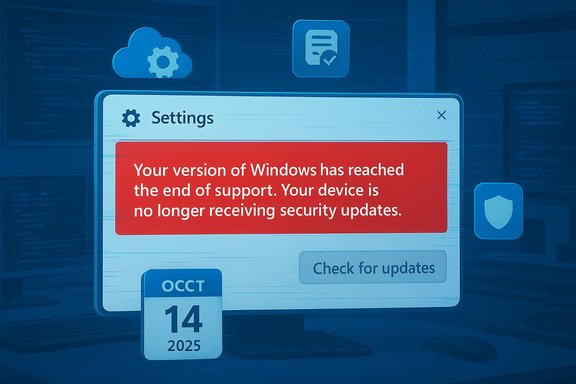
After the October cumulative (KB5066791) rolled out, a subset of Windows 10 machines began displaying a red banner inside Settings → Windows Update that reads: “Your version of Windows has reached the end of support. Your device is no longer receiving security updates.” In many reports the banner also disabled or hid the “Check for updates” button, which amplified the alarm.Which systems were affected
Observed cases include:- Windows 10, version 22H2 — Pro, Education, and Enterprise editions enrolled in ESU and configured with ESU product keys.
- Windows 10 Enterprise LTSC 2021 and Windows 10 IoT Enterprise LTSC 2021 instances, which have separate lifecycles and are still supported in many scenarios.
- Some Azure‑hosted VMs and Azure Virtual Desktop session hosts that, according to Azure entitlement rules, should receive ESU automatically. Those cloud VMs were reported to show the banner even while continuing to receive updates.
Root cause (what Microsoft and engineers say)
Microsoft characterized the incident as a display/diagnostic UI regression in the lifecycle messaging logic of the Windows Update settings page, not an interruption of ESU entitlements or update delivery. The Settings UI builds its lifecycle banners from multiple signals: local update metadata, cloud‑delivered configuration flags (OneSettings/Configuration Service Provider), entitlement telemetry, and management policies (Intune/Group Policy/WSUS). A misapplied or misinterpreted diagnostic flag after the October cumulative caused the banner to appear on some systems that were still entitled to updates.What Microsoft did (and what you can expect next)
Microsoft deployed a two‑track remediation:- An automatic server‑side (cloud) configuration update intended to clear the incorrect banner on internet‑connected devices that accept dynamic OneSettings CSP configuration. This is the path that will resolve the problem for the majority of consumer and many managed devices without user action.
- A Known Issue Rollback (KIR) package / Group Policy setting for locked‑down enterprise environments that block cloud configuration or are offline, letting IT administrators suppress the erroneous UI flag until a permanent code correction ships.
How to check whether your PC is actually affected (step‑by‑step)
- Open Settings → Update & Security → Windows Update and look for the red banner. If present, note the exact wording: “Your version of Windows has reached the end of support. Your device is no longer receiving security updates.”
- In the same Windows Update pane, look for an entitlement note: “Your PC is enrolled to get extended security updates” (or similar). If the Settings page explicitly says your PC is enrolled for ESU, that is a strong indicator your device remains entitled.
- Verify update history: open View update history and confirm recent monthly security updates (LCUs) are still being installed. If cumulative ESU patches are listed and recent, updates are still flowing.
- For enterprises: check activation via slmgr.vbs /dlv and confirm ESU MAK keys (if used) are installed and active. Microsoft’s documentation contains the authoritative activation and verification steps for purchased ESU keys.
Recommended actions for consumers, enthusiasts, and small IT shops
- If you are enrolled in ESU and you see the banner:
- Confirm update history and ESU enrollment in Settings as described above. If cumulative updates are still installing, you can treat the banner as cosmetic and wait for the cloud fix to clear it automatically.
- Ensure the device is online and not blocking Microsoft’s configuration endpoints (OneSettings CSP), so the server‑side correction can reach it.
- If you are not enrolled in ESU:
- Treat the banner as a real lifecycle notice: inventory the device, back up data, and evaluate upgrade or migration options (in‑place upgrade to Windows 11 where hardware allows, purchase ESU, or plan for device replacement or migration to a supported OS).
- If you want to enroll in consumer ESU now:
- Use Settings → Update & Security → Windows Update; the enrollment wizard presents the three consumer options (Settings sync, 1,000 Microsoft Rewards points, or a one‑time $30 purchase). Enrollment links the ESU license to your Microsoft account and covers up to 10 devices tied to that account.
- If you run a small fleet:
- Monitor update history and apply the KIR if you manage locked‑down systems that block dynamic cloud flags; Microsoft has published Known Issue Rollback guidance for enterprise administrators.
Enterprise and compliance considerations (why this bug is more than cosmetic to IT teams)
Lifecycle flags feed into compliance scans, endpoint management dashboards, and automated remediation playbooks. A false “end of support” flag can generate large numbers of false positives, produce unnecessary service tickets, or even trigger emergency procurement cycles for replacements. That noise consumes scarce IT resources and may trigger third‑party security policies that treat “unsupported OS” as an immediate non‑compliance. For large organizations, those operational costs can be material even if the underlying entitlement remains intact. If you manage thousands of endpoints:- Don’t rush to reimage or upgrade because of the banner alone.
- Verify ESU activation state centrally (slmgr.vbs queries, SCCM/Intune inventory) and confirm update delivery across the estate before triggering remediation playbooks.
Why this happened (a concise technical breakdown)
The Settings → Windows Update UI determines which lifecycle banner to display by combining multiple signals:- Local metadata from installed updates and the servicing stack (what the installed LCUs report).
- Cloud‑delivered dynamic configuration flags and diagnostic signals sent via the OneSettings Configuration Service Provider.
- Entitlement telemetry (ESU activation state, Azure VM entitlement metadata).
- Management policy that can permit or block cloud configuration changes.
Verification: cross‑checking the key claims
- The October 14, 2025 date and the KB identifier commonly associated with that servicing wave (KB5066791) are widely reported and match community telemetry for the last broad cumulative update for Windows 10 22H2. Multiple outlets and community trackers cite the same KB and date.
- Microsoft’s consumer ESU page confirms the enrollment methods (Settings sync, 1,000 Rewards points, or one‑time $30 purchase) and confirms ESU coverage runs through October 13, 2026 for eligible devices. That is the authoritative Microsoft position.
- Multiple independent outlets and Microsoft’s Release Health/Support channels confirm the issue is an incorrect display of the end‑of‑support message and that devices with active ESU licenses will continue to receive updates. This corroboration includes BetaNews, Windows Central, The Register, Tom’s Hardware and WindowsReport.
Risks, criticisms, and the trust problem
- Trust and user panic. The false banner undermines confidence in lifecycle messaging. When users or admins receive that notice they are likely to assume a material change in security posture, and may undertake hasty, costly actions. That harms trust in Microsoft’s communications channels.
- Operational friction for admins. False positives in lifecycle reporting can produce hundreds or thousands of unnecessary tickets and escalate to procurement or rapid migration decisions that could have been avoided with targeted verification.
- Optics around upgrade nudges. Some observers see the banner as amplifying pressure to move to Windows 11 — especially on hardware that cannot meet Windows 11 minimum requirements. Whether intentional or not, poorly applied lifecycle messaging can look coercive to users who have legitimate reasons to remain on Windows 10 for a limited time. That reputational cost matters for a company that depends on user trust.
- Edge cases and unverifiable reports. A small number of users have reported update failures or other KB‑specific installation errors (for example, certain failure codes while attempting KB5066791). Those incidents are environment‑specific and require on‑the‑ground troubleshooting; they are not evidence the display bug universally stops patch distribution. Treat individual failure reports as operational troubleshooting cases, not as refutation of Microsoft’s overall statement.
Practical checklist: what to do right now
- Confirm whether your device is enrolled in ESU via Settings. If it is, verify View update history to confirm monthly security updates are installing.
- Ensure the device is connected to the internet and not blocking Microsoft’s configuration endpoints so the server‑side fix can apply automatically.
- If you manage locked‑down systems, download and deploy Microsoft’s Known Issue Rollback (KIR) as a temporary measure until the permanent fix is delivered.
- For fleets: automate a verification script that queries ESU activation state (slmgr.vbs /dlv, inventory checks) and update history to suppress noise from false UI flags before executing costly remediation workflows.
Final analysis and takeaways
The October 2025 servicing milestone truly changed the support landscape for Windows 10: mainstream monthly feature and quality updates stopped and the consumer ESU program is the intended, limited bridge for remaining security updates through October 13, 2026. The alarming “end of support” message appearing on certain Windows 10 systems after the October cumulative was, according to Microsoft and multiple independent reports, a UI/display regression rather than an across‑the‑board withdrawal of security updates. That distinction matters: technically, many affected systems continued to receive the security patches they were entitled to; practically, the banner created an immediate and reasonable spike in concern and support traffic. Microsoft’s server‑side correction and the Known Issue Rollback for enterprises should stop the worst of the noise, but the incident exposes a broader operational truth: lifecycle communications are only useful if they are reliable and precise. When they fail, the resulting behavioral and operational consequences can be expensive.For end users and admins, the sensible course is pragmatic:
- Verify entitlement and update history before acting.
- Let the server‑side fix propagate for consumer devices.
- Use the KIR or centrally verified checks in managed environments to avoid unnecessary remediation churn.
- Treat ESU as a short, time‑boxed bridge and plan migration or hardware replacement as the long‑term strategy.
Source: ZDNET Windows 10 may warn support has ended even if you paid for extended updates – here's why
