Windows 10 End of Support Banner Bug: ESU and LTSC Entitlements Safe

  • Thread Author
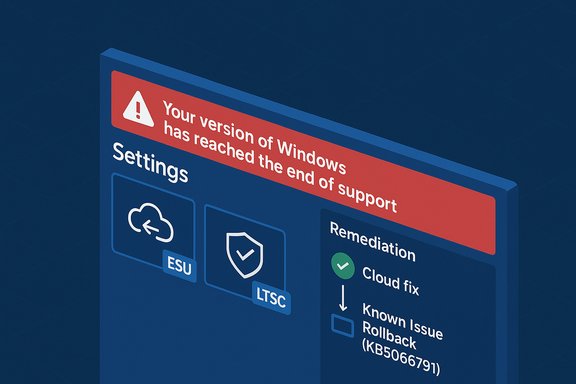
Microsoft’s October Patch Tuesday left a small but vocal swath of Windows administrators staring at a blunt, alarming notice in Settings: “Your version of Windows has reached the end of support,” even on machines that remained legitimately entitled to security updates — including systems in the Extended Security Updates (ESU) program and Long‑Term Servicing Channel (LTSC) builds that Microsoft documents as supported through 2027 or later.

IT worker watches Windows 10 End of Support on three monitors.Background / Overview​

Windows 10’s mainstream servicing officially ended on October 14, 2025. Microsoft shipped the October cumulative update family that day — the last broadly distributed monthly cumulative for mainstream Windows 10 — and published guidance that routine security servicing for most consumer and enterprise Windows 10 SKUs would stop unless the device was enrolled in ESU or an LTSC/IOT variant with its own lifecycle. The October rollup for affected Windows 10 builds is tracked under KB5066791.
LTSC editions are intentionally on a different cadence. Microsoft’s product lifecycle pages show that Windows 10 Enterprise LTSC 2021 remains supported through January 12, 2027, and Windows 10 IoT Enterprise LTSC 2021 has extended servicing through January 13, 2032 — explicit lifecycle promises that matter for regulated, industrial, and embedded device owners. ESU — the Extended Security Updates program — is Microsoft’s officially documented bridge for customers who cannot migrate immediately to Windows 11. For consumer‑grade Windows 10 version 22H2 machines the consumer ESU window provides security‑only updates for a defined period (with separate commercial ESU terms for businesses). These entitlement and lifecycle details are the authoritative yardstick administrators must use, not transient in‑OS banners.

What happened: a timeline of the UI glitch​

Within hours and days after the October 14 update, community reports and enterprise telemetry showed a persistent banner on Settings → Windows Update saying a device had reached end of support. The problem was not limited to unenrolled consumer PCs: it cropped up on some systems that were correctly enrolled in ESU (Windows 10, version 22H2 Pro, Education, Enterprise) and on LTSC SKUs (Windows 10 Enterprise LTSC 2021 and Windows 10 IoT Enterprise LTSC 2021). Administrators posted screenshots and opened tickets as users feared their infrastructure had been orphaned.
Microsoft confirmed the banner was being displayed incorrectly for a subset of devices and characterized the issue as a diagnostic/UI display error, not a revocation of ESU entitlements or LTSC lifecycle guarantees. The vendor pushed two remedial paths: a cloud configuration update that removes the banner automatically for most devices, and a Known Issue Rollback (KIR) Group Policy package for locked‑down or disconnected enterprise environments. Security updates continued to be delivered to properly configured ESU/LTSC devices despite the banner.

Who was affected — precise scope​

The observable impact clustered in a few groups:
  • Devices running Windows 10, version 22H2 (Pro, Education, Enterprise) that were correctly enrolled in ESU.
  • Windows 10 Enterprise LTSC 2021 and Windows 10 IoT Enterprise LTSC 2021 installations in certain configurations.
  • Some Azure workloads — including Azure Virtual Machines and Azure Virtual Desktop session hosts — were reported showing the banner despite Microsoft’s guidance that eligible Azure VMs are automatically enabled for ESU entitlement.
Importantly, affected devices continued to receive security updates when their licensing/entitlement and update plumbing were correct; the banner was a misleading UI indicator rather than a functional stop to patch delivery. That cosmetic nature reduced immediate security risk but amplified operational disruption.

The technical anatomy: why a banner can look like a bomb​

Windows’ messaging about lifecycle status is not a single monolithic check; it’s the product of multiple metadata sources and dynamic signals:
  • Locally installed update metadata and cumulative update manifests.
  • Cloud‑delivered configuration and diagnostic flags (via OneSettings / the OneSettings CSP and other Configuration Service Providers).
  • Telemetry and service endpoints that record entitlement, ESU activation, and SKU details.
  • Management/MDM and Group Policy settings that can lock or override cloud configuration.
If any of these channels contain inconsistent lifecycle flags — or if a server‑side flag is misapplied to certain SKUs — the OS can display an incorrect warning even though the underlying entitlement (ESU key, Azure VM auto‑enrollment, LTSC lifecycle) remains intact. Microsoft’s internal servicing uses Known Issue Rollback (KIR) capability to surgically neutralize single regressions, and that mechanism was repurposed here to provide a fast enterprise remediation.
Caveat: while the visible sign was a simple banner, the downstream consequences are systemic because lifecycle metadata is consumed by compliance scanners, SOAR playbooks, and automated inventory tools. False lifecycle signals can cascade into isolation, ticket storms, auditing exceptions, or unnecessary upgrade projects.

How Microsoft responded — short term and longer term​

Microsoft pursued a two‑track remediation model:
  • Automatic cloud configuration correction: Microsoft pushed a server‑side flag change that removes the banner for devices that are online and permit OneSettings CSP downloads. Devices behind strict firewalls or with cloud configuration blocked will not receive this correction automatically.
  • Known Issue Rollback (KIR) MSI + Group Policy: For locked‑down environments that disallow cloud configuration rollouts (air‑gapped systems, regulatory zones, WSUS‑only deployments), Microsoft distributed a KIR package tied to the October cumulative (KB5066791) that administrators can install and enable via Group Policy. The KIR toggles the problematic change off while leaving KB5066791 and other security fixes in place. The recommended policy step is counterintuitive: import the administrative template and set the KIR policy to Disabled to neutralize the regression, then reboot.
Microsoft also stated it would include a permanent corrective change in a future Windows update so organizations would not need to rely on the KIR indefinitely. That pledge is consistent with prior use of KIR to surgically undo a single change without fully rolling back an entire cumulative update.

Practical, actionable checklist for administrators​

When a user calls to complain their Settings pane claims the OS is out of support, follow this prioritized triage and remediation checklist:
  • Verify the SKU and build. Run winver or open Settings → System → About to confirm the exact product string and build number. Confirm whether the device is Windows 10 22H2, Windows 10 Enterprise LTSC 2021, or another SKU.
  • Confirm ESU enrollment and licensing evidence. For keybased ESU, run slmgr.vbs /dlv to inspect the ESU license. For Azure VMs, verify auto‑ESU enrollment status per the provider docs.
  • Check Update History and installed KBs. Ensure KB5066791 (October cumulative) and any companion updates are installed and that the OS build is the expected 19045.6456 (22H2) or equivalent. Do not uninstall the cumulative update unless you have a tested rollback plan.
  • Determine whether the device can receive cloud configuration updates. If the device is connected and not blocking OneSettings CSP downloads, it should receive the automatic correction from Microsoft. If not, prepare to deploy the KIR.
  • Apply the KIR in locked environments: download the KB5066791 251020_20401 Known Issue Rollback MSI, import the ADMX if desired, set Computer Configuration → Administrative Templates → KB5066791 251020_20401 Known Issue Rollback to Disabled, run gpupdate /force, and reboot. Validate the banner is gone.
  • Update helpdesk scripts and internal comms to reflect that this is a display issue and not an immediate end of support for ESU/LTSC‑entitled devices. Temporarily suppress automated remediation playbooks that trigger on lifecycle flags to avoid unnecessary escalations.
These steps prioritize verification over knee‑jerk remediation: a bad banner does not justify mass migrations, emergency reimaging, or immediate ESU purchases if you can demonstrate entitlement via official lifecycle pages and license state.

Root‑cause hypotheses and what remains unverified​

Multiple community and industry signals point to a metadata or server‑side flag misapplication as the proximate cause: either a lifecycle flag included with the October rollup or an adjacent companion update caused the Windows Update UI to read an incorrect status for some SKUs. Similar precedents surfaced earlier in October when Defender’s telemetry misclassified certain SQL Server versions as end‑of‑life — a separate but related example of lifecycle metadata regression.
Publicly available vendor statements described the symptom and the remediation path but stopped short of publishing a definitive root‑cause postmortem at the time of initial reporting. That leaves room for two important caveats:
  • Any specific claim that “KB X caused Y” should be treated as probable but not fully confirmed unless Microsoft publishes a formal KB or release health entry that explains the internal misflag.
  • Community workarounds (deleting appraiser caches, temporarily uninstalling the cumulative) are anecdotal and unendorsed; administrators should avoid unsupported operations on production endpoints.
These cautionary notes matter: root‑cause attribution is not just curious — it determines whether future update packaging or server‑side flagging will need deeper safeguards.

Real operational damage — beyond the pixels​

A cosmetic UI regression can cause concrete operational and legal fallout in enterprise environments:
  • Automated compliance scanners ingesting the wrong lifecycle signal could generate audit exceptions or even contractual non‑conformance notices. LTSC and embedded device owners often rely on vendor lifecycle statements for regulatory attestations. A false EOL flag undermines that workflow.
  • Security orchestration (SOAR) and playbooks that isolate or remediate endpoints automatically based on “EOL” status can trigger cascading operational costs and downtime. Short‑lived false positives still require human investigation and post‑mortem cleanup.
  • Help desks experienced sharp spikes in tickets, diverting capacity from higher‑priority tasks such as vulnerability triage and active incident response.
The episode also illustrates trust erosion: when vendors display inaccurate lifecycle data, administrators are forced to question the reliability of telemetry they have depended on for years.

Policy friction and the perception problem​

This incident landed in the middle of a transition Microsoft has been steering for some time. Microsoft clearly prefers customers migrate to Windows 11 and has structured parts of the ESU offering and in‑place upgrade incentives around that strategy. The ESU program’s mechanics and price points (including recent changes in requirement to link Microsoft Accounts for some consumer ESU paths outside the EEA) have become politically and commercially sensitive. European regulators secured free consumer ESU in the EEA under different conditions; outside that region, paid options or tying to Microsoft account features remain part of the story. Those economic and policy dynamics influence the optics when Windows Update displays a dire “end of support” message. In short: even a genuine push to encourage migration looks far heavier when a bug screams “end of life” in a user’s face.

Recommendations — a pragmatic path for the next 30–90 days​

  • Prioritize verification workflows: add a short script or runbook that confirms SKU, ESU license state, build number, and last patch history before opening major remediation projects. Use winver, slmgr.vbs /dlv, and Update History as canonical checks.
  • Harden update observability: ensure your inventory and compliance tools cross‑reference Microsoft’s lifecycle pages (authoritative dates) rather than relying solely on Windows Update UI banners. Automations should require multi‑signal confirmation before triggering disruptive playbooks.
  • Ensure cloud config endpoints are reachable where policy allows: if you block OneSettings CSP or dynamic update endpoints, document and budget for manual KIR deployment as part of patch cycles.
  • For isolated/air‑gapped fleets, plan a KIR pilot and include the required GP templates and MSI in your baseline images; test the KIR flow during a maintenance window.
  • Communicate crisply with stakeholders: supply a one‑page note to compliance, help desk, and executive teams that explains the banner was erroneous for specific SKUs and steps taken to verify coverage. This limits downstream panic and wasted procurement cycles.

Lessons for vendors and customers​

This episode exposes three lessons worth recording:
  • Complexity breeds brittle messaging. The increasing mix of cloud flags, CSPs, and local metadata makes in‑OS lifecycle messaging fragile. Vendors must surface higher‑confidence signals for user‑facing lifecycle statements.
  • Dual remediation modes are necessary. Microsoft’s combination of an automatic cloud correction for connected devices and a KIR for locked fleets was the right operational posture — but the experience revealed gaps in transparency and timing for regulated customers.
  • Verification beats panic. Administrators who verified entitlement and update plumbing avoided expensive, unnecessary work. That’s a repeatable governance principle for every end‑of‑service milestone.

Conclusion​

The October update’s incorrect “end of support” banner was not a policy change and did not, by itself, strip ESU or LTSC customers of security updates. It was, however, a vivid reminder that lifecycle communication and update infrastructure are now as operationally critical as patch binaries themselves. Microsoft’s rapid use of cloud configuration and a Known Issue Rollback demonstrates the vendor’s operational playbook for fast regressions, but the event also exposed the real costs of false lifecycle data: ticket storms, automated chaos, and credibility damage.
Administrators should treat the banner as a trigger for verification rather than an automatic call to action: confirm SKU and entitlement, check update histories, and apply the supported KIR or rely on Microsoft’s cloud fix where possible. At the same time, organizations must harden their compliance and automation tooling to require multiple independent signals before executing major remediation — because a misleading message in Settings should never be the single source of truth for an enterprise decision that could cost time, money, and service availability.

Source: theregister.com ESU and LTSC WIn 10 devices hit by 'out-of-support' bug
 

Microsoft’s October servicing wave left an unexpected scar: a prominent, in‑OS warning telling some Windows 10 machines they’d “reached the end of support” — including systems that are legitimately enrolled in Extended Security Updates (ESU) or running Long‑Term Servicing Channel (LTSC) editions that remain covered for years. The message was a display/diagnostic error, Microsoft confirmed, and the vendor pushed a two‑track remediation (a cloud configuration correction for connected devices and a Known Issue Rollback for locked‑down fleets) while promising a permanent fix in a future update.

Warning: Your version of Windows has reached the end of support, with remediation steps.Background​

Windows 10’s mainstream servicing formally ended on October 14, 2025; Microsoft shipped that month’s cumulative updates as the final broadly distributed rollup for most consumer and mainstream commercial channels (the update is tracked as KB5066791). That lifecycle milestone was announced well in advance, and Microsoft published extension paths — in particular the Extended Security Updates (ESU) program for devices that can’t migrate immediately, and separate lifecycle windows for Enterprise LTSC and IoT Enterprise LTSC releases. For many organizations this was a planned transition; for some device classes — embedded systems, regulated endpoints and industrial equipment — LTSC editions were always intended to remain supported on a different cadence (for example, Windows 10 Enterprise LTSC 2021 remains supported through January 12, 2027, while Windows 10 IoT Enterprise LTSC 2021 carries support into 2032). Those published lifecycle dates are the authoritative yardstick — not transient in‑OS banners.

What happened: the UI regression in plain terms​

Shortly after Microsoft pushed the October 14, 2025 cumulative (KB5066791), a subset of Windows 10 installations began showing a red banner in Settings → Windows Update that reads: “Your version of Windows has reached the end of support.” That banner appeared on a mixture of devices:
  • Windows 10, version 22H2 (Pro, Education, Enterprise) machines enrolled in the ESU program.
  • Windows 10 Enterprise LTSC 2021 and Windows 10 IoT Enterprise LTSC 2021 installations.
  • Some cloud‑hosted workloads (reports surfaced for Azure VMs and Azure Virtual Desktop hosts showing the banner despite Azure‑hosted ESU entitlements).
Crucially, Microsoft and independent reporting confirm the banner was a cosmetic diagnostic/UI error — it did not revoke ESU entitlements nor immediately halt delivery of security updates for properly configured systems. In other words: the banner was alarming, but in most observed cases it did not represent an actual failure of patch distribution.

Scope and hot spots: who actually saw the message​

This was not a universal outage; it clustered in environments with certain characteristics:
  • ESU‑enrolled 22H2 devices (Pro/Education/Enterprise) that had valid ESU activations sometimes showed the error even though ESU updates continued to apply.
  • LTSC and IoT LTSC installs — which have separate lifecycle rules and can remain supported for years — also appeared with the banner in some configurations. Microsoft’s lifecycle pages still show these SKUs as supported, undercutting any suggestion that Microsoft had silently changed policy.
  • Managed, locked‑down, or air‑gapped environments were slower to clear the message because they block cloud configuration downloads (OneSettings CSP / dynamic updates) and thus didn’t automatically receive Microsoft’s server‑side fix.
The bottom line: the banner was an unreliable indicator. Administrators and support teams needed to validate entitlement and update history rather than treat the message as the final authority.

Why this matters beyond a bad UI​

At first glance this could be written off as a vexing UI bug. In operational reality, vendor lifecycle metadata powers automation, compliance scans, service desk workflows and even contractual compliance checks. A false “end of support” flag can cause real downstream damage:
  • Help‑desk storms and wasted work: ticket volume spikes, unnecessary patch audits, and emergency mitigation windows triggered by automated monitoring.
  • Audit and compliance noise: automated compliance scanners that ingest lifecycle flags may generate non‑conformance findings or trigger incident playbooks incorrectly.
  • Procurement and budget missteps: aggressive stakeholders might initiate device replacements or rushed migrations based on a misleading banner.
Operational trust in update messaging matters. When the UI communicating support status is broken, it raises the cost of routine decision‑making and amplifies risk precisely where predictability is most valuable.

Microsoft’s response: two pragmatic remediation tracks​

Microsoft characterized the problem as a display/diagnostic error and responded with a two‑pronged approach:
  • Cloud configuration correction (automatic): Microsoft pushed a server‑side configuration update that removes the erroneous banner for devices that are connected to the internet and accept OneSettings dynamic configuration. Most consumer and cloud‑connected machines should clear the message automatically once the configuration change propagates.
  • Known Issue Rollback (KIR) for managed environments: For air‑gapped or heavily managed networks that block cloud dynamic updates, Microsoft published a KIR MSI and administrative template tied to KB5066791 (labelled “KB5066791 251020_20401 Known Issue Rollback”). Administrators deploy the MSI and set the KIR Group Policy entry in Computer Configuration → Administrative Templates, and then reboot affected devices; the recommended setting is to set the KIR value to Disabled to neutralize the problematic banner while leaving the cumulative update itself installed. This avoids a full rollback of the October patch while surgically disabling the erroneous diagnostic flag.
Microsoft said a permanent fix will ship in an upcoming Windows update so administrators will not need to continue relying indefinitely on KIR or server‑side toggles. Independent coverage corroborated all of the above and walked through KIR deployment steps for enterprise teams.

How to verify whether your device truly lost entitlement (practical checks)​

When confronting a scary “end of support” banner, the immediate priority is to verify entitlement and update plumbing. Don’t rely on the Settings banner alone. The practical checklist below is the defensible way to triage.

Quick verification steps (recommended)​

  • Confirm the OS edition and version: open Settings → System → About, or run winver to verify you’re on the expected build. ESU applies to Windows 10, version 22H2 (and to LTSC variants where applicable).
  • Check ESU activation with slmgr and event logs:
  • Open an elevated Command Prompt and run: slmgr /dlv
    Look in the output for “Extended Security Updates” or an ESU description. Microsoft docs and community guidance recommend this as the primary license check.
  • Also check Event Viewer → Applications and Services Logs → Microsoft → Windows → ClipESU → Operational for Event ID 113 indicating a successful ESU license install. Community and Microsoft Q&A posts point administrators to this event as a reliable sign of ESU entitlement.
  • Inspect the ESU eligibility registry flag (for deeper verification):
  • From an elevated PowerShell prompt: (Get‑ItemProperty -Path 'HKLM:\SOFTWARE\Microsoft\Windows NT\CurrentVersion\SoftwareProtectionPlatform\ESU').Win10CommercialW365ESUEligible
  • A value of 1 indicates the device is eligible/enrolled. Microsoft community guidance references this as a helpful diagnostic when the Settings UI lies.
  • Review update history: Settings → Windows Update → View update history. If monthly ESU/ESU‑labeled security cumulatives are being applied, that is strong evidence the machine is still being serviced.

If you manage Azure VMs or Azure Virtual Desktop hosts​

Microsoft documentation and community threads show Azure‑hosted VMs are automatically enabled for ESU when configured properly, but cloud VMs also surfaced the banner in some reported cases. If an Azure VM shows the banner, verify entitlement via the same local checks; check the VM’s update configuration in Azure Update Manager and consult Microsoft’s Azure ESU guidance.

Immediate actions for admins and home users​

  • If you’re an admin and your fleet is managed via WSUS/Intune/Group Policy:
  • Confirm whether your environment blocks OneSettings/dynamic updates. If so, download and deploy the KIR MSI from Microsoft and configure the Group Policy entry (KB5066791 251020_20401 Known Issue Rollback), set it per Microsoft’s guidance and reboot machines to clear the banner.
  • Communicate a clear statement to end users: this is likely a cosmetic issue; verify ESU entitlement before taking any replacement or upgrade action. Use the verification checklist above and share an FAQ to reduce ticket volume.
  • If you’re a home user with ESU enrollment:
  • Ensure the device is connected to the internet and that OneSettings downloads aren’t blocked by local firewall software; the cloud fix should clear the banner automatically for connected devices. If you have an ESU key, confirm activation with slmgr /dlv and the ClipESU event log entry.
  • If you don’t have ESU and your Windows 10 edition isn’t an LTSC with extended servicing:
  • Treat October 14, 2025 as the official end of mainstream support and plan upgrade/migration; the banner in that case likely reflects the expected lifecycle change. Microsoft’s KB and lifecycle pages are definitive on which SKUs lost mainstream servicing.

Technical anatomy: why a banner can lie​

The Windows Update/Settings UI is fed by a blend of local metadata and cloud‑delivered diagnostics and configuration flags. Those sources include installed cumulative update manifests, in‑box diagnostic checks, OneSettings cloud flags, and management channel signals (WSUS, Intune, Group Policy). When one element in that chain is mis‑set or misinterpreted — for example, a server side lifecycle flag or diagnostic metadata pushed with a cumulative — the OS can draw the wrong conclusion and display a misleading lifecycle message. In this incident Microsoft’s own communications and community analysis point to a misapplied diagnostic flag in the October servicing wave that produced the erroneous banner. Microsoft has not published deep technical root‑cause detail publicly beyond calling it a display error, so any more precise causal narrative remains speculative. Treat that part of the story accordingly.

Risk assessment and critical analysis​

  • Strengths of Microsoft’s response:
  • Fast mitigation options: a server‑side fix and a KIR are sensible short‑term responses that avoid uninstalling critical security fixes. Those choices minimize operational disruption while corrective engineering proceeds.
  • Clear commitment to a permanent fix: Microsoft promised a future update that will remove the need for the KIR, which is the correct long‑term posture for systemic remediation.
  • Weaknesses and risks:
  • Communication friction: the UI message itself is blunt and alarming; using it as the first and possibly only signal to determine support eligibility is a design risk. The incident exposed how over‑reliant operations teams can be on in‑OS messaging without cross‑checking canonical lifecycle records.
  • Operational fallout: false lifecycle flags can trigger costly, time‑sensitive responses (emergency upgrades, audits, SLA exceptions) that carry real cost and business risk. The scenario underscores the necessity of treating vendor UI messages as triage prompts, not authoritative policy changes.
  • Opaque root cause reporting: Microsoft’s public messaging confirmed a display error and provided remediation, but did not (as of the latest advisories) publish a detailed root‑cause post‑mortem. That leaves enterprise architects and security teams with uncertainty about similar future regressions in telemetry/diagnostic systems. This lack of transparency amplifies trust erosion.
  • Practical implication for procurement and policy:
  • The incident favors defensive posture changes: codify entitlement checks (slmgr, ClipESU event, registry flag) in incident playbooks, do not rely on Settings → Windows Update banners to determine contractual compliance, and ensure monitoring pipelines incorporate authoritative lifecycle sources, not only UI flags.

Longer‑term takeaways for IT leaders​

  • Inventory and policy discipline: keep canonical asset inventories linked to SKU, build and entitlement state. Map which devices rely on ESU, which are LTSC, and which must be migrated to Windows 11. Rely on that inventory for procurement decisions rather than UI prompts.
  • Automate verification: embed the ESU verification steps (slmgr /dlv, ClipESU Event 113, registry flag) into your compliance checks so a false UI banner triggers an automated entitlement verification rather than immediate human panic.
  • Design for cloud toggle failures: if your environment blocks dynamic configuration from Microsoft, plan a tested KIR deployment path in your update runbook so you can neutralize problematic diagnostics without rolling back security patches.
  • Communicate calmly: prepare user‑facing scripts that explain the difference between lifecycle policy and a display bug; quiet, clear communication will reduce support costs during incidents like this one.

Final assessment​

The October 14 servicing wave marked a major lifecycle milestone for Windows 10. The incorrect end‑of‑support banners were a significant communications failure that created unnecessary alarm, but — according to Microsoft and multiple independent reports — they were not an immediate security failure when entitlements and update plumbing were correct. Microsoft’s dual remediation (cloud configuration + KIR) and promise of a permanent update are the right operational steps; however, the incident is a reminder that cloud‑driven diagnostics and UI flags are new failure modes for modern OS servicing and must be treated as such in enterprise risk planning. Administrators should validate ESU and LTSC entitlement using the concrete checks outlined above rather than relying on the Settings banner, and they should build the knowledge that a vendor UI message is a starting point for triage — not the final verdict on entitlement, compliance, or security posture.

Quick checklist (copyable for help‑desk playbooks)​

  • Confirm OS edition & build (winver / Settings → About).
  • Run slmgr /dlv and look for ESU descriptions; check ClipESU Event ID 113.
  • Inspect the ESU registry flag (Win10CommercialW365ESUEligible) if needed.
  • Review Windows Update history for ESU cumulatives.
  • If banner persists:
  • If device is connected and allows OneSettings: wait 24–48 hours for the cloud config fix.
  • If device is managed/air‑gapped: deploy the KB5066791 251020_20401 KIR MSI and configure the Group Policy as instructed, then reboot.

The mistaken “end of support” banner was a preventable source of panic that could have been mitigated by clearer in‑OS messaging and better pre‑deployment validation in the October rollout. The corrective steps Microsoft provided are appropriate and effective, but the episode is an operational lesson: always verify entitlement with authoritative checks before escalating procurement or compliance responses.
Source: Tom's Hardware Windows 10 update incorrectly tells some users they've reached end-of-life, despite having extended support — Microsoft confirms message sent to Enterprise, Pro, and Education users in error
 

Windows 10’s retirement received an unexpected glitch: a post–October cumulative update caused some machines that are still eligible for extended support to display alarming “end of support” banners in Settings, prompting confusion for home users and alarm at scale for administrators.

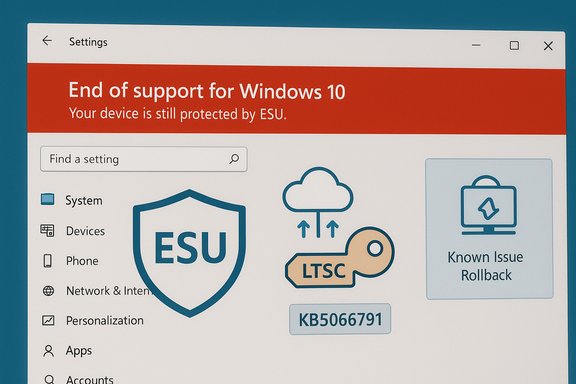
Windows Settings screen with a red banner announcing end of support for Windows 10, ESU badge and LTSC icon.Background / Overview​

Microsoft formally ended mainstream support for the last serviced branch of Windows 10 on October 14, 2025. For most consumers that date marks the cessation of free, routine OS security and quality updates; for organizations and special SKUs Microsoft offered time‑boxed options and longer lifecycles, including the Extended Security Updates (ESU) program and longer servicing for LTSC/IOT releases. That lifecycle detail is crucial: while the common narrative “Windows 10 is dead” captures the broad picture, the actual support landscape is layered. Some editions—including Windows 10, version 22H2 enrolled in ESU, Windows 10 Enterprise LTSC 2021, and Windows 10 IoT Enterprise LTSC 2021—remain entitled to security updates on explicit schedules that extend well beyond October 14, 2025. Microsoft’s lifecycle pages list those dates and the LTSC/IOT timelines clearly. Despite that clarity, a UI regression in an October update caused Windows Update’s Settings page to tell some users the opposite: that their machine had “reached the end of support.” The bug was tracked to updates pushed on or after October 14 (the updates in question are identified under the KB5066791 family), and Microsoft says the message is a display error rather than an entitlement revocation. A cloud configuration fix plus a Known Issue Rollback (KIR) path for managed or disconnected environments were issued to correct the problem.

What happened: the KB update, the banner, and why it mattered​

Shortly after Microsoft distributed the October cumulative updates, a subset of Windows 10 devices began showing a red banner in Settings → Windows Update that read: “Your version of Windows has reached the end of support.” That banner appeared on systems that should still be covered by ESU or LTSC servicing, producing urgent help‑desk tickets and social media concern. Why this was more than cosmetic for many administrators:
  • In some configurations the Settings page also hid or disabled the Check for updates button, which amplified the perception that update delivery had stopped.
  • The banner landed in environments where update entitlement is a contractual matter—cloud-hosted VMs, regulated endpoints, and devices under strict compliance governance—so the warning triggered incident response procedures.
Microsoft’s diagnosis, and the technical hypothesis behind it, is straightforward: the Windows Update UI merges local update metadata with server‑side configuration flags and dynamic diagnostic signals. A misapplied presentation flag (or a logic error interpreting a KB/metadata combination) caused the UI to declare end‑of‑support status incorrectly while the underlying patch‑delivery plumbing continued to work for entitled devices. Microsoft labelled it a display/diagnostic error and released a cloud configuration correction as well as a KIR for air‑gapped or WSUS‑only environments.

Who was affected​

This was not a universal failure; the reported surface was concentrated but meaningful:
  • Windows 10, version 22H2 — Pro, Education, Enterprise editions that are correctly enrolled in the Extended Security Updates (ESU) program and configured with an ESU product key.
  • Windows 10 Enterprise LTSC 2021.
  • Windows 10 IoT Enterprise LTSC 2021.
Community and enterprise posts also reported sightings in cloud‑hosted instances (Azure VMs and Azure Virtual Desktop hosts), which increased urgency because cloud customers often expect vendor-backed lifecycles to be faithfully reflected in management UIs. The mix of consumer ESU, commercial ESU, LTSC, and cloud entitlements made this an intersectional problem: visible to many more people than the underlying impact would suggest, and therefore more alarming.

Microsoft’s response: fixes and mitigations​

Microsoft’s public approach used two parallel remediation tracks:
  • A server‑side cloud configuration update that would correct the incorrect UI flag for devices with normal Internet access and dynamic configuration enabled. Devices must be online and allowed to retrieve dynamic settings for this to propagate. Microsoft recommended a restart after the cloud fix reaches the device.
  • A Known Issue Rollback (KIR) for managed, air‑gapped, or WSUS‑locked environments. The KIR is intended to be deployed by administrators via standard management tooling (Group Policy, SCCM/Endpoint Manager, or manual MSI) to neutralize the erroneous presentation while preserving the October cumulative and its security fixes. Microsoft’s guidance for admins included deployment steps and validation checks.
Microsoft explicitly emphasised that devices with valid ESU licenses or LTSC entitlements continued to receive the security updates they were entitled to; the banner was a misleading presentation, not a change in servicing commitments. That reassurance was echoed by multiple independent outlets and community researchers who verified that patch plumbing remained functional in most observed cases.

How to validate whether your device is actually entitled to updates​

When a UI banner is unreliable, administrators and advanced users should validate entitlements with authoritative checks. Recommended verification steps:
  • Check Windows licensing and activation status using built‑in tools:
  • Run slmgr.vbs /dlv or use the Settings → System → About and activation controls to confirm product key and activation status. These outputs help show if ESU keys are applied.
  • Confirm update history and installed KBs:
  • Review Settings → Update & Security → Windows Update → Update history. If the device is still receiving monthly cumulative (security) rollups after October 14, that is practical evidence that servicing continues.
  • For managed fleets, check management console telemetry:
  • SCCM/Intune/WSUS inventories typically report the last installed cumulative and whether updates are stalled. Use server logs and agent diagnostics rather than relying solely on the Settings banner.
  • For cloud VMs, use the provider’s entitlement documentation:
  • Azure’s published guidance explains which VMs do not need additional configuration for ESU; verifying entitlement on the Azure portal or using Microsoft’s guidance reduces misinterpretation.
If the above checks show an active ESU key or installed monthly security updates, the device is very likely still protected by Microsoft’s update channel—even if Settings shows the alarming message.

What IT administrators should do now (practical, prioritized steps)​

Administrators managing mixed fleets should move quickly but methodically:
  • Treat the Settings banner as an alert to investigate, not automatic evidence of a licensing change. Validate entitlement as outlined above.
  • For internet‑connected systems: ensure the device can reach Windows Update and dynamic configuration endpoints, then reboot to allow the cloud configuration fix to arrive and clear the message.
  • For locked or air‑gapped networks: obtain Microsoft’s Known Issue Rollback (KIR) package corresponding to KB5066791 and deploy it through your standard software distribution channel (SCCM, Intune, Group Policy, or manual install). Follow Microsoft’s KIR guidance to avoid disrupting installed security fixes.
  • Audit and document: log which machines saw the banner, the checks performed, and remediation applied. This is vital for compliance reporting and future post‑mortems.
  • Communicate: issue a brief advisory to end users explaining the banner is a known display error and describing the verification steps and remediation status for your estate. Panic‑driven user actions (mass upgrades, unscheduled OS reinstalls) are unnecessary and risky.

Strengths in Microsoft’s handling — what went right​

  • Rapid identification and acknowledgement: Microsoft’s release‑health updates and accompanying statements acknowledged the issue and described the affected SKUs and the proposed remediation, which reduced uncertainty and speculation. The clarity that this was a presentation error and not an entitlement revocation helped avoid large‑scale panic.
  • Two‑track remediation model: deploying a cloud configuration update for normal environments while simultaneously offering a KIR for locked fleets is an appropriate operational design. It minimizes risk to security updates while offering an admin‑friendly rollback path for constrained networks. This demonstrates the practical value of having dynamic configuration and a KIR system in place for enterprise patch control.
  • Continued servicing observability: the fact that installers and administrators could verify continued installation of monthly security updates using standard tools (update history, slmgr, management consoles) means the problem was resolvable without immediate escalation to full migration or emergency purchases.

Risks, weaknesses, and lessons learned​

Despite the corrective steps, the incident highlights several structural risks and areas for improvement:
  • UI trust matters. A small UI flag caused disproportionate operational churn. When lifecycle banners in widely used management UI components are inaccurate, they trigger automated processes and compliance checks, creating large indirect costs. The incident demonstrates that presentation layers must be held to the same reliability standard as core servicing components.
  • Dependency on cloud signals introduces single points of perception. Many management and notification decisions now rely on server‑side flags and dynamic configuration. That design is powerful for rapid rollouts, but it means a misapplied server flag can bleed across millions of endpoints faster than a purely client‑side fix can be issued. Enterprises should weigh the convenience of dynamic cloud configuration against the risk that a server‑side misconfiguration can produce mass confusion.
  • Communication cadence could be faster or more granular for regulated customers. Organizations subject to compliance regimes (healthcare, finance, government) reacted to the banner as if patching had stopped. While Microsoft did publish guidance and a KIR, the time between problem onset and targeted guidance left room for help‑desk strain and emergency escalations. Faster direct notices for enterprise agreements or tenant‑admin channels would reduce wasted hours in incident response.
  • The consumer ESU enrollment model and account requirements remain contentious. The consumer ESU path (one‑year bridge) is available through several enrollment routes and has been reported as costing roughly $30 outside the European Economic Area; however, regional variations, account linkages, and the requirement to bind a Microsoft Account for some free paths complicate uptake and raise privacy/control tradeoffs. These design choices have continued to draw criticism as Windows 10 sunsets. Treat the $30 figure and account‑linking mechanics as approximate and verify in your region.

Longer-term implications and what this episode says about Windows lifecycles​

This banner‑bug is a small technical error with outsized reputational and operational impact because it touches an emotional moment—the end of a decade‑long platform many users still rely on. The incident does not change the fundamental policy decisions: Microsoft has ended mainstream servicing for Windows 10, offered targeted ESU options, and maintained LTSC/IOT lifecycles where applicable. What it does reveal is how fragile operational trust can be at scale.
Two longer-term takeaways:
  • Enterprises must rely on authoritative, machine‑readable entitlement checks and management console telemetry rather than UI banners alone. Processes should prefer server logs, license token verification, and update history as primary evidence of coverage.
  • Vendors and platform providers should offer clearer signals and faster direct communications to customers with commercial agreements. When lifecycle and compliance obligations are material, a single automated banner is not sufficient as a canonical statement of entitlement.

Final recommendations for users and administrators​

  • If you see the banner and your device is part of an organization: pause, validate entitlement (slmgr /dlv, update history, management console), and follow your change control process. Apply Microsoft’s KIR if your environment is disconnected and the cloud fix cannot reach endpoints.
  • If you’re a home user enrolled in consumer ESU and see the message: confirm your Microsoft Account enrollment or ESU purchase status and reboot to allow the cloud configuration update to propagate. Don’t assume your system is suddenly unprotected.
  • For risk planning: treat ESU as a tactical bridge, not a permanent solution. For critical endpoints, plan migration to supported platforms (Windows 11 or approved LTSC/IOT releases where appropriate) on a firm timeline and avoid reliance on account‑linked, temporary bridges as a long‑term strategy.

Conclusion​

The “Windows 10 is dead” narrative is operationally true for the majority of mainstream SKUs as of October 14, 2025, but the support picture is more nuanced: ESU and LTSC/IOT timelines preserve security updates for specific devices and customers. A UI bug tied to the October cumulative (KB5066791) produced misleading end‑of‑support banners that unnecessarily alarmed many users and administrators—but Microsoft’s published guidance, a cloud configuration fix, and a Known Issue Rollback option mean the issue is remediable without compromising the actual servicing commitments for entitled machines. Administrators should validate entitlements with authoritative checks, apply the KIR when needed, and document the incident in their compliance records; home users should verify ESU enrollment and reboot to allow the cloud fix to land.
The episode is a reminder that lifecycles, cloud configuration signals, and user interface messages must align precisely—especially at the end of a major platform’s era—because perception drives operational decisions. For affected customers the technical risk from the banner was low if entitlement checks passed, but the operational and human costs were real; fixing perception is as important as fixing code.
Source: Club386 Users with Windows 10 extended support are receiving end-of-life notifications thanks to a bug | Club386
 

Back
Top