

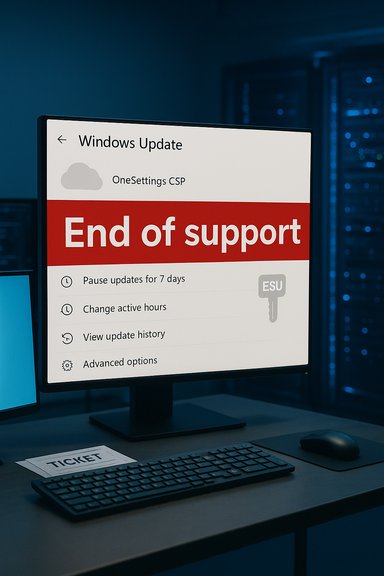
Microsoft’s October cumulative update accidentally told a subset of Windows 10 installations that they had “reached the end of support,” a misleading in‑OS banner that sparked confusion and a flurry of IT help‑desk tickets even though many of the affected devices remain entitled to security updates through Extended Security Updates (ESU) or LTSC servicing channels.
Background
Windows 10’s mainstream servicing officially ended on October 14, 2025, a lifecycle milestone Microsoft published months in advance. That date closes the door on regular monthly cumulative updates for mainstream consumer and most commercial SKUs; the vendor offered temporary extension paths — notably Extended Security Updates (ESU) and the longer lifecycles baked into Long‑Term Servicing Channel (LTSC) releases — to cover devices that cannot migrate immediately. The October 14 Patch Tuesday rollup (distributed under the KB family associated with the October servicing wave, identified in community reporting as KB5066791) was intended as the last broadly distributed monthly cumulative for mainstream Windows 10. Immediately after that release, some systems began showing a prominent red notice in Settings → Windows Update: “Your version of Windows has reached the end of support.” For many end users and administrators that message suggested the device had lost entitlement to security patches — a serious claim with real operational consequences.What actually happened
The symptom in plain language
- After installing updates released on or after October 14, 2025 (the October cumulative tracked as KB5066791), certain Windows 10 machines displayed the message: “Your version of Windows has reached the end of support” on the Windows Update page.
- The message was visual and diagnostic — it did not universally prevent devices from receiving patches — but because lifecycle metadata feeds into monitoring, compliance, and operational playbooks, the banner triggered unnecessary escalations.
Which systems were reported affected
Reports and vendor acknowledgements identified the following as being disproportionately affected by the erroneous banner:- Windows 10, version 22H2 (Pro, Education, Enterprise) devices that are correctly enrolled in ESU and configured with an ESU product key.
- Windows 10 Enterprise LTSC 2021 installations.
- Windows 10 IoT Enterprise LTSC 2021 installations.
- In some cases, Azure‑hosted workloads (Azure VMs and Azure Virtual Desktop hosts) that should be automatically entitled to ESU in the cloud also displayed the banner.
Microsoft’s diagnosis
Microsoft characterized the incident as a display/diagnostic error in the Windows Update settings UI rather than a revocation of entitlement or a deletion of ESU activation. The vendor explained that a cloud‑delivered configuration/diagnostic flag associated with the October cumulative had been misapplied or misinterpreted for some supported SKUs, which caused the Settings app to surface the incorrect lifecycle message. The company therefore advised administrators to verify actual ESU activation and update history rather than relying solely on the banner.Microsoft’s remediation and the short‑term fixes
Microsoft provided a two‑track remediation approach to remove the misleading banner:- Server‑side cloud configuration update: Microsoft pushed a dynamic configuration change intended to clear the incorrect banner automatically for devices that are connected to the internet and that accept OneSettings CSP (Configuration Service Provider) dynamic downloads. This server‑side patch is the simplest path to resolution for most connected devices.
- Known Issue Rollback (KIR) for managed/air‑gapped environments: For enterprise environments that block cloud configuration changes (for example, strict WSUS‑only deployments, air‑gapped networks, or those that disable OneSettings downloads via Group Policy), Microsoft published a KIR Group Policy package tied to the KB entry (referenced as KB5066791 251020_20401 Known Issue Rollback). Administrators can import the provided administrative template and set the KIR policy entry to Disabled in Computer Configuration → Administrative Templates → KB5066791 251020_20401 Known Issue Rollback to suppress the erroneous UI flag. After applying the policy and rebooting affected machines, the message should be removed.
Why the banner mattered (beyond alarmism)
A misreported lifecycle state is not a mere cosmetic annoyance in modern IT ecosystems. Consider how lifecycle flags are used:- Compliance scanners and asset inventories ingest lifecycle metadata. An “end of support” flag can trigger compliance failures or audit findings.
- Automated security playbooks and endpoint management tools sometimes isolate, quarantine, or escalate systems that appear to be unsupported.
- Procurement and change‑management workflows may be initiated (or accelerated) based on lifecycle status.
- On the consumer side, alarming banners can drive unnecessary purchases or misguided upgrades.
Technical anatomy — how a banner can go wrong
The Settings → Windows Update lifecycle message is the product of several signals, not one single check. Those inputs include:- Local servicing metadata and installed update manifests.
- Cloud‑delivered diagnostic/feature flags via OneSettings CSP or other dynamic configuration channels.
- Telemetry and entitlement endpoints that confirm ESU activation and product key state.
- Management policies (Intune, WSUS, Group Policy) which can block or override cloud configuration.
Cross‑checking the facts (verification)
Key claims from reporting and vendor notices were verified across multiple independent sources:- The October 14, 2025 mainstream end‑of‑support date for Windows 10 is Microsoft’s official lifecycle position. Multiple Microsoft lifecycle pages and industry outlets confirm this scheduled cutoff.
- The erroneous banner surfaced after the October cumulative commonly referenced as KB5066791. Independent reporting and Microsoft’s Release Health/known issues commentary identify KB5066791 as the update family involved.
- Microsoft stated that devices with activated ESU licenses or supported LTSC versions will continue to receive security updates and that the banner is only an incorrect display. This position is reflected in Microsoft community posts and vendor acknowledgement, and corroborated by multiple technical outlets that inspected update history and entitlement checks on affected machines.
- Microsoft supplied a cloud configuration update and a Known Issue Rollback Group Policy package for managed environments to address the message; the KIR is labeled around KB5066791 251020_20401 and administrators must set the KIR entry to Disabled to remove the banner until the permanent patch arrives. The provisioning steps and rationale are documented in Microsoft guidance and summarized in technical reporting.
Operational impact and risk assessment
Even though affected devices generally continued to receive security updates when ESU activation and entitlement were intact, the incident nonetheless created real risk and cost vectors:- Short‑term help‑desk surge: The banner prompted many users and administrators to file tickets and escalate incidents, consuming support resources that could otherwise focus on true operational issues.
- Compliance and automation triggers: Environments with automated compliance gates or security orchestration playbooks may have initiated mitigation workflows (isolating endpoints, forcing backups, or launching remediation) based on the incorrect lifecycle flag, causing time and resource loss.
- Reputational and procurement risks: End users presented with sudden “end of support” alerts may be prompted into unnecessary hardware refreshes or involuntary upgrades, translating into avoidable spend for organizations and individuals.
- Trust erosion: The episode underscores the fragility of trust in vendor communication; if lifecycle signals are perceived as unreliable, organizations must build additional verification steps into asset inventories and compliance reporting to avoid false positives.
Practical checklist: what administrators and users should do right now
The correct response mixes verification, measured remediation, and avoidance of panic.- Verify entitlement before action
- Confirm ESU activation and product key status (for key‑based ESU activations, use standard activation validation tooling).
- Check update history (Installed Updates or Windows Update logs) to ensure the machine is actually receiving monthly security rollups.
- Check for the cloud configuration fix
- Ensure internet connectivity and that OneSettings CSP dynamic downloads are allowed.
- Do not block Windows Update processes via firewall rules or group policies that prevent dynamic configuration changes.
- If the device is locked down or offline, deploy the KIR
- Download and deploy the KB5066791 251020_20401 Known Issue Rollback Group Policy package as Microsoft advised.
- Import the administrative template and set KB5066791 251020_20401 Known Issue Rollback to Disabled under Computer Configuration → Administrative Templates.
- Force Group Policy update and reboot machines to apply the change.
- Avoid rash upgrades
- Do not treat the banner alone as evidence that a punitive upgrade is required; rely on entitlement and update delivery evidence.
- For consumer users without ESU or LTSC, the October 14 cutover is real — plan migration or ESU enrollment rather than reacting to banner noise.
- Communicate with stakeholders
- Notify compliance, procurement, and help‑desk teams about the issue and the remediation steps already published by Microsoft.
- Document the verification steps performed in case auditors or internal stakeholders request evidence.
- Monitor for the permanent fix
- Track Microsoft’s Release Health/Windows Update channels for the promised permanent code correction; once it ships, KIR deployments should be reversible.
Strengths and shortcomings of Microsoft’s response
Notable strengths
- Rapid acknowledgement: Microsoft publicly acknowledged the issue and clarified that affected devices with active ESU support remained entitled to updates, which helped reduce the urgency for system reimaging or emergency upgrades.
- Two‑track remediation: The combination of a server‑side cloud config fix for typical devices and a KIR package for locked‑down environments is a pragmatic, staged approach that respects enterprise constraints.
- Clear guidance for administrators: Microsoft published the Group Policy package and instructions for KIR deployment so tightly managed fleets would not be left stranded.
Notable shortcomings and risks
- Messaging confusion: The Settings banner is blunt and alarming, and Microsoft might have reduced unnecessary panic by better isolating the banner to devices that truly lacked entitlement or by offering immediate in‑UI guidance to check ESU status.
- Fragile dependency on dynamic flags: Building critical lifecycle messaging on cloud flags that can be misapplied — and that may be blocked in many enterprise environments — creates a brittle signal chain. When those flags fail, the consequences ripple into operational areas.
- Delays for offline/air‑gapped environments: Organizations that restrict dynamic updates or disallow OneSettings CSP downloads must adopt the KIR manually; that requirement introduces friction and a window in which the banner persists, potentially feeding downstream automation.
- Lack of transparent root‑cause detail: The precise metadata element or orchestration step that flipped the banner hasn’t been detailed publicly, leaving some IT teams uncertain about the probability of recurrence.
Broader lessons for lifecycle management and vendor trust
This incident is a useful case study in modern platform orchestration:- Lifecycle communication must be reliable: Lifecycle flags are not just UI flourishes; they drive automation, compliance, and procurement decisions. Vendors should treat lifecycle metadata with the same engineering rigor as security fixes.
- Prefer authoritative machine checks: Organizations should embed entitlement and update‑delivery verification into monitoring pipelines (for example, confirming successful monthly cumulative installs and activation status) rather than relying on a single UI banner.
- Use staged controls for cloud flags: If vendor vendors push display or diagnostic flags server‑side, there should be robust rollback and auditability for those flags to avoid cross‑tenant misconfiguration.
- Plan for fallbacks: Environments that restrict cloud updates should have pre‑approved vendor KIRs or equivalent mitigations and documented playbooks so they are not forced into emergency configurations when signals go astray.
Conclusion
The October 2025 KB5066791 rollout exposed an important mismatch between lifecycle reality and in‑OS messaging: a display flag incorrectly labeled some ESU‑entitled and LTSC Windows 10 installations as “end of support,” producing unnecessary alarm and operational churn. Microsoft responded with a server‑side correction and a Known Issue Rollback (KIR) Group Policy package targeted at managed fleets, while reiterating that properly entitled devices continue to receive security updates. Administrators should verify actual ESU activation and update history, deploy the KIR where necessary, and avoid making upgrade or procurement decisions based solely on the banner. The episode is a reminder that lifecycle metadata is mission‑critical: when it misfires, the costs are measured not only in technical fixes but in lost time, operational disruption, and erosion of trust.Source: BetaNews Microsoft hits Windows 10 users with misleading ‘end of support’ messages
