

Sending a fax from a Windows 10 PC is still possible—and often practical—but the correct method depends on whether you want to use the built‑in Windows tools (which require legacy hardware) or a modern online fax service that works entirely over the internet.
Faxing has not vanished; it remains a legal, regulatory and operational requirement in many industries. Windows 10 ships with Windows Fax and Scan, a built‑in app that lets you send and receive faxes directly from the desktop—but only when the PC is connected to an analog phone line through a fax modem. That dependency is still true today and is a common source of confusion: a home internet modem/router does not substitute for a telephone‑line fax modem. Microsoft community documentation and support threads make this explicit: Windows Fax and Scan relies on a physical fax modem and a standard phone line for dialing and transmission. At the same time, internet‑based alternatives—often called online fax services or fax‑as‑a‑service—let you send and receive faxes without any hardware, using a web portal, email or integrated apps. Major reviewers and comparison guides list providers such as Fax.Plus, eFax, HelloFax, and several free or low‑cost services for occasional use. These services trade recurring fees or per‑page charges for convenience, mobile access, and cloud features. A recent development that directly affects anyone still using physical fax modems: Microsoft removed an in‑box legacy modem driver (ltmdm64.sys, associated with Agere/Lucent modem hardware) in the October 2025 cumulative updates after the driver was linked to a high‑severity elevation‑of‑privilege vulnerability. Systems that relied on that driver may see modem‑based faxing stop working after the update; Microsoft’s recommendation is to remove dependencies on affected hardware and migrate to supported solutions. This removal has been documented in vendor advisories and community reporting.
Notable omissions or areas that need caution:
Sending faxes from a Windows 10 computer is straightforward in principle, but practical reliability depends entirely on the chosen transport: hardware and a PSTN line for Windows Fax and Scan, or a modern online fax provider for hardware‑free convenience. Recent security‑driven changes to Windows (including legacy driver removals) reinforce a single practical truth: for most users, moving to a cloud‑based fax service eliminates both setup friction and the risk that an OS update will suddenly break critical fax capabilities. Conclusion: pick the route that fits your volume, compliance and budget—use Windows Fax and Scan only if you already have reliable modem hardware and are prepared to maintain it; otherwise, an online fax service is a simpler, more future‑proof choice.
Source: MSPoweruser How To Fax From Computer Windows 10: A Step-by-Step Guide For Beginners
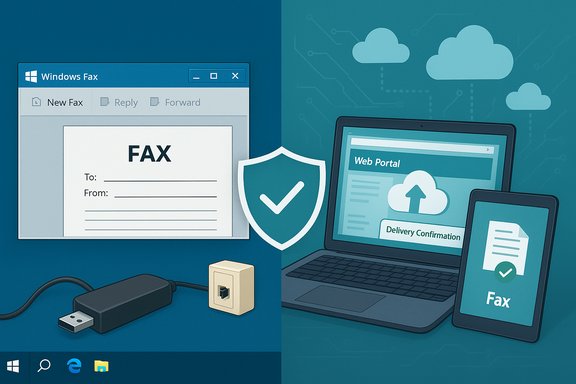 Background / Overview
Faxing has not vanished; it remains a legal, regulatory and operational requirement in many industries. Windows 10 ships with Windows Fax and Scan, a built‑in app that lets you send and receive faxes directly from the desktop—but only when the PC is connected to an analog phone line through a fax modem. That dependency is still true today and is a common source of confusion: a home internet modem/router does not substitute for a telephone‑line fax modem. Microsoft community documentation and support threads make this explicit: Windows Fax and Scan relies on a physical fax modem and a standard phone line for dialing and transmission. At the same time, internet‑based alternatives—often called online fax services or fax‑as‑a‑service—let you send and receive faxes without any hardware, using a web portal, email or integrated apps. Major reviewers and comparison guides list providers such as Fax.Plus, eFax, HelloFax, and several free or low‑cost services for occasional use. These services trade recurring fees or per‑page charges for convenience, mobile access, and cloud features. A recent development that directly affects anyone still using physical fax modems: Microsoft removed an in‑box legacy modem driver (ltmdm64.sys, associated with Agere/Lucent modem hardware) in the October 2025 cumulative updates after the driver was linked to a high‑severity elevation‑of‑privilege vulnerability. Systems that relied on that driver may see modem‑based faxing stop working after the update; Microsoft’s recommendation is to remove dependencies on affected hardware and migrate to supported solutions. This removal has been documented in vendor advisories and community reporting. Why this matters to Windows 10 users
- If you have a legacy workflow that uses Windows Fax and Scan and a telephone landline, those faxes may work fine—until a Windows update or a removed driver breaks the modem. The October 2025 driver removal is a practical example of why hardware‑dependent workflows can suddenly fail.
- If you never installed a fax modem, Windows Fax and Scan will simply be unusable for sending faxes; you’ll need either a physical modem, a multifunction printer with an integrated fax line, or an online fax service.
- If you need HIPAA, legal or audit‑grade delivery, choose a provider and plan that supports the required compliance and retention features; not all online fax services are equal. Independent reviews highlight security and enterprise features as differentiators among providers.
How Windows Fax and Scan works (brief technical overview)
Windows Fax and Scan is a Windows feature that acts as a fax client and scanner interface. When used as a fax client:- The PC must have a fax modem (internal PCI/PCIe modem, USB modem or soft‑modem with working drivers).
- That modem must be physically connected to an analog telephone line (PSTN).
- Windows Fax and Scan dials the remote fax number, negotiates Group 3 fax protocol, transmits image data, and logs the session in the application.
Option A — Use Windows Fax and Scan (hardware required)
What you need
- A Windows 10 PC with Windows Fax and Scan installed (most Windows 10 editions include it).
- A working fax modem (USB external modem or internal modem with a current, compatible driver).
- An analog phone line (PSTN) connected to the modem.
- Phone service that permits outbound dialing to fax numbers (some VoIP setups do not reliably support fax signals).
Step‑by‑step setup (beginner friendly)
- Install and connect your fax modem:
- Plug a USB fax modem into your PC or install an internal modem and reboot.
- Connect the phone cable from the wall jack to the modem’s phone port.
- Confirm the modem is detected:
- Open Device Manager → look under “Modems” for the listed device.
- If it’s not present, install the vendor driver.
- Open Windows Fax and Scan:
- Type “Windows Fax and Scan” in the Start menu and launch it.
- Configure a fax account:
- In the app, go to Tools → Fax Accounts → Add.
- The Fax Setup wizard will walk you through selecting the modem and entering caller information.
- Send a test fax:
- Click New Fax, add the recipient’s fax number, attach a document (PDF or image), and click Send.
- Monitor the Outbox/Sent Items for transmission status.
Key limitations and troubleshooting
- Modem drivers can break with Windows updates; the recent removal of the Agere driver shows how security actions can render legacy modems nonfunctional. Plan for alternatives if your modem uses legacy drivers.
- Many modern internet/VOIP setups are unreliable for faxing unless they explicitly support T.38 fax over IP. If you use a VOIP provider, check their fax compatibility or use a dedicated online service.
- If Windows Fax and Scan reports “All fax accounts are inaccessible” or the Fax printer disappears, try removing and re‑adding the Fax feature, reinstalling the modem driver, or testing with a different USB port; community threads document these failure modes and workarounds.
Option B — Use an online fax service (no hardware)
Online fax services convert uploads or email attachments into a fax on your behalf and receive inbound faxes into your account. They are the simplest option for users who don’t want to buy fax hardware or maintain an analog line.Advantages
- No hardware, no phone line.
- Accessible from anywhere: web portal, email, apps, integrations.
- Often include added features: cloud storage, digital signatures, multi‑user management, APIs, and compliance options for higher tiers.
Tradeoffs
- Ongoing subscription or per‑page fees—free tiers are usually limited and may include ads or watermarks.
- Not all providers offer strong compliance or encryption by default; review plans if you must meet HIPAA or legal retention requirements.
How to send a fax using an online service (typical steps)
- Choose a provider (Fax.Plus, eFax, HelloFax, FaxZero, etc. and sign up.
- Verify your account and choose a plan (trial, pay‑per‑use, or subscription).
- From the web portal or app:
- Enter the recipient’s fax number.
- Upload the document (PDF, Word, JPG, etc..
- Add a cover page and optional notes.
- Click Send.
- You’ll receive a delivery confirmation by email or inside the app.
Choosing a provider — quick checklist
- Pricing: page limits, overage rates, and monthly vs. annual pricing.
- Security: TLS, at‑rest encryption, and any compliance certifications.
- Integrations: email, Google Workspace, Microsoft 365, mobile apps, API access.
- Local or toll‑free number availability for inbound faxing.
Windows Fax and Scan vs Online Fax Services — side‑by‑side
- Hardware required
- Windows Fax and Scan: Yes (fax modem + phone line).
- Online fax services: No.
- Cost
- Windows Fax and Scan: modem purchase + phone line charges (one‑time + PSTN fees).
- Online services: subscription or pay‑per‑page fees.
- Convenience
- Windows Fax and Scan: local, can work offline if hardware present.
- Online fax: accessible anywhere, mobile friendly.
- Features
- Windows Fax and Scan: basic faxing and cover pages.
- Online fax: digital signatures, cloud archiving, multi‑user, API access.
Security and compliance considerations
- Faxing over PSTN is point‑to‑point and historically perceived as secure, but analog lines are not encrypted and can be intercepted; secure practices still apply. The perception of security does not equal modern cryptographic protection.
- Online fax providers vary widely in security posture. For regulated data (healthcare, legal, finance), verify provider certificates (e.g., HIPAA Business Associate Agreements, SOC2, encryption at rest). Independent reviewer guides list security as a primary selection criterion.
- Driver and kernel vulnerabilities (like the Agere modem driver issue) demonstrate that local hardware can introduce security risk—and removing legacy drivers can break firmware‑dependent workflows. That’s a practical security and operational tradeoff: removing a vulnerable driver reduces risk but may disrupt legacy processes that depend on it.
Troubleshooting common problems
- Fax sends only cover page, or transmission fails repeatedly:
- Verify phone tone and ring normalcy on the line used by the modem.
- Test the modem by dialing a normal voice call; some phone filters or DSL splitters interfere.
- Fax printer is missing in Devices and Printers:
- Reinstall Windows Fax and Scan (Optional Features on recent Windows 10), reinstall modem drivers, reboot. Community threads show turning Windows Fax and Scan off and on again sometimes fixes corrupted state.
- Modem stops working after Windows update:
- Check vendor driver updates; if the driver was an in‑box legacy driver that Microsoft removed for security reasons, plan migration to online faxing or replacement hardware.
- VoIP fax failures:
- Use a T.38‑capable VOIP provider or switch to an online fax service; many consumer VOIP services do not support reliable fax transmission.
Practical recommendations for different users
If you send faxes rarely (a few pages per year)
- Use a free or low‑cost online fax service (FaxZero, GotFreeFax, or trial plans) to avoid buying hardware and paying line rental. For occasional small faxes, the free tier often suffices.
If your organization sends or receives faxes regularly
- Choose an online fax provider with business plans that include:
- Multi‑user accounts and management
- Cloud archiving and audit logs
- TLS / at‑rest encryption and compliance guarantees if needed
- Alternatively, consider a dedicated network fax gateway or on‑premises fax server that uses SIP/T.38 or a leased fax line; these options are more complex but fit regulated environments.
If you currently depend on Windows Fax and Scan + a modem
- Inventory your hardware and drivers. Search for known problematic drivers (e.g., the Agere ltmdm64.sys case) and identify whether your modem depends on them. Community reports and vulnerability databases documented the October 2025 driver removal; if you rely on legacy modems, plan to migrate.
- Create a fallback: an online fax account or a USB modem model with actively maintained drivers.
Step‑by‑step quick checklist — send a fax from Windows 10 (concise)
- Decide the transport: hardware (Windows Fax and Scan) or online fax service.
- If hardware:
- Install USB/internal fax modem and connect to phone line.
- Confirm modem in Device Manager.
- Launch Windows Fax and Scan → Tools → Fax Accounts → Add.
- Compose and send.
- If online:
- Sign up at a provider, choose a plan.
- Upload document in portal or attach to provider email gateway.
- Send and retain delivery confirmation.
- Verify delivery and keep a copy of the confirmation for records.
What the MSPowerUser beginner guide gets right — and what it omits
The MSPowerUser primer correctly outlines the two main approaches: using Windows Fax and Scan with a fax modem, and using online fax services as a hardware‑free alternative. It also provides a clear new‑user path for configuring Windows Fax and Scan and sending a document, which is helpful for people who still have working modem hardware.Notable omissions or areas that need caution:
- The guide does not highlight the operational risk presented by driver removals or vendor security patches (for example, Microsoft’s October 2025 removal of the Agere modem driver). If readers are using older modems, they may find their workflow disrupted by an OS update. Plan for migration.
- The guide should stress that many VOIP providers do not support analog fax reliably and that T.38 support is required for fax‑over‑IP reliability.
- It lightly treats security: readers sending sensitive documents should evaluate provider encryption and compliance, rather than assuming parity between PSTN and modern secure transport.
Final analysis: recommended path for most Windows 10 users
- For most home users and small businesses, an online fax service is the most reliable and future‑proof option. It removes dependence on legacy hardware, avoids telephone‑line fees, and provides modern features such as cloud archiving and mobile apps. Independent reviews show a wide range of options depending on volume and security needs.
- For regulated environments that still require local control, consider a managed network fax gateway or a provider that can deliver compliance attestations. Evaluate providers against the required legal and retention standards.
- If you must keep using Windows Fax and Scan, inventory hardware now, verify drivers, and prepare a migration plan. The Agere driver removal in October 2025 demonstrates that legacy drivers can be removed for security reasons, and that removal can immediately break fax workflows that depend on them. Mitigate by testing updates in a controlled environment or by switching to hardware with active vendor support.
Quick tips and best practices
- Always confirm the recipient fax number and test with a single page before sending large documents.
- Use PDF when possible—it preserves layout and is widely supported by fax services.
- For multi‑page documents, use an automatic document feeder (ADF) if you scan locally, or upload a single multipage PDF to an online service.
- Keep delivery confirmations for important or legally sensitive faxes (both PSTN and online providers issue confirmations).
- If you run into driver problems or disappearing Fax printer entries, try removing and re‑adding Windows Fax and Scan from Optional Features, reinstalling modem drivers, or using an online service as a fallback. Community troubleshooting threads contain many practical, hands‑on fixes.
Sending faxes from a Windows 10 computer is straightforward in principle, but practical reliability depends entirely on the chosen transport: hardware and a PSTN line for Windows Fax and Scan, or a modern online fax provider for hardware‑free convenience. Recent security‑driven changes to Windows (including legacy driver removals) reinforce a single practical truth: for most users, moving to a cloud‑based fax service eliminates both setup friction and the risk that an OS update will suddenly break critical fax capabilities. Conclusion: pick the route that fits your volume, compliance and budget—use Windows Fax and Scan only if you already have reliable modem hardware and are prepared to maintain it; otherwise, an online fax service is a simpler, more future‑proof choice.
Source: MSPoweruser How To Fax From Computer Windows 10: A Step-by-Step Guide For Beginners
