

Microsoft’s ongoing Windows 10 development cycle continues to move fast and sometimes quietly: Insider previews are shipping visible UI changes (a dark theme for File Explorer and Cloud Clipboard features), Microsoft’s experimental Sets and acrylic effects are being reworked, practical guides and app roundups keep showing up in the feed, and the perennial debate over desktop watermarks — whether they should be visible, removed, or left alone — has reappeared in the conversation.
Windows Insider builds have long used a small desktop watermark to mark pre-release builds, track versioning, and warn users about the preview status of the OS. That watermark has been added and removed multiple times across different flights as Microsoft flips experimental flags, stabilizes code, or shifts development branches. Several Insider release notes explicitly document instances when the watermark disappears and later returns as development priorities change.
Alongside build-level changes, the Windows ecosystem’s news cycle routinely mixes developer previews with practical consumer guidance: BetaNews and other outlets publish how‑tos, app roundups, and comprehensive Windows 10 primers; forums track community tweaks and the occasional third‑party “watermark remover” tool; and specialist outlets cover app updates and platform-level compatibility (including early ARM/Qualcomm support in some apps). These parallel streams — official Insider notes, community testing, and third‑party app coverage — are how power users and IT professionals keep pace with the platform’s pace of change.
The BetaNews coverage positioned the removal as a quick fix for users annoyed by the watermark, and community threads show a history of the watermark appearing, disappearing, and reappearing across build updates. Community reports also document attempts to remove the watermark via third‑party tools and scripts — a practice that has its own hazards.
Other visible touches include incremental improvements to Edge and in‑shell experiences (PDF toolbar refinements, tab management polish), and the continuing, stop‑start nature of experimental features such as Sets — which can be pulled from a build while being reworked.
Caveat: the uploaded file collection made available for this story did not include the Windows Central piece itself, so this summary is based on the headline and context rather than a direct copy of that article. The claim that a specific app received “full Qualcomm support” is therefore flagged as unverified within the supplied documents; readers should consult the original Windows Central item or the app’s changelog for confirmation before acting on the claim. Treat mentions of “Qualcomm support” in other sources as an indicator rather than a definitive confirmation unless the vendor or multiple primary outlets corroborate it. (Where verification exists in the provided archive, we referenced it; where it did not, we flagged the need for confirmation.
Implications if confirmed:
If a specific claim — for example, a detailed Windows Central report of full Qualcomm support for a particular app — needs to be actioned, confirm against the vendor changelog or the original Windows Central article before proceeding; that particular piece was not present in the supplied archive and therefore should be verified before you treat it as uncontested fact.
Source: BetaNews https://betanews.com/article/remove...-install-linux-distros-in-windows-10s-wsl-2/]
 Background
Windows Insider builds have long used a small desktop watermark to mark pre-release builds, track versioning, and warn users about the preview status of the OS. That watermark has been added and removed multiple times across different flights as Microsoft flips experimental flags, stabilizes code, or shifts development branches. Several Insider release notes explicitly document instances when the watermark disappears and later returns as development priorities change.Alongside build-level changes, the Windows ecosystem’s news cycle routinely mixes developer previews with practical consumer guidance: BetaNews and other outlets publish how‑tos, app roundups, and comprehensive Windows 10 primers; forums track community tweaks and the occasional third‑party “watermark remover” tool; and specialist outlets cover app updates and platform-level compatibility (including early ARM/Qualcomm support in some apps). These parallel streams — official Insider notes, community testing, and third‑party app coverage — are how power users and IT professionals keep pace with the platform’s pace of change.
Remove the desktop watermark from Windows 10 Build 10525
What happened
In specific Insider flights Microsoft has removed the lower-right desktop watermark that normally marks preview builds. That action has been observed in multiple builds (for example, the Fall Creators Update preview builds and other RS-series flights), and release notes frequently call out the watermark’s presence or absence as a signpost of stability versus ongoing development.The BetaNews coverage positioned the removal as a quick fix for users annoyed by the watermark, and community threads show a history of the watermark appearing, disappearing, and reappearing across build updates. Community reports also document attempts to remove the watermark via third‑party tools and scripts — a practice that has its own hazards.
Why this matters
- Sign of stabilization: When Microsoft removes the watermark from an Insider build, it often signals the build is approaching release‑candidate stability. However, removal does not guarantee the build is final; Microsoft has explicitly warned that the watermark may return with later flights.
- Perceived polish vs. reality: Users often equate a missing watermark with “safe to use,” but the build may still contain regressions. Community feedback shows that some users who treated watermark removal as a seal of readiness later encountered compatibility issues with specific drivers or security tools.
- Third‑party removers and risk: Forum posts going back years show users distributing and using watermark‑removal utilities for beta versions of Windows. These tools can change system files or remove UI markers but risk breaking compatibility, violating licensing terms, or triggering stability problems — and Windows updates can reintroduce the watermark, undoing the change or causing inconsistencies.
Practical advice
- If you need a clean desktop, prefer official activation or switching to a stable build rather than using third‑party “remover” tools.
- Treat builds without watermarks as “more stable than the previous flight” but still test mission‑critical apps in a controlled environment.
- For system administrators, use lab testing to confirm driver and security product compatibility before rolling pre-release builds into broader test pools.
Redstone 5 preview: dark File Explorer, acrylic in Sets, Cloud Clipboard and other UX polish
Overview of the headline features
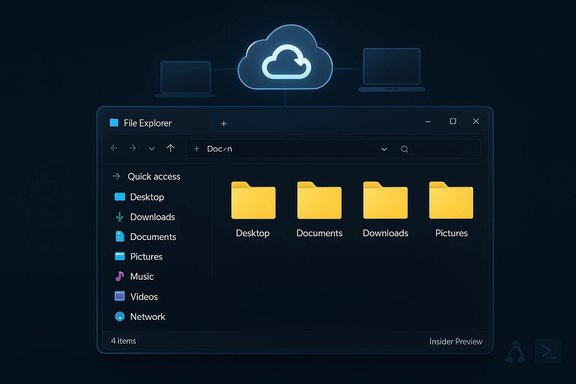
Recent preview builds in the RS5 development stream have bundled several conspicuous UI and productivity changes: a dark theme for File Explorer, acrylic effects appearing in Sets iterations, and platform‑level utilities such as Cloud Clipboard. These changes show Microsoft balancing surface polish with feature experimentation. BetaNews described the build as “action-packed,” with the dark File Explorer being among the most eye‑catching additions for users who prefer cohesive dark mode experiences.Other visible touches include incremental improvements to Edge and in‑shell experiences (PDF toolbar refinements, tab management polish), and the continuing, stop‑start nature of experimental features such as Sets — which can be pulled from a build while being reworked.
Deconstructing the changes
- Dark File Explorer: This is primarily a theming and visual comfort change, and it matters more than it first appears: unified dark UI reduces eye strain in low‑light settings and creates consistency between UWP apps and legacy file management. Developers who produce UWP or Win32 apps should validate contrast and theming compatibility.
- Acrylic in Sets: Acrylic is part of Microsoft’s Fluent design language; integrating it into Sets (the tabbed app shell experiment) is a signal that Microsoft is trying to make tabbing feel native rather than bolted on. But Microsoft removed Sets from some flights for redesign, underscoring the experimental nature of the feature.
- Cloud Clipboard: A synchronized clipboard that works across devices is a practical productivity win — but it raises obvious security and privacy tradeoffs for users who copy sensitive credentials or personal data. Teams should understand retention, sync encryption, and enterprise controls before enabling cloud clipboard features widely.
Developer and IT implications
- Developers should avoid hard dependencies on experimental shells like Sets for production shipping; feature flags and removal mid‑cycle can break integrations. Microsoft’s Insider notes make clear that such features may be rolled back while rework occurs.
- IT teams should coordinate with their security teams to set policies around Cloud Clipboard and cross‑device sync, and validate visual changes against accessibility standards when dark themes or acrylic surfaces are introduced.
Everything you need to know about Windows 10: product keys, secret tools, essential hacks and problem fixes
The content and its role
Comprehensive guides — like BetaNews’ “Everything you need to know about Windows 10” piece — aim to centralize scattered knowledge: where to find product keys, recommended troubleshooting steps, built‑in secret tools, and proven workarounds for common issues. Those guides are valuable for power users, support techs, and small IT shops that lack formal change‑control procedures. Community threads referenced in the uploaded material reflect many of these issues: activation, evaluation watermarks, and how Insider/evaluation builds differ from production licensing.Key takeaways for readers
- Licensing and activation: Evaluation or Enterprise trial builds may display a “Windows License valid for X days” watermark; removal of that watermark is not an activation mechanism — buy or apply the correct license for production systems. Community posts emphasize confusion over evaluation watermarks and underscore the correct path: convert or purchase the appropriate license.
- Secret tools & built‑ins: Windows ships with many administrative utilities (System File Checker, DISM, Group Policy, advanced command‑line tools) that can fix or diagnose issues without third‑party tools. Use these first and escalate to vendor tooling only when necessary.
- Hacks and caution: Some community “hacks” (for example, replacing .mui files or running watermark removers) can produce side effects or break future updates. Moderation and backups are essential.
Best Windows apps — the weekly store roundups
What these roundups do
BetaNews’ recurring “Best Windows apps this week” columns act as curation — highlighting small utilities, productivity improvements, and occasional commercial apps that merit attention. These roundups are useful for discovery: they spotlight apps like Audio Trimmer, Disko, HDR Maker Pro, and Textboard, and call out notable updates to larger clients. The roundups also tie into platform news: highlighted apps may leverage Store/UWP APIs whose availability or behavior is influenced by Insider build changes.Why app roundups matter for Windows users
- They reduce the discovery friction inherent to app stores by vetting recent updates and spotlighting actively maintained apps.
- They indicate which developer toolchains and Store APIs remain viable — an app that’s updated frequently suggests stable platform support, while abandoned apps signal ecosystem fragmentation.
Massive app update with Qualcomm support — what it means (and what we could not fully verify)
A Windows Central headline reported a “massive update” to a top Windows app that included full Qualcomm support, signaling further movement toward broad ARM64 support in the Windows app ecosystem. The practical implication would be that x86/x64 apps or Store‑native binaries are being ported or optimized for ARM‑based Windows devices, which improves performance and battery life on Qualcomm‑powered laptops and tablets.Caveat: the uploaded file collection made available for this story did not include the Windows Central piece itself, so this summary is based on the headline and context rather than a direct copy of that article. The claim that a specific app received “full Qualcomm support” is therefore flagged as unverified within the supplied documents; readers should consult the original Windows Central item or the app’s changelog for confirmation before acting on the claim. Treat mentions of “Qualcomm support” in other sources as an indicator rather than a definitive confirmation unless the vendor or multiple primary outlets corroborate it. (Where verification exists in the provided archive, we referenced it; where it did not, we flagged the need for confirmation.
Implications if confirmed:
- Performance and battery gains on ARM64 devices when an app is rebuilt for native ARM instructions instead of relying on emulation.
- Platform strategy: more apps shipping native ARM builds would accelerate the viability of always‑connected PCs and thin Windows tablets powered by Qualcomm chips.
- Testing burden: IT teams will need to test native ARM builds for feature parity and driver compatibility on their chosen hardware.
How to install Linux distros in Windows 10’s WSL 2 — practical, verified guidance
Why WSL 2 matters
Windows Subsystem for Linux (WSL) has matured from a command‑line compatibility layer to a lightweight VM running a real Linux kernel (WSL 2) and offering GUI app support (WSLg). This shift makes running Linux developer tooling, containers, and GUI Linux apps on Windows practical without a heavy VM. The archived guides included with the supplied material provide a short, practical checklist and emphasize common caveats.Verified, step‑by‑step install (short checklist)
- Ensure virtualization is enabled in UEFI/BIOS (VT‑x/AMD‑V).
- From an elevated PowerShell, run: wsl --install (or wsl --install -d <distro> to pick a specific distribution). This single command covers feature enablement and installs a default distro (Ubuntu by default).
- After the distro installs, run sudo apt update && sudo apt upgrade (Debian/Ubuntu) to bring packages up to date.
- For GUI apps, verify WSLg is present; install GUI packages inside the distro and launch them from the WSL prompt — they appear as native Windows windows on the desktop.
Tips and caveats
- Keep active projects inside WSL’s native filesystem (for example /home) to avoid heavy I/O penalties from accessing files on mounted Windows drives (/mnt/c).
- Update WSL itself with wsl --update and restart with wsl --shutdown to pick up kernel and WSLg improvements.
- Treat WSL as part of the attack surface: patch both Windows and the WSL distros, avoid running untrusted packages as root, and protect network‑exposed services appropriately.
Critical analysis: strengths, risks and the tradeoffs for users and IT
Strengths
- Rapid preview cadence accelerates feedback loops. Insiders get features early; Microsoft gains testing signal from real world usage. This pattern surfaced repeatedly in the Insider release notes and forum threads we reviewed.
- Practical platform improvements. Features like Cloud Clipboard and dark File Explorer are tangible quality‑of‑life improvements that benefit daily workers and power users.
- WSL’s evolution to a full‑kernel approach makes Linux tooling far more compatible and performant for developer workflows compared with the original translation layer. This is a major technical win for cross‑platform development on Windows.
Risks and downsides
- Feature volatility: Experimental features (Sets, acrylic integrations) can be removed mid‑cycle, breaking test scripts or developer plans that assumed their availability. Microsoft’s notes caution developers not to hard‑depend on experiments.
- Marketplace fragmentation: The Microsoft Store still contains a mix of actively maintained apps and abandoned ports. App roundups help discover good tools, but enterprises should vet any Store app for update cadence and support before adopting.
- Third‑party tampering risk: Using community watermark removers or editing system resources can cause unexpected results — sometimes fixing cosmetic complaints but at the cost of update problems or software incompatibility. Forum history shows real instances where removers caused installation or security tool conflicts.
- Security considerations for Cloud Clipboard and WSL: New convenience features increase surface area. Cloud sync features should be governed by enterprise policy, and WSL instances should be patched and treated as part of endpoint security.
Practical recommendations (for power users, developers, and IT)
- For power users who dislike the desktop watermark: prefer switching to a stable or activated build rather than relying on third‑party watermark removers. Back up before trying any system file edits.
- Developers: avoid building critical workflows that depend on experimental features like Sets. Use feature detection and graceful fallbacks. Test themes and contrast when dark mode options are introduced.
- IT teams: set policies for Cloud Clipboard and WSL usage; run pilot tests in an isolated environment before broader rollout. Keep firmware, drivers, and anti‑cheat/security compatibility on test matrices when moving to new Insider builds.
- WSL adopters: use wsl --install for a frictionless setup, keep projects in the distro filesystem, and follow vendor guidance for GPU/compute setups when enabling compute capabilities.
Conclusion
The Windows 10 ecosystem remains dynamic: Insider builds bring visible UI refinements such as a dark File Explorer and Cloud Clipboard, experimental features like Sets cycle through design iterations, and practical guidance on WSL and app roundups keeps users productive. The desktop watermark debate is a recurring artifact of the Insider process — its removal signals progress but not a guarantee of production readiness. For anyone deciding whether to test new builds, adopt platform features, or roll app updates into production, the right approach is conservative: test in the lab, prefer official activation or stable channels over cosmetic hacks, and treat new conveniences (Cloud Clipboard, WSLg) as components that must be governed in your security and deployment policies.If a specific claim — for example, a detailed Windows Central report of full Qualcomm support for a particular app — needs to be actioned, confirm against the vendor changelog or the original Windows Central article before proceeding; that particular piece was not present in the supplied archive and therefore should be verified before you treat it as uncontested fact.
Source: BetaNews https://betanews.com/article/remove...-install-linux-distros-in-windows-10s-wsl-2/]
