

You can run full Linux userland apps on modern Windows without firing up a traditional virtual machine — and for many workflows, Windows Subsystem for Linux (WSL) is the fastest, lightest, and most integrated way to do it. WSL now supports GUI apps (WSLg), ships as an easy single-command installer, and integrates with Windows tooling so that Linux apps appear alongside native Windows programs in the Start menu and taskbar.
Windows Subsystem for Linux started as a command-line compatibility layer and evolved into a modern, lightweight Linux environment that runs a real Linux kernel inside a minimal utility VM (WSL 2). That evolution added major features: improved file-system performance, full syscall compatibility, GPU access for compute workloads, and native graphical application support through WSLg. The platform is now distributed independently of Windows and can be installed or updated with a single command. WSL is not a complete replacement for a full Linux desktop in every scenario, but it’s an intentionally pragmatic bridge: use it when you need genuine Linux userland tools and occasional GUI apps with tight Windows integration. For heavy I/O servers, production databases, or GPU passthrough-dependent desktop sessions, a full VM or native Linux install may still be the safer choice.
Source: How-To Geek My favorite way to run Linux apps on Windows without a virtual machine
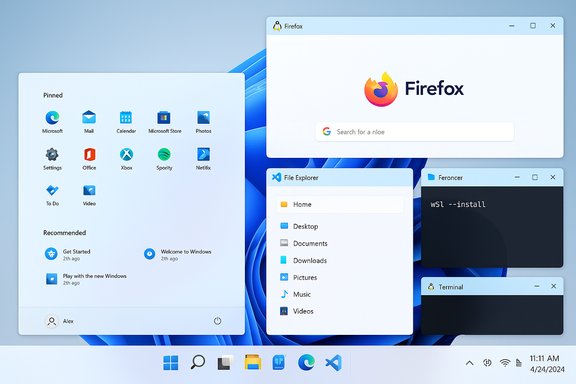 Background / Overview
Windows Subsystem for Linux started as a command-line compatibility layer and evolved into a modern, lightweight Linux environment that runs a real Linux kernel inside a minimal utility VM (WSL 2). That evolution added major features: improved file-system performance, full syscall compatibility, GPU access for compute workloads, and native graphical application support through WSLg. The platform is now distributed independently of Windows and can be installed or updated with a single command. WSL is not a complete replacement for a full Linux desktop in every scenario, but it’s an intentionally pragmatic bridge: use it when you need genuine Linux userland tools and occasional GUI apps with tight Windows integration. For heavy I/O servers, production databases, or GPU passthrough-dependent desktop sessions, a full VM or native Linux install may still be the safer choice.Why WSL now makes "no VM" practical
WSL 2: a real kernel, lightweight VM approach
WSL 2 runs an actual Linux kernel shipped and managed by Microsoft, inside a highly optimized utility virtual machine. That gives near-native syscall compatibility and markedly better compatibility with Linux packages and toolchains compared with the older translation layer (WSL 1). Because the VM is minimal and tightly integrated, resource overhead and startup times are much lower than traditional desktop VMs.WSLg: GUI apps that behave like Windows apps
WSLg is the subsystem that wires X11 and Wayland graphical applications into the Windows desktop. Installed Linux GUI apps show up in the Start menu, can be pinned to the taskbar, support clipboard sharing and Alt+Tab, and run in individual windows alongside Windows programs. This is the game changer for many users who previously needed a full VM to run a single Linux GUI tool.Single-command install and updates
Microsoft provides a one-line install and an update flow: from an elevated PowerShell run wsl --install to set up WSL and a default distro (Ubuntu by default). Existing installs can be updated with wsl --update and restarted with wsl --shutdown. These commands reduce setup friction dramatically compared with manually enabling components, installing kernels, and configuring virtual machines.What you need to get started (practical shopping list)
- A supported Windows build: Windows 10 (Build 19041+) or Windows 11. Newer builds provide better WSL and WSLg support.
- Administrative access to enable system features or run wsl --install from an elevated prompt.
- Virtualization support enabled in firmware (BIOS/UEFI); WSL 2 requires the Virtual Machine Platform feature plus CPU virtualization (VT-x / AMD‑V). If virtualization is disabled, enabling the Windows features alone won’t be enough.
- Up-to-date GPU drivers for the best graphical acceleration (Intel, AMD, NVIDIA), particularly if you plan to run OpenGL / Wayland apps or GPU-accelerated workloads.
- wsl --install
This installs the WSL platform and a default distro (Ubuntu) and prompts for a username on first launch. For a specific distro, use: wsl --install -d <DistroName>. To list available distro names: wsl --list --online.
Step-by-step: Install, update, and run a GUI Linux app
1. Enable prerequisites (if you prefer GUI)
- Open Start → "Turn Windows features on or off" and check:
- Windows Subsystem for Linux
- Virtual Machine Platform
Reboot if prompted. Alternatively, the wsl --install command will add these components for you if WSL is not present. Make sure virtualization is enabled in firmware.
2. Install a distribution
- Preferred: wsl --install (administrator PowerShell) — default installs Ubuntu. To choose another distro: wsl --install -d Debian (or archlinux, kali-linux, etc., where available). To view options: wsl --list --online.
3. Update packages inside the distro
- For Debian/Ubuntu: sudo apt update && sudo apt upgrade
- For Arch: sudo pacman -Syu
Create your user account and password on first run. These are standard Linux package manager commands; treat the WSL distro exactly like a normal Linux system from here.
4. Install a GUI app and run it
- Example (Ubuntu): sudo apt install firefox
- Launch by typing firefox in the WSL terminal; the app opens in its own window and appears on the Windows taskbar. WSLg will route graphical output into the Windows desktop and provide clipboard and window management integration.
Real-world experience: performance, I/O, and caveats
Performance expectations
For typical desktop apps (browsers, editors, document viewers) and developer tools, WSL performance is often "near-native" and significantly better than running those same apps inside a heavyweight VM. That improvement comes from WSL 2’s kernel and the lightweight VM design. However, performance varies by workload: compute-bound tasks, GPU-accelerated workloads, and heavy I/O operations may still be faster on a native Linux installation or a carefully configured VM.File I/O caveat: where your project files live matters
I/O-heavy operations (large builds, databases, bulk file operations) are much faster when performed inside the distro’s native filesystem rather than on mounted Windows drives (/mnt/c). Keep active projects in WSL’s filesystem (/home) to avoid observable penalties. This is a frequent community recommendation and an important practical rule of thumb.GPU and compute workloads
WSL supports GPU compute and CUDA on compatible drivers, but you should not attempt to install Linux GPU drivers inside WSL or reconfigure kernel drivers yourself. Use vendor guidance and Microsoft documentation for GPU-enabled WSL compute setups. For heavyweight GPU desktop sessions or complex passthrough, a native Linux install or a full VM with dedicated passthrough remains the more reliable option.Security and attack surface
WSL introduces another managed component to your Windows system. Keep both Windows and WSL updated, avoid installing untrusted packages in your distro, and treat WSL as part of your overall endpoint security posture. Community reports emphasize patching and following vendor guidance when enabling GPU and compute features.When to choose WSL vs a traditional VM or a native Linux install
- WSL — Best when you:
- Need fast access to Linux command-line tools and occasional GUI apps without rebooting.
- Want tight integration with Windows editors (VS Code Remote - WSL) and Windows tooling.
- Prefer a lightweight environment with low resource overhead.
- Are doing development, scripting, web stacks, or UI tools that do not require full desktop parity.
- Full VM — Best when you:
- Need an isolated, persistent Linux desktop with its own session, display server, and driver stack.
- Require kernel modules, low-level driver testing, or system-level changes that WSL does not allow.
- Want a completely separate environment for testing, QA, or sandboxing.
- Native Linux install — Best when you:
- Need maximum I/O throughput, full GPU passthrough, or production-level Linux performance.
- Run server workloads or databases for which native filesystems and drivers matter.
Tips, workflows, and safety measures
- Use Windows Terminal for a modern, GPU-accelerated terminal experience with tabs, panes, and a Quake-style drop-down. It integrates smoothly with WSL shells.
- Keep projects in WSL’s filesystem for best I/O. Use \wsl$ in File Explorer for convenient access from Windows.
- Use VS Code’s Remote - WSL extension to edit files in Windows while the language servers and runtime run in Linux — this preserves fast I/O without losing the Windows editor experience.
- Automate distro setup with shell scripts or dotfiles. A simple provisioning script can install packages (apt/winget), set up SSH keys, and configure your dev environment reproducibly.
- Be conservative when exposing network services from WSL to the network. Treat services you run in WSL as you would any locally-installed server with respect to firewalls and authentication.
Verifying commands and configuration (concrete checklist)
- Ensure virtualization is enabled in UEFI/BIOS. Check your vendor’s firmware docs or follow Microsoft’s "Enable Virtualization on Windows" guidance.
- From an elevated PowerShell, run: wsl --install (or wsl --install -d <DistroName> to pick a distro). If WSL exists already, use: wsl --update then wsl --shutdown to pick up WSLg updates.
- Confirm installed distros: wsl --list --verbose (or wsl -l -v). Switch distro default or set versions with wsl --set-default-version and wsl --set-version.
- Install GUI apps with the distro’s package manager (apt, pacman, dnf), and launch them by name from the WSL shell; they will appear as individual windows on Windows.
Strengths, limitations, and security trade-offs — a critical analysis
Notable strengths
- Low friction: One-line install and automatic WSLg inclusion lower entry barriers dramatically for developers and power users.
- Tight Windows integration: GUI apps appear and behave like Windows apps, supporting taskbar pinning and clipboard integration. This makes hybrid workflows practical.
- Real Linux compatibility: With a real kernel and WSL 2 architecture, compatibility with Linux packages, Docker containers, and native tooling is excellent for most dev use cases.
Potential risks and limitations
- I/O and performance edge cases: Heavy I/O, some database workloads, and specialized kernel modules may underperform relative to native Linux. Keep staging and production workloads on native Linux where absolute parity matters.
- Increased attack surface: WSL is another complex component on your machine. Treat it like any other installed system: keep it patched and avoid running untrusted packages with sudo.
- Hardware-specific limitations: Full desktop experiences that rely on specific GPU drivers or kernel modules may not work identically in WSL; vendor drivers and Microsoft docs should guide GPU or CUDA configurations.
Unverifiable or subjective claims
- Claims that a specific app will be "faster than Windows native" are subjective and workload-dependent. Benchmarks can vary widely by app, graphics stack, and platform. Such claims should be treated as anecdotal unless supported by repeatable benchmarks; users planning performance-critical work should test their exact workloads in WSL and in native environments. Flagged for caution.
What’s changing and what to watch for
Microsoft continues to evolve WSL rapidly: moving WSL to an independently maintained codebase, opening it to public contribution, and adding features such as improved GUI support and enhanced management through Windows Settings in newer Windows 11 builds. These changes reduce friction and make WSL more extensible, but they also mean administrators and users should track updates and compatibility notes, especially around security and driver guidance. Community threads and forum analyses show that upgrades occasionally surface issues (features not enabling on some hardware, or quirks with optional components). If you rely on WSL for critical workflows, maintain a recovery plan: snapshots of important data, scripts to reprovision your distro, and backups of your dotfiles.Practical quick-start checklist (copy/paste)
- Verify Windows build: ensure Windows 10 Build 19041+ or Windows 11.
- Enable virtualization in firmware (BIOS/UEFI). Confirm via Microsoft guidance.
- Open PowerShell as Administrator and run: wsl --install (or wsl --install -d <DistroName>).
- On first run, set username/password, then: sudo apt update && sudo apt upgrade.
- Install a GUI app: sudo apt install firefox — then type firefox in the WSL shell to launch it under WSLg.
- Keep projects inside the WSL filesystem and use VS Code Remote - WSL for editing.
Conclusion
For most developers and power users who need Linux tooling on Windows, WSL is now the pragmatic first choice: it’s simple to install, deeply integrated into the Windows desktop, and capable of running both CLI and GUI Linux apps without the heavy overhead of a full virtual machine. That said, WSL has limits — especially for heavy I/O, kernel-level testing, and certain GPU scenarios — where VMs or native Linux still make sense. Follow the practical playbook above, validate your hardware and driver requirements, and treat WSL like a first-class component of your workstation strategy rather than a complete replacement for all Linux use cases.Source: How-To Geek My favorite way to run Linux apps on Windows without a virtual machine
