

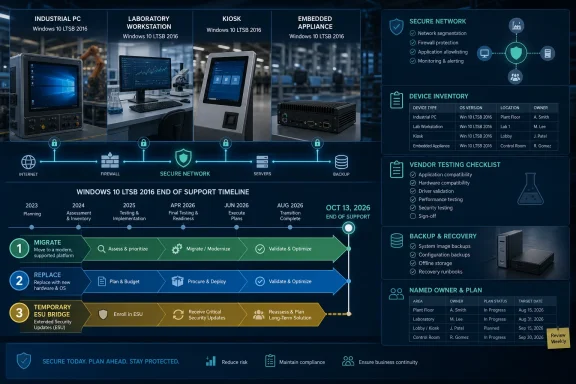
Verdict: Treat paid Extended Security Updates (ESU) as a short, controlled bridge—not the default destination—for Windows 10 Enterprise LTSB 2016 and Windows 10 IoT Enterprise LTSB 2016 devices. These version 1607 systems reach end of extended support on October 13, 2026. ESU is a paid, time-boxed bridge that provides critical and important security updates for enrolled devices; each organization must separately validate its vendor, hardware, operational, and regulatory requirements.
Choose ESU only when a validated migration, application replacement, hardware replacement, or retirement cannot be completed before the support deadline. Give every enrolled device a named owner and a dated exit plan.
This guide covers industrial PCs, kiosks, laboratory systems, imaging workstations, and embedded appliances running Windows 10 Enterprise LTSB 2016 or Windows 10 IoT Enterprise LTSB 2016, build family 14393.
Do not plan from a device name, an asset record, or the fact that it “runs Windows 10.” The October 13, 2026 deadline applies specifically to the 2016 Long-Term Servicing Branch release, version 1607.
Check every device individually:
That distinction has repeatedly surfaced in WindowsForum’s Windows 10 support discussions. Community reports describe users and organizations reaching a crossroads as general Windows 10 support ends, with LTSC, upgrades, and alternative platforms all entering the planning conversation. The important qualification for this guide is that the general Windows 10 deadline and the LTSB 2016 deadline are not interchangeable.
WindowsForum users have also emphasized how stable Windows 10 has been in long-lived environments. That stability can hide material differences between devices that look identical on paper. One industrial PC may have a different acquisition board, dongle, firmware level, driver, or application patch than the unit beside it. Inventory by device, not merely by model or production line.
WindowsForum’s earlier reports on LTSC and upgrade strategies consistently frame the end of Windows 10 support as a planning decision rather than a single upgrade button. That framing is especially useful here: ESU can buy controlled time, but it should not erase the reason the device entered an exception process.
Do not choose a target merely because its name includes “LTSC.” Before approving a migration:
This is where the device-by-device inventory becomes more valuable than generic end-of-support advice. WindowsForum users considering LTSC and alternative upgrade strategies may share the same operating-system deadline, but they do not necessarily share the same hardware, application, or support constraints.
Then:
Choose ESU only when a validated migration, application replacement, hardware replacement, or retirement cannot be completed before the support deadline. Give every enrolled device a named owner and a dated exit plan.
This guide covers industrial PCs, kiosks, laboratory systems, imaging workstations, and embedded appliances running Windows 10 Enterprise LTSB 2016 or Windows 10 IoT Enterprise LTSB 2016, build family 14393.
 Is the device actually Windows 10 LTSB 2016?
Do not plan from a device name, an asset record, or the fact that it “runs Windows 10.” The October 13, 2026 deadline applies specifically to the 2016 Long-Term Servicing Branch release, version 1607.Check every device individually:
- Sign in with an administrator account.
- Press Windows + R.
- Type
winverand select OK. - Confirm that the dialog identifies:
- Version 1607
- An OS build beginning with 14393
- Open Settings > System > About.
- Under Windows specifications, record the edition, version, and OS build.
- Add the device’s serial number, physical location, owner, application, and equipment function to the inventory.
- Flag any mismatch between Windows and the asset-management record for investigation.
That distinction has repeatedly surfaced in WindowsForum’s Windows 10 support discussions. Community reports describe users and organizations reaching a crossroads as general Windows 10 support ends, with LTSC, upgrades, and alternative platforms all entering the planning conversation. The important qualification for this guide is that the general Windows 10 deadline and the LTSB 2016 deadline are not interchangeable.
WindowsForum users have also emphasized how stable Windows 10 has been in long-lived environments. That stability can hide material differences between devices that look identical on paper. One industrial PC may have a different acquisition board, dongle, firmware level, driver, or application patch than the unit beside it. Inventory by device, not merely by model or production line.
Which path should you choose: ESU, migration, or replacement?
Use this decision tree for each device:- Can the device be retired before October 13, 2026?
- If yes, document and execute the retirement.
- If no, continue.
- Does the application or equipment vendor support a currently supported Windows target on the existing hardware?
- If yes, validate migration.
- If no, continue.
- Can the application and attached equipment move to replacement hardware?
- If yes, plan replacement and acceptance testing.
- If no, continue.
- Must the device remain operational after the deadline?
- If no, isolate and retire it according to policy.
- If yes, evaluate paid ESU as a temporary bridge.
- Can the organization license, activate, patch, test, monitor, and ultimately remove the ESU exception?
- If yes, enroll it with a dated exit plan.
- If no, escalate the operational risk and accelerate replacement.
Choose paid ESU when all of these are true
- The device is confirmed as LTSB 2016, version 1607, build family 14393.
- It must remain in service after October 13, 2026.
- The application or equipment vendor cannot yet support the selected replacement platform.
- The organization has obtained the applicable ESU entitlement.
- Administrators can continue deploying and testing security updates.
- A specific person or team owns the exception.
- The device has a migration, replacement, retirement, and funding date.
WindowsForum’s earlier reports on LTSC and upgrade strategies consistently frame the end of Windows 10 support as a planning decision rather than a single upgrade button. That framing is especially useful here: ESU can buy controlled time, but it should not erase the reason the device entered an exception process.
Choose a validated LTSC, IoT, or other supported migration when possible
Migration is normally the preferred strategic path when the hardware remains serviceable and the application vendor supports a suitable Windows release.Do not choose a target merely because its name includes “LTSC.” Before approving a migration:
- Ask the application or equipment vendor for the exact supported Windows edition and release.
- Confirm whether an in-place upgrade is supported or a clean image is required.
- Verify drivers for storage, network, serial, imaging, acquisition, controller, and expansion hardware.
- Confirm the application version, licensing mechanism, middleware, database, and required services.
- Verify that the Windows edition is available through an appropriate licensing or OEM channel.
- Review the target release’s lifecycle against the expected remaining life of the equipment.
- Test the full workload on representative hardware.
- Obtain operator and system-owner acceptance before production deployment.
This is where the device-by-device inventory becomes more valuable than generic end-of-support advice. WindowsForum users considering LTSC and alternative upgrade strategies may share the same operating-system deadline, but they do not necessarily share the same hardware, application, or support constraints.
Choose hardware or application replacement when migration is not supportable
Replacement is the right answer when any of the following applies:- The vendor will not support the current application on an appropriate supported Windows release.
- The PC depends on hardware without a usable driver path.
- A specialized interface, acquisition board, dongle, controller, printer, scanner, or imaging device cannot be validated.
- The system cannot meet the organization’s recovery, backup, remote-support, or patching requirements.
- The application relies on components that cannot be carried into the replacement environment.
- ESU and repeated validation would cost more than moving to a supported platform.
- The underlying hardware is already unreliable or difficult to replace.
How do you prepare Windows 10 LTSB 2016 for ESU?
Microsoft provides a separate paid ESU program for Windows 10 Enterprise LTSB 2016 and Windows 10 IoT Enterprise LTSB 2016. The program uses separate ESU entitlements for its covered periods. Do not reuse keys, activation identifiers, or procedures intended for another Windows edition or another ESU program.Source note: Administrators should follow Microsoft’s current Windows 10 LTSB 2016 ESU documentation for purchasing, key retrieval, activation, and troubleshooting. Activation instructions, portals, prerequisites, and licensing workflows can change. Do not rely on copied commands, identifiers, screenshots, or portal paths from an older deployment note.
Prepare and document the device
- Confirm that the device runs Windows 10 Enterprise LTSB 2016 or Windows 10 IoT Enterprise LTSB 2016.
- Record version 1607 and the complete 14393-family OS build.
- Confirm that the device is receiving updates through the organization’s approved update channel.
- Install the servicing and security updates required by Microsoft’s current LTSB 2016 ESU instructions.
- Restart the device if required.
- Check again for applicable updates and complete any required servicing sequence.
- Confirm that the organization has purchased the correct ESU entitlement for the edition and coverage period.
- Identify whether licensing is supplied through a volume-licensing arrangement, an OEM, or another authorized channel.
- Record the change ticket, device owner, operational approver, and planned maintenance window.
- Back up the system and verify the recovery method before changing licensing or servicing configuration.
Obtain and activate the entitlement
Because the supplied information does not establish a current universal portal path, role assignment, command sequence, or offline procedure, use Microsoft’s current LTSB 2016 ESU instructions and the licensing channel through which the entitlement was acquired.- Confirm the exact installed Windows edition.
- Confirm the purchased ESU period for that device.
- Obtain the corresponding key or entitlement through the authorized licensing or OEM channel.
- Secure the licensing material in the organization’s approved secrets-management system.
- Follow Microsoft’s current LTSB 2016 ESU activation procedure exactly.
- Use only the activation identifier Microsoft currently documents for the relevant ESU period.
- If the device cannot reach the required activation service, consult the current Microsoft documentation and licensing support channel for an approved isolated-device process.
- Record the activation date, entitlement period, administrator, and change ticket.
- Do not place keys in ticket comments, shared spreadsheets, deployment notes, or application documentation.
Verify ESU readiness
Do not treat a successful licensing dialog as the only test. Verify the complete servicing path:- Confirm that the operating system still reports the expected edition, version, and build.
- Confirm that Microsoft’s current verification method reports the applicable ESU entitlement as active.
- Deploy an applicable ESU-covered update to a non-production or representative test device when one is available.
- Restart the test device as required.
- Confirm that the update appears in installed update history.
- Test the application, attached equipment, communications, and recovery behavior.
- Review servicing and deployment logs for failures.
- Move to production only through an approved maintenance window.
- Update the inventory with the installed update, test result, and next review date.
How should you validate a migration before touching production?
Treat migration as an application-and-machine validation project, not a normal desktop refresh.- Build a complete inventory:
- Windows edition, version, and build
- PC model, firmware, storage, network adapters, serial interfaces, and expansion cards
- Attached equipment and peripherals
- Application version and vendor
- License mechanism, service accounts, and required network destinations
- Current recovery image and storage location
- Device owner and operational criticality
- Select a representative non-production device or vendor-approved test configuration.
- Obtain written confirmation of the supported target Windows release. “Windows 10 supported” is not specific enough.
- Create and test a recovery path:
- Verify that the existing backup can be restored.
- Preserve installers, configuration files, licensing data, and required settings.
- Document rollback authority and maximum allowable downtime.
- Validate the actual workload:
- Startup and sign-in
- Application launch and licensing
- Device communications
- Data acquisition, printing, scanning, or imaging
- Network access
- Reboot and power recovery
- Backup and restore
- Update installation
- Post-update application operation
- Run operator acceptance testing.
- Document the result and remaining exceptions.
- Schedule production deployment during an approved maintenance window.
What should administrators do before October 13, 2026?
Sort every device into three lists: migrate before cutoff, replace or retire before cutoff, and ESU bridge with named exit date.Then:
- Reconcile the inventory against network, endpoint-management, procurement, and facilities records.
- Assign an application owner and operational owner to every device.
- Obtain vendor support statements for the proposed target.
- Reserve test hardware and maintenance windows.
- Budget separately for ESU, migration engineering, application upgrades, and hardware replacement.
- Activate and verify ESU before the deadline for devices that genuinely need it.
- Review each ESU exception on a fixed schedule.
- Escalate any device that has no funded exit path.
Frequently Asked Questions
Does Windows 10 LTSB 2016 receive support after October 13, 2026 without ESU?
No. Windows 10 Enterprise LTSB 2016 and Windows 10 IoT Enterprise LTSB 2016 reach end of extended support on October 13, 2026. Devices that must remain in service need the applicable paid LTSB 2016 ESU entitlement or a move to a supported platform.Is Windows 10 Enterprise LTSC 2021 automatically a long-term replacement for LTSB 2016?
No. Evaluate the target edition’s current lifecycle, licensing availability, hardware compatibility, and vendor support before committing to migration. An LTSC label alone does not establish that a release offers enough remaining service life for a costly production validation project.Can every LTSB 2016 device move to Windows 10 IoT Enterprise LTSC?
No. IoT Enterprise LTSC is not an interchangeable default for Enterprise LTSB devices. Confirm procurement eligibility, licensing, hardware support, deployment rights, application compatibility, and vendor acceptance.How do I confirm ESU activation succeeded?
Use the verification method in Microsoft’s current LTSB 2016 ESU documentation. Then prove the servicing path by deploying an applicable ESU-covered update to a representative device, confirming installation, reviewing deployment results, and testing the application and attached equipment.What if the device is isolated from the internet?
Do not improvise an offline activation process from instructions written for another ESU program. Consult Microsoft’s current LTSB 2016 ESU documentation and the authorized licensing or OEM channel for the supported isolated-device procedure.Should identical devices share one migration decision?
Not automatically. Verify each device’s Windows edition, build, hardware, firmware, application version, attached equipment, licensing, and operational role. Small configuration differences can change the migration or replacement outcome.References
- Primary source: learn.microsoft.com
Windows 10 - release information | Microsoft Learn
Learn release information for Windows 10 releaseslearn.microsoft.com - Primary source: WindowsForum
Windows 10 End of Support in 2025: Explore LTSC and Upgrade Strategies | Windows Forum
With official free support for Windows 10 ending in October 2025, users and organizations face a crossroads that is influencing their upgrade strategies and...windowsforum.com