

Microsoft’s latest scoped Windows 11 update bundles a handful of tidy, productivity‑first tweaks — most notably a reworked chat surface that is now the free Microsoft Teams experience, tighter phone messaging via Phone Link inside Teams, and a Start menu change that labels built‑in apps as system components so they’re easier to identify and manage.
Microsoft calls Windows 11, version 23H2 a scoped, cumulative release — an optimized package that collects features already announced and a few small enhancements rather than a full platform rebase. That framing comes straight from John Cable, the company’s VP of Windows Servicing and Delivery, when Microsoft published the availability details for the 23H2 update. The bundle you’re seeing in the October/November rollouts is intentionally compact. It includes the larger set of AI and Copilot changes Microsoft shipped earlier, and layers on several functional niceties that improve messaging and app management on everyday PCs. Independent press coverage and Microsoft’s update notes line up on the headline items: the Chat flyout has been rebranded as Microsoft Teams (free) and pinned to the taskbar by default, SMS integration and a new People experience are present in the compact Teams window, and system apps get a visible “system” label in the Start menu and a dedicated System Components page in Settings. This update is helpful if you skipped the earlier September/October releases — it will bring the Copilot-assisted experiences and those smaller Teams and Start menu changes into a single, serviceable package for most devices.
Source: Mashable Windows 11 23H2 update: 3 new features coming to your PC
 Background / Overview
Microsoft calls Windows 11, version 23H2 a scoped, cumulative release — an optimized package that collects features already announced and a few small enhancements rather than a full platform rebase. That framing comes straight from John Cable, the company’s VP of Windows Servicing and Delivery, when Microsoft published the availability details for the 23H2 update. The bundle you’re seeing in the October/November rollouts is intentionally compact. It includes the larger set of AI and Copilot changes Microsoft shipped earlier, and layers on several functional niceties that improve messaging and app management on everyday PCs. Independent press coverage and Microsoft’s update notes line up on the headline items: the Chat flyout has been rebranded as Microsoft Teams (free) and pinned to the taskbar by default, SMS integration and a new People experience are present in the compact Teams window, and system apps get a visible “system” label in the Start menu and a dedicated System Components page in Settings. This update is helpful if you skipped the earlier September/October releases — it will bring the Copilot-assisted experiences and those smaller Teams and Start menu changes into a single, serviceable package for most devices. What’s included: the three features that matter
1. The Chat taskbar flyout is now Microsoft Teams (free)
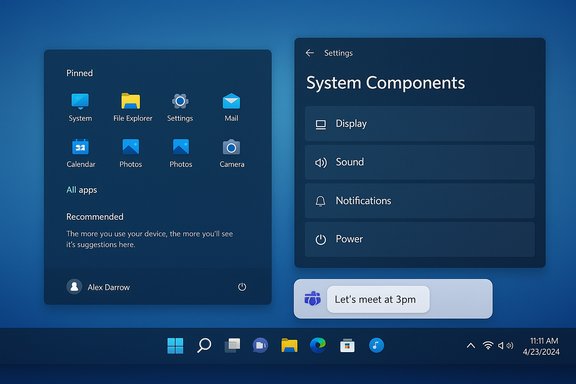
The most visible change for everyday users is the replacement of the old “Chat” flyout with a compact Microsoft Teams experience that’s pinned to the taskbar by default. Click the icon and you get a small, dockable window that supports chat, calls, meetings and the other light collaboration flows Microsoft wants on every desktop. That window is designed as a mini communications hub rather than the full Teams desktop client. Why this matters:- The new compact Teams window keeps conversations at hand without switching context to a full application.
- For basic consumer and hybrid‑work scenarios it reduces friction to start a call or quick chat.
- It also positions Microsoft to converge a single “communications surface” across Windows 11 and Microsoft 365 experiences.
2. Send and receive SMS from the compact Teams window (Phone Link integration) and a new People experience
Inside that compact Teams window you’ll find tighter links to your phone. Android phones already use Phone Link (previously Your Phone) to mirror messages and calls; Microsoft is extending that convenience into the Teams mini window so you can send and receive SMS directly from the desktop in the same surface where chats and calls live. That reduces the need to switch apps when moving between PC work and mobile conversations. Alongside SMS integration, Microsoft added a People tab to the compact Teams experience. The People tab can surface and migrate contacts (it syncs with Outlook and Skype contacts), making it easier to find and message the people who matter without a separate address‑book step. Microsoft’s documentation and the Windows update notes both highlight the People sync as a convenience uplift. A few practical realities to note:- The messaging tie‑ins currently assume Phone Link integration (so Android coverage is the most complete).
- Contact sync behavior depends on what accounts are signed into your PC (Microsoft account, work/school account), so what you see may differ by device and configuration.
3. “System” labels for built‑in apps and a new System Components settings page
In Start > All apps, Windows 11 will now annotate built‑in Windows utilities (things like Calculator, Notepad and other OS‑supplied tools) with a “system” label. At the same time Microsoft has moved the management surface for those items out of the Installed Apps list and into a dedicated Settings page: Settings > System > System Components. The change is small, but it clarifies which apps are part of the core OS and which were installed later. That move also aligns with Microsoft’s broader packaging decisions: many built‑in components are now treated as manageable system components (configurable but not removable in many cases), which simplifies discoverability but changes how users and IT professionals interact with preinstalled apps. Independent reporting and analysis confirm that Microsoft consolidated non‑removable apps under System Components in 23H2.The broader context: Copilot and earlier AI additions
The scoped 23H2 release bundles up the significant Copilot features Microsoft delivered in the prior, larger release cycle — things like Copilot in Windows, Copilot‑powered improvements in Snipping Tool and Paint, and new passwordless and passkey flows. If you missed the September/earlier rollout that pushed those Copilot experiences, installing this 23H2 release is the easiest way to get them now. Microsoft framed 23H2 as containing “all the recently announced features” plus several enhancements, which is why the Copilot story appears alongside these smaller Teams and Start menu updates. Microsoft’s release notes and the support history make a point of the staged, gated nature of Copilot features: some AI experiences are hardware‑gated (Copilot+ NPU devices), licensing‑gated, or dependent on geographic and policy constraints, so not every device will see the exact same feature set at the same time.Strengths — why this update is useful
- Lower friction for everyday communications. The compact Teams window keeps chat, calls, meetings and (now) SMS in the same visual surface. For users who already use One Outlook/Teams ecosystem, that reduces context‑switching and speeds quick replies.
- Cleaner app discovery. The “system” label in All apps and a dedicated System Components page make it easier to see which apps ship with Windows. For power users and IT teams this reduces confusion during troubleshooting and provisioning.
- Consolidation of functionality. Bundling the Copilot work done in prior builds with these small UX updates gives users a single update to apply instead of multiple separate patches. That’s a net win for update hygiene and reduction of update churn.
- Tidy incrementalism. Microsoft’s scoped release model — flipping features on a uniform binary via enablement and server‑side gating — reduces risk compared with large, disruptive re‑bases. Administrators can pilot features on smaller device sets before pushing enterprisewide. Independent coverage describes this approach as a deliberate safety and manageability tradeoff.
Risks, caveats, and areas to watch
- Feature availability will vary. Not every PC will see the same behavior. Copilot and some Teams integrations remain gated by hardware, licensing and telemetry, which means you may not get the compact Teams window or SMS features right away. Microsoft’s documentation flags these differences and known‑issue workarounds. Treat rollout timing as device‑specific.
- Privacy and consent considerations. Any tighter integration between your phone, contact lists and an OS‑level chat surface raises legitimate privacy questions. Microsoft requires consent for some cross‑service data sharing in certain jurisdictions (for example, EEA consent requirements are explicitly called out in Windows notes). If you’re privacy conscious, review the account and telemetry settings before enabling contact sync or Phone Link features.
- Non‑removable system components. The System Components consolidation makes built‑in apps easier to find, but it also reinforces that many of these components are not removable. For users and enterprises that want minimal images, the new organization changes how provisioning and app‑removal policies will be enforced; IT teams should validate their imaging workflows. Journalists and technical analysts have noted this consolidation can be frustrating when combined with non‑removability.
- Multi‑monitor caveats with Copilot preview. Microsoft’s update history lists a known issue: Copilot in Windows (preview) may be restricted or disabled on devices using more than one monitor because of reported icon alignment and desktop icon movement issues. If you rely on multi‑monitor productivity, test Copilot features before broad deployment.
- UI fragmentation and user expectations. Rebranding Chat to Teams and surfacing messaging in a compact window may confuse users who expected the fuller Teams desktop client. The compact app is intentionally limited and not a replacement for the full Teams experience; organizations should communicate the difference to users to avoid helpdesk churn.
Deployment: how this lands and how to control it
- Check for updates: open Settings > Windows Update and click Check for updates. The scoped feature update is distributed through the normal Windows Update channel and may show as a “Feature update” or as cumulative packages depending on your device state.
- Opt into the Release Preview Channel (Insiders) if you want earlier access: Microsoft uses phased rollouts and controlled feature rollouts to gate experiences; Insider channels can surface features earlier but with higher variability.
- Manage Teams and Chat visibility:
- To unpin the compact Teams icon from the taskbar: right‑click the icon and choose Unpin from taskbar, or go to Settings > Personalization > Taskbar to control the appearance.
- To disable Phone Link / SMS features, unlink your phone from Settings or Phone Link app and remove contact sync permissions.
- Review privacy settings: If you don’t want contacts and message metadata surfaced in Windows, check Settings > Privacy & security and the privacy controls inside the Teams mini‑window. Some regions will also prompt for explicit consent to cross‑service data sharing.
- IT rollout guidance: pilot the update on a subset of representative devices, verify multi‑monitor behavior (if applicable) and confirm that critical management tooling and drivers are compatible before broad deployment. Microsoft’s enterprise guidance and community reporting both recommend a phased approach.
Practical tips and quick controls
- If you prefer the old Chat flyout behavior or want to minimize Microsoft Teams presence:
- Unpin the Teams icon from the taskbar.
- If your organization permits, switch the Teams experience to the full desktop client (install and sign in with the account intended for work) and treat the compact Teams window as the consumer surface.
- To check whether SMS integration is available for your device:
- Open the compact Teams window and see if a Phone or Messages icon appears, or open Phone Link and confirm your Android device is linked and authorized.
- To see which apps are labeled as system:
- Open Start > All > look for the “system” label next to built‑in apps.
- Manage them in Settings > System > System Components to view which pieces are configurable versus removable.
- If you run multiple monitors and notice icons shifting or layout issues after enabling Copilot:
- Temporarily disable Copilot in preview features, or roll back to a prior restore point while Microsoft issues a fix, as documented in Windows release notes.
How credible are these changes? Verification and cross‑checks
The core claims — Chat rebranded to Microsoft Teams (free), SMS/Phone Link integration within the compact Teams window, and the Start menu “system” labels plus a System Components settings page — are documented across Microsoft’s own Windows blog and support update history, and were confirmed by multiple independent outlets and hands‑on reports. Microsoft’s Windows Experience Blog explained the scoped nature of 23H2 and the Chat→Teams transition. Tom’s Hardware, Windows Central and a number of technology outlets ran independent coverage and hands‑on pieces that described the compact Teams surface, the People tab, and the system label changes, which provides cross‑validation from non‑Microsoft sources. Those outlets also highlighted the incremental, manageability‑oriented nature of the update. One caveat when reading breathless headlines: some Copilot features are region‑ and hardware‑gated, and a handful of behavior changes (multi‑monitor glitches, staged rollouts) are logged as known issues in Microsoft’s support pages — so the experience you see may differ from what reviewers observed. That variability is explicitly acknowledged in Microsoft’s release notes.Verdict — should you install it now?
For most home users and small‑to‑medium businesses the update is safe and worthwhile. It consolidates the previously released Copilot work with a few sensible UI improvements that make messaging and system app management clearer. If you already use Teams and Phone Link, the compact Teams window and SMS integration are useful time‑savers. If you manage larger fleets or have specific hardware configurations (especially multi‑monitor docking stations, unusual drivers, or legacy management tooling), pilot the release and verify that your workflows remain stable before wide rollout. Microsoft’s phased approach makes that practical, but prudence is still advised.Final thoughts
This Windows 11 update is a textbook example of modern OS evolution: incremental, feature‑focused, and pragmatic. It doesn’t reinvent the desktop, but it tightens the seams where people actually spend time — chatting, messaging, and managing the basic tools that come with the OS. The real headline continues to be Microsoft’s AI and Copilot work shipped earlier; 23H2 simply packages that with a few convenient messaging and Start menu improvements so the day‑to‑day experience feels a little smoother. If you skipped the prior Copilot push, installing this update will get you nearly all of that functionality and the small productivity wins that accompany it. For hands‑on troubleshooting, rollout planning, or privacy configuration checks, refer to Settings > Windows Update to see whether the update is offered to your device and consult the Windows release health dashboard if you run into issues.Source: Mashable Windows 11 23H2 update: 3 new features coming to your PC
