

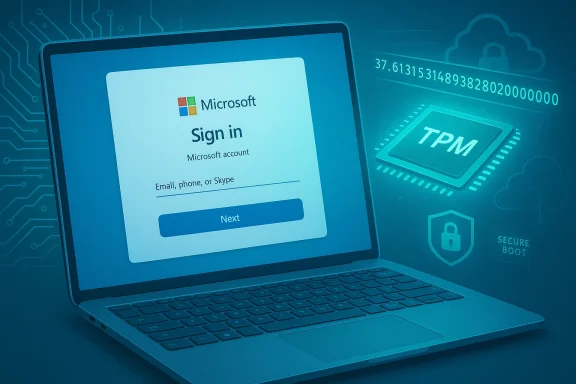
Microsoft's quiet expansion of automatic device encryption in Windows 11 version 24H2 has changed how full-disk encryption is deployed during setup — and for many users that change increases the risk of being locked out of their own PC if they don't prepare for it. The operating system now triggers BitLocker-style device encryption automatically during the Out‑of‑Box Experience (OOBE) when a user signs in with a Microsoft account (or an organizational account), with recovery keys escrowed to that account — behavior that happens without an explicit, dramatic prompt and that binds encryption keys to platform measurements stored inside the TPM.
Windows has long offered BitLocker as the enterprise-grade full‑disk encryption feature and a lighter “Device encryption” option for some consumer devices. Historically, automatic device encryption only applied to certain system classes (Modern Standby/HSTI devices, soldered RAM, etc.), and visibility differed between Windows editions: BitLocker management UI and controls remained a Pro feature, while Home and qualifying consumer devices could get device encryption silently.
With Windows 11 version 24H2, Microsoft relaxed several of the previous hardware constraints and broadened the circumstances in which automatic device encryption is enabled on a fresh install or a factory reset. That means more PCs — including many consumer devices that previously would not have been automatically encrypted — now enter the first-run setup path where encryption begins behind the scenes once an MSA or work/school sign-in completes. Importantly, this automatic path is only applied during a clean installation or reinstallation performed using the 24H2 image or on devices shipped with 24H2 preinstalled; simple in-place upgrades preserve the device's prior encryption state.
Beyond anecdotal cases, security researchers and forensic vendors have raised the same point: when disk encryption is enabled by default, it dramatically reduces the likelihood that a lost or stolen device will yield readable data — which is good — but it also demands that recovery key management be equally robust, or else legitimate owners can lose data permanently. Where keys are attached to a Microsoft account or to Entra ID, loss of account access or mishandled corporate offboarding can create real recovery problems.
A related practical concern is performance: some testing and reports indicate that full-disk encryption can reduce SSD throughput in certain conditions. Reported figures vary by hardware, drive controller, and workload; a single number (for example, "up to 45% slowdown") should be treated as a worst-case example observed under particular test conditions rather than as a universally applicable degradation for every system. If performance is critical, you should test with your specific hardware and workload before making broad assumptions.
At the same time, the design places a large burden on user and organizational account hygiene. When the recovery key is tied to an online account, the security of your device now depends on both the platform integrity and the security and accessibility of that account. If the account is lost, compromised, or inaccessible (for example, due to forgotten credentials, lack of MFA backup methods, or employee offboarding policy gaps), the encrypted drive becomes inaccessible. The encryption is doing its job perfectly; the human processes and key management around it become the weak link.
However, this improved baseline security introduces an operational challenge that many consumers and even some administrators underestimate. The TPM‑PCR sealing model is designed to detect boot‑chain tampering and to protect keys; that same model makes legitimate firmware updates, motherboard replacements, or account access issues a potential cause of recovery prompts and, if unprepared, permanent data loss.
The practical takeaway for anyone using Windows 11 24H2 is straightforward: assume you will be encrypted if you accept the Microsoft account sign-in during OOBE, confirm and secure the recovery key immediately, and always suspend BitLocker before any firmware or hardware operation that could alter platform measurements. For enterprises, formalized key escrow, provisioning flows, and deprovisioning processes are essential. If those steps are not already standard operating procedure for your devices, they should be today.
Encryption is a strong defense. But like every strong defense, it must be paired with equally strong processes. Fallible human processes are the real threat now — not the cryptography itself.
Source: MakeUseOf Microsoft quietly changed how BitLocker works — and it could lock you out of your own PC
 Background: how we arrived here
Windows has long offered BitLocker as the enterprise-grade full‑disk encryption feature and a lighter “Device encryption” option for some consumer devices. Historically, automatic device encryption only applied to certain system classes (Modern Standby/HSTI devices, soldered RAM, etc.), and visibility differed between Windows editions: BitLocker management UI and controls remained a Pro feature, while Home and qualifying consumer devices could get device encryption silently.With Windows 11 version 24H2, Microsoft relaxed several of the previous hardware constraints and broadened the circumstances in which automatic device encryption is enabled on a fresh install or a factory reset. That means more PCs — including many consumer devices that previously would not have been automatically encrypted — now enter the first-run setup path where encryption begins behind the scenes once an MSA or work/school sign-in completes. Importantly, this automatic path is only applied during a clean installation or reinstallation performed using the 24H2 image or on devices shipped with 24H2 preinstalled; simple in-place upgrades preserve the device's prior encryption state.
What actually changes during OOBE
Silent activation during setup
On qualifying hardware, when you perform a clean install of Windows 11 24H2 and sign in with a Microsoft account at OOBE, Windows will enable device encryption and begin the key-sealing process immediately — without requiring that you explicitly enable BitLocker from Control Panel or the Settings app. This encryption uses the same core cryptography as BitLocker; the main differences are in management visibility and the administrative controls surfaced in Windows editions.Recovery key escrow to account by default
If you sign in with a Microsoft Account during OOBE, the 48‑digit BitLocker recovery key is automatically backed up to that account. For work or school devices, the recovery key will be escrowed in the organization's directory (Entra ID/Azure AD) according to standard enterprise key‑backup flows. This escrow is how Microsoft ensures that lost keys can be recovered — but it also creates a single point of dependency: if you cannot access the account that holds the key, you cannot recover the drive. Microsoft explicitly warns that support does not have a backdoor to recover protected drives.The technical mechanics that make this brittle — TPM, PCRs, and Secure Boot
To understand why routine firmware updates, motherboard swaps, or even some BIOS changes can trigger a recovery prompt (and in worst cases a permanent lockout), you need to know how Windows ties encryption to the platform.- TPM and sealing: When Windows encrypts a system drive, it seals the disk encryption key to the TPM. The TPM will only release that key if platform measurements match the values recorded when the key was sealed.
- Platform Configuration Registers (PCRs): These are TPM registers that store measurements of firmware and boot components. Microsoft’s default modern profile binds to PCR 7 (Secure Boot state) and PCR 11 (BitLocker access control / boot manager measurements) when Secure Boot is available and correctly configured. If those PCR values differ at boot time, the TPM refuses to release the key and Windows will ask for the recovery key.
- Why some changes matter and others don’t: Upgrading a GPU or adding RAM usually won’t change PCR 7 or PCR 11 and therefore won’t trigger recovery. But actions that alter the measured boot chain — firmware/UEFI updates, toggling Secure Boot, clearing the TPM in firmware, replacing the motherboard, loading unsigned or differently signed boot components — can and do change PCR values and can force recovery. Microsoft documents this behavior as the integrity model working as designed.
Real-world consequences: lockouts and data loss
There are increasing reports from users who performed reinstalls or fresh setups and then found drives encrypted with no obvious record of the recovery key. In some cases users who replaced the motherboard or performed firmware resets were asked for keys they did not have; when keys could not be found, they had to reformat or lost data. These stories underscore the practical hazard: automatic encryption is secure, but that security requires that users or administrators preserve the recovery key in a place they can access later.Beyond anecdotal cases, security researchers and forensic vendors have raised the same point: when disk encryption is enabled by default, it dramatically reduces the likelihood that a lost or stolen device will yield readable data — which is good — but it also demands that recovery key management be equally robust, or else legitimate owners can lose data permanently. Where keys are attached to a Microsoft account or to Entra ID, loss of account access or mishandled corporate offboarding can create real recovery problems.
A related practical concern is performance: some testing and reports indicate that full-disk encryption can reduce SSD throughput in certain conditions. Reported figures vary by hardware, drive controller, and workload; a single number (for example, "up to 45% slowdown") should be treated as a worst-case example observed under particular test conditions rather than as a universally applicable degradation for every system. If performance is critical, you should test with your specific hardware and workload before making broad assumptions.
Who is affected — and who can opt out?
Typical consumer scenario
- Clean install of Windows 11 version 24H2.
- TPM (1.2 or 2.0) present and Secure Boot enabled.
- User signs in during OOBE with a Microsoft Account.
Local-account users
If you deliberately set up a local account during OOBE, the automatic cloud escrow path is not used. That avoids the immediate account‑tied escrow, but it also means Windows may leave you responsible for selecting and saving a recovery key manually. Microsoft nudges users toward cloud account sign-in during setup, so a local-account path is increasingly less visible by default.Enterprise-managed devices
When devices are joined to Entra ID/Azure AD or Active Directory, recovery keys are stored in the organization's key store. For managed fleets, that model is preferable — it gives IT the ability to recover devices — but it requires robust offboarding policies. If a device is re-provisioned or handed to a new owner without correctly clearing keys or transferring ownership, recovery can become complex.Second‑hand or gifted PCs
If you buy or receive a used PC that was clean-installed and signed into a Microsoft account, it may already be encrypted and the recovery key is stored in the original owner’s account. If the previous owner did not remove the device from their Microsoft account or provide you with the key, you may be unable to access the drive. Always insist on a full wipe and reinstallation that you control when acquiring used hardware.Practical, step‑by‑step prevention: before you update or swap hardware
The single best high‑level rule: assume that any firmware change or hardware swap can change the TPM measurements that BitLocker relies on — and plan accordingly.- Verify whether encryption is active.
- Run the command: manage-bde -status
or use PowerShell: Get‑BitLockerVolume. These tools tell you the conversion and protection status for each volume. If encryption is active, locate where the recovery key is stored before you change anything. - Ensure you can access the recovery key now.
- If you used a Microsoft Account during setup, sign in to that account and confirm the recovery keys are present in the account's device recovery keys library. If the device is managed, confirm the organizational key is visible in Entra ID or Active Directory. If neither store holds the key, export it manually and save it to at least one separate secure location (printout, encrypted USB in a safe, company key escrow). Microsoft explicitly lists Save to your Microsoft Account, Save to USB, Save to file, or Print as supported options.
- Suspend BitLocker before firmware/BIOS updates or hardware changes.
- Use the BitLocker control panel or manage-bde to suspend protection temporarily. Suspending prevents the TPM from enforcing PCR checks for the update window; once the firmware or hardware work is done, re‑enable protection to re‑seal keys to the new measurements. Microsoft recommends suspending BitLocker before firmware updates for certain PCR profile changes.
- Avoid clearing or resetting the TPM unless you have the recovery key.
- Clearing the TPM destroys sealed secrets; if keys were only stored in the TPM and you don’t have the recovery key, clearing the TPM can produce permanent data loss. If an operation requires clearing TPM firmware for some reason, export and secure the recovery key first.
- For desktop systems with non-critical data, consider whether encryption is necessary.
- If the disk never leaves a secure office and risk of theft is negligible, some power users choose to leave encryption disabled for performance or convenience. For laptops and portable devices, the default safe advice is to keep encryption on and enforce rigorous key‑backup practices.
How to check and retrieve your recovery key now
- On Windows, run: manage-bde -protectors -get C: to view the TPM protector and the numerical password ID; that command lists the recovery password if present in protectors. Microsoft documents these manage-bde diagnostics and the ways to back up keys in their support article.
- If keys were saved to a Microsoft Account, log into the account and look in the Devices & recovery keys area. If keys are managed by your organization, contact your IT department and request the recovery key from Entra ID/Azure AD or Active Directory. Microsoft explicitly states that support cannot retrieve keys on your behalf.
- If you cannot find the key and the drive asks for recovery at boot, you either need the key from an account/IT, or you must reformat and reinstall Windows — which destroys the encrypted data. Microsoft’s guidance and community Q&A reiterate that without the recovery password there is no supported way to bypass the protection.
Enterprise considerations and IT admin guidance
For organizations, the 24H2 behavior requires careful onboarding policy changes:- Enforce company‑managed key escrow: ensure all corporate devices are joined to Entra ID/Azure AD (or Active Directory) and that recovery key rotation and backup policies are enforced at provisioning time. This preserves recoverability even if employees leave.
- Adjust imaging and provisioning flows: when building corporate images or deploying hardware, either design the out‑of‑box experience to enroll devices under corporate control first, or document explicit steps to suspend/reseal BitLocker during firmware updates and re-provisioning.
- Communicate to end users: explicitly instruct desktop and field technicians to back up recovery keys, not to clear TPMs without verifying key ownership, and to treat device ownership transitions as security steps that include key handover/wipe.
- Monitor for hardware changes and firmware updates: in large fleets, automation that suspends BitLocker for firmware updates and then re-enables it reduces recovery incidents. Microsoft documentation shows how PCR profiles and firmware interactions can cause recovery; plan accordingly.
What Microsoft’s changes accomplish — and where the risk tradeoffs sit
There’s a clear security rationale: enabling disk encryption more broadly protects users against data theft when devices are lost or stolen. Making automatic encryption the default for new installs when users sign in with online accounts removes a class of unencrypted devices that might otherwise be abandoned or shipped with sensitive data intact. For that reason, the default shift is a positive move for baseline device security.At the same time, the design places a large burden on user and organizational account hygiene. When the recovery key is tied to an online account, the security of your device now depends on both the platform integrity and the security and accessibility of that account. If the account is lost, compromised, or inaccessible (for example, due to forgotten credentials, lack of MFA backup methods, or employee offboarding policy gaps), the encrypted drive becomes inaccessible. The encryption is doing its job perfectly; the human processes and key management around it become the weak link.
Action checklist — what to do right now (concise)
- Run manage-bde -status to check encryption status.
- If encrypted, verify the 48‑digit recovery key is present in the linked Microsoft account or your organization’s key store. Do not rely on memory. Print or export an additional copy and store it securely.
- Before BIOS/UEFI updates, suspend BitLocker; after updates, re‑enable protection. Avoid clearing the TPM unless you possess the recovery key.
- If you buy a used PC, insist that the seller performs a full wipe and supplies the reinstallation media so you can perform the OOBE and account enrollment under your control.
Final analysis: security improved — but operational maturity must catch up
Microsoft’s expansion of automatic device encryption in Windows 11 version 24H2 is a pragmatic hardening of the default security posture for modern PCs. By broadening support and tying key escrow to the user or organizational account, Microsoft reduces the window in which sensitive data can be extracted from lost or stolen devices.However, this improved baseline security introduces an operational challenge that many consumers and even some administrators underestimate. The TPM‑PCR sealing model is designed to detect boot‑chain tampering and to protect keys; that same model makes legitimate firmware updates, motherboard replacements, or account access issues a potential cause of recovery prompts and, if unprepared, permanent data loss.
The practical takeaway for anyone using Windows 11 24H2 is straightforward: assume you will be encrypted if you accept the Microsoft account sign-in during OOBE, confirm and secure the recovery key immediately, and always suspend BitLocker before any firmware or hardware operation that could alter platform measurements. For enterprises, formalized key escrow, provisioning flows, and deprovisioning processes are essential. If those steps are not already standard operating procedure for your devices, they should be today.
Encryption is a strong defense. But like every strong defense, it must be paired with equally strong processes. Fallible human processes are the real threat now — not the cryptography itself.
Source: MakeUseOf Microsoft quietly changed how BitLocker works — and it could lock you out of your own PC
