
Microsoft's latest Windows 11 refresh is quietly turning a long-standing annoyance into a talking point: updates now install far faster and with noticeably less system strain, and Microsoft has folded a surprising number of practical, user-facing tools into the same package—everything from a taskbar internet speed test to better wake-from-sleep behavior and incremental AI helpers for productivity.
The update Microsoft rolled into Windows 11 as version 24H2 (and its subsequent cumulative packages) is both an under‑the‑hood servicing overhaul and a regular‑user polish pass. At its core Microsoft reworked the Windows servicing stack and the way update manifests are handled so the update pipeline can process tasks in parallel, cache already‑parsed manifests, and scale RAM use based on available memory. Those three engineering changes are the principal reason Microsoft reports large reductions in installation time, restart time and CPU usage during monthly and feature updates.
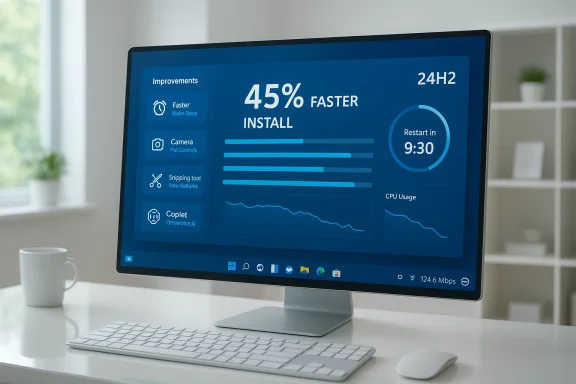
Independent outlets corroborated the headline numbers Microsoft published: internal tests Microsoft shared show monthly updates can install up to about 45% faster, restart times can fall by roughly 30–40%, and CPU time devoted to updating drops in the 15–25% range depending on whether the machine is well maintained or many months out of date. Multiple technical publications reproduced Microsoft’s claims in their reporting while adding real‑world context and caution about hardware variance.
Why this matters: Windows updates have long been a pain point for both consumers and IT administrators—long install windows, unexpected reboots, and heavy CPU/disk activity that interrupts work. A meaningful improvement to the update pipeline reduces downtime and support load, and it changes the calculus for how quickly organizations and home users adopt future releases.
Windows 11’s recent update is notable not because it introduces a single flashy capability, but because Microsoft fixed one of the most persistent sources of user frustration—slow, disruptive updates—while quietly adding practical features that improve daily use. The engineering choices behind the servicing stack are valid and already showing results in Microsoft’s testing and independent reporting, but real‑world outcomes will vary. Proceed with a staged, cautious adoption and use the update as an opportunity to streamline maintenance practices, while keeping an eye on vendor advisories and organizational policy controls.
Source: HotHardware Windows 11's Latest Update Surprises With Speed And Lots Of New Tricks
 Background / Overview
The update Microsoft rolled into Windows 11 as version 24H2 (and its subsequent cumulative packages) is both an under‑the‑hood servicing overhaul and a regular‑user polish pass. At its core Microsoft reworked the Windows servicing stack and the way update manifests are handled so the update pipeline can process tasks in parallel, cache already‑parsed manifests, and scale RAM use based on available memory. Those three engineering changes are the principal reason Microsoft reports large reductions in installation time, restart time and CPU usage during monthly and feature updates.Independent outlets corroborated the headline numbers Microsoft published: internal tests Microsoft shared show monthly updates can install up to about 45% faster, restart times can fall by roughly 30–40%, and CPU time devoted to updating drops in the 15–25% range depending on whether the machine is well maintained or many months out of date. Multiple technical publications reproduced Microsoft’s claims in their reporting while adding real‑world context and caution about hardware variance.
Why this matters: Windows updates have long been a pain point for both consumers and IT administrators—long install windows, unexpected reboots, and heavy CPU/disk activity that interrupts work. A meaningful improvement to the update pipeline reduces downtime and support load, and it changes the calculus for how quickly organizations and home users adopt future releases.
What changed under the hood: The servicing stack and manifest processing
Technical pillars that deliver speed
Microsoft’s explanation is refreshingly specific: three major changes to the servicing stack power the gains.- Parallel manifest processing — Instead of processing components serially, the update installer now handles multiple component manifests concurrently. This reduces bottlenecks when a cumulative update contains many subcomponents.
- Manifest caching — Once a component manifest (the metadata describing what to update and how) is parsed, it can be cached and reused. This is especially beneficial when multiple updates reference the same component sets.
- Adaptive RAM use — The updater will use more RAM for caching where available and less on constrained systems, which improves throughput without penalizing low‑memory devices.
Why numbers from lab tests may not match your experience
Microsoft’s benchmarks compared a well‑maintained system and a system 18 months out of date. While the reductions reported (installation time down ~45.6% for well‑maintained systems, ~43.6% for outdated systems; restart times down ~39.7% and ~33.5% respectively; CPU usage down 15.3–25%) indicate striking improvements, real machines vary:- Differences in storage (SATA HDD vs NVMe SSD), CPU, and RAM will alter results materially.
- Installed third‑party drivers and antivirus tools can reintroduce blocking points during updates.
- Enterprise imaging and custom servicing workflows may not map one‑to‑one onto Microsoft’s test scenarios.
New tricks for everyday users: practical features you’ll notice
While the servicing stack gets the headlines, the 24H2 update and its follow‑ups pack a number of quality‑of‑life features aimed at day‑to‑day productivity and system polish.Taskbar internet speed test and network shortcuts
A small but useful addition is a taskbar‑accessible internet speed test that launches a quick measurement of your connection directly from the taskbar network menu. This is a tidy convenience for troubleshooting flaky Wi‑Fi or diagnosing slow uploads without needing third‑party sites or apps. Several outlets highlighted the ergonomic value of adding small diagnostics where users naturally look.Better wake-from-sleep responsiveness
Microsoft also addressed system resume and wake times—one of those daily frictions that collectively dents perceived performance. Reports and early testing show improved responsiveness on wake (particularly on systems with many apps in memory), making sleep-based workflows feel snappier. This isn’t an enormous architectural shift, but combined with the update performance work it’s a welcome polish for mobile users.Camera pan & tilt controls, emojis, and Snipping Tool enhancements
Other practical items include:- Manual virtual pan/tilt controls for compatible webcams in Settings.
- Updated emoji set and incremental app updates through the Microsoft Store to reduce update bloat.
- Built‑in video trimming features in Snipping Tool to simplify quick edits.
AI features and Copilot integrations — measured, incremental
24H2 continues Microsoft’s Copilot push, especially on Copilot+ certified devices (systems with dedicated NPUs and higher hardware thresholds), but the update blends these AI capabilities with more pedestrian improvements.- New Click to Do actions and Ask Copilot integration bring contextual actions into the right‑click and selection flows. For many users these features are optional and gated — they’re useful but not mandatory to the OS experience.
- The Photos app introduces AI Super Resolution upscaling on supported Copilot+ hardware, promising up to 8× upscale with quality retention (hardware‑dependent). Early availability is limited to specific hardware profiles.
Enterprise features: hotpatching, servicing controls, and deployment implications
Microsoft included enterprise‑oriented capabilities that directly reduce operational friction.Hotpatching and reduced reboots
One of the most consequential changes for IT is hotpatching—a capability that allows certain classes of updates to be applied without forcing a reboot. Initially targeted at Windows 11 Enterprise and specific servicing scenarios, hotpatching is a clear win for server and enterprise desktop environments where reboots are disruptive. Early documentation and community reporting show this was introduced for Enterprise SKUs and specific CPU/architecture targets.Management and policy controls
The update also expanded group policy and Intune controls for features like energy saver settings and Copilot behaviors, reflecting Microsoft’s continuing push to make Windows manageable for large organizations while balancing user convenience. Administrators should review new group policies in release notes before broad deployment.Risks, known issues, and privacy considerations
No major platform update is risk‑free. The rollout has surfaced a handful of tangible concerns and trade‑offs worth flagging.Driver and storage edge cases
After wide deployments of major updates, some users reported driver incompatibilities and storage device issues—most notably sporadic BSOD reports on specific SSD firmware combos from vendors such as Western Digital and SanDisk in earlier 24H2 rollouts. Microsoft and the vendors addressed many of these, but administrators and power users should confirm compatibility with vendor guidance before broad deployment.Telemetry and cloud integration
A subtle but important change is deeper integration of Microsoft’s cloud services into Search, Edge, and Copilot pathways. Features like the taskbar search returning cloud‑saved files, LSI‑backed search improvements, and Copilot tiles in Get Started mean Microsoft is leaning further into cloud orchestration. For many users this is pure convenience; for a privacy‑oriented subset it raises questions about data flows and control. Admins should audit telemetry and cloud sync settings and evaluate the new group policy options that control Copilot and search behaviors.The mysterious inetpub folder and other surprises
A small but notable quirk from a separate cumulative update produced an unexpected empty C:\inetpub folder on many machines—even those that never enabled IIS. Microsoft explained the change as part of broader security and servicing adjustments in a specific Patch Tuesday wave, but the surprise highlighted how seemingly innocuous changes can alarm users. If you spot unexpected folders or components post‑update, consult Microsoft’s KB documentation before manual cleanup.Cross-checking the claims: how we verified the numbers and where to be cautious
Because the servicing‑stack stats are headline‑worthy, verification matters.- Microsoft’s Windows Server/IT blog provided the original technical breakdown and the exact percentage improvements for installation time, restart time, and CPU usage; it also explained the three architectural changes. That blog is the primary authoritative source for the claims.
- The Verge, Tom’s Hardware, PCWorld and Ars Technica independently reported the same figures, quoting Microsoft and adding context about test methodology and known caveats—giving us at least two independent confirmations of the headline numbers. These outlets also performed or aggregated early real‑world observations that tempered lab numbers with anecdotal variability.
- Microsoft’s tests are controlled comparisons and therefore optimistic for many environments. Real‑world gains will vary by hardware profile, third‑party drivers, and enterprise customizations.
- Some features are hardware‑gated (e.g., Copilot+ AI capabilities and Photos super resolution), so treating them as universal improvements is incorrect.
- Reports of device‑specific regressions (SSD compatibility, occasional driver issues) underscore that broad testing in your environment is prudent before mass rollout.
Practical recommendations: how to adopt the update safely
For home users:- Back up important data before applying feature updates. Use built‑in Windows backup or a trusted third‑party tool.
- If you rely on older hardware or vendor‑specific drivers (especially storage/RAID drivers), check vendor support pages for confirmed compatibility with Windows 11 24H2.
- Try the update on a non‑critical machine first, or allow Microsoft’s gradual rollout to reach your device if you prefer the cautious approach.
- Stage the update in a pilot ring to representative hardware and software configurations.
- Confirm firmware and driver compatibility from major vendors (storage, NICs, GPU).
- Evaluate hotpatching and its policy controls to determine whether your environment can safely adopt non‑reboot patching.
- Update documentation and user guidance so end users know about new conveniences (taskbar network test, camera controls) and where to report issues.
Why this update matters strategically for Microsoft and users
This release is notable because it addresses a process problem rather than chasing an individual killer feature. Faster, less intrusive updates reduce friction for adoption and make the platform easier to manage—two outcomes that benefit Microsoft, enterprise customers, and consumers alike.- For Microsoft: improving the update experience reduces support costs, minimizes negative update headlines, and paves the way for more ambitious feature rollouts with less disruption.
- For enterprises: hotpatching and servicing improvements lower downtime and make patch management less painful.
- For consumers: practical tweaks (wake improvements, speed test, Snipping Tool enhancements) are immediately usable and reduce reliance on third‑party tools.
Final analysis: strengths, tradeoffs, and what to watch next
Strengths- Tangible reduction in update downtime: Engineering changes to the servicing stack deliver measurable improvements that materially reduce user disruption.
- Practical, user‑centric features: Small utilities and UI improvements that increase day‑to‑day productivity and system transparency.
- Enterprise focus where it counts: Hotpatching and expanded management policies address long‑standing admin pain points.
- Hardware and driver variance means not every user will see the advertised percentage gains. Test before mass deployment.
- Cloud and Copilot tethering increases convenience at the cost of more integrated cloud flows—enterprises should validate telemetry and compliance impacts.
- Edge cases and surprises (for example, unexpected folders or vendor driver interactions) are still possible; follow vendor and Microsoft advisories before manual interventions.
- Broader adoption metrics: how much of the installed base moves to 24H2 in the months after rollout.
- Vendor firmware fixes and driver updates addressing any compatibility problems with storage and graphics.
- How Microsoft applies hotpatching more broadly and whether desktop SKUs receive the same capabilities as Enterprise over time.
Windows 11’s recent update is notable not because it introduces a single flashy capability, but because Microsoft fixed one of the most persistent sources of user frustration—slow, disruptive updates—while quietly adding practical features that improve daily use. The engineering choices behind the servicing stack are valid and already showing results in Microsoft’s testing and independent reporting, but real‑world outcomes will vary. Proceed with a staged, cautious adoption and use the update as an opportunity to streamline maintenance practices, while keeping an eye on vendor advisories and organizational policy controls.
Source: HotHardware Windows 11's Latest Update Surprises With Speed And Lots Of New Tricks
