

Windows 11 version 24H2, released broadly as the Windows 11 2024 Update, changed the first-run desktop, Start menu, and personalization experience while also exposing a small but telling mouse-cursor bug that users may need to fix manually. That is the surface-level story. The bigger one is that Microsoft’s most mature consumer operating system still asks users to spend their first hour undoing defaults, chasing settings across old and new control panels, and distinguishing design intent from regression. Windows 11 is no longer new, but 24H2 shows how unsettled its everyday experience remains.
There is a ritual to a fresh Windows installation that Microsoft rarely acknowledges in its marketing. The machine boots, the out-of-box experience finishes, the desktop appears, and the user immediately begins removing things. Edge shortcuts, OEM utilities, notification prompts, account nudges, OneDrive assumptions, taskbar defaults, Start menu suggestions, and theme choices all arrive before the user has done any actual work.
That ritual is not new, but Windows 11 24H2 makes it more obvious because the operating system is now deep enough into its lifecycle that the rough edges feel less like growing pains and more like product philosophy. Microsoft has spent years tuning Windows around services, identity, cloud storage, AI entry points, and engagement surfaces. The result is an operating system that can feel polished in screenshots and slightly presumptuous in use.
Paul Thurrott’s Windows 11 Field Guide material points at this reality from a practical angle: after installing or upgrading, the first task is not productivity but inspection. Make sure the system behaves, decide what Microsoft or the PC maker configured on your behalf, and restore a baseline that feels like yours. That is useful advice, but it is also an indictment of how much housekeeping now sits between installation and ownership.
The Windows desktop used to be a blank enough canvas that personalization felt optional. In Windows 11, personalization is closer to remediation. You are not merely choosing a wallpaper; you are deciding how much of Microsoft’s preferred workflow you are willing to leave intact.
But the user-facing experience tells a different story. The more Windows becomes a rolling services platform, the harder it becomes to explain what changed, when it changed, and whether a behavior is a feature, a staged rollout, an A/B test, a regional difference, an app update, or a bug. That ambiguity is now part of the Windows experience.
The Start menu is the clearest example. In the 24H2 era, Microsoft has continued experimenting with account surfaces, recommendations, Phone Link integration, and later a larger redesigned Start menu for 24H2 and 25H2 systems. Some users see features earlier than others. Some settings appear only after supporting app updates arrive. Some elements can be hidden, others merely reduced, and still others are controlled by policy or server-side rollout.
This is rational from Microsoft’s perspective. Windows has more than a billion users, and slow rollout machinery prevents one bad change from detonating across the entire fleet. But from the desk of a sysadmin or the home office of a technically literate user, it creates a new kind of uncertainty: two machines on the same nominal version of Windows may not behave the same way.
That matters because Start and the desktop are not fringe features. They are the front door. If the front door keeps changing shape, users stop treating Windows as a stable environment and start treating it as a negotiation.
The classic Start menu succeeded because it was boring in the right way. It exposed installed software, basic system locations, power controls, and search. Windows 11’s Start menu is prettier, but it has often been less direct. The pinned-app grid, the Recommended section, the account controls, and the All apps view have felt like pieces of several different design meetings stitched together.
The 24H2 generation continues that tension. Microsoft’s Phone Link companion idea is sensible in isolation. Many Windows users also live on Android phones, and bringing messages, photos, battery state, and handoff features closer to Start could be genuinely useful. The problem is not that Microsoft wants Windows to acknowledge the phone. The problem is that Start has become the place where every Microsoft strategy wants a seat.
This creates a hierarchy problem. A launcher should privilege user intent: I open Start because I want to launch something, search something, shut down, or get to a known place. A services dashboard privileges vendor intent: here are things Microsoft believes might be useful, sticky, monetizable, or strategically reinforcing. Windows 11 keeps trying to be both at once.
The redesigned Start menu Microsoft has been rolling out to 24H2 and 25H2 systems is, in some ways, an admission that the original Windows 11 Start design was too constrained. A more scrollable layout, alternative app views, and more control over recommendations are practical improvements. Yet the larger lesson is that Windows 11 has spent years revisiting a problem Windows 10 had already made reasonably understandable.
In theory, Windows 11’s Settings app makes this easy. Personalization has grown into a broad hub for themes, backgrounds, colors, lock screen behavior, taskbar choices, Start settings, fonts, touch keyboard appearance, and more. In practice, personalization remains split between modern Settings pages and legacy Control Panel surfaces that refuse to die.
That split is not merely aesthetic. It affects trust. When a user has to leave Settings and open an older dialog box to fix a mouse pointer, Windows is reminding them that the operating system’s modernization project is unfinished. Microsoft has been moving Control Panel functions into Settings for more than a decade, and yet the deepest, most precise controls still often live in the old house.
There is a charitable interpretation: Windows preserves compatibility because enterprises, accessibility tools, and advanced workflows depend on it. That is true, and it matters. The uncharitable interpretation is also true: Windows’ user experience is layered rather than resolved. New settings appear on top; old settings remain below; users learn to dig.
This is why personalization in Windows 11 is not a frivolous topic. It is where Microsoft’s grand claims about modernity meet the mundane reality of changing a cursor, disabling a suggestion, or removing an unwanted shortcut. The small chores expose the architecture.
Nobody should confuse this with a catastrophic bug. It does not wipe data, break BitLocker, crash games, or strand a device on a failed boot screen. Yet it is exactly the sort of bug that damages confidence because it lands in the most ordinary part of computing: pointing at text.
The mouse pointer is not decoration. It is the most basic signal that the system is listening. When it disappears in text fields, users do not think about cursor resources or theme inheritance. They think the PC is broken. They slow down, overshoot, click the wrong place, and wonder whether the problem is their display, their mouse, their app, their driver, or Windows itself.
That is why small UI regressions matter in a mature operating system. They are daily irritants with a long half-life. A blue screen is dramatic, but it is usually episodic. A disappearing cursor is petty and constant. It turns every text field into a reminder that the platform shipped with something obvious enough for users to notice and obscure enough that the fix still requires a trip through legacy controls.
The irony is that Windows has extraordinary compatibility machinery, enterprise-grade deployment tooling, and decades of input-device history. It can run ancient Win32 applications and modern sandboxed apps on the same desktop. But in 24H2, a text cursor could still vanish in a way that made the world’s most used desktop operating system feel amateur.
The legacy Mouse Properties dialog is not beautiful. It is dense, small, and visually out of step with Windows 11. But it does something the modern Settings app often avoids: it exposes the actual machinery. You can see pointer roles, schemes, files, and custom cursor assignments. You can understand that “Text Select” is a system role with a specific cursor file behind it.
That transparency has value. Modern Windows design often hides implementation details in the name of simplicity, but when something breaks, users need handles. A simplified toggle is wonderful until it fails to describe the thing it controls. The old dialogs may be ugly, but they are legible to anyone who has administered Windows for more than five minutes.
There is a broader lesson here for Microsoft. Deprecating old UI is not the same thing as replacing it. A modern settings page that covers 80 percent of scenarios is not a replacement for a legacy tool that covers the last 20 percent administrators actually need. Windows can look modern and still be operationally incomplete.
For enthusiasts, this is familiar territory. For normal users, it is bewildering. A fresh Windows 11 machine should not require a scavenger hunt through old dialogs to correct basic pointer behavior. If Microsoft wants Settings to be the future, Settings has to become not just prettier but complete.
In managed environments, defaults are not just defaults. They become baselines. If the Start menu changes, administrators have to decide whether to accept the new layout, suppress parts of it, document it, or wait. If Microsoft introduces new companion surfaces or account prompts, IT has to understand whether they can be governed through Group Policy, MDM, registry configuration, app controls, or not at all.
The same applies to personalization bugs. A disappearing cursor may sound like an individual annoyance until it lands on a fleet of machines used for data entry, support work, development, or document review. The cost is not measured only in severity. It is measured in repetition.
Windows 11 24H2 also arrived in the usual context of compatibility holds, known issues, and staged deployment. Microsoft’s release-health model is more transparent than it used to be, and that is good. But transparency does not eliminate operational burden. It merely gives IT departments a better map of the minefield.
This is where Microsoft’s consumer and enterprise goals collide. Consumers may accept a trickle of feature changes as part of modern software life. Enterprises prefer boring, documented, reversible behavior. Windows is trying to be both a living consumer service and a predictable enterprise substrate, and 24H2 shows how hard that balance remains.
That is not nostalgia. It is workflow reality. The desktop is where people write, reconcile spreadsheets, join meetings, manage files, build software, remote into servers, configure devices, and recover from whatever the last update changed. If the desktop feels noisy, Windows feels noisy. If Start feels compromised, Windows feels compromised. If the pointer disappears, Windows feels unreliable.
This is why the first-run experience matters so much. The moment after OOBE is when the operating system makes its pitch. It can say, “This is your PC.” Or it can say, “Here is a collection of Microsoft priorities you may want to trim.” Too often, Windows 11 says the second thing.
The solution is not for Microsoft to stop adding features. Windows has to evolve, and some of the 24H2-era additions are useful. The solution is discipline: fewer promotional surfaces, clearer controls, more complete Settings pages, less fragmentation between old and new UI, and faster fixes for regressions that affect core input.
A desktop operating system earns trust by being predictable in boring moments. Microsoft still tends to spend too much energy making Windows look strategically alive and not enough making it feel quietly dependable.
That difference matters. The first-run Windows checklist is folk knowledge accumulated through repetition. Remove the desktop shortcut you did not ask for. Check the theme. Decide whether Windows Spotlight is welcome. Inspect Start. Verify taskbar behavior. Calm down notifications. Confirm OneDrive’s assumptions. Make sure input works. Then, and only then, begin using the PC.
Microsoft could learn from that genre. The company’s onboarding tends to promote services, while enthusiast onboarding restores agency. A better Windows first-run experience would ask fewer leading questions and provide a clean “make this PC quiet and local-first” path for users who want it.
The irony is that Windows 11 already contains much of what power users want. It has strong windowing, good hardware support, mature accessibility options, improved security defaults, excellent backwards compatibility, and a growing Settings surface. But the product often hides its strengths behind avoidable friction.
When third-party guides become the best way to make Windows feel normal, the vendor should treat that as feedback. Enthusiasts are not merely complaining; they are documenting the gap between the shipped experience and the desired one.
The person at the keyboard should be the center of gravity. Too often, they are the final integrator. They inherit defaults from Microsoft, additions from the PC maker, changes from feature rollout, fixes from cumulative updates, and workarounds from community guides. The user’s job becomes reconciling the stack.
This is why the Start menu and personalization details matter. They are not just preferences. They are signals about who Windows is for. A Start menu that foregrounds user-chosen apps says one thing. A Start menu that keeps making room for recommendations, account surfaces, phone panels, and experiments says another.
The same is true of the cursor workaround. A platform that lets a user fix a broken cursor role is powerful. A platform that requires that fix after an upgrade is careless. Windows’ greatest strength has always been that almost everything can be adjusted. Its recurring weakness is that too much still needs to be.
Microsoft’s challenge is not technical ability. It is restraint. The company can build the settings, policies, app integrations, and shell experiments. The harder task is deciding which of them deserve to appear in the user’s way.
 The First Hour of Windows Is Still a Cleanup Job
There is a ritual to a fresh Windows installation that Microsoft rarely acknowledges in its marketing. The machine boots, the out-of-box experience finishes, the desktop appears, and the user immediately begins removing things. Edge shortcuts, OEM utilities, notification prompts, account nudges, OneDrive assumptions, taskbar defaults, Start menu suggestions, and theme choices all arrive before the user has done any actual work.That ritual is not new, but Windows 11 24H2 makes it more obvious because the operating system is now deep enough into its lifecycle that the rough edges feel less like growing pains and more like product philosophy. Microsoft has spent years tuning Windows around services, identity, cloud storage, AI entry points, and engagement surfaces. The result is an operating system that can feel polished in screenshots and slightly presumptuous in use.
Paul Thurrott’s Windows 11 Field Guide material points at this reality from a practical angle: after installing or upgrading, the first task is not productivity but inspection. Make sure the system behaves, decide what Microsoft or the PC maker configured on your behalf, and restore a baseline that feels like yours. That is useful advice, but it is also an indictment of how much housekeeping now sits between installation and ownership.
The Windows desktop used to be a blank enough canvas that personalization felt optional. In Windows 11, personalization is closer to remediation. You are not merely choosing a wallpaper; you are deciding how much of Microsoft’s preferred workflow you are willing to leave intact.
24H2 Tightens the Platform While Loosening the User’s Grip
Version 24H2 is not a cosmetic service pack. It is the Windows 11 2024 Update, the platform branch that underpins newer Copilot+ PC work, Arm improvements, system plumbing, and a long tail of feature delivery through cumulative updates. For administrators, developers, and power users, 24H2 matters because it is the base Microsoft wants the ecosystem to move toward.But the user-facing experience tells a different story. The more Windows becomes a rolling services platform, the harder it becomes to explain what changed, when it changed, and whether a behavior is a feature, a staged rollout, an A/B test, a regional difference, an app update, or a bug. That ambiguity is now part of the Windows experience.
The Start menu is the clearest example. In the 24H2 era, Microsoft has continued experimenting with account surfaces, recommendations, Phone Link integration, and later a larger redesigned Start menu for 24H2 and 25H2 systems. Some users see features earlier than others. Some settings appear only after supporting app updates arrive. Some elements can be hidden, others merely reduced, and still others are controlled by policy or server-side rollout.
This is rational from Microsoft’s perspective. Windows has more than a billion users, and slow rollout machinery prevents one bad change from detonating across the entire fleet. But from the desk of a sysadmin or the home office of a technically literate user, it creates a new kind of uncertainty: two machines on the same nominal version of Windows may not behave the same way.
That matters because Start and the desktop are not fringe features. They are the front door. If the front door keeps changing shape, users stop treating Windows as a stable environment and start treating it as a negotiation.
The Start Menu Is Becoming a Services Dashboard
Windows 11’s Start menu has always carried the burden of Microsoft’s conflicting ambitions. It is supposed to be a launcher, a search surface, a recommendation engine, an account portal, a cloud handoff point, and increasingly a companion surface for phone integration. Those goals do not all coexist peacefully.The classic Start menu succeeded because it was boring in the right way. It exposed installed software, basic system locations, power controls, and search. Windows 11’s Start menu is prettier, but it has often been less direct. The pinned-app grid, the Recommended section, the account controls, and the All apps view have felt like pieces of several different design meetings stitched together.
The 24H2 generation continues that tension. Microsoft’s Phone Link companion idea is sensible in isolation. Many Windows users also live on Android phones, and bringing messages, photos, battery state, and handoff features closer to Start could be genuinely useful. The problem is not that Microsoft wants Windows to acknowledge the phone. The problem is that Start has become the place where every Microsoft strategy wants a seat.
This creates a hierarchy problem. A launcher should privilege user intent: I open Start because I want to launch something, search something, shut down, or get to a known place. A services dashboard privileges vendor intent: here are things Microsoft believes might be useful, sticky, monetizable, or strategically reinforcing. Windows 11 keeps trying to be both at once.
The redesigned Start menu Microsoft has been rolling out to 24H2 and 25H2 systems is, in some ways, an admission that the original Windows 11 Start design was too constrained. A more scrollable layout, alternative app views, and more control over recommendations are practical improvements. Yet the larger lesson is that Windows 11 has spent years revisiting a problem Windows 10 had already made reasonably understandable.
Personalization Is Where Windows Reveals Its Priorities
The personalization path after a fresh install is revealing because it forces users to discover what Microsoft considers normal. The default Windows 11 theme may use Light mode, Windows Spotlight, Microsoft’s chosen accent color, the default sound scheme, and the default cursor. PC makers may layer their own branding or shortcuts on top. Restored systems may bring forward older settings, sometimes elegantly and sometimes unpredictably.In theory, Windows 11’s Settings app makes this easy. Personalization has grown into a broad hub for themes, backgrounds, colors, lock screen behavior, taskbar choices, Start settings, fonts, touch keyboard appearance, and more. In practice, personalization remains split between modern Settings pages and legacy Control Panel surfaces that refuse to die.
That split is not merely aesthetic. It affects trust. When a user has to leave Settings and open an older dialog box to fix a mouse pointer, Windows is reminding them that the operating system’s modernization project is unfinished. Microsoft has been moving Control Panel functions into Settings for more than a decade, and yet the deepest, most precise controls still often live in the old house.
There is a charitable interpretation: Windows preserves compatibility because enterprises, accessibility tools, and advanced workflows depend on it. That is true, and it matters. The uncharitable interpretation is also true: Windows’ user experience is layered rather than resolved. New settings appear on top; old settings remain below; users learn to dig.
This is why personalization in Windows 11 is not a frivolous topic. It is where Microsoft’s grand claims about modernity meet the mundane reality of changing a cursor, disabling a suggestion, or removing an unwanted shortcut. The small chores expose the architecture.
The Mouse Bug Is Small, Which Is Why It Matters
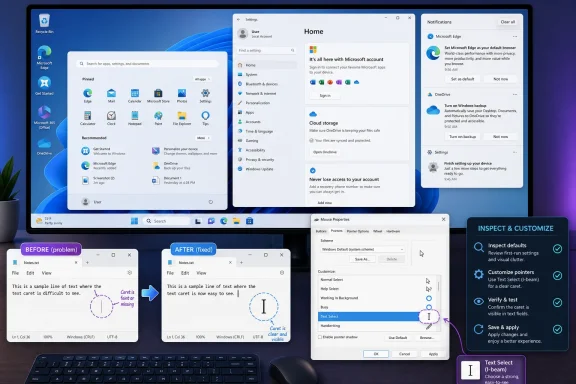
The 24H2 mouse-cursor issue described in Thurrott’s guide is almost comically specific: the default pointer can visually disappear when editing text because Windows appears to use the wrong text-selection cursor. The workaround is to open Settings, go to Bluetooth & devices, choose Mouse, open Additional mouse settings, switch to the legacy Pointers tab, select the Text Select cursor, browse the system cursor folder, and choose the correct beam cursor.Nobody should confuse this with a catastrophic bug. It does not wipe data, break BitLocker, crash games, or strand a device on a failed boot screen. Yet it is exactly the sort of bug that damages confidence because it lands in the most ordinary part of computing: pointing at text.
The mouse pointer is not decoration. It is the most basic signal that the system is listening. When it disappears in text fields, users do not think about cursor resources or theme inheritance. They think the PC is broken. They slow down, overshoot, click the wrong place, and wonder whether the problem is their display, their mouse, their app, their driver, or Windows itself.
That is why small UI regressions matter in a mature operating system. They are daily irritants with a long half-life. A blue screen is dramatic, but it is usually episodic. A disappearing cursor is petty and constant. It turns every text field into a reminder that the platform shipped with something obvious enough for users to notice and obscure enough that the fix still requires a trip through legacy controls.
The irony is that Windows has extraordinary compatibility machinery, enterprise-grade deployment tooling, and decades of input-device history. It can run ancient Win32 applications and modern sandboxed apps on the same desktop. But in 24H2, a text cursor could still vanish in a way that made the world’s most used desktop operating system feel amateur.
The Legacy Control Panel Is Now a Safety Net, Not a Relic
Microsoft would love users to live entirely inside the Settings app. The company has redesigned, expanded, and reorganized Settings repeatedly, and in Windows 11 it is far more capable than the early Windows 10 version. But the cursor workaround demonstrates why the old Control Panel persists: it still contains the precise switches users need when the modern shell gets too abstract.The legacy Mouse Properties dialog is not beautiful. It is dense, small, and visually out of step with Windows 11. But it does something the modern Settings app often avoids: it exposes the actual machinery. You can see pointer roles, schemes, files, and custom cursor assignments. You can understand that “Text Select” is a system role with a specific cursor file behind it.
That transparency has value. Modern Windows design often hides implementation details in the name of simplicity, but when something breaks, users need handles. A simplified toggle is wonderful until it fails to describe the thing it controls. The old dialogs may be ugly, but they are legible to anyone who has administered Windows for more than five minutes.
There is a broader lesson here for Microsoft. Deprecating old UI is not the same thing as replacing it. A modern settings page that covers 80 percent of scenarios is not a replacement for a legacy tool that covers the last 20 percent administrators actually need. Windows can look modern and still be operationally incomplete.
For enthusiasts, this is familiar territory. For normal users, it is bewildering. A fresh Windows 11 machine should not require a scavenger hunt through old dialogs to correct basic pointer behavior. If Microsoft wants Settings to be the future, Settings has to become not just prettier but complete.
Enterprise IT Reads These Details Differently
Home users see a cursor bug and a cluttered Start menu. Enterprise IT sees image drift, help-desk tickets, documentation churn, training friction, and policy exceptions. The gap between those perspectives is why seemingly minor 24H2 behaviors deserve more attention than they usually get.In managed environments, defaults are not just defaults. They become baselines. If the Start menu changes, administrators have to decide whether to accept the new layout, suppress parts of it, document it, or wait. If Microsoft introduces new companion surfaces or account prompts, IT has to understand whether they can be governed through Group Policy, MDM, registry configuration, app controls, or not at all.
The same applies to personalization bugs. A disappearing cursor may sound like an individual annoyance until it lands on a fleet of machines used for data entry, support work, development, or document review. The cost is not measured only in severity. It is measured in repetition.
Windows 11 24H2 also arrived in the usual context of compatibility holds, known issues, and staged deployment. Microsoft’s release-health model is more transparent than it used to be, and that is good. But transparency does not eliminate operational burden. It merely gives IT departments a better map of the minefield.
This is where Microsoft’s consumer and enterprise goals collide. Consumers may accept a trickle of feature changes as part of modern software life. Enterprises prefer boring, documented, reversible behavior. Windows is trying to be both a living consumer service and a predictable enterprise substrate, and 24H2 shows how hard that balance remains.
The Desktop Is Still the Product
Microsoft sometimes talks as if the future of Windows is everywhere except the desktop: cloud identity, Copilot, Store distribution, Phone Link, Widgets, Windows 365, Azure integration, and AI-assisted workflows. Those things may be strategically important. But users still judge Windows by the desktop, the taskbar, Start, File Explorer, Settings, input, and window management.That is not nostalgia. It is workflow reality. The desktop is where people write, reconcile spreadsheets, join meetings, manage files, build software, remote into servers, configure devices, and recover from whatever the last update changed. If the desktop feels noisy, Windows feels noisy. If Start feels compromised, Windows feels compromised. If the pointer disappears, Windows feels unreliable.
This is why the first-run experience matters so much. The moment after OOBE is when the operating system makes its pitch. It can say, “This is your PC.” Or it can say, “Here is a collection of Microsoft priorities you may want to trim.” Too often, Windows 11 says the second thing.
The solution is not for Microsoft to stop adding features. Windows has to evolve, and some of the 24H2-era additions are useful. The solution is discipline: fewer promotional surfaces, clearer controls, more complete Settings pages, less fragmentation between old and new UI, and faster fixes for regressions that affect core input.
A desktop operating system earns trust by being predictable in boring moments. Microsoft still tends to spend too much energy making Windows look strategically alive and not enough making it feel quietly dependable.
Enthusiasts Are Doing Microsoft’s First-Run Documentation
There is a reason guides like Thurrott’s remain valuable. Microsoft documents Windows exhaustively, but official documentation is often written from the standpoint of capability: what the feature is, where the setting lives, which policy applies, what changed in a build. Enthusiast documentation is written from the standpoint of survival: what should I fix first, what can I ignore, and which Microsoft default will annoy me tomorrow?That difference matters. The first-run Windows checklist is folk knowledge accumulated through repetition. Remove the desktop shortcut you did not ask for. Check the theme. Decide whether Windows Spotlight is welcome. Inspect Start. Verify taskbar behavior. Calm down notifications. Confirm OneDrive’s assumptions. Make sure input works. Then, and only then, begin using the PC.
Microsoft could learn from that genre. The company’s onboarding tends to promote services, while enthusiast onboarding restores agency. A better Windows first-run experience would ask fewer leading questions and provide a clean “make this PC quiet and local-first” path for users who want it.
The irony is that Windows 11 already contains much of what power users want. It has strong windowing, good hardware support, mature accessibility options, improved security defaults, excellent backwards compatibility, and a growing Settings surface. But the product often hides its strengths behind avoidable friction.
When third-party guides become the best way to make Windows feel normal, the vendor should treat that as feedback. Enthusiasts are not merely complaining; they are documenting the gap between the shipped experience and the desired one.
The Real 24H2 Lesson Is Control
The temptation is to treat 24H2 as just another Windows feature update with the usual mix of improvements and annoyances. That undersells it. The 24H2 cycle is a case study in how modern Windows distributes control among Microsoft, OEMs, administrators, app updates, cloud services, staged rollout systems, and the person sitting at the keyboard.The person at the keyboard should be the center of gravity. Too often, they are the final integrator. They inherit defaults from Microsoft, additions from the PC maker, changes from feature rollout, fixes from cumulative updates, and workarounds from community guides. The user’s job becomes reconciling the stack.
This is why the Start menu and personalization details matter. They are not just preferences. They are signals about who Windows is for. A Start menu that foregrounds user-chosen apps says one thing. A Start menu that keeps making room for recommendations, account surfaces, phone panels, and experiments says another.
The same is true of the cursor workaround. A platform that lets a user fix a broken cursor role is powerful. A platform that requires that fix after an upgrade is careless. Windows’ greatest strength has always been that almost everything can be adjusted. Its recurring weakness is that too much still needs to be.
Microsoft’s challenge is not technical ability. It is restraint. The company can build the settings, policies, app integrations, and shell experiments. The harder task is deciding which of them deserve to appear in the user’s way.
Where the 24H2 Cleanup Starts
The practical response to 24H2 is not panic; it is deliberate setup. A fresh or upgraded Windows 11 machine deserves a short inspection period before it becomes a daily driver, especially for users who care about a quiet desktop or administrators preparing standardized images.- Users should review the desktop immediately after setup and remove shortcuts or OEM additions that do not belong in their workflow.
- Users should check Personalization settings early, because the theme, background, accent color, sound scheme, and cursor behavior can vary depending on Microsoft defaults, OEM choices, or restored settings.
- Anyone seeing the text-selection cursor disappear should verify the Text Select pointer assignment in the legacy Mouse Properties dialog rather than assuming the mouse or display hardware is failing.
- Administrators should treat Start menu behavior in 24H2 as a moving target because Microsoft has continued to deliver Start changes through cumulative updates and staged rollouts.
- Organizations should document which Windows 11 24H2 defaults they accept, which they suppress, and which they leave to users, because ambiguity becomes help-desk volume.
- Power users should remember that the old Control Panel remains operationally important, even as Microsoft continues moving more surface-level configuration into Settings.
References
- Primary source: thurrott.com
Published: Wed, 17 Jun 2026 00:37:44 GMT
start-24h2-thumb - Thurrott.com
 www.thurrott.com
- Related coverage: windowslatest.com
Windows 11 24H2 issue that messed up cursor size is now fixed
Windows 11 24H2 has an undocumented bug that could change the default size of the cursor when you resume the desktop from sleep mode. www.windowslatest.com
- Related coverage: windowscentral.com
Windows 11 2024 Update (version 24H2) common problems and fixes | Windows Central
This guide will show you troubleshooting steps for problems encountered during and after installing Windows 11 version 24H2 (2024 Update).www.windowscentral.com - Related coverage: techradar.com
Latest Windows 11 24H2 bug performs a vanishing act on your mouse cursor – and I hope Microsoft fixes it soon | TechRadar
Mouse pointer disappears in some apps like the Chrome and Edge browserswww.techradar.com - Related coverage: ineasysteps.com
- Related coverage: billscomputerpot.com
- Related coverage: techrounder.com
windows 11 24h2 kb5058411 build 26100 4061 everything you need to know
PDF documentwww.techrounder.com
- Related coverage: askwoody.com
- Related coverage: trideum.com
</rdf:Alt> </dc:title> <dc:description> <rdf:Alt> <rdf:li xml:lang="x-default"/> </rdf:Alt> </dc:description> <dc:creator> <rdf:Seq> <rdf:li>Justin
</rdf:Alt> </dc:description> <dc:creator> <rdf:Seq> <rdf:li>Justin Mabrywww.trideum.com
- Official source: learn.microsoft.com
Windows 11, version 24H2 known issues and notifications | Microsoft Learn
View announcements and review known issues and fixes for Windows 11, version 24H2learn.microsoft.com - Related coverage: pcworld.com
Microsoft blocks Windows 11 24H2 update on devices with known issues | PCWorld
The monumental 2024 update is being withheld from some users to minimize issues, all while the number of affected devices continues to grow.www.pcworld.com - Related coverage: tomshardware.com
Windows adds custom widgets called Companions to the Start Menu – here's how to make and use your own | Tom's Hardware
Companions can appear on the left or right side of the Start menu. You can make one.www.tomshardware.com - Related coverage: techspot.com
Microsoft opens Start menu to third-party Companions: Here's how to enable the feature | TechSpot
It's all part of the new Companions feature that showed up for Windows Insiders in build 26212 back in early May. As Tom's Hardware reports, any packaged...www.techspot.com - Related coverage: mspoweruser.com
Phone Link companion temporarily removed from Start menu
Updates for Windows 11 23H2 (KB5044380) and 24H2 versions (KB5044384) temporarily remove Phone Link companion from Windows 11's Start menu. mspoweruser.com
- Related coverage: techrepublic.com
Windows 11 Version 24H2 Enters Final Deployment Phase, Microsoft Lists Known Issues
Some devices will be placed under a compatibility hold as Microsoft works out ongoing issues.www.techrepublic.com
- Related coverage: itpro.com
Microsoft issues fix for Windows 11 update that bricked mouse and keyboard controls in recovery environment – here's what you need to know | IT Pro
Yet another Windows 11 update has caused chaos for userswww.itpro.com
