

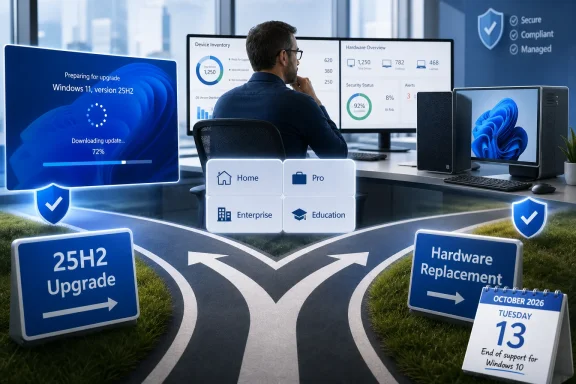
Verdict: most Windows 11 24H2 Home and Pro PCs should move to 25H2 before October 13, 2026, rather than replace otherwise suitable hardware. Enterprise and Education administrators do not face the same deadline: their 24H2 deployments remain supported until October 12, 2027, so they can upgrade on a controlled schedule instead of treating 2026 as an emergency.
Before taking action, confirm both the Windows version and edition. Open Settings > System > About, then look under Windows specifications for the edition and version. That distinction determines whether the PC has months or more than a year of servicing left.
To upgrade an eligible personal PC, open Settings > Windows Update, select Check for updates, and choose the option to download and install Windows 11 version 25H2 when it appears. Microsoft says unmanaged Home and Pro systems still on 24H2 will eventually receive 25H2 automatically, although users can choose the restart time or postpone the update.
Microsoft’s 2026 lifecycle calendar includes 15 products approaching retirement or the end of servicing, with Windows 11 and Office deadlines likely to command the most attention. Windows 11 version 24H2 is on that calendar, but saying simply that “24H2 expires in 2026” leaves out the most important operational detail.
The October 13, 2026 deadline applies to Windows 11 Home, Pro, Pro Education, Pro for Workstations, and SE. After that date, those editions no longer receive updates under their normal servicing lifecycle.
Windows 11 Enterprise, Education, IoT Enterprise, and Enterprise multi-session version 24H2 remain supported until October 12, 2027. That additional year fundamentally changes the decision for managed fleets, shared environments, specialized devices, and organizations that prioritize application validation over rapid feature-update adoption.
This is why inventory must come before remediation. A report showing 500 systems running “24H2” is not enough to establish that 500 systems require an upgrade before October 2026. IT needs edition data alongside the version, ownership status, management state, and deployment group.
The practical split is straightforward:
For recently patched 24H2 PCs, Microsoft delivers the transition using a small enablement package. That matters because this is not necessarily the same operational event as rebuilding a PC, deploying a new image, or performing a traditional large-scale operating-system migration.
The enablement approach makes 25H2 the logical servicing destination for most eligible 24H2 systems. The underlying components can already be present through prior servicing, with the package activating the newer release. Administrators still need normal testing and change controls, but the move should be evaluated as a servicing operation rather than automatically escalated into a hardware-refresh project.
On an unmanaged Home or Pro computer, the procedure is simple:
Automatic delivery also does not mean users can ignore the deadline indefinitely. Microsoft says unmanaged Home and Pro devices will receive the update automatically, but relying on a last-minute forced transition leaves less time to handle application, driver, storage, or scheduling problems. Updating during a planned maintenance window is preferable to waiting for Windows Update to choose the timing.
That runway can be used to validate 25H2, align the upgrade with hardware replacement cycles, and avoid disrupting systems during critical business periods. It can also help administrators separate genuinely urgent endpoints from stable, supported devices that are better left unchanged until testing is complete.
The additional year is not an argument for doing nothing. It is an argument for risk-based deployment rings instead of a one-size-fits-all mandate. Pilot systems can move first, followed by broader groups after application and operational validation, while sensitive workloads stay on supported 24H2 builds longer.
Edition drift is the hidden complication. Organizations may have Enterprise devices alongside Pro systems purchased through retail or original equipment manufacturers. Those Pro installations face the October 13, 2026 deadline even if they sit on the same network and are used for the same business purpose as Enterprise endpoints.
Administrators should therefore build their deployment groups from actual licensing and edition information, not from assumptions about who owns the machine. The word “business” in an asset description does not extend the Windows 11 Pro lifecycle.
There is another deadline close behind. Windows 11 Enterprise and Education version 23H2 reaches the end of updates on November 10, 2026. Home and Pro version 23H2 already left servicing on November 11, 2025.
An organization that still has both 23H2 and 24H2 endpoints could easily prioritize the wrong population. Enterprise 23H2 expires in November 2026, while Enterprise 24H2 remains supported until October 2027. Accurate version-and-edition reporting is therefore essential before creating deployment deadlines.
Continuing beyond the edition’s end date is different. Once normal servicing ends, the machine is no longer receiving the expected stream of security and quality updates. Familiarity with the existing installation does not compensate for the loss of support.
Replacement should be the third option, not the default reaction to a version deadline. If Windows Update offers 25H2 and the computer remains fit for purpose, upgrading preserves support without creating the cost and disruption of a hardware migration.
A replacement assessment becomes appropriate when the system cannot reach a supported Windows release, when its reliability no longer meets requirements, or when a planned refresh is already imminent. The available lifecycle facts do not establish that a 24H2 PC is inherently too old for 25H2, so the version number alone is insufficient evidence for disposal.
Office may complicate the same planning window. Microsoft says Office LTSC 2021 also reaches the end of support on October 13, 2026. Organizations running Windows 11 Pro 24H2 with Office LTSC 2021 could therefore face two separate support transitions on the same date.
Those projects should be coordinated but not conflated. Enabling Windows 11 25H2 does not upgrade Office, and replacing Office does not extend Windows 11 24H2 servicing. Inventory and deployment reporting must track each product independently.
Home and Pro users have a clear destination in 25H2, backed by automatic delivery for unmanaged devices and a relatively lightweight enablement path on current 24H2 installations. Enterprise and Education teams have more time and should use it to reduce deployment risk rather than surrender it to an unnecessarily early deadline.
By October 13, 2026, Home and Pro 24H2 systems should either be on 25H2 or have a documented replacement or remediation plan. Enterprise and Education 24H2 systems can remain where they are for another year—but only if administrators have verified the edition rather than trusting the 24H2 label alone.
Before taking action, confirm both the Windows version and edition. Open Settings > System > About, then look under Windows specifications for the edition and version. That distinction determines whether the PC has months or more than a year of servicing left.
To upgrade an eligible personal PC, open Settings > Windows Update, select Check for updates, and choose the option to download and install Windows 11 version 25H2 when it appears. Microsoft says unmanaged Home and Pro systems still on 24H2 will eventually receive 25H2 automatically, although users can choose the restart time or postpone the update.
 The Edition Matters More Than the 24H2 Label
Microsoft’s 2026 lifecycle calendar includes 15 products approaching retirement or the end of servicing, with Windows 11 and Office deadlines likely to command the most attention. Windows 11 version 24H2 is on that calendar, but saying simply that “24H2 expires in 2026” leaves out the most important operational detail.The October 13, 2026 deadline applies to Windows 11 Home, Pro, Pro Education, Pro for Workstations, and SE. After that date, those editions no longer receive updates under their normal servicing lifecycle.
Windows 11 Enterprise, Education, IoT Enterprise, and Enterprise multi-session version 24H2 remain supported until October 12, 2027. That additional year fundamentally changes the decision for managed fleets, shared environments, specialized devices, and organizations that prioritize application validation over rapid feature-update adoption.
This is why inventory must come before remediation. A report showing 500 systems running “24H2” is not enough to establish that 500 systems require an upgrade before October 2026. IT needs edition data alongside the version, ownership status, management state, and deployment group.
The practical split is straightforward:
- Home and Pro-class 24H2 systems should be scheduled for 25H2 before October 13, 2026.
- Enterprise and Education-class 24H2 systems can remain in service through October 12, 2027 while administrators test and stage their next release.
- A PC should not be replaced merely because 24H2 is nearing the end of servicing if it can receive 25H2 and continues to meet the organization’s needs.
- Systems that cannot obtain the supported update require separate investigation rather than an automatic hardware write-off.
Why 25H2 Is Usually the Low-Risk Move
Windows 11 version 25H2 was released on September 30, 2025. Its support period runs through October 12, 2027 for Home and Pro editions and through October 10, 2028 for Enterprise and Education.For recently patched 24H2 PCs, Microsoft delivers the transition using a small enablement package. That matters because this is not necessarily the same operational event as rebuilding a PC, deploying a new image, or performing a traditional large-scale operating-system migration.
The enablement approach makes 25H2 the logical servicing destination for most eligible 24H2 systems. The underlying components can already be present through prior servicing, with the package activating the newer release. Administrators still need normal testing and change controls, but the move should be evaluated as a servicing operation rather than automatically escalated into a hardware-refresh project.
On an unmanaged Home or Pro computer, the procedure is simple:
- Open Settings > System > About and verify that the PC runs Windows 11 Home or Pro version 24H2.
- Install pending updates from Settings > Windows Update.
- Select Check for updates.
- If Windows 11 version 25H2 is offered, select Download and install.
- Save open work and restart when convenient to complete the transition.
- Return to Settings > System > About and confirm that the version now reads 25H2.
Automatic delivery also does not mean users can ignore the deadline indefinitely. Microsoft says unmanaged Home and Pro devices will receive the update automatically, but relying on a last-minute forced transition leaves less time to handle application, driver, storage, or scheduling problems. Updating during a planned maintenance window is preferable to waiting for Windows Update to choose the timing.
Enterprise IT Has Time, but Not a Free Pass
Enterprise and Education administrators should not copy the consumer timetable without examining their estates. A managed Enterprise 24H2 device remains supported for almost a year after Home and Pro 24H2 servicing ends.That runway can be used to validate 25H2, align the upgrade with hardware replacement cycles, and avoid disrupting systems during critical business periods. It can also help administrators separate genuinely urgent endpoints from stable, supported devices that are better left unchanged until testing is complete.
The additional year is not an argument for doing nothing. It is an argument for risk-based deployment rings instead of a one-size-fits-all mandate. Pilot systems can move first, followed by broader groups after application and operational validation, while sensitive workloads stay on supported 24H2 builds longer.
Edition drift is the hidden complication. Organizations may have Enterprise devices alongside Pro systems purchased through retail or original equipment manufacturers. Those Pro installations face the October 13, 2026 deadline even if they sit on the same network and are used for the same business purpose as Enterprise endpoints.
Administrators should therefore build their deployment groups from actual licensing and edition information, not from assumptions about who owns the machine. The word “business” in an asset description does not extend the Windows 11 Pro lifecycle.
There is another deadline close behind. Windows 11 Enterprise and Education version 23H2 reaches the end of updates on November 10, 2026. Home and Pro version 23H2 already left servicing on November 11, 2025.
An organization that still has both 23H2 and 24H2 endpoints could easily prioritize the wrong population. Enterprise 23H2 expires in November 2026, while Enterprise 24H2 remains supported until October 2027. Accurate version-and-edition reporting is therefore essential before creating deployment deadlines.
Staying Put Is Temporary; Replacing the PC Is Conditional
Remaining on 24H2 can be a rational choice, but only within the applicable support window. For Home and Pro, staying put means maintaining the system while preparing to reach 25H2 before October 13, 2026. For Enterprise and Education, it may mean deliberately retaining 24H2 into 2027 while testing the next deployment.Continuing beyond the edition’s end date is different. Once normal servicing ends, the machine is no longer receiving the expected stream of security and quality updates. Familiarity with the existing installation does not compensate for the loss of support.
Replacement should be the third option, not the default reaction to a version deadline. If Windows Update offers 25H2 and the computer remains fit for purpose, upgrading preserves support without creating the cost and disruption of a hardware migration.
A replacement assessment becomes appropriate when the system cannot reach a supported Windows release, when its reliability no longer meets requirements, or when a planned refresh is already imminent. The available lifecycle facts do not establish that a 24H2 PC is inherently too old for 25H2, so the version number alone is insufficient evidence for disposal.
Office may complicate the same planning window. Microsoft says Office LTSC 2021 also reaches the end of support on October 13, 2026. Organizations running Windows 11 Pro 24H2 with Office LTSC 2021 could therefore face two separate support transitions on the same date.
Those projects should be coordinated but not conflated. Enabling Windows 11 25H2 does not upgrade Office, and replacing Office does not extend Windows 11 24H2 servicing. Inventory and deployment reporting must track each product independently.
The 2026 Plan Starts With Four Inventory Fields
The useful response to Microsoft’s support calendar is not “upgrade every 24H2 computer.” It is to identify the exact edition, version, management state, and application role of each endpoint.Home and Pro users have a clear destination in 25H2, backed by automatic delivery for unmanaged devices and a relatively lightweight enablement path on current 24H2 installations. Enterprise and Education teams have more time and should use it to reduce deployment risk rather than surrender it to an unnecessarily early deadline.
By October 13, 2026, Home and Pro 24H2 systems should either be on 25H2 or have a documented replacement or remediation plan. Enterprise and Education 24H2 systems can remain where they are for another year—but only if administrators have verified the edition rather than trusting the 24H2 label alone.
References
- Primary source: learn.microsoft.com
Office LTSC 2021 reaching end of support on October 13, 2026 - Microsoft Lifecycle | Microsoft Learn
Announcing Office LTSC 2021 reaching end of support on October 13, 2026.learn.microsoft.com - Independent coverage: support.microsoft.com
- Primary source: WindowsForum
Microsoft 2026 End of Support: Windows 11 24H2/23H2 and Office 2021 Deadlines | Windows Forum
Microsoft’s 2026 support calendar ends security and servicing lifelines for Windows 11 version 24H2 Home and Pro on October 13, Windows 11 version 23H2...windowsforum.com
