

Microsoft has quietly adjusted the Windows 11 Media Creation Tool (MCT) so freshly made USB installers now often contain a significantly newer 24H2 cumulative build — a small but practical change that shortens post-install update cycles for clean installs — and that same release path produced a regression on some older hosts that Microsoft has since patched.
Microsoft’s Media Creation Tool is the simplest official route for consumers and many IT technicians to download Microsoft’s Windows image and produce a bootable USB or ISO. Historically, the MCT provided a canonical Windows major build (for example, 24H2) but did not always package the very latest monthly cumulative update (LCU) inside the image. That forced freshly installed systems to download and apply several cumulative updates and servicing stack updates (SSUs) during the first boot sequence.
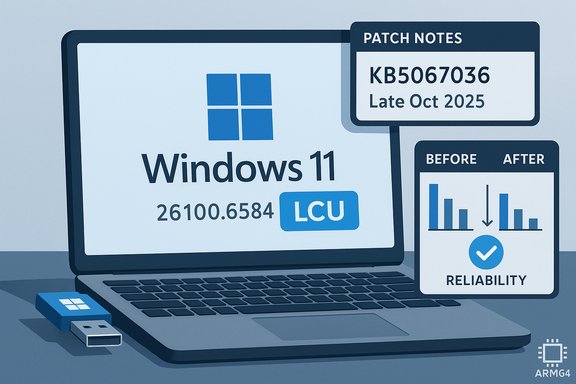
In recent weeks Microsoft adjusted the tool so that a larger share of MCT-produced media includes a later monthly LCU for 24H2 (notably the September cumulative identified as KB5065426 / build 26100.6584), reducing the number of updates required after a clean install. Community reporting and specialist press have documented this practical delta, and Microsoft’s update catalog entry for the September cumulative confirms the build identifier and contents. At the same time, the updated MCT release introduced a compatibility regression on certain hosts (notably some Windows 10 machines and particular Arm64 scenarios): the tool would launch, show the Windows splash, then exit without an explicit error. Microsoft acknowledged the behavior as a known issue and issued a remediation by updating the MCT binary and shipping a preview cumulative (KB5067036) that included a fix; Microsoft’s Release Health documentation marks the MCT issue “resolved” on October 28, 2025. Independent outlets recorded the problem and relayed Microsoft’s advice to use direct ISO downloads as a workaround while the fix rolled out.
Source: Neowin Microsoft updates Media Creation Tool for Windows 11 USB installs
 Background / Overview
Microsoft’s Media Creation Tool is the simplest official route for consumers and many IT technicians to download Microsoft’s Windows image and produce a bootable USB or ISO. Historically, the MCT provided a canonical Windows major build (for example, 24H2) but did not always package the very latest monthly cumulative update (LCU) inside the image. That forced freshly installed systems to download and apply several cumulative updates and servicing stack updates (SSUs) during the first boot sequence.In recent weeks Microsoft adjusted the tool so that a larger share of MCT-produced media includes a later monthly LCU for 24H2 (notably the September cumulative identified as KB5065426 / build 26100.6584), reducing the number of updates required after a clean install. Community reporting and specialist press have documented this practical delta, and Microsoft’s update catalog entry for the September cumulative confirms the build identifier and contents. At the same time, the updated MCT release introduced a compatibility regression on certain hosts (notably some Windows 10 machines and particular Arm64 scenarios): the tool would launch, show the Windows splash, then exit without an explicit error. Microsoft acknowledged the behavior as a known issue and issued a remediation by updating the MCT binary and shipping a preview cumulative (KB5067036) that included a fix; Microsoft’s Release Health documentation marks the MCT issue “resolved” on October 28, 2025. Independent outlets recorded the problem and relayed Microsoft’s advice to use direct ISO downloads as a workaround while the fix rolled out.
What changed in the Media Creation Tool
The practical delta: fresher cumulative updates in the ISO
The key improvement is straightforward: the updated MCT more often produces 24H2 images that already include the latest monthly cumulative update (LCU), rather than older mid‑year baseline builds. Practically, that means:- Fewer post‑install downloads on new machines.
- Fewer forced reboots during first‑boot/update cycles.
- Faster time‑to‑productivity for rebuilt or imaged systems.
Build numbers to watch
Understanding build numbers is essential for image validation and deployment planning. Relevant identifiers in recent months include:- Windows 11 24H2 LCU (September): KB5065426, OS build 26100.6584.
- 25H2 candidate ISOs and later LCUs have been observed in the 26200 build family as Microsoft stages the 25H2 enablement package. Community testing reported 25H2 candidate builds such as 26200.6899 in October. Microsoft’s update history and catalog entries are the definitive references for precise build IDs.
Why this matters for users and IT teams
For home users and small shops
A fresher ISO means less waiting after a clean install. Instead of running Windows Update through several cumulative patches and SSUs, a single boot may require only a handful of small fixes. That reduces interruptions, the duration of forced reboots, and the chance that a newly installed machine will trigger update conflicts during a first-use session.For imaging and enterprise teams
- Reduced bandwidth and fewer patch cycles speed deployment windows.
- Golden images remain important, but integrating an LCU at media creation reduces the need to re-snapshot images immediately after build creation.
- Validation is still required: a packaged LCU changes the exact artifact you will deploy and must be validated against drivers, security agents, and management agents.
Operational caveats
- The updated MCT rollout has been uneven: not every locale, CDN edge, or request path will produce the same image at the same time. Organizations should verify the ISO or booted system build before mass deployment. Check winver.exe on a freshly installed machine or inspect ISO metadata before using media at scale.
- Some older hosts — notably Windows 10 22H2 and certain Arm64 devices — experienced MCT failures in the field. Microsoft documented the regression and advised direct ISO downloads as a workaround until it published a corrected MCT binary.
The regression, Microsoft’s response, and the fix
What broke
An MCT binary distributed in late September (community-identified as version 26100.6584) could fail when executed on some Windows 10 devices: after consent to UAC and a brief Windows splash, the tool would exit without an error dialog. That timing was unfortunate because many users and IT teams were creating media as Windows 10 reached end of support, magnifying the impact. Multiple outlets and community threads reproduced the symptom and Microsoft acknowledged the behavior in its Release Health pages.How Microsoft remedied it
Microsoft updated the MCT binary on October 28, 2025, and bundled related compatibility corrections in an optional preview cumulative (KB5067036). The company’s Release Health entry for Windows 10 marks the MCT issue resolved on the same date, and Microsoft advised users it had refreshed the tool for download on the Download Windows 11 page. The fix was also folded into preview cumulative packaging for Windows 11 (24H2/25H2) to address host‑OS compatibility checks that previously triggered the silent exits.Independent reporting and confirmation
Specialist outlets documented both the regression and the remediation, and security/tech news sites noted the update path and offered safe alternatives (ISO downloads, Windows 11 Installation Assistant) while the MCT was patched. These independent confirmations align with Microsoft’s public documentation and help triangulate the timeline and the practical effects for end users.How to validate and verify the media you create
Because the MCT change is a rolling behavior, validation is non-negotiable for imaging/production usage.- After creating media with the MCT, either:
- Boot a test machine and run winver.exe to confirm the OS build number, or
- Mount the ISO and inspect the build metadata inside the install.wim / install.esd (or check file versioning for setup binaries).
- Compare the observed build number to Microsoft’s update catalog / update history pages to know what cumulative has been integrated. The Microsoft KB entry for KB5065426 details the September LCU and its build string.
- If your deployment process requires deterministic images, prefer downloading Microsoft’s canonical ISOs (which Microsoft updates directly) rather than relying on an ad-hoc MCT run from a randomly configured client.
Alternatives and fallbacks
If you encounter MCT failures or prefer more control, several safe alternatives exist:- Download the official Windows 11 ISO directly from Microsoft’s Download Windows 11 page and:
- Use File Explorer to mount and run setup.exe for an in-place upgrade.
- Use trusted tools (Rufus, Ventoy) to write bootable USB media.
- Use the Windows 11 Installation Assistant for machines eligible for in-place upgrades.
- For Arm64 targets: create Arm64 media from an x64 host or obtain the Arm64 ISO and write media using a supported host; Microsoft’s documentation notes specific support caveats for Arm64 hosts and the MCT.
Practical checklist: creating and validating Windows 11 USB media
- Decide source: MCT vs direct ISO.
- If using MCT: ensure you downloaded the MCT after October 28, 2025 (post-fix) when running from a Windows 10 host. If MCT exits silently, switch to ISO download.
- After creating the USB, boot one test device and:
- Run winver.exe to confirm build number (e.g., 26100.6584).
- Verify drivers and security agents start cleanly.
- If performing mass deployments, produce a golden image and run a quick compliance test for critical applications, AV agents, and management tooling.
- Archive both the ISO and a SHA256 checksum for future validation.
Risks and caveats to consider
- Rolling changes: Microsoft’s server-side distribution and regional CDN behavior can produce different image contents for different users at any given time. Do not assume any single MCT run will match another without explicit verification.
- Compatibility: The earlier MCT regression emphasized that host OS and architecture matter. Running the tool from an older or unsupported host (or on Arm64 Windows 10) may produce failures; the official guidance recommended downloading the ISO as a workaround while Microsoft fixed the tool.
- Feature gating: 25H2’s distribution as an enablement package means the visible “version number” is less indicative of new, customer-visible features and more a lifecycle reset — upgrades should be planned for lifecycle reasons as well as functional changes.
- Third‑party tooling: Tools like Rufus are powerful, but they are not a substitute for verifying the ISO’s authenticity. Always obtain ISOs from Microsoft and verify checksums before writing media. Misuse of third‑party options to bypass hardware checks (TPM/Secure Boot) carries security and support implications.
Recommendations for admins and enthusiasts
- Validate every ISO: For production rollouts, always validate the build string and perform smoke tests before mass deployment.
- Prefer canonical ISOs for golden-image pipelines: Download official updated ISOs from Microsoft’s download page to ensure deterministic artifacts. If you use MCT, run it from a known-good host and verify the media immediately.
- Keep a fallback plan: If MCT behaves unexpectedly, use the direct ISO + Rufus/Ventoy path or the Windows 11 Installation Assistant as documented by Microsoft.
- Test on representative hardware: Particularly when moving from 24H2 to 25H2 enablement packages, test drivers, audio/video, VPN clients and enterprise agents on a pilot ring before broad rollout.
- Track Microsoft update IDs: Use Microsoft’s update history and Knowledge Base pages (e.g., KB5065426) to confirm what cumulative has been bundled and whether any known issues affect your environment.
Critical analysis: strengths, weaknesses, and the operational picture
Notable strengths
- The updated MCT addresses a longstanding friction point: creating media closer to current patch baselines reduces downtime and network usage for clean installs.
- Microsoft’s quick acknowledgement and remediation — updating the MCT binary and shipping a preview cumulative (KB5067036) — demonstrates an appropriate use of its release-health and preview update channels to fix a distribution tooling regression without waiting for the full monthly roll-up.
Potential weaknesses and risks
- The regression itself is a reminder that distribution tooling (MCT) is part of the update surface; changes to supporting tools can have outsized operational impact, especially when timed near major milestones like Windows 10 end‑of‑support.
- Uneven rollout behavior complicates deterministic deployment processes: organizations that require exact, validated images should not rely solely on ad-hoc MCT runs from arbitrary clients.
- The mixture of feature gating and staged rollouts for 25H2 means that simply updating to the latest build number may not surface all expected UI or Copilot features immediately; server-side feature flags are part of modern Windows delivery and require separate validation.
What to watch next
- Whether Microsoft standardizes MCT behavior so images consistently contain the latest monthly cumulative across regions and CDN edges.
- How OEM and enterprise channels reflect these updated LCUs in their preloads and factory images.
- Any follow-on compatibility reports tied to firmware signing (PCA2023) or UEFI trust anchor changes that influence USB boot behavior; third‑party tools have been iterating to mitigate those breakage modes.
Conclusion
The Media Creation Tool’s quiet update that yields fresher Windows 11 24H2 media is a welcome operational improvement for many users, technicians and imaging teams: fewer post‑install updates, fewer reboots, and less bandwidth consumption. That change — combined with Microsoft’s rapid remediation of the tool’s host‑compatibility regression — highlights both the value and fragility of distribution tooling in a modern, staged update ecosystem. Validate every image, keep official ISOs and checksums archived, and maintain a tested fallback (direct ISO write or Installation Assistant) to ensure installs remain predictable and supportable. Microsoft’s KB and Release Health notices provide the authoritative build identifiers and resolution timeline; independent reports from specialist press and community testing corroborate the practical effects on deployers and enthusiasts alike.Source: Neowin Microsoft updates Media Creation Tool for Windows 11 USB installs
