

Microsoft is quietly testing a cleaner, more cohesive way to update and remove apps in Windows 11: a new App updates page in Settings that surfaces store-managed updates without launching the Microsoft Store, and a one‑click Uninstall option added to the Microsoft Store Library — paired on the enterprise side with a device‑level policy to deprovision selected in‑box Store packages in Windows 11, version 25H2. These moves aim to reduce the long-standing fragmentation of app lifecycle management on Windows by centralizing routine maintenance tasks into first‑party, auditable surfaces. Early Insider reports show promising convenience wins, but also a set of limits and caveats administrators and power users must plan around.
For years Windows users and IT admins have navigated a fractured app management landscape: Settings, Microsoft Store, per-app updaters, PowerShell/winget, and DISM each handle different parts of the problem. That fragmentation led to duplicated effort, awkward workflows, and fragile admin scripts to keep images clean. Microsoft’s recent Insider‑era experiments attempt incremental consolidation: let Settings act as a lightweight discovery and update surface for Store apps, let the Store itself perform simple lifecycle tasks like uninstalls, and give IT a supported policy to remove provisioned inbox apps from devices. Early descriptions and preview tests make clear these are pragmatic, conservative changes — not a rewrite of how the ecosystem handles Win32/MSI updaters or third‑party app stores.
The story has three related threads:
What the Settings page covers
For everyday users and power users
These changes should be welcomed for what they are: measured improvements that simplify common maintenance tasks and make enterprise provisioning less error‑prone. They are not a panacea; administrators must pilot the policy carefully, and power users should continue to rely on established package managers for the repeatable, scriptable work that remains outside the Store’s remit. Watch Microsoft’s rollout notes and documentation closely as the features move from Insider previews to broader release so you can plan adoption with confidence.
Source: Absolute Geeks Windows 11 tests simpler tools for app updates and removals
 Background / Overview
For years Windows users and IT admins have navigated a fractured app management landscape: Settings, Microsoft Store, per-app updaters, PowerShell/winget, and DISM each handle different parts of the problem. That fragmentation led to duplicated effort, awkward workflows, and fragile admin scripts to keep images clean. Microsoft’s recent Insider‑era experiments attempt incremental consolidation: let Settings act as a lightweight discovery and update surface for Store apps, let the Store itself perform simple lifecycle tasks like uninstalls, and give IT a supported policy to remove provisioned inbox apps from devices. Early descriptions and preview tests make clear these are pragmatic, conservative changes — not a rewrite of how the ecosystem handles Win32/MSI updaters or third‑party app stores.The story has three related threads:
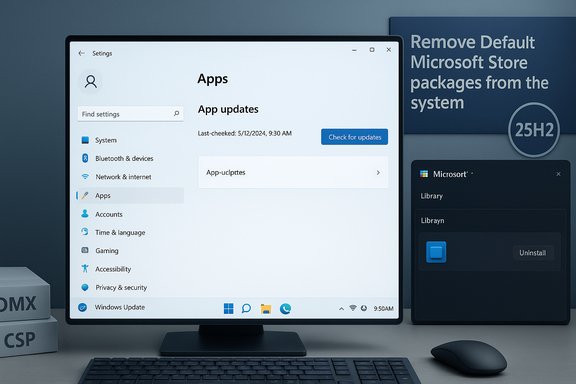
- A new Settings → Apps → App updates page that shows a last‑checked timestamp and a Check for updates control for Store‑managed apps.
- An Uninstall action inside the Microsoft Store Library listing, letting users remove Store‑managed apps without leaving the Store UI.
- A device‑level ADMX/MDM policy in Windows 11, version 25H2, called Remove Default Microsoft Store packages from the system, which lets Enterprise/Education admins pick from a curated list of inbox Store packages to deprovision.
What Microsoft is testing in Windows 11
Settings: App updates page (a single pane for Store app updates)
The new App updates page appears as a compact management surface inside Settings → Apps. It displays a Last checked timestamp and offers a Check for updates button intended to query the Store update metadata without launching the full Microsoft Store app. The goal is simple: surface update discovery where many users already look for app controls. Testers in Insider rings report the UI appears, but in some builds the backend orchestration is still staged — pressing Check for updates sometimes updates the timestamp but does not always show immediate progress in the Store client. That indicates the feature is being rolled out with server‑side gating while backend services are validated.What the Settings page covers
- Store‑distributed apps and Store‑managed pipelines — UWP, MSIX, and Store‑packaged Win32 entries that the Store tracks.
- Not intended to update classic Win32/MSI installers, Steam, or apps that maintain proprietary updaters. Those remain under the purview of vendor updaters or system administrators. Treat Settings as a convenience surface, not a universal updater.
Microsoft Store Library: one‑click Uninstall
The Microsoft Store’s Library view now shows a three‑dot menu for installed entries with an Uninstall option, mirroring mobile store behavior where discovery and management are unified. This small change removes the need to open Settings → Apps to remove a store‑installed app and reduces the clicks required for typical cleanups or trial app removals. The capability surfaced first on Store preview branches in Insider channels (reporting references point to Store branches in the 22510.1401.x.x family), and is rolling out via Store updates and server gating. Why this matters for users- Faster removal of ephemeral or trial installs without context switching.
- A consistent, discoverable place for end users to manage Store‑installed apps.
- Better parity with mobile app store expectations, simplifying support workflows for non‑technical users.
Enterprise: Remove Default Microsoft Store packages from the system (25H2 policy)
On the IT side, Windows 11 25H2 introduces an ADMX/MDM setting — RemoveDefaultMicrosoftStorePackages — exposed via Group Policy and MDM CSP. This is a device‑level feature that allows administrators to select apps from a curated list of in‑box Store packages and request their deprovisioning during provisioning events (OOBE, first sign‑in after an upgrade, or when the policy is applied). The policy is accompanied by event logging so admins can validate outcomes. Microsoft’s documentation and support guidance confirm the CSP path and configuration surfaces. Key technical points- ADMX path: Computer Configuration → Administrative Templates → Windows Components → App Package Deployment → Remove Default Microsoft Store packages from the system.
- Corresponding CSP/OMA‑URI: ./Device/Vendor/MSFT/Policy/Config/ApplicationManagement/RemoveDefaultMicrosoftStorePackages.
- Applicable SKUs: Windows 11 Enterprise and Windows 11 Education (25H2 or later). Pro and Home are not the primary targets.
Benefits: what this consolidation actually delivers
These changes are modest in scope but meaningful in practice. The benefits break down differently for consumers and administrators.For everyday users and power users
- Reduced friction — fewer menus and app switches for common maintenance tasks. The Store Library uninstall and Settings App updates page shave off clicks and cognitive overhead.
- Improved discoverability — update checks and uninstalls are placed where users already expect them.
- Safer update hygiene — consolidating update visibility into Settings may reduce missed Store app updates across a device population. However, automatic update behavior for Store apps has changed (see Risks section).
- Supported device‑level deprovisioning — replaces brittle DISM scripts and unsupported hacks with an auditable, ADMX/MDM‑backed control. That reduces maintenance overhead and reduces breakage when package family names change between builds.
- Provisioning alignment — enforcement during OOBE/first sign‑in or policy updates fits naturally into Autopilot and provisioning workflows, making image hygiene reproducible at scale.
- Event logging & verification — Event ID 762 is emitted when the policy successfully removes a package, allowing admins to build validation into deployment playbooks.
Limits and important caveats
These features are deliberately narrow; understanding what they do — and do not do — is essential to avoid surprises.- Not a universal updater: The Settings App updates surface targets the Store ecosystem. Classic Win32/MSI apps, Steam, and vendor updaters are not covered. Organizations and power users that rely on winget, Chocolatey, or bespoke update pipelines will still need them. Do not assume Settings will replace your existing update tooling.
- Staged behavior in Insider builds: In preview rings testers observed the UI before backend orchestration was fully enabled; pressing Check for updates sometimes only updated the timestamp without initiating visible activity. Server‑side feature flags and Store update rollouts can create observable differences between ostensibly identical builds. Plan pilots accordingly.
- Re‑provisioning risk: Local uninstalls do not preclude re‑provisioning by OEM images or MDM policies. Only device‑level deprovisioning via the dedicated policy reliably prevents inbox Store packages from reappearing for new users — and even that policy has a curated scope. Admins should validate upgrade and reset behaviors in lab images.
- SKU restrictions: The policy applies to Enterprise and Education SKUs on Windows 11 25H2 or newer. It is not a universal consumer feature for Home/Pro managed devices. If you have mixed SKUs in your environment, expect varying applicability.
- Scope of removable packages: The policy targets a curated list of inbox packages; it is not an all‑you‑can‑debloat control. Microsoft chooses the initial removable items, and that list may change across servicing updates. Administrators should treat the list as a snapshot and verify package IDs for their builds.
- Automatic update policy changes: Microsoft has tightened Store update controls so users can only pause automatic app updates for a limited time (1–5 weeks) instead of disabling them indefinitely. This is a security‑centric move but can impact workflows that require pinned app versions. Consider the operational implications before relying on indefinite update disablement.
Security and update posture — what changed and why it matters
One related policy change that surfaced recently is Microsoft’s apparent removal of the ability to permanently disable automatic updates for Store apps; instead, users can pause updates for up to five weeks. That aligns Store app updating behavior more closely with Windows Update and is intended to reduce the attack surface created by unpatched apps. While this improves baseline security for most users, it also reduces the ability of testers and locked‑down environments to maintain a stable, certified app version indefinitely without additional management controls. For controlled environments where exact app versions matter, administrators should adopt management tooling that can pin, test, and stage updates centrally rather than relying on local toggles. Security implications for IT- Positive: centralized update visibility reduces the chance of missing critical Store app patches.
- Negative: automatic resumption of updates can introduce regressions into tightly vetted environments — plan for test rings and staged rollouts.
How administrators should pilot and validate the 25H2 policy
A cautious, measured rollout will minimize risk. Recommended pilot steps:- Import the latest Windows 11 25H2 ADMX templates into your central Group Policy store.
- Create a small pilot ring (5–10% of devices) across different hardware and join types (Azure AD, Hybrid, on‑prem).
- Enable the Remove Default Microsoft Store packages from the system policy and select a conservative subset of removable apps. Do not attempt to “debloat” everything in the first pass.
- Validate enforcement points: OOBE, first sign‑in after an upgrade, and manual policy refresh. Check Event ID 762 in the AppxDeployment operational logs for verification.
- Test Autopilot/OOBE and Reset workflows to confirm removed packages do not reappear unexpectedly. Document rollback and reinstallation paths.
- Use the Settings Catalog or Administrative Templates path to expose the policy in device configuration profiles. If the native setting is unavailable, implement a custom OMA‑URI using the documented CSP path.
Recommendations for consumers and power users
- Treat the new Settings App updates page and Store Library Uninstall as quality‑of‑life improvements, not replacements for package managers. Keep winget or your chosen package tooling for scripted, reproducible maintenance.
- If you rely on fixed app versions (for compatibility or testing), do not assume the Store will let you permanently block updates — Microsoft’s pause‑only model limits indefinite blocking. Use environment segmentation and centralized update controls for stability.
- If you’re an Insider tester: report behavior and telemetry problems through Feedback Hub, and expect staged server‑side gating to cause feature availability to vary. Document the Store client version and build string when submitting bugs.
Strengths and potential risks — critical analysis
Strengths to applaud- First‑party, supported controls: Delivering a supported, auditable mechanism for inbox app removal is a major operational win. It eliminates reliance on fragile community scripts and reduces long-term maintenance costs for admins.
- Small, focused UX wins: Exposing uninstall in the Store Library and an update check in Settings are low‑risk changes with high practical value for end users. They reduce friction in everyday workflows.
- Provisioning‑aware enforcement: Tying device‑level removals to provisioning events aligns with how organizations manage images and new‑user flows, improving predictability.
- Incompleteness vs. expectations: Some community commentary has conflated these changes with a universal app manager. That expectation is misplaced; Settings will not update arbitrary Win32 apps and the policy targets a curated set of inbox packages. Misunderstanding scope could lead to poor operational decisions.
- Server gating and inconsistent behavior: Staged rollouts and server‑side feature flags can mean identical builds behave differently across devices, complicating pilot plans and support documentation.
- Update policy tradeoffs: Locking down automatic Store updates to a pause‑only model improves security but reduces local control for those needing strict version stability — a trade that demands robust update testing pipelines.
- Any assertion that Settings will eventually update all Win32 apps remains speculative until Microsoft documents explicit support for non‑Store Win32 update management. That claim should be treated as aspirational, not factual.
What to watch next
- Microsoft’s official rollout plans and release notes for the Microsoft Store and Windows 11 servicing updates (wider consumer rollout vs. Insider‑only).
- Changes to the curated list of removable inbox packages and whether Microsoft expands SKU coverage beyond Enterprise/Education.
- Any updates to the Store’s update controls (pause durations, admin overrides) that would affect how admins manage app versions at scale.
Practical checklist: Quick actions for IT and power users
- For IT administrators:
- Import Windows 11 25H2 ADMX templates.
- Pilot RemoveDefaultMicrosoftStorePackages in a small ring; verify Event ID 762.
- Test Reset/OOBE flows to ensure deprovisioning survives expected lifecycle events.
- For consumers and power users:
- Where available, try the Store Library uninstall and the Settings App updates UI in Insider builds and report issues via Feedback Hub.
- Keep winget or your package manager of choice for scripted installs and controlled updates.
- If you must pin versions, adopt a test ring and maintain offline installers for deterministic rollbacks; do not rely on local toggles to indefinitely block Store updates.
Conclusion
Microsoft’s current Insider experiments — a Settings App updates page, an Uninstall action in the Microsoft Store Library, and a 25H2 device‑level deprovisioning policy — are pragmatic, incremental responses to a long‑standing pain point: the fractured lifecycle of apps on Windows. Together they reduce routine friction for users and replace fragile, unsupported debloating scripts with an auditable, supported control for enterprise devices. The features are intentionally narrow: they tighten the Store‑managed portion of the ecosystem while leaving classic update and packaging models in place.These changes should be welcomed for what they are: measured improvements that simplify common maintenance tasks and make enterprise provisioning less error‑prone. They are not a panacea; administrators must pilot the policy carefully, and power users should continue to rely on established package managers for the repeatable, scriptable work that remains outside the Store’s remit. Watch Microsoft’s rollout notes and documentation closely as the features move from Insider previews to broader release so you can plan adoption with confidence.
Source: Absolute Geeks Windows 11 tests simpler tools for app updates and removals
