

If managing app updates and uninstalls on Windows 11 has ever felt like juggling multiple control panels, Microsoft is quietly consolidating the chore — a new Settings-based “App updates” page and an easier way to uninstall Store-managed apps are rolling through Insider channels, and enterprise admins are getting a supported device‑level policy to deprovision select in‑box Store packages.
Windows has historically split software lifecycle responsibilities across several surfaces: Windows Update for OS and drivers, the Microsoft Store for Store-distributed apps, app-specific updaters for Win32/MSI programs, and enterprise tools (Intune, Group Policy, DISM) for image or provisioning control. That fragmentation created predictable friction — users had to open multiple apps to check for updates, help desks walked callers through inconsistent uninstallation sequences, and IT teams leaned on brittle scripts to strip preinstalled apps from corporate images. The recent Insider-era changes are a deliberate attempt to reduce that friction by centralizing more app lifecycle actions in first‑party, supported surfaces.
Microsoft’s work here has three observable threads:
Important limitations to note:
Source: Digital Trends Updating and removing your Windows 11 apps is about to get a lot less frustrating
 Background
Windows has historically split software lifecycle responsibilities across several surfaces: Windows Update for OS and drivers, the Microsoft Store for Store-distributed apps, app-specific updaters for Win32/MSI programs, and enterprise tools (Intune, Group Policy, DISM) for image or provisioning control. That fragmentation created predictable friction — users had to open multiple apps to check for updates, help desks walked callers through inconsistent uninstallation sequences, and IT teams leaned on brittle scripts to strip preinstalled apps from corporate images. The recent Insider-era changes are a deliberate attempt to reduce that friction by centralizing more app lifecycle actions in first‑party, supported surfaces.Microsoft’s work here has three observable threads:
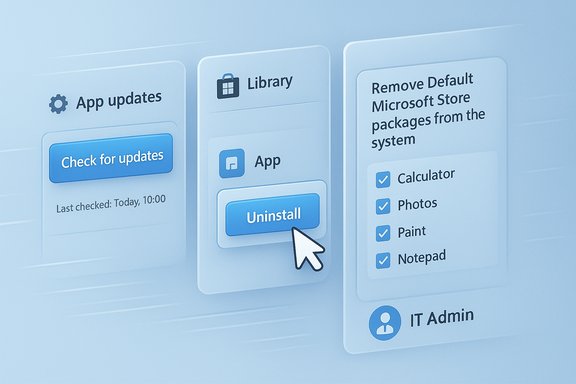
- A new Settings → Apps → App updates page that surfaces a “Check for updates” control and a last‑checked timestamp to manage Store‑distributed apps without opening the Microsoft Store.
- A Microsoft Store client change that exposes an Uninstall action on the Store’s Library page so users can remove Store‑managed apps directly from the Store UI.
- A new ADMX/MDM policy for Windows 11 (25H2) named “Remove Default Microsoft Store packages from the system,” which enables enterprise‑grade, device‑level deprovisioning of a curated set of in‑box Store packages.
What’s new, in practical terms
App updates page in Settings: what it does and what it doesn’t
The new App updates page appears under Settings → Apps → App updates and shows a simple interface: a last‑checked timestamp and a Check for updates button. The page is designed to let the OS query Store-managed update metadata and surface pending app updates without launching the full Microsoft Store client. This is especially useful when the Store app is restricted by policy or when users prefer Settings as a single control plane for system hygiene.Important limitations to note:
- This Settings surface targets apps distributed through the Microsoft Store ecosystem or Store‑managed pipelines. Classic Win32 apps, MSI installers, Steam, or apps that ship their own updaters are not covered by this control.
- Early Insider testing shows the UI present even when backend plumbing is still staged; pressing Check for updates may not trigger visible activity in some preview builds until Microsoft flips the server‑side gates. Testers reported a last‑checked timestamp but no immediate update action in some cases.
Uninstall from Store Library: a small UX win
Microsoft updated the Store client so that the Library view now shows a three‑dot menu next to installed items with an Uninstall entry. This removes the extra step of opening Settings → Apps to remove Store-managed apps, aligning the Store with mobile and other desktop stores where discovery and management happen in the same UI. Insiders running Microsoft Store versions in the 22510.1401.x.x preview family and later saw the option appear. Benefits are straightforward:- Faster removal of trial or test installs.
- Reduced context switching during support workflows.
- A single, discoverable place for end users to manage their Store-installed content.
Policy‑based removal in 25H2: supported deprovisioning for IT
On the enterprise side, Windows 11, version 25H2 introduces an ADMX‑backed Group Policy and an equivalent MDM CSP path (./Device/Vendor/MSFT/Policy/Config/ApplicationManagement/RemoveDefaultMicrosoftStorePackages) named Remove Default Microsoft Store packages from the system. When enabled, administrators can select from a curated list of Microsoft inbox Store apps to remove at the device level — enforcement occurs during provisioning events such as OOBE, the first sign‑in after an OS upgrade, or when the policy is updated. This replaces many fragile community scripts and DISM hacks with a supported, auditable mechanism. The policy is intentionally scoped:- Applicable SKUs: Windows 11 Enterprise and Education (25H2 or later).
- Scope: device‑level deprovisioning (affects all users on the device; not a per‑user uninstall).
- Removal candidates: Microsoft’s curated list of in‑box Store packages (initially including items like Calculator, Photos, Paint, Notepad variants, and select consumer apps). That list is subject to change and is not an across‑the‑board “debloat everything” control.
How to access and test the features (step-by-step)
For Windows Insiders and power users
- Join the Windows Insider Program and opt into Dev/Beta channels that carry the updated Store client and 25H2 preview binaries.
- Update the Microsoft Store client to the preview branch (look for versions in the 22510.1401.x.x family or higher).
- Open Settings → Apps → App updates to check whether the page appears. If present, note the Last checked timestamp and try Check for updates — expect staged behavior while Microsoft ramps backend services.
- Open Microsoft Store → Library and inspect installed apps; check the three‑dot menu for an Uninstall option for Store-managed entries.
For IT administrators (pilot and production steps)
- Download and import the Windows 11 25H2 Administrative Templates (ADMX) into the central policy store.
- In Group Policy Editor (or Intune Settings Catalog), navigate to Computer Configuration → Administrative Templates → Windows Components → App Package Deployment and enable Remove Default Microsoft Store packages from the system. Select the apps to remove from the UI enumeration.
- Pilot the policy on a controlled set of devices: validate enforcement during OOBE, during first sign‑in after an upgrade, and when the policy is updated. Confirm outcomes by inspecting Appx/AppxDeployment operational logs and the relevant registry keys.
- Document rollback and reinstallation paths: clearing the policy selection and re‑deploying the app via Store or management tooling will restore removed packages.
Why this matters — practical benefits
Centralizing app update discovery and simplifying Store uninstall actions improves security, supportability, and user experience.- Security: surfacing updates in a centralized Settings surface reduces the chance users miss critical patches for Store-distributed apps. Microsoft’s move to limit indefinite suspension of automatic Store updates (pause-only for 1–5 weeks) also nudges the platform toward a more consistently patched baseline.
- Support efficiency: help desks and less technical users can find update checks and remove Store apps without long troubleshooting scripts or complicated navigation between multiple control panels.
- Enterprise hygiene: the 25H2 policy turns community-driven “debloat” hacks into a supported, auditable workflow that can be integrated into provisioning pipelines like Autopilot and Intune. That reduces fragility and maintenance overhead for admins.
Critical analysis — strengths and potential risks
Strengths
- First‑party, supported controls. The ADMX/MDM policy provides a vendor‑backed way to remove inbox Store packages — a long-requested capability for enterprise image hygiene that replaces brittle scripting and DISM surgery.
- Better UX parity. Allowing uninstalls from the Store Library aligns desktop expectations with mobile app markets and reduces friction for ordinary users. The new Settings updates page signals Microsoft’s willingness to made maintenance less fragmented.
- Incremental, staged rollout reduces blast radius. Staging through Insider channels and server‑side gates allows Microsoft to observe telemetry and limit exposure while evolving the backend orchestration.
Risks and limitations
- Not a universal updater. The App updates page does not (yet) replace app‑specific updaters for legacy Win32/MSI applications. Organizations and power users who rely on tooling like winget, Chocolatey, or bespoke updaters will continue to need those tools. Treat Settings as a complementary convenience rather than a replacement.
- Re‑provisioning and policy interplay. Local uninstalls from the Store do not always equate to permanent removal on managed devices. OEM provisioning flows, Autopilot imagery, or MDM policies can re‑deploy inbox apps unless device‑level deprovisioning is used. Administrators should validate provisioning behavior across upgrade scenarios.
- Scope and SKU limitations. The deprovisioning policy targets Windows 11 Enterprise and Education SKUs on 25H2 and later. Consumer devices (Home/Pro) and many OEM preloads remain outside its remit, leaving gaps for organizations that need broader supplier/OEM coordination.
- Potential for surprise updates. Microsoft’s change to treat automatic Store updates as pause‑only (1–5 weeks) rather than permanently off may frustrate power users who rely on fixed app versions for compatibility or testing. Forced updates can also introduce regressions; the ecosystem needs robust rollback and Known Issue Rollback paths to reduce operational impact. Community reporting shows annoyance and concern from users who valued the old toggle.
- Staged availability complicates fleet management. Server‑side gating means identical build numbers can behave differently across devices. That variation complicates pilot plans and support documentation for admins who manage devices across multiple rings or geographies.
Unverifiable or early claims (flagged)
- Community reports sometimes claim the Settings page will update non‑Store Win32 applications via the same UI; that is not corroborated by Microsoft documentation and remains an aspirational scenario. Treat any communication that implies Settings will update arbitrary Win32 apps as speculative until Microsoft documents such support.
Recommendations for users and administrators
For consumers and power users
- Treat the new Settings App updates page as a convenience. Use it to check Store app health, but retain winget or the native updaters for complex multi‑app environments or where precise version control matters.
- If automatic Store updates are a concern, note the new pause‑only behavior; plan for periodic resume and avoid relying on indefinite disablement as a long-term strategy. Consider setting metered connections or using managed devices (Pro/Enterprise) where administrative controls are available.
For IT administrators
- Pilot the 25H2 ADMX policy in a small ring before broad rollout. Validate enforcement triggers (OOBE, post‑upgrade first sign‑in, policy refresh) and audit event logs for Appx/AppxDeployment messages.
- Import and maintain the latest 25H2 Administrative Templates (ADMX) and update Intune Settings Catalog profiles to take advantage of the supported CSP. Document which in‑box packages are removable for your build and SKU.
- Communicate changes to users. Removing inbox Store apps can affect user workflows (e.g., default handlers, quick‑access tools). Create a rollback plan to reinstall any removed packages if needed.
- Don’t abandon image hygiene. The policy is helpful but doesn’t replace OEM coordination for preloads or custom images that include third‑party software. Integrate the policy into broader provisioning strategies (Autopilot, custom images, OEM agreements).
How this fits into Microsoft’s broader strategy
The changes are consistent with Microsoft’s ongoing efforts to make Windows more managed and secure by default: centralize update orchestration, reduce fragmentation between surfaces, and provide audited policy surfaces for enterprises. The Store’s shift to a pause‑only model for app updates mirrors the trend toward stronger baseline security across consumer devices, and the policy-based deprovisioning feature demonstrates a willingness to give IT teams supported primitives for image hygiene. These moves also nudge developers and OEMs into cooperating with a more centralized lifecycle model where the Store and system provisioning are the primary authorities for Store-packaged experiences. At the same time, Microsoft must balance the desire for a secure, up‑to‑date ecosystem with power users’ need for predictable version control and enterprise teams’ need for fine‑grained rollout testing. The staged Insider rollouts, ADMX/MDM mappings, and event logging show Microsoft is taking a cautious, telemetry-driven approach — but how this approach scales into mainstream channels will determine whether the changes are broadly welcome or quietly resisted by advanced users masking as administrators.The future: what to watch for
- Wider rollout timing: expect these changes to move from Insider builds to broader channels once server‑side plumbing and telemetry validation conclude. Watch for formal documentation updates and KB or Support articles that enumerate the removable package list per build.
- Expanded update coverage: Microsoft might progressively expand how Store metadata interacts with non‑Store update mechanisms, but any claim that Settings will become a universal updater should be treated skeptically until Microsoft documents support for Win32/MSI workflows.
- Rollback and resiliency tooling: as Microsoft centralizes update control, robust rollback tooling and Known Issue Rollback mechanisms will be critical to avoid large-scale regressions and restore device health quickly after a problematic app release. The platform’s maturity will be judged on how quickly it can both push fixes and revert harmful updates.
Conclusion
The combined changes — an App updates page in Settings, uninstall actions in the Store’s Library, and a 25H2 ADMX/MDM policy to remove default Store packages — are not flashy, but they are meaningful. They reduce everyday friction, give IT teams a supported deprovisioning path, and push Windows toward a more centralized app lifecycle model. Early previews still show rough edges (staged backends, paused toggles that don’t yet trigger visible flows), so pilots and careful testing remain essential. For most users and administrators, the net is positive: fewer clicks, more predictable provisioning, and a clearer path to keeping Store apps current — provided Microsoft preserves transparent documentation, robust rollback capabilities, and clear boundaries between Store-managed and legacy update mechanisms.Source: Digital Trends Updating and removing your Windows 11 apps is about to get a lot less frustrating
