

Microsoft is quietly testing a dedicated App updates page inside the Windows 11 Settings app that aims to centralize Store-managed application updates alongside operating system updates — a small UI change with outsized implications for users, IT admins, and the Microsoft Store's strategic direction.
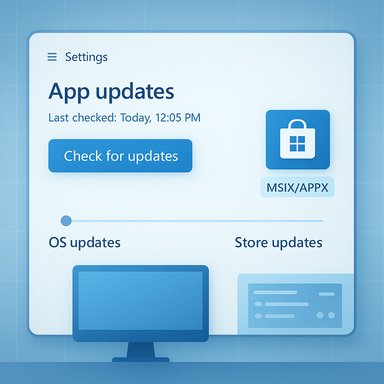
Windows has long suffered from a fractured update story: Windows Update for the OS and drivers, the Microsoft Store for Store-distributed apps, and a wild west of bespoke updaters for Win32 and line-of-business applications. That fragmentation complicates security posture, patch auditing, and user convenience. Microsoft has been working publicly on a broader vision — a unified update orchestration approach that would allow apps and drivers to be scheduled, logged, and handled alongside Windows updates. This orchestration work has been previewed to developers and discussed as an eventual platform-level capability. Recent Insider preview builds have begun to reflect that strategy in the UI: an App updates entry now appears under Settings → Apps, offering a Last checked timestamp and a Check for updates button that can surface Store-managed updates without launching the full Microsoft Store app. Early builds show the UI in place even where backend services are still being enabled, which suggests Microsoft is progressively flighting the feature to Insiders before a broader rollout.
Source: BetaNews Microsoft is working to simplify updating apps in Windows 11
 Background
Windows has long suffered from a fractured update story: Windows Update for the OS and drivers, the Microsoft Store for Store-distributed apps, and a wild west of bespoke updaters for Win32 and line-of-business applications. That fragmentation complicates security posture, patch auditing, and user convenience. Microsoft has been working publicly on a broader vision — a unified update orchestration approach that would allow apps and drivers to be scheduled, logged, and handled alongside Windows updates. This orchestration work has been previewed to developers and discussed as an eventual platform-level capability. Recent Insider preview builds have begun to reflect that strategy in the UI: an App updates entry now appears under Settings → Apps, offering a Last checked timestamp and a Check for updates button that can surface Store-managed updates without launching the full Microsoft Store app. Early builds show the UI in place even where backend services are still being enabled, which suggests Microsoft is progressively flighting the feature to Insiders before a broader rollout. What the new Settings → Apps → App updates page actually does today
A simple, centralized control panel (for now)
- The page lists Store‑managed apps and shows when Windows last checked for app updates.
- A Check for updates button aims to trigger discovery and installation without launching the Microsoft Store client. Early preview behavior is inconsistent as Microsoft enables backend services selectively.
Scope and limits
- This page currently targets apps that can be surfaced by the Store or that integrate with Store-managed update metadata. It does not replace per-app update engines (Steam, Chrome, Adobe updaters) or act as a global package manager for arbitrary MSI/exe installers yet.
- The capability appears designed to complement — not immediately subsume — the Microsoft Store and existing enterprise update tools.
How this ties into Microsoft’s orchestration vision
Microsoft has publicly described an intended Windows Update orchestration platform that enables third‑party apps to register with Windows Update, benefit from intelligent scheduling (idle time, battery/AC state, energy‑aware timing), and appear in unified update histories. The new App updates page is best read as an incremental, user-facing step in that larger technical program: surface app update discovery in Settings while the backend orchestration APIs and developer integrations are still matured in private previews. Key attributes Microsoft has signaled for the orchestration approach:- Support for MSIX/APPX packaged apps and certain packaged Win32 apps that adopt the integration APIs.
- Scheduling and telemetry that align app updates with system maintenance windows and user activity.
- A single audit trail and diagnostic surface across Windows Update and Store-sourced installs.
Why this matters: benefits for consumers and IT administrators
For everyday users
- Less context switching. A single place to check for app updates reduces the need to open multiple apps or revisit vendor sites to confirm patches.
- Improved security hygiene. Centralized discovery can raise patch uptake for Store-distributed apps, shrinking the attack surface for exploits that prey on outdated software.
- Store independence for discovery. Being able to check for updates from Settings reduces friction when the Microsoft Store is blocked by policy or removed from a system image.
For IT administrators and enterprises
- Unified scheduling and compliance. The orchestration platform promises admin-friendly scheduling, telemetry, and logging — the kinds of features enterprises need to avoid surprise restarts or downtime.
- Policy alignment. Bringing app update pause/resume semantics closer to Windows Update behavior simplifies compliance policies and reporting across endpoints.
- Potential to reduce tool sprawl. If widely adopted, having apps participate in Windows Update could reduce reliance on multiple vendor-specific update systems or heavy third‑party patch management layers.
Notable technical details and what to test now
- Where to look: open Settings → Apps → App updates (Insider preview builds). The UI shows a Last checked timestamp and the Check for updates control.
- Which channels: the control is appearing in Insider preview builds first; public consumers may not see it until Microsoft enables the backend and ships a stable rollout.
- Store version dependency: some Store-driven update behaviors are tied to particular Microsoft Store client versions; Insiders may need an updated Store to experience the full flow.
- Developer integration: developers must adopt Microsoft’s orchestration APIs or package apps appropriately (MSIX/APPX or supported Win32 packaging) to be surfaced by Windows Update or the App updates page.
The Microsoft Store and the control trade-off: recent changes to auto-update behavior
Concurrent with these orchestration moves, Microsoft has adjusted how automatic app updates are controlled in the Store: the option to permanently disable automatic updates via the Store UI has been removed and replaced by a pause model that lets users delay updates for fixed intervals (commonly one to five weeks). The stated rationale is platform security — ensuring devices eventually receive security patches — but the change reduces indefinite opt‑outs at the UI level. Why this matters:- Security win: forcing eventual patching reduces persistent unpatched endpoints.
- Control loss for some users: enthusiasts, developers, or folks with fragile workflows who previously froze app versions now face more friction if they wish to avoid updates.
Strengths: what Microsoft gets right so far
- Incremental rollout, UI-first approach. Deploying a Settings-based discovery UI separately from backend integrations reduces surface area and lets Microsoft iterate on user experience without immediately forcing every developer to integrate.
- Enterprise-minded architecture. The orchestration platform’s focus on scheduling, telemetry, and centralized logging maps to enterprise needs for predictable maintenance windows and audit trails.
- Security-centric policy shift. Reining in indefinite disabling of app updates is a pragmatic move to lift baseline security across consumer and unmanaged devices.
- Compatibility-first packaging support. Supporting MSIX/APPX and a subset of Win32 packaging helps migrate a wide swath of existing Windows software onto more manageable update paths.
Risks, unanswered questions, and potential downsides
1) Limited scope at launch
The initial Settings page is focused on Store-managed or Store-integrated apps. Many of the most pervasive updaters (Steam, Chrome, Adobe) will continue to use their own mechanisms unless vendors choose to integrate with Microsoft’s orchestration APIs. This limits immediate impact.2) Developer adoption is uncertain
Large ISVs with established updaters may be reluctant to change update channels. Convincing companies to shift to a Microsoft-managed or Microsoft-orchestrated pipeline will require clear benefits and low migration friction. History suggests adoption will be gradual.3) User control vs. platform safety
By restricting the ability to permanently disable updates in the Store UI, Microsoft strengthens security but curtails a class of user control that advanced users prize. That may push enthusiasts to circumvent the Store entirely, which could paradoxically fragment update coverage again.4) Complexity for mixed-managed environments
Enterprises with heterogeneous management stacks (WSUS, SCCM/ConfigMgr, Intune, third‑party patch managers) must map or adapt to the new orchestration hooks. Microsoft has deprecated some legacy update channels, and care will be required to avoid conflicts or duplication.5) Risks of centralized failures
Centralizing update orchestration improves visibility, but it also creates new single points of failure: botched updates, misapplied policies, or backend outages could cause widespread impact if not designed with robust rollback and segmentation. This is a feature-design risk that Microsoft must mitigate through staged rollouts and strong telemetry.Practical recommendations for users, power users, and IT admins
For consumers and power users
- Use the Settings → Apps → App updates control on Insider builds to assess behavior, but expect incomplete flows until Microsoft enables backend services more broadly.
- If you rely on pinning app versions, keep installers or use package managers that support version pinning (for example, winget for certain packages), or use registry/enterprise controls rather than the Store UI.
- For privacy- or bandwidth‑sensitive scenarios, consider using the Store less and maintain manual update discipline — but be aware this increases security maintenance overhead.
For IT administrators
- Evaluate whether Microsoft’s orchestration preview aligns with existing update policies for your org. Test in a non-production ring first.
- Use Intune, Configuration Manager, or registry-based settings for any packaged apps you control; Microsoft’s docs provide registry knobs for MSIX update behavior and instructions for enterprise distribution and management.
- Prepare a fallback plan: ensure rollback, staged deployments, and monitoring are in place before adopting orchestration for mission‑critical apps.
What to watch for next (roadmap and signals)
- Microsoft will likely enable backend orchestration capabilities to a wider preview group first; watch Windows Insider release notes and Microsoft engineering blogs for private-preview invitations and developer docs.
- Developer documentation and SDKs for the orchestration APIs will be the inflection point: clear, low-friction integration examples (WinRT APIs, PowerShell modules, or package metadata conventions) will determine how rapidly ISVs adopt this model.
- Enterprise management surface — integration with Intune, Autopatch, and Windows Update for Business — will be critical. If Microsoft makes orchestration manageable via Intune policies and reporting, adoption among enterprise customers will accelerate.
- Monitor the Microsoft Store auto-update UX: if the pause-only model becomes normative across more versions, expect community discussion about long-term control trade-offs and possible registry/enterprise workarounds.
Verdict: pragmatic first step, but not a panacea
The new App updates page in Settings is a symbolically important and pragmatically useful move: it externalizes app update discovery from the Microsoft Store into the OS settings, aligning with Microsoft’s broader orchestration vision and making update discovery easier for many users and admins. That said, the feature is early, constrained to Store-managed or integrated apps at launch, and depends on developer adoption to realize the promise of a truly unified update platform. Microsoft’s security-first posture (replacing indefinite disable toggles with a pause model) is defensible from a risk‑management perspective, but it also raises questions about control, compatibility, and the long-term philosophy of platform stewardship. Enterprises and power users will have to adapt their management practices accordingly, while casual users will benefit from fewer missed security patches — provided Microsoft executes the orchestration infrastructure reliably.Final thoughts and practical tip list
- Try the feature on an Insider test machine to see how the Settings → Apps → App updates UI behaves for your installed Store-enabled apps. Report anomalies via Feedback Hub.
- For admins: map the orchestration preview to existing maintenance windows and test rollback procedures before adopting at scale.
- For developers: evaluate whether adopting Microsoft’s orchestration APIs or packaging apps as MSIX/APPX provides advantages for reach, telemetry, and consistent update UX.
- For advanced users: maintain local copies of installers and leverage package managers that support version pinning if you need deterministic app versions.
Source: BetaNews Microsoft is working to simplify updating apps in Windows 11
