

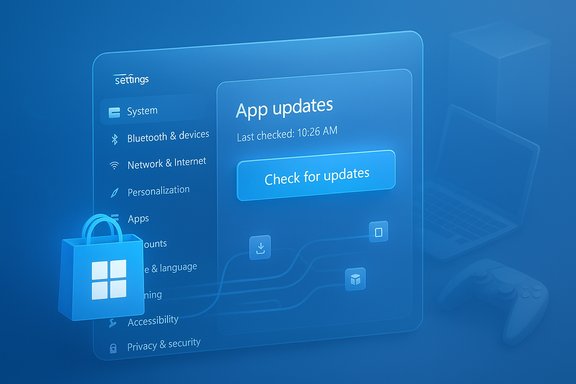
Microsoft is quietly moving another piece of app-management work from the Microsoft Store into the core Windows experience: an “App updates” page has appeared in the latest Windows 11 Insider preview builds under Settings → Apps, offering a centralized check-for-updates control for Store‑managed apps without launching the Store app itself. Early hands‑on reports show the UI is visible — with a Last checked timestamp and a prominent Check for updates button — but the underlying update pipeline is still being enabled server‑side, so the control is not yet universally functional for all testers. This is a modest change on the surface but sits inside a much bigger strategy: Microsoft is steadily centralizing update discovery and delivery for Store-distributed apps (and experimenting with broader orchestration that could surface third‑party updates alongside OS updates). At the same time, the Microsoft Store’s consumer UI has been altered so the old “turn off automatic app updates” option is effectively replaced by a pause workflow (1–5 weeks), shifting the default toward automatic patching rather than indefinite opt‑outs. Both moves reveal Microsoft’s security-first posture — and raise practical questions about control, telemetry, and how non‑Store software will be handled going forward.
Windows has long split update responsibilities across multiple systems: Windows Update for OS and drivers, the Microsoft Store for Store‑acquired apps, and a profusion of vendor updaters (Steam, Chrome, Adobe, etc. for the bulk of Win32 software. That fragmentation frustrates users who want a single, auditable place to check and apply updates, and it complicates IT maintenance at scale. Microsoft’s recent moves — Store UI changes, the new Settings “App updates” surface, and work on a Windows Update orchestration platform — are incremental steps toward reducing that fragmentation. Why now? Microsoft has articulated a risk-reduction argument: automatic updates reduce the window of exposure to security flaws, and a unified experience makes it easier for less technical users to stay current. The company is also positioning modern packaging (MSIX/App Installer) and new orchestration APIs as the path for developers and enterprises to adopt the platform‑level update model. Those technical hooks matter because they determine which apps can participate today — and which cannot.
This is progress toward a more unified Windows update story, but meaningful value will depend on two things: developer adoption (MSIX/Store metadata) and Microsoft’s execution of orchestration and rollback tooling to keep centralization from becoming a systemic weakness. Until then, power users and IT teams should keep established package managers and enterprise update controls in their toolkits while watching the Settings page mature from a convenience surface into a dependable orchestration endpoint.
Source: Windows Report Windows 11 Settings Will Soon Let You Update Apps Without Microsoft Store
 Background
Windows has long split update responsibilities across multiple systems: Windows Update for OS and drivers, the Microsoft Store for Store‑acquired apps, and a profusion of vendor updaters (Steam, Chrome, Adobe, etc. for the bulk of Win32 software. That fragmentation frustrates users who want a single, auditable place to check and apply updates, and it complicates IT maintenance at scale. Microsoft’s recent moves — Store UI changes, the new Settings “App updates” surface, and work on a Windows Update orchestration platform — are incremental steps toward reducing that fragmentation. Why now? Microsoft has articulated a risk-reduction argument: automatic updates reduce the window of exposure to security flaws, and a unified experience makes it easier for less technical users to stay current. The company is also positioning modern packaging (MSIX/App Installer) and new orchestration APIs as the path for developers and enterprises to adopt the platform‑level update model. Those technical hooks matter because they determine which apps can participate today — and which cannot. What the new Settings → Apps → App updates page actually shows
- A simple UI with a Last checked timestamp and a Check for updates button, surfaced in Insider preview builds. The page is located under Settings → Apps.
- The page appears designed to surface Store‑managed update status without forcing users to open the full Microsoft Store client. Early previews show it lists apps that the Store can manage, but it does not yet enumerate or update every program on disk.
- In current flights the Check for updates control sometimes does nothing visible — that suggests Microsoft is exposing the UI ahead of fully enabling server‑side plumbing or gating functionality by Insider rings. Expect the UI to be flaky for some testers in early builds.
Key technical scope (what it can and cannot do today)
- It will update apps that are managed by the Microsoft Store (APPX/MSIX and some Store‑packaged Win32 apps).
- It does not replace vendor updaters or package managers: apps with their own update engines (Steam, Chrome, Adobe) continue to update through those channels.
- Sideloaded Win32/MSI applications generally remain outside this control unless publishers adopt MSIX/App Installer semantics or list their apps in the Store with compatible metadata.
Why this matters: immediate benefits
- Lower friction for casual users. Putting app update controls in Settings reduces the need to hunt for the Store UI and makes update status more visible beside Windows Update. That solves a frequent usability complaint.
- Resilience when the Store UI is not available. Devices where the Microsoft Store is blocked by policy, uninstalled, or hard to reach (for example, a controller‑driven fullscreen gaming shell) now have an alternate surface to trigger Store‑managed updates. That benefits gaming and kiosk scenarios.
- A stepping stone to a unified experience. The Settings page is a low‑risk way to test exposing Store orchestration in the OS shell, paving the way for deeper Windows‑level integration later.
Impact for gamers and full‑screen Xbox experiences
Gaming setups that launch into an Xbox Full Screen Experience or other fullscreen shells can be awkward to switch out of mid‑session to update apps. The Settings‑level App updates page reduces context switching by keeping update controls inside Settings, which is reachable without launching the full Store client in some scenarios. That makes it easier to keep Xbox‑integrated or controller‑focused Store apps up to date while staying in the gaming environment. Early reports flag this exact convenience as a likely win for gamers.Enterprise and management considerations
Enterprises should view this as a convenience for end‑users rather than a replacement for authoritative management tools. Key points:- MDM/Group Policy remain authoritative. Administrators can still enforce update policies via Intune, Group Policy, or Windows Update for Business; the consumer UI changes do not override enterprise controls.
- Telemetry and auditing expectations. Centralizing update orchestration makes telemetry and reporting more useful — but IT teams will want explicit audit trails, roll‑out controls, and staged deployment features before embracing this surface for critical workloads. Microsoft’s orchestration preview targets enterprise use cases precisely because those controls are required.
- Adoption path for enterprise apps. Enterprises that package internal tools as MSIX or integrate with App Installer will be able to take advantage of Microsoft’s centralized tooling more easily than legacy MSI workflows. Planning and packaging work is required to benefit from future orchestration features.
Developer perspective: how apps can participate
For a developer to make their app visible and manageable via Microsoft’s central update surfaces, there are broadly two paths:- Package the app using MSIX/App Installer and expose update metadata (update URIs, versioning). That enables Windows to discover updates and for the Store/orchestrator to surface them.
- List the app in the Microsoft Store as “provided and updated by” the publisher, allowing the Store to present update availability even if the bits are hosted on the developer’s servers. That model has already been trialed for third‑party apps.
Security, control, and privacy: benefits and trade‑offs
Microsoft’s approach trades user-level control for a more secure baseline. The company has replaced a permanent “off” for automatic Store updates with a pause mechanism, mirroring Windows Update’s consumer behavior and ensuring devices eventually receive security patches. That reduces the attack surface but tightens consumer choice in the UI. Privacy and telemetry are a logical side‑effect of centralized orchestration. Centralized checks require the system to know which apps are installed and their update state to work effectively. Enterprises can manage diagnostics via MDM, but consumers should expect more background activity and diagnostic telemetry related to update orchestration when the feature is fully enabled. The details of what’s collected and how it’s used are the kinds of policy questions Microsoft must answer as the feature rolls out.Limitations and risks — what the feature is not
- Not a universal updater (yet). The Settings page does not update arbitrary Win32/MSI applications that are not integrated with the Store or MSIX. Power users relying on winget, Chocolatey, Scoop, or vendor updaters will still need those tools.
- UI before backend readiness. Microsoft has exposed the Settings UI to Insiders in some rings before full server‑side plumbing is turned on, producing a visible-but-nonfunctional control in early previews. That can create confusion and false expectations among testers.
- Single point-of‑failure concerns. Centralizing updates increases the potential blast radius if a bad metadata mapping or Store update propagates widely; robust rollback, staged rollouts, and transparent error diagnostics are essential to reduce systemic risk.
- Reduced immediate local control. Casual consumers lose a UI-level permanent “off” toggle for automatic app updates in favor of temporary pause periods, which can be friction for users who deliberately pin versions for compatibility. Enterprise controls remain, but consumer choice is constrained.
How to try it now (Insider guidance) — practical steps
- Join the Windows Insider Program (Canary/Dev channels have historically received the earliest UI changes).
- Ensure the Microsoft Store app is up to date; Store updates can gate orchestration features.
- Open Settings → Apps → App updates and look for the Last checked timestamp and Check for updates button. If the button is nonfunctional, the UI may simply be exposed before backend activation — no action is required beyond waiting for server‑side enablement.
Alternatives for a single‑pane updater experience today
If you want a single place to manage updates for many non‑Store apps today, consider established third‑party tools and package managers:- winget (Windows Package Manager) — command‑line package management with update capability.
- Chocolatey — community package manager with automation options.
- Ninite / Ninite Pro — simple one‑click update installer targeting common apps.
- Enterprise tooling (WSUS, Intune, SCCM) — for large environments requiring control and auditability.
What to watch next — rollout signals and milestones
- Wider Insider ring availability and functional parity: watch for the Settings page to become interactive across Dev/Beta/Release Preview rings and for Microsoft to add visible app lists and an “Update all” control.
- Integration with Windows Update orchestration: Microsoft has previewed an orchestration platform that could allow Windows Update to schedule and deliver third‑party app updates alongside OS patches — that would be the biggest step toward a truly unified update surface. Early preview details and developer sign‑ups appeared in Microsoft’s orchestration messaging.
- Developer adoption: look for major vendors to publish support for MSIX/App Installer semantics or to register apps as “provided and updated by” in the Store; adoption by large publishers will materially increase the Settings page’s utility.
- Enterprise controls and telemetry policy disclosures: as orchestration expands, Microsoft must deliver clear enterprise-level controls and privacy/telemetry documentation so IT can audit and comply with organizational policies.
Practical recommendations for users and admins
- Casual users: Expect a better, more discoverable path for Store app updates. Embrace the convenience but be aware automatic updates may resume after any pause period you choose.
- Power users: Continue using package managers (winget, Chocolatey, Ninite) for non‑Store apps until Microsoft’s orchestration achieves broader app coverage. Consider packaging frequently used tools as MSIX if you want to participate in future Store/Settings‑based updates.
- IT admins: Treat the Settings UI as a user convenience; rely on Group Policy, Intune, or Windows Update for Business for authoritative control. Pilot the orchestration preview in a controlled environment if you depend on centralized app lifecycle management.
- Developers: Evaluate MSIX/App Installer and the “provided and updated by” model if you want your updates surfaced centrally; test metadata and rollback behavior thoroughly before enrolling in orchestration programs.
Conclusion
The new Settings → Apps → App updates page is a clear — if early — signal that Microsoft intends to bring app update discovery closer to the OS surface. For average users it reduces friction and improves discoverability; for gamers it removes an awkward context switch; for Microsoft the change is a visible part of a broader push to make updates more reliable and less fragmented. But the feature is not a universal updater: it currently operates only for Store‑managed apps and remains gated behind Insider rollout and server‑side plumbing. The accompanying Store change that replaces permanent “off” with a pause model underscores Microsoft’s security-first bias and narrows UI-level control for consumers.This is progress toward a more unified Windows update story, but meaningful value will depend on two things: developer adoption (MSIX/Store metadata) and Microsoft’s execution of orchestration and rollback tooling to keep centralization from becoming a systemic weakness. Until then, power users and IT teams should keep established package managers and enterprise update controls in their toolkits while watching the Settings page mature from a convenience surface into a dependable orchestration endpoint.
Source: Windows Report Windows 11 Settings Will Soon Let You Update Apps Without Microsoft Store
