

Microsoft’s latest Insider preview (Build 26220.7271) pushes a cluster of practical, user-facing changes—most noticeably a controller-friendly Xbox full‑screen experience on more PCs, a new point‑in‑time restore recovery option, and a focused set of File Explorer refinements aimed at decluttering right‑click menus and experimenting with background preloading to improve launch speed. These changes arrive as part of the 25H2 enablement stream and are being rolled out to Windows Insiders in measured stages; some features require additional entitlements or specific hardware to be available.
Windows 11 version 25H2 is being delivered as an enablement-style release that activates features Microsoft has been staging across monthly cumulative updates. That strategy reduces installation friction but introduces staged visibility—features in a single build may only be activated for some devices via server-side gates or hardware checks. This context matters: you may see different behavior on two otherwise identical PCs depending on Microsoft’s rollout entitlements, your Insider channel settings, and whether your device meets Copilot+ or NPU requirements for on‑device AI. 25H2’s headline themes remain consistent: improved AI and Copilot integrations, File Explorer polish and performance work, and a set of resiliency and recovery tools aimed at reducing downtime for both consumers and managed fleets. The build notes for 26220.7271 combine these user-facing improvements with a list of stability fixes and a handful of known issues Insiders should watch for.
Source: Neowin Windows 11 25H2 gets faster File Explorer with improved context menus, and more in new build
 Background / Overview
Windows 11 version 25H2 is being delivered as an enablement-style release that activates features Microsoft has been staging across monthly cumulative updates. That strategy reduces installation friction but introduces staged visibility—features in a single build may only be activated for some devices via server-side gates or hardware checks. This context matters: you may see different behavior on two otherwise identical PCs depending on Microsoft’s rollout entitlements, your Insider channel settings, and whether your device meets Copilot+ or NPU requirements for on‑device AI. 25H2’s headline themes remain consistent: improved AI and Copilot integrations, File Explorer polish and performance work, and a set of resiliency and recovery tools aimed at reducing downtime for both consumers and managed fleets. The build notes for 26220.7271 combine these user-facing improvements with a list of stability fixes and a handful of known issues Insiders should watch for. What’s new in Build 26220.7271 — The headlines
- Xbox full‑screen experience (FSE) expands to additional Windows 11 PC form factors (desktops, laptops, tablets), not just handheld devices; it’s controller‑first and intended to reduce desktop distractions while gaming. Entry points include Task View, Game Bar settings, and a Win + F11 toggle.
- Point‑in‑time restore (PITR) for Windows appears in WinRE/Recovery options for Insiders, offering a rapid rollback that can restore OS, apps, settings and some local files to a previous system state. The feature is previewed for Dev & Beta channel Insiders and ties into Microsoft’s broader Windows Resiliency initiative.
- Fluid Dictation is added to Voice Typing for NPU‑equipped devices (on‑device small language models handle grammar, punctuation, and filler‑word suppression). Launch with Win + H.
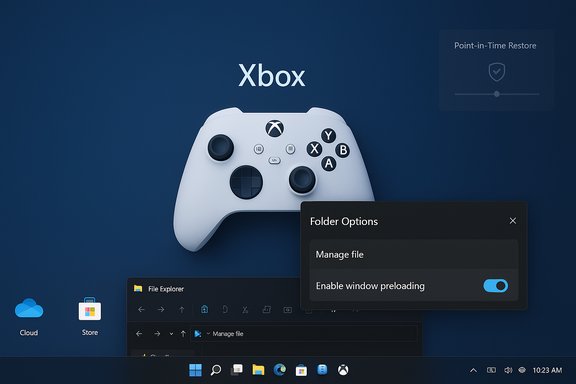
- File Explorer: right‑click context menus are reorganized into a new Manage file flyout and provider‑specific submenus; Microsoft is also experimenting with preloading File Explorer in the background to speed first launch, with an option to disable it in Folder Options.
- Microsoft Store: Store‑managed apps can now be uninstalled directly from the Store’s Library page.
Xbox full‑screen experience on PC: what it is and why it matters
Console-style, controller‑first gaming on Windows
The Xbox full‑screen experience is a session posture: it’s not a new OS, but a layered shell that boots the Xbox app as a focused home surface, suppresses some desktop ornaments, and optimizes task switching for controllers. The goal is a console‑style UX on devices where a controller is the primary input: large, easily navigable tiles, a simplified home screen surfacing Game Pass and installed titles, and long‑press Xbox‑button behavior to switch between games and running apps. Entry methods documented by Microsoft include Task View, Game Bar, and the Win + F11 toggle; Settings exposes Gaming > Full screen experience controls.Benefits
- Cleaner, distraction‑free launcher for controllers and small‑screen handhelds.
- Faster switching and lower desktop overhead on devices where background services and shell elements can be deferred, sometimes yielding measurable memory headroom and steadier framerates in constrained scenarios.
- Unified game discovery that aggregates Game Pass and discovered titles from other storefronts.
Caveats and risks
- Experience quality is device‑dependent. OEM entitlements, firmware, and driver maturity affect smoothness; a handheld pre‑validated by OEMs will typically perform better than a desktop where FSE is enabled via Insider flags. Independent hands‑on tests show memory savings are possible (often in the ~1–2 GB ballpark on some devices), but Microsoft does not publish a universal guarantee—treat that figure as an observed, device‑specific result rather than a platform promise.
- Compatibility: some apps expect fixed window sizes or spawn separate windows; these apps may behave unexpectedly in FSE.
- Input fallbacks: a documented bug in this preview prevents the virtual keyboard from appearing for controller users on non‑touch devices; physical keyboards are the workaround for now.
Point‑in‑time restore (PITR): modern rollback for faster recovery
What PITR offers
Point‑in‑time restore is a modernized rollback primitive that aims to return a PC to a precise prior state—including OS, installed apps, settings and some local files—without a full reimage. It appears in WinRE/Troubleshoot and in Recovery settings for eligible devices running preview builds, and Microsoft positions PITR as one of several resilience tools (alongside Quick Machine Recovery and Cloud Rebuild) introduced at Ignite to reduce mean time to repair (MTTR) across both consumer and enterprise environments.Key implementation details (preview)
- Preview retention windows and defaults are modest and configurable during preview: community reporting suggests preview defaults like restore points every 24 hours with retention often limited to a relatively short window (for example, 72 hours in initial previews), with configuration for frequency and disk usage available. These values are subject to change before GA; administrators should not assume long retention in preview.
- PITR in preview is triggered locally from WinRE; remote triggering and full Intune/Autopatch orchestration are planned as Intune integrations mature, but remote management capabilities may be limited in the early preview waves.
- Restore is destructive for changes made after the selected restore point—apps installed and files created since the point may be lost unless backed up elsewhere.
Why this matters
For power users and IT desks, PITR reduces the friction of recovering from a recent bad update, driver regression or config error without a full reimage. For enterprises, PITR combined with Intune‑triggered remote recovery workflows and Cloud Rebuild could dramatically shrink the window for escalations that previously required imaging or onsite repair. However, PITR is an addition to backups, not a replacement—users and admins should maintain independent backups, especially for mission‑critical data.Fluid Dictation in Voice Typing: smoother, on‑device dictation
Fluid Dictation brings a real‑time polishing layer to voice typing by applying grammar, punctuation and filler‑word removal as you speak. The feature is powered by on‑device small language models (SLMs) and is targeted at NPU‑equipped (Copilot+/NPU) devices for fast, private processing; it is enabled by default and invoked via Win + H. Microsoft explicitly ties the fastest, lowest‑latency experience to devices with NPUs or Copilot+ certification—other devices may fall back to cloud processing or see degraded responsiveness. Practical implications: Fluid Dictation is a meaningful productivity win for creators, accessibility users and anyone who dictates long-form text on supported hardware—but organizations and admins should test how it interacts with privacy rules and secure entry fields (dictation is typically disabled for passwords/PINs).File Explorer changes: context menu reorganization and launch preloading
Context menu refinements
Microsoft’s goal here is decluttering: the updated context menu groups related tasks and moves less commonly used items into submenus or flyouts. Notable relocations in the preview include:- Compress to ZIP, Copy as Path, Set as Desktop Background, Rotate Left/Right moved into a new Manage file flyout.
- Cloud provider actions (Always keep on this device, Free up space) moved into provider-specific flyouts.
- Send to My Phone moved next to cloud provider options.
- Open Folder Location moved nearer to Open and Open with.
Preloading File Explorer to improve apparent launch speed
Microsoft is experimenting with preloading File Explorer in the background to improve first‑launch performance. When enabled for Insiders, Windows will create a background File Explorer process so the UI is ready when called; Microsoft exposes a toggle in Folder Options named Enable window preloading for faster launch times that can be unchecked to disable the behavior if you prefer to conserve background RAM. The goal is faster perceived launch times, especially on systems where the initial populate cost is otherwise noticeable.Benefits and trade‑offs
- Benefits: noticeable reduction in the time it takes for a new File Explorer window to show full UI elements; fewer “incomplete” windows where parts of the UI appear slowly.
- Trade‑offs: preloading consumes background memory and potentially some CPU cycles; for low‑RAM or battery‑sensitive devices, the trade may not be worth the reduced latency. The on‑off toggle is a pragmatic compromise.
- Risks: the experiment has produced a few UI artifacts in preview (white flashes on navigation under dark mode, missing scrollbar/footer in scaled text scenarios), and Microsoft lists a handful of File Explorer regressions being investigated—Insiders should report problems to the Feedback Hub under Files Folders and Online Storage.
Microsoft Store: uninstall from Library and other small quality improvements
Based on user feedback, the Store now allows uninstalling Store‑managed apps directly from the Library page—find the app, click the three‑dot menu and choose Uninstall. This is a modest but welcome convenience for users who manage multiple Store apps across devices. The change is visible to Insiders running Microsoft Store version 22510.1401.x.x and higher.Fixes, known issues, and the reality of staged rollouts
Build 26220.7271 bundles a set of reliability fixes (taskbar hangs after notifications, battery icon display oddities, Settings crashes in privacy pages, graphics detection messages in games, Task Manager memory form factor reporting for Die/CAMM modules, and an ARM64 .NET/Visual Studio crash fix). Known issues include the virtual keyboard omission for FSE controller users on non‑touch devices, File Explorer UI flashes and scaling artifacts, Start menu not opening on click for some Insiders, and Bluetooth battery level telemetry not showing in some cases. Microsoft is actively investigating and warns that the rollout is gradual. This build family continues Microsoft’s practice of server‑gating features: installing the binary does not always mean the feature becomes active immediately. That means troubleshooting and testing behavior across multiple devices matters—what you see on an Insider preview PC may not map exactly to another tester’s machine.Critical analysis: strengths, practical value, and risks
Strengths
- Focused, user‑centric polish: The File Explorer context menu changes and Store convenience improvements address long‑standing friction points, making everyday workflows slightly faster and less noisy. These are the kinds of incremental wins that improve daily productivity for broad user segments.
- Recovery and resiliency advancements: PITR, QMR and Cloud Rebuild collectively represent a modern approach to device recovery that reduces the need for full imaging and on‑site repair, which is especially valuable for distributed workforces and enterprise fleets. The Intune integration story is compelling for enterprise IT.
- Privacy-friendly AI lift: Fluid Dictation running on-device SLMs is an example of delivering AI improvements while keeping processing local for eligible hardware, reducing cloud data exposure.
Risks and caveats
- Fragmentation and gating complexity: server-side enablement and hardware gating (Copilot+, NPUs) create uneven user experiences and make testing harder for IT admins. Features may appear or disappear depending on entitlements—not ideal for predictable rollouts.
- Recovery expectations vs. reality: PITR is powerful but not a substitute for backups. Preview retention defaults are short and retention caps and disk usage policies may change; administrators must not over-rely on PITR as a single point of recovery.
- Preloading tradeoffs: preloading Explorer improves perceived responsiveness but increases background memory use. For low‑RAM or battery-critical devices, this may be counterproductive; users should be able to easily disable it (and they can in preview).
- App compatibility in FSE: apps that spawn additional windows or assume a traditional desktop posture may misbehave in FSE. Anti‑cheat and DRM ecosystems always require careful validation when session postures change.
- Preview instability: known UI artifacts (white flashes in File Explorer, missing virtual keyboard in FSE) demonstrate that the experience is not yet polished—Insiders should expect rough edges.
Recommendations: who should enable, test, or hold back
For Windows enthusiasts and Insiders
- Install the preview if you want early access to FSE, PITR and Fluid Dictation.
- If you care about File Explorer launch speed but are tight on RAM or need maximum battery life, disable the File Explorer preloading option in Folder Options (View tab) after the change appears.
For content creators and accessibility users
- Test Fluid Dictation on NPU/Copilot+ hardware: if you have a Copilot+ device, expect fast, private dictation and good punctuation correction; validate workflow in the apps you use (Office, browsers, text editors).
For IT administrators and support teams
- Pilot PITR and Cloud Rebuild in a controlled ring; verify retention defaults and disk usage settings before enabling broadly. Ensure BitLocker recovery keys are available—WinRE flows often require BitLocker keys for offline restore.
- Document server‑gating behavior and keep a test matrix covering combinations of hardware, entitlements, and store versions. Don’t assume uniform behavior across devices on the same build.
- Update deployment guidance and support scripts to handle potential FSE interactions, and test anti‑cheat or fullscreen app behavior with FSE enabled.
Quick how‑tos (practical steps)
- Enter Xbox full‑screen experience: Task View → choose Xbox full‑screen experience, Game Bar settings, or press Win + F11 to toggle.
- Launch Fluid Dictation: focus a text field and press Win + H to open voice typing; follow first‑time setup if prompted.
- Disable File Explorer preloading: File Explorer → View → Folder Options → under View, uncheck “Enable window preloading for faster launch times” if the option appears for you.
- Use PITR (preview): Boot into WinRE → Troubleshoot → Point‑in‑time restore; follow on‑screen prompts and have your BitLocker recovery key handy. Verify retention policies and test a non‑production device first.
- Uninstall Store‑managed apps from the Store: Open Microsoft Store → Library → find app → three‑dot menu → Uninstall.
What to watch next
- Microsoft will continue to refine the File Explorer preloading experiment and context menu layout; expect incremental tweaks and possible renaming of the Manage file flyout. Monitor Insider channel notes and the Feedback Hub for changes and get the latest Store version to see Library uninstall capabilities.
- Enterprise tooling: Intune/Autopatch integration for PITR and Cloud Rebuild is a key evolution—watch the Windows IT Pro blog and Ignite follow‑ups for management plane details and policy controls.
- FSE maturity: expect staged improvements and OEM collaboration to refine FSE for larger form factors. The virtual keyboard and app compatibility issues documented now should be addressed in future flights if feedback and telemetry warrant changes.
Conclusion
Build 26220.7271 is emblematic of Microsoft’s 25H2 strategy: a steady stream of pragmatic usability improvements balanced with a set of platform‑level investments in resiliency and on‑device AI. The Xbox full‑screen experience broadens the console‑style session posture to more PCs, point‑in‑time restore modernizes quick rollback workflows, and Fluid Dictation and File Explorer refinements address everyday productivity pain points. Those gains come with the expected trade‑offs of staged rollouts, hardware gating, and preview instability—so the best path forward is measured testing, conservative pilots for enterprise, and explicit backups before leaning on recovery primitives. For enthusiasts and IT pros alike, these changes are worth exploring now; for wide‑scale production adoption, wait for additional polishing and finalized admin controls.Source: Neowin Windows 11 25H2 gets faster File Explorer with improved context menus, and more in new build
