Microsoft has quietly made a streamlined upgrade path available for Windows 11’s latest feature update: a small, dedicated Windows 11 Installation Assistant 25H2 executable is now listed on Microsoft’s Download Center, giving users and administrators a simple, supported way to force an in‑place upgrade to Windows 11, version 25H2 without waiting for the staged Windows Update rollout or building installation media manually.
Microsoft’s feature-update cadence for Windows 11 follows an annual cycle; the 25H2 update rolls out as the 2025 feature update and is associated with the 26200-series builds. Until now, most users have received new feature updates through Windows Update on a staged schedule, while power users and IT staff have relied on either the Media Creation Tool / ISO or enterprise deployment channels. The newly published item on Microsoft’s Download Center—named Windows11InstallationAssistant.exe and labeled version 25H2 with a small download footprint—brings the familiar Installation Assistant workflow up to date for this release and provides a supported, one‑click way to trigger the upgrade on eligible machines.
This move was first called out in independent reporting and community threads, and can be verified directly in Microsoft’s catalog listing, which shows the tool as the Installation Assistant for 25H2 and reports the file details and publication date. That twin confirmation — community reporting plus Microsoft’s own download listing — is why you may have noticed coverage with the phrasing that Microsoft “quietly released” the tool: it was published without a high‑profile blog post or launch event, but it is an official and supported method.
For administrators, the tool is a welcome convenience for testing and one‑off upgrades, but it should not replace controlled, documented rollouts. For home users, the Assistant is an excellent option when you want the update now and you’re comfortable with the usual caveats (backups, driver updates, and a willingness to troubleshoot).
Microsoft’s quiet publishing is therefore less an oversight and more an operational decision: provide the official tooling for those who need it while allowing the broader staged rollout to continue without disruption. If you plan to use the tool, treat it with the same preparation and caution you’d give any major OS update — back up, verify compatibility, and plan for a quick rollback route if needed.
Conclusion
The addition of an official Windows 11 Installation Assistant 25H2 to Microsoft’s download catalog gives users a straightforward, supported method to upgrade to the 25H2 feature update immediately. It fills a useful niche between the staged Windows Update rollout and the more manual Media Creation Tool approach. The tool’s quiet publication reflects a deliberate strategy: enable immediate, supported upgrades for those who need them, while preserving a staged, controlled experience for the majority. Use the Assistant when it makes sense for your scenario, but keep standard upgrade discipline: back up, test, and apply measured rollout practices for production devices.
Source: Neowin Microsoft quietly released a simple Windows 11 25H2 upgrade install tool
 Background
Microsoft’s feature-update cadence for Windows 11 follows an annual cycle; the 25H2 update rolls out as the 2025 feature update and is associated with the 26200-series builds. Until now, most users have received new feature updates through Windows Update on a staged schedule, while power users and IT staff have relied on either the Media Creation Tool / ISO or enterprise deployment channels. The newly published item on Microsoft’s Download Center—named Windows11InstallationAssistant.exe and labeled version 25H2 with a small download footprint—brings the familiar Installation Assistant workflow up to date for this release and provides a supported, one‑click way to trigger the upgrade on eligible machines.This move was first called out in independent reporting and community threads, and can be verified directly in Microsoft’s catalog listing, which shows the tool as the Installation Assistant for 25H2 and reports the file details and publication date. That twin confirmation — community reporting plus Microsoft’s own download listing — is why you may have noticed coverage with the phrasing that Microsoft “quietly released” the tool: it was published without a high‑profile blog post or launch event, but it is an official and supported method.
What the Windows 11 Installation Assistant 25H2 is (and is not)
- What it is: a small official executable from Microsoft that performs a guided, supported in‑place upgrade to Windows 11 25H2. It verifies compatibility, downloads the necessary files in the background, and runs the upgrade while preserving user files, settings, and most apps.
- What it is not: it is not a replacement for the Media Creation Tool, a full offline ISO, or enterprise deployment tooling such as Windows Update for Business, WSUS, or Microsoft Endpoint Configuration Manager. It’s designed for single‑device upgrades where you want Microsoft’s supported, minimal‑workflow approach to upgrading without waiting for the staged Windows Update offer.
- File size and footprint: the Installation Assistant executable itself is small (a few megabytes) because it is a launcher/manager that downloads the larger install payloads at runtime rather than embedding them.
Why Microsoft offers multiple upgrade paths
Microsoft intentionally provides parallel upgrade methods to accommodate different user needs:- Windows Update (recommended for most users): phased, low‑risk, preserves update entitlement and device configuration.
- Installation Assistant: supported, immediate, single‑device in‑place upgrade when Windows Update does not yet offer the feature update.
- Media Creation Tool / ISO: for clean installs, creation of bootable media, or multi‑device deployments where offline installation is required.
- Enterprise channels (WUfB, WSUS, Intune, SCCM): for staged, controlled rollouts across fleets.
What to expect from upgrading to 25H2 with the Installation Assistant
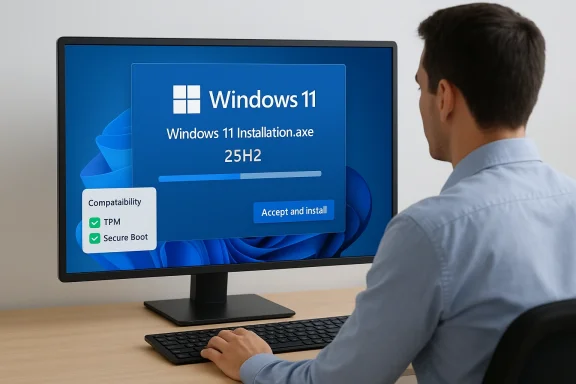
Upgrading with the Installation Assistant gives you a supported in‑place upgrade — the same general result as waiting for Windows Update, but delivered now. Expect these behaviors:- Compatibility checks up front. The Assistant runs the baseline hardware and security checks (TPM, Secure Boot, memory, CPU family, and driver compatibility) and will block or warn if the device does not meet Microsoft’s requirements.
- Download and install phases. The tool downloads the full installation payload in the background; you can continue using your PC while the download proceeds. The final phase requires multiple reboots.
- Preserved data and apps. In most cases, files, settings, and apps are preserved. However, some apps and drivers incompatible with 25H2 may be removed automatically or require reinstallation.
- Enablement package behavior. For devices already on Windows 11 24H2, the 25H2 update may be delivered as an enablement package that flips the active version without a full new build replacement. The Assistant handles the appropriate path depending on the current state of the machine.
- Fallback and rollback. If the upgrade fails or you’re unhappy, the standard Windows rollback mechanism (within the limited retention window) is available, although creating a full backup before upgrading remains best practice.
Step‑by‑step: using the Windows 11 Installation Assistant 25H2
- Back up first. Always create a full image backup or at least a file backup before performing a feature update.
- Ensure system maintenance. Apply any pending quality updates, update drivers (especially storage and network), and ensure sufficient free disk space.
- Download the tool. Get the official Windows11InstallationAssistant.exe from Microsoft’s Download Center (look for the 25H2 variant).
- Run the tool as an administrator. Right‑click and select “Run as administrator” to ensure the process can make system changes.
- Let the tool scan the system. The Assistant checks compatibility and reports any show‑stopper issues. Address flagged hardware or driver problems before proceeding.
- Accept and install. Click the “Accept and install” option to begin the download and upgrade process.
- Wait for reboots. The Assistant will prompt for and perform reboots to complete the in‑place upgrade. Don’t interrupt power on laptops — leave them connected to a charger.
- Post‑install checks. After the upgrade, verify device drivers, check Windows Update for post‑install cumulative patches, and confirm application behavior.
Compatibility, hardware checks, and the “unsupported” machine problem
A recurring issue with Windows 11 feature updates is eligible hardware checks. Microsoft enforces TPM 2.0, Secure Boot and certain CPU families/ generations as part of the compatibility baseline. The Installation Assistant performs the same compatibility validation that Windows Update uses.- If your machine fails compatibility, the Assistant will refuse to proceed or will present a compatibility advisory. This is by design and is intended to prevent unsupported platform upgrades that can cause instability or break automatic servicing.
- For enterprises, Microsoft still supports some management-driven exceptions in controlled environments, but those are separate and require administrative tooling and policies.
- Community workarounds (custom ISOs, third‑party tools that bypass checks) exist, but they carry real risks: lack of warranty/support, inability to receive certain updates, and potential security exposure.
Known issues and post‑upgrade troubleshooting
Feature updates are large, complex operations and occasionally introduce regressions. Community reporting and initial post‑release updates have highlighted several categories of issues around 25H2 installs:- Driver‑related regressions: Graphics or storage drivers can produce performance regressions or compatibility problems. If you see unusual behavior, perform a clean driver reinstall from the hardware vendor’s site.
- Application compatibility: Some apps may require updates to function properly after the feature update. Check vendor support pages if a critical app misbehaves.
- Windows Update quirks: In some cases, the Media Creation Tool and the in‑place assistant deliver different experiences on ARM devices and unusual hardware configurations.
- Known government/enterprise blockers: Corporate images, endpoint protection products, or system management agents can interfere with upgrades. Administrators should test in a lab environment before wide deployment.
Security and privacy considerations
The Installation Assistant is an official Microsoft tool; running it means you accept Microsoft’s installation workflow and its checks. A few security notes to keep in mind:- Official source only. Always download the Assistant from Microsoft’s official Download Center or the Windows 11 support page. Third‑party mirrors or reposted copies may be tampered with.
- Administrator privileges. The tool requires elevated privileges. Verify the file’s signature and only run it on systems you trust.
- Telemetry and diagnostics. Upgrades may reassert or reset some diagnostic settings; review privacy and telemetry options post‑install if compliance is a concern.
- Post‑upgrade hardening. After upgrading, confirm security features like Secure Boot, BitLocker, and Defender settings are intact and functioning, and revalidate any MDM or group‑policy applied configurations.
Why the “quiet” release matters — strategic and practical interpretations
There are several plausible reasons Microsoft published the Installation Assistant 25H2 quietly rather than staging a big announcement:- Operational discretion for staged rollouts. Microsoft typically uses phased rollouts and release‑health dashboards to control exposure. Publishing the Assistant in the Download Center is a way to support administrators and eager users without accelerating the general consumer wave.
- Support channel priming. Making the tool available gives technicians and IT pros an official, supported path to upgrade devices where Windows Update hasn’t yet offered the feature — useful in staged rollouts or when rapid testing is required.
- Avoiding mass immediate upgrades. A high‑profile launch could drive many users to upgrade immediately, increasing support demand. A quieter publishing keeps the rollout manageable while still allowing voluntary manual upgrades.
- Documentation and tooling lag. Sometimes product pages and blog posts appear later; shipping the technical assets first lets downstream tools (SCCM, Intune catalogs, third‑party sysadmin scripts) catch up.
Enterprise implications and recommended workflows
For IT administrators, the availability of a 25H2 Installation Assistant is a useful addition to the toolkit, but it is not a substitute for tested deployment pipelines.- Test in lab environments first. Validate 25H2 against corporate images, line‑of‑business applications, and DUO/SSO solutions before wide rollout.
- Use Windows Update for Business and ring deployments. For larger fleets, continue to prefer staged deployments using WUfB, WSUS, or Configuration Manager to control exposure and rollback strategies.
- Limit the Assistant to targeted use cases. Use the Installation Assistant for single‑device remediation, lab testing, or ad‑hoc upgrades when Windows Update is slow to arrive. Do not use it as the primary fleet upgrade mechanism.
- Preserve retention/rollback windows. Ensure backup and system state capture before using the Assistant on production machines to simplify recovery if needed.
- Document exceptions. If specific machines require a one‑off upgrade via the Assistant (e.g., to meet a critical app’s needs), record the actions and reasons in your change control system.
Risk assessment — benefits vs. downsides
Benefits- Simplicity: Guided, supported, and familiar single‑click upgrade flow.
- Speed: Avoids waiting for staged Windows Update offers; useful for testers and admins.
- Official support: Microsoft‑published tool with the same compatibility checks as Windows Update.
- Compatibility pitfalls: Machines failing checks may be partially upgraded or blocked; unsupported bypasses are risky.
- Potential regressions: Feature updates can introduce bugs; immediate upgrade increases exposure to early regressions.
- Operational load: If widely publicized, manual upgrades can spike helpdesk demand.
- Unsupported workarounds pressure: Availability of tools can tempt users to bypass management policies or use community bypasses to force upgrades on unsupported hardware.
Troubleshooting checklist: common failures and fixes
- Installation Assistant stalls at X% during download
- Check network connectivity, disable proxies/VPNs, and temporarily suspend aggressive firewall rules.
- Clear temporary files and restart the Assistant.
- Compatibility check fails (TPM, Secure Boot, CPU)
- Verify BIOS/UEFI settings; enable Secure Boot and TPM (fTPM) if present. If hardware truly lacks requirements, avoid unsupported bypasses.
- Upgrade completes but apps misbehave
- Reinstall or update affected apps; check vendor compatibility notices.
- Roll back to previous version if an essential application is broken and no immediate fix exists.
- Device unresponsive after reboot
- Boot to recovery media; use restore points or image backup to return to a working state.
- File a support ticket with Microsoft if the issue appears widespread or if no local fix is possible.
Practical guidance for home users and enthusiasts
- Backup before you click. Even if the Assistant is supported and preserves files, accidents happen.
- Wait if you depend on a single critical device. Early adopter upgrades are fine for secondary machines; keep your daily driver on a stable path for a few weeks if you want the safest track.
- Use the Assistant for fast manual upgrades. If you need 25H2 today — for testing or new features — the Installation Assistant is the easiest supported path.
- Keep drivers up to date pre‑upgrade. This reduces the chance of post‑install driver regressions, particularly for graphics and storage.
Final analysis: what this release says about Microsoft’s update strategy
Publishing the Windows 11 Installation Assistant 25H2 into the Microsoft Download Center — quietly but officially — underscores Microsoft’s multi‑channel approach to feature updates. The company balances broad, controlled staged rollouts with official manual upgrade tools to accommodate testers, IT pros, and impatient power users. The presence of a small, version‑tagged Installation Assistant entry is a pragmatic move: it supports immediate, supported upgrades without forcing a global, high‑visibility push that could overload support channels.For administrators, the tool is a welcome convenience for testing and one‑off upgrades, but it should not replace controlled, documented rollouts. For home users, the Assistant is an excellent option when you want the update now and you’re comfortable with the usual caveats (backups, driver updates, and a willingness to troubleshoot).
Microsoft’s quiet publishing is therefore less an oversight and more an operational decision: provide the official tooling for those who need it while allowing the broader staged rollout to continue without disruption. If you plan to use the tool, treat it with the same preparation and caution you’d give any major OS update — back up, verify compatibility, and plan for a quick rollback route if needed.
Conclusion
The addition of an official Windows 11 Installation Assistant 25H2 to Microsoft’s download catalog gives users a straightforward, supported method to upgrade to the 25H2 feature update immediately. It fills a useful niche between the staged Windows Update rollout and the more manual Media Creation Tool approach. The tool’s quiet publication reflects a deliberate strategy: enable immediate, supported upgrades for those who need them, while preserving a staged, controlled experience for the majority. Use the Assistant when it makes sense for your scenario, but keep standard upgrade discipline: back up, test, and apply measured rollout practices for production devices.
Source: Neowin Microsoft quietly released a simple Windows 11 25H2 upgrade install tool