Windows Insiders on the Dev and Beta channels are receiving Windows 11 Insider Preview Build 26220.7262 (KB5070303), a 25H2-based enablement-package release that smooths the path for several incremental accessibility, AI, and usability improvements while keeping a careful, controlled rollout through toggles and CFR (Controlled Feature Rollout) mechanisms.
Background / Overview
Microsoft is distributing Build 26220.7262 to both the Dev and Beta Channels as part of its ongoing 25H2 enablement-package stream. For a limited time, Insiders in the Dev Channel can switch to Beta while these 25H2-based builds remain identical across the two channels. Once the Dev Channel advances to a higher build, the window to switch will close and the Dev Channel may again diverge into less stable, experimental builds.This release continues Microsoft’s approach of staged delivery: some features are rolled out gradually to Insiders who opt in to receive the very latest updates via Settings > Windows Update, while other improvements are expanded to everyone in the channels over time. That model allows Microsoft to gather telemetry and Feedback Hub input before wider exposure.
Key themes in this build include:
- Accessibility upgrades (HD voices for Narrator and Magnifier; structured math reading in Narrator)
- New AI-related settings and temporary reconfigurations of File Explorer AI capabilities
- UX refinements (Click to Do context menu, teaching tips) and hardware feedback (haptic pens)
- Bug fixes and a small set of known issues for Insiders to watch
What’s new in Build 26220.7262
HD voices for Narrator and Magnifier (on-device, expressive speech)
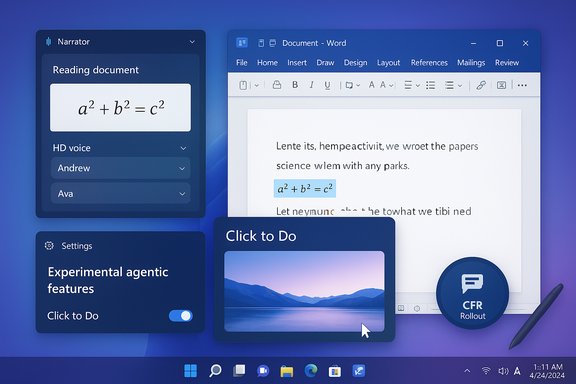
Microsoft introduced high-definition (HD) voices accessible in both Narrator and Magnifier. These are powered by the latest on-device text-to-speech models and aim to produce more natural, expressive speech with smoother prosody and pacing.- The initial offering is focused on English (United States) and provides at least two persona options: Andrew (male) and Ava (female).
- HD voices are delivered as downloadable options inside Settings → Accessibility → Narrator (and the same flow in Magnifier): tap “Add a natural voice,” download your preferred HD voice, and switch or adjust playback speed at any time.
- The key technical detail is that HD voices use newer on-device TTS models designed to reduce listening fatigue during long sessions and to read content with more natural intonation.
- Clearer audio and more lifelike cadence when Narrator or Magnifier reads documents and on-screen content.
- Lower cognitive load for users who rely on screen readers for extended reading or complex content.
- HD voices are currently localized only to en-US in this early rollout; additional locales are expected over time.
- Because these voices use more advanced models, they may have a larger footprint on disk once downloaded. Users should manage storage on devices with constrained space.
- The experience is opt-in per-device (download required) so enterprise IT can limit deployments if desired.
Narrator now supports structured math reading (first phase)
This build introduces the first phase of Math reading in Narrator, enabling more natural and structured playback of equations and scientific notation in supported scenarios — notably Microsoft 365 apps such as Word.How it works:
- With Narrator enabled (Win + Ctrl + Enter), standard Narrator reading commands will read equations in a way that reflects mathematical structure rather than a flat stream of characters.
- The intent is to make math accessible to blind and low-vision users in educational and professional contexts.
- This is an initial phase and is scoped to certain app scenarios (Word and Microsoft 365 documents are explicitly called out).
- Microsoft plans to broaden coverage over time and refine the reading commands and structure parsing.
- Users who rely on precise math rendering should verify behavior on sample documents and report gaps through Feedback Hub to accelerate improvements.
AI Components: “Experimental agentic features” toggle
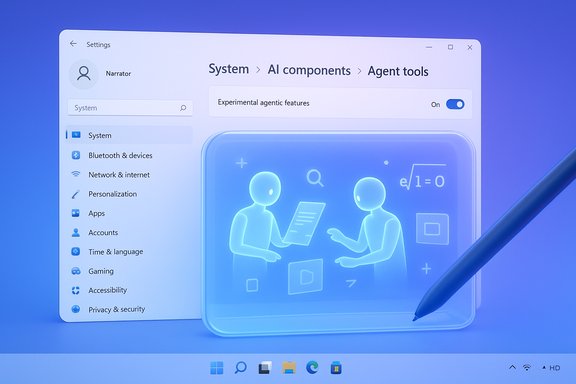
A new Settings toggle appears under System → AI Components labeled “Experimental agentic features.” This setting controls whether Windows agents can use new agentic capabilities—functions that enable agents to perform multi-step or proactive tasks on behalf of users.Why this matters:
- Agentic features move beyond single-query responses toward agents that can sequence actions, make decisions, and potentially interact with system functions or third-party services.
- The toggle gives Insiders control over exposure to early agentic behaviors while Microsoft tests the UX, safety, and telemetry aspects.
- Agentic features are experimental and may surface new telemetry and decision-making behaviors. Insiders should treat them as experimental and enable them only on test devices or where the privacy implications are acceptable.
- Organizations should be cautious about enabling experimental agentic options on production endpoints until guidance and enterprise controls are more mature.
Click to Do: streamlined context menu and auto-pop for images/tables
The Click to Do context menu is receiving a design refresh aimed at making common actions easier to find. The new design surfaces frequently used actions such as Copy, Save, Share, and Open more prominently.Notable behaviors:
- When a large image or table appears on the screen, Click to Do may automatically pop up with suggested actions, shortening the time from selection to execution.
- This is part of Microsoft’s wider push to surface AI-driven actions in context where they’re most useful.
- Microsoft also reported turning off Image Object Selection temporarily for Dev and Beta Insiders. This indicates a short-term rollback while the company adjusts the functionality or fixes underlying issues.
File Explorer AI actions, CFR reconfiguration and tabs pause
File Explorer’s AI actions (including Copilot summary actions and image actions) are undergoing a CFR reconfiguration. Insiders may notice a temporary reduction in image-based actions and Copilot summaries as the system is relaunched and gradually re-enabled.Additionally, the rollout of a change that would open newly launched folders in tabs (instead of separate windows) has been paused due to reliability issues. Microsoft is temporarily stopping that part of the roll-out and will reintroduce it once fixed.
Implications:
- Insiders testing File Explorer’s AI integrations may see fluctuations in availability while Microsoft refines backend configuration and rollout logic.
- These temporary pauses are typical of CFR-driven rollouts where feature subsets are iterated upon before broader exposure.
Teaching tips, haptic pen support, and UX polish
The release includes several smaller but meaningful UX changes:- Teaching tips and the tutorial introduction screen have been refreshed with a new “Launch Tutorial” button and clearer onboarding instructions.
- Support for haptic feedback with pens that expose the capability: tactile responses may occur during interactions like hovering over close buttons or snapping windows.
- Haptic responses can improve discoverability and provide a tactile layer to UI affordances, but the feature is hardware-dependent (requires supported pens and drivers).
- Teaching tip improvements are helpful for new users and should improve the onboarding experience for new or lesser-known UI features.
Fixes included in this build (selected)
The build brings fixes for several issues that had degraded usability for some Insiders:- Fixed a problem where mouse and keyboard input ceased to work for certain Insiders in WinRE / Advanced Startup environments.
- Resolved a Taskbar-related bug that incorrectly told some Insiders their camera was ineligible for Recall features.
- Addressed an issue where Task Manager’s process did not stop correctly after closing, which in some cases caused Task Manager to open unexpectedly on boot.
- Restored Virtual Workspaces options that were not functioning correctly under Settings → System → Advanced.
Known issues you should know about
Microsoft lists several known issues for Insiders running this build:- Taskbar and System Tray: Some Insiders may find the Start menu does not open via click (it still opens with the Windows key). The behavior may be linked to the notification center (WIN + N).
- System Tray Visibility: Certain apps may not appear in the system tray even when they should be visible.
- File Explorer copy dialog (dark mode): Copy progress may flash when toggling details; a missing scrollbar and footer may show a white block when text scaling is applied.
- .NET Framework / Visual Studio (ARM64): On ARM64 PCs, Visual Studio or apps relying on .NET Framework may experience crashes. Microsoft’s recommended mitigation is to check Windows Update and install the latest .NET Framework fixes as they become available.
- Use the Feedback Hub to report reproducible problems (WIN + F). Include repro steps and diagnostics when possible.
- Check Windows Update for .NET Framework patches if you run ARM64 workloads and Visual Studio.
- Avoid enabling experimental toggles on production devices; use a test system for bleeding-edge features.
Cross-check: technical details and verification
Several technical details in this release align with independent public sources and product documentation:- Azure’s HD TTS models and the “DragonHD” family are published in Microsoft’s Azure AI Speech documentation, showing en-US voices such as Andrew and Ava are part of the available persona set.
- Microsoft’s staged rollout model and Controlled Feature Rollout (CFR) behavior are consistent with past Insider distribution patterns and the presence of opt-in toggles for “get the latest updates” in Settings → Windows Update.
- The concept of agentic features (agents performing multi-step actions) and a dedicated toggle for experimentation follows Microsoft’s recent trajectory toward integrating more agent-based AI features and providing user-level controls.
- Availability of HD voices across regions and additional locales depends on Azure region rollout and Microsoft’s internal schedule; Insiders should expect expansion over time.
- Agentic features are explicitly experimental; their behavior, privacy model, and enterprise controls may evolve before any broad public release.
Risks, privacy, and security analysis
The build introduces several capabilities that raise important security and privacy questions—particularly around AI-driven and agentic features.Key risk areas:
- Agentic features: Allowing agents to act autonomously can expand attack surface and increase the chance of inadvertent data exposure if an agent acts on third-party integrations. Experimental toggles help, but enterprises should not enable agentic features on critical assets without policy controls.
- On-device vs. cloud AI: HD voices are presented as on-device models, which reduces cloud dependency and improves privacy, but many AI interactions in Windows still rely on cloud services. Users and organizations should review telemetry, network policies, and local caching behavior.
- File Explorer AI: Summaries and image actions may process content that organizations consider sensitive. Controlled rollouts are appropriate, but admins should audit what is transmitted to AI services and whether policy controls exist to prevent exfiltration.
- Beta/Dev channel mixing: The temporary alignment of Dev and Beta builds offers the convenience of switching channels but increases the chance that Insiders expecting Beta-level stability will see more experimental behaviors if they switch back and forth. Users should test on nonessential devices.
- Use test hardware for Insider builds; don't enable experimental toggles on workstations handling confidential data.
- Review Windows privacy and diagnostic settings, and configure network controls where needed to limit cloud calls for AI features.
- Monitor for updates to Microsoft’s enterprise guidance for agentic features or AI Components settings.
Guidance for Insiders: should you switch channels or enable the toggle?
For Insiders deciding whether to switch from Dev to Beta while the builds match:- If you prioritize stability and fewer surprises, stay in Beta or wait to switch only after reviewing community feedback and known-issue lists.
- If you want earlier access to incremental UI tweaks and AI experiments and are comfortable troubleshooting, remaining in Dev while the window is open is acceptable—but back up your data.
- Turn the toggle on if you want to receive gradual CFR-based feature rollouts sooner and can tolerate intermittent issues.
- Keep it off if you prefer features to arrive fully matured and broadly validated.
- Always image or snapshot your test machine before major Insider updates.
- Use Feedback Hub deliberately—file reproducible steps and attach diagnostics.
- For enterprise testers, coordinate with IT to ensure Insider features don’t collide with compliance or endpoint protection policies.
What to watch next
Insiders should monitor a few areas as Microsoft continues to iterate:- Broader availability of HD voices (more languages and region support) and any performance/space trade-offs on smaller devices.
- Expansion of math-reading support beyond Word and Microsoft 365, including web and PDF scenarios.
- How the “Experimental agentic features” toggle evolves: documentation, enterprise controls, and telemetry options.
- File Explorer AI reconfiguration: whether image actions and Copilot summaries return in a modified form and when folder-tabs behavior is reintroduced.
- Fixes for the Start menu, system tray, and File Explorer copy dialog dark mode issues.
Final assessment
Build 26220.7262 is a measured update that blends meaningful accessibility advances with continued AI experimentation. The HD voices and Math reading improvements are welcome for users who rely on Narrator and Magnifier, and the explicit Experimental agentic features toggle reflects Microsoft’s attempt to give users control over emergent agentic behaviors.At the same time, the build surfaces typical trade-offs: temporary rollbacks (Image Object select, File Explorer tabs), a small set of stability concerns, and features gated behind CFR and opt-in toggles. Those trade-offs are by design and reflect a staged, feedback-driven approach that suits Insider testing, but they underscore why Insiders should run these builds on noncritical devices and report issues through Feedback Hub.
For enthusiasts and IT pros who want to help shape Windows, this build provides the right mix of accessibility wins and AI experimentation to test and critique. For users who need rock-solid stability, wait for wider rollouts and enterprise guidance on agentic features before enabling experimental toggles in production environments.
Overall, Build 26220.7262 continues Windows’ push toward richer accessibility, contextual AI, and agentic experimentation—while reminding Insiders that careful testing and conservative deployment practices remain essential during the 25H2 enablement cycle.
Source: Microsoft - Windows Insiders Blog Announcing Windows 11 Insider Preview Build 26220.7262 (Dev & Beta Channels)